Get 50% OFF All Premium 3D & STL Models!

“`html
The world of 3D printing offers unparalleled opportunities for customization, and this is especially true when it comes to creating detailed and personalized car models. Whether you’re a hobbyist looking to add realism, a collector seeking specific details, or a professional prototyping, the ability to incorporate car logos, emblems, and custom details into your STL files is a crucial skill. This comprehensive guide will walk you through the necessary steps, techniques, and considerations for successfully adding these elements to your 3D printable car models, ensuring a professional and satisfying result. Platforms like 88cars3d.com offer print-ready STL files, but customization takes your project to the next level.
In this guide, we’ll explore the intricacies of working with STL files, delve into various software solutions for adding details, and cover the best practices for achieving optimal print quality. We’ll cover everything from selecting the right software and acquiring high-quality logo files to preparing your model for printing and troubleshooting common issues. By the end of this guide, you’ll have the knowledge and skills to confidently add your own personal touches to your 3D printed car models.
Before diving into the process of adding logos and details, it’s crucial to understand the structure and limitations of STL (Stereolithography) files. STL is a file format native to stereolithography CAD software created by 3D Systems. It represents the surface geometry of a 3D object as a collection of triangles. This representation, while simple, has significant implications for how we can modify and customize these files.
STL files contain only surface data, lacking information about color, texture, or material properties. Each triangle is defined by its three vertices and a normal vector indicating its orientation. This simplicity makes STL files widely compatible but also presents challenges. The faceted nature of STL files can lead to a loss of detail, especially when dealing with curved surfaces. When adding logos or emblems, it’s important to consider the resolution of the STL file. A low-resolution file might not accurately represent the added details, resulting in a jagged or pixelated appearance.
Mesh topology refers to the connectivity of the triangles in the STL file. A “manifold” mesh is one that is closed, without any holes or self-intersections. For successful 3D printing, it’s crucial that your STL file is manifold. Non-manifold geometry can cause slicing errors, unexpected print behavior, and ultimately, a failed print. When adding logos or details, you might inadvertently introduce non-manifold elements. Software tools like Netfabb and Meshmixer can be used to identify and repair these issues. These tools analyze the mesh for errors such as open edges, flipped normals, and intersecting faces, providing automated or manual repair options.
Several software options are available for adding logos, emblems, and custom details to STL files, each with its strengths and weaknesses. The choice depends on your experience level, the complexity of the desired details, and your budget. Here, we’ll explore some popular options and their specific applications.
Meshmixer is a free, user-friendly software from Autodesk that’s ideal for basic modifications and adding simple details to STL files. Its sculpting tools allow you to directly manipulate the mesh, adding or subtracting material. For adding logos, you can import a 2D image (such as a PNG or SVG) and use Meshmixer’s “Import as Relief” function to emboss the logo onto the surface of the car model. This is a relatively straightforward process but might require some manual cleanup to ensure a smooth transition between the logo and the original surface. Consider the logo’s depth; a shallow emboss might not be visible after printing, while a deep emboss could weaken the model.
Blender is a powerful, open-source 3D modeling software that offers a wide range of tools for advanced customization. While it has a steeper learning curve than Meshmixer, Blender provides greater control over the modeling process. You can create complex logos and emblems from scratch, precisely position them on the car model, and seamlessly integrate them into the existing geometry. Blender also supports advanced texturing and shading, allowing you to simulate different material finishes for the added details. This is particularly useful for replicating chrome or metallic emblems. Furthermore, you can leverage Blender’s modifiers (such as Boolean) for clean subtraction of the logo shapes into the car’s body, thus creating an engraving or detailed recess. However, be cautious with complex boolean operations as they can sometimes generate non-manifold geometry that requires repair.
For users familiar with CAD software like Fusion 360 or SolidWorks, these programs offer the most precise and controlled way to add details. CAD software is primarily designed for creating dimensionally accurate models, making them ideal for replicating complex emblems or creating custom parts that need to fit perfectly. The workflow typically involves importing the STL file as a mesh, converting it to a solid body (if possible), and then using CAD modeling tools to create the logo or emblem. This approach ensures that the added details are accurately positioned and dimensioned, minimizing the risk of errors during printing.
The quality of your logo and emblem files directly impacts the final result. Using low-resolution or poorly designed files will lead to a subpar print. Therefore, sourcing high-quality vector graphics and preparing them for 3D modeling is crucial.
Vector graphics, such as SVG (Scalable Vector Graphics), AI (Adobe Illustrator), and EPS (Encapsulated PostScript), are ideal for logos and emblems because they are resolution-independent. This means that they can be scaled up or down without losing quality. Raster images, such as PNG and JPG, are composed of pixels, and scaling them up will result in a blurry or pixelated image. When sourcing logos, always prioritize vector graphics whenever possible. If only raster images are available, try to find the highest resolution version possible and consider using vectorization software (like Adobe Illustrator’s image trace feature or Inkscape’s trace bitmap function) to convert them to vector format.
Before importing a logo into your 3D modeling software, it’s often necessary to clean and simplify its geometry. Vector graphics can sometimes contain unnecessary details or overlapping paths that can complicate the modeling process. Use vector editing software to remove any extraneous elements, simplify complex curves, and ensure that all paths are closed and properly connected. For example, if you are using Adobe Illustrator, utilize the pathfinder tool to merge shapes and remove overlaps. In Inkscape, the “Simplify” extension can reduce the number of nodes in a path, making it easier to work with. A simplified and clean logo will translate more effectively into a 3D model, resulting in a smoother and more accurate print.
Adding logos and emblems can introduce new challenges for 3D printing. It’s essential to optimize your STL model to ensure a successful and high-quality print.
Print orientation plays a critical role in determining the need for support structures and the overall print quality. When adding logos or emblems, carefully consider the orientation of the model to minimize the amount of support material required, especially around the added details. Overhanging features may require extensive support, which can be difficult to remove without damaging the model. Experiment with different orientations to find the one that minimizes overhangs and maximizes bed adhesion. For example, orienting the car model with the roof facing down might reduce support needs for roof-mounted details. When using support structures, opt for dissolvable support materials like PVA (polyvinyl alcohol) for FDM printing or specialized support resins for resin printing, as they can be easily removed without leaving any marks.
Layer height and infill settings are crucial for balancing print quality, print time, and material consumption. Lower layer heights (e.g., 0.1mm or 0.05mm) result in smoother surfaces and finer details, but they also increase print time. Higher layer heights (e.g., 0.2mm or 0.3mm) print faster but may sacrifice detail. For areas with logos or emblems, consider using a lower layer height to capture the intricate details accurately. Infill density affects the strength and weight of the model. A higher infill density (e.g., 20% or 30%) provides greater strength but also increases material usage. For car models that are primarily for display, a lower infill density (e.g., 10% or 15%) might be sufficient. Choose an appropriate infill pattern based on the model’s geometry and intended use. Gyroid infill, for instance, offers a good balance of strength and material efficiency.
Proper bed adhesion is essential for preventing warping and ensuring that the print stays firmly attached to the build plate throughout the printing process. Use appropriate bed adhesion techniques, such as applying a glue stick, using painter’s tape, or using a heated bed. For materials like ABS, a heated bed is almost mandatory to prevent warping. Ensure that the bed is properly leveled and that the nozzle is the correct distance from the bed. The first layer should be slightly squished onto the bed for optimal adhesion. Enclosing the printer in an enclosure can also help to maintain a consistent temperature and prevent warping, especially for temperature-sensitive materials.
Even with careful preparation and optimized print settings, some post-processing is usually necessary to achieve a professional finish. Removing support structures, sanding, and painting are common techniques used to enhance the appearance of 3D printed car models.
Removing support structures carefully is crucial to avoid damaging the model. Use specialized tools like tweezers, pliers, or a deburring tool to gently remove the supports. For dissolvable support materials, simply soak the model in water until the supports dissolve. After removing the supports, the surface might have some imperfections or bumps. Sanding is used to smooth these imperfections and create a smooth surface for painting. Start with a coarse grit sandpaper (e.g., 220 grit) and gradually move to finer grits (e.g., 400 grit, 600 grit, 800 grit) to achieve a polished finish. Wet sanding can also help to reduce dust and create a smoother surface. For complex geometries, consider using rotary tools with sanding attachments for more precise control.
Painting is a great way to add color, realism, and detail to your 3D printed car models. Use spray paints specifically designed for plastics, as they adhere better to the material and provide a more durable finish. Apply multiple thin coats of paint, allowing each coat to dry completely before applying the next. This helps to prevent drips and runs and results in a smoother, more even finish. Use masking tape to protect areas that you don’t want to paint, such as windows or trim. Detailing can be done using fine-tipped brushes and acrylic paints. Consider using weathering techniques, such as dry brushing or washes, to add a realistic, aged appearance. When downloading models from marketplaces such as 88cars3d.com, consider how post-processing can enhance the final outcome.
Despite careful planning and execution, 3D printing can sometimes present challenges. Here are some common issues and best practices for troubleshooting them.
Warping, delamination (layer separation), and print failures are common issues in FDM printing. Warping is often caused by uneven cooling, leading to the corners of the print lifting off the bed. Ensure that the bed is properly heated and leveled, and consider using an enclosure to maintain a consistent temperature. Delamination can be caused by insufficient bed adhesion, incorrect temperature settings, or drafts. Increase the bed temperature, adjust the nozzle temperature, and eliminate any drafts in the printing environment. Print failures can be caused by a variety of factors, including clogged nozzles, filament jams, and incorrect slicer settings. Regularly clean the nozzle, ensure that the filament is properly loaded, and double-check your slicer settings before printing. Regularly calibrating your 3D printer is also crucial.
Mesh errors and non-manifold geometry can cause slicing errors and unexpected print behavior. Use mesh repair software like Netfabb or Meshmixer to identify and fix these issues. These tools can automatically repair common mesh errors, such as open edges, flipped normals, and intersecting faces. Before printing, always check the mesh for errors and repair them if necessary. Regularly updated slicing software can also help identify and sometimes automatically correct minor mesh issues.
Material selection significantly impacts the final print quality, strength, and appearance. PLA (Polylactic Acid) is a biodegradable thermoplastic that’s easy to print and ideal for beginners. It’s a good choice for decorative car models. ABS (Acrylonitrile Butadiene Styrene) is a stronger and more heat-resistant plastic, but it requires a heated bed and an enclosure to prevent warping. It’s suitable for functional parts or models that will be exposed to higher temperatures. PETG (Polyethylene Terephthalate Glycol-modified) combines the ease of printing of PLA with the strength and heat resistance of ABS. It’s a versatile material suitable for a wide range of applications. Resin printing offers exceptional detail and smooth surfaces, making it ideal for highly detailed car models. However, resin prints tend to be more brittle than FDM prints and require post-curing.
Adding car logos, emblems, and custom details to your 3D printed car models is a rewarding process that allows you to create truly unique and personalized pieces. By understanding the intricacies of STL files, choosing the right software, preparing your logo files carefully, optimizing your print settings, and mastering post-processing techniques, you can achieve professional-quality results. Remember to prioritize high-quality source materials, pay attention to mesh topology, and experiment with different settings to find what works best for your printer and materials. With practice and patience, you’ll be able to create stunning 3D printed car models that showcase your creativity and attention to detail. 88cars3d.com offers a great starting point with a wide selection of car models in STL format, ready to be customized with your personal touch.
Take these actionable steps to begin: Select a car model from a platform like 88cars3d.com, download a vector logo of your choosing, and experiment with adding this logo to the car’s body using Meshmixer. Focus on a simple shape first, and iterate on your design as you improve your skills. Enjoy the process and share your creations with the 3D printing community!
“`

Texture: Yes
Material: Yes
Download the Jaguar XFR-S 2014 3D Model featuring clean geometry, realistic detailing, and a fully modeled interior. Includes .blend, .fbx, .obj, .glb, .stl, .ply, .unreal, and .max formats for rendering, simulation, and game development.
Price: $19.99

Texture: Yes
Material: Yes
Download the Infiniti QX50 2019 3D Model featuring clean geometry, realistic detailing, and a fully modeled interior. Includes .blend, .fbx, .obj, .glb, .stl, .ply, .unreal, and .max formats for rendering, simulation, and game development.
Price: $19.99
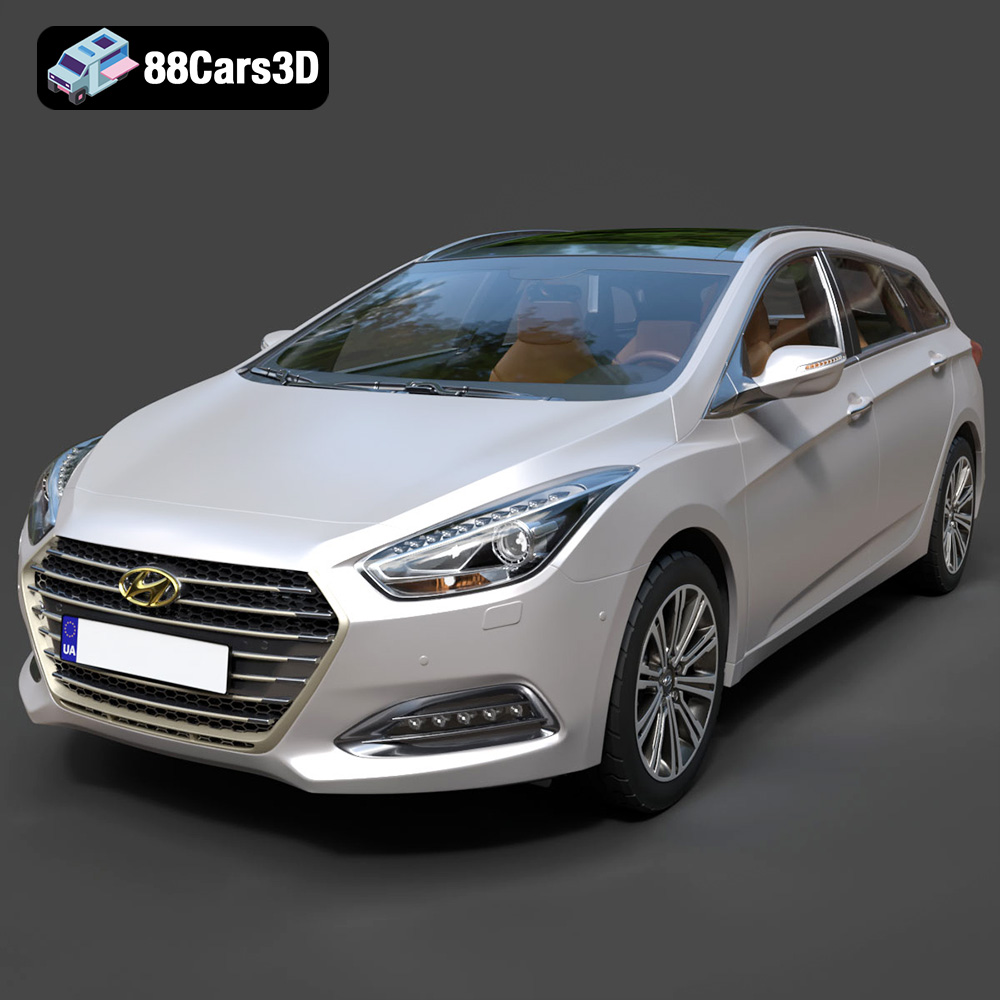
Texture: Yes
Material: Yes
Download the Hyundai i40 Wagon 2015 3D Model featuring clean geometry, realistic detailing, and a fully modeled interior. Includes .blend, .fbx, .obj, .glb, .stl, .ply, .unreal, and .max formats for rendering, simulation, and game development.
Price: $19.99

Texture: Yes
Material: Yes
Download the Honda NSX 2017 3D Model featuring clean geometry, realistic detailing, and a fully modeled interior. Includes .blend, .fbx, .obj, .glb, .stl, .ply, .unreal, and .max formats for rendering, simulation, and game development.
Price: $19.99
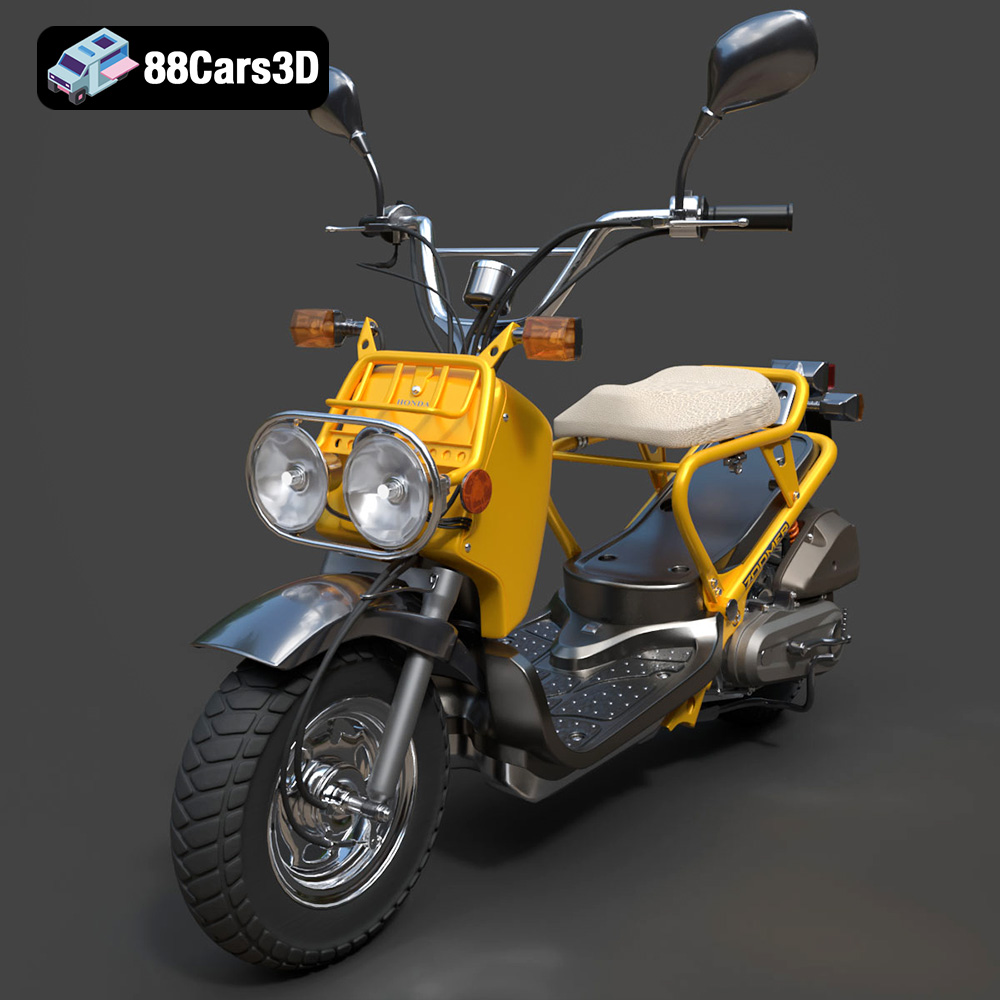
Texture: Yes
Material: Yes
Download the Honda Zoomer 50 2005 3D Model featuring clean geometry, realistic detailing, and a fully modeled interior. Includes .blend, .fbx, .obj, .glb, .stl, .ply, .unreal, and .max formats for rendering, simulation, and game development.
Price: $19.99

Texture: Yes
Material: Yes
Download the Honda Valkyrie GL1800C 2015 3D Model featuring clean geometry, realistic detailing, and a fully modeled interior. Includes .blend, .fbx, .obj, .glb, .stl, .ply, .unreal, and .max formats for rendering, simulation, and game development.
Price: $19.99
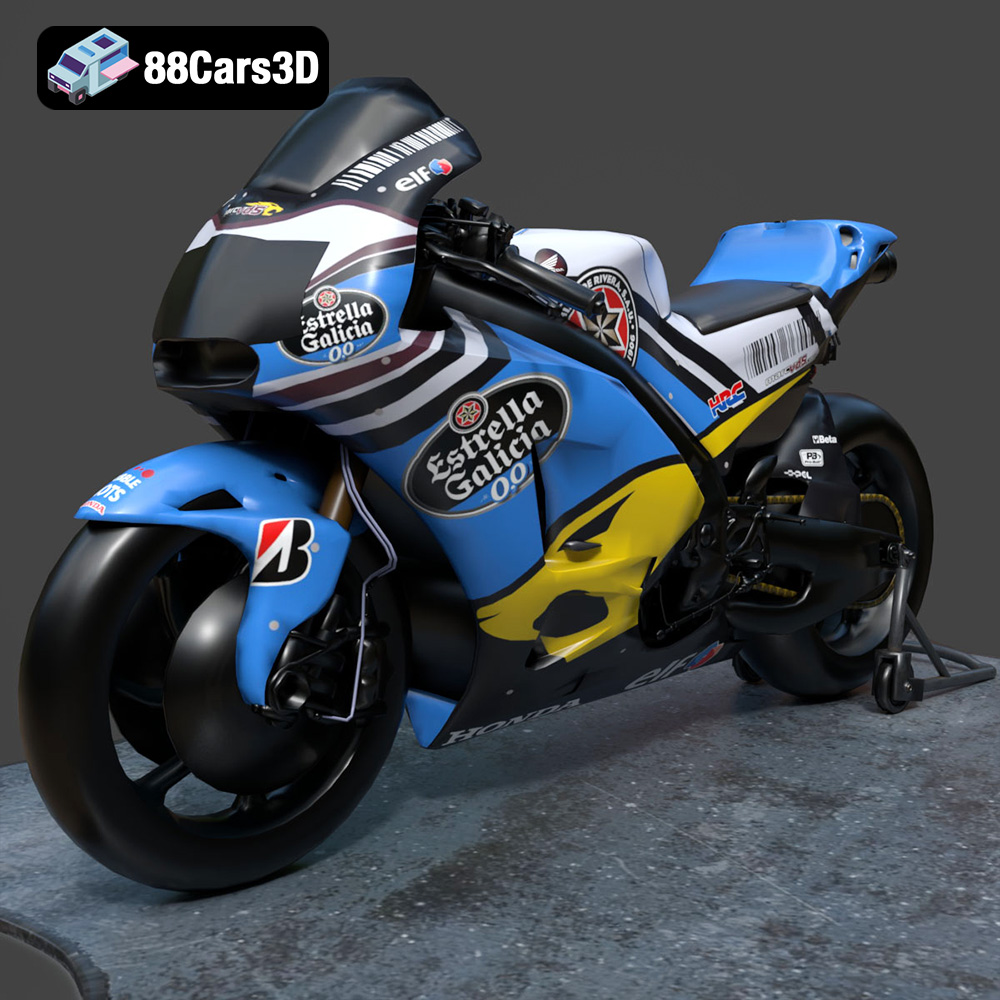
Texture: Yes
Material: Yes
Download the Honda RCV-213-001 3D Model featuring clean geometry, realistic detailing, and a fully modeled interior. Includes .blend, .fbx, .obj, .glb, .stl, .ply, .unreal, and .max formats for rendering, simulation, and game development.
Price: $19.99
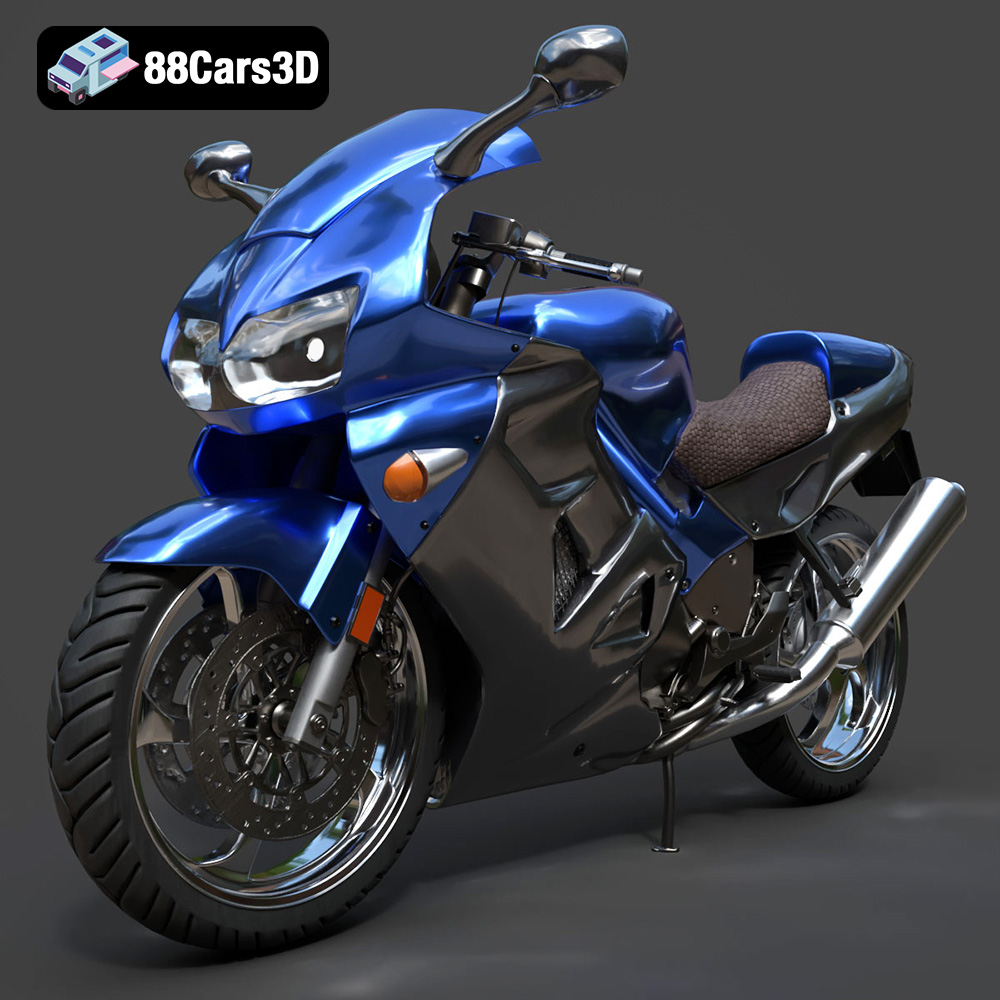
Texture: Yes
Material: Yes
Download the Honda VFR 801-002 3D Model featuring clean geometry, realistic detailing, and a fully modeled interior. Includes .blend, .fbx, .obj, .glb, .stl, .ply, .unreal, and .max formats for rendering, simulation, and game development.
Price: $19.99
Texture: Yes
Material: Yes
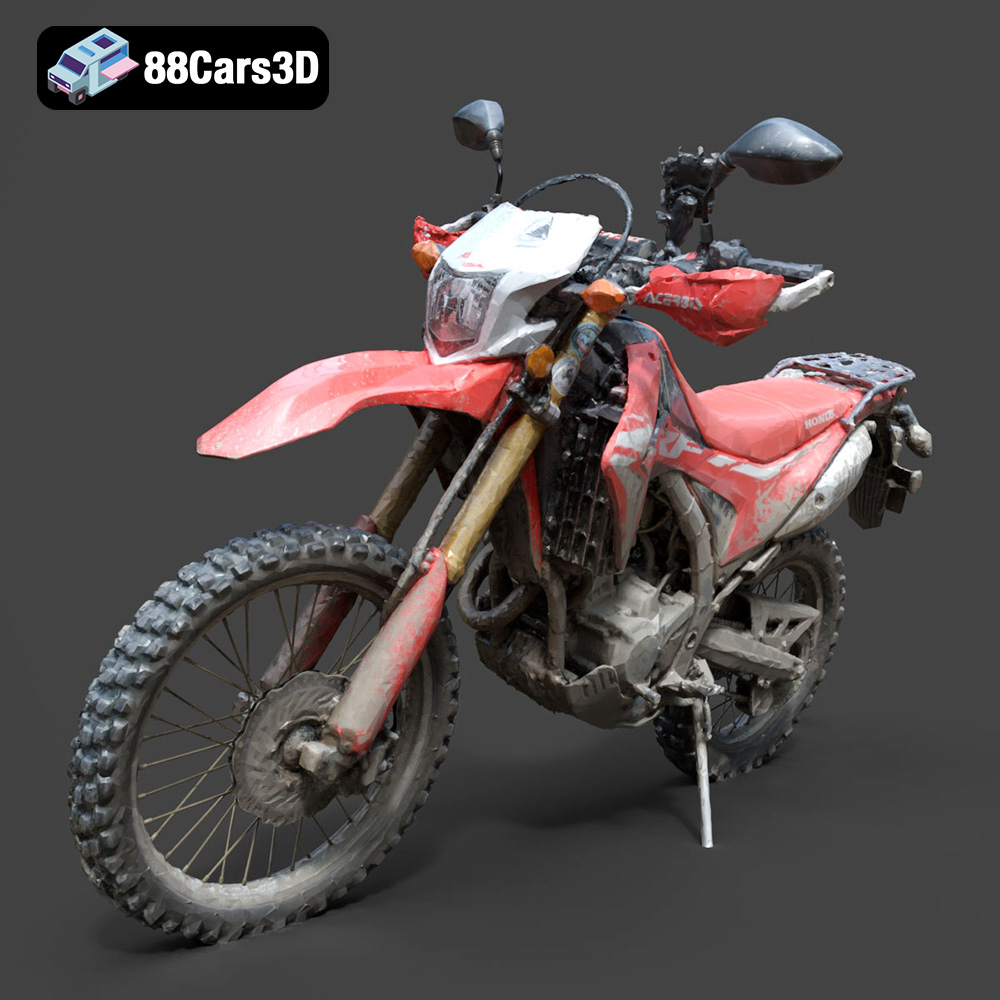
Download the Honda Motorcycle-001 3D Model featuring clean geometry, realistic detailing, and a fully modeled interior. Includes .blend, .fbx, .obj, .glb, .stl, .ply, .unreal, and .max formats for rendering, simulation, and game development.
Price: $19.99

Texture: Yes
Material: Yes
Download the Honda Monkey 125 2019 3D Model featuring clean geometry, realistic detailing, and a fully modeled interior. Includes .blend, .fbx, .obj, .glb, .stl, .ply, .unreal, and .max formats for rendering, simulation, and game development.
Price: $19.99

