Get 50% OFF All Premium 3D & STL Models!

“`html
3D printing has revolutionized the way we create, prototype, and even collect. At the heart of this revolution lies the STL file format, the lingua franca of 3D printers. However, not all STL files are created equal. Files downloaded from the internet, generated from scans, or even exported from CAD software can often contain imperfections that lead to printing failures. Cleaning up these STL files is crucial for achieving high-quality prints. This guide will walk you through the process of using Blender, a powerful and free open-source 3D creation suite, to repair and optimize STL files specifically for 3D printing. We’ll cover importing, inspecting, identifying common issues, and utilizing Blender’s tools to resolve them. Whether you’re printing intricate automotive models from platforms like 88cars3d.com or designing your own creations, mastering STL cleanup in Blender is an indispensable skill.
In this article, you will learn:
The first step in cleaning up an STL file is to import it into Blender and carefully examine its structure. Blender provides a robust environment for analyzing mesh data and identifying potential issues that could hinder successful 3D printing. Proper inspection is key to efficient and effective repair.
To import an STL file into Blender, follow these steps:
The model should now be visible in the Blender viewport. If it appears very small or large, you can adjust the scale in the import settings before clicking “Import STL” or rescale it after import using the ‘S’ key.
Once the STL file is imported, take the time to thoroughly inspect the model. Use these techniques for navigating and observing the model:
Rotate the model, zoom in on various areas, and look for any obvious problems like holes, gaps, or distorted surfaces. Pay close attention to areas that will require support structures during printing, as these are often prone to errors.
Blender offers overlays that can highlight potential issues in the mesh. To enable them, select the object, then go to the Overlays dropdown menu (two overlapping circles) in the top right corner of the 3D viewport. Here are some useful overlays:
These overlays provide valuable visual cues for identifying and addressing mesh issues. Regularly toggling these overlays during the cleanup process can save you time and prevent printing errors.
STL files, while widely used, are prone to various errors that can significantly impact print quality or even prevent successful printing. Understanding these common errors and how to identify them in Blender is crucial for effective repair. This section details the most frequently encountered issues.
Non-manifold geometry refers to areas in the mesh where the edges are shared by more than two faces, or where there are internal faces or edges that shouldn’t exist. This can cause serious problems for slicers, as they rely on a clear definition of the model’s surface. Common signs include:
To detect non-manifold geometry, you can use Blender’s “Select Non-Manifold” tool. In Edit Mode (Tab key), go to Select > Select All by Trait > Non Manifold. This will highlight all the non-manifold edges and vertices, allowing you to focus your repair efforts.
Each face in a 3D model has a normal, which is a vector pointing outward from the surface. Flipped normals occur when the normal points inward, effectively turning the face inside out. This can cause rendering issues and, more importantly, problems for slicers, as they may misinterpret the model’s geometry.
As mentioned earlier, the “Face Orientation” overlay is invaluable for identifying flipped normals. Red faces indicate that the normals are flipped and need to be corrected. To fix flipped normals, select the affected faces in Edit Mode, then go to Mesh > Normals > Flip. This will reverse the direction of the normals, turning the red faces blue.
Holes and gaps in the mesh are another common issue, often arising from data conversion errors or incomplete modeling. These can cause slicers to create unexpected paths, leading to printing errors or weak points in the final print. Zoom in close to the model and carefully inspect for any gaps or missing faces, especially around intricate details or sharp corners. You can also use the “Select Non-Manifold” tool to help identify edges bordering holes.
Addressing holes often involves creating new faces to fill the gaps. Blender offers several tools for this, which we’ll discuss in the next section.
Overlapping geometry happens when two or more faces occupy the same space. This is almost always an error and can cause unpredictable behavior during slicing and printing. While not always visually obvious, overlapping geometry can often be detected by selecting all vertices (A key in Edit Mode) and then going to Mesh > Clean Up > Merge by Distance. A small distance value (e.g., 0.001mm) will merge vertices that are very close together, effectively removing the overlapping geometry. Be careful not to use too large of a distance value, as this could unintentionally alter the model’s shape.
Once you’ve identified the errors in your STL file, the next step is to repair them using Blender’s powerful suite of editing tools. This section covers several key techniques for addressing common mesh issues and preparing your model for 3D printing.
Blender offers several methods for filling holes in the mesh. The best approach depends on the size and complexity of the hole:
After filling a hole, it’s important to check the new faces for correct orientation (blue color when “Face Orientation” overlay is enabled). If necessary, flip the normals as described in the previous section.
For minor imperfections or areas where precise adjustments are needed, Blender’s sculpting tools can be invaluable. Sculpting allows you to push, pull, smooth, and refine the mesh with intuitive brush strokes.
Sculpting requires practice and a steady hand, but it can be a powerful tool for fine-tuning your STL files.
The Remesh modifier is a powerful tool for simplifying complex meshes and creating a more uniform topology. It can be particularly useful for repairing STL files that have been generated from scans or other sources that produce irregular geometry.
Keep in mind that remeshing can significantly alter the shape of your model, so use it with caution and always compare the remeshed version to the original to ensure that you haven’t lost important details.
The Decimate modifier reduces the number of faces in a mesh while attempting to preserve its overall shape. This can be useful for reducing the file size of complex models, which can improve performance in slicers and reduce print times.
As with remeshing, decimating can alter the shape of your model, so use it carefully and always check the results.
Cleaning up an STL file is only part of the process. Optimizing the file for 3D printing is equally important to ensure a successful and high-quality print. This involves reducing file size, ensuring proper wall thickness, and preparing the model for support structures.
Large STL files can strain your slicer software and increase print times. Here are some techniques for reducing file size without sacrificing too much detail:
After reducing the file size, always inspect the model carefully to ensure that you haven’t lost any important details.
For FDM printing, ensuring proper wall thickness is crucial for creating strong and durable prints. The wall thickness should be a multiple of your nozzle size (e.g., 0.4mm nozzle, wall thickness of 0.8mm, 1.2mm, etc.).
While Blender doesn’t have a built-in tool for directly measuring wall thickness, you can use the “Solidify” modifier to add thickness to a surface. This is particularly useful for creating hollow models with defined walls.
Before printing, you may want to use your slicer’s preview feature to check the wall thickness in different areas of the model.
Many 3D models require support structures to print successfully. These supports provide temporary scaffolding for overhanging features and prevent them from collapsing during printing.
While Blender doesn’t automatically generate support structures, you can use it to identify areas that will likely need support and to make modifications to the model to minimize the need for supports. For example, you can:
When downloading models from marketplaces such as 88cars3d.com, consider the model’s overhangs and potential need for support structures during the slicing process. Experiment with different orientations in your slicer software to minimize support material usage.
After cleaning, repairing, and optimizing your STL file in Blender, the final step is to slice it and send it to your 3D printer. This section covers the key settings and considerations for successful slicing and printing.
Your slicer software is responsible for converting the STL file into a series of instructions that your 3D printer can understand. The specific settings you use will depend on your printer, filament, and desired print quality, but here are some general guidelines:
Experiment with different settings to find the optimal balance between print quality, print time, and material usage.
The orientation of your model on the print bed can significantly impact print quality and the need for support structures. Consider the following factors when choosing an orientation:
Proper bed adhesion is essential for preventing warping and ensuring that the print stays firmly attached to the print bed throughout the printing process. Clean the print bed thoroughly before each print and use a suitable bed adhesion method (e.g., glue stick, hairspray, painter’s tape).
Even with careful preparation, printing problems can sometimes occur. Here are some common issues and how to troubleshoot them:
By understanding these common printing problems and how to solve them, you can increase your chances of achieving successful and high-quality prints.
Cleaning up STL files using Blender is a crucial skill for anyone involved in 3D printing. By understanding the common types of mesh errors, mastering Blender’s editing tools, and optimizing your files for printing, you can significantly improve the quality and reliability of your prints. Remember to inspect your STL files carefully, repair any errors you find, and optimize the files for your specific printer and filament. Platforms like 88cars3d.com offer a variety of models, and this knowledge will help you make the most of them. The effort you invest in cleaning up your STL files will pay off in the form of smoother surfaces, stronger parts, and fewer printing failures. Take the time to practice these techniques, and you’ll be well on your way to becoming a 3D printing expert. Now, go forth and create!
“`
Texture: Yes
Material: Yes
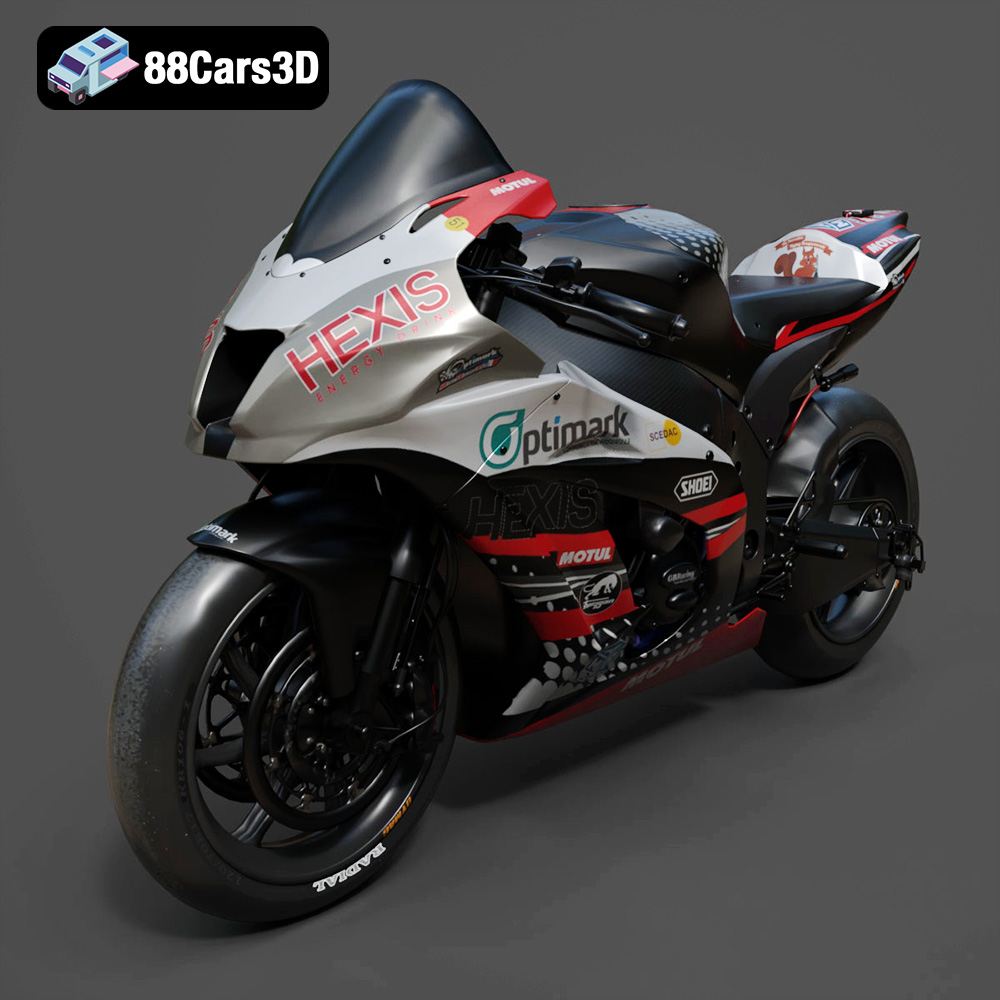
Download the Kawasaki ZX-10R 3D Model featuring clean geometry, realistic detailing, and a fully modeled interior. Includes .blend, .fbx, .obj, .glb, .stl, .ply, .unreal, and .max formats for rendering, simulation, and game development.
Price: $19.99

Texture: Yes
Material: Yes
Download the Jeep Grand Cherokee Limited 2017 3D Model featuring clean geometry, realistic detailing, and a fully modeled interior. Includes .blend, .fbx, .obj, .glb, .stl, .ply, .unreal, and .max formats for rendering, simulation, and game development.
Price: $19.99
Texture: Yes
Material: Yes
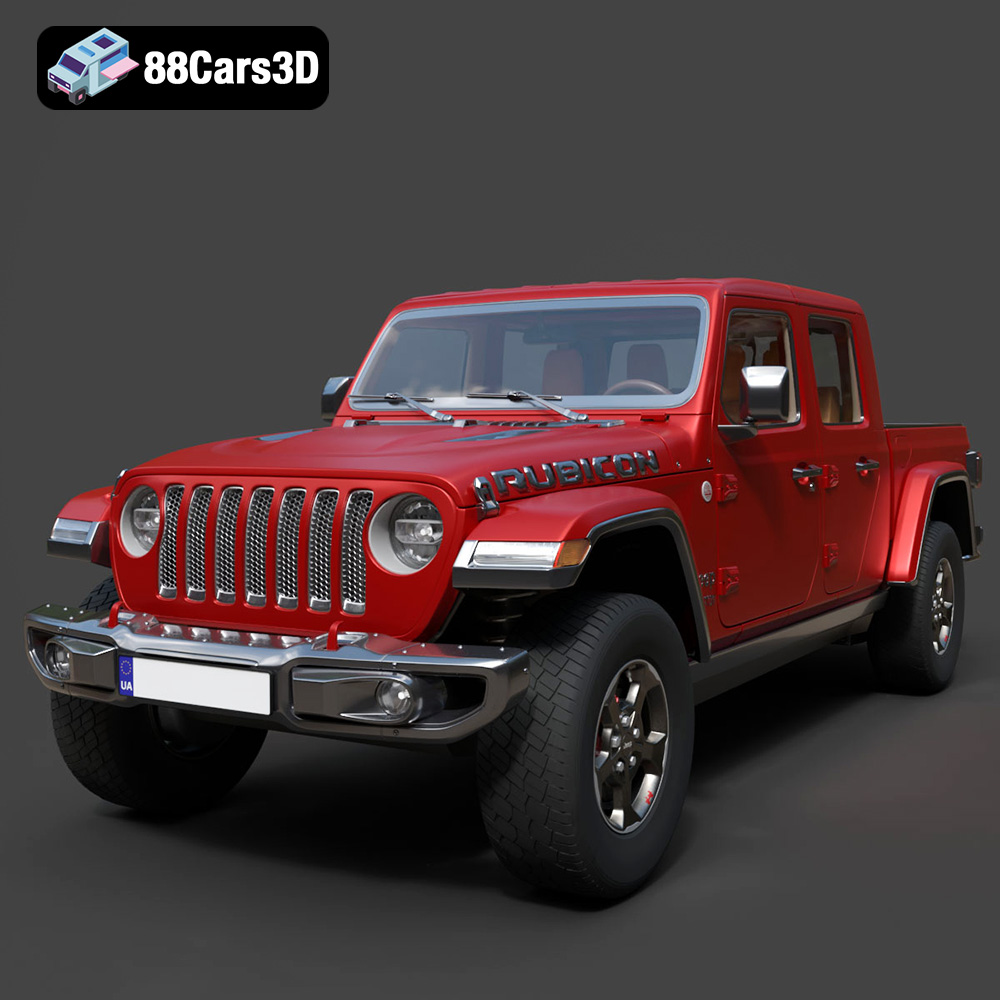
Download the Jeep Gladiator Rubicon 2020 3D Model featuring clean geometry, realistic detailing, and a fully modeled interior. Includes .blend, .fbx, .obj, .glb, .stl, .ply, .unreal, and .max formats for rendering, simulation, and game development.
Price: $19.99

Texture: Yes
Material: Yes
Download the Jaguar C-X75 2014 3D Model featuring clean geometry, realistic detailing, and a fully modeled interior. Includes .blend, .fbx, .obj, .glb, .stl, .ply, .unreal, and .max formats for rendering, simulation, and game development.
Price: $19.99

Texture: Yes
Material: Yes
Download the Jaguar XFR-S 2014 3D Model featuring clean geometry, realistic detailing, and a fully modeled interior. Includes .blend, .fbx, .obj, .glb, .stl, .ply, .unreal, and .max formats for rendering, simulation, and game development.
Price: $19.99

Texture: Yes
Material: Yes
Download the Infiniti QX50 2019 3D Model featuring clean geometry, realistic detailing, and a fully modeled interior. Includes .blend, .fbx, .obj, .glb, .stl, .ply, .unreal, and .max formats for rendering, simulation, and game development.
Price: $19.99

Texture: Yes
Material: Yes
Download the Hyundai i40 Wagon 2015 3D Model featuring clean geometry, realistic detailing, and a fully modeled interior. Includes .blend, .fbx, .obj, .glb, .stl, .ply, .unreal, and .max formats for rendering, simulation, and game development.
Price: $19.99

Texture: Yes
Material: Yes
Download the Honda NSX 2017 3D Model featuring clean geometry, realistic detailing, and a fully modeled interior. Includes .blend, .fbx, .obj, .glb, .stl, .ply, .unreal, and .max formats for rendering, simulation, and game development.
Price: $19.99
Texture: Yes
Material: Yes
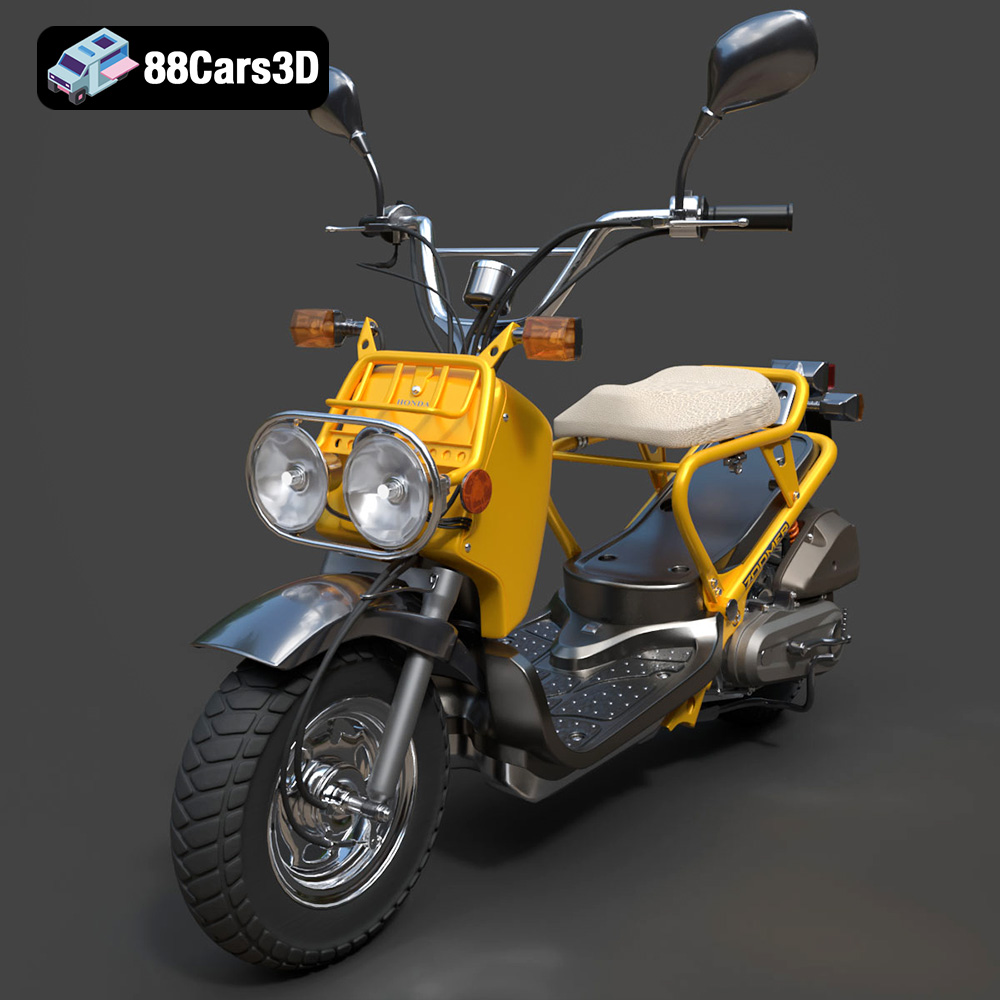
Download the Honda Zoomer 50 2005 3D Model featuring clean geometry, realistic detailing, and a fully modeled interior. Includes .blend, .fbx, .obj, .glb, .stl, .ply, .unreal, and .max formats for rendering, simulation, and game development.
Price: $19.99

Texture: Yes
Material: Yes
Download the Honda Valkyrie GL1800C 2015 3D Model featuring clean geometry, realistic detailing, and a fully modeled interior. Includes .blend, .fbx, .obj, .glb, .stl, .ply, .unreal, and .max formats for rendering, simulation, and game development.
Price: $19.99

