Get 50% OFF All Premium 3D & STL Models!

“`html
3D printing opens up a world of possibilities, from creating functional prototypes to crafting intricate models. For automotive enthusiasts, platforms like 88cars3d.com offer a treasure trove of printable car models in STL format. However, even the most meticulously designed STL files can sometimes suffer from mesh errors that can lead to print failures. These errors, ranging from simple holes to complex self-intersections, can wreak havoc on your printing process. Fortunately, powerful software like Meshmixer and Netfabb provide robust tools to diagnose and repair these issues, ensuring successful and high-quality 3D prints. This comprehensive guide will walk you through the process of identifying and fixing common STL mesh problems using these industry-standard software packages, empowering you to bring your automotive dreams to life.
In this article, we will cover the following key areas:
The STL (Stereolithography) file format represents 3D models as a collection of interconnected triangles, forming a surface mesh. Each triangle is defined by its three vertices and a normal vector that indicates its orientation. A “healthy” STL file contains a closed, manifold mesh, meaning that it defines a single, continuous surface without any holes, self-intersections, or non-manifold edges. However, during the design process or file conversion, errors can creep in, leading to various mesh problems.
A manifold mesh is a closed surface where every edge connects to exactly two triangles. This ensures that the model has a clear inside and outside. Non-manifold geometries, on the other hand, violate this rule. Examples include edges connected to more than two triangles (creating a “bowtie” effect), internal faces, and zero-thickness surfaces. These non-manifold elements can confuse slicing software and lead to printing errors.
Understanding the types of errors you might encounter is crucial for effective repair. Here are some common culprits:
Meshmixer, a free software from Autodesk, offers a user-friendly interface and powerful automatic repair tools. It’s an excellent option for quickly fixing common mesh errors in your STL files. It is readily available and can be downloaded from the Autodesk website.
Start by importing your STL file into Meshmixer. Once loaded, use the “Inspector” tool (located in the “Analysis” section) to identify potential errors. The Inspector will highlight problem areas with colored markers. Different colors indicate different types of errors, such as holes (red), non-manifold edges (pink), and self-intersections (orange). Rotate and zoom the model to carefully examine the identified issues.
Meshmixer’s “Make Solid” function is a powerful one-click solution for repairing a wide range of mesh errors. Navigate to “Edit” -> “Make Solid.” This tool automatically attempts to close holes, fix self-intersections, and improve the overall mesh quality. Adjust the “Solid Type” and “Mesh Density” settings to fine-tune the repair process. Experiment with different settings to find the optimal balance between repair accuracy and model detail. A higher “Mesh Density” will preserve more detail but may also increase processing time. Typically a setting of “Accurate” or “Sharp Edge Preserve” works well for detailed models like car models.
Netfabb, now part of Autodesk, is a professional-grade software known for its advanced mesh repair and preparation capabilities. While it’s a paid software, it offers a trial version, and its powerful features make it a worthwhile investment for serious 3D printing enthusiasts. Netfabb excels at handling complex mesh problems that Meshmixer might struggle with.
Import your STL file into Netfabb and navigate to the “Analysis” tab. Click on “Run Diagnostics” to identify potential errors. Netfabb provides a detailed report of the identified issues, including the number of holes, flipped triangles, and other errors. The “Fix” button next to each error type allows you to selectively repair specific problems.
Netfabb’s “Automatic Repair” script provides a comprehensive solution for fixing various mesh errors. Go to “Part” -> “Automatic Repair.” In the repair dialog, choose a repair script (e.g., “Default Repair”) and click “Execute.” The script will automatically attempt to close holes, remove self-intersections, and fix other mesh issues. Netfabb also allows you to customize repair scripts for specific types of models or error patterns. After running the automatic repair, always review the model to ensure that the repair process hasn’t introduced any new artifacts or distortions.
While automatic repair tools are convenient, they aren’t always perfect. In some cases, manual mesh editing is necessary to fine-tune the repairs and ensure the highest possible print quality. Both Meshmixer and Netfabb offer tools for manually editing the mesh geometry.
For smaller holes, you can use the “Bridge” tool in Meshmixer or the “Close Polygon” tool in Netfabb to manually connect the edges of the hole and create new triangles. Carefully select the edges you want to connect and ensure that the new triangles smoothly integrate with the surrounding mesh. For larger holes, you might need to use a combination of bridging and patching techniques to fill the gap effectively.
After repairing holes or self-intersections, the repaired area might have a different surface texture compared to the original mesh. Use the “Smooth” tool in Meshmixer or the “Reduce Triangle” tool in Netfabb to smooth out any sharp edges or irregularities in the repaired region. Be careful not to over-smooth the mesh, as this can blur fine details.
When downloading models from marketplaces such as 88cars3d.com, you may encounter different qualities of STL files. Some may be print-ready, while others may require some level of repair. Understanding the strengths of Meshmixer and Netfabb allows you to choose the right tool for the job. Meshmixer is excellent for quick, automated repairs and basic mesh editing, while Netfabb provides more advanced features for complex mesh issues and professional-grade preparation.
Once the STL file is repaired, the next step is to prepare it for printing using slicing software like Cura, PrusaSlicer, or Simplify3D. Slicing software converts the 3D model into a series of layers that the 3D printer can understand and build. This process involves setting various printing parameters, such as layer height, infill density, print speed, and support structures. Optimizing these parameters can significantly improve the print quality, reduce print time, and minimize material waste.
Layer Height: A smaller layer height results in smoother surfaces and finer details but increases print time. A common layer height for detailed models is 0.1mm to 0.2mm.
Infill Density: Infill density determines the internal structure of the printed part. A higher infill density increases strength and rigidity but also increases print time and material consumption. For car models, a moderate infill density of 15-20% is often sufficient.
Print Speed: Print speed affects both print quality and print time. A slower print speed allows for better layer adhesion and reduces the risk of warping. Experiment with different print speeds to find the optimal balance for your printer and material. Typically, a print speed between 40-60 mm/s is a good starting point.
Temperature: The printing temperature depends on the material being used. Consult the material manufacturer’s recommendations for the optimal temperature range.
Support structures are temporary structures that are printed to support overhanging features and prevent them from collapsing during printing. Slicing software automatically generates support structures based on the model’s geometry and orientation. Carefully consider the placement and density of support structures to minimize material waste and simplify post-processing. After printing, support structures need to be removed. Use appropriate tools, such as pliers or cutters, to carefully detach the supports from the printed model. For delicate models, consider using dissolvable support materials.
Prevention is always better than cure. By following best practices during the design process, you can minimize the risk of creating STL files with mesh errors.
When creating 3D models, keep the following in mind:
When exporting your model to STL format, pay attention to the following settings:
By understanding STL file structure, utilizing repair tools like Meshmixer and Netfabb, optimizing slicing parameters, and following best practices during the design process, you can significantly improve the success rate of your 3D prints and bring your automotive visions to life. Remember that platforms like 88cars3d.com offer high-quality STL files, but even those may benefit from a quick check and repair before printing. Happy printing!
Repairing broken STL meshes is an essential skill for any 3D printing enthusiast, especially when working with detailed models like printable car models. By understanding the nature of mesh errors and mastering the tools and techniques outlined in this guide, you can confidently tackle even the most challenging mesh problems and ensure successful, high-quality prints. Whether you choose the user-friendly interface of Meshmixer or the advanced capabilities of Netfabb, the key is to carefully diagnose the issues and apply the appropriate repair strategies. Don’t be afraid to experiment and learn from your experiences. With practice, you’ll become a pro at fixing broken meshes and bringing your 3D printing projects to life.
Here are some actionable next steps to put your newfound knowledge into practice:
“`

Texture: Yes
Material: Yes
Download the Ural Solo sT 3D Model featuring clean geometry, realistic detailing, and a fully modeled interior. Includes .blend, .fbx, .obj, .glb, .stl, .ply, .unreal, and .max formats for rendering, simulation, and game development.
Price: $19.99

Texture: Yes
Material: Yes
Download the Lexus GX460 2014 3D Model featuring clean geometry, realistic detailing, and a fully modeled interior. Includes .blend, .fbx, .obj, .glb, .stl, .ply, .unreal, and .max formats for rendering, simulation, and game development.
Price: $19.99

Texture: Yes
Material: Yes
Download the Land Rover Range Rover Velar 2018 3D Model featuring clean geometry, realistic detailing, and a fully modeled interior. Includes .blend, .fbx, .obj, .glb, .stl, .ply, .unreal, and .max formats for rendering, simulation, and game development.
Price: $19.99

Texture: Yes
Material: Yes
Download the Land Rover Range Rover Sport SVR 2015 3D Model featuring clean geometry, realistic detailing, and a fully modeled interior. Includes .blend, .fbx, .obj, .glb, .stl, .ply, .unreal, and .max formats for rendering, simulation, and game development.
Price: $19.99
Texture: Yes
Material: Yes
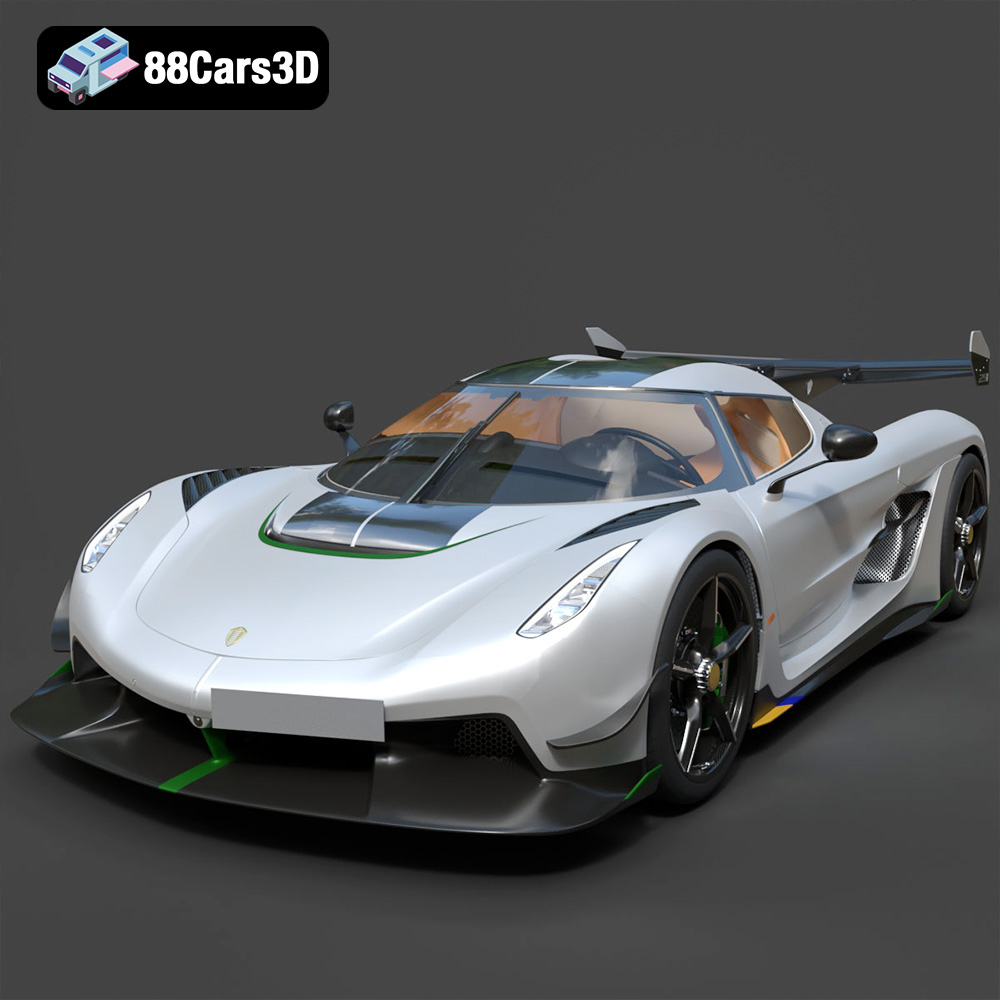
Download the Koenigsegg Jesko 2020 3D Model featuring clean geometry, realistic detailing, and a fully modeled interior. Includes .blend, .fbx, .obj, .glb, .stl, .ply, .unreal, and .max formats for rendering, simulation, and game development.
Price: $19.99

Texture: Yes
Material: Yes
Download the Kia Sportage 2019 3D Model featuring clean geometry, realistic detailing, and a fully modeled interior. Includes .blend, .fbx, .obj, .glb, .stl, .ply, .unreal, and .max formats for rendering, simulation, and game development.
Price: $19.99

Texture: Yes
Material: Yes
Download the Kia Optima 2019 3D Model featuring clean geometry, realistic detailing, and a fully modeled interior. Includes .blend, .fbx, .obj, .glb, .stl, .ply, .unreal, and .max formats for rendering, simulation, and game development.
Price: $19.99

Texture: Yes
Material: Yes
Download the Kia K5 MX 2016 3D Model featuring clean geometry, realistic detailing, and a fully modeled interior. Includes .blend, .fbx, .obj, .glb, .stl, .ply, .unreal, and .max formats for rendering, simulation, and game development.
Price: $19.99
Texture: Yes
Material: Yes
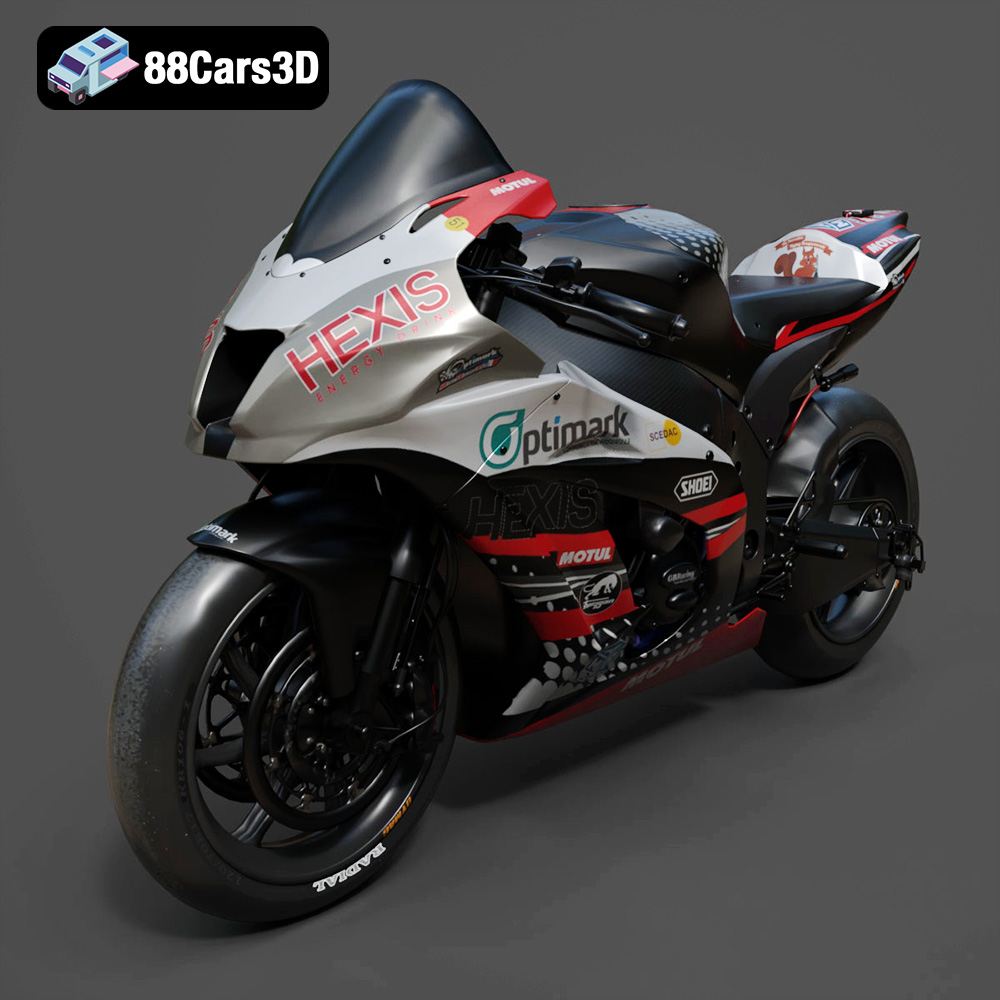
Download the Kawasaki ZX-10R 3D Model featuring clean geometry, realistic detailing, and a fully modeled interior. Includes .blend, .fbx, .obj, .glb, .stl, .ply, .unreal, and .max formats for rendering, simulation, and game development.
Price: $19.99

Texture: Yes
Material: Yes
Download the Jeep Grand Cherokee Limited 2017 3D Model featuring clean geometry, realistic detailing, and a fully modeled interior. Includes .blend, .fbx, .obj, .glb, .stl, .ply, .unreal, and .max formats for rendering, simulation, and game development.
Price: $19.99

