Get 50% OFF All Premium 3D & STL Models!

“`html
The world of 3D printing opens up incredible possibilities, from creating intricate prototypes to bringing your favorite car models from 88cars3d.com to life. However, the journey from digital design to physical object can be fraught with challenges, especially when dealing with STL files. These files, the backbone of 3D printing, are susceptible to errors that can lead to print failures, wasted filament, and frustration. But fear not! This comprehensive guide will equip you with the knowledge and tools to diagnose and fix common STL file errors before you even think about hitting that “print” button. We’ll delve into the structure of STL files, explore various error types, and provide step-by-step instructions using popular software to ensure your 3D printing experience is smooth and successful.
In this article, you’ll learn:
Let’s dive in and conquer those pesky STL errors!
The STL (Stereolithography) file format is a cornerstone of 3D printing, representing a 3D object’s surface as a collection of triangles. Each triangle is defined by three vertices (points in 3D space) and a normal vector (indicating the triangle’s outward-facing direction). While seemingly simple, this structure is prone to errors that can hinder successful 3D printing. Understanding the anatomy of an STL file and the origin of these errors is crucial for effective repair.
An STL file essentially stores a list of triangles. Each triangle record contains the coordinates (x, y, z) of its three vertices and the components (x, y, z) of the normal vector. The format can be ASCII (human-readable, but larger file size) or binary (more compact). The crucial aspect is the accuracy and consistency of these triangle definitions. For instance, all triangles should ideally form a closed, watertight surface, a concept we’ll explore further.
Errors can arise from various sources, including:
Specifically when downloading models from marketplaces such as 88cars3d.com, you can expect a high quality and error-free experience. These marketplaces often implement quality control measures to minimize the chance of encountering problems. However, understanding potential error sources remains beneficial, especially if you plan to modify the models further.
Before you can fix an STL file, you need to identify the types of errors present. Several common issues can plague STL files, each requiring specific repair strategies. Recognizing these errors is the first step towards a successful print. Most slicing software packages have basic error detection, but dedicated mesh analysis tools offer more comprehensive diagnostics.
Holes are perhaps the most common and problematic errors. They occur when triangles are missing, leaving gaps in the surface of the model. These gaps can cause issues with slicing, as the slicer may not be able to properly interpret the intended geometry, leading to missing layers or incorrect infill. Small holes might be automatically closed by some slicers, but larger holes require manual repair. Imagine trying to print a car from 88cars3d.com with a missing section of the roof – that’s the kind of issue a hole can cause!
Each triangle in an STL file has a normal vector that indicates its “outward” facing direction. If a normal vector is flipped, the triangle is effectively facing inward. This can cause issues with slicing, as the slicer may interpret the inside of the model as the outside, and vice versa. Flipped normals often appear as dark or shaded areas in mesh viewing software. They can also lead to unexpected voids or solid regions in the printed object. Incorrect normals can trick the slicer into generating internal support structures where they aren’t needed or ignoring external areas that need support.
Intersecting faces occur when two or more triangles overlap or pass through each other. This can happen due to modeling errors or during mesh simplification. Self-intersections are a specific type of intersecting face where a single triangle intersects with itself. These errors can confuse the slicer, leading to unpredictable print results, such as distorted geometry or print failures. Resolving intersections often requires careful mesh editing and may involve removing or re-triangulating problem areas.
Manifold geometry refers to a mesh where every edge is shared by exactly two triangles. Non-manifold geometry violates this rule, creating areas where edges are shared by more or fewer than two triangles. This can result in zero-thickness surfaces or dangling edges, which are physically impossible to print. Examples of non-manifold geometry include edges connecting to only one face, or vertices where multiple faces converge at a single point without forming a continuous surface. Fixing non-manifold geometry often requires advanced mesh editing techniques.
Meshmixer, a free software from Autodesk, is a powerful tool for analyzing and repairing STL files. Its user-friendly interface and robust features make it an excellent choice for both beginners and experienced 3D printing enthusiasts. Meshmixer offers automatic repair tools as well as manual editing capabilities, giving you precise control over the repair process.
Meshmixer’s “Make Solid” tool is a one-click solution for automatically fixing many common STL errors. To use it, import your STL file into Meshmixer, select “Edit” from the left-hand menu, and then choose “Make Solid.” Adjust the “Solid Type” and “Mesh Density” settings to find a balance between detail preservation and error correction. For most 3D printing applications, the “Accurate” solid type with a medium mesh density is a good starting point. Be aware that increasing mesh density increases processing time and file size. Clicking “Update” will preview the changes, and clicking “Accept” will apply the repair. This tool is particularly effective at closing small holes and fixing minor self-intersections.
For more complex errors, manual repair techniques may be necessary. Meshmixer’s “Select” tool allows you to select specific triangles or regions of the mesh. You can then use the “Edit” menu to perform operations like deleting, filling, or smoothing the selected area. For example, to fill a hole, select the boundary edges of the hole and then use the “Fill” tool to create new triangles that close the gap. The “Sculpt” tools can be used to smooth out rough areas or correct minor imperfections. When using manual repair techniques, it’s important to carefully inspect the repaired area to ensure that it’s properly connected to the surrounding geometry and that no new errors have been introduced.
Meshmixer also provides tools for identifying non-manifold geometry. Go to “Analysis” then “Inspector”. Meshmixer will highlight areas of non-manifold geometry with different colored spheres. You can then click on these spheres to have Meshmixer attempt an automatic repair. For complex non-manifold issues, manual editing using the “Select” and “Edit” tools may be required to carefully reconstruct the mesh and ensure it is manifold.
Autodesk Netfabb is a professional-grade software solution for additive manufacturing, offering advanced tools for STL file analysis, repair, and optimization. While it’s a paid software, the comprehensive features and accuracy make it a valuable asset for serious 3D printing enthusiasts and professionals. Netfabb provides detailed diagnostics, powerful repair algorithms, and tools for optimizing models for specific printing processes.
Netfabb’s analysis tools provide a comprehensive overview of potential issues in an STL file. After importing your model, use the “Analysis” > “New Analysis” command. Netfabb will identify and highlight various error types, including holes, flipped normals, intersecting triangles, and shell errors (e.g., multiple disconnected shells). The analysis report provides detailed information about each error, including its location, size, and severity. This detailed information allows you to prioritize repairs and choose the most appropriate repair strategy. The software visually highlights the errors in the model, making them easy to identify and address.
Netfabb offers a range of automated repair scripts that can fix many common STL errors with a single click. To access these scripts, go to “Repair” > “Run Script”. The available scripts include options for closing holes, fixing flipped normals, removing duplicate triangles, and stitching together disconnected shells. The “Standard Repair” script is a good starting point for most models, as it applies a combination of common repair operations. For more complex errors, you may need to use more specialized scripts or manually edit the mesh.
Netfabb also provides a comprehensive set of manual mesh editing tools. You can use these tools to select and modify individual triangles, edges, or vertices. The software offers tools for filling holes, smoothing surfaces, removing unwanted geometry, and refining the mesh. Manual editing allows you to address complex errors that cannot be fixed automatically and gives you precise control over the final result. However, manual editing requires a good understanding of mesh topology and can be time-consuming.
Platforms like 88cars3d.com offer print-ready STL files, but even those can sometimes benefit from a quick check in Netfabb, especially if you intend to modify them for a specific purpose.
Repairing STL files is only one part of the equation. After fixing errors, it’s essential to optimize the model for 3D printing. This involves adjusting the mesh density, orienting the model for optimal printability, and adding support structures if necessary. Proper optimization can significantly improve print quality, reduce print time, and minimize the risk of print failures. Consider how you might optimize a detailed printable car model from 88cars3d.com after some minor adjustments.
High-resolution STL files can be unnecessarily large and complex, leading to longer slicing times and increased processing demands on your 3D printer. Mesh simplification, also known as decimation, reduces the number of triangles in the mesh while preserving the overall shape and detail of the model. This can significantly reduce file size and improve print performance. Software like Meshmixer and Netfabb offer decimation tools that allow you to control the amount of simplification. It’s important to strike a balance between reducing file size and preserving important details. A good rule of thumb is to simplify the mesh as much as possible without noticeably affecting the visual quality of the model.
The orientation of your model on the print bed can have a significant impact on print quality, support structure requirements, and bed adhesion. Choose an orientation that minimizes the need for support structures and maximizes the contact area with the print bed. Orienting the model to minimize overhangs can reduce the amount of support material needed, resulting in a cleaner print and less post-processing. Improving bed adhesion can involve techniques such as using a brim or raft, applying adhesive to the print bed, and ensuring that the print bed is properly leveled. For tall, thin models, consider orienting them to provide a wider base for better stability.
Support structures are necessary for printing overhangs and complex geometries. Most slicing software packages offer automatic support generation tools. However, it’s often necessary to manually adjust the support settings to optimize the support structures for a specific model. Consider the type of support structure (e.g., tree supports, linear supports), the density of the support structure, and the support overhang angle. Optimizing support structures can reduce print time, minimize material usage, and improve the surface quality of the printed part. The goal is to provide enough support to prevent sagging or deformation without creating excessive amounts of support material that are difficult to remove.
Even with a perfectly repaired and optimized STL file, the choice of printing material and printer settings can make or break your 3D print. Different materials have different properties and require different settings for optimal results. Understanding the characteristics of common 3D printing materials and adjusting your printer settings accordingly is crucial for achieving high-quality prints. This is especially relevant when working with detailed models from sources like 88cars3d.com, where preserving fine details is paramount.
Fused Deposition Modeling (FDM) is one of the most common 3D printing technologies, using materials like PLA, PETG, and ABS. PLA is a biodegradable thermoplastic known for its ease of use and low printing temperature. PETG offers improved strength and flexibility compared to PLA, making it a good choice for functional parts. ABS is a strong and heat-resistant plastic, but it requires higher printing temperatures and a heated bed to prevent warping. When printing with PLA, a bed temperature of 60°C and a nozzle temperature of 200°C are generally recommended. For PETG, a bed temperature of 70-80°C and a nozzle temperature of 230-240°C are typically used. ABS requires a bed temperature of 100-110°C and a nozzle temperature of 230-250°C. Layer height also plays a crucial role; a smaller layer height (e.g., 0.1mm) will result in finer details but increase print time, while a larger layer height (e.g., 0.3mm) will print faster but sacrifice some detail.
Resin printing technologies like Stereolithography (SLA), Digital Light Processing (DLP), and Masked Stereolithography (MSLA) use liquid resins that are cured by UV light. Resin printing offers higher resolution and finer details compared to FDM printing, making it ideal for creating intricate models and prototypes. Different types of resins are available, each with its own unique properties, such as standard resins, tough resins, and flexible resins. Resin printing requires careful calibration and specific settings for each type of resin. Exposure time, lift speed, and layer height are critical parameters that need to be optimized. For example, a typical exposure time for a standard resin might be 8 seconds per layer, while a tough resin might require 12 seconds per layer. Layer heights are typically smaller than FDM printing, often ranging from 0.025mm to 0.05mm.
Infill refers to the internal structure of a 3D printed part. The infill pattern and density affect the strength, weight, and print time of the part. Common infill patterns include rectilinear, grid, honeycomb, and gyroid. Rectilinear infill is a simple and fast pattern, while gyroid infill offers excellent strength-to-weight ratio. Infill density is expressed as a percentage, with 0% being hollow and 100% being solid. A higher infill density will result in a stronger but heavier and slower-to-print part. For most applications, an infill density of 15-25% is sufficient. For parts that require high strength, such as functional prototypes, an infill density of 50% or higher may be necessary. For purely aesthetic models, a lower infill density can be used to save material and reduce print time.
Mastering the art of fixing STL file errors is an indispensable skill for anyone involved in 3D printing. By understanding the structure of STL files, recognizing common error types, and utilizing software like Meshmixer and Netfabb, you can overcome the challenges that arise and achieve successful, high-quality prints. Remember to always analyze your STL files before printing, repair any errors you find, and optimize the model for the chosen printing material and printer settings. With these techniques in your arsenal, you’ll be well-equipped to bring your digital designs to life, whether you’re creating functional prototypes or printing stunning car models from platforms like 88cars3d.com.
Take the next step! Download Meshmixer (free) or explore Netfabb (trial available). Practice importing and repairing STL files. Experiment with different settings and techniques. The more you practice, the more proficient you’ll become at troubleshooting and optimizing your 3D printing workflow. Happy printing!
“`
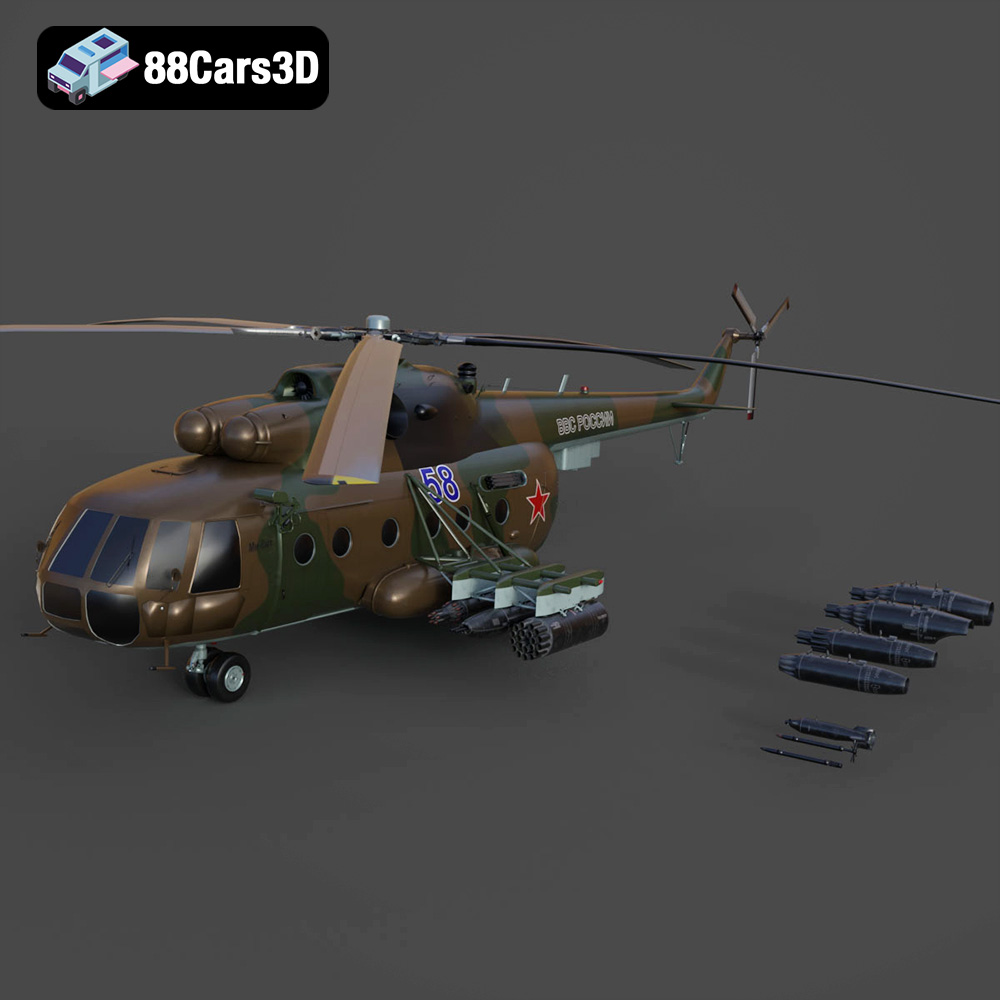
Texture: Yes | Material: Yes
Download the highly detailed, game-ready Mil Mi-8MT Helicopter 3D Model. Features twin-turbine engine housings, a detailed 5-blade main rotor, and authentic cockpit instrumentation. Includes .blend, .fbx, .obj, .glb, .stl, .ply, .unreal, and .max formats for game development, AR/VR, and rendering.
Price: $19.99

Texture: Yes | Material: Yes
Download the highly detailed, game-ready Mercedes-Maybach Vision 6 2018 3D Model. Features an elongated aero coupe design, iconic gullwing doors, and striking 24-inch aerodynamic wheels. Includes .blend, .fbx, .obj, .glb, .stl, .ply, .unreal, and .max formats for game development, AR/VR, and rendering.
Price: $19.99

Texture: Yes | Material: Yes
Download the highly detailed, game-ready Mercedes-Benz A-Class 3-Door 2010 3D Model. Features an accurate compact luxury exterior, detailed interior, and optimized topology. Includes .blend, .fbx, .obj, .glb, .stl, .ply, .unreal, and .max formats for game development, AR/VR, and rendering.
Price: $19.99

Texture: Yes | Material: Yes
Download the highly detailed, game-ready Mercedes-Benz GLB-Class (Mk1) AMG Line 2019 3D Model. Features sporty AMG Line exterior styling, accurate LED lighting, and premium interior details. Includes .blend, .fbx, .obj, .glb, .stl, .ply, .unreal, and .max formats for game development, AR/VR, and rendering.
Price: $19.99
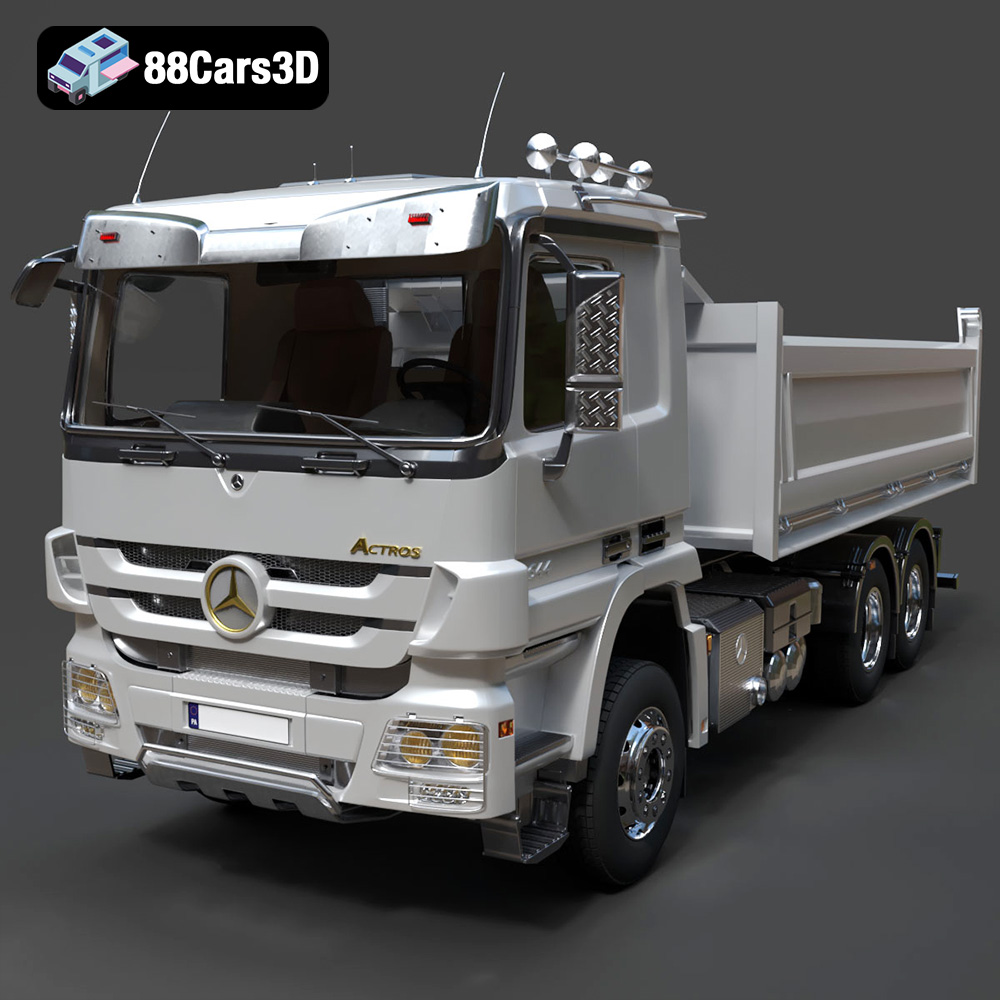
Texture: Yes | Material: Yes
Download the highly detailed, game-ready Mercedes-Benz Actros Tipper 3-Axle 2011 3D Model. Features a functional hydraulic tipper bed, detailed multi-axle chassis, and an accurate commercial cab. Includes .blend, .fbx, .obj, .glb, .stl, .ply, .unreal, and .max formats for game development, AR/VR, and rendering.
Price: $19.99

Texture: Yes | Material: Yes
Download the highly detailed, game-ready Lexus LX Mk3f J200 2016 3D Model. Features the iconic spindle grille, sharp L-shaped LED lighting, and a premium luxury interior. Includes .blend, .fbx, .obj, .glb, .stl, .ply, .unreal, and .max formats for game development, AR/VR, and rendering.
Price: $19.99

Texture: Yes | Material: Yes
Download the highly detailed, game-ready Lexus RX350 2010 3D Model. Features sleek crossover styling, distinctive L-finesse design cues, and an accurate interior layout. Includes .blend, .fbx, .obj, .glb, .stl, .ply, .unreal, and .max formats for game development, AR/VR, and rendering.
Price: $19.99

Texture: Yes | Material: Yes
Download the highly detailed, game-ready Lexus LS 500 2018 3D Model. Features the signature spindle grille, elegant flowing silhouette, and intricate Z-shaped LED lighting. Includes .blend, .fbx, .obj, .glb, .stl, .ply, .unreal, and .max formats for game development, AR/VR, and rendering.
Price: $19.99

Texture: Yes | Material: Yes
Download the highly detailed, game-ready Kawasaki Ninja 3D Model. Features an aggressive aerodynamic fairing, detailed inline-four engine, and racing-inspired ergonomics. Includes .blend, .fbx, .obj, .glb, .stl, .ply, .unreal, and .max formats for game development, AR/VR, and rendering.
Price: $19.99
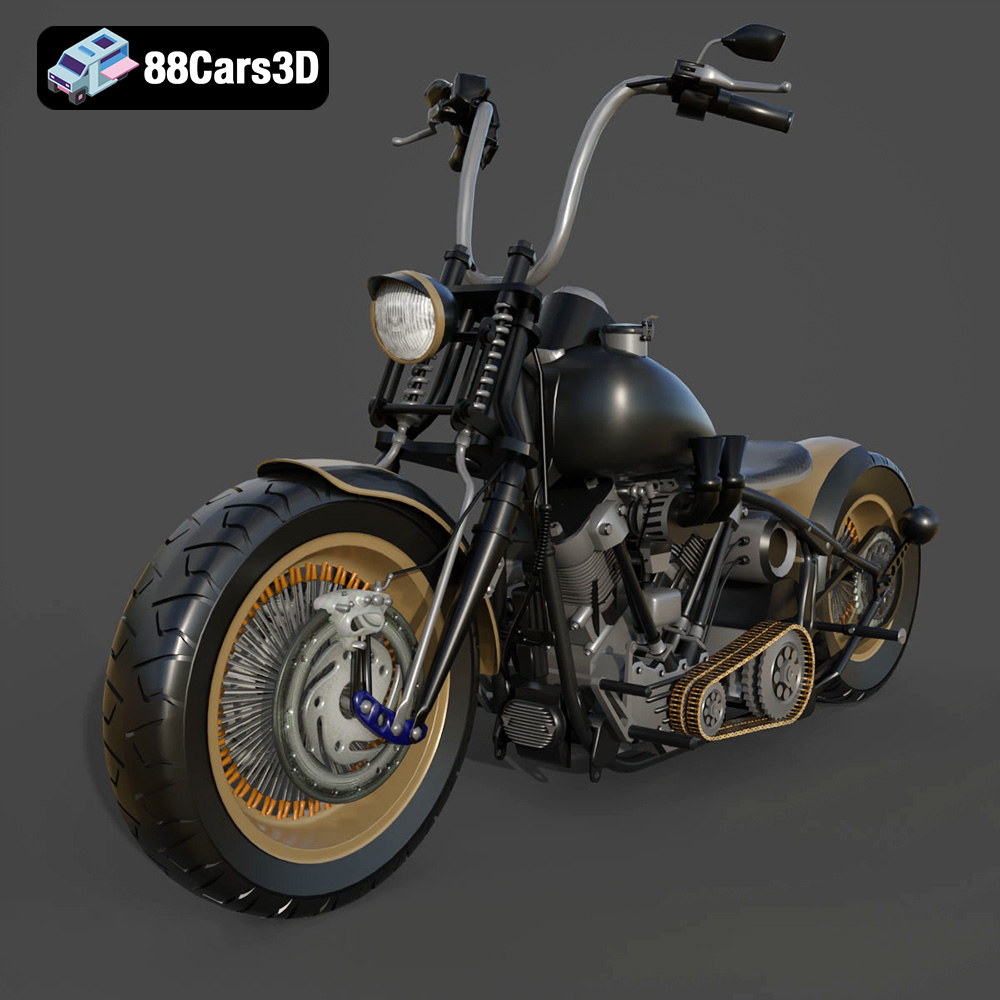
Texture: Yes
Material: Yes
Download the Harley Davidson Knucklehead 3D Model featuring clean geometry, realistic detailing, and a fully modeled interior. Includes .blend, .fbx, .obj, .glb, .stl, .ply, .unreal, and .max formats for rendering, simulation, and game development.
Price: $19.99

