Get 50% OFF All Premium 3D & STL Models!

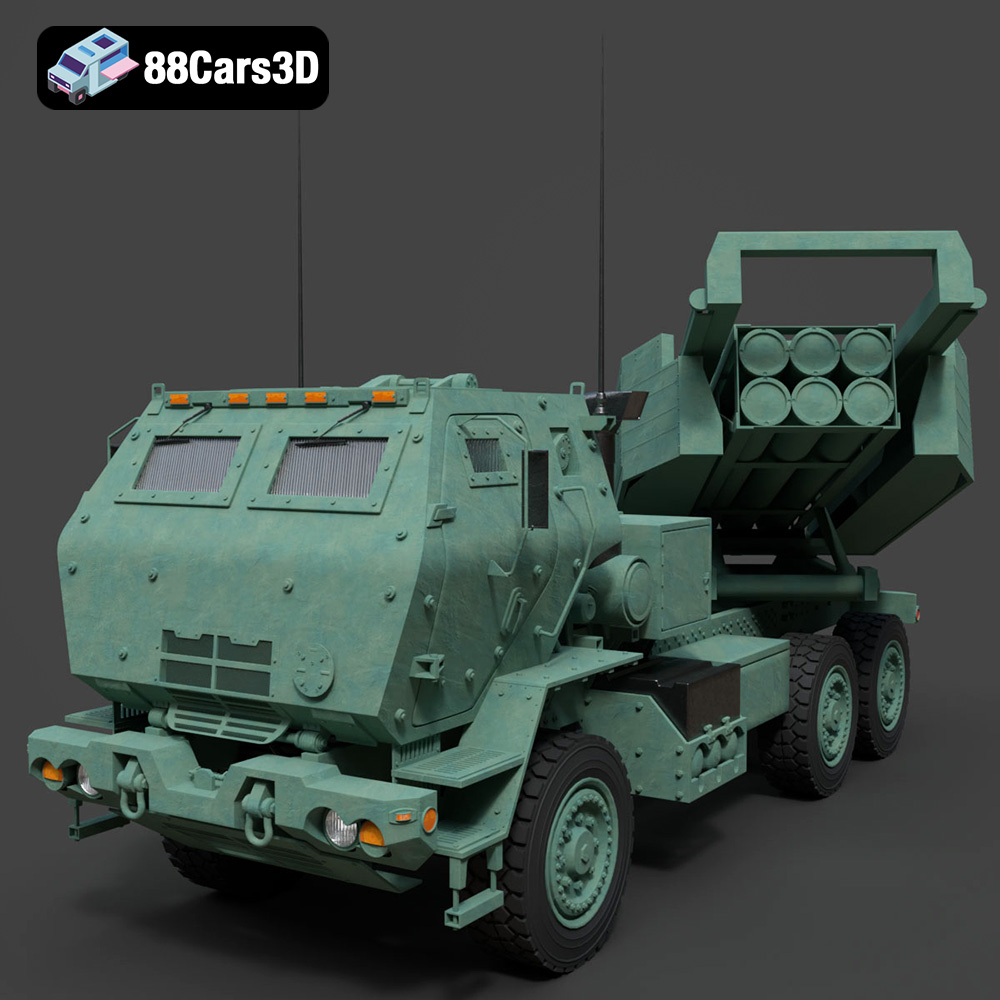
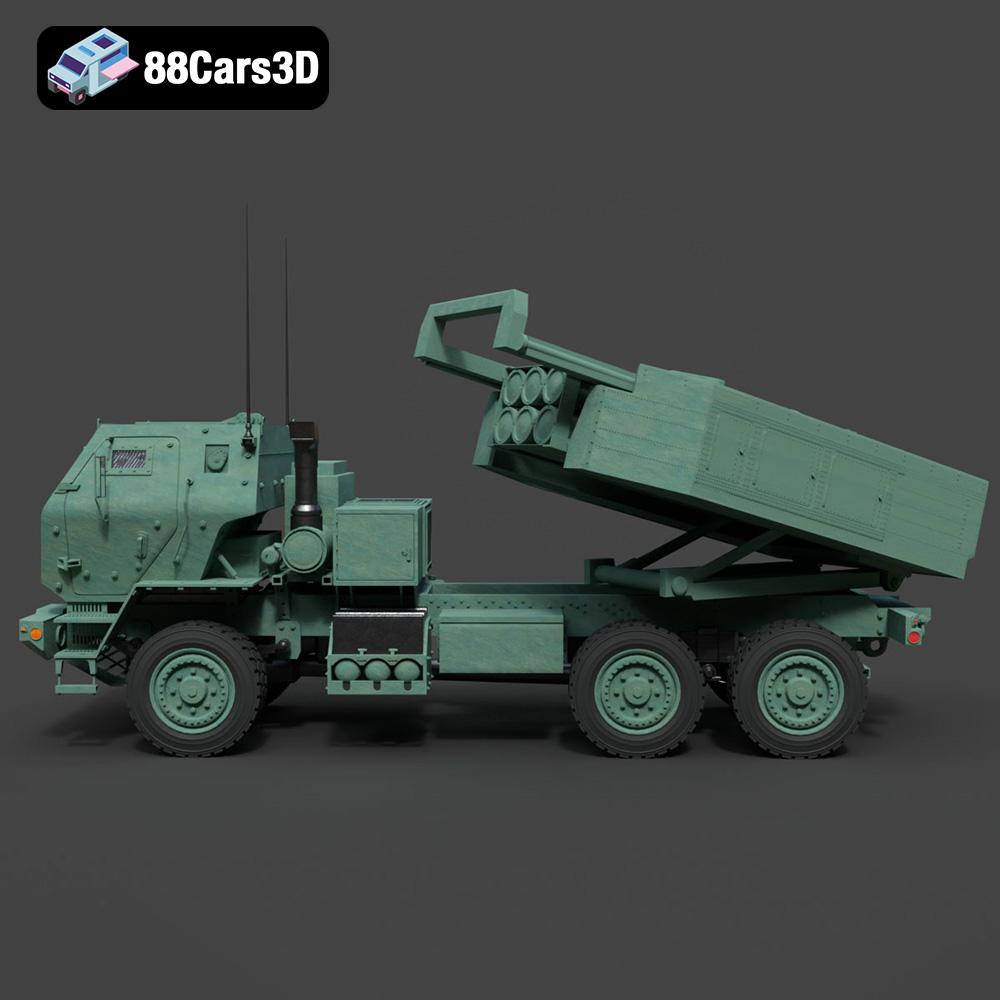
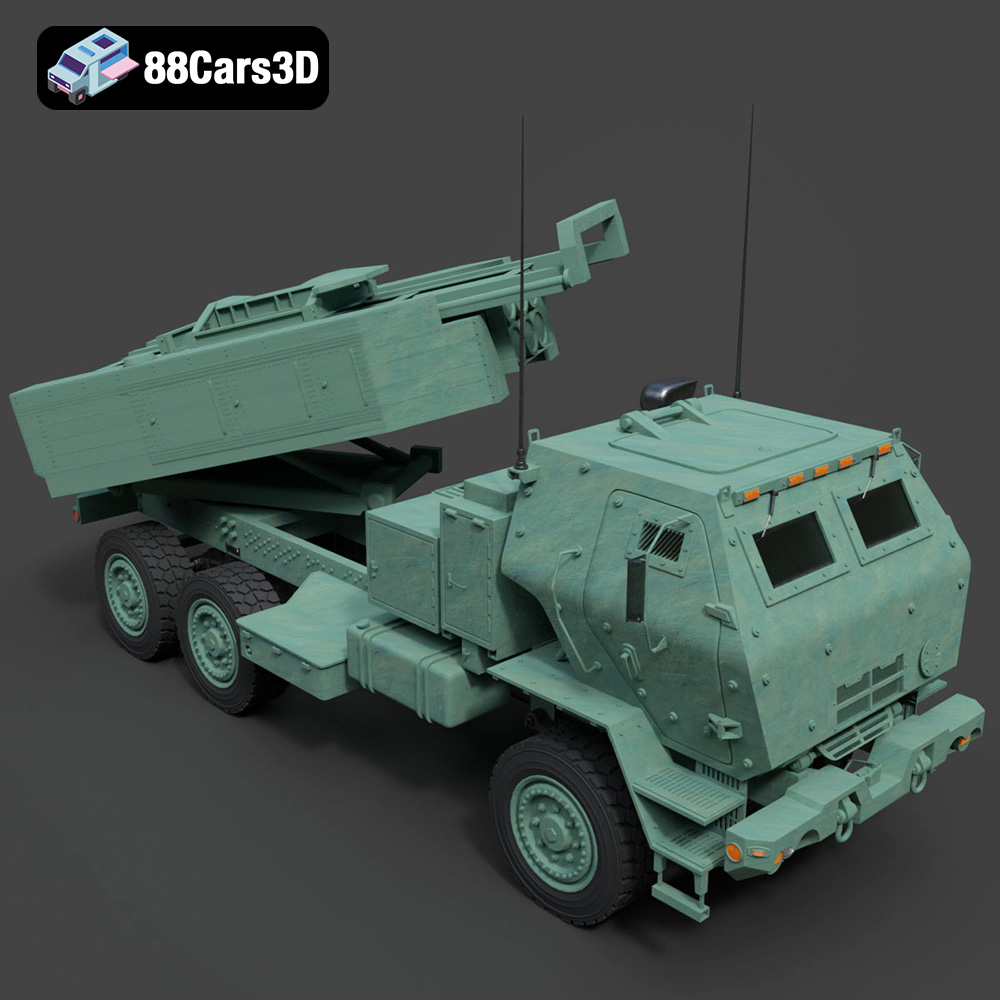
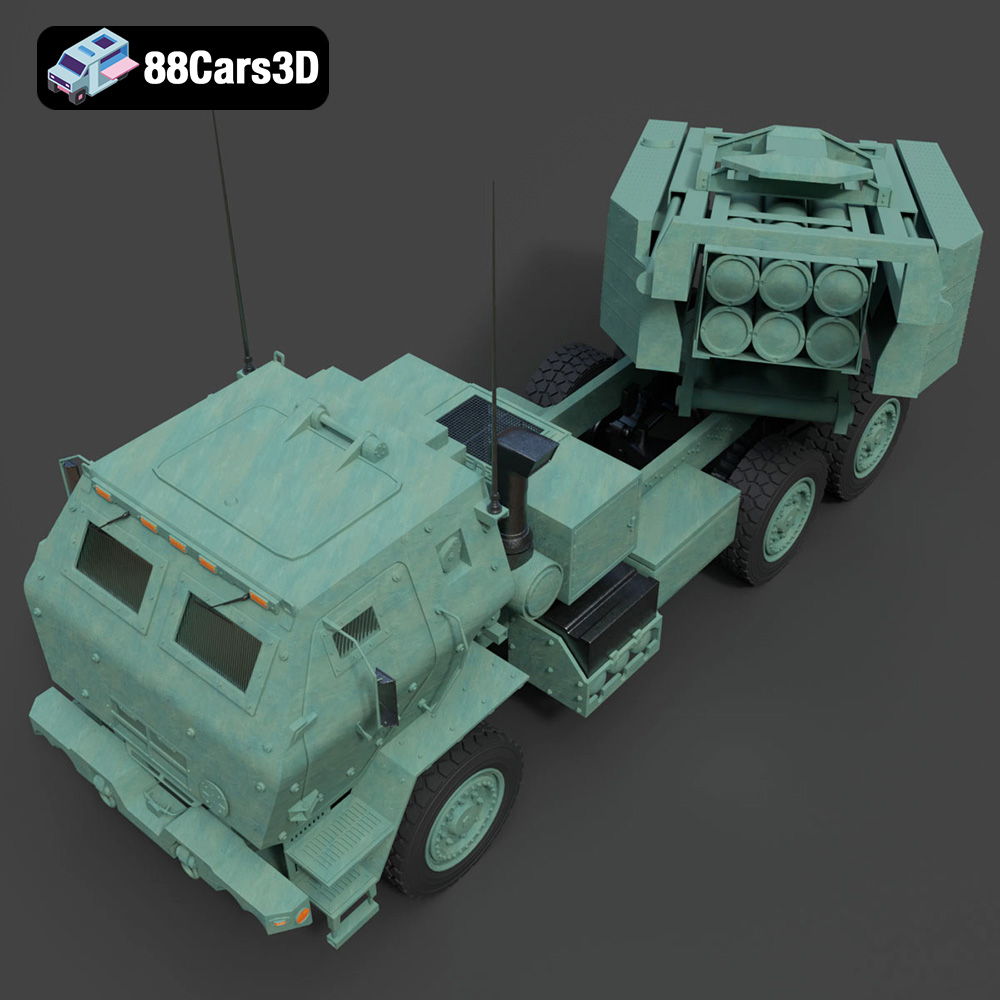
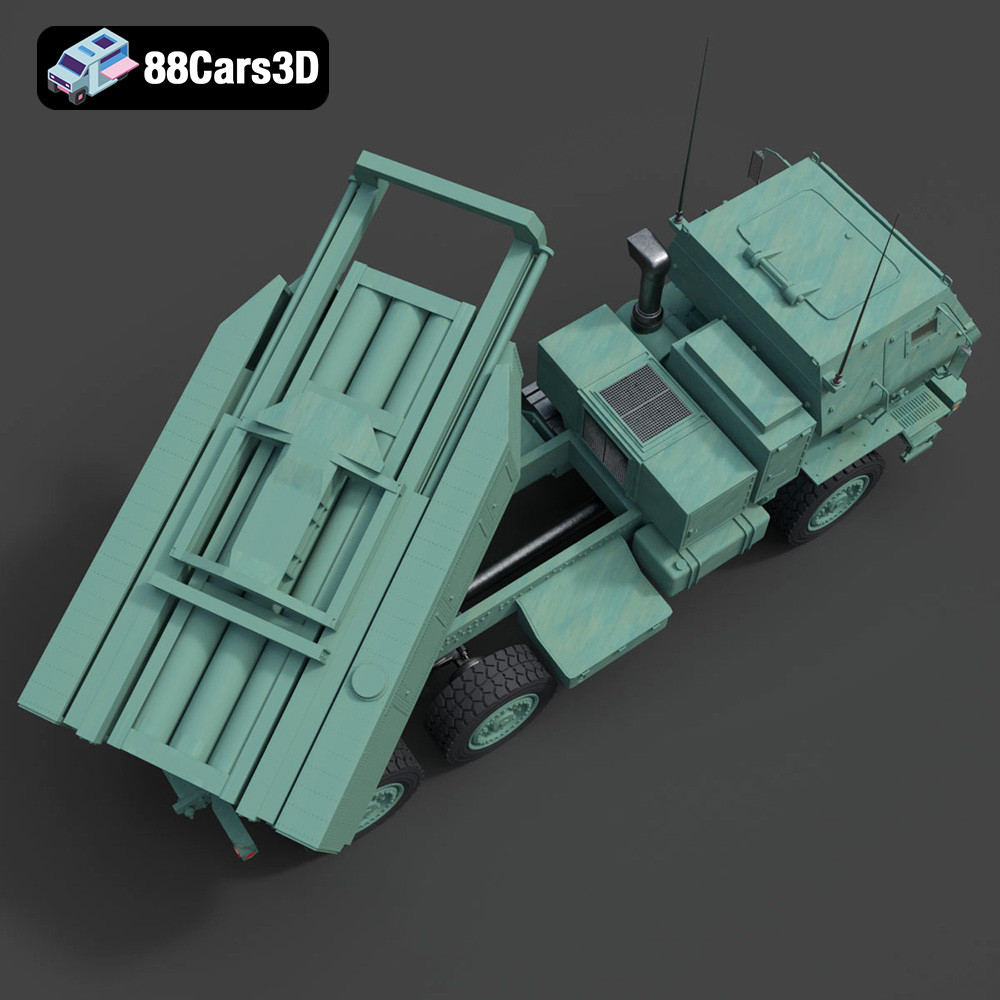
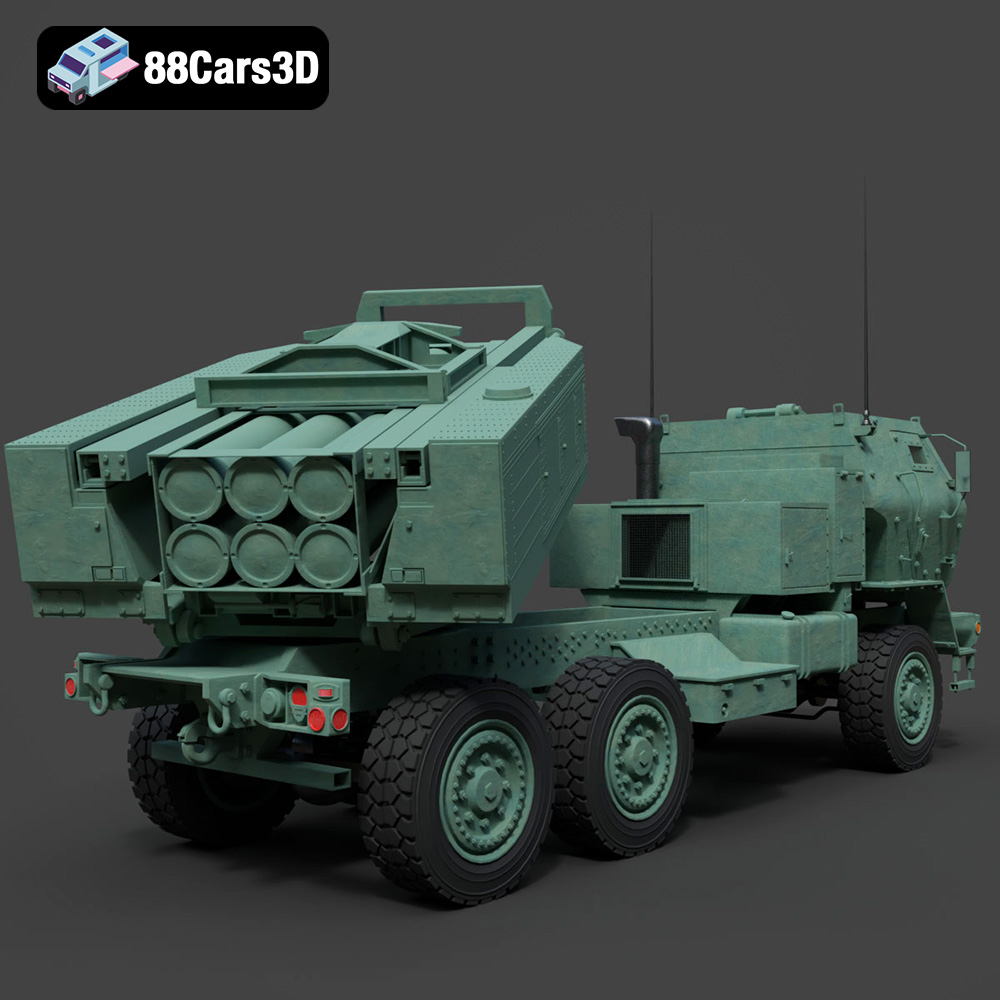
The MLRS M142 HIMARS (High Mobility Artillery Rocket System) is an impressive piece of military engineering, and now you can bring a scaled version of this vehicle to life with 3D printing. This guide provides a comprehensive overview of how to successfully 3D print the MLRS M142 HIMARS 2006 3D Model, available on 88cars3d.com, covering everything from pre-print preparation to post-processing techniques. Whether you’re a seasoned 3D printing enthusiast or just starting out, this guide will equip you with the knowledge to create a stunning replica of this iconic military vehicle.
Before diving into the specifics of printing the HIMARS model, it’s crucial to understand the different file formats and their implications for 3D printing. The MLRS M142 HIMARS 2006 3D Model, offered on 88cars3d.com, provides a variety of formats to cater to different uses, but some are more suitable for 3D printing than others.
The choice of file format directly impacts the print quality, ease of use, and compatibility with your slicing software. While some formats are primarily intended for rendering or game development, others are specifically designed for additive manufacturing. Selecting the correct format ensures a smoother workflow and ultimately, a better final product.
Here’s a detailed look at the file formats included with the MLRS M142 HIMARS 2006 3D Model and how they relate to 3D printing:
* **.stl:** This is the industry standard for 3D printing. STL (stereolithography) files represent the model’s surface geometry as a collection of triangles. It’s a mesh-only format, meaning it doesn’t contain color or texture information. Its simplicity and widespread support make it the most reliable choice for 3D printing. Most slicing software readily accepts STL files. The quality of the print depends heavily on the resolution of the STL mesh. Higher resolution means more triangles and a smoother surface, but it also increases the file size.
* **.obj:** OBJ (object) files are a more universal format that can store color and texture information alongside the geometry. While compatible with some 3D printers, it’s generally not the preferred format for printing due to potential complexities with texture mapping and material definition in slicing software. For simple, single-color prints of the HIMARS model, the .obj can work if converted or imported correctly in your slicer.
* **.ply:** PLY (polygon) files are designed for storing data acquired from 3D scanners. They can represent very high-detail meshes, making them suitable for complex models. However, this high level of detail can also lead to larger file sizes and increased processing requirements in slicing software. If the HIMARS model’s PLY file is exceptionally detailed, consider simplifying the mesh in a 3D modeling program before slicing.
* **.blend:** BLEND files are the native format for Blender, a popular open-source 3D modeling software. This format contains the entire Blender scene, including the model, materials, lighting, and animation data. While you can’t directly 3D print a BLEND file, you can open it in Blender, make modifications to the model, and then export it as an STL for printing. This is extremely useful for customization.
* **.fbx:** FBX (Filmbox) is a proprietary file format developed by Autodesk. It’s commonly used for exchanging data between different 3D applications, particularly in game development. FBX files can contain geometry, textures, materials, and animation data. While some advanced slicing software may support FBX import with material information, the primary use case is for integration into game engines, and the format is not generally used for printing.
* **.glb:** GLB (GL Transmission Format Binary) is a binary file format designed for efficient transmission and loading of 3D models, especially in web-based applications and AR/VR environments. It’s a self-contained format that includes the geometry, textures, and animations. While it’s great for previewing the HIMARS model in AR before printing, it’s not directly used in the 3D printing process.
* **.max:** MAX files are the native format for 3ds Max, another popular 3D modeling software. Similar to BLEND files, you can’t directly print a MAX file. Instead, you’d open it in 3ds Max, make any desired modifications, and then export the model as an STL file for 3D printing.
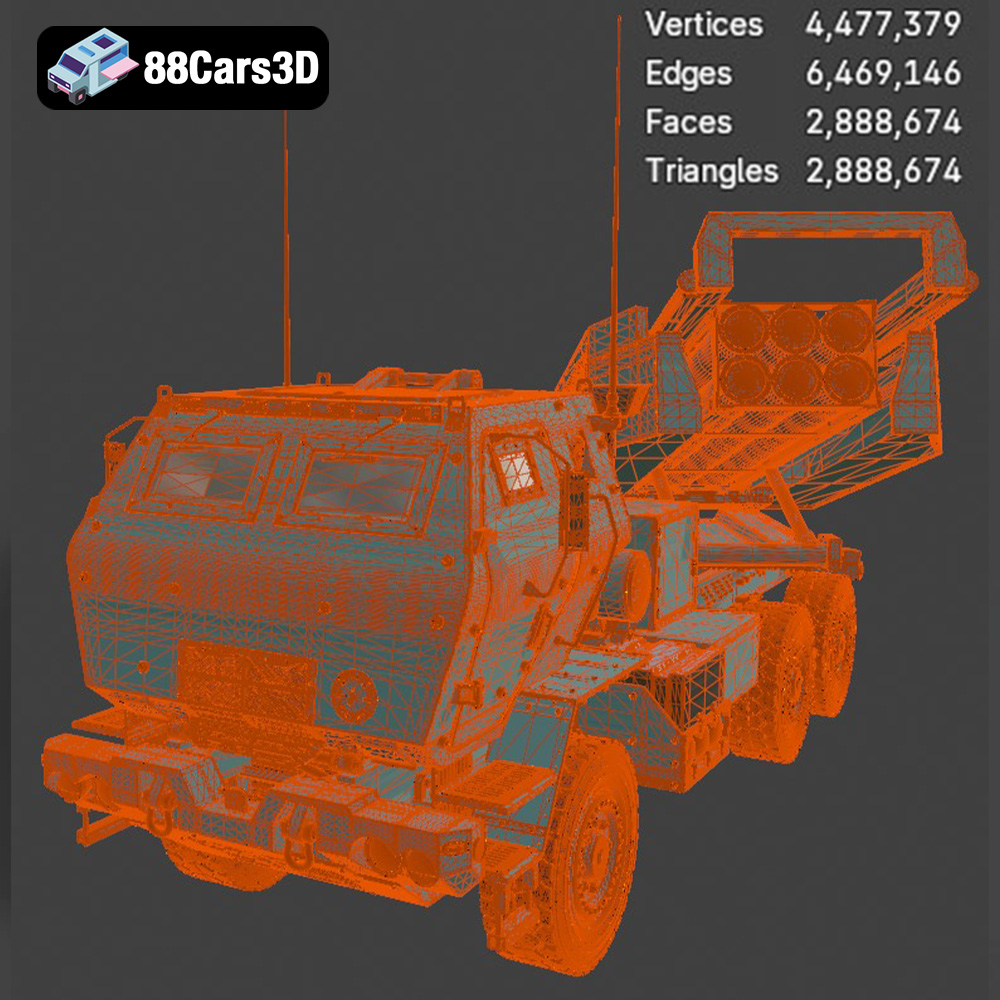
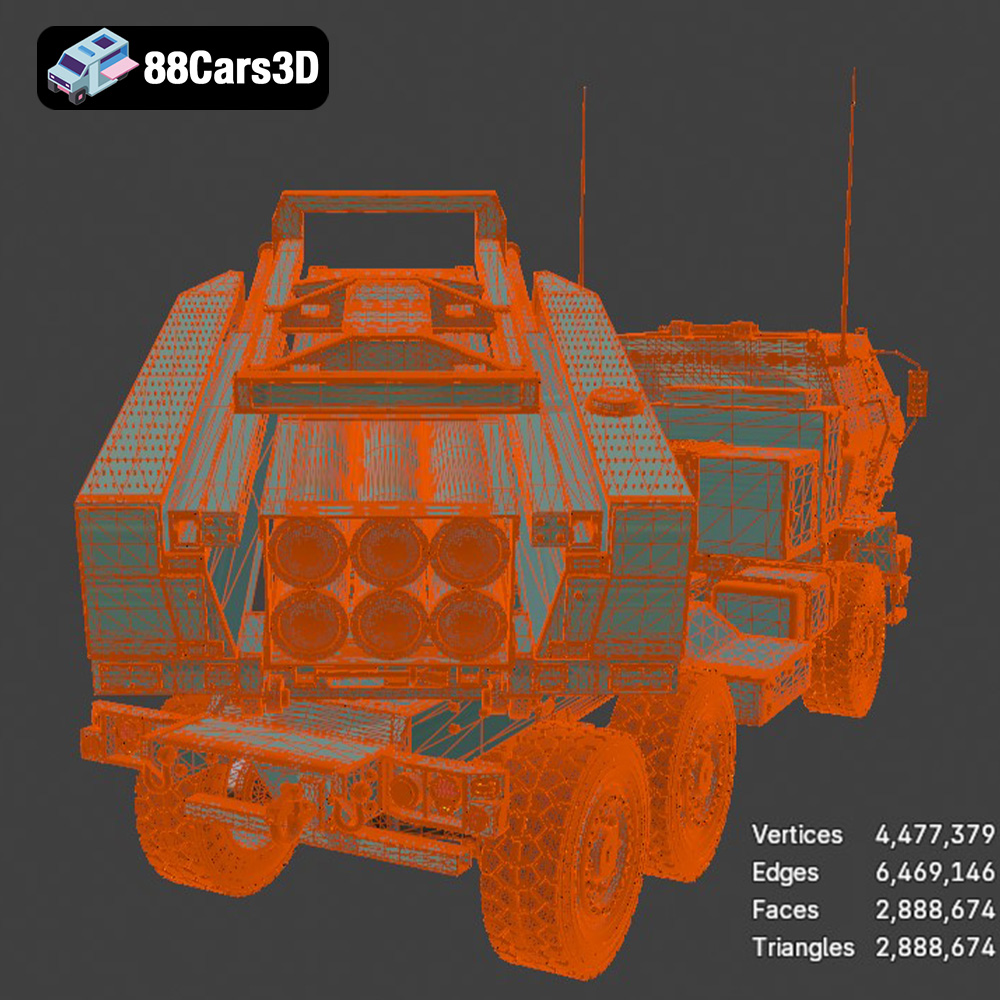
Regardless of the file format you choose, the mesh quality is paramount for successful 3D printing. Ensure that the STL file has sufficient resolution to capture the details of the MLRS M142 HIMARS 2006. Low-resolution meshes can result in faceted surfaces and loss of detail. Most slicing software packages, such as Cura, Simplify3D, and PrusaSlicer, are compatible with STL files. These programs convert the 3D model into a series of instructions (G-code) that the 3D printer can understand.
Preparing the MLRS M142 HIMARS 2006 model for 3D printing involves several crucial steps within your chosen slicing software. These steps directly impact the final print quality, structural integrity, and overall success of the project.
Begin by importing the STL file of the HIMARS model into your slicing software. The initial orientation of the model is critical. Consider the geometry of the HIMARS. Placing the model with its flattest side down will minimize the need for supports. However, this might not be the most visually appealing orientation. Experiment with different orientations to find a balance between minimizing supports and preserving the model’s aesthetic details. Often, tilting the model slightly backward can help reduce the support structures needed at the front of the truck.
Decide on the desired scale of your 3D printed HIMARS model. Keep in mind that smaller scales might lose some finer details. Once the scaling is set, analyze the model for areas that require support structures. Overhanging parts, such as the rocket launcher assembly and wheels, will almost certainly need support. Use your slicing software’s automatic support generation feature, but carefully review the placement. Manually add or remove supports as needed to ensure adequate support without excessive material usage or difficulty in removal.
Adjusting settings like layer height and infill density can significantly impact the print time and material consumption. A lower layer height (e.g., 0.1mm) will result in a smoother surface finish but increase print time. A higher layer height (e.g., 0.2mm) will print faster but might sacrifice some detail. For the HIMARS model, a layer height of 0.15mm is a good starting point. Experiment with infill density. A higher infill (e.g., 20%) will make the model stronger, while a lower infill (e.g., 10%) will save material. Given the HIMARS model is likely a display piece, a lower infill should suffice.
The choice of material greatly influences the final appearance, strength, and functionality of your 3D printed MLRS M142 HIMARS 2006 model. Different materials offer varying properties, making some more suitable for specific applications than others.
PLA (Polylactic Acid) is a popular thermoplastic known for its ease of printing, biodegradability, and wide availability. It’s a great choice for beginners due to its low printing temperature, minimal warping, and relatively low cost. PLA is ideal for creating visually appealing models where high strength or heat resistance isn’t required. For the HIMARS model, PLA can produce excellent results for a display piece.
PETG (Polyethylene Terephthalate Glycol-modified) offers a good balance of strength, flexibility, and ease of printing. It’s more durable and heat-resistant than PLA, making it suitable for models that might experience some wear and tear. PETG also exhibits better layer adhesion than PLA, resulting in stronger prints. If you want a more robust HIMARS model, PETG is a solid choice.
For exceptionally detailed prints, resin 3D printing is the way to go. Resin printers use liquid photopolymer resins that are cured by UV light. This allows for much finer layer heights and intricate details compared to filament-based printers. If you want to capture every minute detail of the MLRS M142 HIMARS 2006, resin printing will provide the best results. However, resin printing requires more post-processing, including washing and curing the prints. It also produces more toxic fumes, so adequate ventilation is essential.
Achieving a successful 3D print of the MLRS M142 HIMARS 2006 model requires careful adjustment of your printer settings. The specific settings will vary depending on your printer, material, and desired print quality. However, here are some general guidelines to get you started.
For PLA, a nozzle temperature of 200-220°C and a bed temperature of 60°C are typically recommended. PETG usually requires a higher nozzle temperature of 230-250°C and a bed temperature of 70-80°C. Resin printing settings vary significantly depending on the resin type and printer. Consult the resin manufacturer’s recommendations. Print speed also plays a role. A slower print speed (e.g., 40-50 mm/s) will generally result in higher quality prints, especially for models with intricate details.
As mentioned earlier, a layer height of 0.15mm is a good starting point for the HIMARS model. Adjust the infill density based on the desired strength and weight of the model. For a display piece, 10-20% infill is usually sufficient. Experiment with different support settings to minimize material usage and facilitate easy removal. Tree supports or light supports are often good options.
Pay attention to settings like retraction distance and retraction speed. These settings affect how the printer handles stringing, which can be a common problem with detailed models. Adjust these settings to minimize stringing without causing other issues like under-extrusion. Ensure your printer’s bed is properly leveled to ensure good adhesion of the first layer.
Once the MLRS M142 HIMARS 2006 model is printed, post-processing is essential to remove support structures, smooth surfaces, and add finishing touches to achieve a professional look.
Carefully remove the support structures using pliers, cutters, or a sharp knife. Take your time to avoid damaging the model. Once the supports are removed, use sandpaper to smooth any rough edges or surface imperfections. Start with a coarse grit sandpaper (e.g., 220 grit) and gradually move to finer grits (e.g., 400, 600, 800 grit) for a smoother finish. Wet sanding can also help to reduce dust and improve the surface finish.
Painting can significantly enhance the appearance of your 3D printed HIMARS model. Use a primer to prepare the surface for paint. Apply thin, even coats of paint using an airbrush or spray paint. Consider using masking tape to create clean lines and differentiate between different areas of the model. Add details like weathering, decals, and panel lines to further enhance the realism.
If the MLRS M142 HIMARS 2006 model consists of multiple parts, carefully assemble them using glue or screws. Ensure that all parts fit together properly before applying glue. Consider using clamps or jigs to hold the parts in place while the glue dries.
3D printing can be challenging, and encountering issues is common. Here are some common problems and their solutions.
Warping occurs when the corners of the print lift off the build plate. This is often caused by poor bed adhesion or temperature fluctuations. Ensure that your bed is properly leveled and heated. Use a bed adhesive like hairspray or glue stick to improve adhesion. Enclosing the printer can help to maintain a consistent temperature and prevent warping.
Stringing is when thin strands of plastic are left between different parts of the print. This is often caused by excessive retraction distance or temperature. Adjust the retraction settings and temperature to minimize stringing.
Layer separation occurs when the layers of the print don’t adhere properly to each other. This can be caused by low temperature, poor layer adhesion, or insufficient cooling. Increase the temperature, adjust the cooling settings, and ensure that the layers are properly bonded.
This occurs on the first few layers of a print, where the layers bulge outward due to the pressure and heat from the build plate. Ensure that your nozzle height is properly calibrated and try reducing the initial layer temperature.
Experience unparalleled realism with the MLRS M142 HIMARS 2006 3D Model. Carefully constructed to capture the intricate details of this legendary military vehicle, the model provides an immersive and highly accurate representation ideal for professional digital environments. Engineered with professional quality in mind, the 3D model boasts clean geometry and realistic materials. These features ensure optimal performance and stunning visual fidelity, allowing for seamless integration into a variety of complex digital scenes. This versatile asset is perfect for a wide range of applications, including advanced game development, architectural rendering, immersive AR/VR experiences, and detailed military visualizations.
$19.99
3D printing the MLRS M142 HIMARS 2006 3D model from 88cars3d.com is a rewarding project that allows you to create a detailed replica of this impressive military vehicle. By carefully preparing the model, selecting the appropriate material, adjusting printer settings, and applying post-processing techniques, you can achieve professional-quality results. Remember to choose the STL file for optimal 3D printing results. With patience and attention to detail, you can overcome common printing challenges and create a stunning 3D printed model that you’ll be proud to display. The versatility of the HIMARS model, suitable for rendering and gaming as well, further adds to its value as a 3D asset.
.artillery
.arvr
.blend
.car3dmodel
.fbx
.gameasset
.glb
.himars
.m142
.max
.militaryvehicle
.mlrs
.obj
.ply
.rendering
.rocketlauncher
.simulation
.stl
.truck
.unreal