Get 50% OFF All Premium 3D & STL Models!

“`html
For 3D printing enthusiasts, automotive modelers, and hobbyists alike, the prospect of creating intricate wheels, tires, and car parts is incredibly exciting. The level of detail achievable with modern 3D printers is astounding, allowing for the production of realistic and functional components. However, successfully printing these parts requires a deep understanding of STL file preparation, optimal 3D printer settings, effective slicing techniques, and proper post-processing methods. This comprehensive guide will walk you through the entire process, from selecting the right STL files to perfecting the final finish. Whether you’re aiming to create scale models, replacement parts, or custom designs, this guide provides the knowledge you need to succeed. We’ll explore best practices for both FDM and resin printing, discuss common challenges, and offer solutions to ensure your prints are of the highest quality. Let’s dive into the world of 3D printing automotive components!
The STL (Stereolithography) file format is the industry standard for 3D printing. It represents the surface geometry of a 3D object as a collection of triangles. The quality of your printed part is heavily influenced by the quality of the STL file. High-resolution STL files contain more triangles, resulting in smoother surfaces but also larger file sizes. When downloading models from marketplaces such as 88cars3d.com, pay attention to the file resolution and ensure it aligns with your desired print quality. Low-resolution files may exhibit noticeable faceting on curved surfaces, which can detract from the realism of your model.
A well-formed STL file should have a “watertight” mesh, meaning that it is a closed, continuous surface with no gaps or holes. Non-manifold geometry, such as intersecting faces or open edges, can cause slicing errors and print failures. Before printing, it’s crucial to inspect and repair your STL files using software like Meshmixer, Netfabb, or Blender. These tools can automatically detect and fix common mesh errors, such as:
For example, in Meshmixer, you can use the “Inspector” tool to automatically identify and repair errors. Netfabb offers more advanced repair functionalities, including boolean operations and surface smoothing. Regularly repairing your STL files is a vital step in ensuring successful 3D prints.
When printing wheels and tires, specific areas require special attention during STL file preparation. The tire treads, for example, need to be well-defined to capture their intricate patterns. Similarly, the wheel spokes and lug nut details should be accurately represented. Consider the following optimization techniques:
The slicer software translates the STL file into a series of instructions for the 3D printer. Choosing the right slicing parameters is crucial for achieving optimal print quality, dimensional accuracy, and structural integrity. Key parameters include layer height, infill density, print speed, temperature, and support settings. These settings will differ based on whether you are using an FDM or resin printer.
For FDM (Fused Deposition Modeling) printing, layer height significantly impacts surface finish and print time. Lower layer heights (e.g., 0.1mm) produce smoother surfaces but increase print time. Higher layer heights (e.g., 0.2mm) print faster but result in more visible layer lines. A good starting point for wheels and car parts is a layer height of 0.15mm, balancing detail and speed. Infill density determines the internal structure of the part. For structural components like wheels, a higher infill percentage (e.g., 20-30%) provides greater strength. Common infill patterns include rectilinear, grid, and gyroid. Print speed affects both print quality and time. Slower speeds (e.g., 40-50mm/s) generally result in better adhesion and reduced warping, especially for intricate parts. Temperature settings depend on the filament material. PLA typically prints at 200-220°C, while PETG requires 230-250°C.
Resin printing, also known as stereolithography apparatus (SLA) or digital light processing (DLP), uses liquid resin cured by UV light. Layer thickness is analogous to layer height in FDM printing and affects resolution and print time. Common layer thicknesses range from 0.025mm to 0.05mm. Exposure time determines how long each layer is exposed to UV light. Optimal exposure time depends on the resin type and printer settings. It’s crucial to perform exposure tests to find the ideal value. Insufficient exposure results in weak parts, while overexposure causes dimensional inaccuracies. Lift speed controls how quickly the build platform moves up after each layer is cured. Slower lift speeds reduce the risk of layer separation but increase print time. Support settings are essential for resin printing, as parts are printed upside down. Properly placed supports prevent warping and ensure successful prints.
Here are some specific recommendations for slicing automotive components in Cura (a popular slicer software):
Support structures are temporary scaffolding used to support overhangs and bridges during 3D printing. They prevent parts from collapsing or warping during the printing process. Both FDM and resin printing require support structures, but the type and placement of supports differ significantly. The goal is to generate enough support to ensure successful printing while minimizing the amount of material used and the difficulty of removal.
In FDM printing, support structures are typically made of the same material as the part being printed. Support angle determines the minimum angle at which supports are generated. A lower angle (e.g., 45 degrees) results in more supports but provides better support for shallow overhangs. Support density controls the amount of support material used. Higher density provides more support but increases material consumption and removal effort. Proper placement of supports is crucial. Focus on supporting overhangs, bridges, and any areas that are not directly connected to the build plate. Consider using tree supports, which use less material and are easier to remove than linear supports. Support interface settings can also be adjusted to improve adhesion to the printed part while making removal easier. A small air gap (e.g., 0.1mm) between the support and the part can significantly simplify the removal process.
Resin printing typically uses different types of supports with varying thicknesses and densities. Light supports are used for delicate features, while heavy supports are used for larger overhangs and areas that require more support. The placement of supports in resin printing is critical. Parts are typically printed at an angle to minimize the amount of support needed and reduce the cross-sectional area of each layer, which helps prevent warping. Support removal in resin printing is often easier than in FDM printing. The supports are typically brittle and can be easily snapped off. However, care must be taken to avoid damaging the printed part. Using specialized support removal tools, such as flush cutters, can help ensure clean and precise removal.
Regardless of the printing method, removing supports carefully is essential. Here are some tips for successful support removal:
Choosing the right material and calibrating your printer are fundamental steps in achieving high-quality 3D prints. The properties of the material influence the strength, flexibility, and appearance of the final product. Proper printer calibration ensures accurate dimensions and consistent print quality.
PLA (Polylactic Acid) is a popular, biodegradable filament known for its ease of use and low printing temperature. It’s a good choice for beginners and for parts that don’t require high strength or heat resistance. PETG (Polyethylene Terephthalate Glycol) offers a good balance of strength, flexibility, and heat resistance. It’s a versatile material suitable for a wide range of applications. ABS (Acrylonitrile Butadiene Styrene) is a strong, heat-resistant material commonly used in automotive applications. However, it’s more challenging to print than PLA or PETG due to its tendency to warp. Nylon is a highly durable and flexible material ideal for functional parts that require high impact resistance. It requires specialized printer settings and often benefits from an enclosure to control temperature.
Standard resin is a general-purpose material suitable for creating detailed models and prototypes. Tough resin offers increased strength and impact resistance, making it ideal for functional parts. Flexible resin allows for the creation of parts with rubber-like properties, such as tires and seals. When selecting a resin, consider the intended use of the printed part and choose a material that meets the required specifications. Always follow the manufacturer’s recommendations for printing settings and post-processing procedures.
Proper printer calibration is essential for achieving accurate dimensions and consistent print quality. Key calibration steps include:
Regularly calibrating your 3D printer will help maintain consistent print quality and prevent common printing problems.
Post-processing involves refining and finishing the printed part to achieve the desired appearance and functionality. Common post-processing techniques include sanding, painting, and assembly. These steps can significantly enhance the quality and realism of your 3D printed wheels, tires, and car parts.
Sanding is used to remove layer lines and smooth the surface of 3D printed parts. Start with coarse sandpaper (e.g., 220 grit) to remove large imperfections, then gradually move to finer grits (e.g., 400, 600, 800 grit) to achieve a smooth finish. Wet sanding can help reduce dust and improve the smoothness of the surface. For resin prints, use isopropyl alcohol (IPA) to clean the surface before sanding. Chemical smoothing, using vapors like acetone (for ABS), is also an option but requires caution and proper ventilation. Always wear appropriate safety gear, such as gloves and a respirator, when sanding or using chemicals.
Painting can add color, detail, and realism to your 3D printed car parts. Start with a primer to improve adhesion and provide a uniform base for the paint. Use acrylic paints or automotive paints for best results. Apply thin, even coats and allow each coat to dry completely before applying the next. Use masking tape to create clean lines and intricate designs. Apply a clear coat to protect the paint and add a glossy or matte finish. Consider using weathering techniques, such as dry brushing and washes, to add realism and simulate wear and tear. Platforms like 88cars3d.com offer print-ready STL files that, when combined with proper painting techniques, can result in stunningly realistic models.
Many car models consist of multiple parts that need to be assembled. Ensure that the parts fit together properly and use adhesive to bond them securely. Cyanoacrylate (CA) glue, also known as super glue, is a good choice for bonding most 3D printed materials. For larger parts, consider using epoxy resin for a stronger bond. Use clamps or jigs to hold the parts in place while the adhesive dries. Consider adding metal inserts or screws to reinforce the joints. Pay attention to the alignment of the parts during assembly to ensure that the finished model is accurate and visually appealing.
Even with careful planning and precise execution, 3D printing failures can occur. Understanding the common causes of these failures and knowing how to troubleshoot them is essential for successful 3D printing.
Warping occurs when the corners of the print lift off the build plate due to thermal contraction. This is more common with materials like ABS that have high thermal expansion coefficients. Improve bed adhesion by using a heated bed, applying an adhesive (e.g., glue stick, hairspray), or using a brim or raft. Layer separation, also known as delamination, occurs when the layers of the print fail to bond properly. This can be caused by low printing temperature, insufficient cooling, or poor bed adhesion. Increase the printing temperature, reduce the cooling fan speed, and ensure that the bed is properly leveled and clean.
Stringing occurs when the printer extrudes filament while moving between parts, leaving thin strands of plastic. This is caused by insufficient retraction settings. Increase the retraction distance and speed to prevent stringing. Blobs and zits are small imperfections on the surface of the print caused by excess material being extruded at the start or end of a layer. This can be caused by inconsistent extrusion or excessive retraction. Adjust the retraction settings and calibrate the extruder to eliminate blobs and zits.
Under-extrusion occurs when the printer fails to extrude enough filament, resulting in weak or incomplete layers. This can be caused by a clogged nozzle, insufficient printing temperature, or incorrect extruder calibration. Clean the nozzle, increase the printing temperature, and calibrate the extruder to resolve under-extrusion. Over-extrusion occurs when the printer extrudes too much filament, resulting in a messy or distorted print. This can be caused by excessive printing temperature, incorrect extruder calibration, or a clogged nozzle. Decrease the printing temperature, calibrate the extruder, and clean the nozzle to resolve over-extrusion.
By understanding the common causes of 3D printing failures and implementing the appropriate troubleshooting techniques, you can significantly improve your success rate and achieve high-quality prints.
3D printing wheels, tires, and car parts in STL format is a rewarding but technically demanding endeavor. This guide has provided a comprehensive overview of the entire process, from understanding STL file structure to mastering post-processing techniques. By paying attention to detail, experimenting with different settings, and continuously refining your workflow, you can achieve exceptional results. Remember to focus on proper file preparation, optimal slicing parameters, effective support strategies, and careful post-processing. Don’t be afraid to experiment with different materials and printer settings to find what works best for your specific needs. With practice and perseverance, you’ll be able to create stunningly realistic and functional automotive components that will impress even the most discerning enthusiasts. Utilize resources like 88cars3d.com for high-quality STL files, and always prioritize safety and precision in your 3D printing journey. Now, go forth and bring your automotive visions to life!
“`

Texture: Yes
Material: Yes
Download the Ural Solo sT 3D Model featuring clean geometry, realistic detailing, and a fully modeled interior. Includes .blend, .fbx, .obj, .glb, .stl, .ply, .unreal, and .max formats for rendering, simulation, and game development.
Price: $19.99

Texture: Yes
Material: Yes
Download the Lexus GX460 2014 3D Model featuring clean geometry, realistic detailing, and a fully modeled interior. Includes .blend, .fbx, .obj, .glb, .stl, .ply, .unreal, and .max formats for rendering, simulation, and game development.
Price: $19.99

Texture: Yes
Material: Yes
Download the Land Rover Range Rover Velar 2018 3D Model featuring clean geometry, realistic detailing, and a fully modeled interior. Includes .blend, .fbx, .obj, .glb, .stl, .ply, .unreal, and .max formats for rendering, simulation, and game development.
Price: $19.99

Texture: Yes
Material: Yes
Download the Land Rover Range Rover Sport SVR 2015 3D Model featuring clean geometry, realistic detailing, and a fully modeled interior. Includes .blend, .fbx, .obj, .glb, .stl, .ply, .unreal, and .max formats for rendering, simulation, and game development.
Price: $19.99

Texture: Yes
Material: Yes
Download the Koenigsegg Jesko 2020 3D Model featuring clean geometry, realistic detailing, and a fully modeled interior. Includes .blend, .fbx, .obj, .glb, .stl, .ply, .unreal, and .max formats for rendering, simulation, and game development.
Price: $19.99

Texture: Yes
Material: Yes
Download the Kia Sportage 2019 3D Model featuring clean geometry, realistic detailing, and a fully modeled interior. Includes .blend, .fbx, .obj, .glb, .stl, .ply, .unreal, and .max formats for rendering, simulation, and game development.
Price: $19.99

Texture: Yes
Material: Yes
Download the Kia Optima 2019 3D Model featuring clean geometry, realistic detailing, and a fully modeled interior. Includes .blend, .fbx, .obj, .glb, .stl, .ply, .unreal, and .max formats for rendering, simulation, and game development.
Price: $19.99

Texture: Yes
Material: Yes
Download the Kia K5 MX 2016 3D Model featuring clean geometry, realistic detailing, and a fully modeled interior. Includes .blend, .fbx, .obj, .glb, .stl, .ply, .unreal, and .max formats for rendering, simulation, and game development.
Price: $19.99
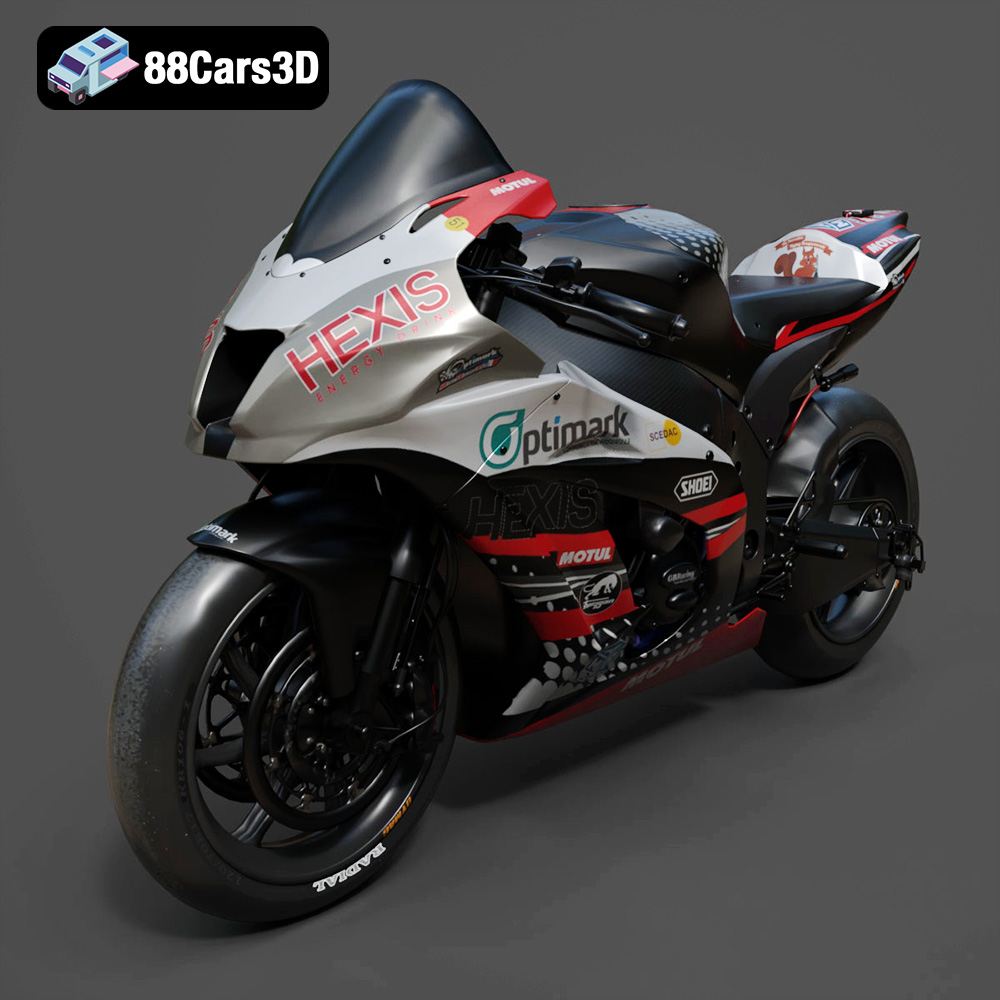
Texture: Yes
Material: Yes
Download the Kawasaki ZX-10R 3D Model featuring clean geometry, realistic detailing, and a fully modeled interior. Includes .blend, .fbx, .obj, .glb, .stl, .ply, .unreal, and .max formats for rendering, simulation, and game development.
Price: $19.99

Texture: Yes
Material: Yes
Download the Jeep Grand Cherokee Limited 2017 3D Model featuring clean geometry, realistic detailing, and a fully modeled interior. Includes .blend, .fbx, .obj, .glb, .stl, .ply, .unreal, and .max formats for rendering, simulation, and game development.
Price: $19.99

