Get 50% OFF All Premium 3D & STL Models!

“`html
For 3D printing enthusiasts looking to personalize their car models, adding logos, emblems, and custom details can take a project from good to exceptional. This blog post delves into the technical aspects of incorporating these elements into STL files, specifically geared towards users of 88cars3d.com and other similar platforms. Whether you’re aiming for historical accuracy, brand representation, or simply a unique aesthetic, mastering these techniques is crucial. We’ll explore various methods, software options, and best practices for achieving professional-looking results.
From understanding STL file structure to utilizing CAD and mesh editing software, we’ll cover everything you need to know. This includes detailed steps on how to prepare your models, optimize them for 3D printing, and troubleshoot common issues. By the end of this guide, you’ll be equipped with the knowledge and skills to confidently customize your 3D printed car models.
The STL (stereolithography) file format is the industry standard for 3D printing. It represents the surface geometry of a 3D object as a collection of triangles. Understanding the underlying structure of an STL file is crucial for successful modification and integration of logos and emblems.
An STL file approximates curved surfaces using a mesh of triangles. The density of this mesh (the number of triangles) directly affects the smoothness and detail of the printed object. Higher mesh density results in a smoother surface but also increases file size and processing time. When adding logos, it’s often necessary to locally increase mesh density in the logo area to capture fine details. For car models, especially those from platforms like 88cars3d.com, ensuring a balanced mesh density is key for optimal printing. Consider using adaptive meshing techniques in your chosen software, which concentrates triangles in areas with high curvature or detail while maintaining a coarser mesh in simpler areas. Aim for a triangle size that’s roughly equivalent to your printer’s nozzle diameter for best results. For example, using a 0.4mm nozzle, a triangle size of 0.2-0.4mm in detailed areas is a good starting point. This parameter is often controlled by chordal deviation settings in meshing software.
Each triangle in an STL file has a normal vector that indicates its orientation. Incorrectly oriented normals can lead to printing errors, such as missing surfaces or inverted geometry. Before adding any details, always check the normals of your STL file and correct any inconsistencies. Software like Netfabb, Meshmixer, and Blender offer tools for visualizing and flipping normals. Additionally, ensure the STL file is “manifold,” meaning it has no holes or self-intersections. Non-manifold geometry can cause slicing problems and printing failures. Most mesh editing software provides tools to automatically identify and repair non-manifold edges and vertices. Run these checks *before* adding your logos and emblems, as these operations can sometimes introduce new errors.
Several software options cater to STL modification, each with its strengths and weaknesses. The best choice depends on your level of experience and the complexity of the modifications you intend to make.
Mesh editing software like Meshmixer and Blender are powerful tools for directly manipulating the mesh structure of an STL file. They allow you to add, subtract, and deform geometry with a high degree of control. Meshmixer, in particular, is a free and user-friendly option for basic STL editing. Blender, while more complex, offers a wider range of features, including sculpting tools for organic shapes and advanced mesh manipulation capabilities. When adding logos, you can import them as separate STL files and use boolean operations (union, difference, intersection) to merge them with the car model’s body. Alternatively, you can use sculpting tools to create raised or recessed emblems directly on the model’s surface. A typical workflow in Meshmixer involves importing both the car model and the logo as separate STL files. Use the “Edit > Transform” tool to position and scale the logo accurately on the car body. Then, select both objects and use “Edit > Boolean > Union” to merge them. Use the “Sculpt” tools to smooth any rough edges and refine the transition between the logo and the car body. Finally, run “Edit > Make Solid” to ensure the resulting mesh is manifold and watertight.
CAD (Computer-Aided Design) software like Fusion 360 and SolidWorks is primarily used for creating precise, parametric models. While not directly designed for STL editing, they can be used to import and modify STL files, especially when combined with mesh conversion tools. CAD software excels at creating clean, geometric shapes, making it ideal for designing logos and emblems from scratch. You can import the car model as a reference and then create the logo as a separate component. Once the logo is complete, you can use boolean operations to cut or emboss it onto the car body. The advantage of using CAD software is the ability to easily modify the logo’s design later, as the changes are based on parameters rather than direct mesh manipulation. For example, in Fusion 360, you can import the STL, convert it to a T-Spline body (which can be edited), and then sketch your logo on a surface. Extrude the sketch to create a raised emblem or use it to cut into the surface for an engraved effect. Remember to convert the modified body back to a mesh before exporting as an STL for 3D printing. The conversion settings should prioritize accuracy to avoid losing detail.
Before integrating logos and emblems into your car model, careful preparation is essential for achieving optimal results.
Logos are often available in vector formats (e.g., SVG, AI). Converting these vector graphics to 3D models is a crucial first step. Software like Inkscape can be used to export vector graphics as STL files. When exporting, pay attention to the resolution settings. Higher resolution results in a smoother 3D model but also increases file size. For simple logos, a moderate resolution (e.g., 1000 x 1000 pixels) is usually sufficient. For complex logos with fine details, you may need to increase the resolution. You can also use online converters, but always preview the resulting STL file to ensure the geometry is clean and accurate. Once converted, import the STL into your chosen mesh editing or CAD software for further refinement. Consider adding a slight thickness to the logo to make it printable, especially for FDM printers. A minimum thickness of 0.8mm is generally recommended for robust adhesion to the print bed and structural integrity.
Complex logos can contain intricate details that are difficult to 3D print. Simplifying the geometry is often necessary to ensure successful printing. This involves removing small, unsupported features and reducing the overall complexity of the mesh. Mesh editing software offers tools for simplifying meshes while preserving the overall shape. The decimation tool in Meshmixer, for example, can reduce the number of triangles in a mesh without significantly altering its appearance. Experiment with different decimation ratios to find a balance between detail and printability. Consider manually removing extremely small features or bridging very thin gaps, as these are common sources of printing failure. Alternatively, you can slightly exaggerate the size of key features to make them more prominent and easier to print. For instance, if a logo contains thin lines, slightly thicken them to ensure they are visible in the final print.
The process of integrating logos and emblems into the car model involves careful manipulation of the mesh and precise positioning.
Boolean operations are a fundamental tool for combining meshes. They allow you to add, subtract, or intersect different geometries. In the context of adding logos, you can use boolean union to merge the logo with the car body or boolean difference to cut the logo shape into the car body. Ensure that the meshes are properly aligned before performing boolean operations to avoid unwanted artifacts. After the operation, the resulting mesh may require further cleanup to remove any overlapping or intersecting faces. Remeshing the affected area can help to smooth out the transition between the logo and the car body. Platforms like 88cars3d.com often feature models designed with clean surfaces to make boolean operations more straightforward.
Embossing involves creating a raised logo or emblem on the surface of the car model, while engraving involves creating a recessed logo. Embossing can be achieved by adding a slightly raised version of the logo to the car body. Engraving can be achieved by cutting the logo shape into the car body using boolean difference. When embossing, ensure the raised area is not too thin, as it may be fragile and prone to breaking. A minimum height of 0.5mm is generally recommended. When engraving, ensure the recessed area is not too deep, as it may be difficult to clean after printing. A maximum depth of 1mm is generally recommended. Consider the limitations of your 3D printer when choosing between embossing and engraving. Embossing tends to be more forgiving, especially for FDM printers, as it’s easier to support the overhanging edges. Engraving, on the other hand, can result in cleaner details, especially with resin printers.
Once the logos and emblems are integrated, optimizing the STL file for 3D printing is crucial for achieving high-quality results.
Ensure that all parts of the model, including the logos and emblems, have sufficient wall thickness for printing. Thin walls can be fragile and prone to warping. A minimum wall thickness of 0.8mm is generally recommended for FDM printing and 1mm for resin printing. Check the wall thickness using your slicing software and adjust the model accordingly. If the logo contains thin features, consider thickening them or adding support structures. For example, if the logo is a thin line, you might need to add a small supporting rib behind it to prevent it from collapsing during printing. Many slicers have tools for automatically detecting and highlighting areas with insufficient wall thickness.
The orientation of the model on the print bed can significantly affect the print quality and the need for support structures. Choose an orientation that minimizes the number of overhanging features and the amount of support material required. Experiment with different orientations in your slicing software to find the optimal configuration. When printing car models, orienting the body with the roof facing up can often minimize the need for supports on the curved surfaces. When supports are necessary, use your slicing software to generate them automatically. Consider using tree-like supports, which are more efficient and easier to remove than traditional linear supports. Customize the support settings, such as the support density and the support overhang angle, to optimize the support structure for your specific model and printer. Pay particular attention to the support placement around the logos and emblems, as these areas often require precise support to maintain detail.
Even with careful preparation, 3D printing can sometimes present unexpected challenges. Understanding common issues and how to address them is crucial for successful printing.
STL files can sometimes become corrupted or contain mesh errors that prevent successful printing. These errors can include holes, self-intersections, and non-manifold edges. Use mesh repair software like Netfabb or Meshmixer to identify and repair these errors. Netfabb offers advanced repair tools that can automatically fix most common mesh errors. Meshmixer, while less powerful, is still effective for repairing simpler issues. Before printing, always run a mesh integrity check to ensure that the file is free of errors. Platforms like 88cars3d.com usually validate files, but checking them again before slicing is still good practice.
Adhesion problems can cause the model to detach from the print bed during printing, while warping can cause the model to distort as it cools. Ensure that the print bed is clean and level. Use a bed adhesion aid, such as glue stick, hairspray, or painter’s tape, to improve adhesion. Adjust the bed temperature and the nozzle temperature to optimize the printing conditions for your chosen material. For PLA, a bed temperature of 60°C and a nozzle temperature of 200°C are generally recommended. For ABS, a bed temperature of 100°C and a nozzle temperature of 230°C are recommended. If warping is a problem, consider using an enclosure to maintain a consistent temperature around the model. Increase the brim size in your slicer settings to provide a larger surface area for adhesion. Additionally, ensure the first layer is properly calibrated, as this is crucial for successful adhesion.
After printing, post-processing techniques can further enhance the appearance and durability of your customized car model.
Carefully remove the support structures using pliers, cutters, or a deburring tool. Take care not to damage the model during support removal. Sanding the surface can smooth out any imperfections and improve the overall finish. Start with a coarse grit sandpaper (e.g., 220 grit) and gradually move to finer grits (e.g., 400 grit, 600 grit, 800 grit) to achieve a smooth surface. Wet sanding can help to prevent the sandpaper from clogging and produce a finer finish. For hard-to-reach areas, use small sanding sticks or rotary tools with sanding attachments. Pay particular attention to the areas around the logos and emblems, as these areas often require more careful sanding to preserve the details.
Painting can add color and realism to your 3D printed car model. Prime the model with a plastic primer to create a smooth surface for painting. Apply multiple thin coats of paint, allowing each coat to dry completely before applying the next. Use masking tape to protect areas that you don’t want to paint. Consider using airbrushing techniques for a professional-looking finish. After painting, apply a clear coat to protect the paint and add a glossy or matte finish. Polishing the clear coat can further enhance the gloss and smoothness of the surface. For small details, like emblems, consider using fine-tipped paintbrushes or paint markers. Automotive-grade paints are often a good choice for car models, as they are designed to withstand harsh conditions and provide a durable finish.
Adding car logos, emblems, and custom details to STL files is a rewarding process that allows you to personalize your 3D printed car models. By understanding the STL file format, choosing the right software, preparing your logos carefully, optimizing your print settings, and troubleshooting common issues, you can achieve professional-looking results. Remember to start with simple projects and gradually work your way up to more complex designs. Platforms like 88cars3d.com offer a fantastic starting point with high-quality base models that are perfect for customization.
Experiment with different techniques, materials, and post-processing methods to find what works best for you. Don’t be afraid to learn from your mistakes and continuously improve your skills. With practice and patience, you can create stunning 3D printed car models that reflect your unique style and passion for automotive design. The key is to approach each project with a methodical approach, paying close attention to detail and always striving for the highest level of quality. Happy printing!
“`
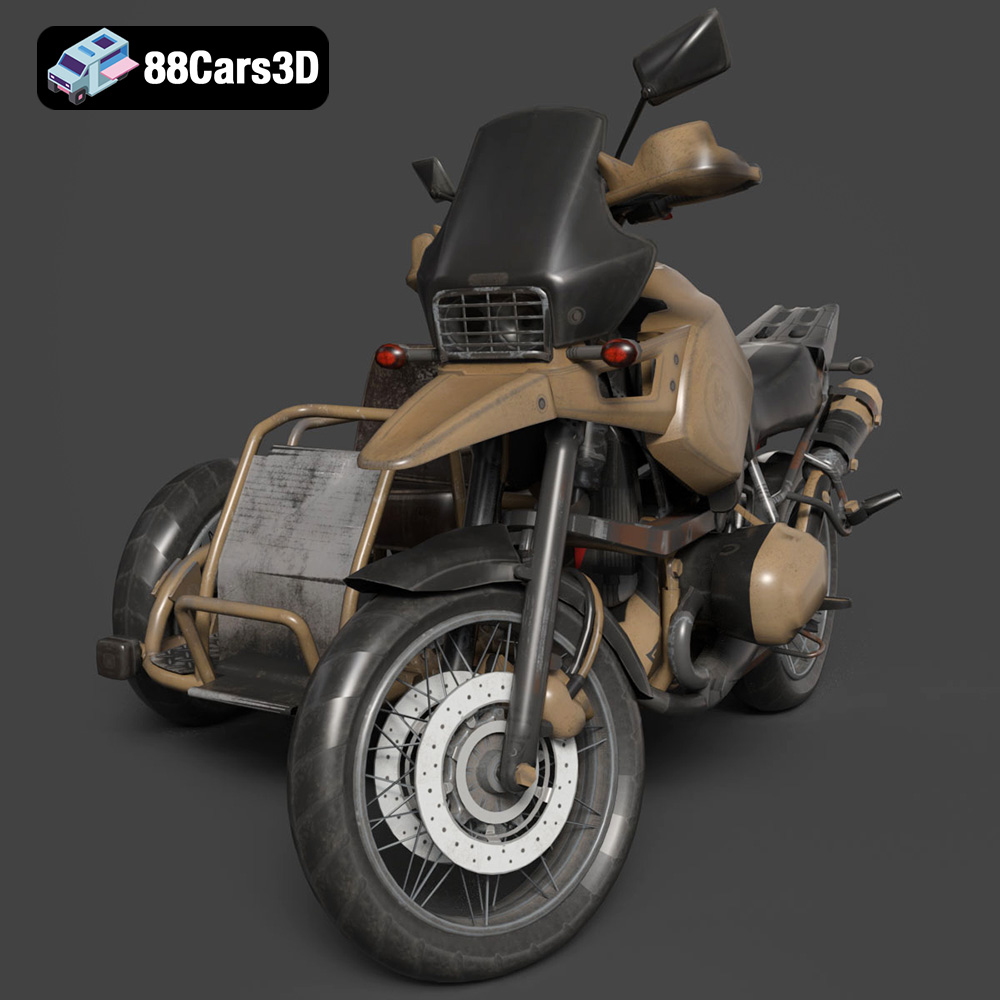
Texture: Yes | Material: Yes
Download the highly detailed, game-ready Custom Off-Road BMW R1150GS Adventure Sidecar 3D Model. Features rugged all-terrain suspension, an attached passenger sidecar, and off-road knobby tires. Includes .blend, .fbx, .obj, .glb, .stl, .ply, .unreal, and .max formats for game development, AR/VR, and rendering.
Price: $19.99

Texture: Yes | Material: Yes
Download the highly detailed, game-ready Mitsubishi Outlander GT 2010 3D Model. Features the aggressive Lancer-inspired front grille, accurate exterior styling, and high-fidelity alloy wheels. Includes .blend, .fbx, .obj, .glb, .stl, .ply, .unreal, and .max formats for game development, AR/VR, and rendering.
Price: $19.99
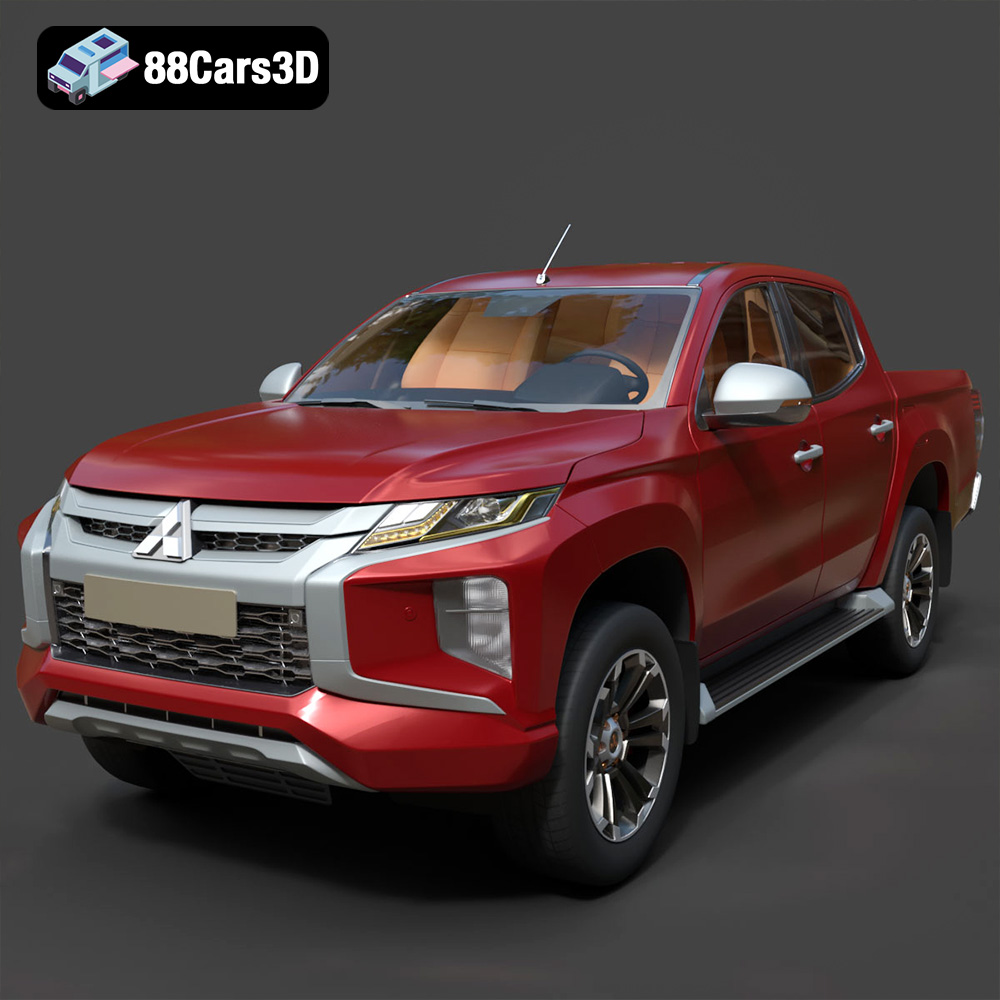
Texture: Yes | Material: Yes
Download the highly detailed, game-ready Mitsubishi L200 Crew Cab 2019 3D Model. Features the iconic Dynamic Shield front fascia, rugged cargo bed, and a spacious crew cab interior. Includes .blend, .fbx, .obj, .glb, .stl, .ply, .unreal, and .max formats for game development, AR/VR, and rendering.
Price: $19.99
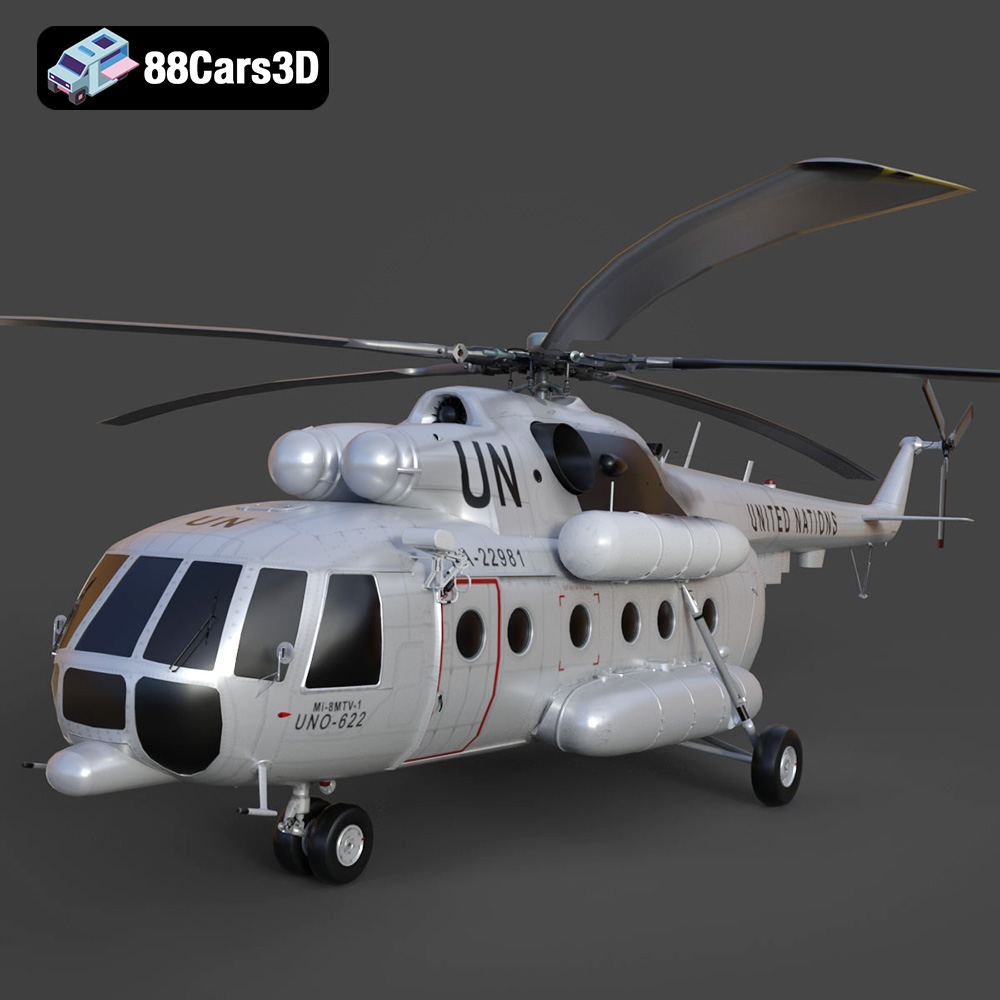
Texture: Yes | Material: Yes
Download the highly detailed, game-ready Mil Mi-8MTV-UN 3D Model. Features the iconic United Nations white livery, detailed twin turboshaft engines, and fully articulated rotor assemblies. Includes .blend, .fbx, .obj, .glb, .stl, .ply, .unreal, and .max formats for game development, AR/VR, and rendering.
Price: $19.99
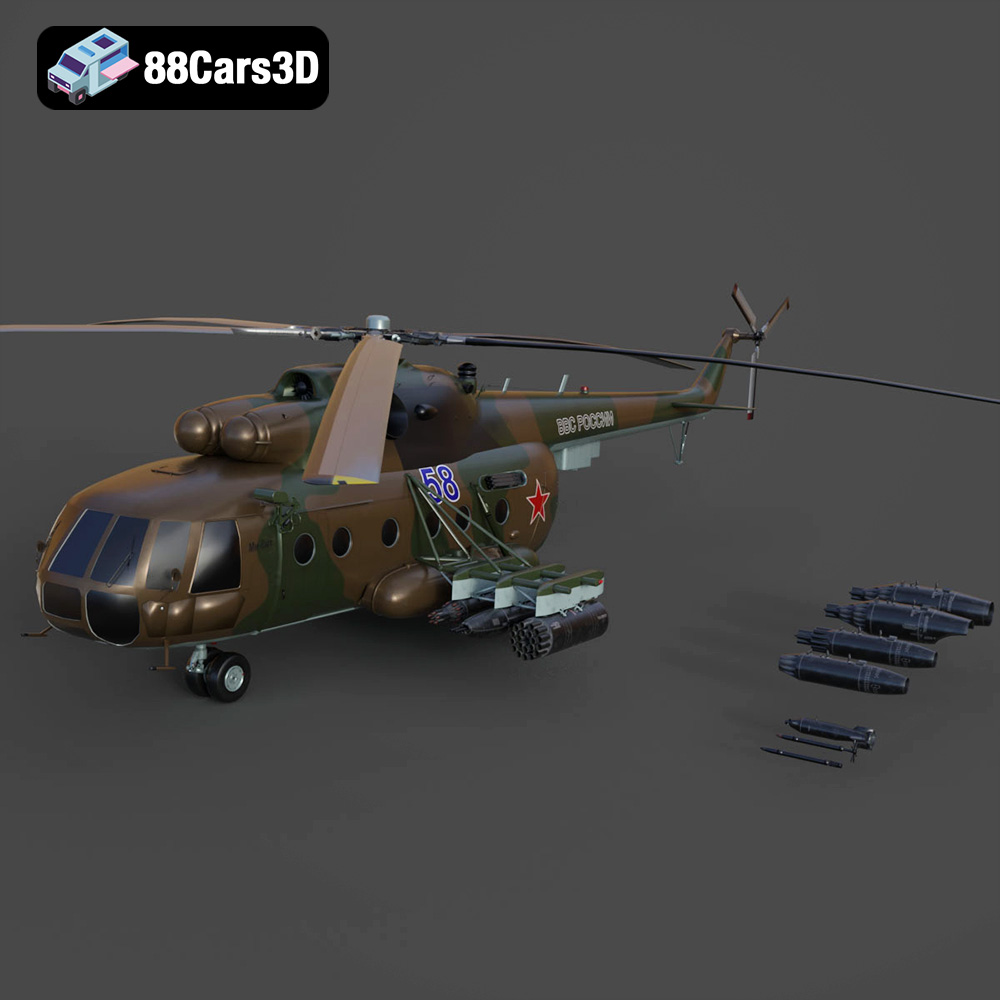
Texture: Yes | Material: Yes
Download the highly detailed, game-ready Mil Mi-8MT Helicopter 3D Model. Features twin-turbine engine housings, a detailed 5-blade main rotor, and authentic cockpit instrumentation. Includes .blend, .fbx, .obj, .glb, .stl, .ply, .unreal, and .max formats for game development, AR/VR, and rendering.
Price: $19.99

Texture: Yes | Material: Yes
Download the highly detailed, game-ready Mercedes-Maybach Vision 6 2018 3D Model. Features an elongated aero coupe design, iconic gullwing doors, and striking 24-inch aerodynamic wheels. Includes .blend, .fbx, .obj, .glb, .stl, .ply, .unreal, and .max formats for game development, AR/VR, and rendering.
Price: $19.99
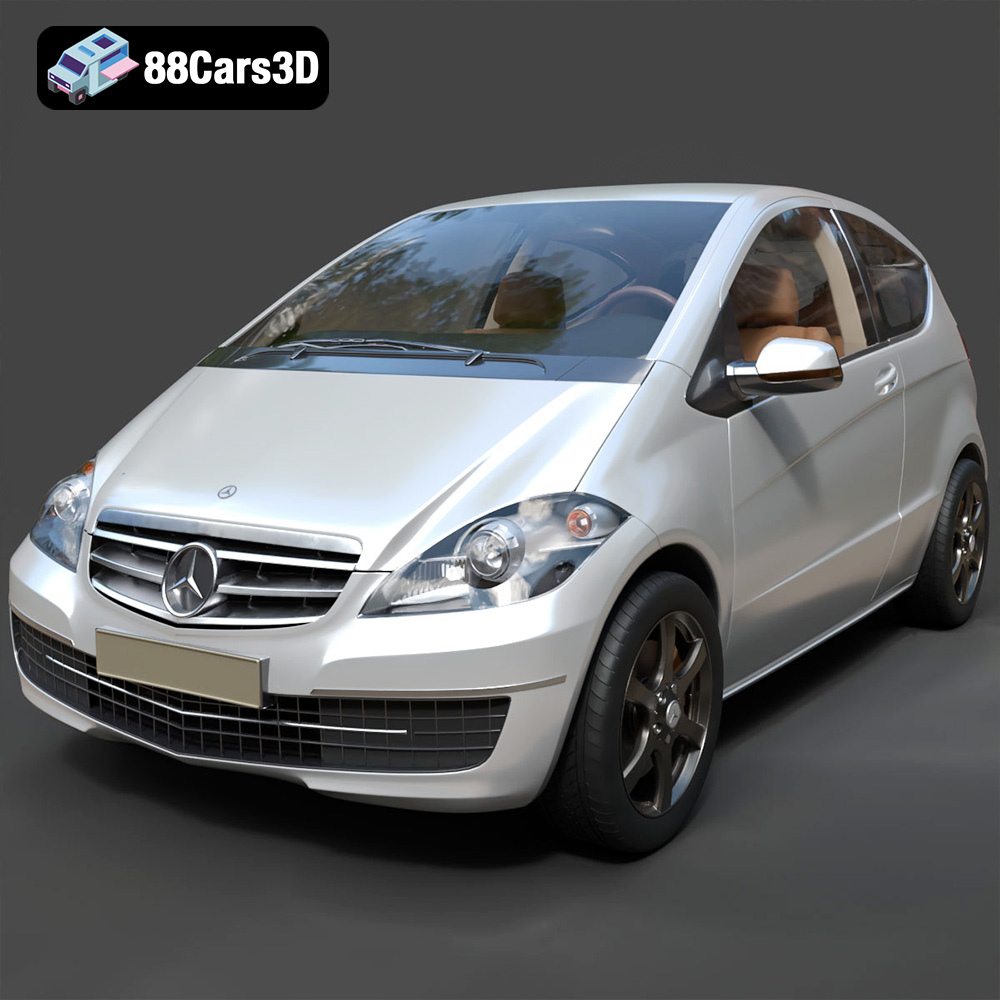
Texture: Yes | Material: Yes
Download the highly detailed, game-ready Mercedes-Benz A-Class 3-Door 2010 3D Model. Features an accurate compact luxury exterior, detailed interior, and optimized topology. Includes .blend, .fbx, .obj, .glb, .stl, .ply, .unreal, and .max formats for game development, AR/VR, and rendering.
Price: $19.99
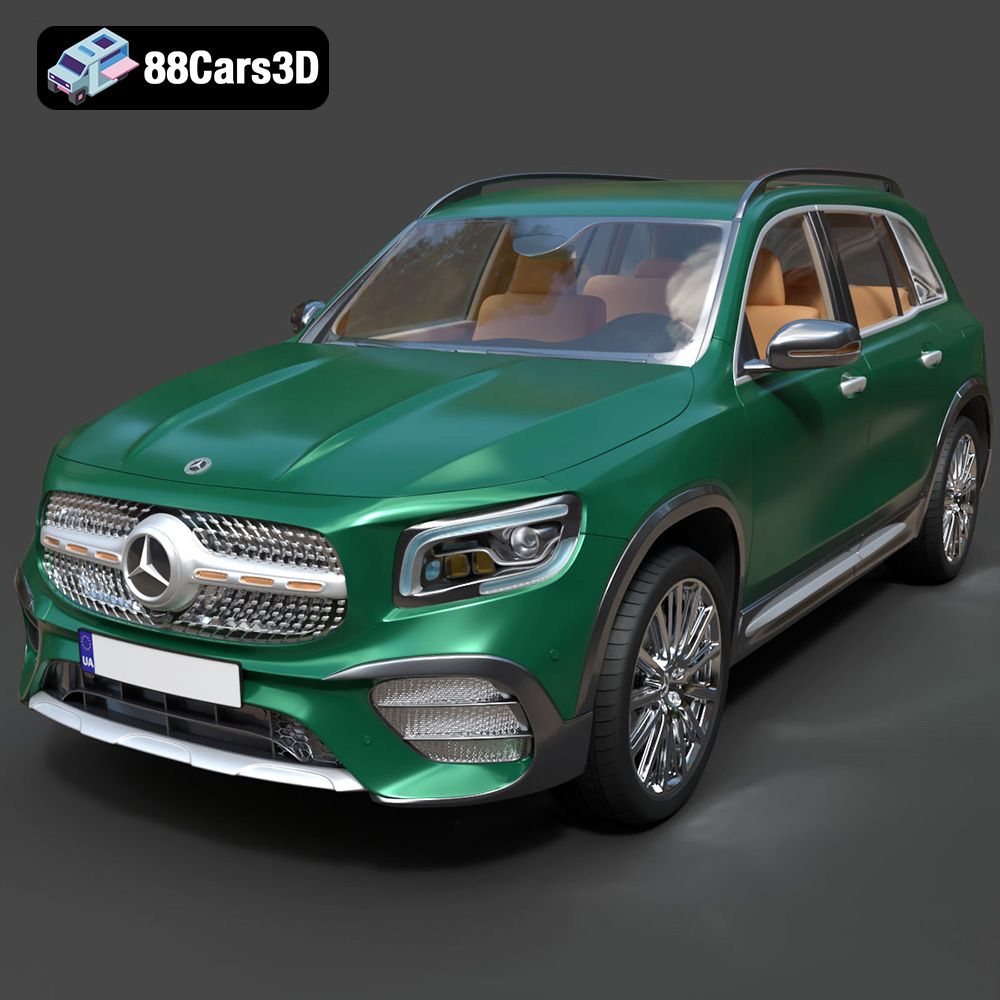
Texture: Yes | Material: Yes
Download the highly detailed, game-ready Mercedes-Benz GLB-Class (Mk1) AMG Line 2019 3D Model. Features sporty AMG Line exterior styling, accurate LED lighting, and premium interior details. Includes .blend, .fbx, .obj, .glb, .stl, .ply, .unreal, and .max formats for game development, AR/VR, and rendering.
Price: $19.99
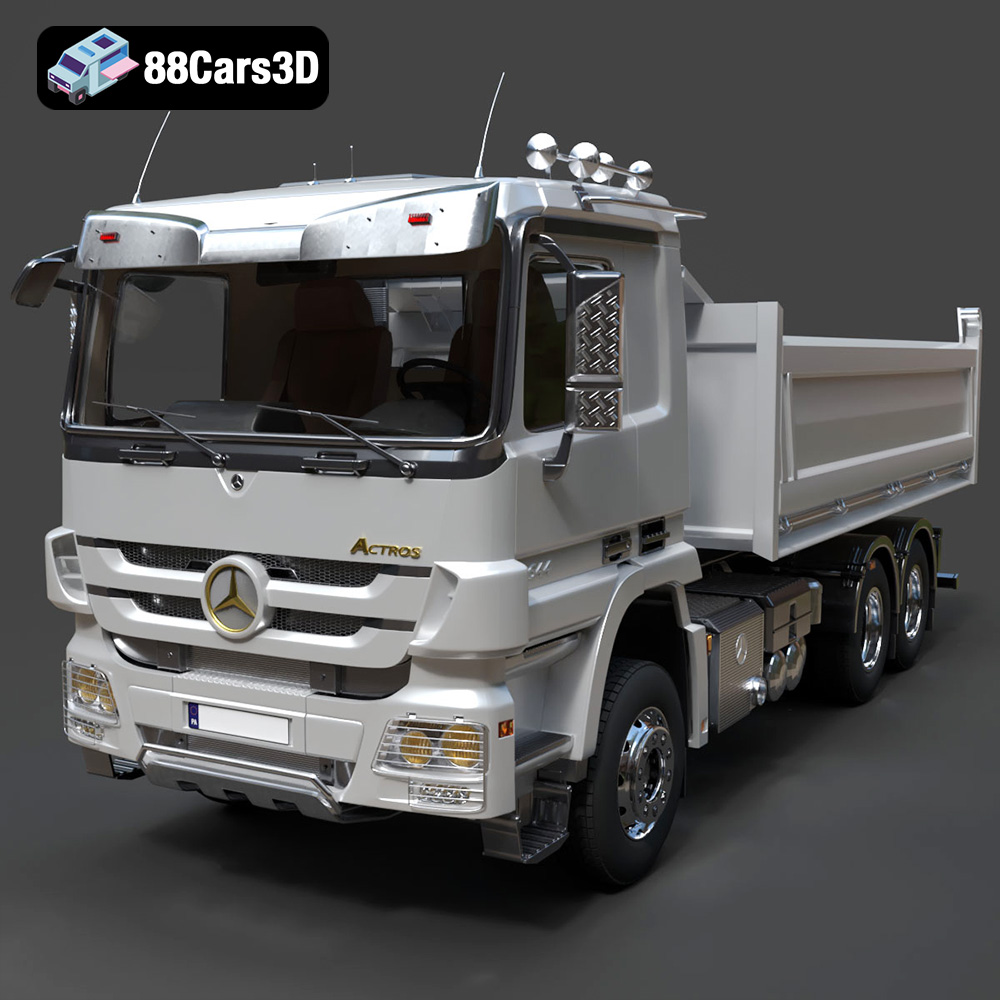
Texture: Yes | Material: Yes
Download the highly detailed, game-ready Mercedes-Benz Actros Tipper 3-Axle 2011 3D Model. Features a functional hydraulic tipper bed, detailed multi-axle chassis, and an accurate commercial cab. Includes .blend, .fbx, .obj, .glb, .stl, .ply, .unreal, and .max formats for game development, AR/VR, and rendering.
Price: $19.99

Texture: Yes | Material: Yes
Download the highly detailed, game-ready Lexus LX Mk3f J200 2016 3D Model. Features the iconic spindle grille, sharp L-shaped LED lighting, and a premium luxury interior. Includes .blend, .fbx, .obj, .glb, .stl, .ply, .unreal, and .max formats for game development, AR/VR, and rendering.
Price: $19.99

