Get 50% OFF All Premium 3D & STL Models!

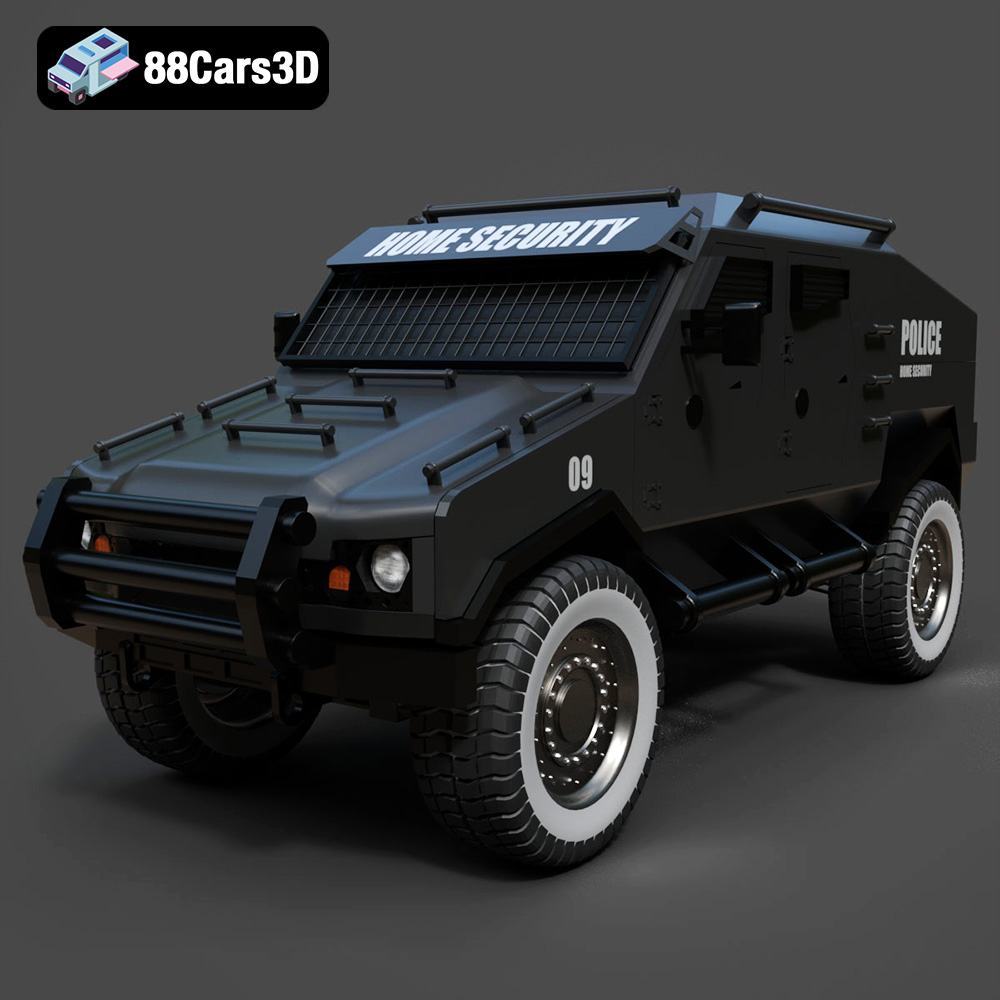
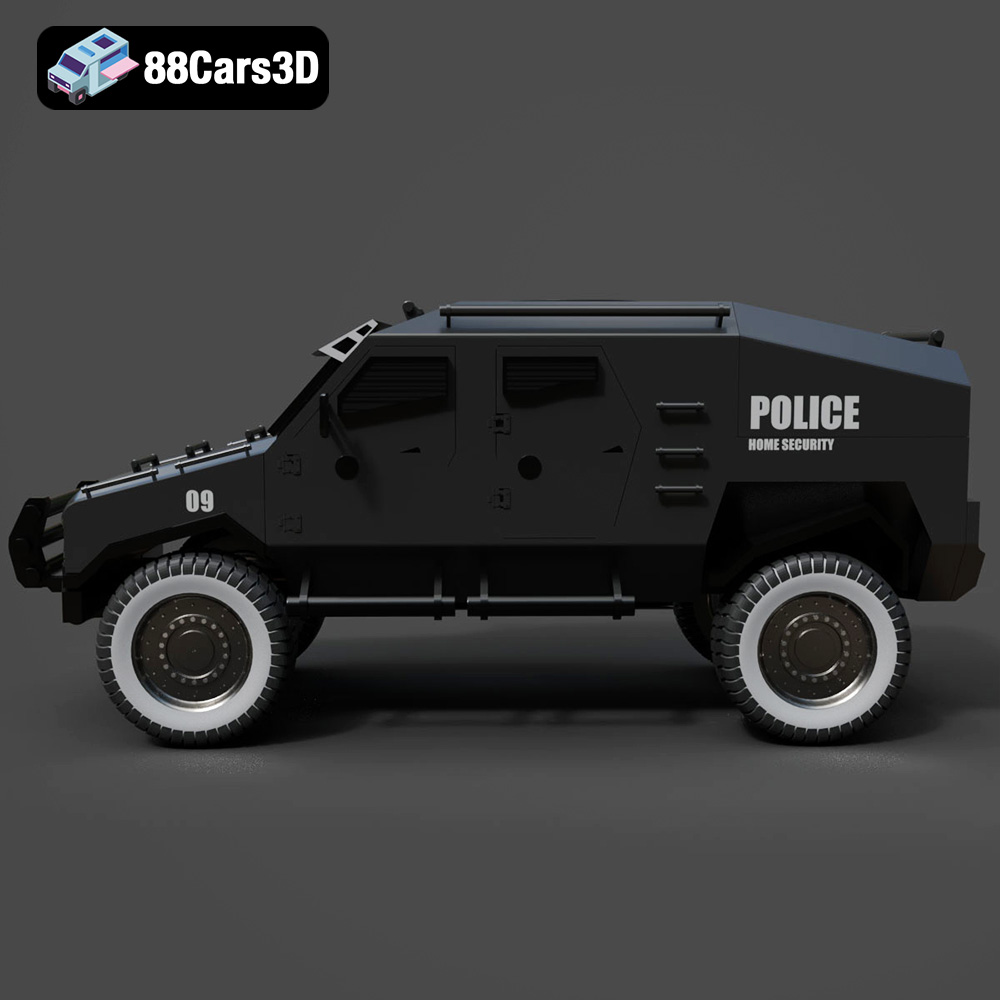
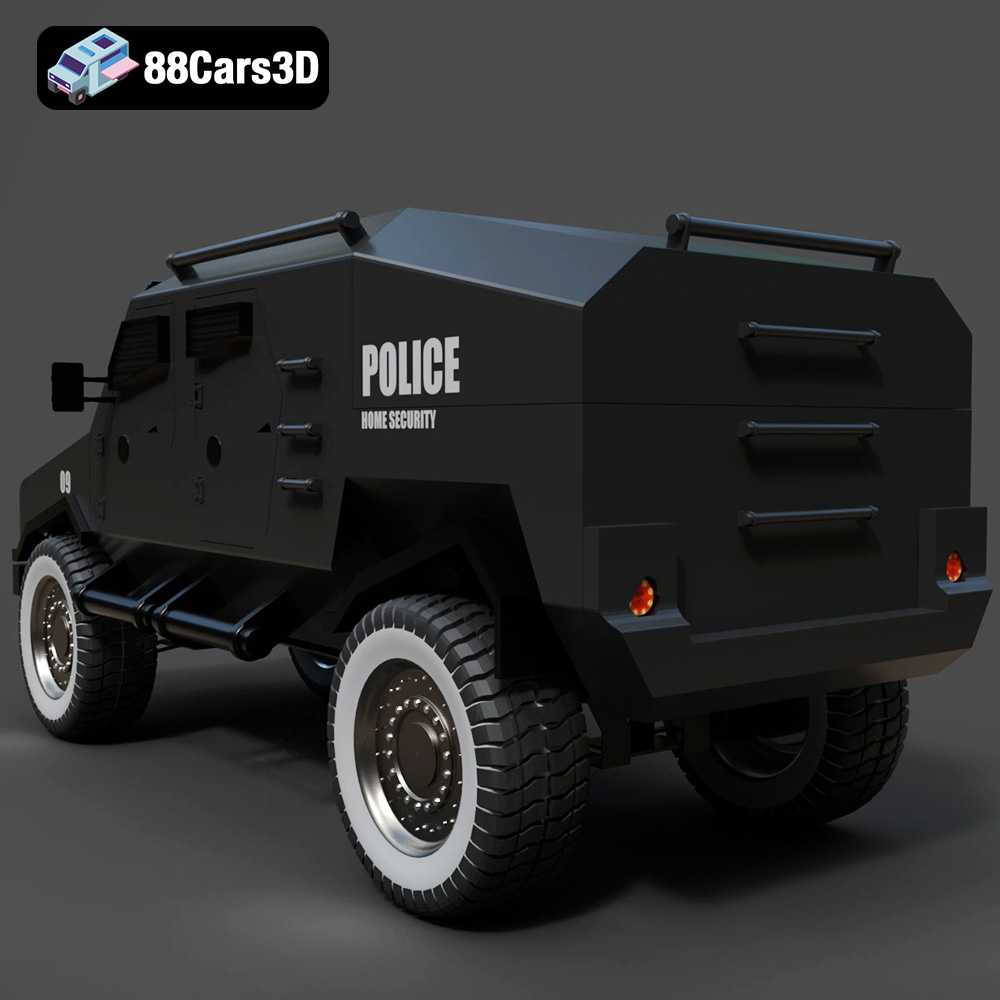
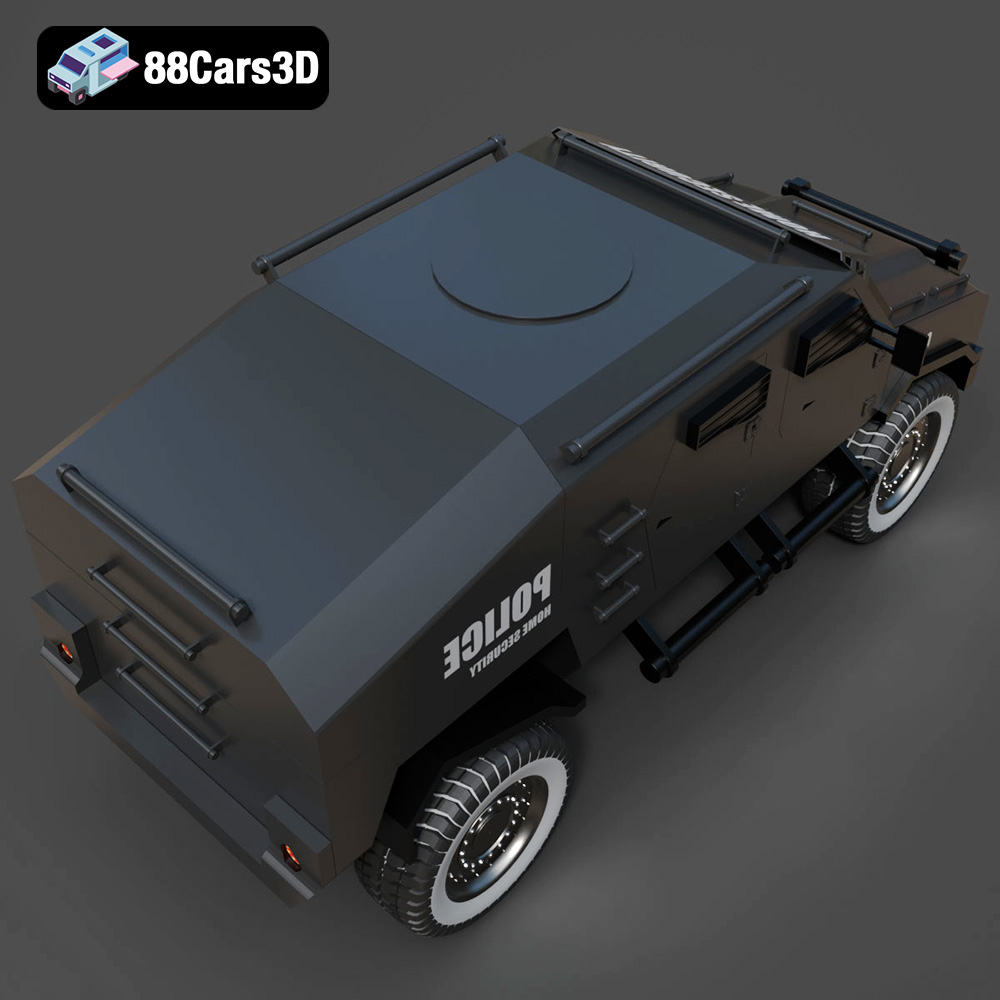
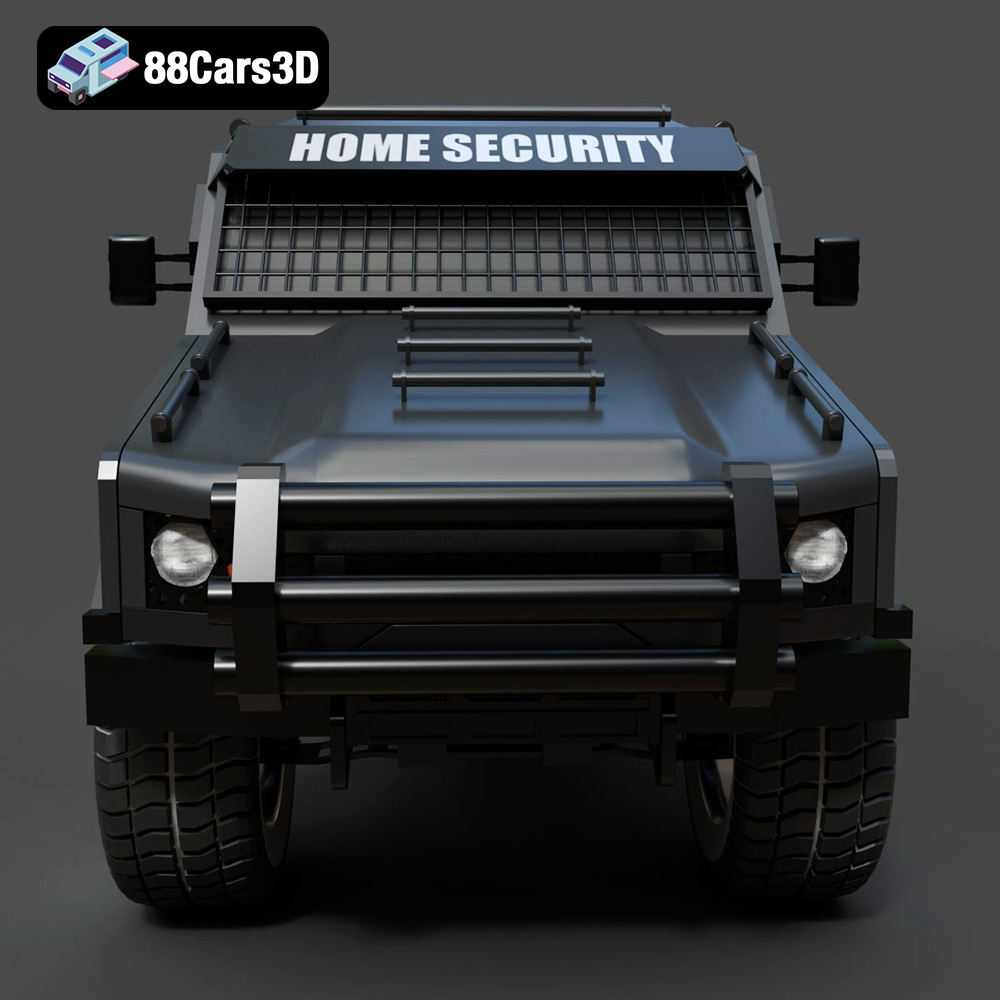
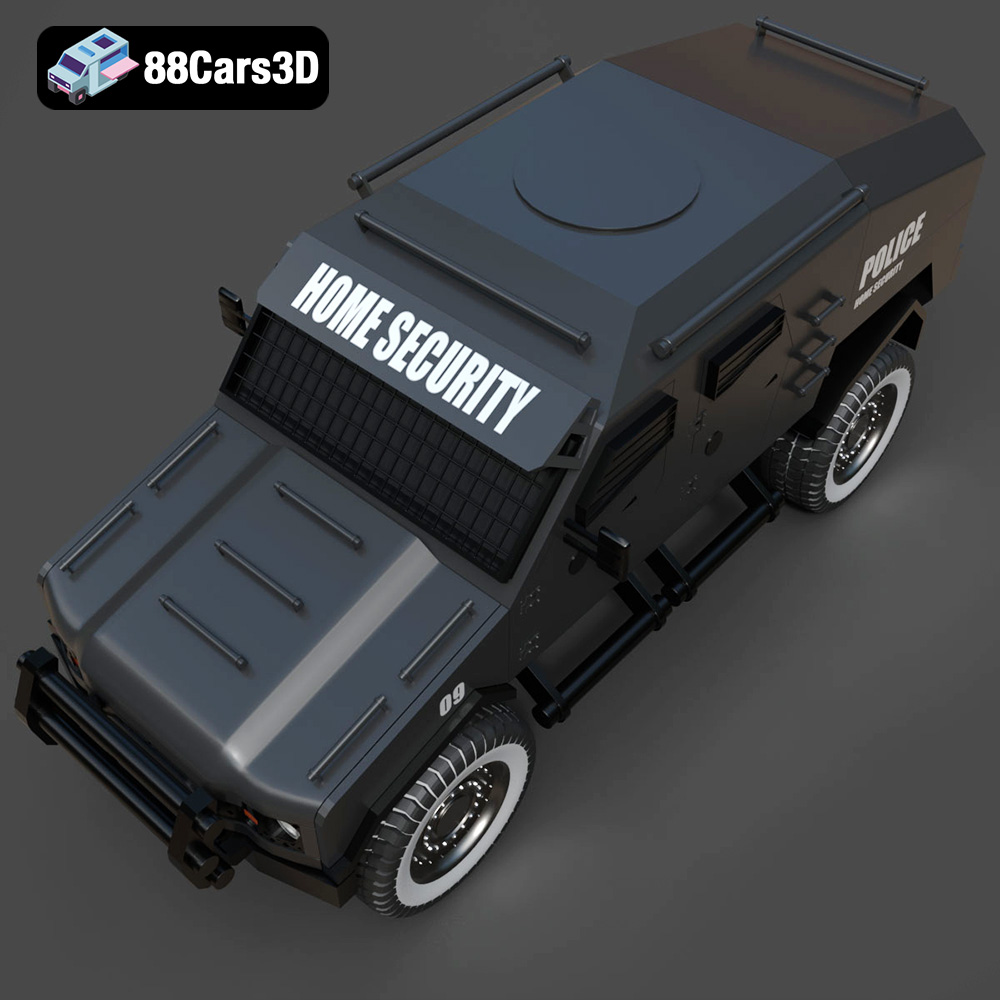
The Armoured Vehicle 001 3D Model from 88cars3d.com offers a fantastic opportunity to bring a piece of modern military technology to life through 3D printing. With its detailed design and accurate representation of tactical transport vehicles, this model is perfect for hobbyists, model enthusiasts, and anyone interested in creating a tangible representation of a formidable machine. This guide will walk you through the entire 3D printing process, from selecting the right materials and settings to post-processing techniques that will ensure a high-quality finished product.
The success of your 3D printed Armoured Vehicle heavily relies on the capabilities of your 3D printer. Consider these factors when making your choice:
* **FDM (Fused Deposition Modeling):** FDM printers are a popular choice for their affordability and ease of use. They use filaments, typically PLA or PETG, which are melted and extruded layer by layer. While FDM printers are suitable for larger parts of the Armoured Vehicle, they might struggle with intricate details.
* **Resin Printing (SLA/DLP/MSLA):** Resin printers offer superior detail and smoother surfaces compared to FDM printers. They use liquid resin that is cured by UV light. Resin printing is ideal for the more intricate components of the Armoured Vehicle, such as small details on the armor plating or interior components (if you choose to print them separately).
* Ensure your chosen printer has a sufficient build volume to accommodate the largest part of the Armoured Vehicle model. If the model is too large, you may need to split it into multiple parts for printing and assemble them later.
* Look for printers with high accuracy and resolution capabilities. A smaller layer height setting on an FDM printer, or a higher resolution on a resin printer, will result in a smoother and more detailed print. This is particularly important for capturing the intricate details of the armored vehicle.
When it comes to 3D printing, the file format is crucial for ensuring compatibility with your slicing software and the overall print quality. The Armoured Vehicle 001 3D Model from 88cars3d.com is provided in multiple formats, but some are more suitable for 3D printing than others. Let’s explore the most common formats:
The .stl (Stereolithography) format is the workhorse of 3D printing. It represents the surface geometry of a 3D object as a collection of triangles. This simplicity makes it universally compatible with virtually all 3D printing software and hardware. However, .stl files only contain information about the shape of the object, not its color, texture, or materials.
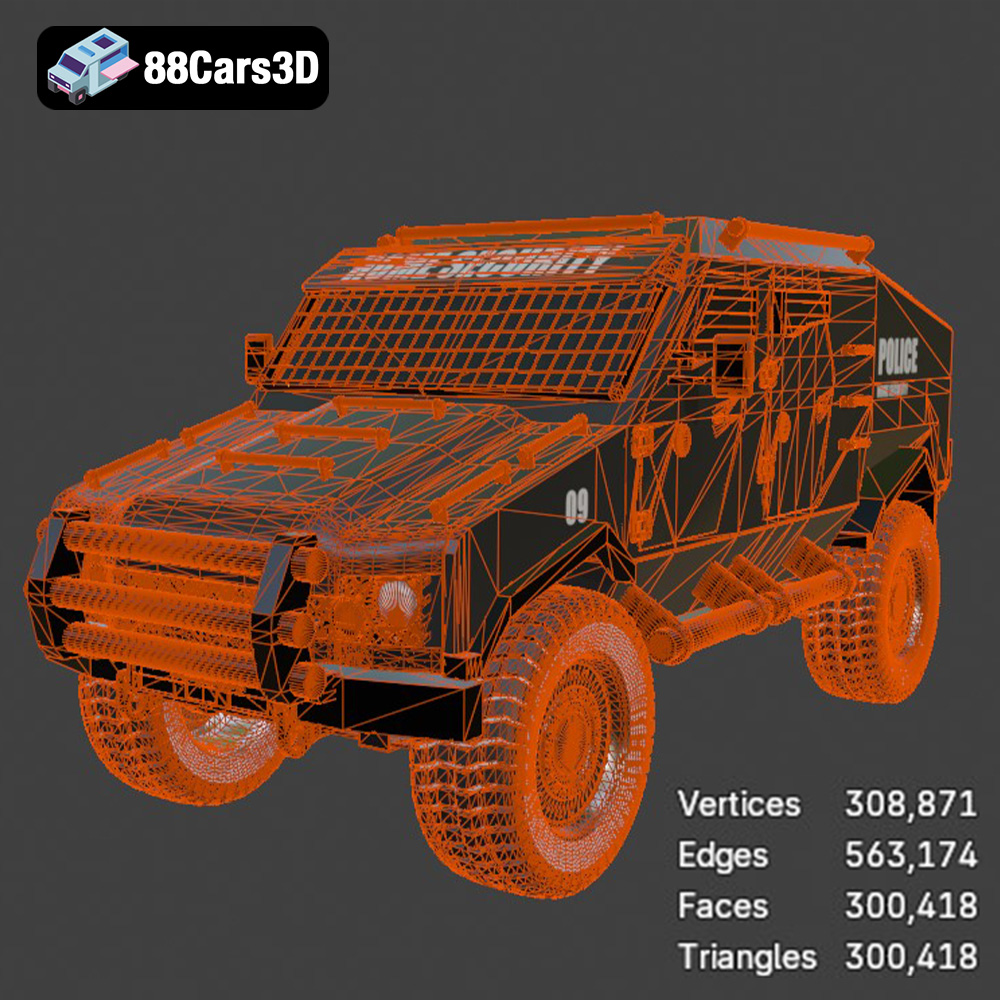
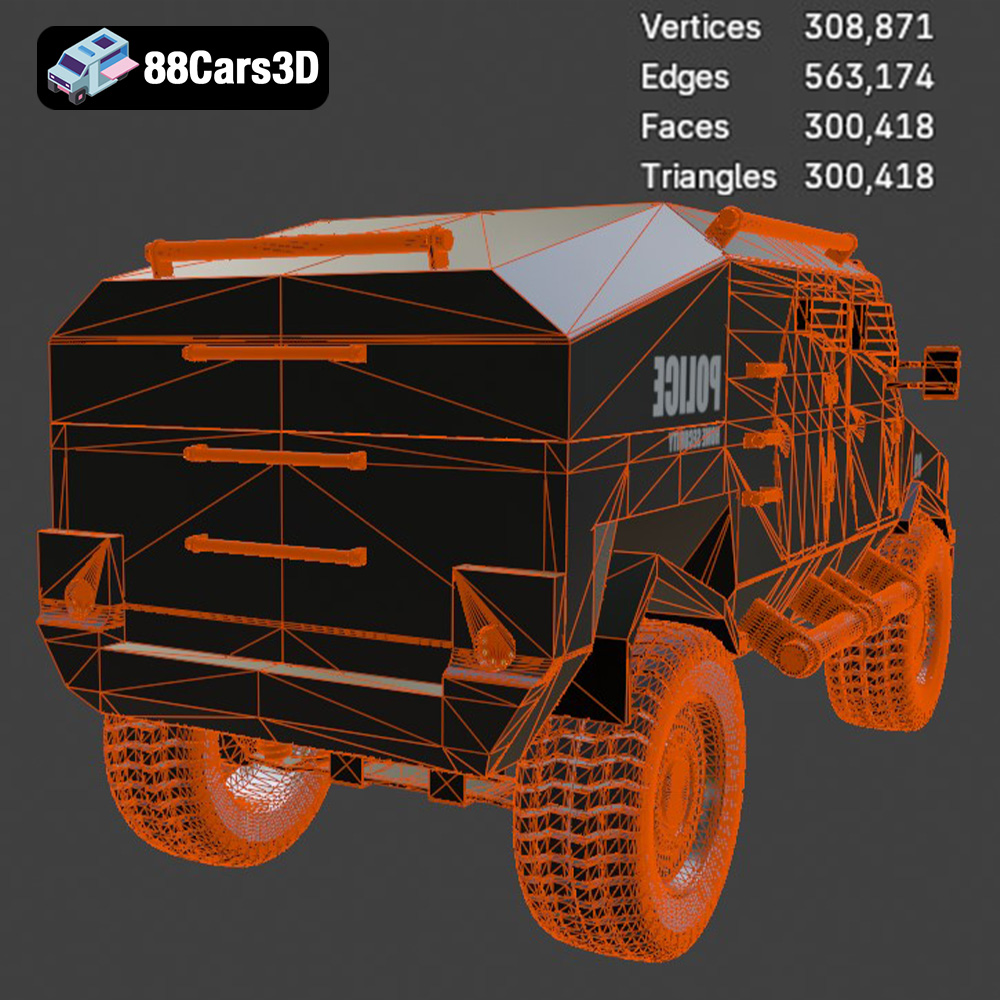
* **Best Use Case:** .stl is the preferred format for 3D printing the Armoured Vehicle 001 model. Its widespread compatibility ensures a seamless workflow from download to print. Before printing, it’s crucial to inspect the .stl file for errors such as non-manifold geometry or inverted normals, which can cause printing issues. Mesh repair tools within slicing software can often fix these problems automatically. The mesh quality directly impacts the smoothness of the final print; higher triangle counts result in finer details but also larger file sizes and longer processing times.
The .obj (Object) format is another common 3D model format, but unlike .stl, it can store color and texture information alongside the geometry. This makes it suitable for models intended for rendering or virtual reality applications where visual appearance is paramount.
* **Printing Considerations:** While .obj files can be 3D printed, they are not as widely supported as .stl. Slicing software may not always handle the texture and color information correctly, potentially leading to errors or unexpected results. If your goal is a single-color 3D print, it’s best to convert the .obj file to .stl before slicing.
The .ply (Polygon File Format) is designed for storing 3D data acquired from 3D scanners. It can represent geometry, color, texture, and other properties with high precision, making it suitable for detailed models.
* **Printing Considerations:** Like .obj, .ply files are not as universally supported as .stl. They are often used for specialized applications such as reverse engineering or scientific visualization. While you can 3D print .ply files, ensure your slicing software can properly interpret the format and that the model is optimized for printing.
The .blend format is the native file format for Blender, a popular open-source 3D modeling software. It contains the entire scene, including the model, materials, lighting, and animations.
* **Printing Considerations:** The .blend file itself cannot be directly 3D printed. You must first open the file in Blender, make any desired modifications to the Armoured Vehicle 001 model, and then export it as an .stl file for 3D printing.
The .fbx (Filmbox) format is a proprietary format developed by Autodesk. It is commonly used for exchanging 3D data between different software applications, particularly in game development and animation.
* **Printing Considerations:** While .fbx can store material information, it is primarily intended for visual applications. When importing an .fbx file into slicing software, the material information may not be fully utilized. As with .obj, it’s often best to convert the model to .stl for optimal 3D printing compatibility.
The .glb (GL Transmission Format Binary) is a file format designed for efficient delivery and loading of 3D models on the web and in augmented reality (AR) applications.
* **Printing Considerations:** .glb files are optimized for real-time rendering and are not directly suitable for 3D printing. You’ll need to convert the .glb file to a printable format like .stl.
.max is the native file format for Autodesk 3ds Max, a professional 3D modeling, animation, and rendering software. It stores all scene data, similar to Blender’s .blend format.
* **Printing Considerations:** Similar to .blend files, .max files cannot be directly 3D printed. The file needs to be opened in 3ds Max, modified as desired, and then exported as an .stl file for printing.
Preparing your Armoured Vehicle 001 model for 3D printing involves several crucial steps to ensure a successful outcome.
* **Orientation:** The orientation of the model on the build plate significantly affects the print quality and support requirements. Experiment with different orientations to minimize the need for supports, especially on visible surfaces. Consider angling the model to reduce the “stair-stepping” effect, particularly on curved surfaces.
* **Support Structures:** Supports are necessary to prevent overhangs from collapsing during printing. Use your slicing software to generate supports automatically, but carefully review their placement and density. Optimize support settings to balance structural integrity with ease of removal. For FDM printing, consider using support interface layers for smoother surfaces. For resin printing, use thinner support tips to minimize scarring.
* **Layer Height:** A smaller layer height results in finer details but increases print time. For FDM printing, a layer height of 0.1-0.2mm is generally a good starting point. For resin printing, layer heights can be even smaller, such as 0.025-0.05mm, for exceptional detail.
* **Infill Density:** Infill density determines the internal strength and weight of the print. A higher infill density results in a stronger but heavier print. For the Armoured Vehicle model, a 15-25% infill density is usually sufficient for structural integrity. Consider using different infill patterns, such as gyroid or honeycomb, for optimal strength-to-weight ratio.
* **Print Speed:** Print speed affects the quality and stability of the print. Slower print speeds generally result in better adhesion and reduced warping. Experiment with different print speeds to find the optimal balance between speed and quality.
* **Temperature:** Adjust the printing temperature based on the material you are using. PLA typically prints well at 200-220°C, while PETG requires higher temperatures of 230-250°C. Refer to the filament manufacturer’s recommendations for optimal temperature settings.
* **Adhesion:** Proper bed adhesion is essential to prevent warping or detachment during printing. Use a heated bed and apply an adhesive such as glue stick or hairspray to improve adhesion.
* **Mesh Repair:** Before slicing, use a mesh repair tool to identify and fix any errors in the .stl file. Common errors include non-manifold geometry, inverted normals, and holes in the mesh. Most slicing software includes built-in mesh repair tools.
* **Hollowing (for Resin Printing):** If you are using a resin printer, consider hollowing out the model to reduce material consumption and print time. Be sure to add drainage holes to allow resin to escape during printing.
The choice of material can significantly impact the appearance, durability, and functionality of your 3D printed Armoured Vehicle.
* **Pros:** PLA is a biodegradable thermoplastic polymer derived from renewable resources, making it an environmentally friendly choice. It is easy to print with and offers good detail resolution.
* **Cons:** PLA is not as strong or heat-resistant as other materials. It may warp or deform in high-temperature environments.
* **Suitability:** PLA is a good choice for non-functional models or prototypes of the Armoured Vehicle, especially if you prioritize ease of printing and environmental considerations.
* **Pros:** PETG combines the ease of printing of PLA with improved strength, flexibility, and heat resistance. It offers good layer adhesion and a glossy finish.
* **Cons:** PETG is more prone to stringing than PLA and may require careful tuning of print settings.
* **Suitability:** PETG is a versatile material suitable for functional parts of the Armoured Vehicle or for models that require greater durability and heat resistance.
* **Pros:** ABS is a strong, impact-resistant thermoplastic commonly used in injection molding. It offers good heat resistance and can be easily painted or finished.
* **Cons:** ABS is more difficult to print with than PLA or PETG. It requires a heated bed and a well-ventilated environment to prevent warping and fumes.
* **Suitability:** ABS is a good choice for functional parts of the Armoured Vehicle that require high strength and impact resistance, such as wheels or suspension components.
* **Pros:** Resin offers exceptional detail resolution and smooth surfaces, making it ideal for intricate parts of the Armoured Vehicle.
* **Cons:** Resin prints are often more brittle than FDM prints and require post-curing. Resin printing can also be more expensive and requires careful handling of chemicals.
* **Suitability:** Resin is an excellent choice for small, detailed components of the Armoured Vehicle, such as decorative elements or figurines.
Post-processing is essential for refining the appearance and functionality of your 3D printed Armoured Vehicle.
* **Support Removal:** Carefully remove support structures using pliers, cutters, or a sharp knife. Take care not to damage the model’s surface.
* **Sanding:** Sand the model’s surface to remove layer lines and smooth out imperfections. Start with coarse sandpaper and gradually move to finer grits for a smooth finish. Wet sanding can help reduce dust and improve the finish.
* **Priming:** Apply a primer to the model’s surface to create a smooth, even base for painting. Primer also helps the paint adhere better to the plastic.
* **Painting:** Use acrylic paints or spray paints to add color and detail to the Armoured Vehicle. Consider using stencils or masking tape to create intricate patterns or camouflage designs. Apply multiple thin coats of paint for a smooth, even finish.
* **Assembly:** If the model was printed in multiple parts, assemble them using glue, screws, or other fasteners.
* **Detailing:** Add additional details to the model using weathering techniques, decals, or other accessories to enhance its realism.
Even with careful preparation, you may encounter issues during the 3D printing process. Here are some common problems and their solutions:
* **Cause:** Warping occurs when the corners of the print lift off the build plate due to uneven cooling.
* **Solution:** Improve bed adhesion by using a heated bed, applying an adhesive, or increasing the bed temperature. Reduce print speed and layer height. Enclose the printer to maintain a more consistent temperature.
* **Cause:** Stringing occurs when molten filament oozes from the nozzle during travel moves.
* **Solution:** Reduce the printing temperature, increase retraction settings, and decrease travel speed. Ensure the filament is dry.
* **Cause:** Layer delamination occurs when layers fail to adhere properly to each other.
* **Solution:** Increase the printing temperature, reduce print speed, and ensure proper bed adhesion. Increase the cooling fan speed.
* **Cause:** Elephant’s foot occurs when the first layer of the print is squashed too much, causing it to flare out.
* **Solution:** Adjust the Z-offset, reduce the initial layer height, and decrease the bed temperature.
By carefully considering these factors and following these guidelines, you can successfully 3D print your own Armoured Vehicle 001 model and create a stunning replica of this impressive machine. Remember to experiment with different settings and techniques to find what works best for your printer and materials. The Armoured Vehicle 001 3D Model available at 88cars3d.com provides a fantastic base for your 3D printing journey, and with a little patience and creativity, you can achieve truly remarkable results.
Discover the realism and precision of the Armoured Vehicle 001 3D Model. Engineered to exact standards, this digital asset accurately represents the rugged exterior and functional design inherent in modern tactical transport vehicles. Whether deployed in urban environments or off-road terrains, the attention to detail in the armor plating, heavy-duty suspension, and strategic window placements ensures an authentic visual experience.
$19.99
.armoredcar
.armoured
.arvr
.blend
.car3dmodel
.fbx
.gameasset
.glb
.max
.military
.obj
.ply
.rendering
.simulation
.stl
.tactical
.unreal
.vehicle001