Get 20% OFF All Premium 3D & STL Models!

“`html
So, you’ve found or created a stunning 3D model – perhaps a detailed car from a source other than a dedicated 3D printing marketplace – and you’re eager to bring it to life with your 3D printer. However, many 3D models are initially designed using polygon-based formats optimized for rendering and animation, not 3D printing. These formats, like OBJ, FBX, or even some proprietary formats, need to be converted to the STL (Stereolithography) format, the workhorse of 3D printing. This conversion process isn’t always straightforward; it requires understanding the nuances of STL files and employing the right techniques to ensure a successful print. This guide will walk you through the process, from understanding the basics of STL files to optimizing your models for printing success. You’ll learn how to properly convert your polygon models, repair any potential issues, and fine-tune your slicer settings for the best possible results, whether you’re using FDM or resin printing. Platforms like 88cars3d.com offer print-ready STL files, but understanding the conversion process is invaluable when working with models from other sources.
The STL file format is the de facto standard for 3D printing. It represents the surface geometry of a 3D object as a collection of triangles. Unlike polygon-based formats that store curves and surfaces using mathematical descriptions, STL approximates them with a mesh of interconnected triangles. This simplification, while beneficial for 3D printing, can sometimes lead to issues if the source model is complex or has poorly defined geometry.
STL files come in two main flavors: ASCII and binary. ASCII STL files are human-readable and store triangle data as text, making them larger but easier to debug. Binary STL files are more compact and efficient, storing triangle data in binary format. Regardless of the format, each triangle is defined by its three vertices (coordinates in 3D space) and a normal vector (indicating the triangle’s orientation). The normal vector is crucial because it determines the “outside” of the object. Incorrectly oriented normals can lead to flipped or inverted geometry, causing printing problems. Most modern slicers can automatically detect and correct these issues, but it’s always best to ensure your model is properly oriented before slicing.
For successful 3D printing, your STL file must represent a “manifold” geometry. This means that every edge of every triangle must be shared by exactly two triangles. Non-manifold geometry, where edges are shared by more or fewer than two triangles, can cause slicing errors and printing failures. Common issues include holes in the mesh, self-intersecting surfaces, and disconnected components. These flaws can confuse the slicer, leading to incorrect toolpath generation and ultimately, a failed print. Mesh topology refers to the connectivity and arrangement of the triangles within the STL file. A well-formed topology is essential for accurate representation and proper slicing. Tools like Netfabb and Meshmixer are invaluable for identifying and repairing these topological issues.
Numerous software packages can convert polygon models to STL. The best choice depends on your budget, technical expertise, and the complexity of the model. Some popular options include Blender, MeshLab, Autodesk Meshmixer, and commercial CAD/CAM software like SolidWorks or AutoCAD. Each offers a different set of features and capabilities for mesh manipulation and optimization.
Blender, a free and open-source 3D creation suite, is a powerful tool for converting and editing 3D models. To convert a model to STL in Blender, first import the original file format (OBJ, FBX, etc.). Then, select the object and go to File > Export > STL (.stl). Blender allows you to adjust the export settings, such as the scale and axis orientation, ensuring compatibility with your slicer software. Before exporting, it’s crucial to check the mesh for any errors. Blender offers tools for identifying and fixing non-manifold geometry, such as the “Select Non-Manifold” option in Edit Mode. You can also use the “Remesh” modifier to simplify the mesh and improve printability, though this may reduce detail. For car models, be mindful of small details like mirrors or antennas, as aggressive remeshing can eliminate these features.
MeshLab is another free and open-source tool specifically designed for processing and editing 3D meshes. It excels at cleaning up and repairing STL files before printing. After importing your model, MeshLab offers a variety of filters for detecting and correcting common mesh errors, such as holes, self-intersections, and flipped normals. The “Remove Duplicate Vertices” and “Merge Close Vertices” filters can help simplify the mesh and reduce file size without significantly impacting visual quality. MeshLab also provides tools for smoothing the surface and reducing the number of triangles, which can improve print quality and reduce slicing time. When working with intricate models, consider using the “Taubin Smooth” filter with a small number of iterations (e.g., 5-10) to gently smooth the surface without losing fine details.
Once you have a clean STL file, the next step is slicing. Slicing software takes the 3D model and converts it into a series of layers that the 3D printer can understand. The slicing parameters you choose will significantly impact the print quality, strength, and print time. Understanding these parameters and how they interact is crucial for achieving optimal results. For example, a lower layer height will produce smoother surfaces but increase print time significantly. Conversely, a higher layer height will print faster but may result in visible layer lines.
Layer height is arguably the most important slicing parameter. It determines the thickness of each layer of the print. Lower layer heights (e.g., 0.1mm or 0.05mm) result in smoother surfaces and finer details, but they also increase print time and the risk of print failures. Higher layer heights (e.g., 0.2mm or 0.3mm) are faster but produce more visible layer lines. For detailed car models, a layer height of 0.1mm to 0.15mm is generally recommended to capture intricate features. Experiment with different layer heights to find the optimal balance between print quality and speed. Consider using adaptive layer height, a feature available in some slicers like PrusaSlicer, which automatically adjusts the layer height based on the geometry of the model. This allows you to print detailed areas with a lower layer height and less detailed areas with a higher layer height, saving time without sacrificing quality.
Infill refers to the internal structure of the 3D printed object. It provides support and strength to the outer walls and roof. Infill density is the percentage of the interior volume that is filled with material. Higher infill densities (e.g., 50% or 100%) result in stronger prints but require more material and increase print time. Lower infill densities (e.g., 10% or 20%) are faster and more economical but may compromise the strength of the print. The optimal infill density depends on the intended use of the model. For decorative car models, a low infill density (10-15%) is often sufficient. For functional parts or models that will be subjected to stress, a higher infill density (20-30%) is recommended. The infill pattern also affects the strength and weight of the print. Common infill patterns include rectilinear, grid, honeycomb, and gyroid. Gyroid infill offers excellent strength-to-weight ratio and is often preferred for functional parts. For car models, consider using a rectilinear infill pattern for flat surfaces and a gyroid pattern for more complex geometries.
Support structures are temporary structures that provide support for overhanging features during 3D printing. They are essential for printing complex geometries and preventing print failures. Proper support generation and removal are crucial for achieving a successful print. Poorly placed or insufficient supports can lead to drooping, warping, and other defects. Conversely, excessive supports can be difficult to remove and may leave unsightly marks on the finished print.
Most slicing software packages offer automatic support generation, which automatically places supports based on the geometry of the model. However, automatic support generation is not always perfect, and manual adjustments may be necessary to optimize support placement and minimize material usage. Manual support generation allows you to fine-tune the support placement, ensuring that all overhanging features are adequately supported while minimizing the amount of material used and the impact on the surface finish. When working with complex car models, consider using a combination of automatic and manual support generation. Start with automatic supports and then manually add or remove supports as needed to optimize the print. Pay close attention to areas like spoilers, mirrors, and bumpers, as these features often require additional support.
The choice of support material depends on the 3D printing technology being used. For FDM printing, the support material is typically the same as the model material (e.g., PLA or ABS). For resin printing, the support material is typically a different resin with lower strength and adhesion. The removal technique also depends on the material. FDM supports are typically removed by breaking them away from the model. Resin supports are more fragile and require careful cutting or dissolving in a solvent. When removing supports from FDM prints, use pliers or a sharp knife to carefully break them away from the model. Avoid pulling on the supports, as this can damage the surface of the print. For resin prints, use a sharp blade or wire cutters to carefully cut the supports away from the model. Be patient and take your time to avoid damaging the delicate features of the print. Some resins are soluble in specific solvents, allowing for easy support removal without any physical contact.
The choice of material and proper printer calibration are fundamental to achieving high-quality 3D prints. Different materials have different properties, such as strength, flexibility, and heat resistance. Choosing the right material for your application is crucial for ensuring that the printed part meets your requirements. Similarly, a properly calibrated printer ensures that the dimensions of the printed part are accurate and that the printer is extruding the correct amount of material.
For FDM printing, the most common materials are PLA, PETG, and ABS. PLA (Polylactic Acid) is a biodegradable thermoplastic that is easy to print and produces good surface finish. It is a good choice for decorative parts and prototypes. PETG (Polyethylene Terephthalate Glycol) is a more durable and heat-resistant material than PLA. It is a good choice for functional parts and parts that will be exposed to sunlight or heat. ABS (Acrylonitrile Butadiene Styrene) is a strong and heat-resistant material that is commonly used in automotive and industrial applications. However, it is more difficult to print than PLA and PETG and requires a heated bed and enclosure to prevent warping. When choosing a material for your car model, consider the intended use and the level of detail required. For purely aesthetic models, PLA might be sufficient. If you require more durability or plan to paint the model, PETG or ABS would be better choices. 88cars3d.com offers models designed with these materials in mind, making the selection process easier.
Resin printing technologies, such as SLA (Stereolithography), DLP (Digital Light Processing), and MSLA (Masked Stereolithography), use liquid resin that is cured by UV light to create 3D objects. Resin printing offers higher resolution and finer details than FDM printing, making it ideal for printing intricate models and parts with complex geometries. However, resin printing is also more expensive and requires more post-processing than FDM printing. The choice of resin depends on the specific application and the desired properties of the printed part. Some resins are designed for high strength, while others are designed for flexibility or heat resistance. When selecting a resin for your car model, consider the level of detail required and the intended use of the model. Resins are also available in a variety of colors, allowing you to print models in a wide range of finishes. Proper calibration is paramount. This includes leveling the build plate and setting the correct exposure times for your chosen resin. Overexposure can lead to excessive curing and loss of detail, while underexposure can result in weak or incomplete prints.
Post-processing refers to the steps taken after printing to improve the appearance and functionality of the 3D printed object. This can include removing support structures, sanding, painting, and assembling multiple parts. Proper post-processing can significantly enhance the final product and transform a raw 3D print into a polished and professional-looking model. The techniques used depend on the material, printing technology, and desired finish.
Sanding is used to remove layer lines and other imperfections from the surface of the 3D printed object. Start with a coarse grit sandpaper (e.g., 220 grit) to remove larger imperfections and then gradually move to finer grits (e.g., 400 grit, 600 grit, 800 grit) to smooth the surface. Wet sanding can help to prevent the sandpaper from clogging and produce a smoother finish. For hard-to-reach areas, consider using small sanding sponges or files. When sanding PLA, be careful not to overheat the material, as this can cause it to melt or deform. For ABS, sanding can be done more aggressively, but be sure to wear a dust mask to protect yourself from the fumes. For resin prints, sanding is typically done after curing the resin. Use wet sanding techniques to minimize dust and achieve a smooth surface.
Painting is used to add color and protect the surface of the 3D printed object. Before painting, it is important to prime the surface to improve adhesion and create a uniform base. Use a spray primer specifically designed for plastics. Apply thin, even coats and allow the primer to dry completely before applying the paint. Choose paints that are compatible with the material being painted. Acrylic paints are a good choice for PLA and ABS, while enamel paints are often used for resin prints. Apply multiple thin coats of paint, allowing each coat to dry completely before applying the next. After painting, consider applying a clear coat to protect the paint and add a glossy or matte finish. Model paints are specifically designed for scale models and offer a wide range of colors and finishes. Airbrushing can be used to achieve a smooth and professional-looking finish, especially for complex car models with intricate details. When downloading models from marketplaces such as 88cars3d.com, you’re already one step closer to a perfect finish, as the models are optimized for printing and painting.
Converting polygon 3D models to STL for 3D printing involves understanding the STL format, choosing the right conversion software, optimizing slicing parameters, generating appropriate support structures, selecting the correct material, and performing post-processing steps. Each of these steps plays a crucial role in achieving a successful and high-quality 3D print. By following the guidelines and tips outlined in this guide, you can confidently convert your polygon models to STL and bring your creative visions to life. Remember that experimentation is key. Don’t be afraid to try different settings and techniques to find what works best for your printer and your specific model. The world of 3D printing is constantly evolving, and there is always something new to learn. Start with simpler models and gradually work your way up to more complex projects. Before you know it, you’ll be creating stunning 3D printed objects with ease. So, dive in, experiment, and enjoy the process of bringing your digital designs into the physical world!
“`
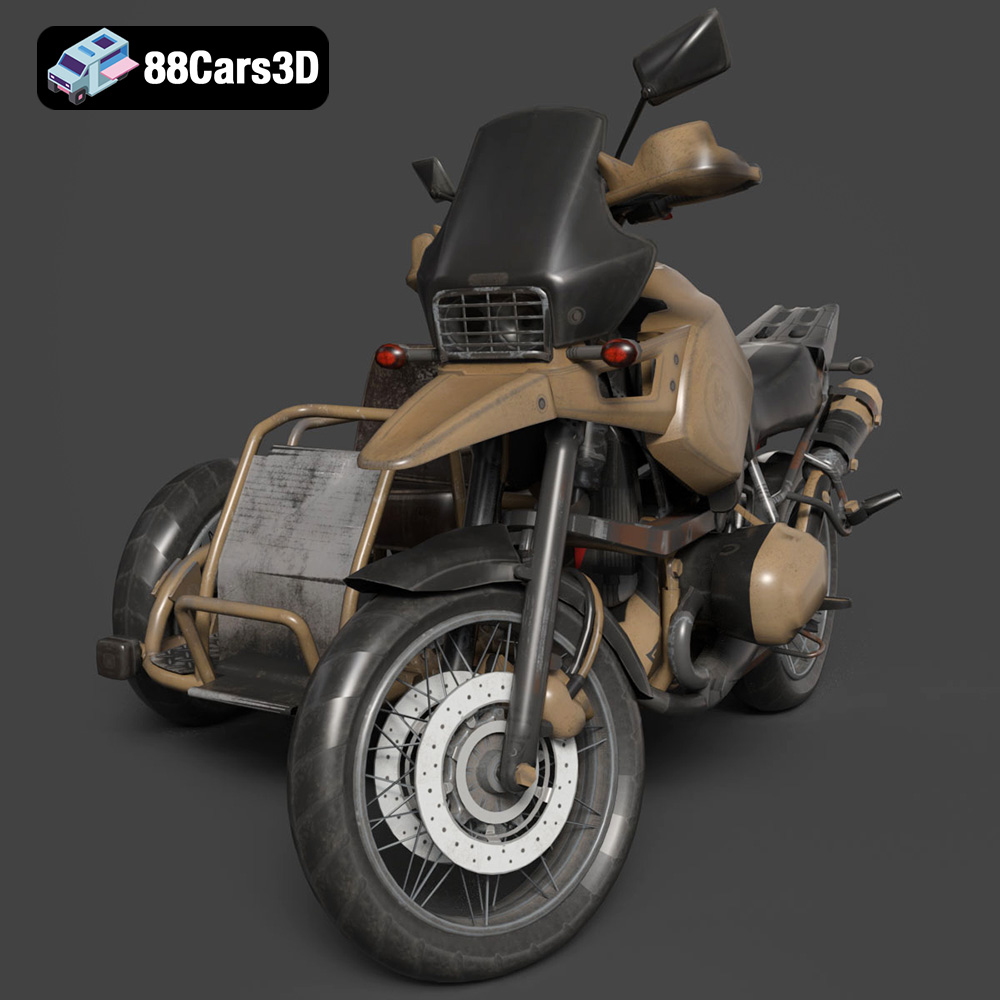
Texture: Yes | Material: Yes
Download the highly detailed, game-ready Custom Off-Road BMW R1150GS Adventure Sidecar 3D Model. Features rugged all-terrain suspension, an attached passenger sidecar, and off-road knobby tires. Includes .blend, .fbx, .obj, .glb, .stl, .ply, .unreal, and .max formats for game development, AR/VR, and rendering.
Price: $19.99

Texture: Yes | Material: Yes
Download the highly detailed, game-ready Mitsubishi Outlander GT 2010 3D Model. Features the aggressive Lancer-inspired front grille, accurate exterior styling, and high-fidelity alloy wheels. Includes .blend, .fbx, .obj, .glb, .stl, .ply, .unreal, and .max formats for game development, AR/VR, and rendering.
Price: $19.99
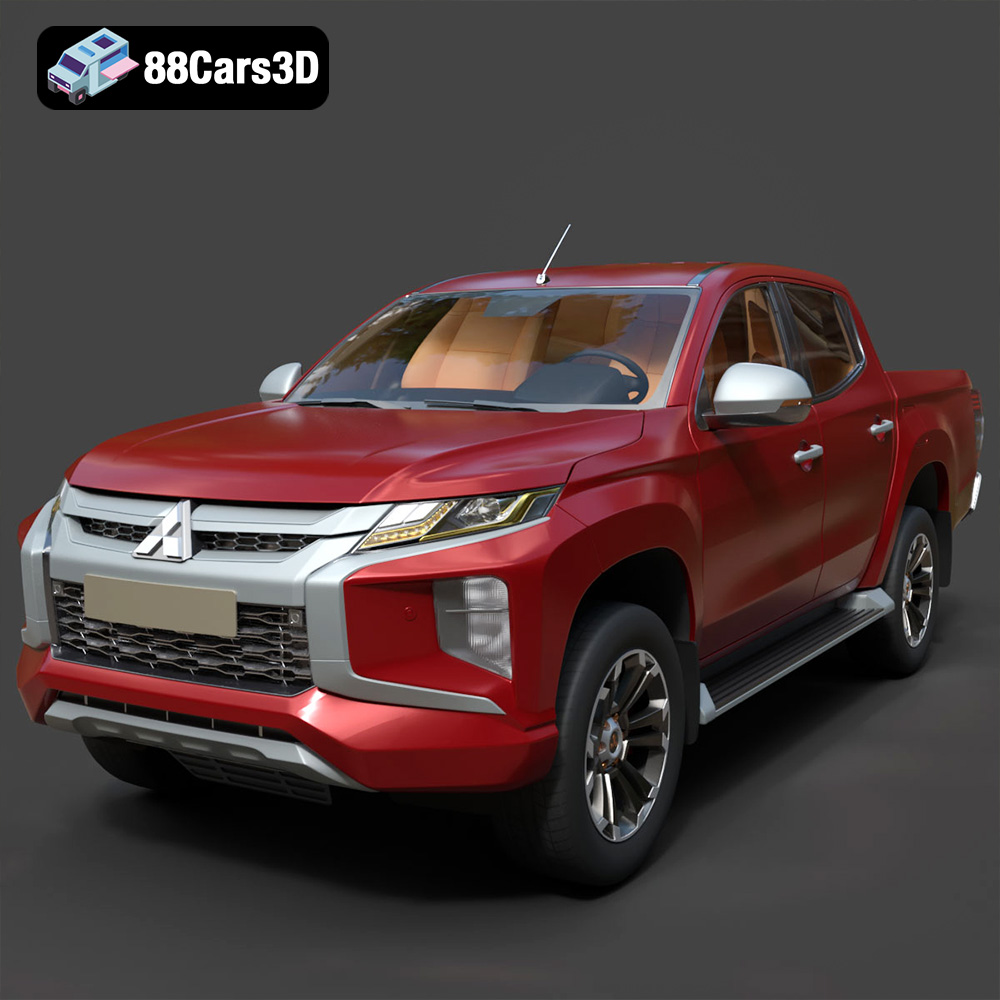
Texture: Yes | Material: Yes
Download the highly detailed, game-ready Mitsubishi L200 Crew Cab 2019 3D Model. Features the iconic Dynamic Shield front fascia, rugged cargo bed, and a spacious crew cab interior. Includes .blend, .fbx, .obj, .glb, .stl, .ply, .unreal, and .max formats for game development, AR/VR, and rendering.
Price: $19.99
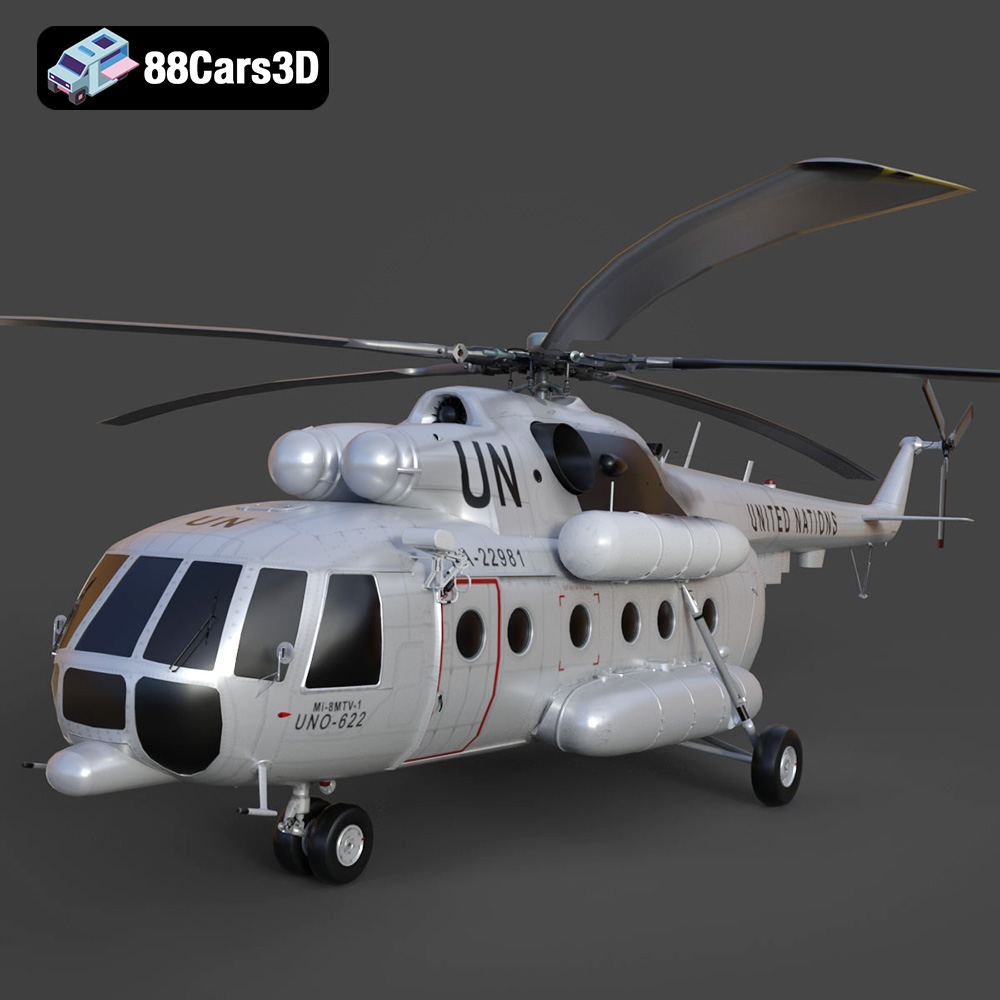
Texture: Yes | Material: Yes
Download the highly detailed, game-ready Mil Mi-8MTV-UN 3D Model. Features the iconic United Nations white livery, detailed twin turboshaft engines, and fully articulated rotor assemblies. Includes .blend, .fbx, .obj, .glb, .stl, .ply, .unreal, and .max formats for game development, AR/VR, and rendering.
Price: $19.99
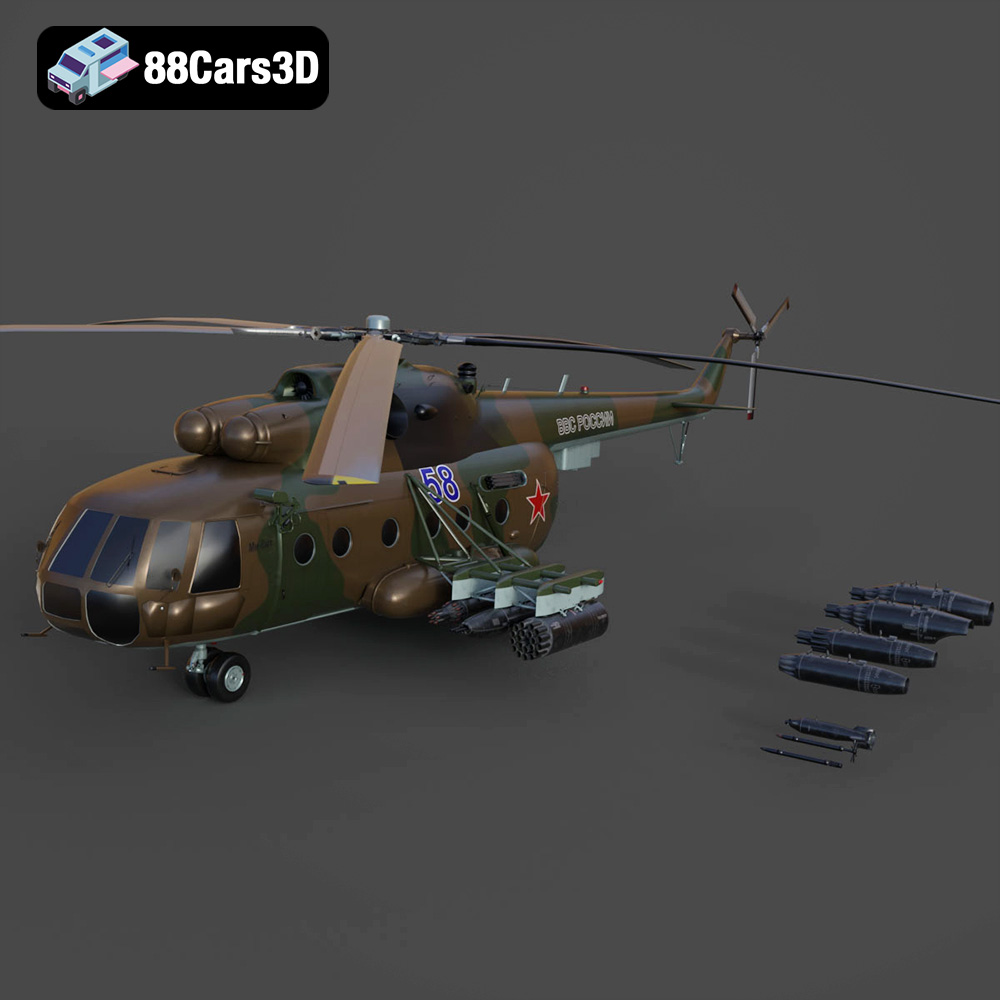
Texture: Yes | Material: Yes
Download the highly detailed, game-ready Mil Mi-8MT Helicopter 3D Model. Features twin-turbine engine housings, a detailed 5-blade main rotor, and authentic cockpit instrumentation. Includes .blend, .fbx, .obj, .glb, .stl, .ply, .unreal, and .max formats for game development, AR/VR, and rendering.
Price: $19.99

Texture: Yes | Material: Yes
Download the highly detailed, game-ready Mercedes-Maybach Vision 6 2018 3D Model. Features an elongated aero coupe design, iconic gullwing doors, and striking 24-inch aerodynamic wheels. Includes .blend, .fbx, .obj, .glb, .stl, .ply, .unreal, and .max formats for game development, AR/VR, and rendering.
Price: $19.99
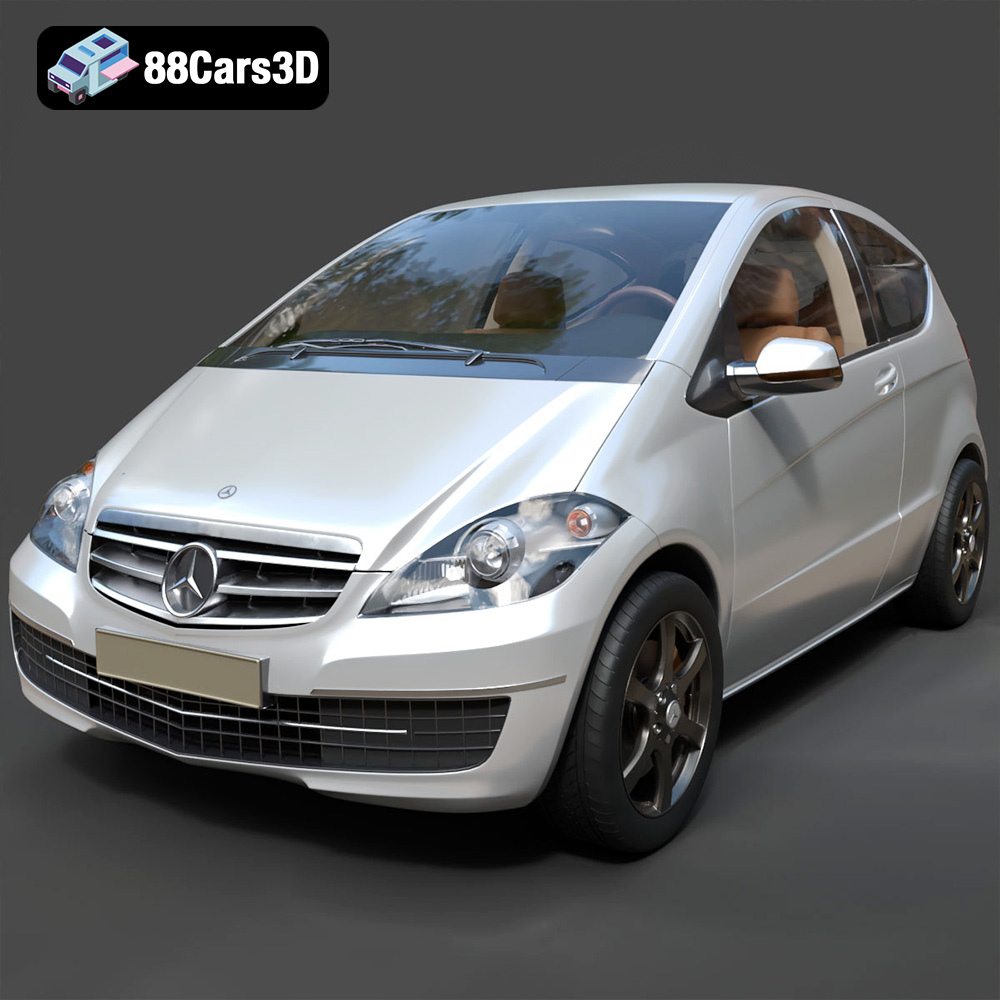
Texture: Yes | Material: Yes
Download the highly detailed, game-ready Mercedes-Benz A-Class 3-Door 2010 3D Model. Features an accurate compact luxury exterior, detailed interior, and optimized topology. Includes .blend, .fbx, .obj, .glb, .stl, .ply, .unreal, and .max formats for game development, AR/VR, and rendering.
Price: $19.99
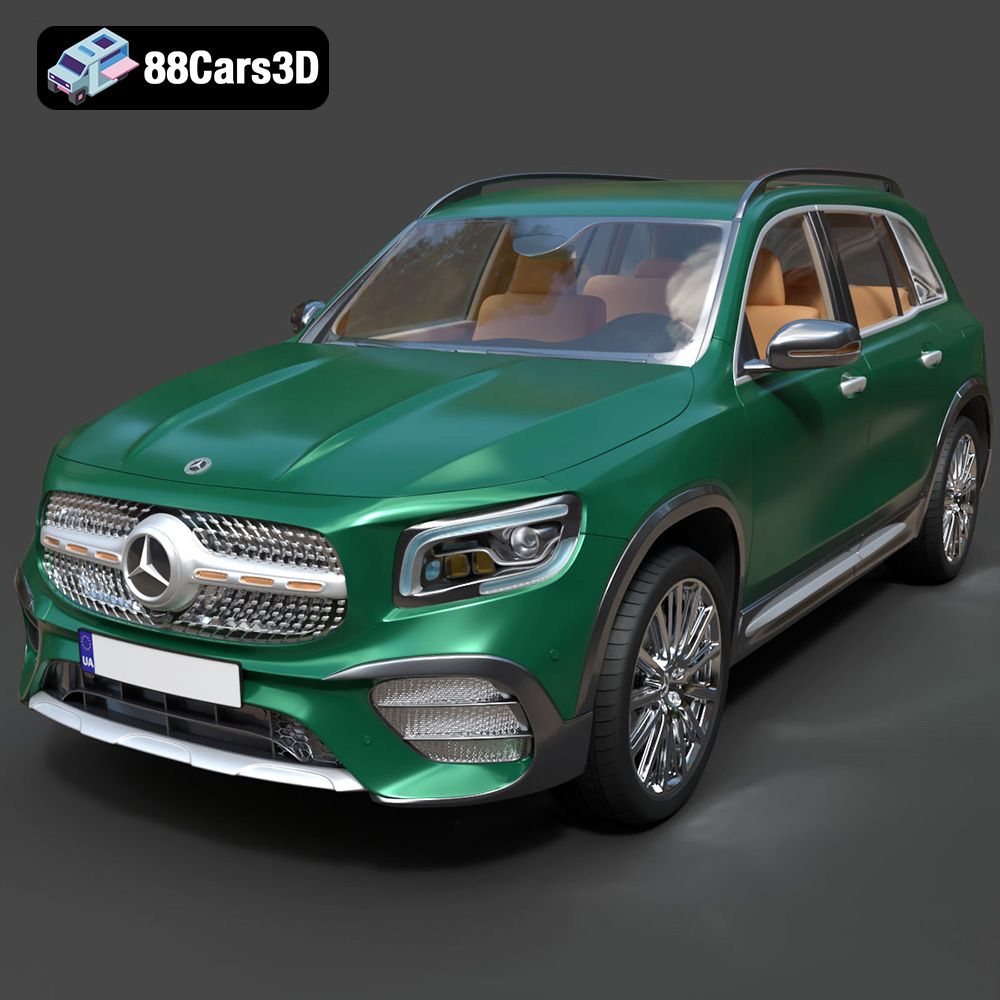
Texture: Yes | Material: Yes
Download the highly detailed, game-ready Mercedes-Benz GLB-Class (Mk1) AMG Line 2019 3D Model. Features sporty AMG Line exterior styling, accurate LED lighting, and premium interior details. Includes .blend, .fbx, .obj, .glb, .stl, .ply, .unreal, and .max formats for game development, AR/VR, and rendering.
Price: $19.99
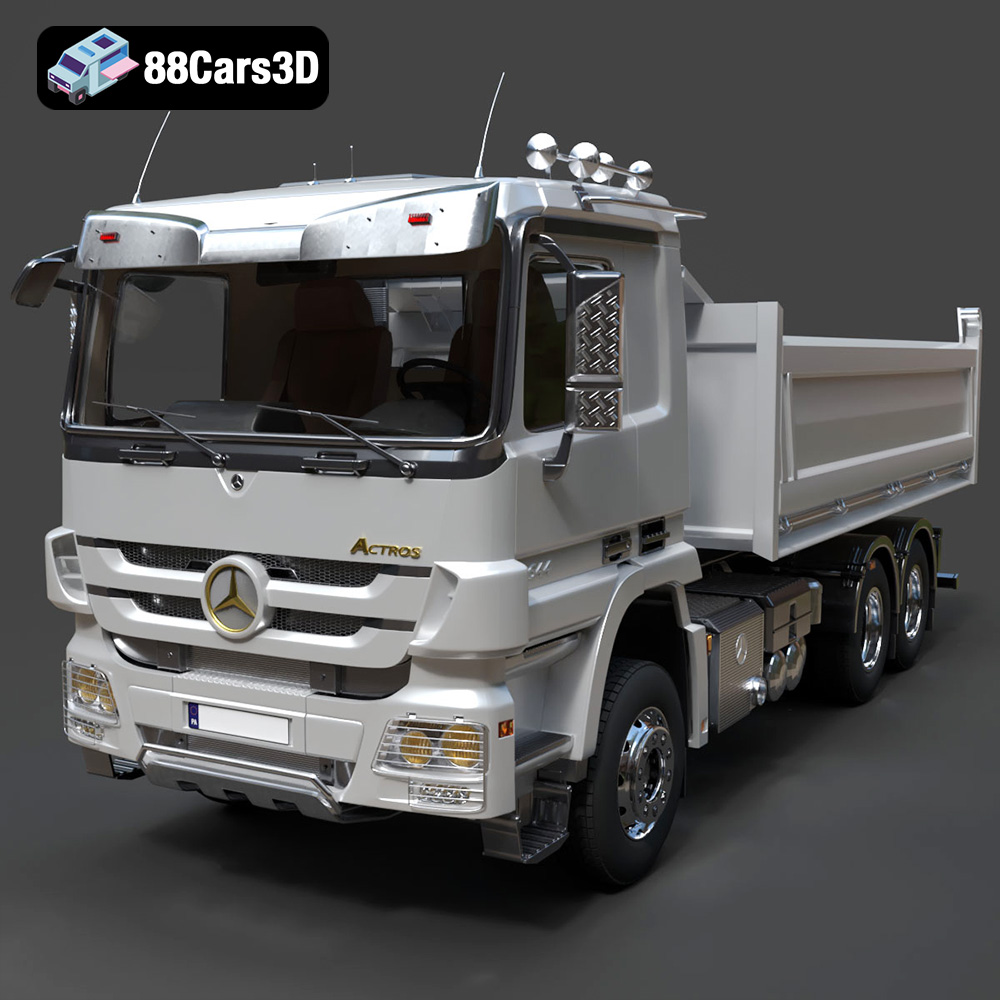
Texture: Yes | Material: Yes
Download the highly detailed, game-ready Mercedes-Benz Actros Tipper 3-Axle 2011 3D Model. Features a functional hydraulic tipper bed, detailed multi-axle chassis, and an accurate commercial cab. Includes .blend, .fbx, .obj, .glb, .stl, .ply, .unreal, and .max formats for game development, AR/VR, and rendering.
Price: $19.99

Texture: Yes | Material: Yes
Download the highly detailed, game-ready Lexus LX Mk3f J200 2016 3D Model. Features the iconic spindle grille, sharp L-shaped LED lighting, and a premium luxury interior. Includes .blend, .fbx, .obj, .glb, .stl, .ply, .unreal, and .max formats for game development, AR/VR, and rendering.
Price: $19.99

