Get 50% OFF All Premium 3D & STL Models!

“`html
The world of 3D printing has opened up incredible opportunities for automotive enthusiasts, model makers, and hobbyists alike. Being able to bring your favorite cars to life in miniature form is now easier than ever. However, the journey from a digital 3D model to a tangible, 3D-printed replica requires a crucial step: converting the model into a printable STL file. This process involves understanding the nuances of 3D modeling, file formats, and the specific requirements of 3D printing. This guide provides a detailed, step-by-step approach to converting vehicle models into high-quality STL files ready for printing, especially for platforms like 88cars3d.com, which demands precision and print-readiness. We’ll cover everything from choosing the right software to optimizing your model for the best possible print results. Whether you are a seasoned 3D printing expert or just getting started, this guide will help you master the art of STL conversion for vehicle models.
In this article, you’ll learn about:
The STL (stereolithography) file format is the workhorse of 3D printing. It represents the surface geometry of a 3D object using a collection of triangles. Each triangle is defined by its three vertices (points in 3D space) and a normal vector (indicating the direction the triangle is facing). Understanding this fundamental structure is crucial for preparing models for successful printing.
STL files come in two flavors: ASCII and binary. ASCII STL files are human-readable text files, while binary STL files are more compact and efficient to process. However, both contain the same basic geometric information. A key limitation of the STL format is that it only stores surface geometry; it doesn’t contain information about color, material properties, or internal structure. This is why slicing software is necessary to interpret the STL file and generate printing instructions.
When working with STL files, remember these limitations:
Mesh topology refers to the arrangement and connectivity of triangles in the STL file. Good topology is essential for smooth surfaces and accurate prints. A model with poorly designed topology may exhibit faceting, artifacts, or even fail to print correctly. Consider the following aspects of mesh topology:
Selecting the appropriate 3D modeling software is a crucial first step. The software should allow you to create and manipulate 3D models with precision and export them in the STL format. The best choice depends on your experience level, budget, and the complexity of the vehicle models you intend to create.
Several excellent free and open-source options are available, including Blender, Meshmixer, and Tinkercad. Blender is a powerful and versatile software package suitable for complex modeling tasks. Meshmixer excels at mesh repair and optimization for 3D printing. Tinkercad is a browser-based tool ideal for beginners. Paid software options like Autodesk Maya, 3ds Max, and ZBrush offer more advanced features and capabilities, but come with a higher price tag. For professional-grade vehicle models, software like Fusion 360 is a popular choice, especially when iterative design and parametric modeling are required.
Each software package has its own unique workflow and set of tools. For example, in Blender, you might use the “Subdivision Surface” modifier to smooth out a low-poly model before exporting it to STL. In Meshmixer, the “Make Solid” tool can be used to create a watertight mesh from a surface model. In Fusion 360, ensure you use parametric modeling to accurately define your car model.
Here are some software-specific tips:
Slicing software is the bridge between your STL file and your 3D printer. It takes the 3D model and divides it into thin layers, generating the G-code instructions that the printer uses to deposit material. Selecting the right slicing software and configuring it correctly is essential for achieving high-quality prints. Popular options include Cura, PrusaSlicer, Simplify3D, and IdeaMaker.
Numerous parameters influence the printing process. Here are some of the most important ones:
When slicing vehicle models, consider these optimizations:
Support structures are temporary scaffolds that hold up overhanging parts of a 3D model during printing. Without supports, these parts would collapse due to gravity. Generating and removing supports effectively is crucial for achieving successful prints, especially for complex vehicle models with intricate details.
Several types of support structures are available, each with its own advantages and disadvantages:
Here are some tips for generating and removing supports without damaging your vehicle model:
The choice of material and proper printer calibration play a pivotal role in the success of your 3D printing project. Different materials offer varying properties in terms of strength, flexibility, and surface finish. Calibrating your printer ensures accurate and consistent printing results.
Common 3D printing materials include:
For printing car models, PLA is a good choice for beginners due to its ease of use. PETG offers greater durability and heat resistance. If you need high strength and heat resistance, ABS is an option, but it requires more advanced printing skills. Resin printing is ideal for highly detailed models, such as those sold on platforms like 88cars3d.com.
Regular printer calibration and maintenance are essential for achieving consistent and accurate prints. Key calibration steps include:
Regular maintenance tasks include:
Post-processing involves the steps taken after printing to refine and enhance the final product. These techniques can dramatically improve the appearance, feel, and functionality of your 3D-printed vehicle model.
Sanding is used to remove layer lines and imperfections from the printed surface. Start with a coarse grit sandpaper (e.g., 220 grit) and gradually work your way up to finer grits (e.g., 400, 600, 800 grit). Priming fills in small imperfections and provides a smooth surface for painting. Use several light coats of primer, allowing each coat to dry completely before applying the next. Painting adds color and detail to your model. Use acrylic paints or spray paints designed for plastic models. Apply thin, even coats of paint, allowing each coat to dry completely before applying the next. For car models from 88cars3d.com, consider using automotive-grade paints for a realistic finish.
Many vehicle models consist of multiple parts that need to be assembled after printing. Use glue or epoxy to join the parts together securely. Pay attention to alignment and fit. Adding details, such as decals, windows, and lights, can further enhance the realism of your model. Use fine-tipped brushes and precision tools to apply these details. Consider using weathering techniques to add a touch of realism and age to your model.
Even with careful preparation, 3D printing can sometimes be plagued by unexpected issues. Knowing how to diagnose and resolve common problems can save you time and frustration.
Here are some common printing failures and their potential causes:
Taking preventative measures can significantly reduce the likelihood of printing failures:
Converting vehicle models into printable STL files requires a blend of technical knowledge, careful preparation, and a touch of artistry. By understanding the STL file format, choosing the right software, optimizing slicing settings, mastering support structures, and properly calibrating your printer, you can create stunning 3D-printed replicas of your favorite cars. Don’t be afraid to experiment with different materials, post-processing techniques, and printer settings to achieve the best possible results. Platforms like 88cars3d.com offer a wide selection of high-quality STL files, which can serve as a great starting point for your 3D printing journey. Remember, consistent results come from a combination of understanding the underlying technology and developing a meticulous workflow. Take the time to learn and refine your skills, and you’ll be rewarded with beautiful and accurate 3D-printed vehicle models that you can proudly display or share with other automotive enthusiasts.
Actionable Next Steps:
“`
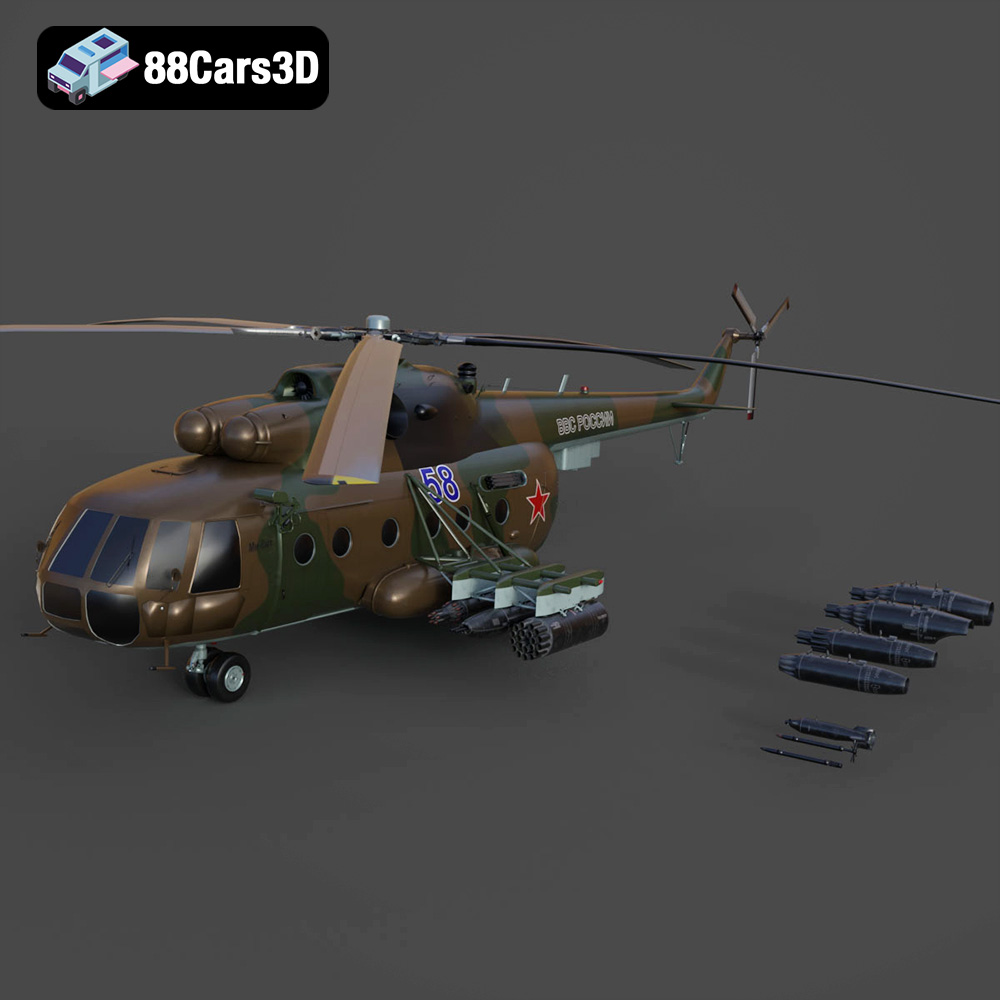
Texture: Yes | Material: Yes
Download the highly detailed, game-ready Mil Mi-8MT Helicopter 3D Model. Features twin-turbine engine housings, a detailed 5-blade main rotor, and authentic cockpit instrumentation. Includes .blend, .fbx, .obj, .glb, .stl, .ply, .unreal, and .max formats for game development, AR/VR, and rendering.
Price: $19.99

Texture: Yes | Material: Yes
Download the highly detailed, game-ready Mercedes-Maybach Vision 6 2018 3D Model. Features an elongated aero coupe design, iconic gullwing doors, and striking 24-inch aerodynamic wheels. Includes .blend, .fbx, .obj, .glb, .stl, .ply, .unreal, and .max formats for game development, AR/VR, and rendering.
Price: $19.99
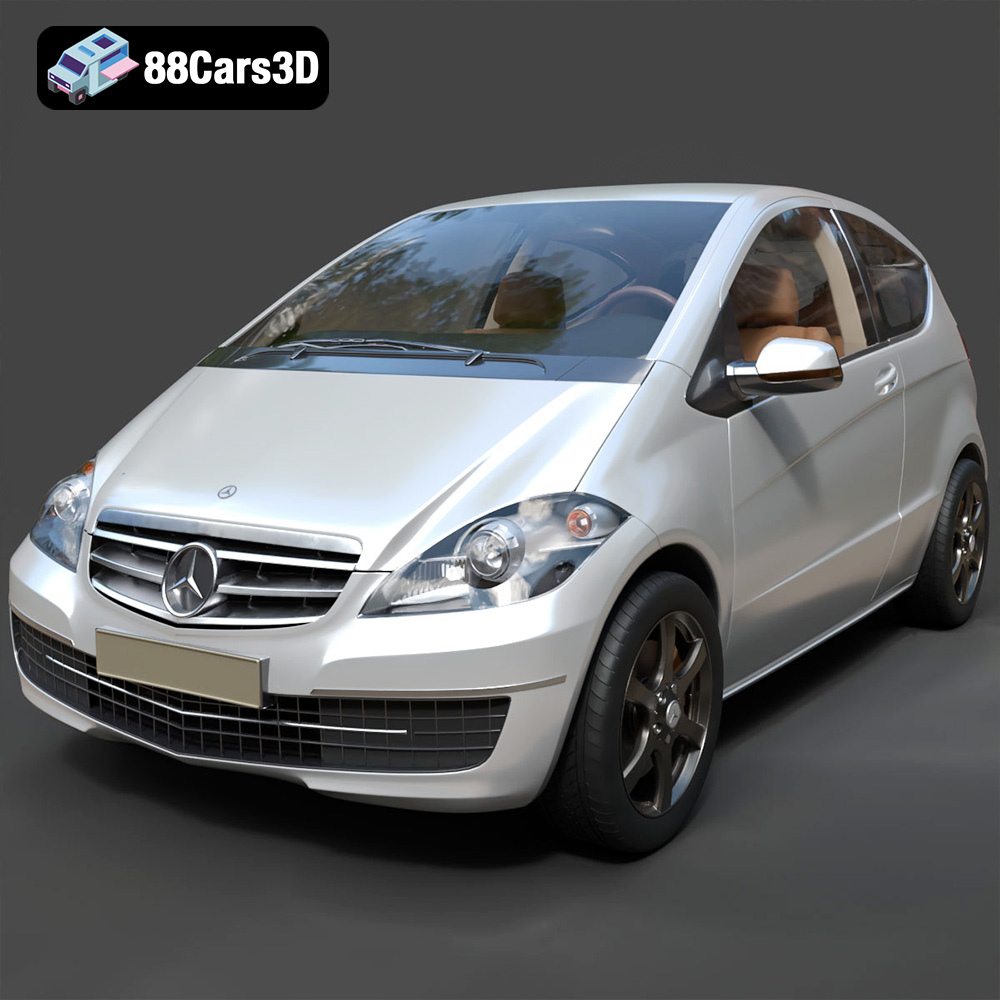
Texture: Yes | Material: Yes
Download the highly detailed, game-ready Mercedes-Benz A-Class 3-Door 2010 3D Model. Features an accurate compact luxury exterior, detailed interior, and optimized topology. Includes .blend, .fbx, .obj, .glb, .stl, .ply, .unreal, and .max formats for game development, AR/VR, and rendering.
Price: $19.99
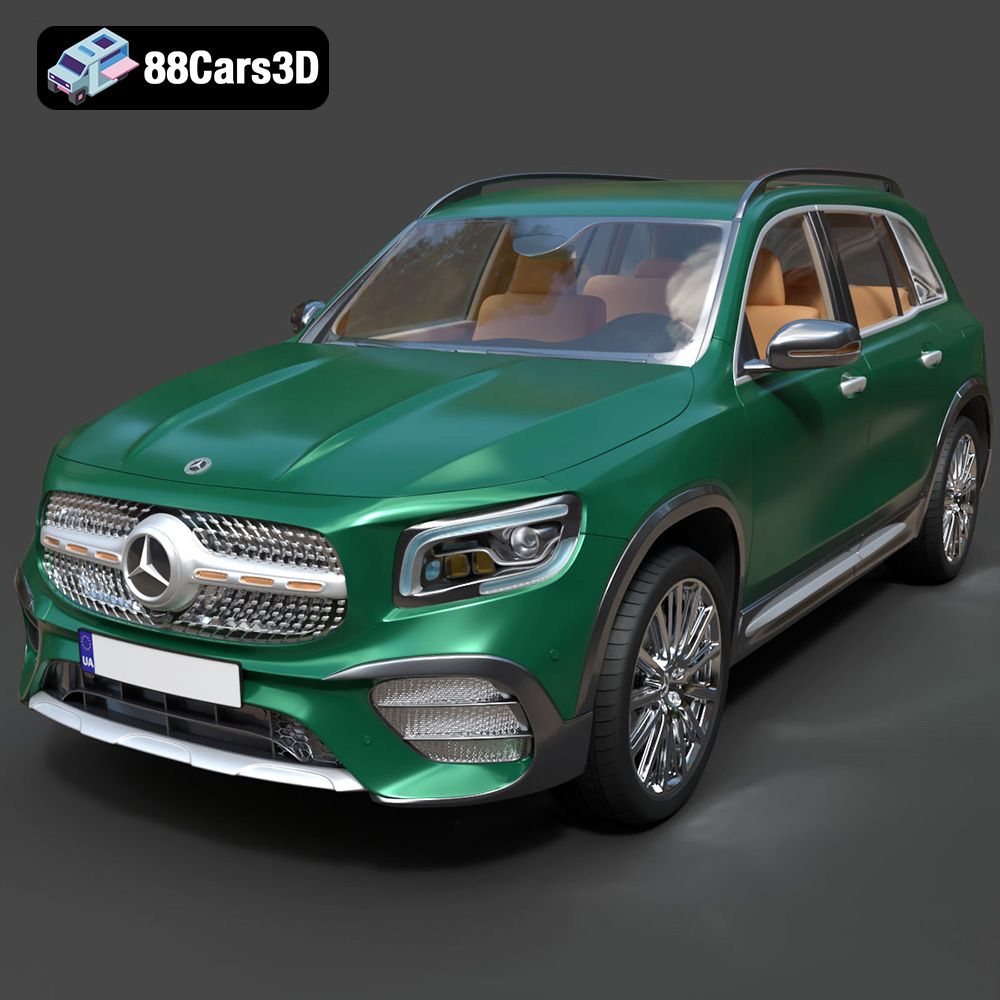
Texture: Yes | Material: Yes
Download the highly detailed, game-ready Mercedes-Benz GLB-Class (Mk1) AMG Line 2019 3D Model. Features sporty AMG Line exterior styling, accurate LED lighting, and premium interior details. Includes .blend, .fbx, .obj, .glb, .stl, .ply, .unreal, and .max formats for game development, AR/VR, and rendering.
Price: $19.99
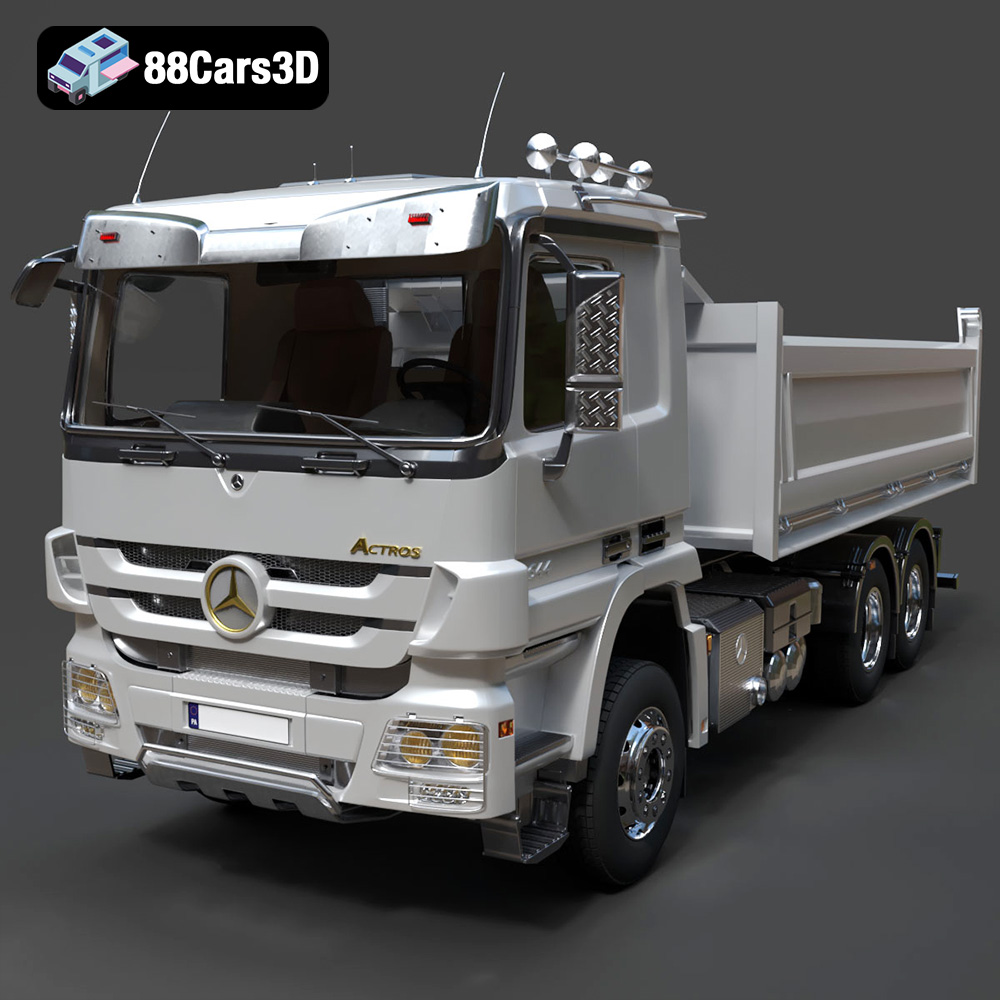
Texture: Yes | Material: Yes
Download the highly detailed, game-ready Mercedes-Benz Actros Tipper 3-Axle 2011 3D Model. Features a functional hydraulic tipper bed, detailed multi-axle chassis, and an accurate commercial cab. Includes .blend, .fbx, .obj, .glb, .stl, .ply, .unreal, and .max formats for game development, AR/VR, and rendering.
Price: $19.99

Texture: Yes | Material: Yes
Download the highly detailed, game-ready Lexus LX Mk3f J200 2016 3D Model. Features the iconic spindle grille, sharp L-shaped LED lighting, and a premium luxury interior. Includes .blend, .fbx, .obj, .glb, .stl, .ply, .unreal, and .max formats for game development, AR/VR, and rendering.
Price: $19.99

Texture: Yes | Material: Yes
Download the highly detailed, game-ready Lexus RX350 2010 3D Model. Features sleek crossover styling, distinctive L-finesse design cues, and an accurate interior layout. Includes .blend, .fbx, .obj, .glb, .stl, .ply, .unreal, and .max formats for game development, AR/VR, and rendering.
Price: $19.99

Texture: Yes | Material: Yes
Download the highly detailed, game-ready Lexus LS 500 2018 3D Model. Features the signature spindle grille, elegant flowing silhouette, and intricate Z-shaped LED lighting. Includes .blend, .fbx, .obj, .glb, .stl, .ply, .unreal, and .max formats for game development, AR/VR, and rendering.
Price: $19.99

Texture: Yes | Material: Yes
Download the highly detailed, game-ready Kawasaki Ninja 3D Model. Features an aggressive aerodynamic fairing, detailed inline-four engine, and racing-inspired ergonomics. Includes .blend, .fbx, .obj, .glb, .stl, .ply, .unreal, and .max formats for game development, AR/VR, and rendering.
Price: $19.99
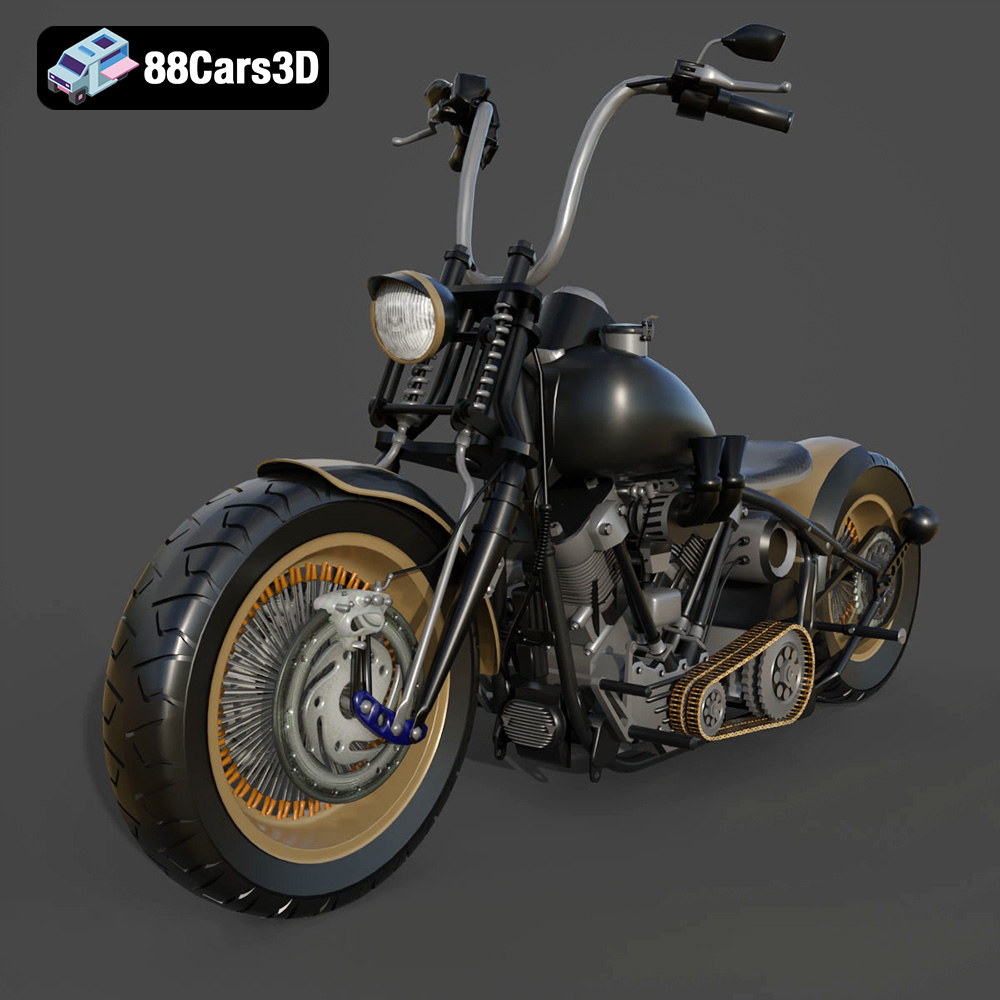
Texture: Yes
Material: Yes
Download the Harley Davidson Knucklehead 3D Model featuring clean geometry, realistic detailing, and a fully modeled interior. Includes .blend, .fbx, .obj, .glb, .stl, .ply, .unreal, and .max formats for rendering, simulation, and game development.
Price: $19.99

