Get 50% OFF All Premium 3D & STL Models!

“`html
If you’re diving into the exciting world of 3D printing, you’ll quickly encounter the STL file format. STL, short for Stereolithography, is the most common file format used to represent 3D models for additive manufacturing. Think of it as the universal language that your 3D printer understands. But what exactly is an STL file? How does it work? And how can you ensure your STL files are optimized for the best possible print quality? This comprehensive guide will demystify the STL file format, covering everything from its basic structure to advanced techniques for file preparation and optimization. Whether you’re a complete beginner or an experienced maker looking to refine your workflow, this guide will equip you with the knowledge you need to confidently navigate the world of STL files and unlock the full potential of your 3D printer. We’ll explore mesh topology, slicing parameters, support structure generation, and much more to help you achieve stunning results with your 3D printing projects. Let’s get started!
At its heart, an STL file describes the surface geometry of a 3D object using a collection of interconnected triangles. Each triangle is defined by its three vertices (points in 3D space) and a normal vector (a line perpendicular to the triangle’s surface, indicating its orientation). The more triangles used to represent a shape, the smoother and more detailed the final printed object will be. However, increasing the number of triangles also increases the file size and processing time. It’s a delicate balance between detail and efficiency. STL files are typically stored in either ASCII (text-based) or binary format. Binary STL files are more compact and faster to read, making them the preferred choice for most applications. Platforms like 88cars3d.com often offer models in binary STL format for optimized download and processing.
The process of approximating a curved surface with triangles is called tessellation. The accuracy of the tessellation directly affects the quality of the printed object. A coarse tessellation (fewer triangles) will result in a faceted or “blocky” appearance, while a fine tessellation (more triangles) will produce a smoother surface. When downloading models from marketplaces such as 88cars3d.com, pay attention to the model’s polygon count or level of detail. High-quality models will typically have a sufficient number of triangles to capture intricate details without being excessively large.
As mentioned earlier, STL files can be stored in either ASCII or binary format. ASCII STL files are human-readable, making them easier to inspect and edit manually. However, they are significantly larger than binary STL files. A simple cube in ASCII format might take up several kilobytes, while the same cube in binary format could be only a few hundred bytes. Binary STL files store the triangle data in a more compact form, using binary numbers instead of text strings. This results in faster loading times and reduced storage space. Most modern 3D printing software and slicers automatically handle both formats, but it’s generally recommended to use binary STL files for optimal performance.
Once you have an STL file, whether you’ve created it yourself or downloaded it from a source like 88cars3d.com, it’s crucial to prepare it for 3D printing. This involves several steps, including checking for errors, orienting the model correctly, and generating support structures if needed. Proper preparation can significantly improve the print quality, reduce the risk of printing failures, and minimize post-processing effort.
One of the most common issues with STL files is non-manifold geometry. A manifold mesh is one where every edge is shared by exactly two triangles, forming a closed and continuous surface. Non-manifold geometry includes issues like holes, self-intersections, and flipped normals. These errors can confuse the slicer software and lead to printing problems. Tools like Meshmixer, Netfabb, and online mesh repair services can automatically detect and fix these issues. Aim to have a “watertight” or “closed” mesh before proceeding to the slicing stage.
The orientation of your model on the 3D printer’s build plate can have a significant impact on the print quality, the amount of support material required, and the overall success rate. Consider the model’s geometry and choose an orientation that minimizes overhangs and maximizes bed adhesion. A larger surface area in contact with the build plate will improve adhesion and prevent warping, especially for large or complex prints. For car models, consider printing the chassis with the flattest side down for optimal adhesion. You can also use techniques like adding a brim or raft to further enhance bed adhesion.
Slicing is the process of converting an STL file into a set of instructions that your 3D printer can understand. This is done by slicing the 3D model into thin layers and generating a toolpath for the printer’s nozzle or laser to follow for each layer. The output of the slicing process is a G-code file, which contains commands for controlling the printer’s movements, temperature, and other settings.
The slicing software offers a wide range of parameters that you can adjust to fine-tune the printing process. Some of the most important parameters include:
Experiment with these parameters to find the optimal balance between print quality, strength, and speed for your specific model and printer.
Support structures are temporary structures that are printed to support overhanging features of the model. They are essential for printing complex geometries that would otherwise collapse under their own weight. Slicing software can automatically generate support structures, but it’s important to choose the right support settings to ensure they are strong enough to provide adequate support while being easy to remove after printing. Consider using soluble support materials for complex models that require extensive support.
The choice of material is another critical factor that affects the final result of your 3D printing project. Different materials have different properties, such as strength, flexibility, heat resistance, and surface finish. The two main types of 3D printing materials are filaments (for FDM printing) and resins (for resin printing).
FDM (Fused Deposition Modeling) printing uses filaments, which are thermoplastic materials that are melted and extruded through a nozzle. Some common FDM filaments include:
For printing car models, PETG or ABS are often preferred due to their higher strength and heat resistance.
Resin printing uses liquid resins that are cured by UV light. Some common resin printing technologies include:
Resin printing offers higher resolution and smoother surface finishes than FDM printing, making it ideal for printing highly detailed car models. However, resin prints are often more brittle and require post-processing steps like washing and curing.
Even with careful preparation and the right settings, 3D printing can sometimes be unpredictable. Common issues include warping, layer adhesion problems, stringing, and elephant’s foot. Understanding the causes of these issues and knowing how to troubleshoot them is essential for achieving successful prints.
Warping occurs when the corners of the print lift off the build plate due to uneven cooling. This is more common with materials like ABS that have a high coefficient of thermal expansion. To prevent warping, ensure that the build plate is clean and level, use a heated bed, and apply an adhesive like glue stick or hairspray. Enclosing the printer can also help to maintain a more consistent temperature and reduce warping.
Layer adhesion problems occur when the layers of the print don’t bond together properly. This can be caused by low printing temperature, insufficient cooling, or incorrect layer height. Stringing occurs when the printer’s nozzle oozes material while moving between different parts of the print. This can be caused by high printing temperature, slow retraction speed, or excessive travel distance. Adjusting these settings can help to resolve these issues.
Once your 3D print is complete, there are several post-processing steps you can take to improve its appearance and functionality. These steps may include removing support structures, sanding, filling, priming, and painting.
Carefully remove the support structures using pliers or a sharp knife. Be gentle to avoid damaging the model’s surface. After removing the supports, sand the surface to remove any remaining blemishes or imperfections. Start with a coarse grit sandpaper and gradually move to finer grits to achieve a smooth finish. For resin prints, consider using wet sanding to minimize dust.
Once the surface is smooth, apply a primer to prepare the model for painting. Choose a primer that is compatible with the material you used for printing. After the primer has dried, apply several thin coats of paint, allowing each coat to dry completely before applying the next. Consider using an airbrush for a more even and professional-looking finish. Finally, apply a clear coat to protect the paint and add a glossy or matte finish.
Mastering the STL file format is fundamental for anyone involved in 3D printing. By understanding the structure of STL files, properly preparing them for printing, and carefully selecting your slicing parameters and materials, you can significantly improve the quality and success rate of your 3D printing projects. Whether you’re printing intricate car models from 88cars3d.com or creating your own designs, the knowledge you’ve gained in this guide will empower you to unlock the full potential of your 3D printer. Remember to experiment with different settings and techniques to find what works best for your specific printer and materials. Happy printing!
“`
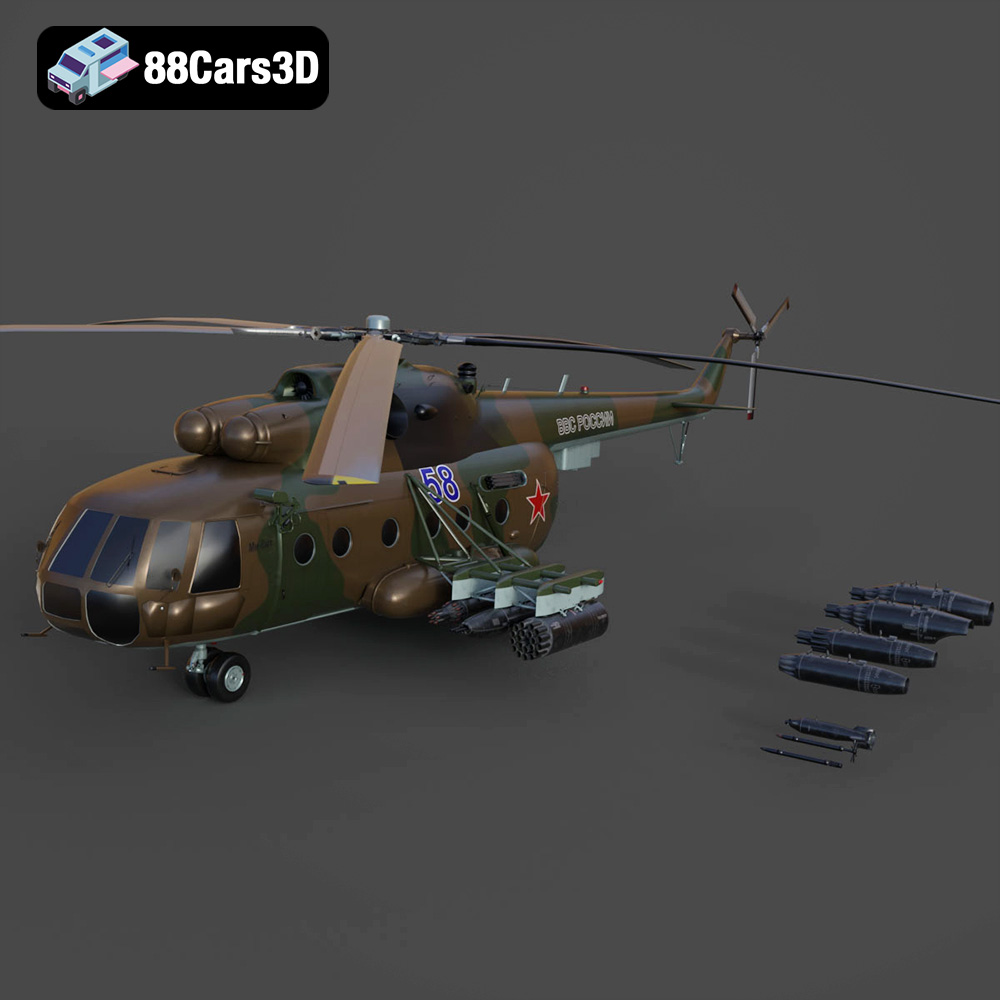
Texture: Yes | Material: Yes
Download the highly detailed, game-ready Mil Mi-8MT Helicopter 3D Model. Features twin-turbine engine housings, a detailed 5-blade main rotor, and authentic cockpit instrumentation. Includes .blend, .fbx, .obj, .glb, .stl, .ply, .unreal, and .max formats for game development, AR/VR, and rendering.
Price: $19.99

Texture: Yes | Material: Yes
Download the highly detailed, game-ready Mercedes-Maybach Vision 6 2018 3D Model. Features an elongated aero coupe design, iconic gullwing doors, and striking 24-inch aerodynamic wheels. Includes .blend, .fbx, .obj, .glb, .stl, .ply, .unreal, and .max formats for game development, AR/VR, and rendering.
Price: $19.99
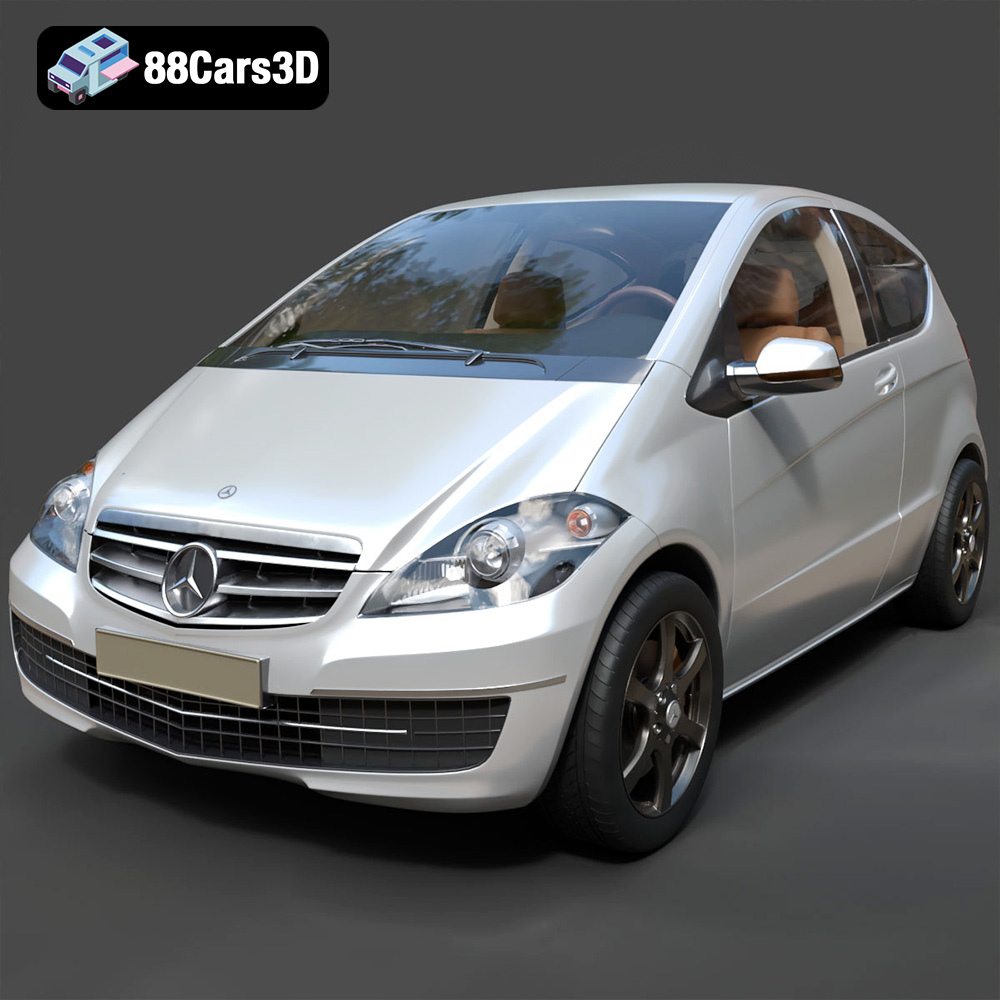
Texture: Yes | Material: Yes
Download the highly detailed, game-ready Mercedes-Benz A-Class 3-Door 2010 3D Model. Features an accurate compact luxury exterior, detailed interior, and optimized topology. Includes .blend, .fbx, .obj, .glb, .stl, .ply, .unreal, and .max formats for game development, AR/VR, and rendering.
Price: $19.99

Texture: Yes | Material: Yes
Download the highly detailed, game-ready Mercedes-Benz GLB-Class (Mk1) AMG Line 2019 3D Model. Features sporty AMG Line exterior styling, accurate LED lighting, and premium interior details. Includes .blend, .fbx, .obj, .glb, .stl, .ply, .unreal, and .max formats for game development, AR/VR, and rendering.
Price: $19.99
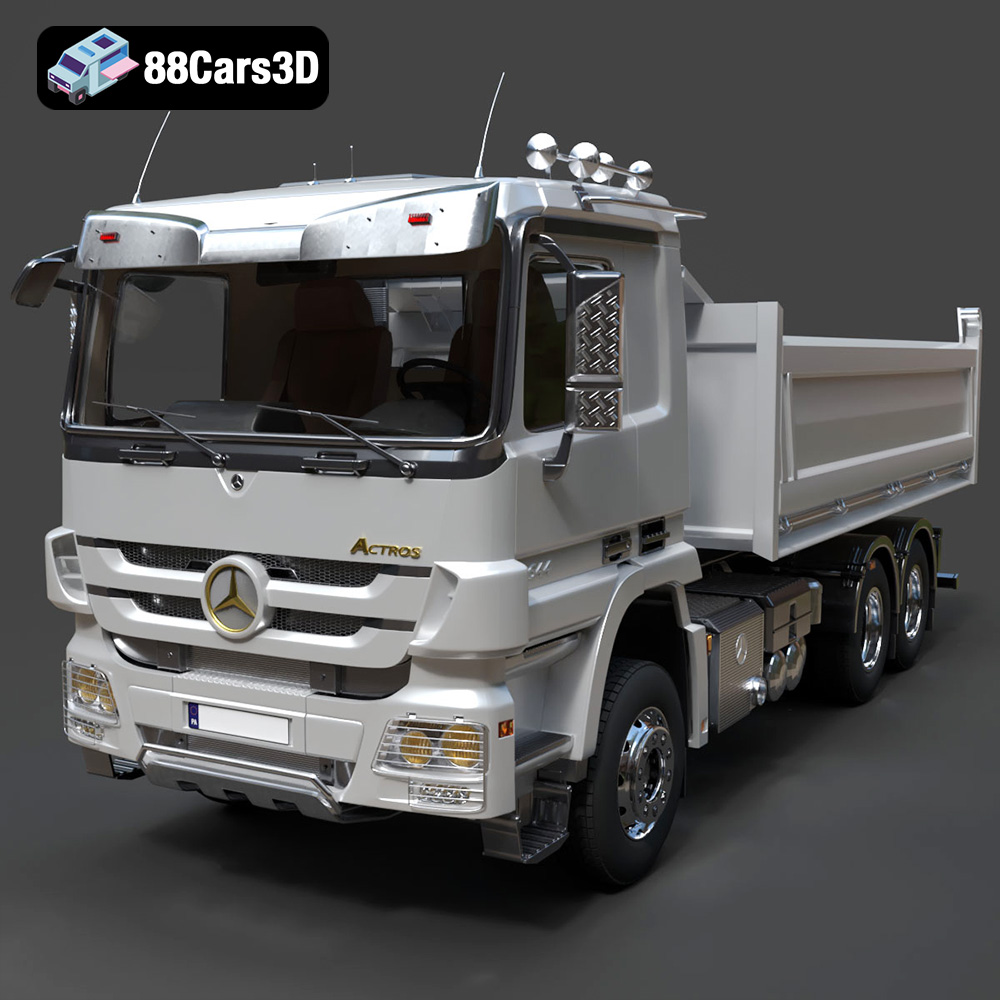
Texture: Yes | Material: Yes
Download the highly detailed, game-ready Mercedes-Benz Actros Tipper 3-Axle 2011 3D Model. Features a functional hydraulic tipper bed, detailed multi-axle chassis, and an accurate commercial cab. Includes .blend, .fbx, .obj, .glb, .stl, .ply, .unreal, and .max formats for game development, AR/VR, and rendering.
Price: $19.99

Texture: Yes | Material: Yes
Download the highly detailed, game-ready Lexus LX Mk3f J200 2016 3D Model. Features the iconic spindle grille, sharp L-shaped LED lighting, and a premium luxury interior. Includes .blend, .fbx, .obj, .glb, .stl, .ply, .unreal, and .max formats for game development, AR/VR, and rendering.
Price: $19.99

Texture: Yes | Material: Yes
Download the highly detailed, game-ready Lexus RX350 2010 3D Model. Features sleek crossover styling, distinctive L-finesse design cues, and an accurate interior layout. Includes .blend, .fbx, .obj, .glb, .stl, .ply, .unreal, and .max formats for game development, AR/VR, and rendering.
Price: $19.99

Texture: Yes | Material: Yes
Download the highly detailed, game-ready Lexus LS 500 2018 3D Model. Features the signature spindle grille, elegant flowing silhouette, and intricate Z-shaped LED lighting. Includes .blend, .fbx, .obj, .glb, .stl, .ply, .unreal, and .max formats for game development, AR/VR, and rendering.
Price: $19.99

Texture: Yes | Material: Yes
Download the highly detailed, game-ready Kawasaki Ninja 3D Model. Features an aggressive aerodynamic fairing, detailed inline-four engine, and racing-inspired ergonomics. Includes .blend, .fbx, .obj, .glb, .stl, .ply, .unreal, and .max formats for game development, AR/VR, and rendering.
Price: $19.99
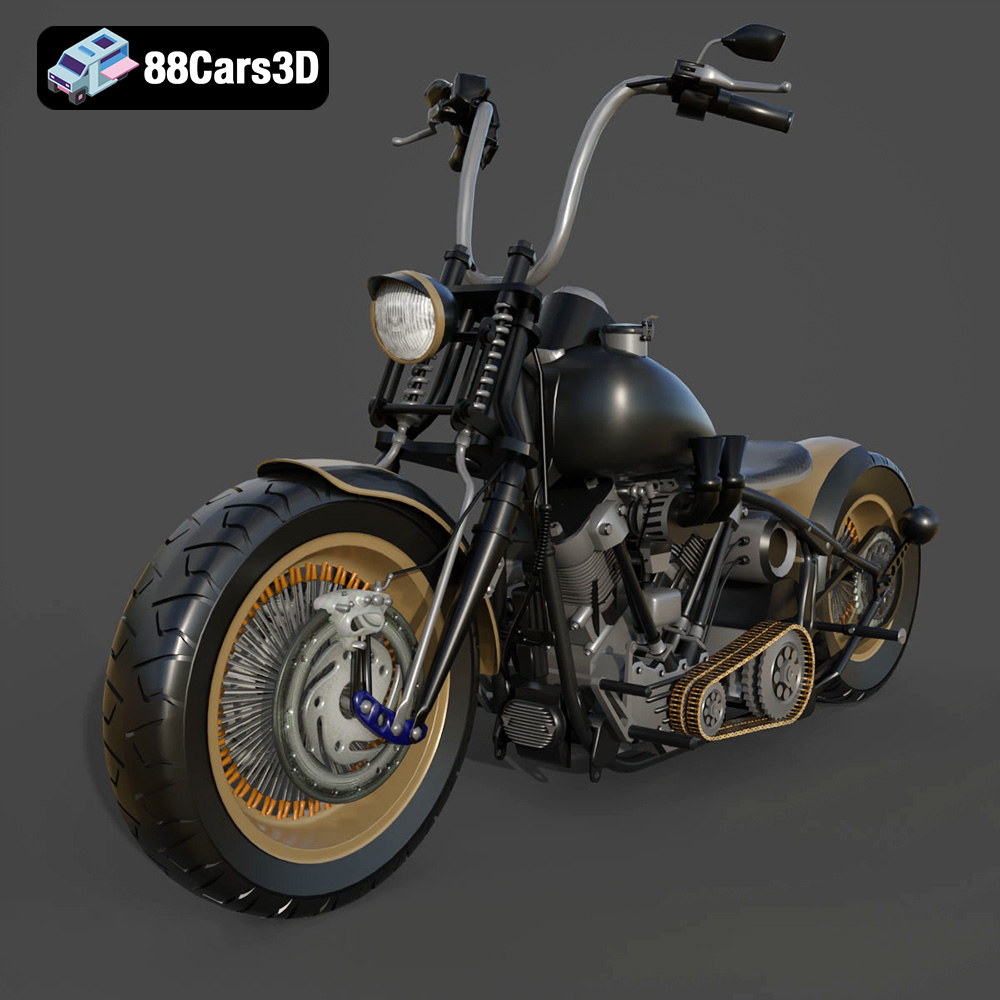
Texture: Yes
Material: Yes
Download the Harley Davidson Knucklehead 3D Model featuring clean geometry, realistic detailing, and a fully modeled interior. Includes .blend, .fbx, .obj, .glb, .stl, .ply, .unreal, and .max formats for rendering, simulation, and game development.
Price: $19.99

