Get 20% OFF All Premium 3D & STL Models!

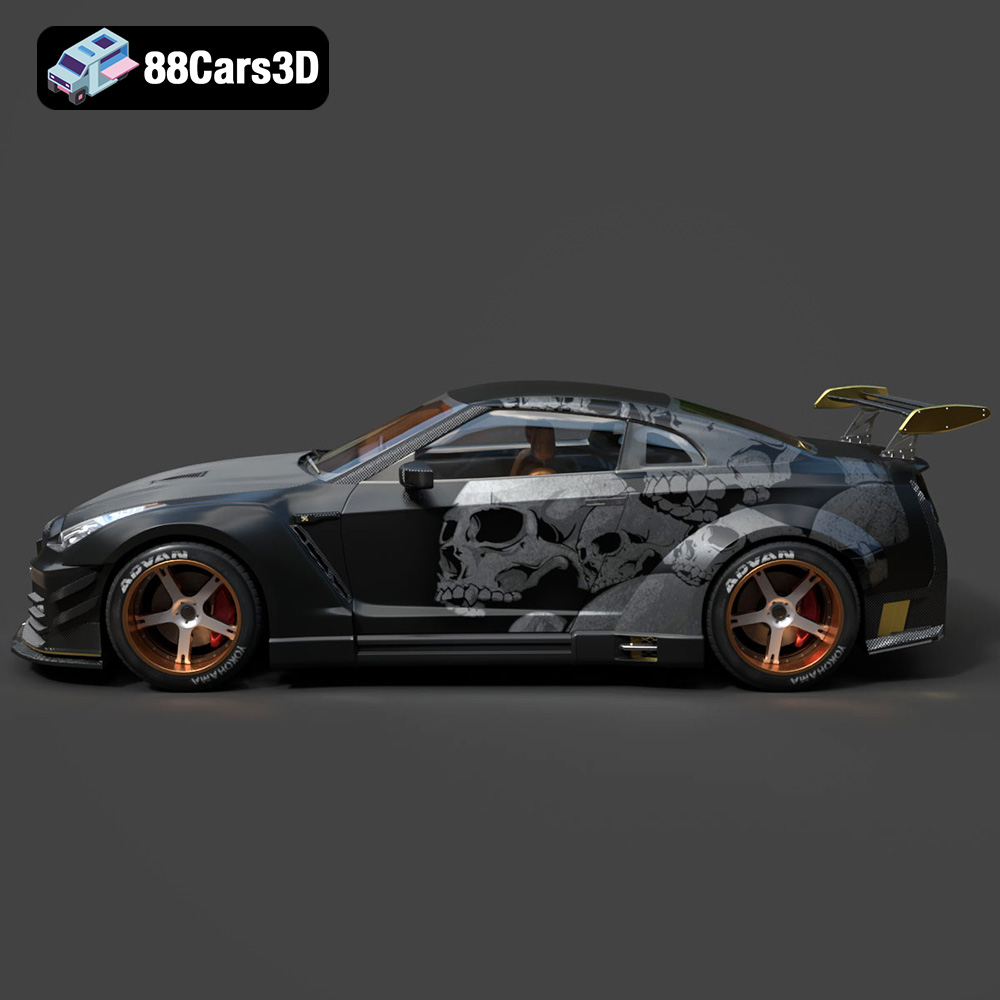
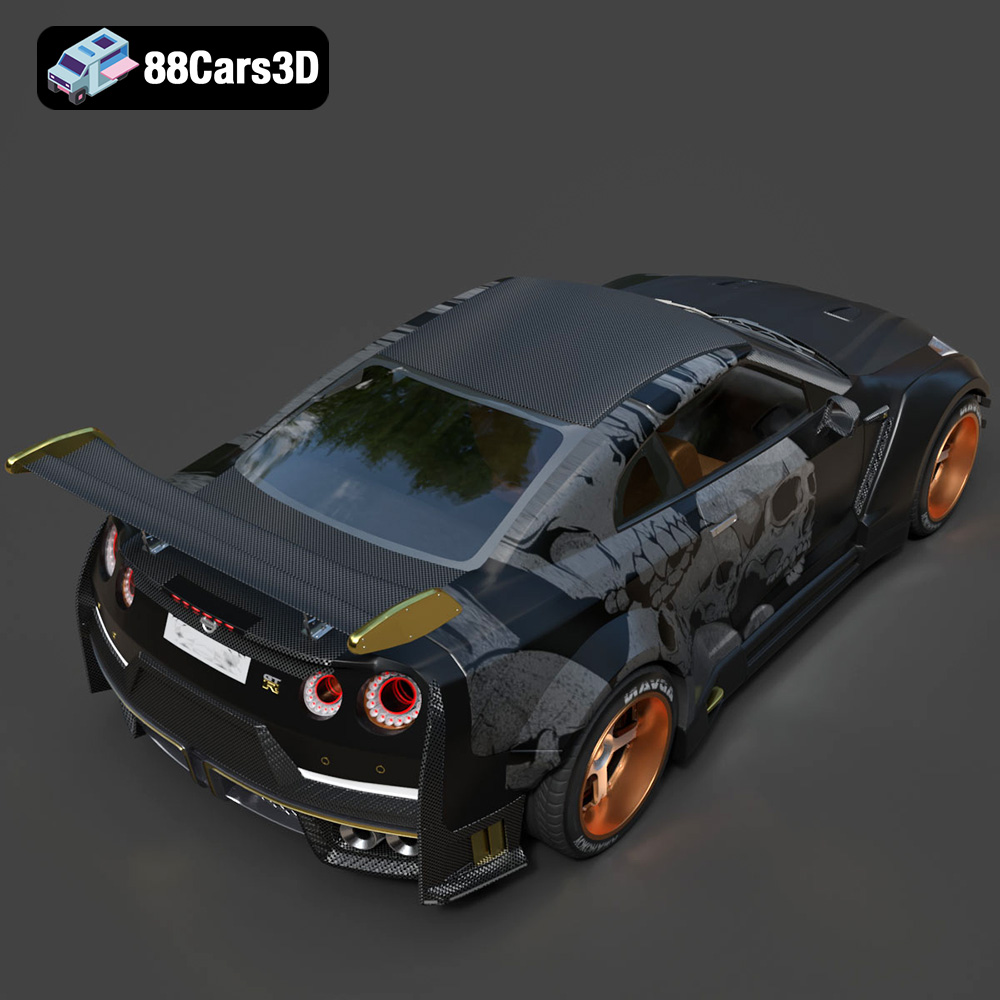
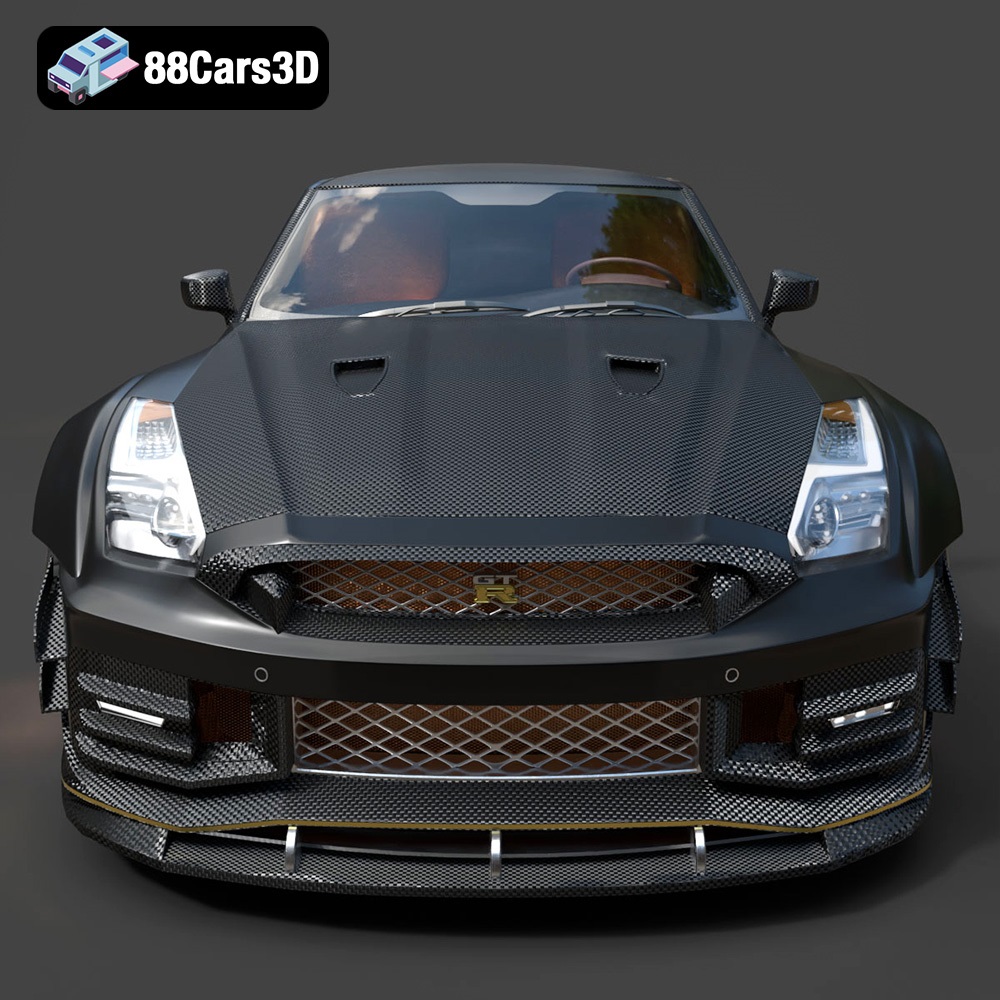
The Nissan GTR R35 Nismo. Just the name evokes images of blistering speed, aggressive styling, and unparalleled performance. Now, thanks to 3D printing and the high-quality model available at 88cars3d.com, you can bring this iconic machine to life in your own home. This guide will walk you through every step of the process, from choosing the right material and settings to post-processing techniques that will make your 3D printed GTR R35 Nismo a showstopper. We’ll cover the nuances of preparing the STL files and ensuring a successful print. Get ready to experience the thrill of additive manufacturing as you build your own miniature masterpiece!
Before diving into the specifics of printing the Nissan GTR R35 Nismo, it’s crucial to understand the different file formats available and their suitability for 3D printing. The model from 88cars3d.com includes a variety of formats designed for different applications, but some are better suited for 3D printing than others.
The choice of file format can significantly impact the quality and ease of your 3D printing experience. Certain formats retain more detail, are easier to repair, and are more widely supported by slicing software. Understanding these nuances is key to achieving a successful and visually stunning print.
Here’s a breakdown of the common file formats and their relevance to 3D printing:
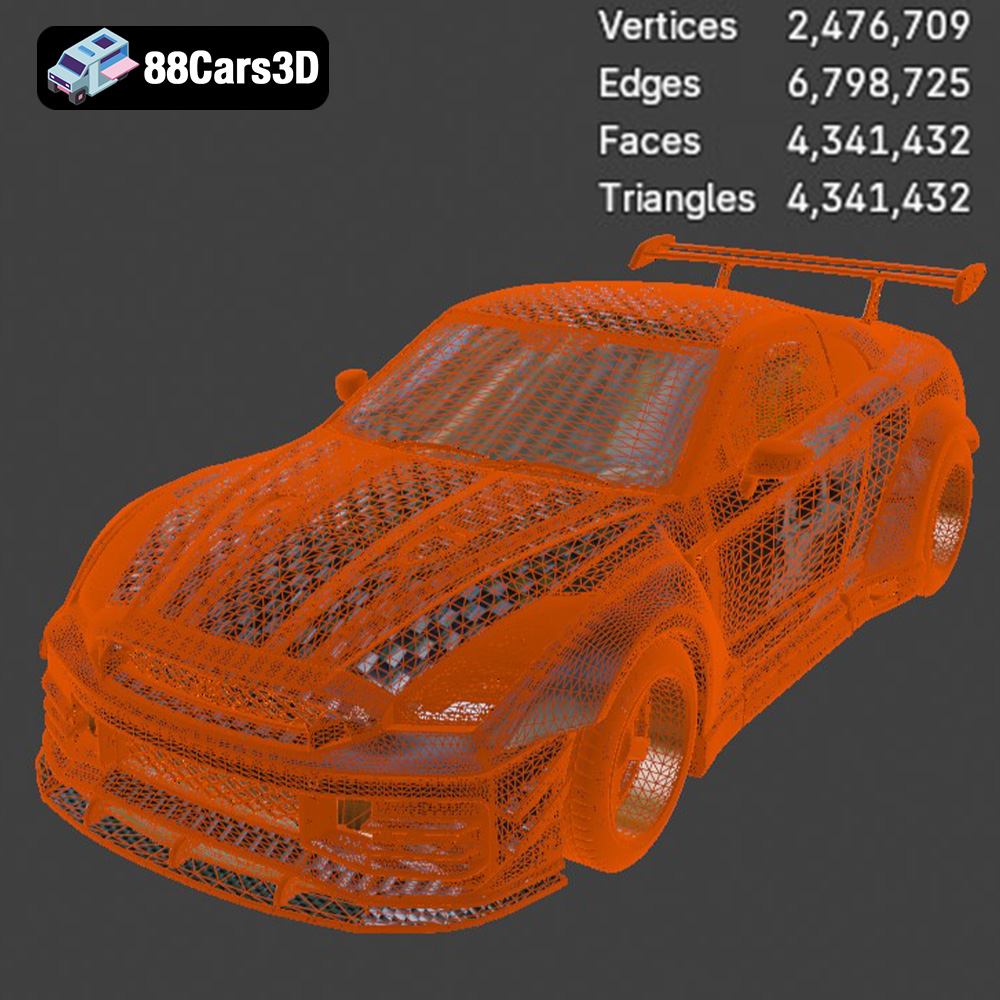
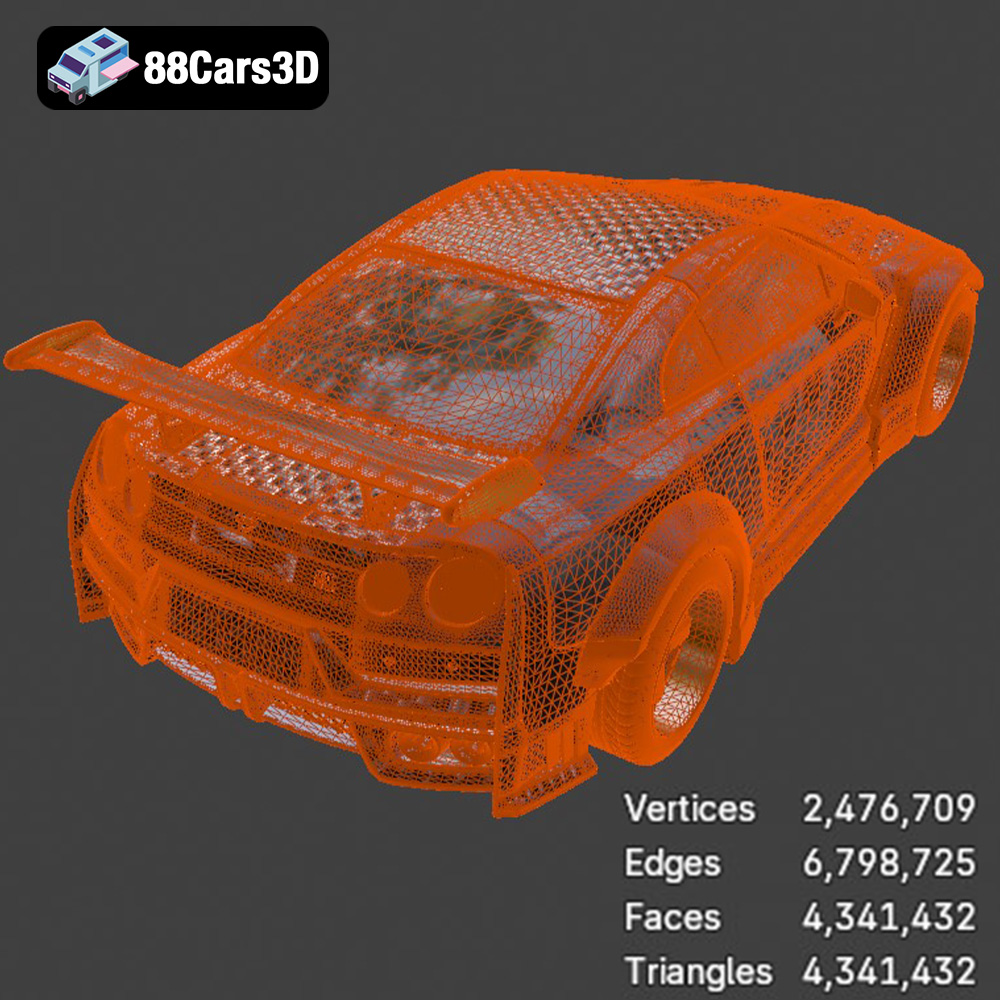
* **.stl (Stereolithography):** This is the industry standard for 3D printing. STL files represent the surface geometry of a 3D object as a collection of triangles. It’s a mesh-only format, meaning it doesn’t contain color or texture information. STL files are universally compatible with slicing software, making them the go-to choice for most 3D printing projects. The quality of the STL file directly affects the print quality; a higher triangle count results in a smoother surface but a larger file size. For the Nissan GTR R35 Nismo, using a well-optimized STL file ensures accurate representation of the car’s complex curves and details.
* **.obj (Object):** OBJ files are a more versatile format than STL, as they can store color and texture information in addition to geometry. While OBJ files can be used for 3D printing, they are less commonly used than STL, especially for single-color prints. The inclusion of material information can sometimes complicate the slicing process. However, if you plan to paint your 3D printed GTR, the OBJ format can be helpful for referencing the original colors and textures.
* **.ply (Polygon File Format):** PLY files are designed to store 3D data acquired from 3D scanners. They can contain color, texture, and other properties. While they offer high precision, PLY files are not as widely supported by slicing software as STL files.
* **.blend (Blender):** BLEND files are native to the Blender 3D modeling software. This format contains the entire Blender scene, including the model, materials, lighting, and other settings. While you can’t directly 3D print a BLEND file, you can open it in Blender, modify the model, and then export it as an STL file for printing. This is useful if you want to customize the GTR R35 Nismo model before printing it.
* **.fbx (Filmbox):** FBX is a proprietary file format developed by Autodesk. It’s commonly used for exchanging 3D models between different software applications, particularly in game development. FBX files can contain geometry, materials, textures, and animations. While some slicing software can import FBX files, compatibility can be inconsistent.
* **.glb (GL Transmission Format Binary):** GLB is a binary file format that represents 3D models in a compact and efficient manner. It’s designed for web-based applications and AR/VR experiences. GLB files are typically not used directly for 3D printing.
* **.max (3ds Max):** MAX files are native to Autodesk 3ds Max, a professional 3D modeling and animation software. Similar to BLEND files, you can open MAX files in 3ds Max, modify the model, and then export it as an STL file for 3D printing.
For 3D printing the Nissan GTR R35 Nismo model from 88cars3d.com, the **STL file format is the most reliable and widely supported option.** Ensure that the STL file you use is of high quality, with a sufficient triangle count to capture the car’s intricate details. Using a low-resolution STL file can result in a blocky or faceted print.
There are several 3D printing technologies available, each with its own strengths and weaknesses. The two most common technologies for hobbyists and small businesses are Fused Deposition Modeling (FDM) and Stereolithography (SLA).
FDM printers work by extruding a molten thermoplastic filament layer by layer. They are relatively affordable, easy to use, and can print with a wide range of materials, including PLA, ABS, PETG, and nylon. FDM printing is a good choice for larger parts and functional prototypes. For the Nissan GTR R35 Nismo, an FDM printer with a well-tuned profile can produce a detailed and durable model.
SLA printers use a laser or projector to cure liquid resin layer by layer. They offer higher resolution and accuracy than FDM printers, making them ideal for intricate details and smooth surfaces. SLA printing is a good choice for smaller parts and aesthetic models. If you want to capture every curve and detail of the GTR R35 Nismo, an SLA printer will provide superior results, especially for smaller scale models.
Consider the size of the model, the level of detail you require, and your budget when choosing a 3D printing technology. For larger prints where strength is important, FDM is a solid choice. For smaller, highly detailed prints where aesthetics are paramount, SLA is the way to go.
The material you choose will significantly impact the appearance, strength, and durability of your 3D printed Nissan GTR R35 Nismo.
PLA (Polylactic Acid) is a biodegradable thermoplastic derived from renewable resources. It’s easy to print, doesn’t require a heated bed (though it’s recommended), and produces minimal odors. PLA is a good choice for beginners and for models that don’t require high strength or heat resistance. For a display model of the GTR, PLA is a great starting point.
PETG (Polyethylene Terephthalate Glycol-modified) is a stronger and more durable thermoplastic than PLA. It’s also more heat resistant and less prone to warping. PETG is a good choice for functional parts and for models that will be exposed to sunlight or heat. If you plan to handle your GTR model frequently, PETG will provide greater durability.
ABS (Acrylonitrile Butadiene Styrene) is a strong and heat-resistant thermoplastic commonly used in engineering applications. However, it’s more difficult to print than PLA or PETG, as it requires a heated bed and is prone to warping. ABS is a good choice for parts that need to withstand high temperatures or stress.
For SLA printers, you’ll be using resin. There are many types of resin available, each with its own properties. Standard resin is a good all-around choice, while tough resin is more durable and impact resistant. Flexible resin can be used for parts that need to bend or flex. For the GTR R35 Nismo, a high-quality resin will capture the car’s intricate details and smooth surfaces.
Consider the intended use of your 3D printed GTR model when choosing a material. If it’s just for display, PLA or standard resin may suffice. If you plan to handle it frequently or expose it to the elements, PETG or tough resin are better choices.
Slicing software is essential for preparing your 3D model for printing. It converts the 3D model into a series of instructions that the printer can understand. Popular slicing software options include Cura, PrusaSlicer, Simplify3D, and Chitubox (for resin printers).
The orientation of your model on the print bed can significantly impact the print quality, strength, and support requirements. For the Nissan GTR R35 Nismo, consider orienting the model with the roof facing upwards to minimize the need for supports on the body panels. This will result in a smoother surface finish. Experiment with different orientations to find the one that works best for your printer and material.
The following parameters are crucial for achieving a successful print:
* **Layer Height:** A lower layer height results in a smoother surface finish but increases print time. A layer height of 0.1-0.2mm is a good starting point for FDM printing, while 0.05mm or lower is recommended for SLA printing.
* **Infill Density:** Infill density determines the amount of material inside the model. A higher infill density results in a stronger model but increases print time and material consumption. An infill density of 15-25% is usually sufficient for a display model.
* **Support Structures:** Support structures are necessary for printing overhangs and complex geometries. Use support structures sparingly to minimize the amount of post-processing required. Consider using tree supports, which are easier to remove than traditional linear supports.
* **Print Speed:** Print speed affects the print quality and adhesion. A slower print speed typically results in a higher quality print.
* **Temperature:** Set the correct temperature for your chosen material. Refer to the manufacturer’s recommendations for optimal results.
Before slicing your model, it’s essential to check for and repair any mesh errors. Mesh errors can cause printing problems, such as gaps, holes, and distorted surfaces. Many slicing software programs have built-in mesh repair tools. You can also use dedicated mesh repair software like MeshLab or Netfabb.
Now that you’ve prepared your model and chosen your settings, it’s time to start printing!
1. Load the STL file into your slicing software.
2. Orient the model for optimal results.
3. Set the layer height, infill density, support structures, print speed, and temperature.
4. Repair any mesh errors.
5. Generate the G-code file.
6. Load the G-code file onto your 3D printer.
7. Start the print!
8. Monitor the print closely and make adjustments as needed.
1. Load the STL file into your slicing software (e.g., Chitubox).
2. Orient the model for optimal results. Consider angling the model to minimize suction forces.
3. Set the layer height, exposure time, and other resin-specific parameters.
4. Generate support structures.
5. Slice the model.
6. Transfer the sliced file to your resin printer.
7. Start the print!
8. Monitor the print and ensure proper adhesion to the build plate.
The print time and material cost will vary depending on the size of the model, the chosen settings, and the material used. A typical GTR R35 Nismo model will take anywhere from 8 to 24 hours to print on an FDM printer and 4 to 12 hours on an SLA printer. The material cost will range from $5 to $20 for FDM printing and $10 to $30 for SLA printing.
Once the print is complete, there’s still work to be done to transform it into a finished product. Post-processing involves removing supports, sanding, filling, and painting the model.
Carefully remove the support structures from the model using pliers, a hobby knife, or specialized support removal tools. Be patient and avoid damaging the model.
Sand the model to remove any layer lines or imperfections. Start with coarse sandpaper (e.g., 180 grit) and gradually move to finer grits (e.g., 400, 600, 800 grit). Use filler (e.g., Bondo) to fill any gaps or imperfections. Sand the filler smooth after it has dried.
Prime the model with a primer designed for plastics. This will help the paint adhere better and create a more uniform surface. Paint the model with your desired colors. Consider using automotive paints for a realistic finish. Apply a clear coat to protect the paint and add a glossy finish.
If your model is printed in multiple parts, use glue or epoxy to assemble them. Ensure that the parts are aligned correctly before the glue dries.
3D printing can be challenging, and it’s common to encounter problems along the way. Here are some common issues and their solutions:
* **Warping:** Warping occurs when the corners of the model lift off the print bed. To prevent warping, use a heated bed, apply an adhesive (e.g., glue stick or hairspray) to the print bed, and enclose the printer.
* **Poor Bed Adhesion:** Poor bed adhesion can cause the model to detach from the print bed during printing. To improve bed adhesion, level the print bed, clean the print bed with isopropyl alcohol, and adjust the nozzle height.
* **Stringing:** Stringing occurs when the printer extrudes filament while moving between different parts of the model. To reduce stringing, adjust the retraction settings in your slicing software, lower the printing temperature, and increase the travel speed.
* **Layer Shifting:** Layer shifting occurs when the layers of the model are misaligned. To prevent layer shifting, tighten the belts on your printer, reduce the print speed, and ensure that the printer is stable.
* **Elephant’s Foot:** Elephant’s foot is when the first layer of the print is wider than the rest of the layers. This is caused by the nozzle being too close to the bed. Adjust the Z offset to increase the distance between the nozzle and the bed.
3D printing the Nissan GTR R35 Nismo model from 88cars3d.com is a rewarding project that allows you to create a stunning replica of this iconic car. By following the steps outlined in this guide, you can achieve a high-quality print that you’ll be proud to display. Remember to experiment with different materials, settings, and post-processing techniques to achieve the best results. With a little patience and persistence, you’ll be able to unleash the beast and bring your own GTR to life!
Experience the precision and performance of a legendary track-focused vehicle with the Nissan GTR R35 Nismo 3D Model. Crafted with meticulous attention to detail, this digital asset perfectly captures the aggressive aerodynamics, widened stance, and iconic design language of the real-world counterpart. The authentic proportions and realistic exterior styling make it an essential addition to any professional digital automotive library.
$19.99
.arvr
.blend
.car3dmodel
.coupe
.fbx
.gameasset
.glb
.gtr
.max
.nismo
.nissan
.obj
.ply
.r35
.rendering
.simulation
.sportsCar
.stl
.supercar
.unreal