Get 20% OFF All Premium 3D & STL Models!

“`html
The world of 3D printing offers incredible opportunities for automotive enthusiasts, model makers, and engineers alike. Creating detailed wheels, realistic tires, and intricate car parts is now within reach, thanks to advancements in 3D printing technology and the availability of high-quality STL files. This comprehensive guide will walk you through every step of the process, from understanding STL file formats to optimizing your 3D printer settings for perfect prints. Whether you’re a seasoned 3D printing pro or just starting out, this article will equip you with the knowledge and techniques needed to bring your automotive visions to life. We’ll explore material choices, slicing strategies, support structures, post-processing techniques, and even troubleshooting tips to ensure your projects are a resounding success. Get ready to rev up your 3D printer and embark on a journey into the world of printable car components!
The STL (Stereolithography) file format is the cornerstone of 3D printing. It represents the surface geometry of a 3D object using a collection of triangles. Understanding its structure and limitations is crucial for achieving successful prints, especially when dealing with the complex shapes found in wheels, tires, and car parts. While platforms like 88cars3d.com offer print-ready STL files, understanding the underlying format is beneficial.
An STL file essentially contains a list of triangular facets, each defined by the coordinates of its three vertices and a normal vector indicating the outward direction. A well-formed STL file should have a “manifold” mesh, meaning it is continuous and has no holes or self-intersections. Non-manifold geometry is a common cause of printing errors. The density of the triangular mesh (the number of triangles per unit area) determines the level of detail in the model. For car parts, a higher mesh density is generally preferred to capture intricate details, but this also increases file size and processing time. Consider the desired level of detail against printing time and machine limitations. Furthermore, it’s crucial to check the normal direction of each triangle; incorrect normals can lead to flipped surfaces and printing artifacts.
Before printing, it’s essential to inspect your STL files for errors. Software like Meshmixer, Netfabb, and even the built-in repair tools in many slicers can identify and fix common issues like holes, flipped normals, and non-manifold edges. Netfabb is a particularly powerful tool for advanced mesh repair. Using Meshmixer, you can import your STL, use the “Inspect” tool to highlight errors, and then use the “Make Solid” function to automatically repair the mesh. Aim for a watertight, error-free mesh for the best printing results. Always re-export the repaired file after making changes.
Slicing is the process of converting your STL file into a set of instructions (G-code) that your 3D printer can understand. Choosing the right slicing parameters is critical for achieving the desired level of detail, strength, and surface finish, especially when printing intricate wheel designs or flexible tire models.
Layer height directly impacts the vertical resolution of your print. A smaller layer height results in smoother surfaces and finer details, but it also increases printing time. For wheels, a layer height between 0.1mm and 0.15mm is generally recommended to capture the complex geometries of spokes and rims. For tires, the layer height might be slightly larger (0.15mm-0.2mm) to reduce printing time, as the surface detail is often less critical. However, if you’re printing tire treads, a smaller layer height might be beneficial. Remember that halving the layer height roughly doubles the print time, so balance resolution with printing speed. Print speed also plays a factor here, as smaller layer heights benefit from reduced speeds to avoid under-extrusion issues. Speeds of 30-40mm/s are generally recommended for detailed parts with lower layer heights.
Infill is the internal structure of your 3D print, and it provides strength and rigidity. The infill pattern and density significantly affect the structural integrity of your printed wheels and car parts. For wheels, a higher infill density (20-30%) is recommended to withstand stress. Consider using a gyroid or honeycomb infill pattern for optimal strength-to-weight ratio. For tires, a lower infill density (10-15%) is usually sufficient, as the primary goal is flexibility rather than strength. Experiment with different infill patterns like concentric or line to achieve the desired level of flexibility. Keep in mind that excessive infill can increase printing time and material consumption without significantly improving strength beyond a certain point.
Support structures are temporary scaffolding used to support overhanging features during 3D printing. They are essential for printing complex geometries, but their placement and removal can be challenging, especially for intricate car parts. Improper support placement can damage the surface of the printed part, while difficult removal can leave behind unsightly marks.
Most slicing software offers automatic support generation, which analyzes the model and automatically places supports where needed. While convenient, automatic supports may not always be optimal, especially for complex geometries. Manual support placement allows for greater control and precision, enabling you to minimize support material and optimize placement for easy removal. For example, in Cura, you can use the “Support Blocker” tool to remove automatically generated supports from specific areas and then manually add supports using the “Custom Support” plugin. Consider the orientation of your part; try orienting it so that the areas requiring support are less visible. For instance, orienting a wheel so the hub faces down may require less support than if the face is downward. Experimentation is key to finding the best solution for your specific model.
Several settings can be adjusted to make support removal easier. Increasing the “Support Z Distance” creates a small gap between the support and the part, making it easier to break away. Reducing the “Support Density” also makes the supports weaker and easier to remove. Experiment with different support patterns, such as tree supports, which use less material and are often easier to remove than linear supports. In PrusaSlicer, the “Detect bridging perimeters” option can significantly reduce the need for supports by improving bridging performance. After printing, use specialized tools like needle-nose pliers, flush cutters, and sandpaper to carefully remove the supports without damaging the part. Dissolvable support material, like PVA for PLA or HIPS for ABS, offers a clean and effortless removal method for dual-extrusion printers. When using dissolvable supports, ensure your model is fully dry before painting or applying any finish.
The choice of material and the calibration of your 3D printer are fundamental to the success of your automotive printing projects. Different materials offer varying properties in terms of strength, flexibility, heat resistance, and surface finish. A properly calibrated printer ensures accurate dimensions and consistent layer adhesion.
PLA (Polylactic Acid) is a popular choice for beginners due to its ease of printing and low odor. It’s suitable for prototyping and non-functional parts. PETG (Polyethylene Terephthalate Glycol) offers improved strength and heat resistance compared to PLA, making it a good option for parts that may be exposed to higher temperatures. ABS (Acrylonitrile Butadiene Styrene) is known for its high strength and impact resistance, but it requires a heated bed and an enclosed printer to prevent warping. Resin printing, using materials like standard resin, tough resin, or flexible resin, offers exceptional detail and surface finish, ideal for intricate wheel designs and tires. For tires, flexible resins like TPU are highly recommended to achieve realistic flexibility and grip. When selecting a material, consider the intended use of the part, the required strength, and the environmental conditions it will be exposed to.
For FDM printers, proper bed leveling is crucial for first-layer adhesion. Calibrate your extruder steps/mm to ensure accurate filament extrusion. Adjust the printing temperature and retraction settings to minimize stringing and oozing. For resin printers, calibrate your exposure time for each layer to ensure proper curing. Perform a resin calibration test, often available online, to determine the optimal exposure time for your specific resin and printer. Regularly clean and lubricate your printer’s moving parts to maintain optimal performance. The quality of your prints heavily depends on a well-maintained and calibrated printer. Furthermore, regularly check and replace worn-out parts like nozzles or FEP films to avoid print quality degradation.
Post-processing is the final stage of the 3D printing process, where you refine the printed part to achieve the desired appearance and functionality. This may involve removing support structures, sanding, painting, and assembling multiple parts.
Sanding is used to smooth the surface of the printed part, removing layer lines and imperfections. Start with a coarse grit sandpaper (e.g., 220 grit) and gradually work your way up to finer grits (e.g., 400, 600, 800 grit). Wet sanding can help to reduce dust and create a smoother finish. After sanding, apply a primer to create a uniform surface for painting. Choose a primer that is compatible with your chosen paint. Apply multiple thin coats of paint, allowing each coat to dry completely before applying the next. Consider using an airbrush for a smoother and more professional finish. Clear coating the painted part can protect the paint and add a glossy or matte finish. For example, Tamiya paints and clear coats are popular choices among model makers.
If your model consists of multiple parts, assembly is required. Use glue or screws to join the parts together. For plastic parts, cyanoacrylate (super glue) is a common choice. Consider using epoxy for stronger bonds. Ensure proper alignment of the parts before gluing them together. After assembly, add any finishing touches, such as decals, weathering effects, or other details to enhance the realism of your model. Referencing real-world examples can help you achieve a more authentic look. When downloading models from marketplaces such as 88cars3d.com, you may find that pre-split models exist for easier printing and assembly.
Even with the best preparation, 3D printing can sometimes present challenges. Understanding common printing issues and how to troubleshoot them is essential for achieving consistent results.
Warping occurs when the corners of the printed part lift off the build plate due to uneven cooling. To prevent warping, ensure your build plate is properly leveled and heated. Use a bed adhesion aid, such as hairspray, glue stick, or masking tape. Enclosing your printer can also help to maintain a more consistent temperature. Bed adhesion problems, where the first layer doesn’t stick to the build plate, can be caused by an unlevel bed, incorrect nozzle height, or a dirty build plate. Clean the build plate with isopropyl alcohol before each print. Layer delamination, where layers separate during printing, can be caused by insufficient printing temperature, poor layer adhesion, or drafts in the printing environment. Increase the printing temperature and ensure your printer is protected from drafts.
Stringing and oozing occur when molten filament leaks from the nozzle during travel moves. To minimize stringing and oozing, adjust your retraction settings. Increase the retraction distance and retraction speed. Lowering the printing temperature can also help. Over-extrusion occurs when too much filament is extruded, resulting in blobs and imperfections. Calibrate your extruder steps/mm and reduce the flow rate. Ensure your filament diameter is accurately set in your slicing software. If printing with flexible filaments, linear advance settings may need tweaking to reduce blobbing.
3D printing wheels, tires, and car parts offers a rewarding experience for automotive enthusiasts and model makers. By understanding the nuances of STL files, optimizing slicing parameters, mastering support structures, selecting the right materials, and honing your post-processing skills, you can bring your automotive visions to life with stunning detail and accuracy. Remember to experiment with different settings and techniques to find what works best for your printer, materials, and specific models. Platforms like 88cars3d.com provide a valuable resource for high-quality, print-ready STL files, saving you time and effort in the design process. So, fire up your 3D printer, put these tips into practice, and get ready to create incredible automotive masterpieces!
“`
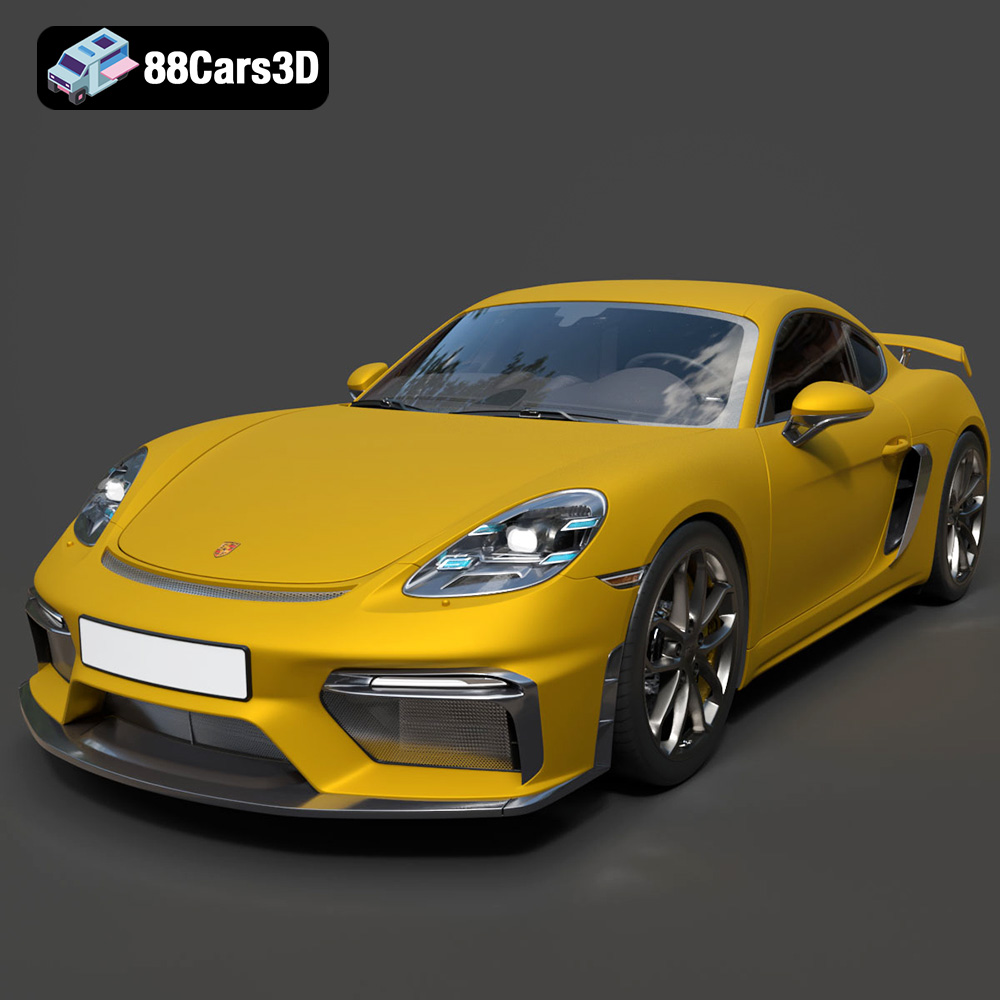
Texture: Yes | Material: Yes
Download the highly detailed, game-ready Porsche 718 Cayman GT4 2020 3D Model. Features an aggressive fixed rear wing, distinctive side air intakes, and a track-focused stance. Includes .blend, .fbx, .obj, .glb, .stl, .ply, .unreal, and .max formats for game development, AR/VR, and rendering.
Price: $19.99

Texture: Yes | Material: Yes
Download the highly detailed, game-ready Polestar 2 2020 3D Model. Features minimalist Scandinavian fastback styling, pixel LED lighting, and an accurate electric vehicle profile. Includes .blend, .fbx, .obj, .glb, .stl, .ply, .unreal, and .max formats for game development, AR/VR, and rendering.
Price: $19.99
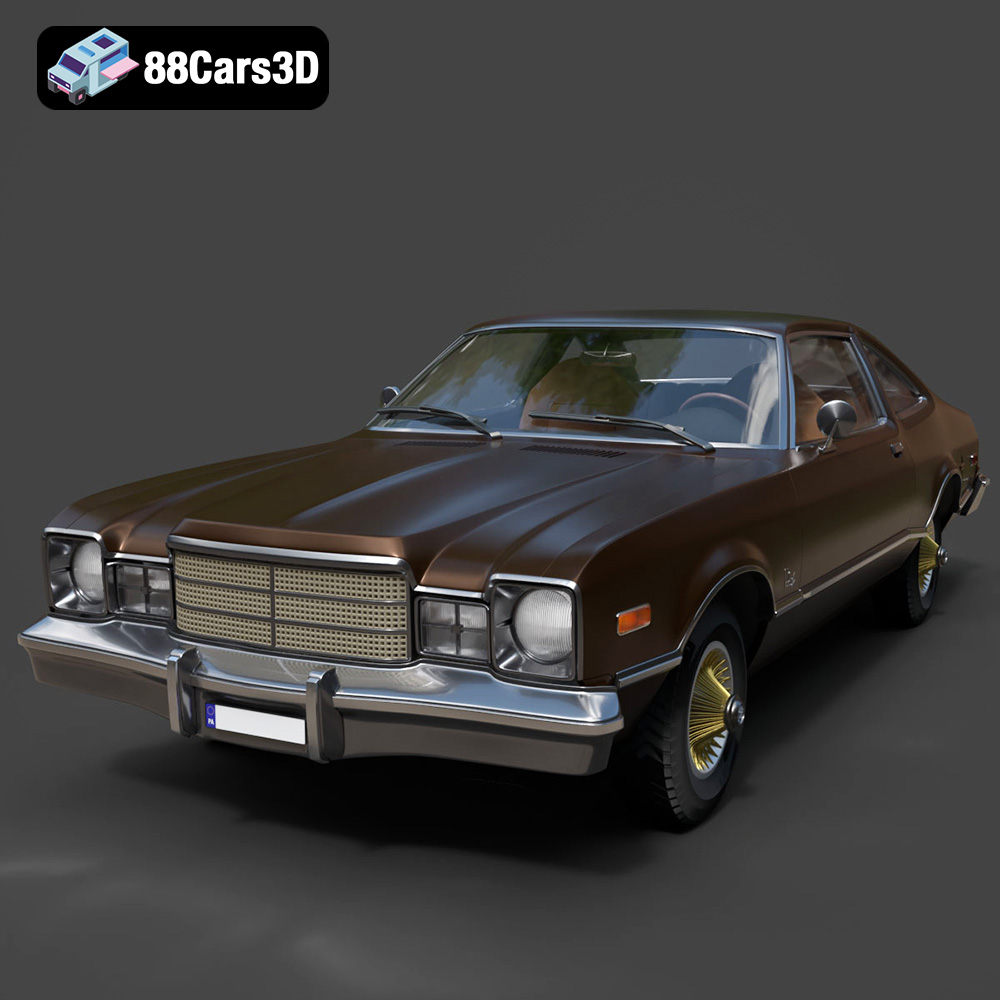
Texture: Yes | Material: Yes
Download the highly detailed, game-ready Plymouth Volare Coupe 1977 3D Model. Features classic F-body styling, detailed chrome trim, and an accurate vintage interior. Includes .blend, .fbx, .obj, .glb, .stl, .ply, .unreal, and .max formats for game development, AR/VR, and rendering.
Price: $19.99

Texture: Yes | Material: Yes
Download the highly detailed, game-ready Peugeot 208 2020 3D Model. Features aggressive ‘fang’ LED DRLs, sporty hatchback proportions, and aerodynamic alloy wheels. Includes .blend, .fbx, .obj, .glb, .stl, .ply, .unreal, and .max formats for game development, AR/VR, and rendering.
Price: $19.99

Texture: Yes | Material: Yes
Download the highly detailed, game-ready MV Agusta Brutale 1090 R 3D Model. Features an exposed trellis frame, distinctive teardrop headlight, and muscular naked bike styling. Includes .blend, .fbx, .obj, .glb, .stl, .ply, .unreal, and .max formats for game development, AR/VR, and rendering.
Price: $19.99
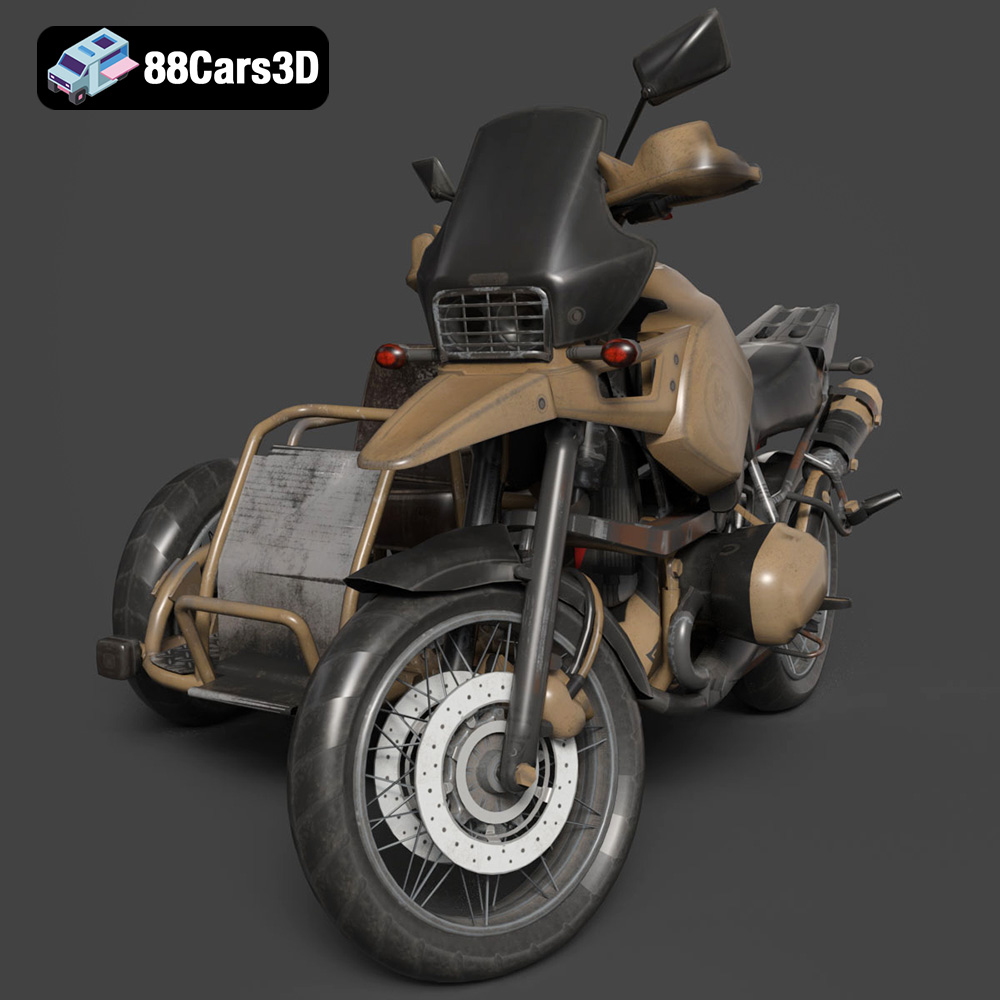
Texture: Yes | Material: Yes
Download the highly detailed, game-ready Custom Off-Road BMW R1150GS Adventure Sidecar 3D Model. Features rugged all-terrain suspension, an attached passenger sidecar, and off-road knobby tires. Includes .blend, .fbx, .obj, .glb, .stl, .ply, .unreal, and .max formats for game development, AR/VR, and rendering.
Price: $19.99

Texture: Yes | Material: Yes
Download the highly detailed, game-ready Mitsubishi Outlander GT 2010 3D Model. Features the aggressive Lancer-inspired front grille, accurate exterior styling, and high-fidelity alloy wheels. Includes .blend, .fbx, .obj, .glb, .stl, .ply, .unreal, and .max formats for game development, AR/VR, and rendering.
Price: $19.99
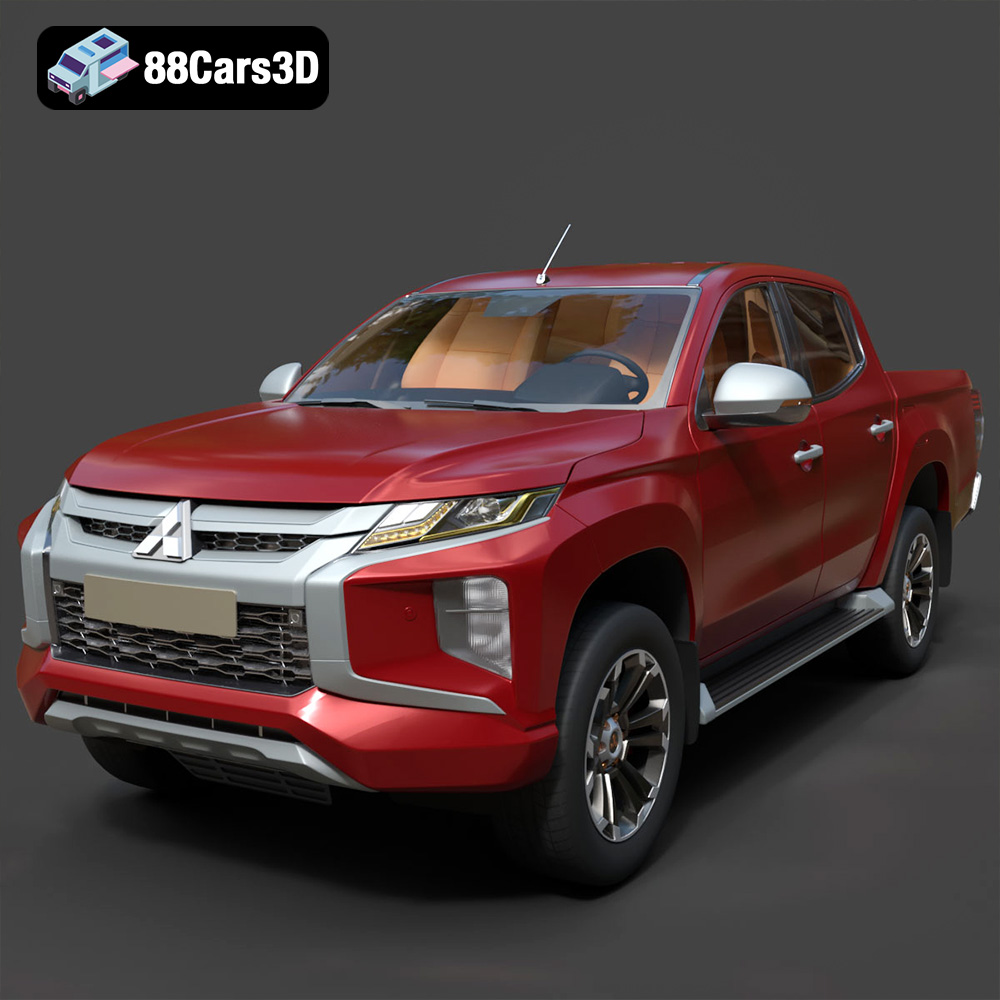
Texture: Yes | Material: Yes
Download the highly detailed, game-ready Mitsubishi L200 Crew Cab 2019 3D Model. Features the iconic Dynamic Shield front fascia, rugged cargo bed, and a spacious crew cab interior. Includes .blend, .fbx, .obj, .glb, .stl, .ply, .unreal, and .max formats for game development, AR/VR, and rendering.
Price: $19.99
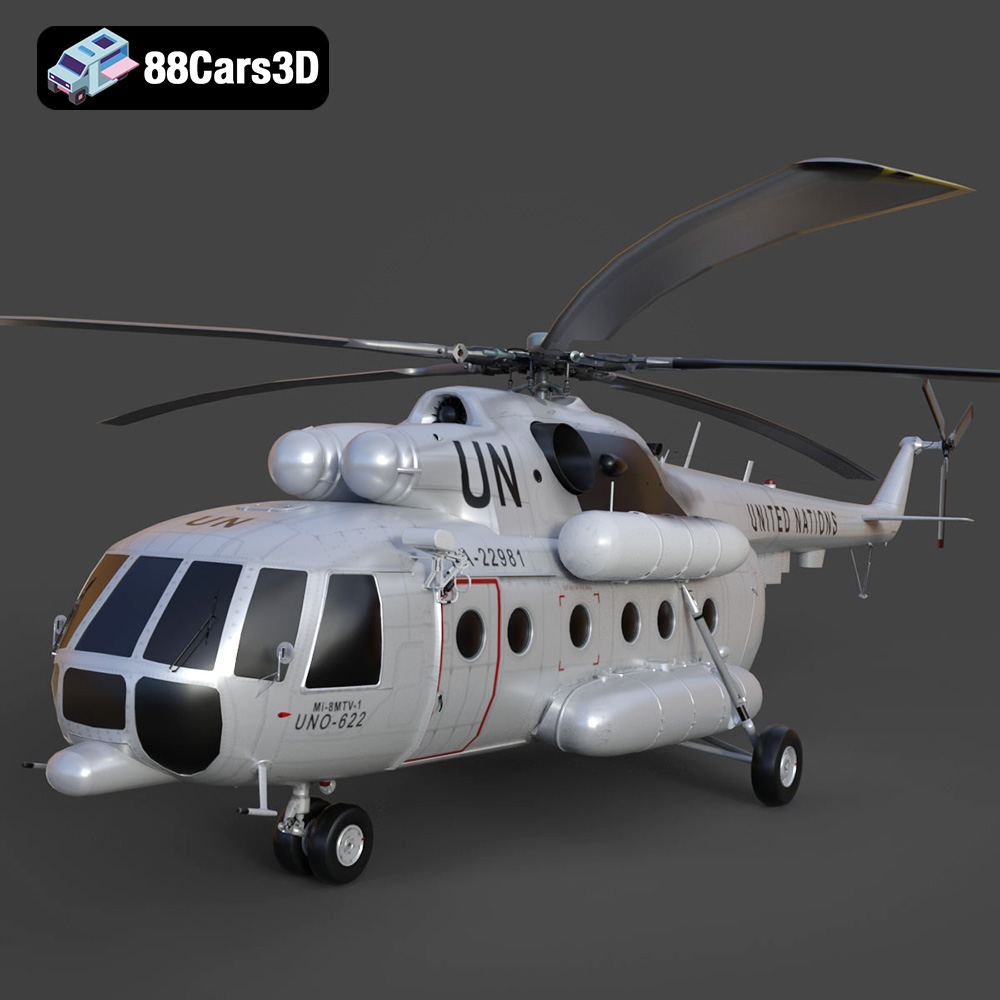
Texture: Yes | Material: Yes
Download the highly detailed, game-ready Mil Mi-8MTV-UN 3D Model. Features the iconic United Nations white livery, detailed twin turboshaft engines, and fully articulated rotor assemblies. Includes .blend, .fbx, .obj, .glb, .stl, .ply, .unreal, and .max formats for game development, AR/VR, and rendering.
Price: $19.99
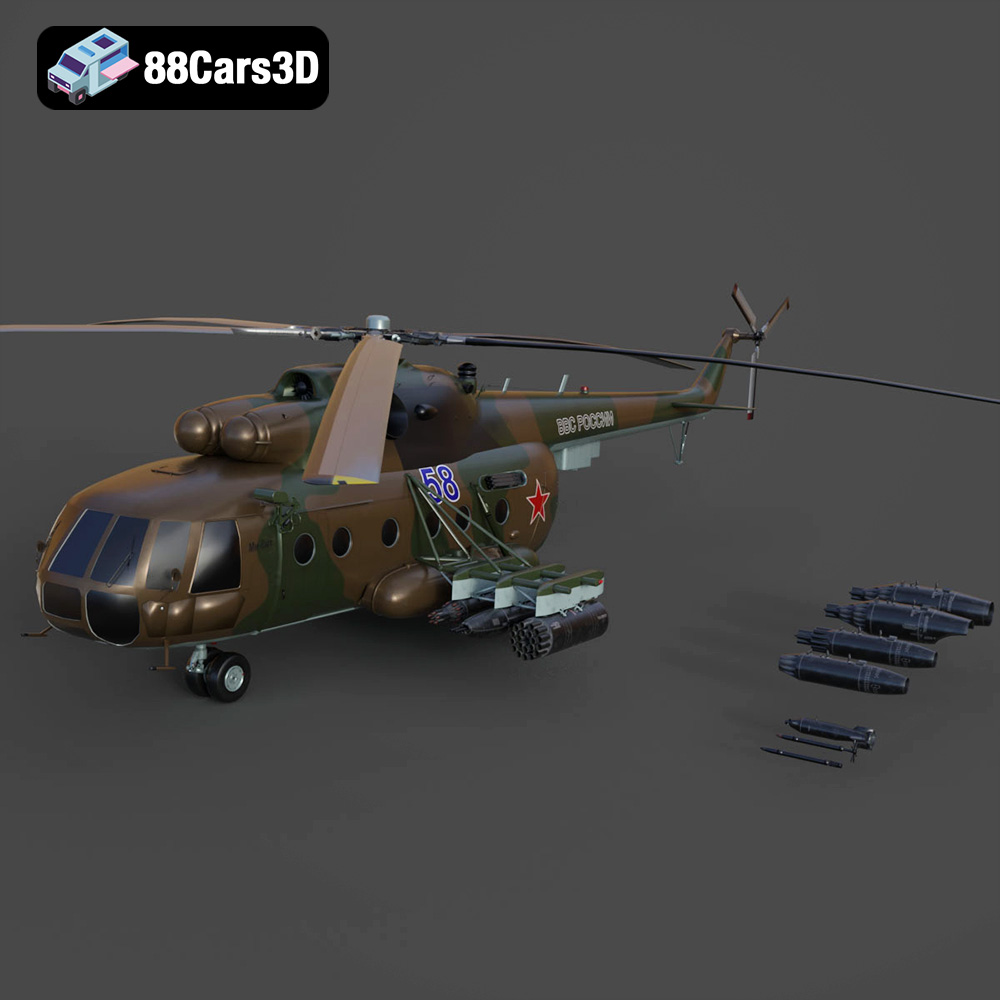
Texture: Yes | Material: Yes
Download the highly detailed, game-ready Mil Mi-8MT Helicopter 3D Model. Features twin-turbine engine housings, a detailed 5-blade main rotor, and authentic cockpit instrumentation. Includes .blend, .fbx, .obj, .glb, .stl, .ply, .unreal, and .max formats for game development, AR/VR, and rendering.
Price: $19.99

