Get 20% OFF All Premium 3D & STL Models!

“`html
The world of 3D printing offers incredible opportunities for bringing digital designs to life, especially for enthusiasts eager to create physical representations of their favorite vehicles. Whether you’re downloading intricate car models from platforms like 88cars3d.com or designing your own, the STL file format is the ubiquitous language spoken by 3D printers. However, STL files are not always perfect. Errors within these files can lead to failed prints, dimensional inaccuracies, and a whole lot of frustration. This comprehensive guide will equip you with the knowledge and techniques to identify, diagnose, and repair common STL file errors, ensuring smoother, more successful 3D printing experiences. We’ll delve into the intricacies of mesh topology, explore various software solutions, and provide practical tips to optimize your files before hitting that crucial “print” button. From understanding manifold geometry to mastering mesh repair tools, you’ll gain the confidence to tackle even the most challenging STL files and unlock the full potential of your 3D printer.
A “clean” STL file is one that is free of errors that can negatively impact the 3D printing process. These errors typically arise from imperfections in the original 3D model or during the file conversion process. A flawed STL file can result in the slicer software misinterpreting the geometry, leading to incorrect toolpaths and ultimately, a failed print. Beyond simply preventing failures, clean STL files contribute to higher print quality, improved dimensional accuracy, and reduced printing time. Think of it like building a house – a strong foundation is essential for a stable and beautiful structure. Similarly, a well-prepared STL file is the foundation for a successful 3D print.
Ignoring STL file errors can have several detrimental consequences. These range from minor cosmetic imperfections to complete print failures. Common problems include:
The first step in fixing STL file errors is to identify them. Fortunately, many software tools are available to help you diagnose problems within your STL files. Recognizing the different types of errors is crucial for selecting the appropriate repair strategy. This section will cover the most prevalent types of STL file errors and how to spot them.
Non-manifold geometry is one of the most common and problematic errors in STL files. A manifold mesh is one where every edge is shared by exactly two triangles. In simpler terms, it means that the object represents a physically realizable form. Non-manifold geometry breaks this rule and can manifest in several ways:
Software like Netfabb, Meshmixer, and even some slicers (like PrusaSlicer) can highlight non-manifold edges. Visual cues often include red or orange lines indicating problem areas.
Holes and gaps in the mesh are another common source of printing problems. These occur when triangles are missing, leaving openings in the model’s surface. Even small holes can disrupt the slicing process, especially when printing thin walls or intricate details. These gaps can be caused by errors in the original modeling software, or by data corruption during file conversion. Visually, these are easy to spot, especially if you are rotating and inspecting the model in a slicer or mesh editor. Repair tools often have features to automatically close small holes, but larger holes might require manual patching.
Every triangle in an STL file has a “normal” vector that points outward, indicating the surface’s orientation. Inverted normals occur when the normal vector points inward. This tells the slicer that the inside of the object is actually the outside, leading to printing errors or completely missing sections of the model. Many programs can display normals, often as small arrows emanating from each triangle. Inverted normals are usually indicated by a face appearing “inside out” or by software tools specifically designed to detect them. The fix is typically a simple command to “flip normals” or “orient faces.”
Several software tools are available for repairing STL files, each with its own strengths and weaknesses. Some are free and open-source, while others are commercial products with advanced features. The best tool for the job depends on the complexity of the errors and your comfort level with 3D modeling software. Choosing the right tool is essential for efficient and effective STL file repair. The following are some popular options:
Meshmixer is a free, powerful tool from Autodesk that’s widely used for STL file repair and editing. Its “Make Solid” function is particularly effective for fixing non-manifold geometry and closing holes. It also offers tools for smoothing surfaces, reducing triangle count, and adding support structures. Meshmixer is a great option for both beginners and experienced users due to its intuitive interface and robust feature set. To use Meshmixer:
Netfabb is a professional-grade software solution for additive manufacturing, offering advanced tools for STL file repair, optimization, and build preparation. It can automatically detect and fix a wide range of errors, including non-manifold geometry, holes, and inverted normals. Netfabb also includes features for hollowing models, adding lattices, and simulating the printing process. While it’s a commercial product, a free student version is available. Netfabb’s advanced features make it suitable for complex and demanding projects. Netfabb offers more control over the repair process, allowing for targeted fixes and customized workflows. The scripting capabilities also make it useful for batch processing multiple files.
While primarily a slicer, PrusaSlicer has built-in capabilities for repairing simple STL file errors. It can automatically detect and fix basic issues like holes and flipped normals during the slicing process. While not as comprehensive as Meshmixer or Netfabb, it can be a convenient option for quick fixes. If PrusaSlicer detects errors, it will often prompt you to repair the file automatically. This can be a good first step before resorting to more specialized tools.
This section provides a detailed, step-by-step guide to repairing common STL file errors using Meshmixer. While the specific steps might vary slightly depending on the software you use, the general principles remain the same. We’ll focus on fixing non-manifold geometry, closing holes, and correcting inverted normals, which are the most frequent culprits behind 3D printing failures.
Non-manifold geometry is a common issue that can prevent your model from being sliced correctly. Here’s how to address it using Meshmixer:
Holes can cause slicing issues and lead to missing sections in your 3D print. Here’s how to close them:
Inverted normals can cause sections of your model to disappear during slicing. Here’s how to fix them:
Beyond simply repairing errors, optimizing your STL files can significantly improve print quality, reduce printing time, and conserve material. Optimization involves adjusting the mesh density, simplifying complex geometries, and ensuring proper wall thickness. These optimizations result in a more efficient and robust printing process, leading to better outcomes.
High-resolution STL files with a large number of triangles can be computationally expensive to process, leading to longer slicing times and potentially slower print speeds. Reducing the triangle count simplifies the mesh without significantly affecting the model’s appearance. Meshmixer’s “Reduce” tool is ideal for this purpose. A good rule of thumb is to reduce the triangle count until you see a noticeable degradation in the model’s surface detail, then increase it slightly. This process will differ for FDM vs Resin printing, as Resin printing is capable of handling significantly more triangles. In Meshmixer, select “Reduce” under the “Edit” menu. Experiment with different reduction methods, such as “Percentage” or “Triangle Budget.” Monitor the model’s appearance closely and adjust the settings to achieve the desired balance between detail and performance.
For FDM printing, ensuring proper wall thickness is crucial for structural integrity. Thin walls can be weak and prone to breaking, while excessively thick walls can increase printing time and material consumption. A general guideline is to set the wall thickness to a multiple of your nozzle diameter (e.g., 0.8mm for a 0.4mm nozzle). Software like Meshmixer and Netfabb can measure wall thickness and identify areas that are too thin or too thick. You can then use the “Offset” tool in Meshmixer to adjust the wall thickness as needed. For car models, areas like bumpers and spoilers often require thicker walls for added strength.
The orientation of your model on the print bed can significantly impact print quality, support requirements, and printing time. Consider the following factors when orienting your model:
For car models, orienting the body at a slight angle can often reduce the need for support structures on the roof and hood. Experiment with different orientations in your slicer software to find the optimal position.
The choice of printing material and the configuration of your 3D printer are critical for achieving high-quality results. Different materials have different properties, such as strength, flexibility, and temperature resistance. Understanding these properties and selecting the appropriate material for your project is essential. Similarly, optimizing your printer settings, such as layer height, print speed, and temperature, can significantly impact the final print quality.
Common 3D printing materials include:
For car models, PLA is a good choice for decorative parts, while PETG or ABS might be better for functional components that need to be more durable. When downloading models from marketplaces such as 88cars3d.com, consider the intended use of the printed model when selecting your material.
Key printer settings to consider include:
Experiment with different settings to find the optimal configuration for your printer and material.
Post-processing techniques enhance the appearance and functionality of your 3D printed models. These techniques include removing support structures, sanding surfaces, painting, and assembling multiple parts. Proper post-processing can transform a raw 3D print into a polished and professional-looking product.
Carefully remove support structures using tools such as pliers, cutters, and knives. Be patient and avoid damaging the model. Once the supports are removed, sand the surface to smooth out any imperfections. Start with coarse sandpaper (e.g., 220 grit) and gradually move to finer grits (e.g., 400 grit, 600 grit, 800 grit) for a smooth finish. Wet sanding can help to minimize dust and achieve a smoother surface.
Painting can add color and detail to your 3D printed models. Prime the model with a spray primer to create a smooth and uniform surface for painting. Apply multiple thin coats of paint, allowing each coat to dry completely before applying the next. Use masking tape to protect areas that you don’t want to paint. Consider using clear coat to protect the paint and add a glossy finish.
Fixing STL file errors is an essential part of the 3D printing workflow. By understanding the common types of errors, utilizing appropriate repair tools, and optimizing your files, you can significantly improve your printing success rate and achieve higher-quality results. Platforms like 88cars3d.com offer a great starting point for finding printable car models, but even these files may sometimes require minor adjustments before printing. Remember to always inspect your STL files for errors before slicing and printing, and don’t hesitate to experiment with different repair techniques and printer settings. With practice and patience, you’ll become proficient in preparing STL files for 3D printing and unlock the full potential of this exciting technology. Take the knowledge you’ve gained today and apply it to your next 3D printing project. Happy printing!
“`

Texture: Yes | Material: Yes
Download the highly detailed, game-ready Porsche Cayenne Turbo Coupe 2020 3D Model. Features an aggressive coupe roofline, detailed quad exhaust, and a meticulously crafted luxury sport interior. Includes .blend, .fbx, .obj, .glb, .stl, .ply, .unreal, and .max formats for game development, AR/VR, and rendering.
Price: $19.99

Texture: Yes | Material: Yes
Download the highly detailed, game-ready Porsche 718 Cayman GT4 2020 3D Model. Features an aggressive fixed rear wing, distinctive side air intakes, and a track-focused stance. Includes .blend, .fbx, .obj, .glb, .stl, .ply, .unreal, and .max formats for game development, AR/VR, and rendering.
Price: $19.99

Texture: Yes | Material: Yes
Download the highly detailed, game-ready Polestar 2 2020 3D Model. Features minimalist Scandinavian fastback styling, pixel LED lighting, and an accurate electric vehicle profile. Includes .blend, .fbx, .obj, .glb, .stl, .ply, .unreal, and .max formats for game development, AR/VR, and rendering.
Price: $19.99
Texture: Yes | Material: Yes
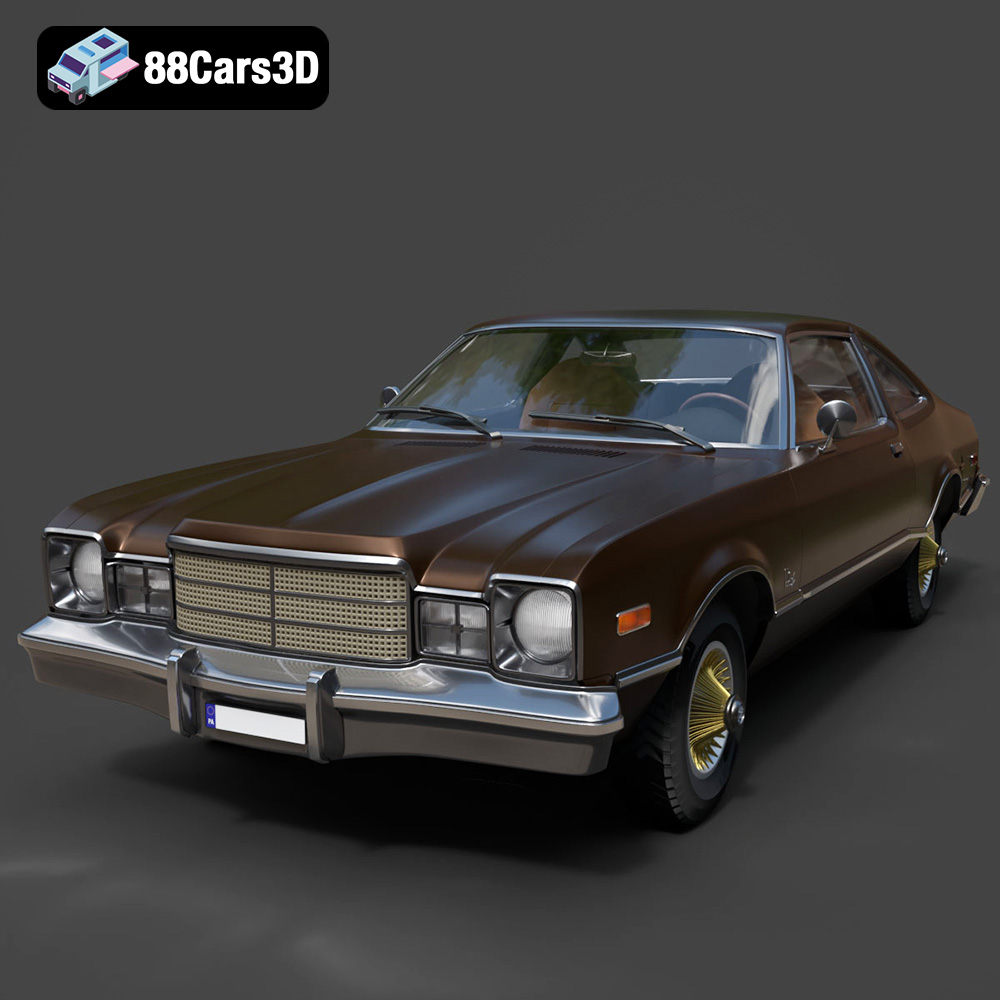
Download the highly detailed, game-ready Plymouth Volare Coupe 1977 3D Model. Features classic F-body styling, detailed chrome trim, and an accurate vintage interior. Includes .blend, .fbx, .obj, .glb, .stl, .ply, .unreal, and .max formats for game development, AR/VR, and rendering.
Price: $19.99

Texture: Yes | Material: Yes
Download the highly detailed, game-ready Peugeot 208 2020 3D Model. Features aggressive ‘fang’ LED DRLs, sporty hatchback proportions, and aerodynamic alloy wheels. Includes .blend, .fbx, .obj, .glb, .stl, .ply, .unreal, and .max formats for game development, AR/VR, and rendering.
Price: $19.99

Texture: Yes | Material: Yes
Download the highly detailed, game-ready MV Agusta Brutale 1090 R 3D Model. Features an exposed trellis frame, distinctive teardrop headlight, and muscular naked bike styling. Includes .blend, .fbx, .obj, .glb, .stl, .ply, .unreal, and .max formats for game development, AR/VR, and rendering.
Price: $19.99
Texture: Yes | Material: Yes
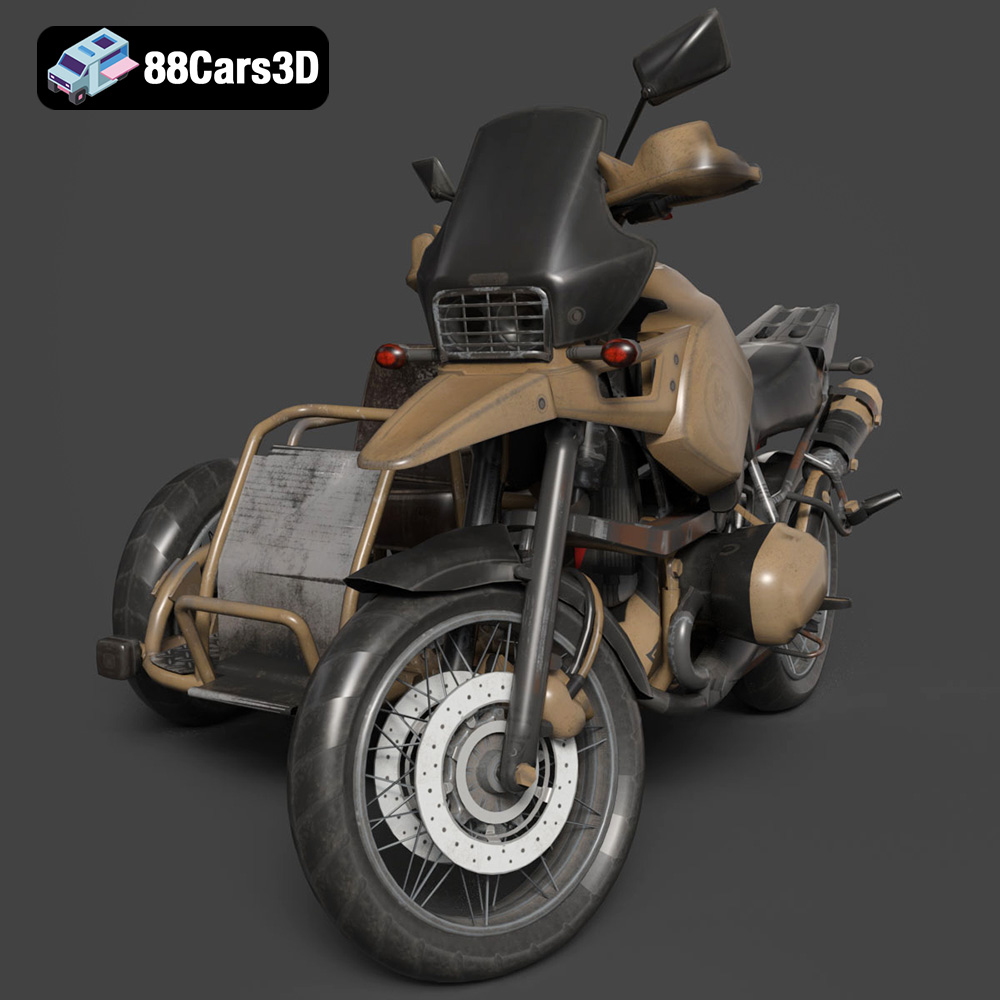
Download the highly detailed, game-ready Custom Off-Road BMW R1150GS Adventure Sidecar 3D Model. Features rugged all-terrain suspension, an attached passenger sidecar, and off-road knobby tires. Includes .blend, .fbx, .obj, .glb, .stl, .ply, .unreal, and .max formats for game development, AR/VR, and rendering.
Price: $19.99

Texture: Yes | Material: Yes
Download the highly detailed, game-ready Mitsubishi Outlander GT 2010 3D Model. Features the aggressive Lancer-inspired front grille, accurate exterior styling, and high-fidelity alloy wheels. Includes .blend, .fbx, .obj, .glb, .stl, .ply, .unreal, and .max formats for game development, AR/VR, and rendering.
Price: $19.99

Texture: Yes | Material: Yes
Download the highly detailed, game-ready Mitsubishi L200 Crew Cab 2019 3D Model. Features the iconic Dynamic Shield front fascia, rugged cargo bed, and a spacious crew cab interior. Includes .blend, .fbx, .obj, .glb, .stl, .ply, .unreal, and .max formats for game development, AR/VR, and rendering.
Price: $19.99
Texture: Yes | Material: Yes
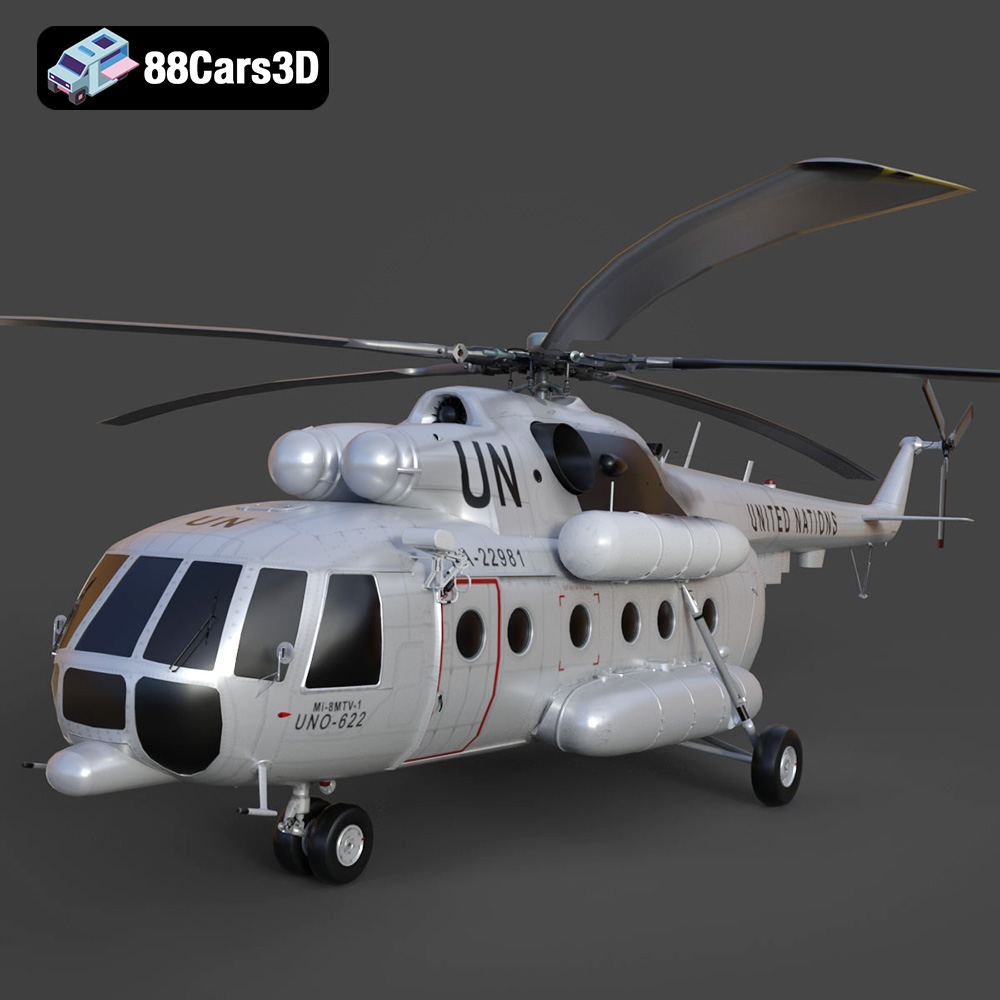
Download the highly detailed, game-ready Mil Mi-8MTV-UN 3D Model. Features the iconic United Nations white livery, detailed twin turboshaft engines, and fully articulated rotor assemblies. Includes .blend, .fbx, .obj, .glb, .stl, .ply, .unreal, and .max formats for game development, AR/VR, and rendering.
Price: $19.99

