Get 20% OFF All Premium 3D & STL Models!

“`html
The world of 3D printing offers incredible opportunities for creation, from functional prototypes to intricate scale models. For enthusiasts focused on automotive design, platforms like 88cars3d.com provide a treasure trove of printable car models in STL format. However, even the most carefully crafted STL files can sometimes suffer from imperfections that lead to printing failures. These imperfections, often invisible to the naked eye, can range from minor gaps and holes to self-intersecting faces and non-manifold geometry. Attempting to print a flawed STL file can result in wasted filament, extended print times for failed prints, and ultimately, frustration. This guide will provide you with the knowledge and tools to diagnose and repair broken STL meshes using two industry-standard software packages: Meshmixer and Netfabb. By mastering these techniques, you can ensure that your 3D printed car models, sourced from marketplaces such as 88cars3d.com, are accurate, robust, and visually stunning. We will cover essential concepts like mesh topology, common STL errors, and step-by-step workflows for repairing these issues, empowering you to achieve consistently successful prints.
Before diving into the repair process, it’s crucial to understand the underlying structure of STL files and the types of errors that commonly occur. STL (Stereolithography) files represent 3D objects as a collection of interconnected triangles. Each triangle is defined by its three vertices (points in 3D space) and a normal vector that indicates the direction the triangle is facing. A well-formed STL file should be a closed, watertight surface without any gaps or self-intersections. Unfortunately, issues can arise during the modeling or export process, leading to errors that need correction.
Mesh topology refers to the arrangement and connectivity of the triangles that make up the STL file. A healthy mesh has a consistent and logical topology. Key aspects of topology include:
Several common errors can plague STL files, hindering successful 3D printing:
Meshmixer, a free software from Autodesk, is an excellent tool for repairing and manipulating STL files. Its intuitive interface and powerful algorithms make it suitable for both beginners and experienced users. It offers a range of features specifically designed for mesh repair, including automatic fixes, sculpting tools, and mesh analysis capabilities. Meshmixer is particularly adept at identifying and resolving common STL errors, ensuring your 3D models are print-ready.
The first step is to import your STL file into Meshmixer. Go to File > Import and select your model. Once loaded, you can analyze the mesh for potential errors using the Analysis tools. Specifically:
The Inspector tool is particularly useful for quickly identifying and fixing common errors. When it flags an error, it presents options for automatic repair. Hovering over an error highlights the problematic area, allowing you to assess the suggested fix before applying it. Often, the “Auto Repair All” option will resolve many issues in one go.
While Meshmixer’s automatic repair tools are powerful, manual intervention is sometimes necessary for more complex issues. Several tools are available for this purpose:
For example, to close a small hole, you can use the Sculpt > Brushes > RobustSmooth brush to gently smooth the edges of the hole towards each other until it closes. For larger holes, the Erase & Fill tool with the “Smooth Boundary” option often yields the best results.
Autodesk Netfabb is a more advanced software solution for mesh repair and optimization. While it comes with a cost, its comprehensive set of tools and robust algorithms make it a favorite among professionals in the 3D printing industry. Netfabb offers unparalleled control over the mesh repair process, allowing for precise and efficient correction of even the most challenging STL errors. Netfabb is especially powerful when dealing with complex geometries commonly found in detailed printable car models.
Like Meshmixer, Netfabb allows you to import STL files and diagnose potential problems. However, Netfabb provides more detailed information about the errors and offers a wider range of repair options. To import, go to File > Add Part. Once imported, you can use the Analysis > Analyze tool to identify errors.
The analysis report in Netfabb provides a comprehensive overview of the mesh, including the number of triangles, the surface area, and a detailed list of errors such as:
Netfabb offers both automated and manual repair options. The automated repair is accessed via Edit > Repair. Within the repair dialog, you can choose from various repair scripts, each designed to address specific types of errors. The “Standard Repair” script is a good starting point, as it addresses a wide range of common issues. You can also customize the repair process by selecting specific repair actions, such as:
For more granular control, Netfabb offers a suite of manual repair tools. These tools allow you to directly manipulate the mesh, add or remove triangles, and adjust vertex positions. The manual repair tools are particularly useful for addressing complex or unusual errors that cannot be resolved automatically. For example, to manually close a hole, you can use the Surface Edit > Add Triangle tool to create new triangles that bridge the gap. You can then use the Surface Edit > Stitch Triangles tool to seamlessly connect the new triangles to the existing mesh.
Repairing broken meshes is only one part of preparing STL files for 3D printing. Optimizing the mesh can further improve print quality and reduce the risk of printing failures. Optimization involves simplifying the mesh, reducing the file size, and ensuring that the model is suitable for the chosen printing process. Reducing the file size is particularly important for large or complex models, as it can improve slicing performance and reduce the memory requirements of the 3D printer.
Mesh simplification reduces the number of triangles in the STL file while preserving the overall shape and detail of the model. This can significantly reduce the file size and improve slicing performance. Both Meshmixer and Netfabb offer mesh simplification tools.
When simplifying a mesh, it’s important to strike a balance between reducing the file size and preserving the important details of the model. Experiment with different simplification settings to find the optimal balance for your specific model and printing requirements. For printable car models with intricate details, avoid excessive simplification, as it can lead to a loss of detail in the final print.
Ensuring adequate wall thickness is crucial for the structural integrity of the printed model. Thin walls can be fragile and prone to breaking during printing or post-processing. Both Meshmixer and Netfabb allow you to analyze the wall thickness of your model and make adjustments as needed. Netfabb’s measurement tools are particularly useful for this purpose.
A general rule of thumb is to aim for a minimum wall thickness of at least 0.8mm for FDM printing and 1.0mm for SLA/DLP printing. For larger or more complex models, you may need to increase the wall thickness to ensure adequate strength and stability. When downloading models from marketplaces such as 88cars3d.com, check the product descriptions for recommended wall thicknesses and adjust the model accordingly before printing.
Once you’ve repaired and optimized your STL file, the final step is to slice it and print it. Slicing involves converting the 3D model into a series of 2D layers that the 3D printer can understand. The slicing software generates the toolpaths that the printer will follow to create each layer. Proper slicing settings are crucial for achieving high-quality prints. For printing car models, consider using a layer height of 0.1mm to 0.2mm for FDM and 0.025mm to 0.05mm for resin printers to capture fine details.
The specific slicer settings will depend on the type of 3D printer you are using (FDM or resin), the material you are printing with, and the desired print quality. However, some general recommendations apply:
After printing, you may need to perform some post-processing steps to refine the final product. Common post-processing techniques include:
Repairing broken STL meshes is an essential skill for any 3D printing enthusiast. By understanding the structure of STL files, recognizing common errors, and mastering the tools and techniques presented in this guide, you can ensure that your 3D printed car models, and other creations, are accurate, robust, and visually appealing. Remember to leverage the power of software like Meshmixer and Netfabb for mesh repair, optimize your STL files for printing, and carefully choose your slicer settings to achieve the best possible results. Successful 3D printing is a journey of continuous learning and experimentation. Don’t be afraid to try new techniques and refine your workflow to achieve your desired outcomes. With dedication and practice, you can unlock the full potential of 3D printing and create stunning automotive models from platforms like 88cars3d.com, as well as a wide array of other projects. Take the time to understand your printer, your materials, and your software, and you will be well on your way to becoming a 3D printing expert. So, fire up your software, load your STL files, and start creating!
“`
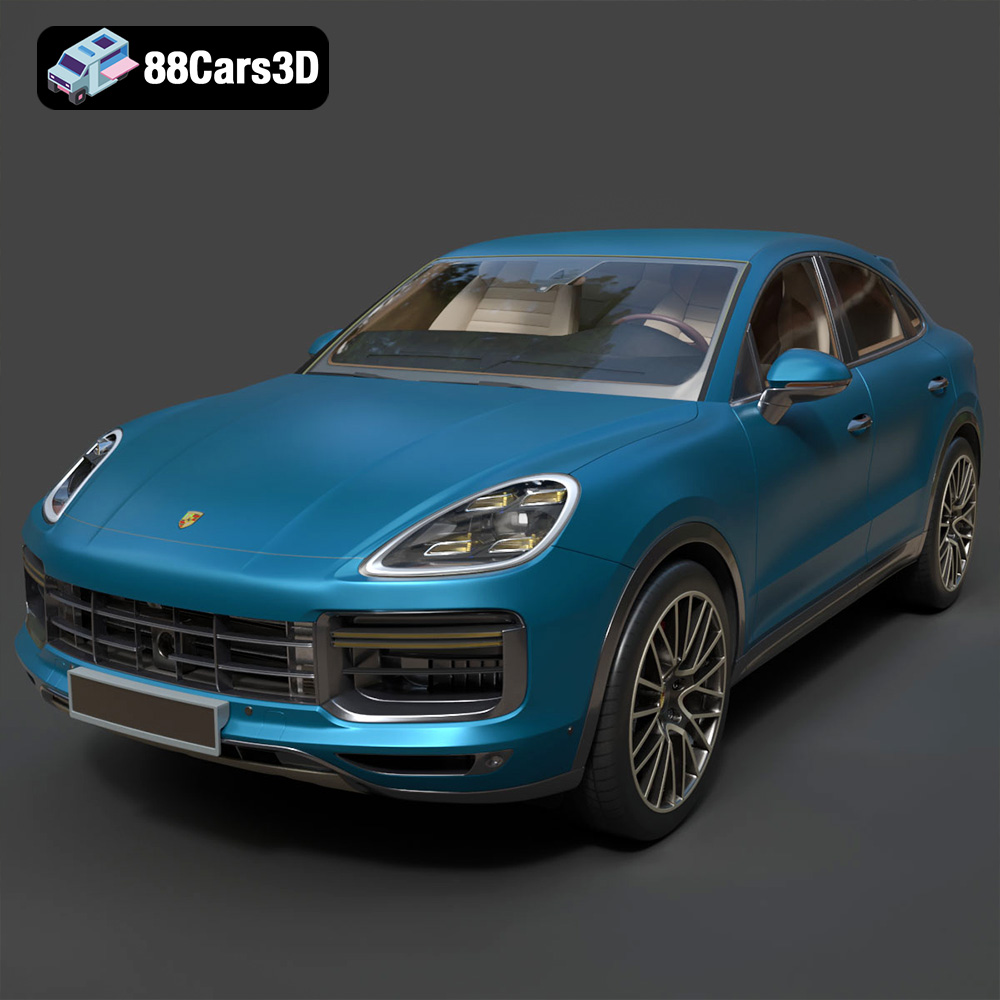
Texture: Yes | Material: Yes
Download the highly detailed, game-ready Porsche Cayenne Turbo Coupe 2020 3D Model. Features an aggressive coupe roofline, detailed quad exhaust, and a meticulously crafted luxury sport interior. Includes .blend, .fbx, .obj, .glb, .stl, .ply, .unreal, and .max formats for game development, AR/VR, and rendering.
Price: $19.99
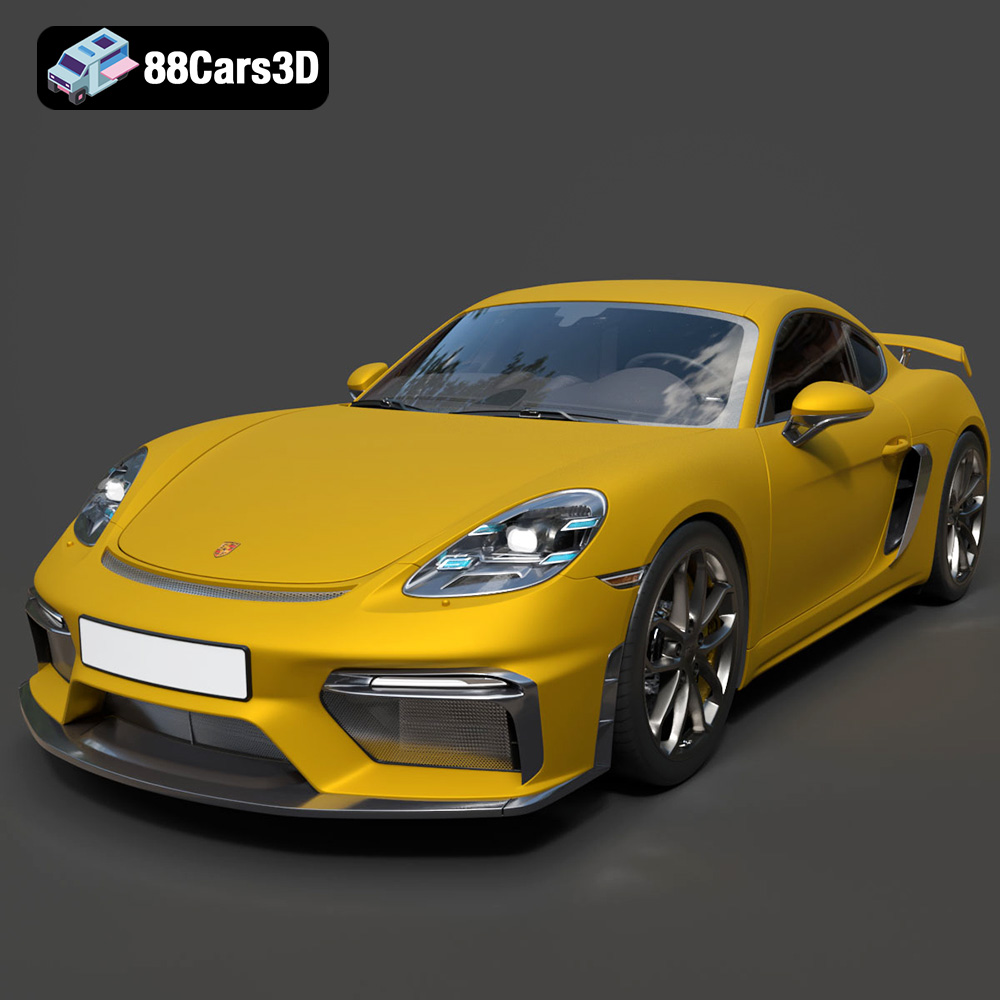
Texture: Yes | Material: Yes
Download the highly detailed, game-ready Porsche 718 Cayman GT4 2020 3D Model. Features an aggressive fixed rear wing, distinctive side air intakes, and a track-focused stance. Includes .blend, .fbx, .obj, .glb, .stl, .ply, .unreal, and .max formats for game development, AR/VR, and rendering.
Price: $19.99

Texture: Yes | Material: Yes
Download the highly detailed, game-ready Polestar 2 2020 3D Model. Features minimalist Scandinavian fastback styling, pixel LED lighting, and an accurate electric vehicle profile. Includes .blend, .fbx, .obj, .glb, .stl, .ply, .unreal, and .max formats for game development, AR/VR, and rendering.
Price: $19.99
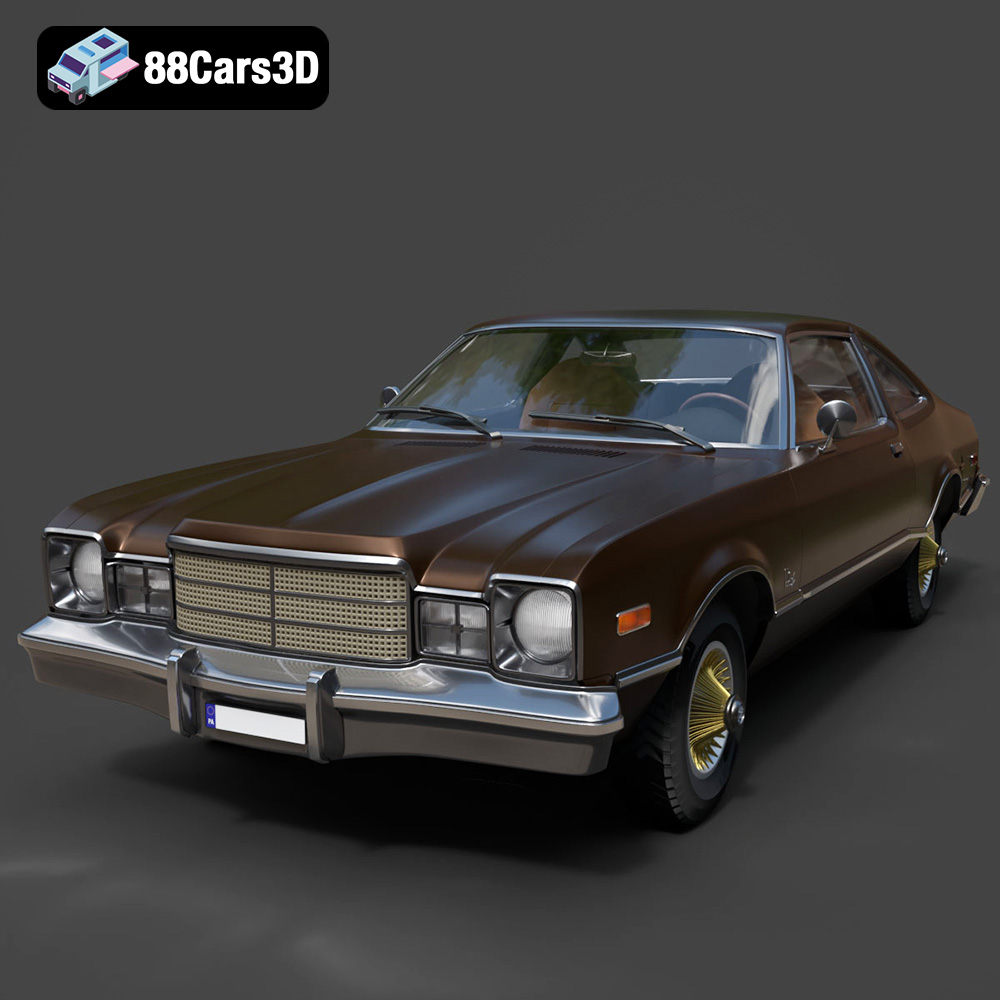
Texture: Yes | Material: Yes
Download the highly detailed, game-ready Plymouth Volare Coupe 1977 3D Model. Features classic F-body styling, detailed chrome trim, and an accurate vintage interior. Includes .blend, .fbx, .obj, .glb, .stl, .ply, .unreal, and .max formats for game development, AR/VR, and rendering.
Price: $19.99

Texture: Yes | Material: Yes
Download the highly detailed, game-ready Peugeot 208 2020 3D Model. Features aggressive ‘fang’ LED DRLs, sporty hatchback proportions, and aerodynamic alloy wheels. Includes .blend, .fbx, .obj, .glb, .stl, .ply, .unreal, and .max formats for game development, AR/VR, and rendering.
Price: $19.99

Texture: Yes | Material: Yes
Download the highly detailed, game-ready MV Agusta Brutale 1090 R 3D Model. Features an exposed trellis frame, distinctive teardrop headlight, and muscular naked bike styling. Includes .blend, .fbx, .obj, .glb, .stl, .ply, .unreal, and .max formats for game development, AR/VR, and rendering.
Price: $19.99
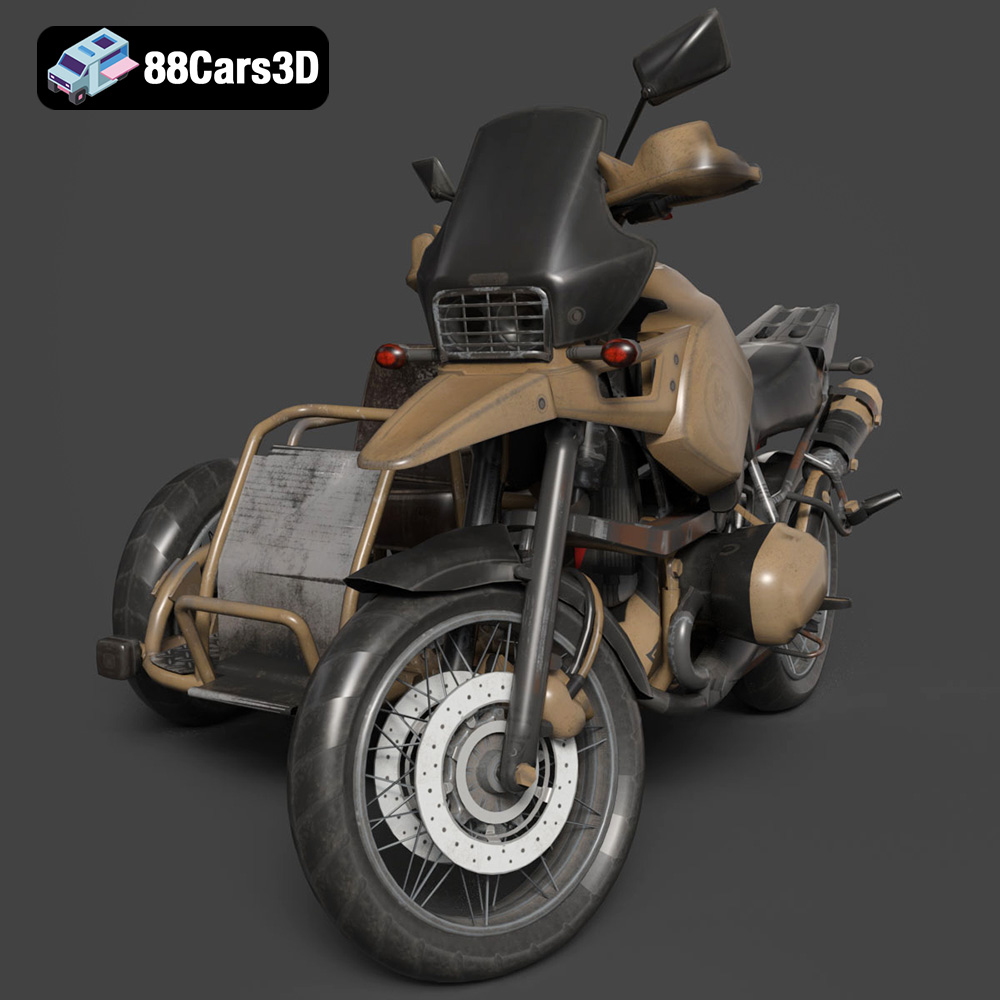
Texture: Yes | Material: Yes
Download the highly detailed, game-ready Custom Off-Road BMW R1150GS Adventure Sidecar 3D Model. Features rugged all-terrain suspension, an attached passenger sidecar, and off-road knobby tires. Includes .blend, .fbx, .obj, .glb, .stl, .ply, .unreal, and .max formats for game development, AR/VR, and rendering.
Price: $19.99

Texture: Yes | Material: Yes
Download the highly detailed, game-ready Mitsubishi Outlander GT 2010 3D Model. Features the aggressive Lancer-inspired front grille, accurate exterior styling, and high-fidelity alloy wheels. Includes .blend, .fbx, .obj, .glb, .stl, .ply, .unreal, and .max formats for game development, AR/VR, and rendering.
Price: $19.99
Texture: Yes | Material: Yes
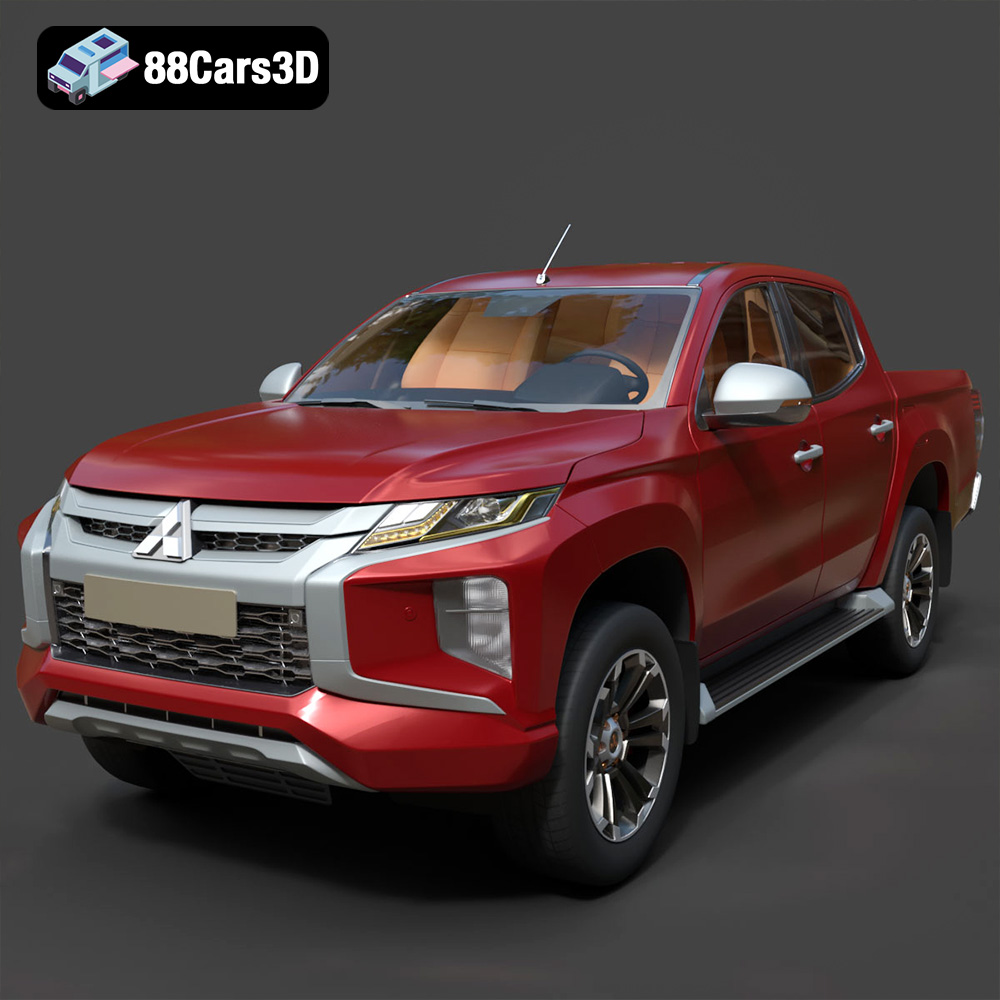
Download the highly detailed, game-ready Mitsubishi L200 Crew Cab 2019 3D Model. Features the iconic Dynamic Shield front fascia, rugged cargo bed, and a spacious crew cab interior. Includes .blend, .fbx, .obj, .glb, .stl, .ply, .unreal, and .max formats for game development, AR/VR, and rendering.
Price: $19.99
Texture: Yes | Material: Yes
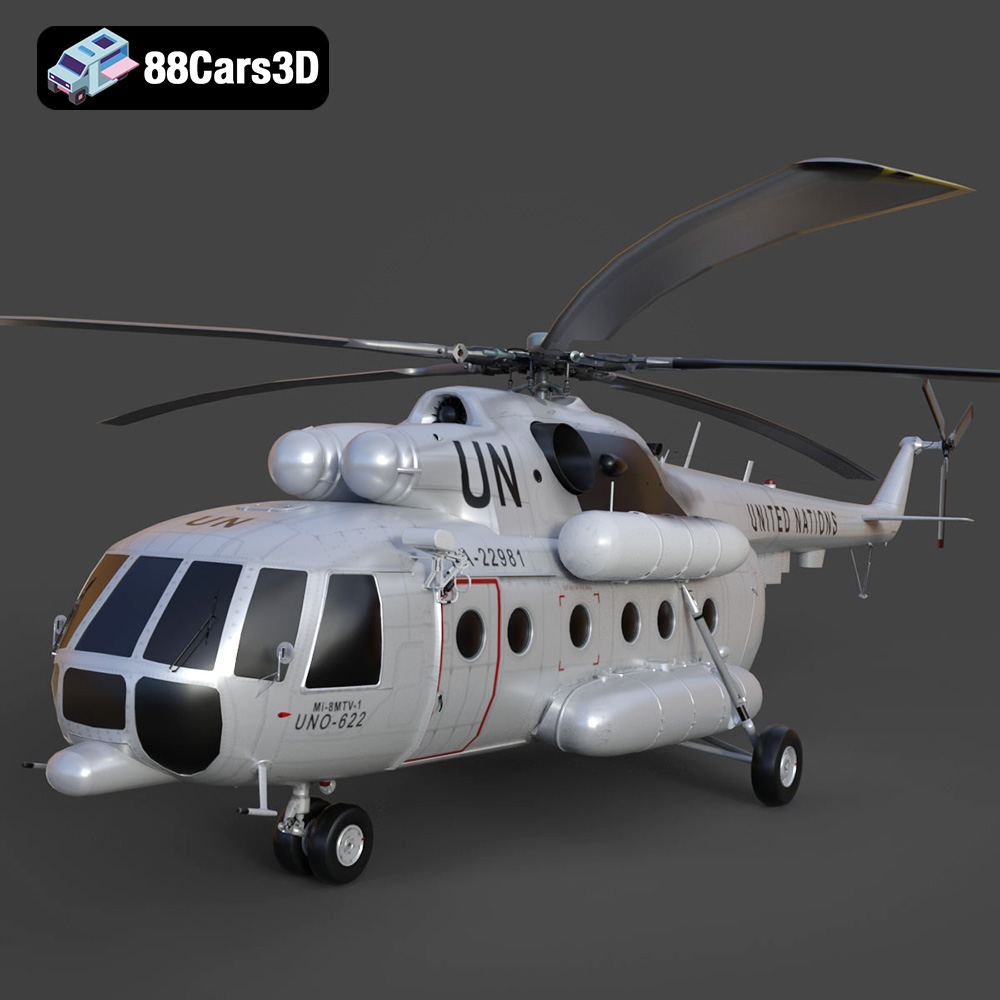
Download the highly detailed, game-ready Mil Mi-8MTV-UN 3D Model. Features the iconic United Nations white livery, detailed twin turboshaft engines, and fully articulated rotor assemblies. Includes .blend, .fbx, .obj, .glb, .stl, .ply, .unreal, and .max formats for game development, AR/VR, and rendering.
Price: $19.99

