Get 20% OFF All Premium 3D & STL Models!

“`html
The world of 3D printing opens up exciting possibilities, especially for automotive enthusiasts looking to bring their favorite car models to life. But before you can hold a miniature replica in your hands, your 3D model needs to be in the right format – STL. This process, often involving converting polygon-based 3D models into STL files, can be trickier than it seems. This guide provides a comprehensive breakdown of the conversion process, ensuring your 3D printed car models from platforms like 88cars3d.com come out exactly as intended. We’ll delve into the specifics of different file formats, software options, mesh optimization, and troubleshooting common issues, equipping you with the knowledge to navigate the conversion process with confidence. Whether you are working with FDM or resin printing, mastering the conversion to STL is the first critical step to success.
In this guide, we will explore the following key areas:
Polygon models, commonly found in formats like OBJ and FBX, are built using vertices, edges, and faces to define the shape of a 3D object. These formats can store color, texture, and animation data. However, the STL (Stereolithography) format, specifically designed for 3D printing, takes a different approach. STL represents a 3D object’s surface as a collection of triangles, essentially creating a tessellated approximation of the original model. This simplification is necessary for 3D printers to interpret and build the object layer by layer.
The STL format comes in two main variations: ASCII and binary. The ASCII format is human-readable but produces much larger file sizes. The binary format is more compact and efficient, making it the preferred choice for most 3D printing applications. Both versions essentially store the same information: the normal vector (direction perpendicular to the triangle’s surface) and the coordinates of the three vertices for each triangle. When downloading models from marketplaces such as 88cars3d.com, the binary STL format is the expected standard. A well-formed STL file ensures that your 3D printer can interpret the model correctly.
The number of polygons (triangles in the STL file) directly impacts the resolution and smoothness of the printed object. A higher polygon count results in a more detailed and accurate representation of the original model, but it also increases file size and processing time. Finding the right balance is crucial. For car models, particularly those with complex curves and intricate details, a sufficient polygon count is essential to avoid a faceted or blocky appearance. Aim for a resolution where the individual triangles are not visibly noticeable on the printed part. As a starting point, consider aiming for a mesh density where the angle between adjacent triangles is less than 5 degrees.
Numerous software options are available for converting polygon models to STL, ranging from free and open-source tools to professional-grade CAD packages. The best choice depends on your budget, technical expertise, and the complexity of the models you’re working with. Some popular choices include Blender, MeshMixer, and Netfabb. Each offers a unique set of features for model manipulation, repair, and optimization. Slicing software such as Cura and PrusaSlicer can also import and export STL files, often with basic repair capabilities.
Blender is a free and open-source 3D creation suite that offers a comprehensive set of tools for modeling, sculpting, and converting files. To export an STL from Blender: Select the object you want to export, go to File > Export > Stl (.stl), and adjust the export settings as needed. Ensure “Selection Only” is checked if you only want to export the selected object. Before exporting, it’s recommended to apply any modifiers (like Subdivision Surface) to finalize the mesh and triangulate the object with the “Triangulate” modifier. For automotive models from 88cars3d.com, a well-optimized Blender workflow can significantly improve the final print quality.
MeshMixer, also a free tool, excels at mesh editing and repair. It allows you to easily identify and fix common issues like non-manifold edges, holes, and intersecting faces. To convert a model to STL in MeshMixer, import the model, perform any necessary repairs or modifications, and then go to File > Export. Select “STL Binary Format” as the file type. MeshMixer’s sculpting tools can also be useful for making minor adjustments to the model before printing. Tools like “Make Solid” are invaluable for creating watertight meshes suitable for printing.
Striking a balance between detail and file size is crucial for efficient 3D printing. High-resolution models require more processing power and can lead to longer printing times. Conversely, low-resolution models may lack the necessary details, resulting in a subpar final product. Mesh optimization techniques can help reduce file size without sacrificing significant detail. This often involves reducing the polygon count while preserving the overall shape and features of the model.
Decimation algorithms reduce the polygon count by removing less important vertices and faces. Most 3D modeling and mesh editing software offer decimation tools. In MeshMixer, the “Reduce” tool allows you to specify a target polygon count or a percentage of reduction. Experiment with different settings to find the optimal balance between file size and detail. Keep an eye on curved surfaces, as these are most susceptible to visual degradation during decimation. Consider using adaptive decimation, which preserves detail in areas with high curvature while simplifying flatter regions.
Another effective technique is to control the maximum edge length of the triangles in the mesh. This ensures a more uniform distribution of polygons and prevents excessively small or elongated triangles, which can cause printing issues. Some software packages, like Netfabb, offer advanced mesh refinement tools that allow you to specify target edge lengths and angles. For automotive models, focusing on areas with sharp edges and intricate details can significantly improve print quality. When reducing the edge length, start with small increments (e.g., 10% reduction at a time) to observe the effects on the model’s appearance.
Before 3D printing, it’s essential to ensure that your STL file is “watertight” and free of errors. Non-manifold edges, holes, and self-intersecting faces can cause slicing problems and lead to printing failures. Mesh repair tools can automatically detect and fix these issues, ensuring a successful print. Many slicing software programs, such as Cura and PrusaSlicer, incorporate basic mesh repair functionality. However, dedicated mesh editing tools like MeshMixer and Netfabb offer more advanced repair options.
MeshMixer provides a powerful “Inspector” tool that automatically detects various types of mesh errors. It highlights problem areas in different colors, allowing you to quickly identify and fix them. Common errors include open edges (holes in the mesh), flipped normals (triangles facing the wrong way), and intersecting faces. The Inspector offers automatic repair options for each type of error. For more complex issues, you may need to manually edit the mesh using MeshMixer’s sculpting and editing tools. Remember to save your work frequently during the repair process.
Non-manifold geometry refers to situations where an edge is shared by more than two faces, or where a vertex is connected to faces in a way that creates a loop or self-intersection. These errors are particularly problematic for 3D printing. MeshMixer’s “Make Solid” tool can often resolve non-manifold geometry by creating a watertight mesh. This tool converts the surface mesh into a solid volume by adding internal structures and closing any gaps or holes. Adjust the settings of the “Make Solid” tool to balance accuracy and computational cost. When printing car models with complex interior components, verifying manifold geometry is crucial.
The final step before printing is to slice the STL file into layers that the 3D printer can understand. Slicing software like Cura, PrusaSlicer, and Simplify3D allows you to control various printing parameters, such as layer height, infill density, print speed, and support structures. The optimal settings depend on the type of printer (FDM or resin), the material used, and the desired print quality. Understanding these parameters and how they affect the final result is critical for achieving successful prints of your 3D printable car models.
For FDM (Fused Deposition Modeling) printing, layer height is a key parameter. Lower layer heights result in smoother surfaces and more detailed prints, but they also increase printing time. A typical layer height for detailed models is 0.1 to 0.2 mm. Infill density affects the strength and weight of the printed object. For car models, a medium infill density (15-25%) is usually sufficient for structural integrity. Print speed also plays a role; slower speeds generally improve print quality, while faster speeds reduce printing time. Experiment with different speeds to find the optimal balance. Bed adhesion is also crucial; use a heated bed and appropriate adhesion aids (e.g., glue stick, painter’s tape) to prevent warping.
Resin printing, also known as stereolithography (SLA) or digital light processing (DLP), offers higher resolution and smoother surfaces compared to FDM. Key parameters for resin printing include layer height, exposure time, and lift speed. Layer heights typically range from 0.025 to 0.05 mm. Exposure time determines how long each layer is exposed to the UV light source. The optimal exposure time depends on the resin used and the printer’s specifications. Lift speed affects the speed at which the build platform moves up between layers. Too high a lift speed can cause print failures. Support structures are essential for resin printing, as they provide support for overhanging features and prevent warping. Use a well-supported model from 88cars3d.com as a starting point.
Once the 3D print is complete, post-processing is often necessary to achieve the desired finish and appearance. This can involve removing support structures, sanding down imperfections, painting, and assembling multiple parts. The specific techniques required depend on the printing material and the desired level of detail. Careful post-processing can transform a raw 3D print into a polished and professional-looking model.
Support structures, whether generated for FDM or resin printing, need to be carefully removed. For FDM prints, use pliers, cutters, or a sharp knife to break away the supports. Be gentle to avoid damaging the model. Sanding is crucial for smoothing out rough surfaces and removing layer lines. Start with coarse-grit sandpaper (e.g., 120 grit) and gradually move to finer grits (e.g., 400 grit, 600 grit) for a smoother finish. For resin prints, the support structures are typically more delicate and can be removed with a sharp scalpel or tweezers. After removing supports, clean the model with isopropyl alcohol to remove any residual resin.
Painting adds the finishing touches to your 3D printed car model. Prime the model first to create a uniform surface for the paint to adhere to. Use spray paint or airbrush for a smooth and even coat. Apply multiple thin coats rather than one thick coat to avoid drips and runs. For intricate details, use fine-tipped brushes and acrylic paints. Allow each coat of paint to dry completely before applying the next. If your model consists of multiple parts, assemble them using glue or fasteners after painting. Consider using cyanoacrylate (super glue) for small parts and epoxy for larger, structural components.
Converting polygon 3D models to STL for 3D printing involves a series of crucial steps, from understanding file formats and choosing the right software to optimizing slicing parameters and mastering post-processing techniques. By carefully considering each stage of the process, you can ensure that your 3D printed car models, whether sourced from platforms like 88cars3d.com or created from scratch, meet your expectations in terms of detail, accuracy, and overall quality. Remember to experiment with different settings and techniques to find what works best for your specific printer, material, and desired outcome.
The key takeaways from this guide are:
Now that you have a solid understanding of the conversion process, you’re well-equipped to tackle your next 3D printing project. Start by practicing with simple models and gradually work your way up to more complex designs. Don’t be afraid to experiment and learn from your mistakes. With practice and patience, you’ll be able to create stunning 3D printed car models that capture the beauty and detail of your favorite automobiles.
“`
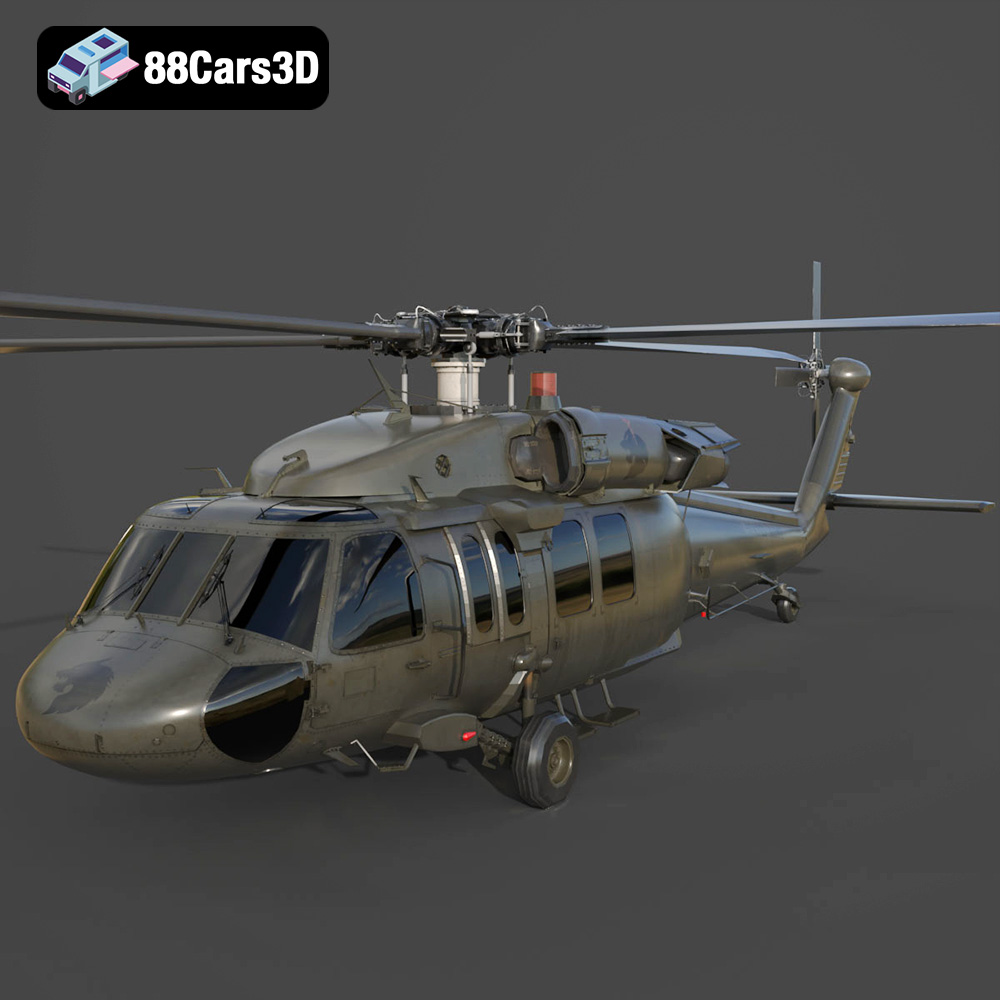
Texture: Yes | Material: Yes
Download the highly detailed, game-ready Sikorsky UH-60 Black Hawk US 3D Model. Features an accurate four-blade rotor system, detailed military fuselage, and realistic twin-engine housing. Includes .blend, .fbx, .obj, .glb, .stl, .ply, .unreal, and .max formats for game development, AR/VR, and rendering.
Price: $19.99
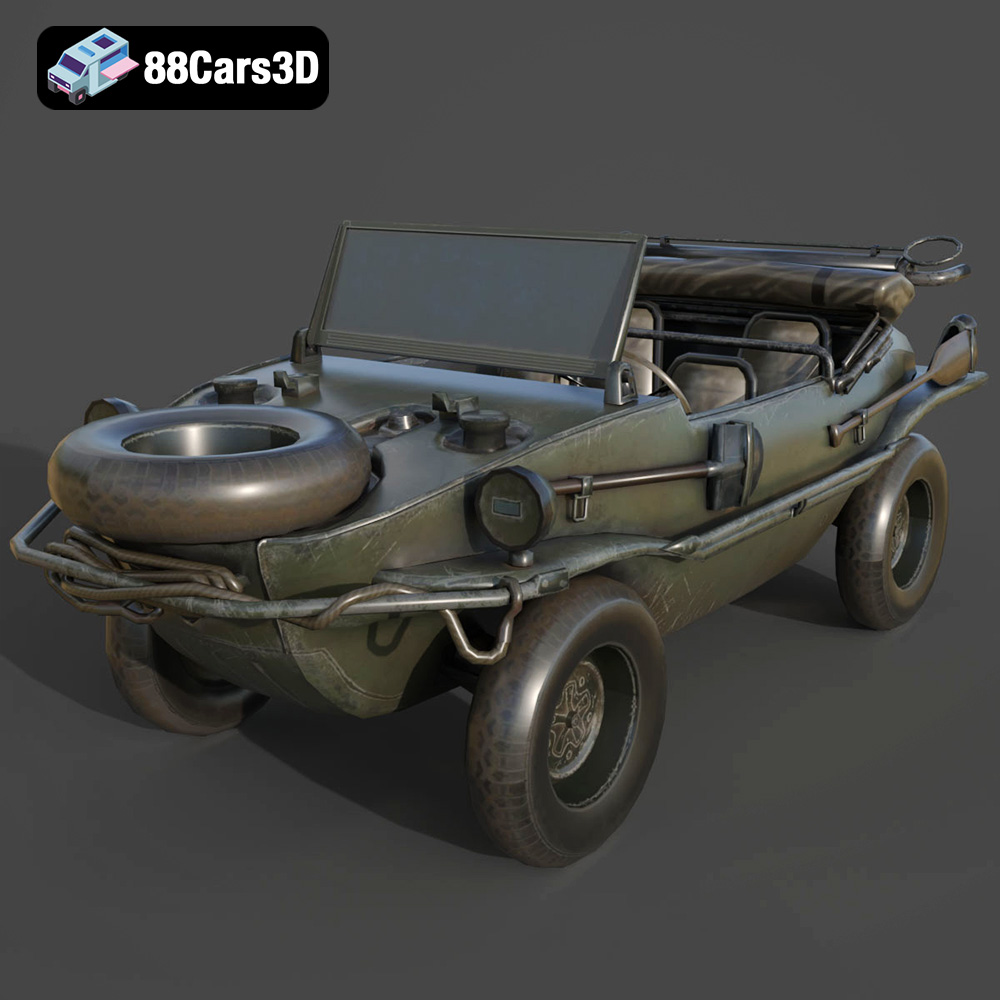
Texture: Yes | Material: Yes
Download the highly detailed, game-ready Volkswagen Schwimmwagen Typ 166 3D Model. Features an authentic boat-like watertight hull, fold-down propeller mechanism, and accurate military styling. Includes .blend, .fbx, .obj, .glb, .stl, .ply, .unreal, and .max formats for game development, AR/VR, and rendering.
Price: $19.99
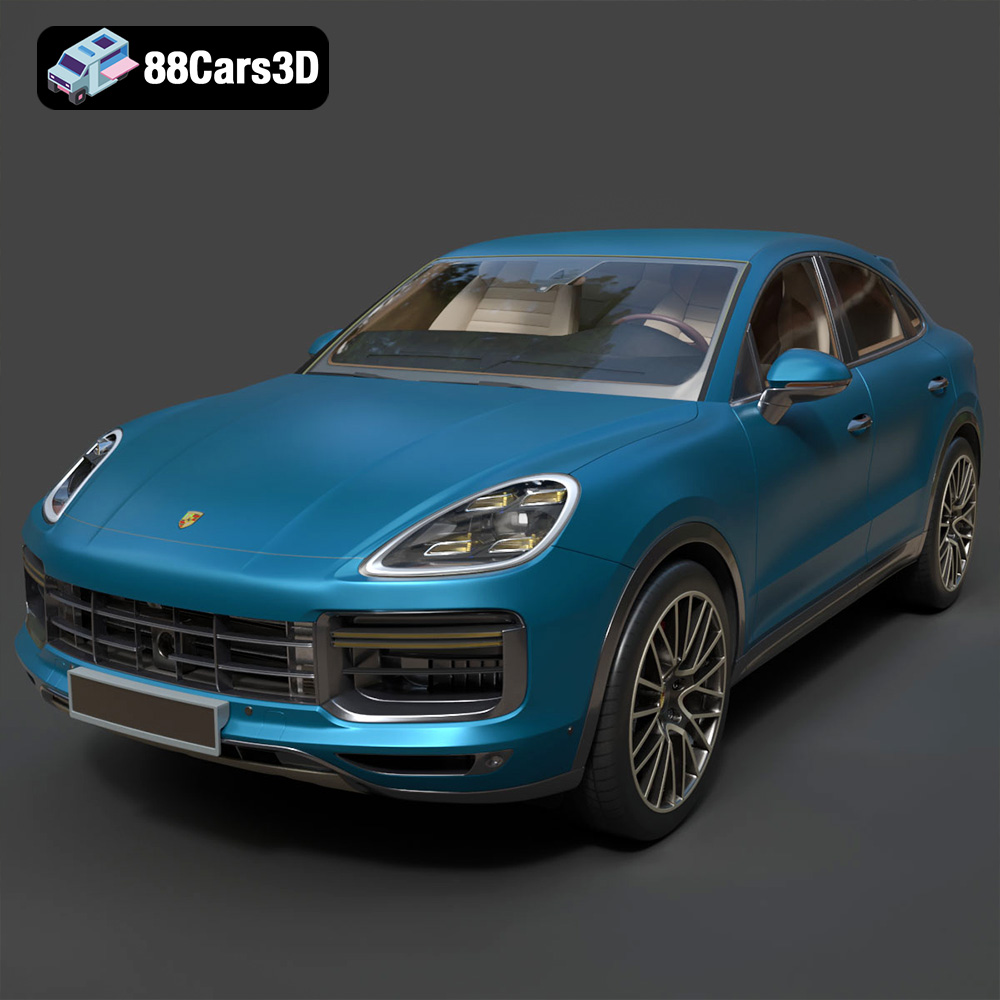
Texture: Yes | Material: Yes
Download the highly detailed, game-ready Porsche Cayenne Turbo Coupe 2020 3D Model. Features an aggressive coupe roofline, detailed quad exhaust, and a meticulously crafted luxury sport interior. Includes .blend, .fbx, .obj, .glb, .stl, .ply, .unreal, and .max formats for game development, AR/VR, and rendering.
Price: $19.99
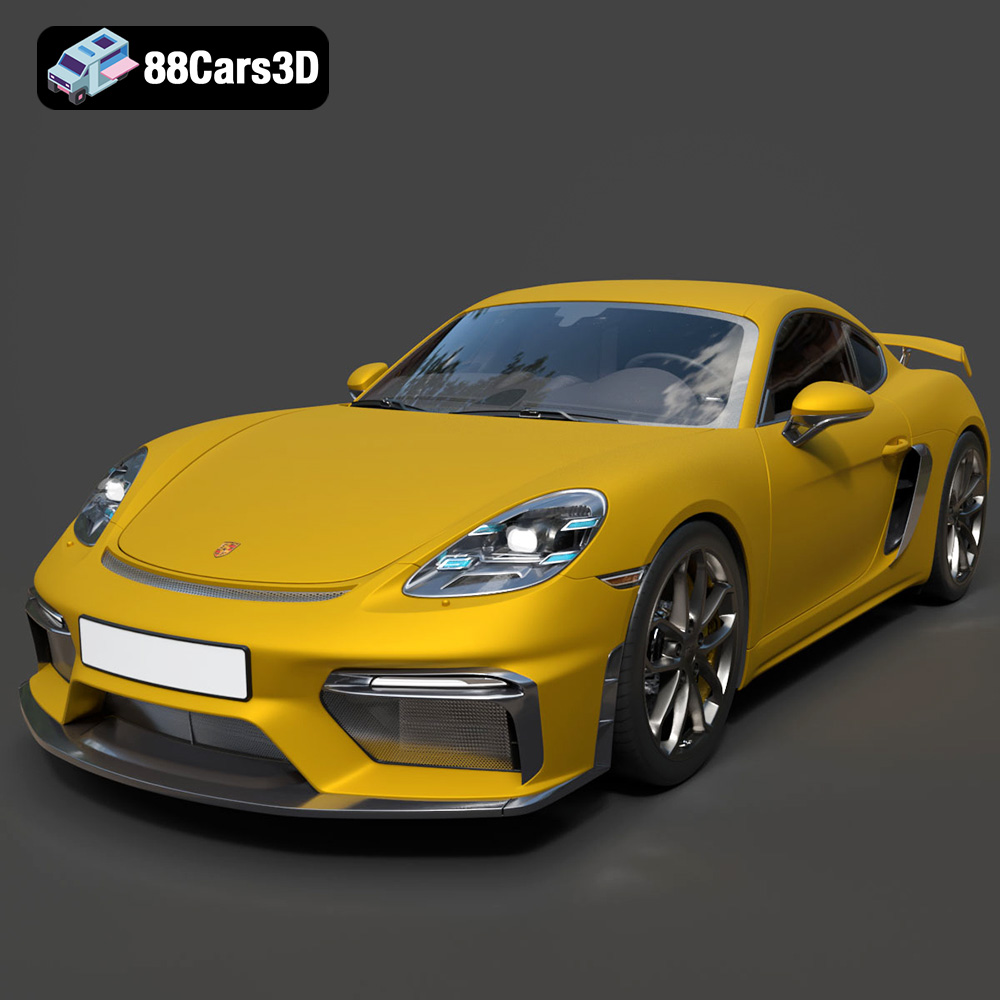
Texture: Yes | Material: Yes
Download the highly detailed, game-ready Porsche 718 Cayman GT4 2020 3D Model. Features an aggressive fixed rear wing, distinctive side air intakes, and a track-focused stance. Includes .blend, .fbx, .obj, .glb, .stl, .ply, .unreal, and .max formats for game development, AR/VR, and rendering.
Price: $19.99

Texture: Yes | Material: Yes
Download the highly detailed, game-ready Polestar 2 2020 3D Model. Features minimalist Scandinavian fastback styling, pixel LED lighting, and an accurate electric vehicle profile. Includes .blend, .fbx, .obj, .glb, .stl, .ply, .unreal, and .max formats for game development, AR/VR, and rendering.
Price: $19.99
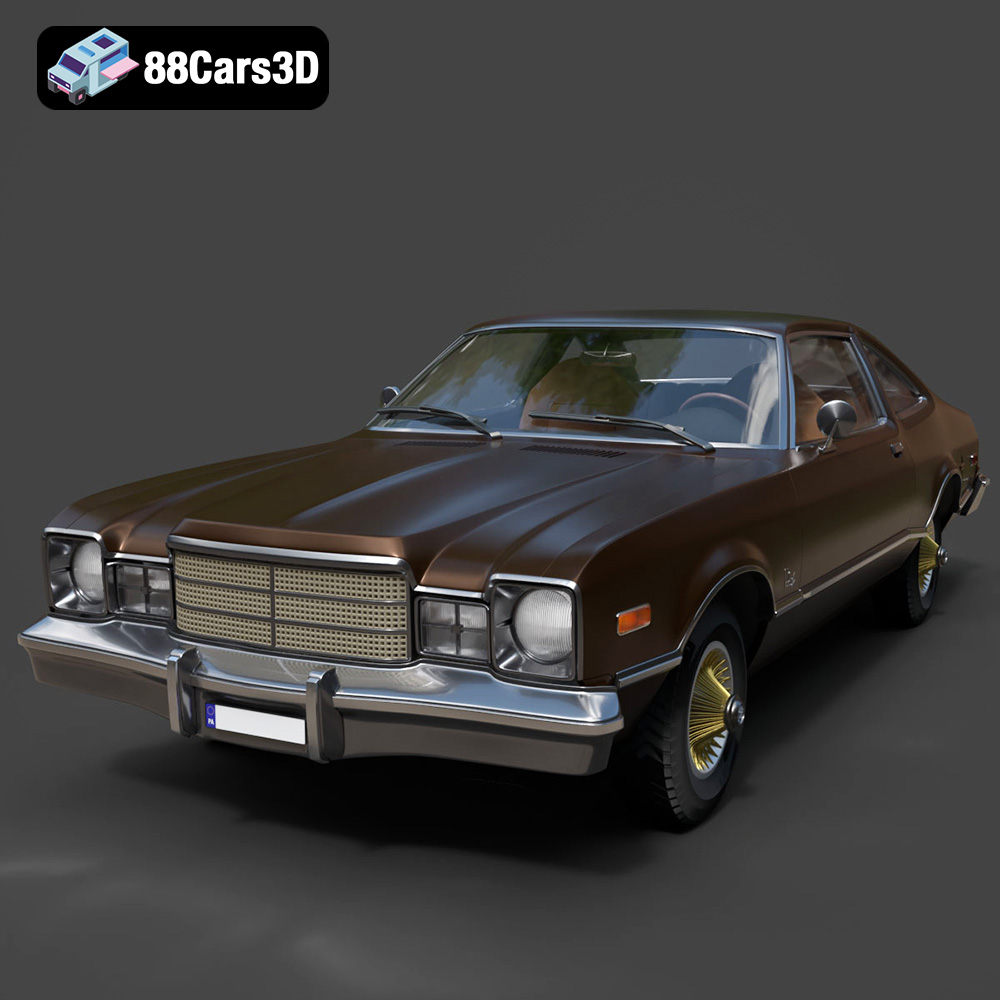
Texture: Yes | Material: Yes
Download the highly detailed, game-ready Plymouth Volare Coupe 1977 3D Model. Features classic F-body styling, detailed chrome trim, and an accurate vintage interior. Includes .blend, .fbx, .obj, .glb, .stl, .ply, .unreal, and .max formats for game development, AR/VR, and rendering.
Price: $19.99
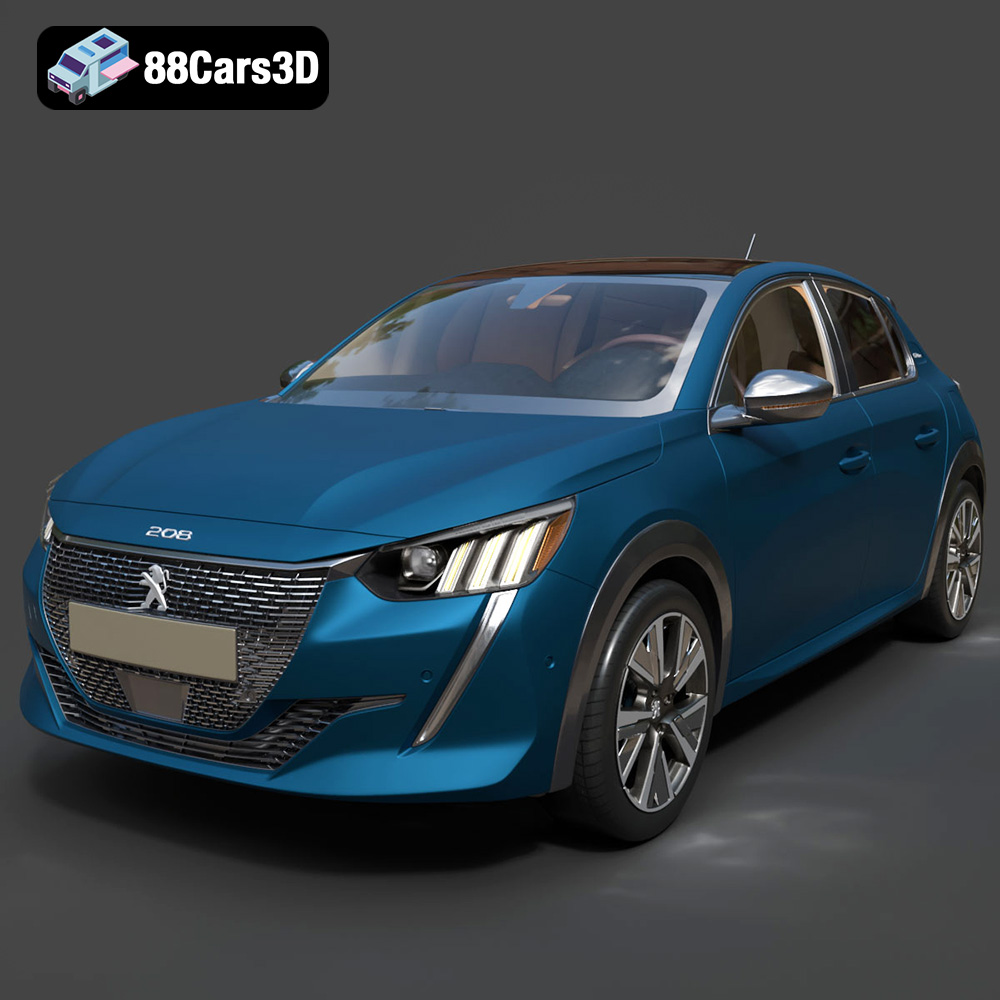
Texture: Yes | Material: Yes
Download the highly detailed, game-ready Peugeot 208 2020 3D Model. Features aggressive ‘fang’ LED DRLs, sporty hatchback proportions, and aerodynamic alloy wheels. Includes .blend, .fbx, .obj, .glb, .stl, .ply, .unreal, and .max formats for game development, AR/VR, and rendering.
Price: $19.99

Texture: Yes | Material: Yes
Download the highly detailed, game-ready MV Agusta Brutale 1090 R 3D Model. Features an exposed trellis frame, distinctive teardrop headlight, and muscular naked bike styling. Includes .blend, .fbx, .obj, .glb, .stl, .ply, .unreal, and .max formats for game development, AR/VR, and rendering.
Price: $19.99
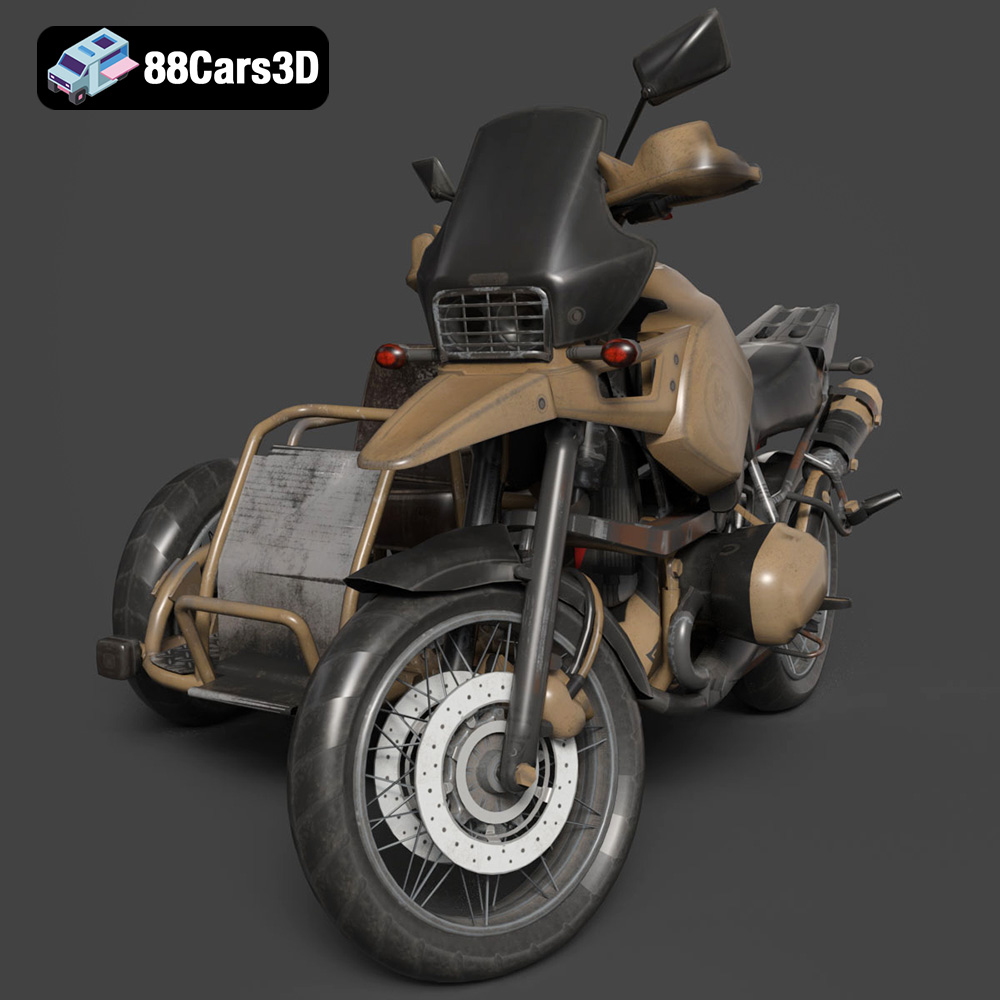
Texture: Yes | Material: Yes
Download the highly detailed, game-ready Custom Off-Road BMW R1150GS Adventure Sidecar 3D Model. Features rugged all-terrain suspension, an attached passenger sidecar, and off-road knobby tires. Includes .blend, .fbx, .obj, .glb, .stl, .ply, .unreal, and .max formats for game development, AR/VR, and rendering.
Price: $19.99

Texture: Yes | Material: Yes
Download the highly detailed, game-ready Mitsubishi Outlander GT 2010 3D Model. Features the aggressive Lancer-inspired front grille, accurate exterior styling, and high-fidelity alloy wheels. Includes .blend, .fbx, .obj, .glb, .stl, .ply, .unreal, and .max formats for game development, AR/VR, and rendering.
Price: $19.99

