Get 20% OFF All Premium 3D & STL Models!

“`html
So, you’ve got your hands on a stunning STL file of a classic car from a platform like 88cars3d.com, and you’re itching to bring it to life with your 3D printer. But before you hit that “print” button, consider this: optimized STL files can dramatically reduce print time, save material, and even improve the structural integrity of your final model. This isn’t just about speeding things up; it’s about smarter 3D printing. In this comprehensive guide, we’ll delve into the techniques for scaling, hollowing, and optimizing STL models, ensuring you achieve the fastest possible print speeds without compromising quality. We’ll cover everything from basic scaling to advanced hollowing techniques and mesh repair strategies, all tailored for FDM and resin printing. Get ready to transform your 3D printing workflow and unlock new levels of efficiency.
Think of your STL file as a recipe. Just like a poorly written recipe can lead to a culinary disaster, a poorly optimized STL file can result in long print times, wasted filament, and even print failures. Optimization involves several key steps, including scaling the model to the desired size, hollowing it to reduce material usage, and repairing any mesh errors that could cause problems during printing. This process is crucial, especially for larger models, where even small inefficiencies can add up to significant time and material waste. Moreover, a well-optimized model is more likely to print successfully, saving you frustration and ensuring you get the results you’re after.
The first step in optimizing your STL model is often scaling. This is especially important when printing models of cars, where you might want to adjust the size to fit a particular scale or display case. Scaling isn’t just about changing the dimensions; it can also impact the level of detail you can achieve. Smaller models might require finer details, while larger models might need to be simplified to avoid overwhelming your printer.
Scale factor refers to the ratio between the original model size and the desired printed size. For example, a scale factor of 2 would double the size of the model, while a scale factor of 0.5 would halve it. When scaling, it’s crucial to consider the limitations of your 3D printer. FDM printers, in particular, have a minimum feature size they can accurately reproduce. Scaling a model down too much could result in the loss of fine details, such as panel lines or intricate grills. Conversely, scaling up too much might reveal imperfections in the original model.
Most slicing software, like Cura or PrusaSlicer, offer built-in scaling tools. Here’s a typical workflow:
Tip: Always double-check the units of measurement (mm or inches) to avoid unexpected results.
Hollowing is a technique used to reduce the amount of material required to print a model. Instead of printing a solid object, you create a hollow shell with a certain wall thickness. This can significantly reduce print time and material consumption, especially for large models like car bodies. Hollowing is particularly beneficial for resin printing, where material costs are higher. However, even with FDM printing, hollowing can lead to substantial savings.
Besides saving material and reducing print time, hollowing offers other benefits. Hollow models are lighter, which can be advantageous for display purposes or when creating moving parts. However, hollowing also requires careful consideration. The wall thickness needs to be sufficient to provide structural integrity, and you’ll need to create drain holes to allow resin (in the case of resin printing) to escape after printing. Incorrectly hollowing a model can lead to warping, cracking, or even complete print failure.
Several software options are available for hollowing STL models. Meshmixer is a popular free tool, while more advanced software like Netfabb offers more sophisticated hollowing capabilities. Here’s a general workflow using Meshmixer:
Important: Position the drain holes strategically so they are facing downwards during printing to facilitate proper drainage.
The mesh topology of an STL file refers to the arrangement of triangles that make up the model’s surface. A clean and optimized mesh is essential for successful 3D printing. Issues like non-manifold edges, holes, and self-intersecting faces can cause problems during slicing and printing. Repairing these issues is crucial for ensuring a smooth and accurate print.
Common mesh errors include:
These errors can be identified and repaired using software like Meshmixer, Netfabb, or online STL repair services. Meshmixer’s “Make Solid” function is particularly useful for automatically fixing many common mesh errors.
Mesh simplification reduces the number of triangles in an STL file, which can improve slicing performance and reduce file size. This is particularly useful for complex models with a high polygon count. However, it’s important to strike a balance between simplification and detail preservation. Too much simplification can result in the loss of fine details and a faceted appearance. Software like Blender and MeshLab offer various mesh simplification algorithms. In Blender, the “Decimate” modifier can be used to reduce the polygon count while preserving the overall shape of the model. Experiment with different decimation ratios to find the optimal balance between file size and detail.
Slicing is the process of converting an STL file into a series of layers that your 3D printer can understand. The slicing parameters you choose can have a significant impact on print speed, print quality, and material usage. Optimizing these parameters is crucial for achieving the fastest possible print times without compromising the integrity of your model.
These three parameters are the key to optimizing print speed:
Support structures are used to support overhanging features during printing. They are essential for ensuring that these features don’t collapse during the printing process. However, support structures also add to print time and material usage. Optimizing support structures involves minimizing their volume and density while still providing adequate support. Slicing software like Cura and PrusaSlicer offer various support generation options. Experiment with different support densities and patterns to find the optimal balance between support and print time. Consider using tree supports, which are more efficient and easier to remove than traditional linear supports. Ensure that support placement is optimized to avoid scarring visible surfaces of your 3D printed car model. Consider support blockers to prevent supports where they are not needed.
The choice of material and ensuring proper bed adhesion are fundamental to successful and fast 3D printing. Different materials have different printing characteristics, and selecting the right material for your project is crucial. Bed adhesion ensures that the first layer of your print sticks firmly to the print bed, preventing warping and print failures.
For FDM printing, common materials include:
For resin printing, various resin types are available, each with different properties. Standard resins are suitable for general-purpose models, while tougher resins are more durable and impact-resistant. Select the material based on the intended use of your printed model.
Proper bed adhesion is essential for preventing warping and print failures. Common bed adhesion techniques include:
Post-processing refers to the steps taken after printing to refine the appearance and functionality of your model. This can include removing support structures, sanding, painting, and assembly. Proper post-processing can transform a raw 3D print into a polished and professional-looking finished product. For example, after printing a printable car model, you might want to smooth out layer lines, paint it with automotive-grade paint, and assemble it with other parts.
Careful support removal is crucial for avoiding damage to the model. Use specialized tools like flush cutters or tweezers to carefully remove the supports. After removing the supports, sanding can be used to smooth out any remaining imperfections. Start with coarse sandpaper (e.g., 220 grit) and gradually move to finer grits (e.g., 400, 600, 800 grit) to achieve a smooth surface. Wet sanding can also be used to further refine the surface finish.
Painting can add a professional touch to your 3D printed model. Use a primer to prepare the surface for painting, and then apply multiple thin coats of paint. Automotive-grade paints are a good choice for car models, as they provide a durable and realistic finish. After painting, consider applying a clear coat to protect the paint and add a glossy sheen. If your model consists of multiple parts, assembly is the final step. Use glue or other fasteners to join the parts together. Platforms such as 88cars3d.com often provide assembly instructions alongside their STL files, simplifying this process.
By mastering these techniques for scaling, hollowing, optimizing, and post-processing STL models, you can significantly reduce print times, save material, and improve the quality of your 3D prints. Remember to experiment with different settings and techniques to find what works best for your printer, material, and specific model. Happy printing!
“`
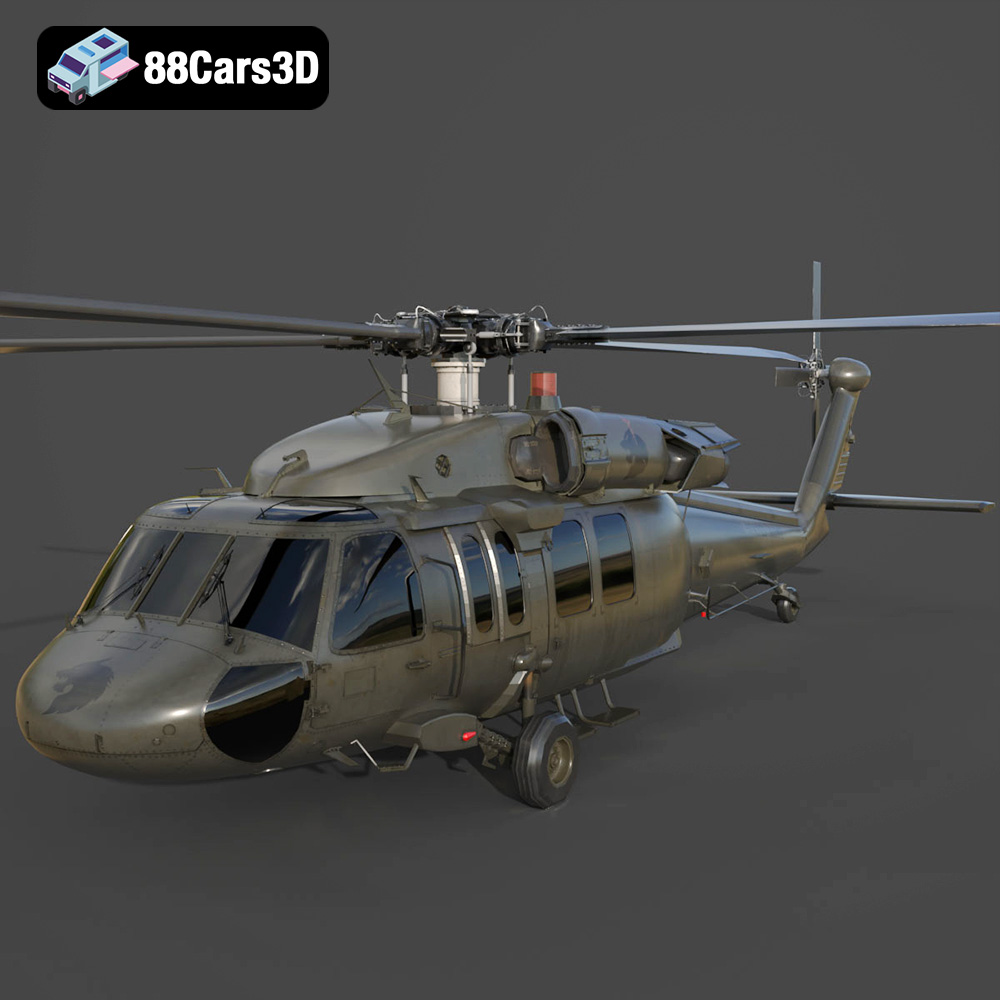
Texture: Yes | Material: Yes
Download the highly detailed, game-ready Sikorsky UH-60 Black Hawk US 3D Model. Features an accurate four-blade rotor system, detailed military fuselage, and realistic twin-engine housing. Includes .blend, .fbx, .obj, .glb, .stl, .ply, .unreal, and .max formats for game development, AR/VR, and rendering.
Price: $19.99
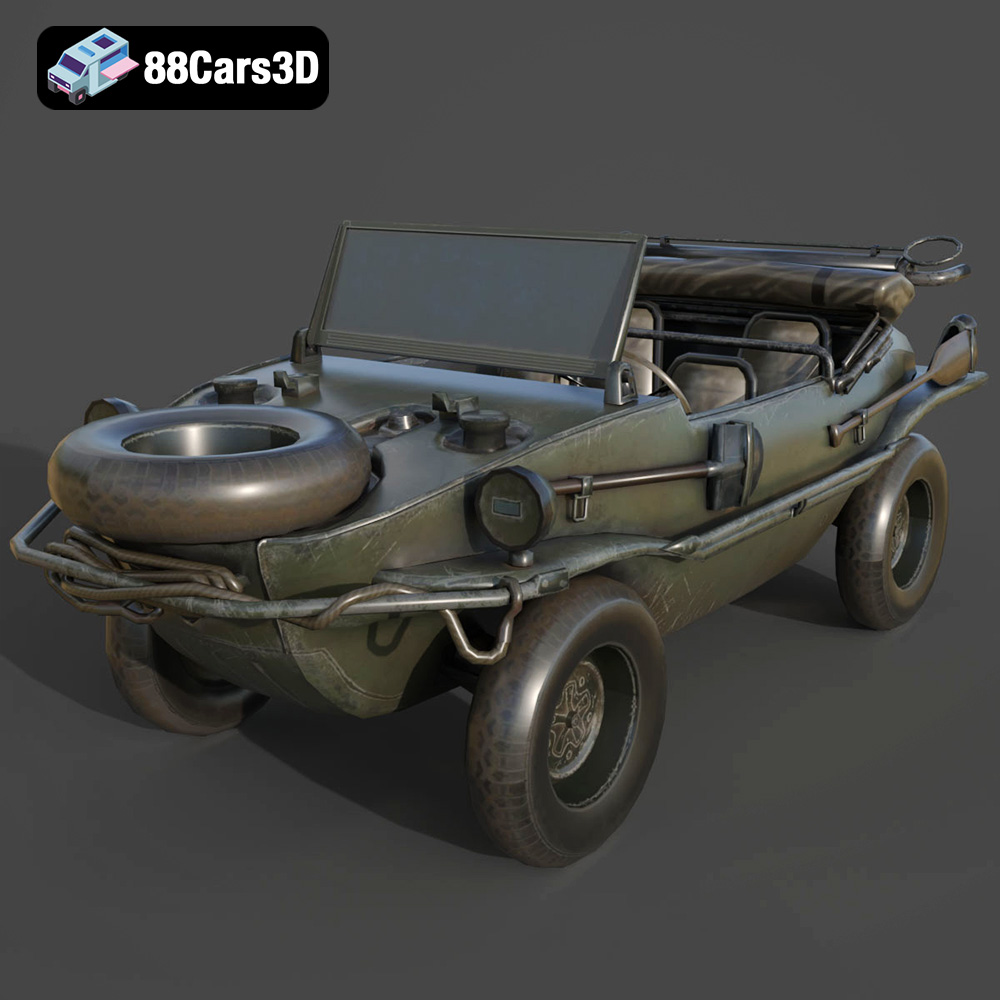
Texture: Yes | Material: Yes
Download the highly detailed, game-ready Volkswagen Schwimmwagen Typ 166 3D Model. Features an authentic boat-like watertight hull, fold-down propeller mechanism, and accurate military styling. Includes .blend, .fbx, .obj, .glb, .stl, .ply, .unreal, and .max formats for game development, AR/VR, and rendering.
Price: $19.99
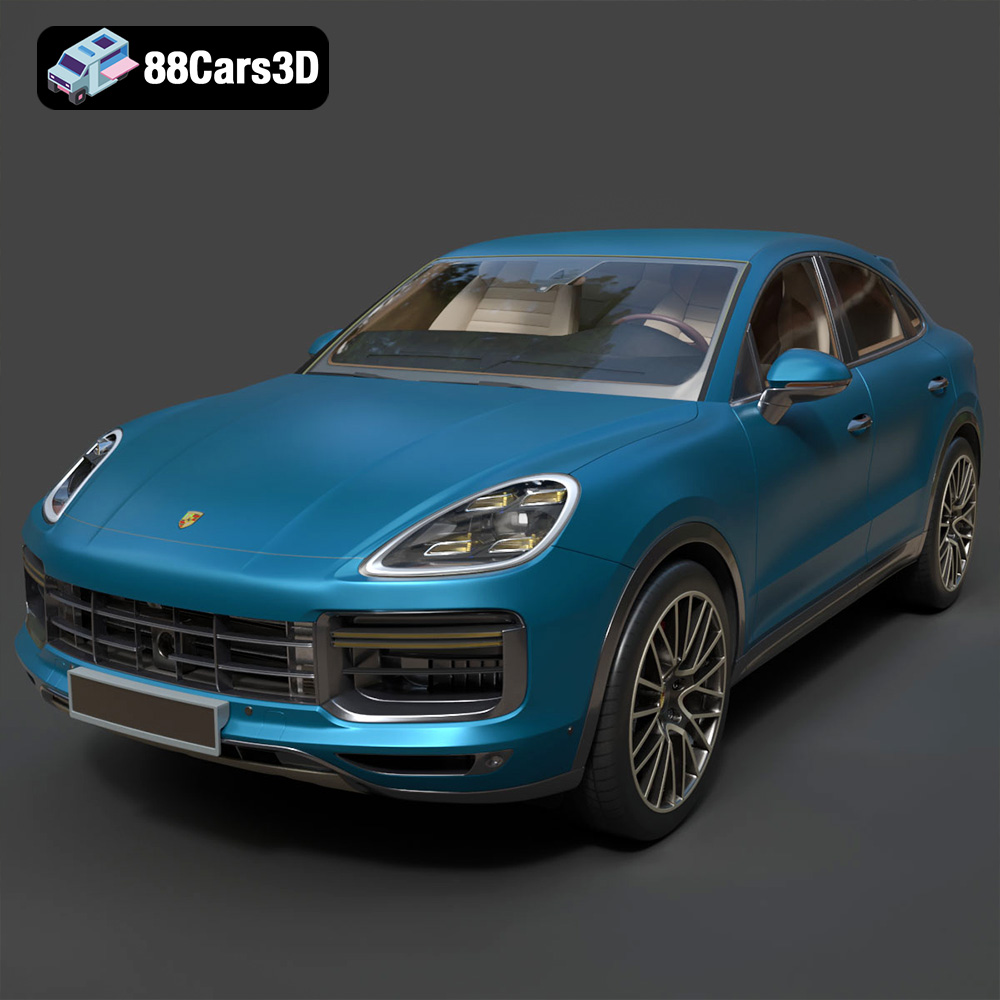
Texture: Yes | Material: Yes
Download the highly detailed, game-ready Porsche Cayenne Turbo Coupe 2020 3D Model. Features an aggressive coupe roofline, detailed quad exhaust, and a meticulously crafted luxury sport interior. Includes .blend, .fbx, .obj, .glb, .stl, .ply, .unreal, and .max formats for game development, AR/VR, and rendering.
Price: $19.99
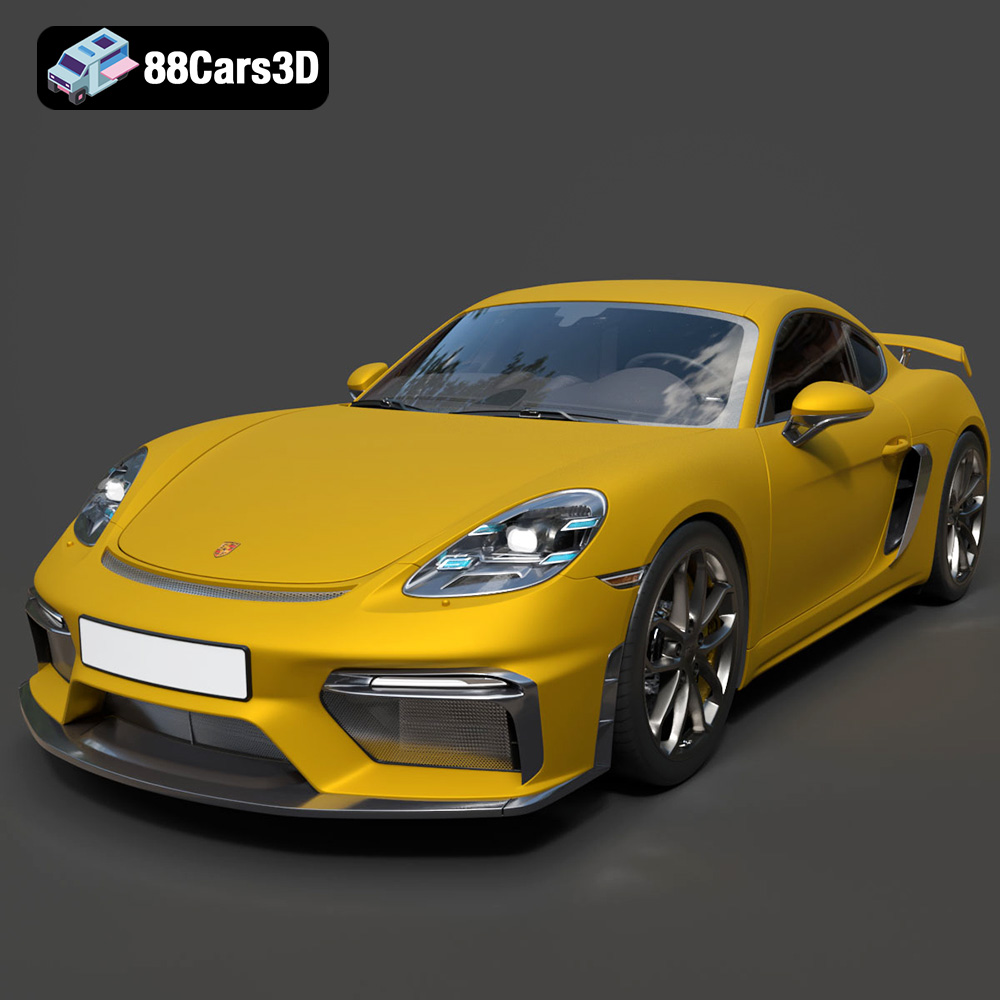
Texture: Yes | Material: Yes
Download the highly detailed, game-ready Porsche 718 Cayman GT4 2020 3D Model. Features an aggressive fixed rear wing, distinctive side air intakes, and a track-focused stance. Includes .blend, .fbx, .obj, .glb, .stl, .ply, .unreal, and .max formats for game development, AR/VR, and rendering.
Price: $19.99

Texture: Yes | Material: Yes
Download the highly detailed, game-ready Polestar 2 2020 3D Model. Features minimalist Scandinavian fastback styling, pixel LED lighting, and an accurate electric vehicle profile. Includes .blend, .fbx, .obj, .glb, .stl, .ply, .unreal, and .max formats for game development, AR/VR, and rendering.
Price: $19.99
Texture: Yes | Material: Yes
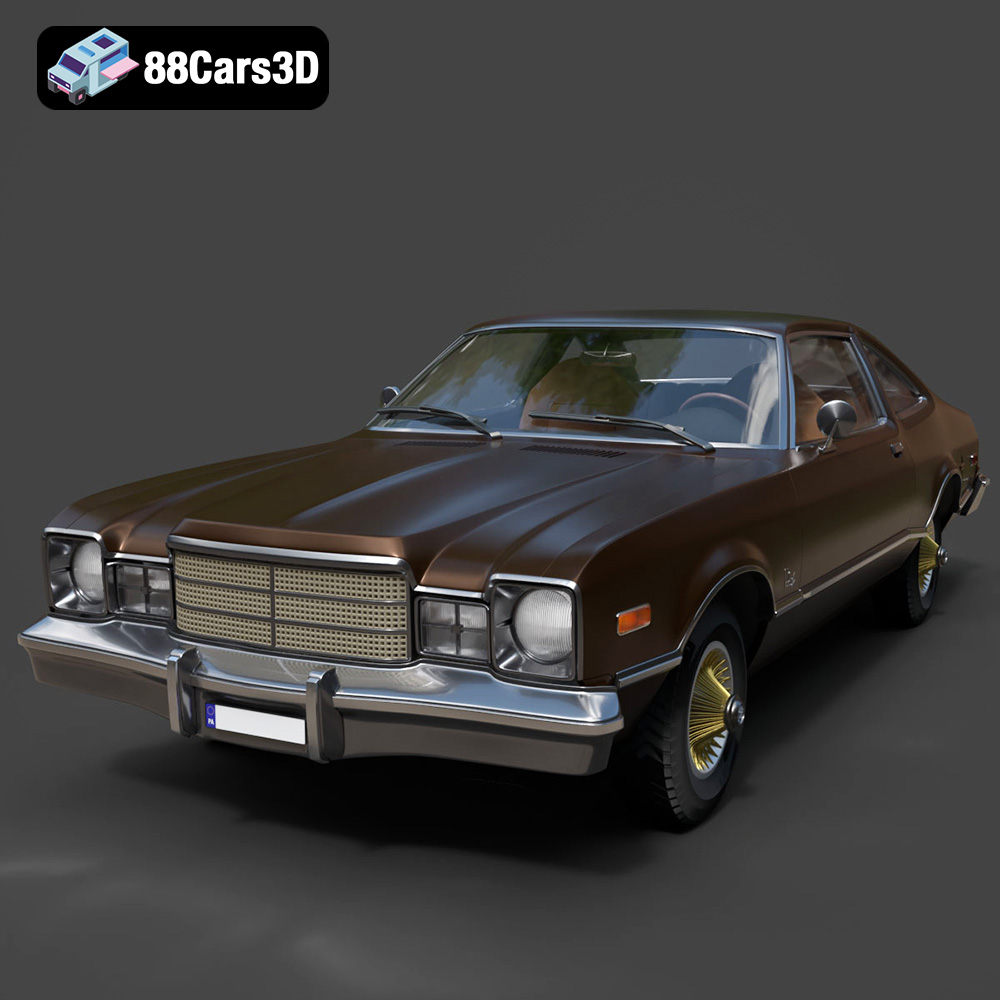
Download the highly detailed, game-ready Plymouth Volare Coupe 1977 3D Model. Features classic F-body styling, detailed chrome trim, and an accurate vintage interior. Includes .blend, .fbx, .obj, .glb, .stl, .ply, .unreal, and .max formats for game development, AR/VR, and rendering.
Price: $19.99

Texture: Yes | Material: Yes
Download the highly detailed, game-ready Peugeot 208 2020 3D Model. Features aggressive ‘fang’ LED DRLs, sporty hatchback proportions, and aerodynamic alloy wheels. Includes .blend, .fbx, .obj, .glb, .stl, .ply, .unreal, and .max formats for game development, AR/VR, and rendering.
Price: $19.99

Texture: Yes | Material: Yes
Download the highly detailed, game-ready MV Agusta Brutale 1090 R 3D Model. Features an exposed trellis frame, distinctive teardrop headlight, and muscular naked bike styling. Includes .blend, .fbx, .obj, .glb, .stl, .ply, .unreal, and .max formats for game development, AR/VR, and rendering.
Price: $19.99
Texture: Yes | Material: Yes
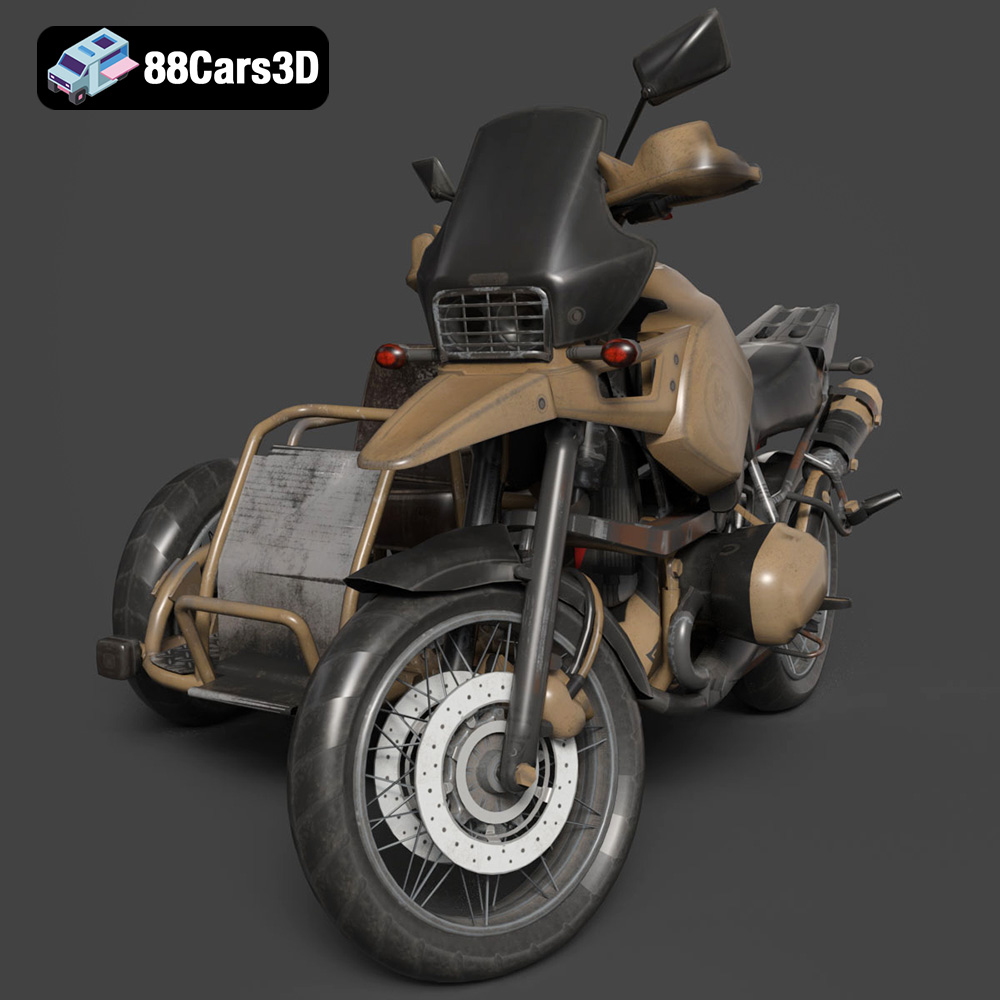
Download the highly detailed, game-ready Custom Off-Road BMW R1150GS Adventure Sidecar 3D Model. Features rugged all-terrain suspension, an attached passenger sidecar, and off-road knobby tires. Includes .blend, .fbx, .obj, .glb, .stl, .ply, .unreal, and .max formats for game development, AR/VR, and rendering.
Price: $19.99

Texture: Yes | Material: Yes
Download the highly detailed, game-ready Mitsubishi Outlander GT 2010 3D Model. Features the aggressive Lancer-inspired front grille, accurate exterior styling, and high-fidelity alloy wheels. Includes .blend, .fbx, .obj, .glb, .stl, .ply, .unreal, and .max formats for game development, AR/VR, and rendering.
Price: $19.99

