Get 20% OFF All Premium 3D & STL Models!

“`html
3D printing car models, especially those intricate designs available on platforms like 88cars3d.com, presents unique challenges. While automatic support generation in slicing software is convenient, it often falls short of providing the optimal support needed for complex geometries. This can lead to print failures, poor surface quality, and wasted filament. Mastering the art of manual support placement is crucial for achieving high-quality, stable prints of your favorite automotive models. In this comprehensive guide, we’ll delve into the technical aspects of manual support creation, covering everything from understanding STL file structure to software-specific techniques and best practices for FDM and resin printing.
This guide will equip you with the knowledge to:
Automatic support generation, while a time-saver, often overestimates or underestimates the necessary support. It may place supports in areas that are difficult to remove or miss crucial overhangs that lead to drooping and warping. Manual supports offer a tailored approach, allowing you to precisely control the location, density, and type of support structures, resulting in a cleaner print and less post-processing. When dealing with detailed car models from 88cars3d.com, this level of control is vital.
The “overhang angle” is the angle at which a surface extends beyond its supporting structure. A general rule of thumb is that overhangs exceeding 45 degrees require support. However, this depends heavily on the material, layer height, and printer capabilities. For instance, printing with a well-tuned FDM printer using PLA and a layer height of 0.1mm might allow you to bridge slightly larger overhangs without support compared to using ABS. Experimentation is key to determining the optimal overhang angle for your specific setup. Consider test prints with varying overhangs to find your printer’s limits. For example, a test print with angles from 30 degrees to 70 degrees in 5-degree increments.
Careful examination of the STL file is paramount. Use your slicing software to rotate the model and identify overhangs, bridges, and thin features that are prone to deformation. Pay close attention to areas like the underside of spoilers, wheel wells, side mirrors, and intricate body details. These are prime candidates for manual support. Software like MeshLab allows you to visualize the mesh normals, helping identify surfaces facing downwards that will require support. Consider using a different color for overhangs in your slicer to easily visualize where supports are needed.
Before diving into support creation, it’s crucial to ensure your STL file is clean and free of errors. Non-manifold geometry, flipped normals, and other mesh issues can cause problems during slicing and printing. Several software tools can help you repair and optimize your STL files for successful 3D printing.
Netfabb Basic is a free tool that automatically detects and repairs common STL file errors. Simply import your model, run the repair function, and export the corrected file. Netfabb analyzes the mesh for issues like holes, flipped normals, and self-intersections, then automatically attempts to fix them. It’s a vital step in ensuring a printable model. A common error is “degenerate faces” which are triangles with zero area. Netfabb can identify and remove these issues ensuring a clean mesh for slicing.
Meshmixer offers a range of tools for manipulating and optimizing STL files. You can use it to reduce the polygon count, smooth surfaces, and add custom features. Reducing the polygon count (decimation) can significantly decrease file size without noticeably affecting the print quality, especially for complex models. The “Make Solid” function in Meshmixer is useful for ensuring the model is watertight and printable. This function can also help improve the mesh topology, making it easier to add supports later on.
Different software packages offer varying approaches to manual support creation. Each has its strengths and weaknesses, so choosing the right tool depends on your specific needs and skill level. Here, we’ll explore techniques in Meshmixer, Blender, Cura, and PrusaSlicer.
Meshmixer’s built-in support generator is a powerful tool for creating custom support structures. You can adjust the support density, pillar diameter, and base plate size to fine-tune the support for your specific model and material. Start by importing the model and selecting “Supports” from the “Analysis” menu. Experiment with the “Overhang Angle” setting to control where supports are generated. The “Advanced Support” settings offer granular control over support placement, allowing you to manually add or remove support pillars. Setting the “Support Type” to “Tree” can create organic-looking supports that are easier to remove. For example, a car model with intricate side mirrors might benefit from thin, tree-like supports generated specifically for that area.
Blender offers unparalleled flexibility in creating custom support structures. You can model supports from scratch using Blender’s sculpting and modeling tools, allowing for highly optimized and aesthetically pleasing supports. This approach requires more expertise but offers the most control. Begin by adding a new object (e.g., a cylinder or cube) and shaping it to fit the contours of the overhang. Use Blender’s snapping tools to precisely position the support against the model. The Boolean modifier can be used to seamlessly merge the supports with the model (though this isn’t always necessary; often keeping them separate is preferred for easier removal). Blender also supports sculpting tools to create organic and customized support structures. When exporting, ensure that the support structure is exported as a separate STL file or as a single object within the same file, depending on your slicing software’s capabilities.
Both Cura and PrusaSlicer offer basic manual support placement features. While not as powerful as Meshmixer or Blender, they provide a convenient way to add or remove supports directly within the slicing environment. This is especially useful for making minor adjustments after automatic support generation. In Cura, enable the “Support Blocker” tool to add or remove support areas. In PrusaSlicer, use the “Paint-on supports” feature for selective support placement. The “Support on build plate only” setting ensures that supports only connect to the build plate, preventing them from fusing to other parts of the model. Using the “Custom supports” plugin in Cura allows you to create more complex support structures directly within the slicer.
The optimal support settings vary depending on the material you’re using. PLA, PETG, ABS, and resin each have unique properties that affect how supports adhere to the model and how easily they can be removed. Understanding these differences is key to achieving successful prints.
For PLA, a relatively low support density and a small air gap between the support and the model are typically sufficient. PETG tends to be more adhesive, so a slightly larger air gap and a lower support density may be necessary to prevent the supports from fusing to the model. ABS requires a heated bed and an enclosure to prevent warping, and the support settings should be adjusted accordingly. The support interface layer, which is the layer directly in contact with the model, is particularly important. Reducing the density of this layer can make support removal easier. Common settings include a support density of 15-25% for PLA, 10-20% for PETG, and 20-30% for ABS. An air gap of 0.1-0.2mm is a good starting point for all three materials. Using support interface patterns like “Zig Zag” or “Lines” can provide good support while remaining relatively easy to remove.
Resin printing requires a different approach to support generation. Resin is generally more brittle than FDM filaments, so supports need to be strong enough to hold the model during printing but also easy to remove without damaging the surface. Angling the model at 45 degrees is a common technique to minimize the need for supports and improve surface quality. Resin printers typically use thinner supports than FDM printers. The support tip diameter (the point where the support contacts the model) should be as small as possible to minimize scarring. A common starting point is 0.3-0.5mm. Experiment with different support patterns, such as “Light” or “Medium,” to find the optimal balance between support strength and ease of removal. Using a raft can improve bed adhesion and provide a stable base for the supports. Consider hollowing out the model to reduce resin consumption and printing time. Make sure to include drain holes to allow resin to escape during printing.
Careful support removal is essential to preserving the surface quality of your 3D printed car models. Rushing this step can lead to scratches, dents, and broken parts. A variety of tools and techniques can be used to safely and effectively remove supports.
For FDM prints, a sharp knife, flush cutters, and needle-nose pliers are essential tools. Start by carefully cutting away the bulk of the support structure with the knife or cutters. Use the pliers to gently twist and break away the remaining supports. Be patient and avoid applying excessive force. Heating the supports slightly with a heat gun or hair dryer can soften the plastic and make them easier to remove. However, be careful not to overheat the model, as this can cause deformation. For dissolvable supports (e.g., HIPS with ABS or PVA with PLA), simply soak the print in the appropriate solvent (e.g., limonene for HIPS or water for PVA) until the supports dissolve. Using specialized support removal tools, such as those with angled tips or flexible blades, can make the process easier and more precise.
Resin prints require a more delicate approach. After printing, rinse the model in isopropyl alcohol (IPA) to remove any uncured resin. Then, carefully remove the supports using flush cutters. Cut as close to the model surface as possible to minimize scarring. Sanding is often necessary to remove any remaining support stubs and smooth the surface. Start with a coarse grit sandpaper (e.g., 400 grit) and gradually move to finer grits (e.g., 600, 800, 1000 grit) for a polished finish. Consider using a wet sanding technique to prevent the sandpaper from clogging and to achieve a smoother finish. Applying a clear coat or primer can further enhance the surface quality and prepare the model for painting. Be very careful when sanding intricate details to avoid rounding off edges or damaging delicate features.
Even with careful planning and execution, support-related issues can still arise during 3D printing. Understanding the common problems and their solutions can help you troubleshoot and improve your printing results.
Warping occurs when the corners of the print lift off the build plate. This is often caused by poor bed adhesion or uneven cooling. To address warping, ensure that your build plate is properly leveled and clean. Use a bed adhesive, such as glue stick or hairspray, to improve adhesion. Increase the bed temperature and reduce the ambient temperature to minimize temperature gradients. Enclosing the printer can also help prevent warping, especially when printing with ABS. For large models, consider adding a raft or brim to increase the surface area in contact with the build plate. Ensure proper first layer calibration – too far from the bed and adhesion will be poor, too close and you may see elephant’s foot.
Support structures can fail due to insufficient strength, inadequate bed adhesion, or printing errors. To strengthen supports, increase the support density, pillar diameter, or base plate size. Ensure that the supports are properly connected to the model and the build plate. Check for any gaps or breaks in the support structure. If supports are failing mid-print, it may be due to insufficient cooling or excessive print speed. Try reducing the print speed and increasing the fan speed. Also, consider the orientation of the model; sometimes a slight rotation can significantly improve support structure stability. When downloading models from marketplaces such as 88cars3d.com, ensure that the file is free of errors and optimized for 3D printing.
Mastering manual support placement is an invaluable skill for any 3D printing enthusiast, especially when tackling complex models like those found on 88cars3d.com. By understanding the principles of support structures, utilizing the appropriate software tools, and optimizing settings for different materials, you can achieve high-quality, stable prints with minimal post-processing. Remember to carefully analyze your STL files, experiment with different support strategies, and troubleshoot any issues that arise. The key is to practice and refine your techniques over time.
Next steps to improve your manual support skills:
“`

Texture: Yes | Material: Yes
Download the highly detailed, game-ready Suzuki King B 2008 3D Model. Features its massive 1340cc engine block, signature dual under-seat exhausts, and aggressive streetfighter bodywork. Includes .blend, .fbx, .obj, .glb, .stl, .ply, .unreal, and .max formats for game development, AR/VR, and rendering.
Price: $19.99
Texture: Yes | Material: Yes
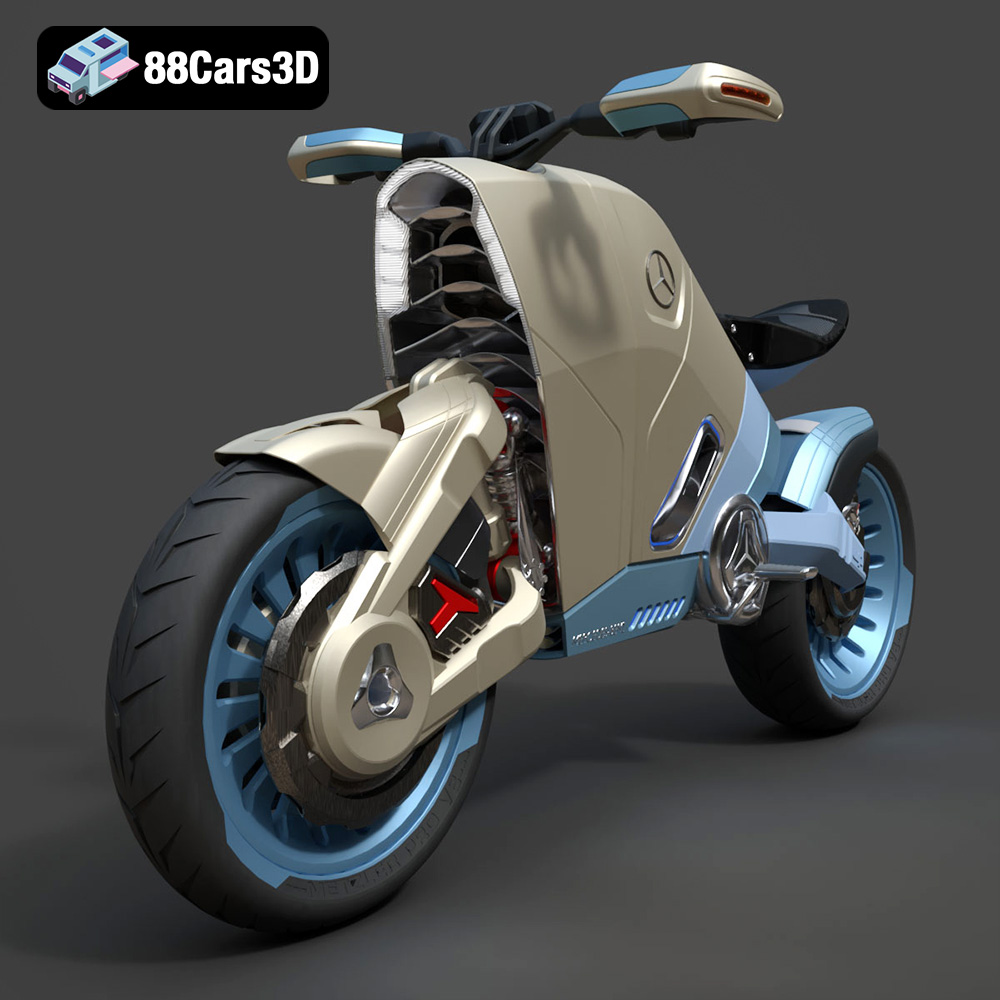
Download the highly detailed, game-ready SMARANZA Mercedes Concept Electrical Motorcycle 3D Model. Features futuristic aerodynamic styling and an advanced electric drivetrain. Includes .blend, .fbx, .obj, .glb, .stl, .ply, .unreal, and .max formats for game development, AR/VR, and rendering.
Price: $19.99
Texture: Yes | Material: Yes
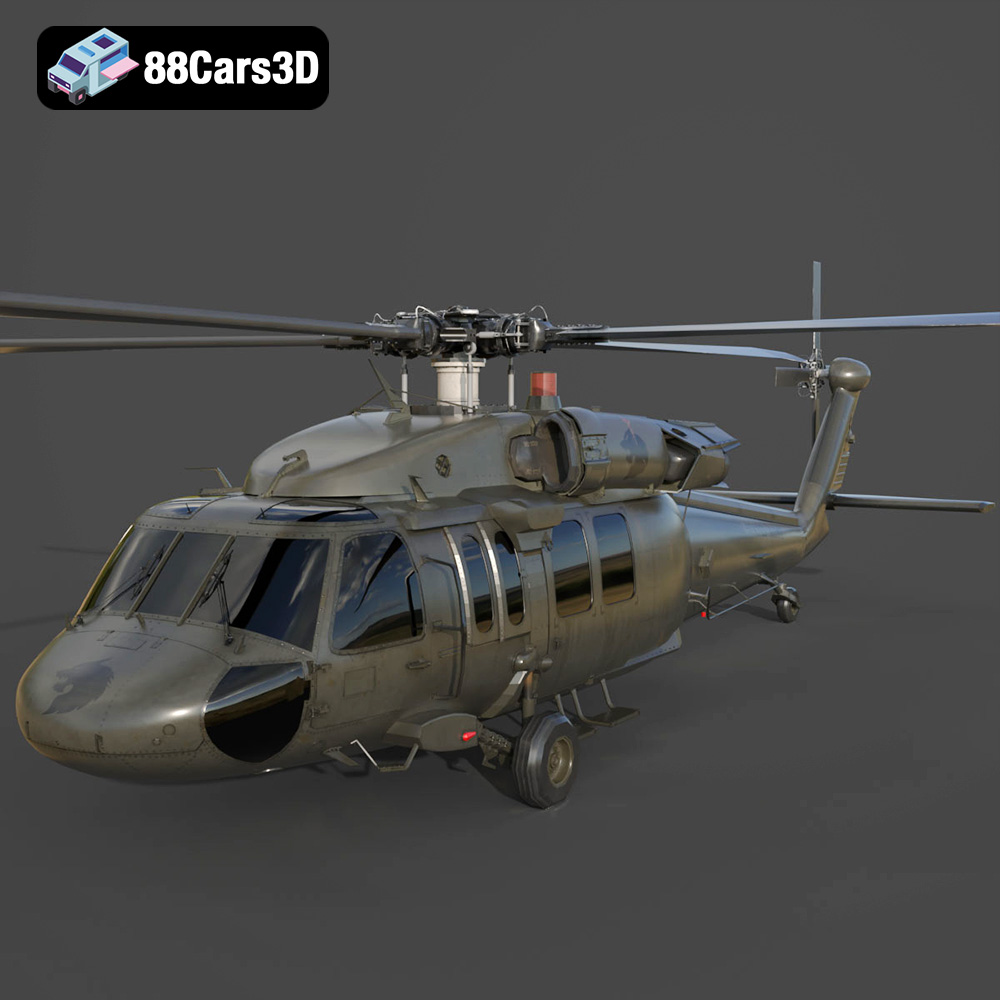
Download the highly detailed, game-ready Sikorsky UH-60 Black Hawk US 3D Model. Features an accurate four-blade rotor system, detailed military fuselage, and realistic twin-engine housing. Includes .blend, .fbx, .obj, .glb, .stl, .ply, .unreal, and .max formats for game development, AR/VR, and rendering.
Price: $19.99
Texture: Yes | Material: Yes
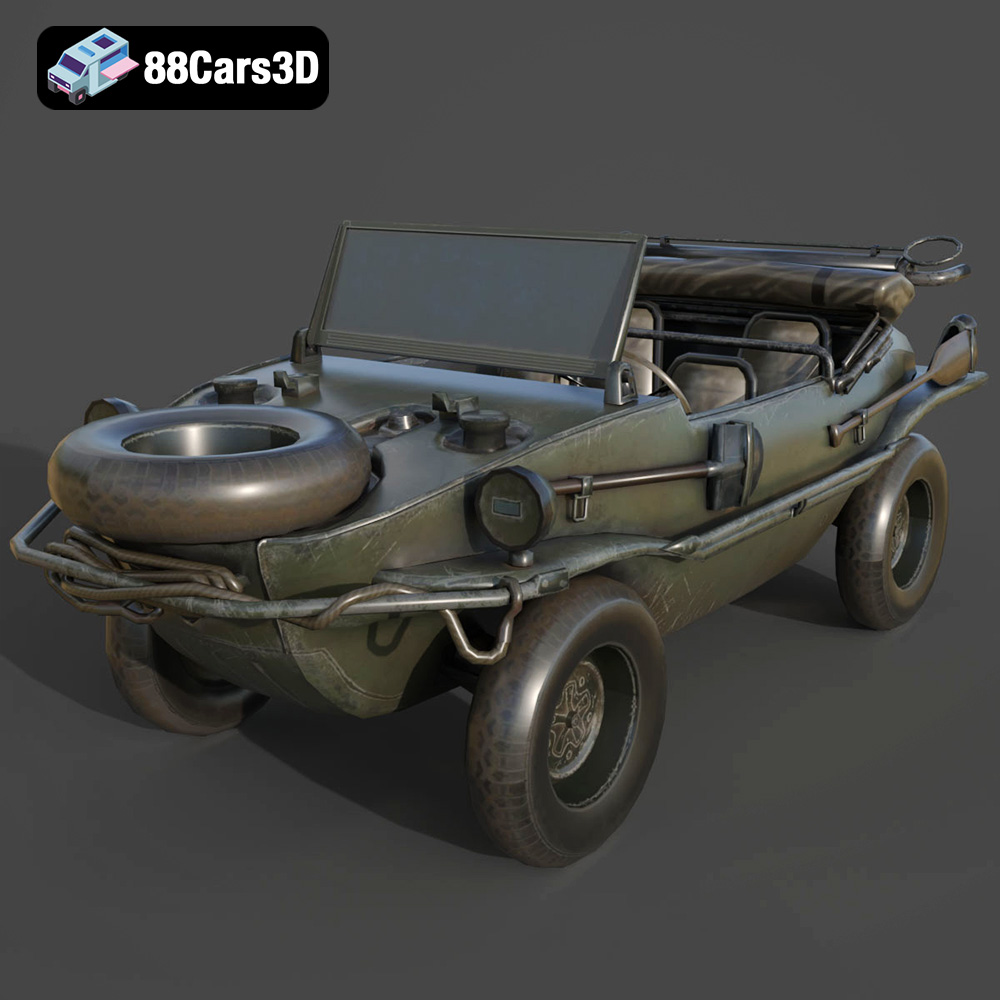
Download the highly detailed, game-ready Volkswagen Schwimmwagen Typ 166 3D Model. Features an authentic boat-like watertight hull, fold-down propeller mechanism, and accurate military styling. Includes .blend, .fbx, .obj, .glb, .stl, .ply, .unreal, and .max formats for game development, AR/VR, and rendering.
Price: $19.99
Texture: Yes | Material: Yes
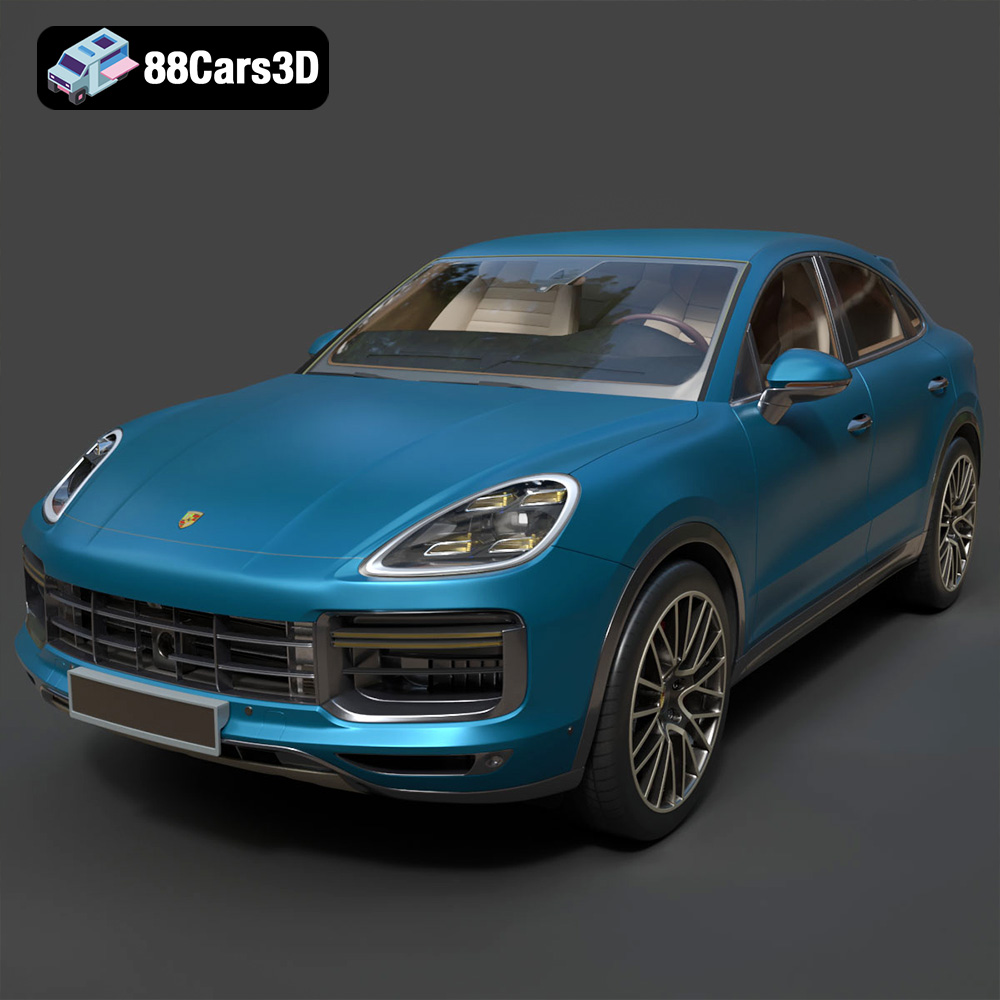
Download the highly detailed, game-ready Porsche Cayenne Turbo Coupe 2020 3D Model. Features an aggressive coupe roofline, detailed quad exhaust, and a meticulously crafted luxury sport interior. Includes .blend, .fbx, .obj, .glb, .stl, .ply, .unreal, and .max formats for game development, AR/VR, and rendering.
Price: $19.99

Texture: Yes | Material: Yes
Download the highly detailed, game-ready Porsche 718 Cayman GT4 2020 3D Model. Features an aggressive fixed rear wing, distinctive side air intakes, and a track-focused stance. Includes .blend, .fbx, .obj, .glb, .stl, .ply, .unreal, and .max formats for game development, AR/VR, and rendering.
Price: $19.99

Texture: Yes | Material: Yes
Download the highly detailed, game-ready Polestar 2 2020 3D Model. Features minimalist Scandinavian fastback styling, pixel LED lighting, and an accurate electric vehicle profile. Includes .blend, .fbx, .obj, .glb, .stl, .ply, .unreal, and .max formats for game development, AR/VR, and rendering.
Price: $19.99
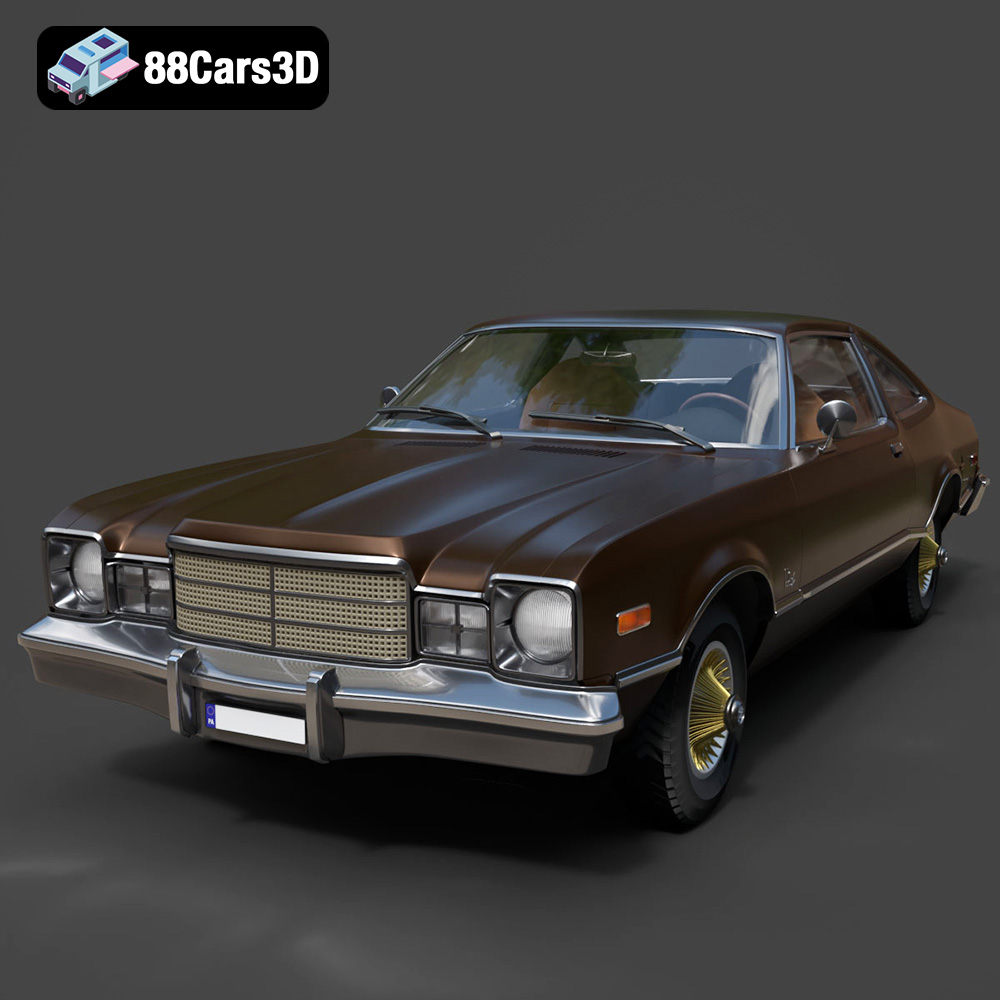
Texture: Yes | Material: Yes
Download the highly detailed, game-ready Plymouth Volare Coupe 1977 3D Model. Features classic F-body styling, detailed chrome trim, and an accurate vintage interior. Includes .blend, .fbx, .obj, .glb, .stl, .ply, .unreal, and .max formats for game development, AR/VR, and rendering.
Price: $19.99

Texture: Yes | Material: Yes
Download the highly detailed, game-ready Peugeot 208 2020 3D Model. Features aggressive ‘fang’ LED DRLs, sporty hatchback proportions, and aerodynamic alloy wheels. Includes .blend, .fbx, .obj, .glb, .stl, .ply, .unreal, and .max formats for game development, AR/VR, and rendering.
Price: $19.99

Texture: Yes | Material: Yes
Download the highly detailed, game-ready MV Agusta Brutale 1090 R 3D Model. Features an exposed trellis frame, distinctive teardrop headlight, and muscular naked bike styling. Includes .blend, .fbx, .obj, .glb, .stl, .ply, .unreal, and .max formats for game development, AR/VR, and rendering.
Price: $19.99

