Get 20% OFF All Premium 3D & STL Models!

“`html
In the ever-evolving landscape of 3D printing, the choice of file format is a crucial decision that directly impacts the success of your print. Whether you’re a hobbyist printing miniature car models downloaded from platforms like 88cars3d.com or an engineer prototyping complex automotive components, understanding the nuances of different file formats is paramount. This comprehensive guide will delve into the intricacies of the three most common file formats: STL, OBJ, and FBX, examining their strengths, weaknesses, and suitability for various 3D printing applications. We’ll explore their underlying structures, the slicing parameters they influence, and even touch upon file repair strategies to ensure your 3D printing endeavors are as smooth and efficient as possible. By the end of this article, you’ll be equipped with the knowledge to confidently choose the right file format for your next 3D printing project.
STL (Stereolithography) is the undisputed king of 3D printing file formats. Introduced in 1987 by 3D Systems, it remains the most widely supported and universally accepted format for additive manufacturing. Its simplicity is both its strength and its limitation. STL files represent a 3D object as a collection of triangles, defining only the surface geometry without any color, texture, or material information.
The core of an STL file is a tessellated surface described by a series of triangles. Each triangle is defined by its three vertices (coordinates) and the normal vector (direction perpendicular to the triangle). This simplicity makes STL files relatively small and easy to process by slicing software. However, this simplicity also means that STL files cannot store information about color, texture, or materials. Furthermore, complex curved surfaces are approximated by a large number of triangles, which can lead to faceting and increased file size. Imagine printing a smooth, curved car body from 88cars3d.com; the more triangles, the smoother the final print, but the larger the file and the more processing power required.
STL files can be stored in two formats: ASCII and Binary. ASCII STL files are human-readable text files, where each triangle’s vertex coordinates and normal vector are explicitly written out. While easy to inspect and edit, ASCII STL files are significantly larger than their binary counterparts. Binary STL files encode the same information in a more compact binary format, resulting in smaller file sizes and faster processing. For example, a complex car model might have an ASCII STL file size of 50MB, whereas the binary version could be just 15MB. When downloading large models from marketplaces such as 88cars3d.com, always opt for the binary STL version if available to save on storage space and download time.
OBJ (or .OBJ) is a more versatile file format than STL, primarily because it can store color, texture, and material information in addition to the 3D geometry. This makes OBJ files suitable for applications where visual fidelity is crucial, such as architectural visualization, character modeling, and, increasingly, 3D printing of multi-colored objects. However, this added complexity comes with certain trade-offs when it comes to 3D printing.
Unlike STL, OBJ files store vertex data (coordinates) separately from face data (triangles or polygons). This allows for more efficient storage of shared vertices. Moreover, OBJ files can reference external material files (.MTL) that define the color, texture, and reflectivity of different parts of the model. This allows for the creation of more visually rich and realistic 3D prints. For instance, you could print a car model where the body is a vibrant red and the tires are black, all defined within the OBJ and MTL files.
While STL is primarily limited to single-material prints, OBJ files open the door to multi-material 3D printing. With printers capable of handling multiple filaments or resins, OBJ files allow you to assign different materials to different parts of your model. The .MTL file specifies the material properties for each part, and the printer interprets this information to deposit the correct material in the correct location. For example, you could print a car model with a flexible TPU bumper and a rigid PLA chassis, all from a single OBJ file. However, ensure your slicing software and 3D printer are fully compatible with OBJ’s multi-material capabilities.
FBX (Filmbox) is a proprietary file format developed by Autodesk, primarily used for exchanging 3D data between different software applications. It’s a powerful format that supports animation, rigging, textures, materials, and even camera and lighting information. While FBX is not typically the first choice for 3D printing, it can be useful in specific scenarios, particularly when dealing with complex scenes or animated models that you want to represent in a physical form.
The primary advantage of FBX lies in its ability to store animation data. This includes information about bones, joints, and keyframes, allowing you to represent animated models in a single file. While you cannot directly 3D print an animation (unless you create a stop-motion animation), you can use FBX to extract a specific frame or pose from an animation and 3D print that. For example, you might have an animated car model and want to 3D print it in a specific jumping pose. FBX allows you to easily capture that pose.
Directly 3D printing from an FBX file is generally not supported by most slicing software. Therefore, you typically need to convert the FBX file to either STL or OBJ before printing. This conversion process usually involves importing the FBX file into a 3D modeling software like Blender or Meshmixer and then exporting it as an STL or OBJ file. When converting, be mindful of the polygon count, as FBX files can often contain very high-resolution meshes that are not ideal for 3D printing. Simplify the mesh in your modeling software before exporting to reduce file size and improve slicing performance. Be especially aware of wall thickness. Models from FBX format are not always designed for 3D printing and the wall thickness can be 0. This will cause slicing issues.
The choice of file format directly influences the slicing process and the parameters you need to adjust to achieve optimal print quality. Different file formats store information in different ways, and your slicing software needs to interpret this information correctly to generate the appropriate toolpaths for your 3D printer. Understanding these relationships is crucial for successful 3D printing.
The layer height you choose in your slicing software interacts directly with the tessellation of the STL file. If the layer height is too large relative to the size of the triangles in the STL mesh, you may observe a noticeable “stair-stepping” effect, where the printed surface appears jagged rather than smooth. To minimize this, you can either reduce the layer height or increase the number of triangles in the STL file (by refining the mesh in your 3D modeling software). A good rule of thumb is to choose a layer height that is no more than half the average triangle size in your STL file. For example, printing a car model with intricate curves might require a layer height of 0.1mm or even 0.05mm to achieve a smooth finish.
Support structures are essential for printing overhangs and complex geometries. The slicing software analyzes the STL or OBJ file to identify areas that require support and generates the necessary scaffolding. The optimal support structure configuration depends on the file format and the geometry of the model. For example, with OBJ files containing separate objects, you can apply different support settings to each object. In Cura, you can adjust support density, support placement (everywhere or only touching the build plate), and support overhang angle. Experiment with different support settings to find the optimal balance between print quality and ease of support removal. You can also look into soluble support materials that can be dissolved away after printing, leaving a pristine finish.
Regardless of the file format you choose, it’s essential to ensure that your 3D model is “watertight” and free of errors before printing. Non-manifold geometry, holes, and intersecting faces can cause significant problems during slicing and printing. Mesh repair tools can help you identify and fix these issues.
MeshMixer is a free and powerful tool for repairing and modifying 3D meshes. It can automatically detect and fix a wide range of errors, including holes, non-manifold edges, and self-intersections. To repair an STL file in MeshMixer, simply import the file and use the “Analysis” tool to identify any errors. MeshMixer will then suggest automatic fixes, which you can accept or manually adjust. In particular, the “Make Solid” function is invaluable for creating a watertight mesh suitable for 3D printing. For example, if your STL file has a small hole in the car body, MeshMixer can automatically bridge that hole and create a solid surface. Using this tool before slicing ensures proper printing.
Sometimes you might need to convert between different file formats. For example, you might receive an FBX file that you need to convert to STL for printing. Several software tools can perform this conversion, including Blender, MeshMixer, and online file converters. However, be aware that converting between file formats can sometimes introduce errors or loss of information. Always inspect the converted file carefully to ensure that it is still watertight and free of errors. You may need to perform additional mesh repair after the conversion. For example, converting from OBJ to STL will result in loss of color data. Therefore, this may be useful if you want to print the model in a single color.
The choice between STL, OBJ, and FBX ultimately depends on your specific 3D printing needs and the capabilities of your hardware and software. STL remains the workhorse for most 3D printing applications due to its simplicity and universal compatibility. OBJ offers the advantage of storing color and texture information, making it suitable for multi-material printing and visually appealing models. FBX, while not directly printable, can be useful for extracting frames from animated models or for complex scene setups. When downloading printable car models from platforms like 88cars3d.com, you’ll likely encounter STL files as the primary format. By understanding the strengths and limitations of each file format, you can optimize your slicing parameters, repair any mesh errors, and achieve the best possible print quality. So, experiment, explore, and choose the file format that best suits your creative vision and technical requirements.
“`

Texture: Yes | Material: Yes
Download the highly detailed, game-ready Toyota Supra 2020 3D Model. Features aggressive aerodynamic styling, a distinctive double-bubble roof, and accurate B58 engine components. Includes .blend, .fbx, .obj, .glb, .stl, .ply, .unreal, and .max formats for game development, AR/VR, and rendering.
Price: $19.99
Texture: Yes | Material: Yes
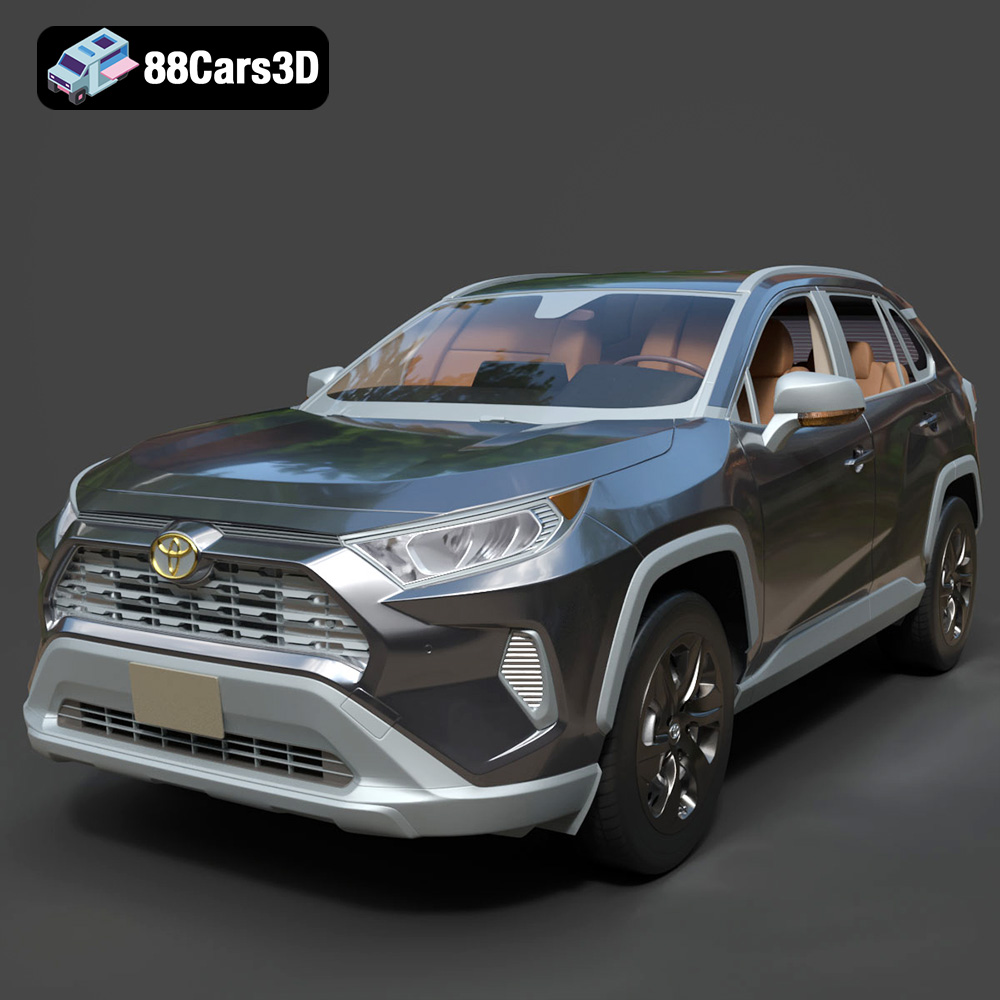
Download the highly detailed, game-ready Toyota RAV4 LE 2019 3D Model. Features rugged exterior styling, signature polygonal motif, and a detailed interior. Includes .blend, .fbx, .obj, .glb, .stl, .ply, .unreal, and .max formats for game development, AR/VR, and rendering.
Price: $19.99

Texture: Yes | Material: Yes
Download the highly detailed, game-ready Suzuki King B 2008 3D Model. Features its massive 1340cc engine block, signature dual under-seat exhausts, and aggressive streetfighter bodywork. Includes .blend, .fbx, .obj, .glb, .stl, .ply, .unreal, and .max formats for game development, AR/VR, and rendering.
Price: $19.99
Texture: Yes | Material: Yes
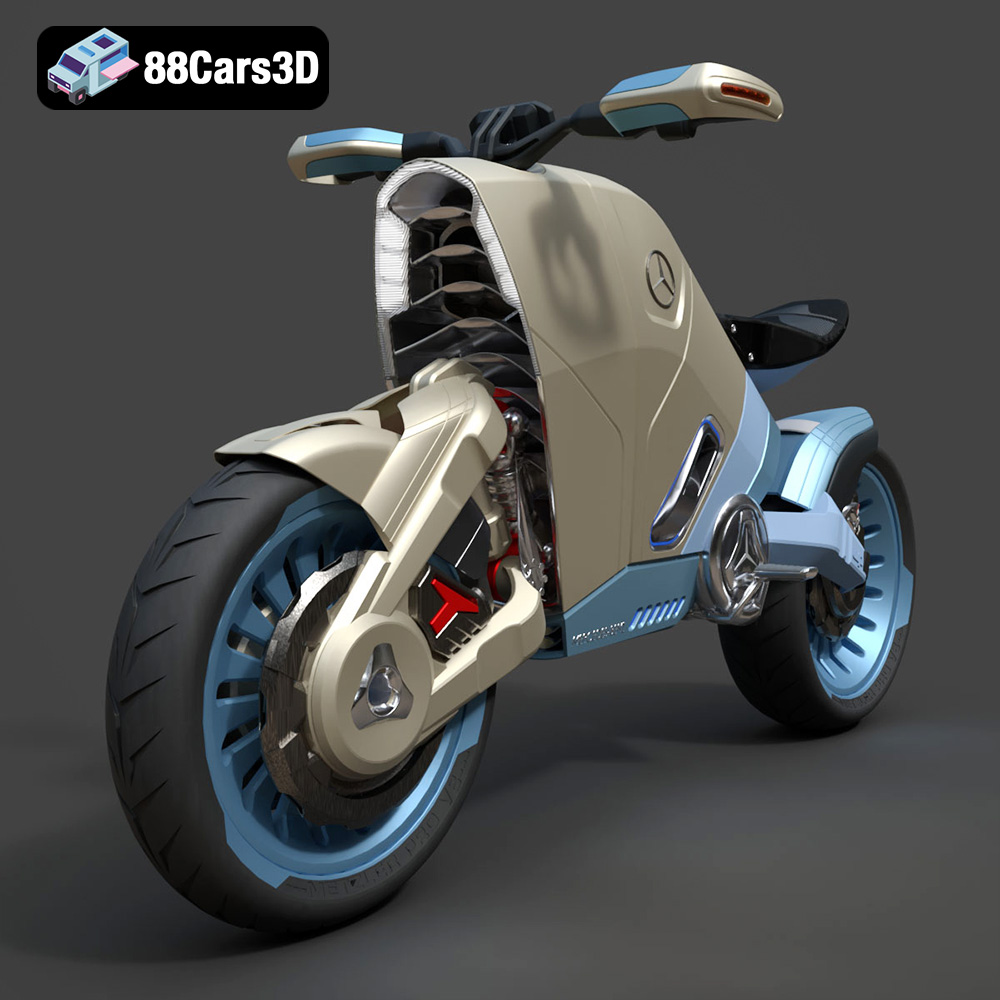
Download the highly detailed, game-ready SMARANZA Mercedes Concept Electrical Motorcycle 3D Model. Features futuristic aerodynamic styling and an advanced electric drivetrain. Includes .blend, .fbx, .obj, .glb, .stl, .ply, .unreal, and .max formats for game development, AR/VR, and rendering.
Price: $19.99
Texture: Yes | Material: Yes
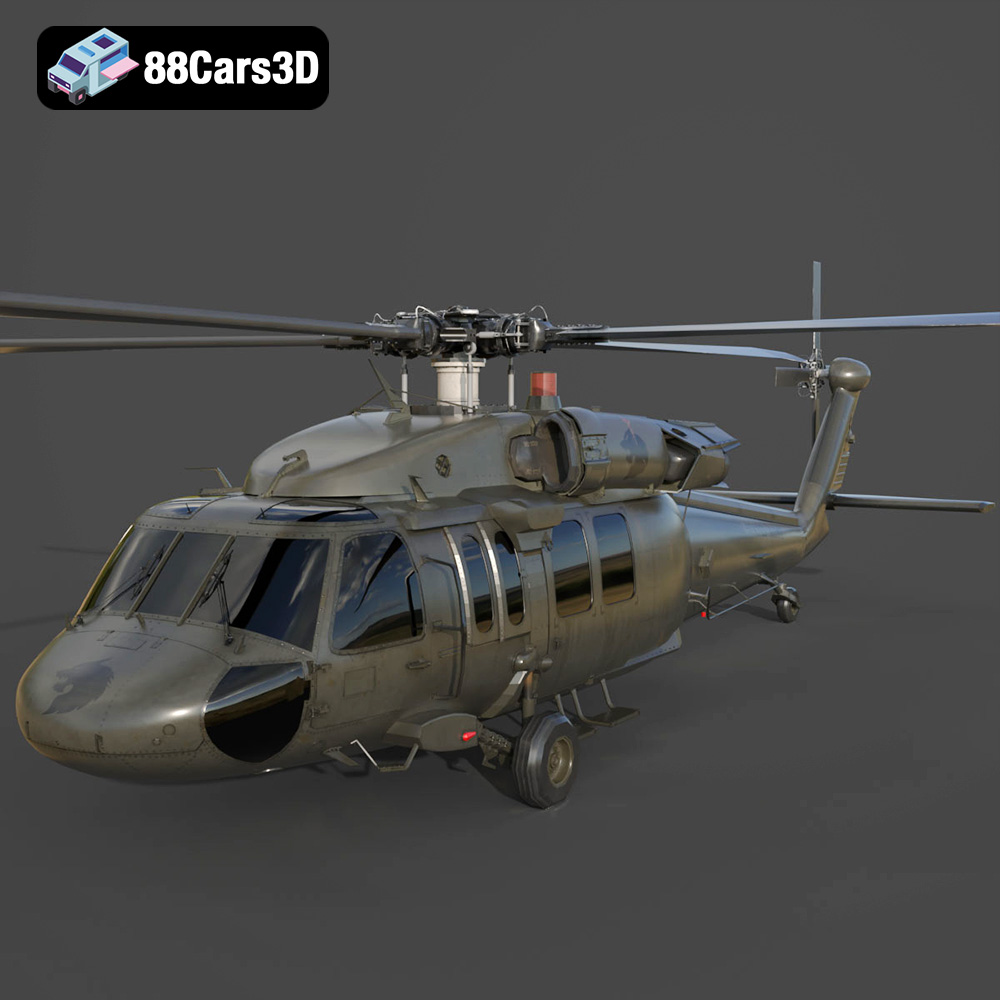
Download the highly detailed, game-ready Sikorsky UH-60 Black Hawk US 3D Model. Features an accurate four-blade rotor system, detailed military fuselage, and realistic twin-engine housing. Includes .blend, .fbx, .obj, .glb, .stl, .ply, .unreal, and .max formats for game development, AR/VR, and rendering.
Price: $19.99
Texture: Yes | Material: Yes
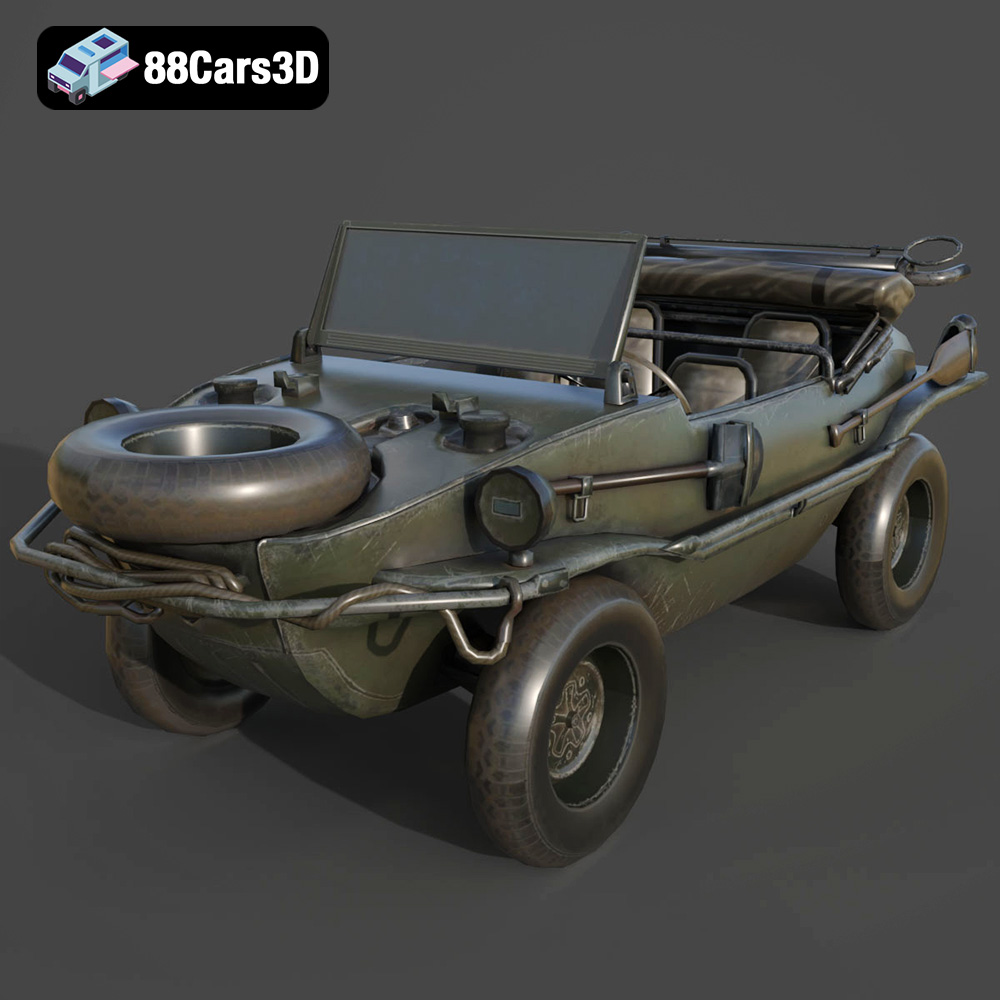
Download the highly detailed, game-ready Volkswagen Schwimmwagen Typ 166 3D Model. Features an authentic boat-like watertight hull, fold-down propeller mechanism, and accurate military styling. Includes .blend, .fbx, .obj, .glb, .stl, .ply, .unreal, and .max formats for game development, AR/VR, and rendering.
Price: $19.99
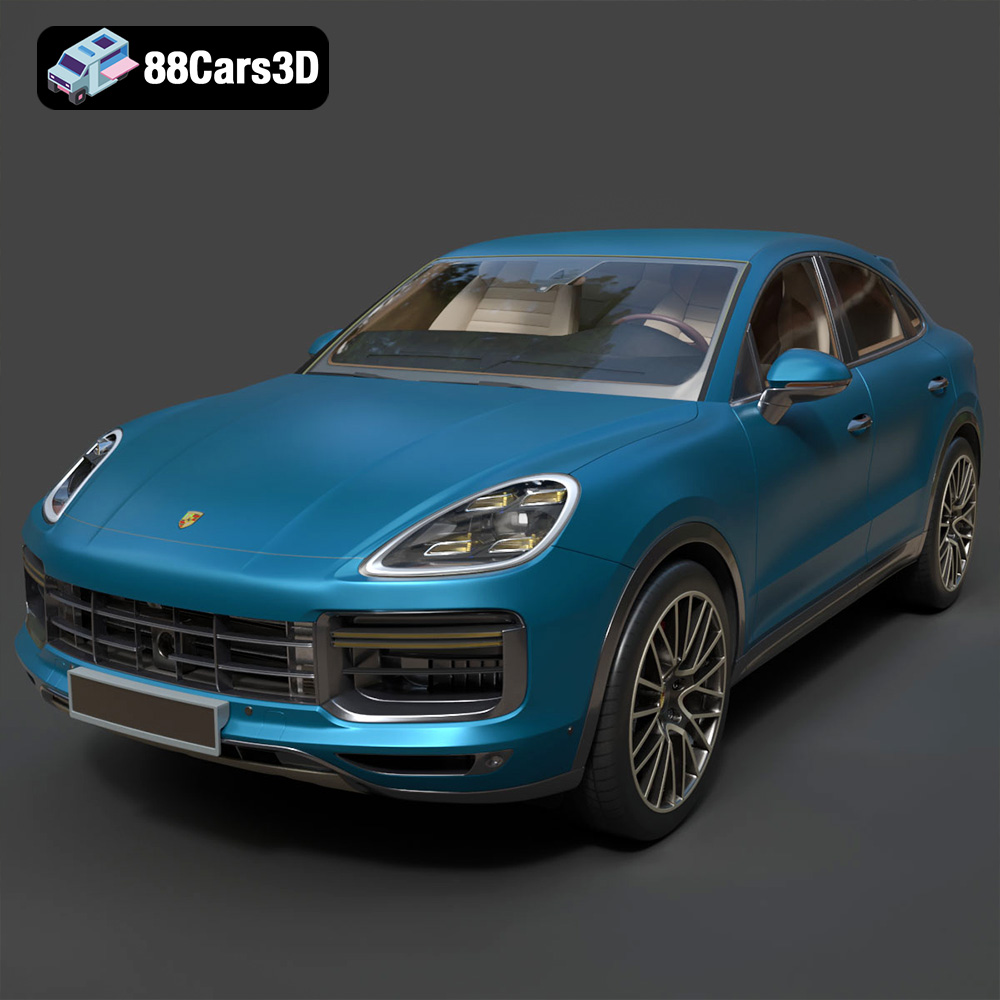
Texture: Yes | Material: Yes
Download the highly detailed, game-ready Porsche Cayenne Turbo Coupe 2020 3D Model. Features an aggressive coupe roofline, detailed quad exhaust, and a meticulously crafted luxury sport interior. Includes .blend, .fbx, .obj, .glb, .stl, .ply, .unreal, and .max formats for game development, AR/VR, and rendering.
Price: $19.99
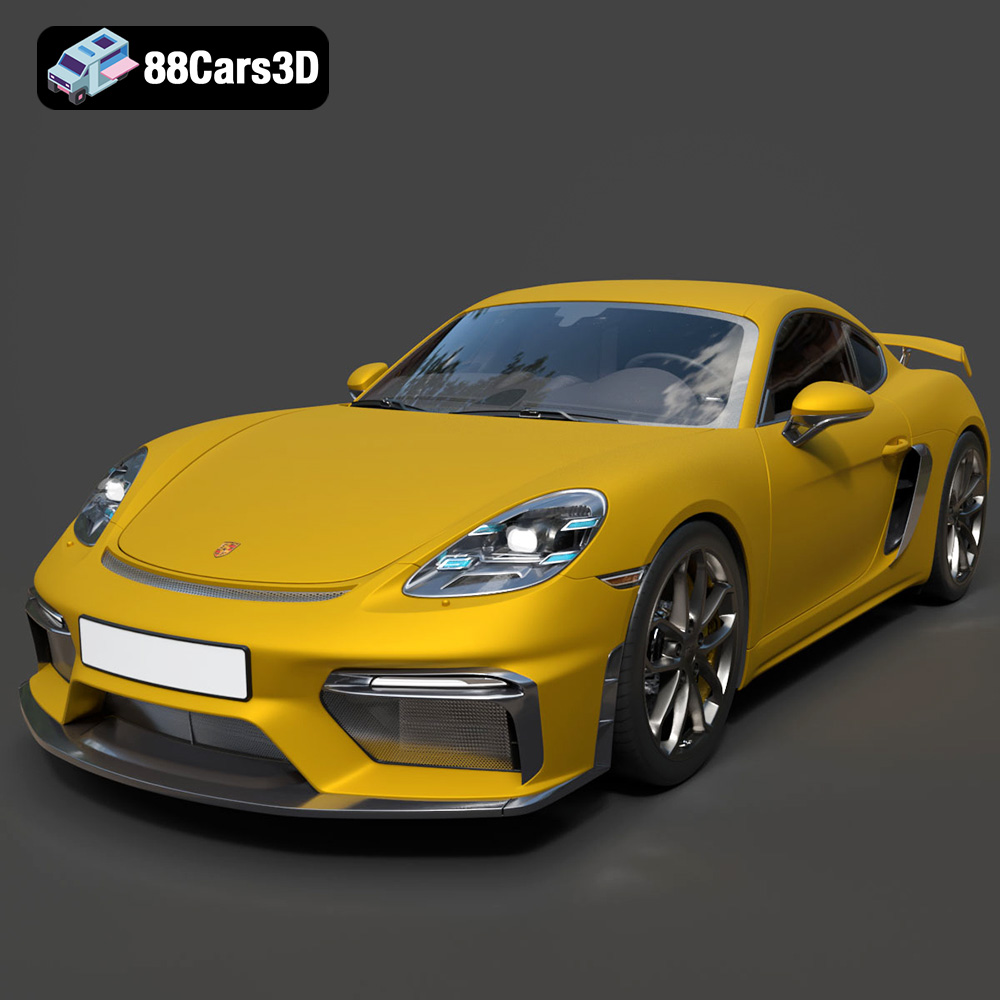
Texture: Yes | Material: Yes
Download the highly detailed, game-ready Porsche 718 Cayman GT4 2020 3D Model. Features an aggressive fixed rear wing, distinctive side air intakes, and a track-focused stance. Includes .blend, .fbx, .obj, .glb, .stl, .ply, .unreal, and .max formats for game development, AR/VR, and rendering.
Price: $19.99

Texture: Yes | Material: Yes
Download the highly detailed, game-ready Polestar 2 2020 3D Model. Features minimalist Scandinavian fastback styling, pixel LED lighting, and an accurate electric vehicle profile. Includes .blend, .fbx, .obj, .glb, .stl, .ply, .unreal, and .max formats for game development, AR/VR, and rendering.
Price: $19.99
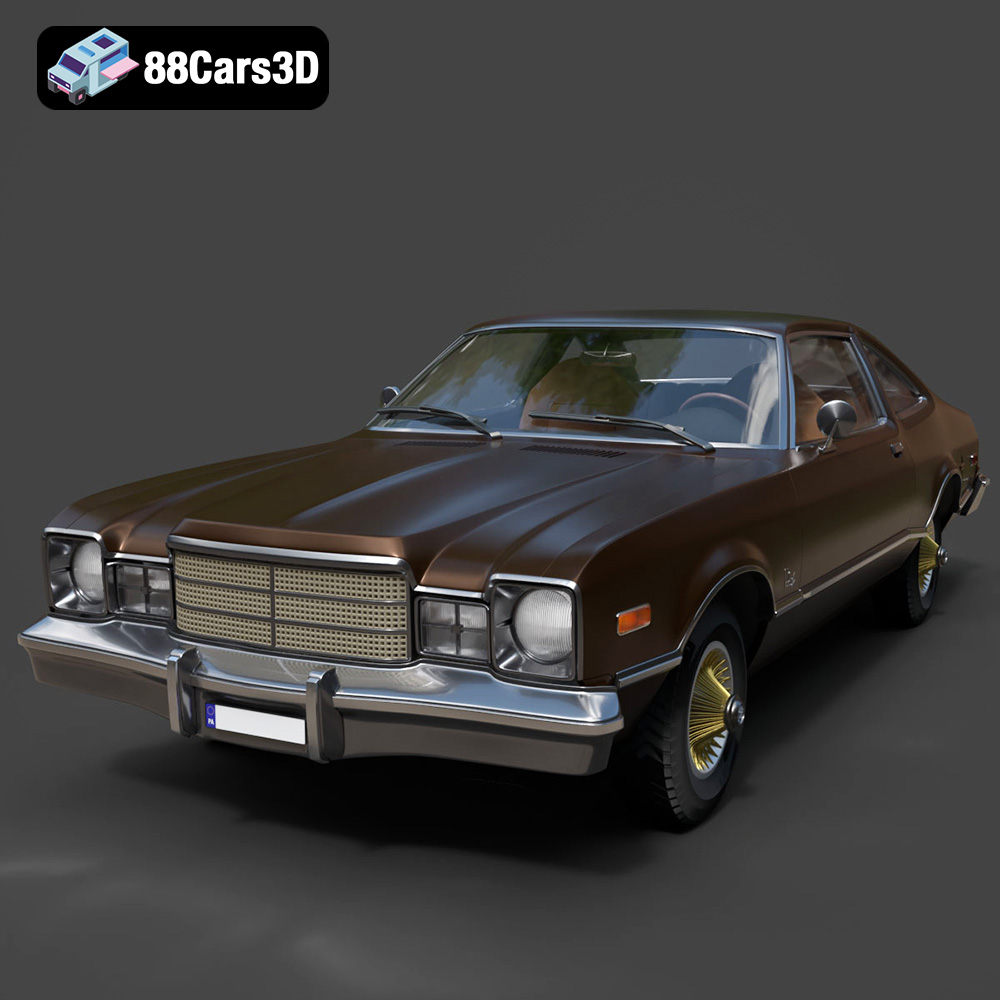
Texture: Yes | Material: Yes
Download the highly detailed, game-ready Plymouth Volare Coupe 1977 3D Model. Features classic F-body styling, detailed chrome trim, and an accurate vintage interior. Includes .blend, .fbx, .obj, .glb, .stl, .ply, .unreal, and .max formats for game development, AR/VR, and rendering.
Price: $19.99

