Get 20% OFF All Premium 3D & STL Models!

“`html
The journey from a digital 3D model to a tangible object is often paved with potential pitfalls. While 3D printing technology has advanced significantly, the success of your print still heavily relies on the integrity of your STL file. An STL file riddled with errors can lead to failed prints, wasted filament, and immense frustration. This comprehensive guide will equip you with the knowledge and techniques to identify and rectify common STL file errors, ensuring a smooth and successful 3D printing experience, particularly when working with intricate models like printable car models from sources like 88cars3d.com. We’ll delve into the nuances of STL file structure, explore various error types, and provide practical solutions using popular software. By the end of this article, you’ll be able to confidently prepare your STL files for optimal 3D printing results.
This article will cover:
The STL (Stereolithography) file format is the de facto standard for 3D printing. It represents the surface geometry of a 3D object as a collection of triangles. Each triangle is defined by its three vertices (points in 3D space) and a normal vector, which indicates the direction the triangle is facing. While seemingly simple, the way these triangles are connected and oriented can make or break your 3D print.
At its core, an STL file contains a list of triangles. Each triangle is defined by: coordinates of its three vertices (x, y, z) and the normal vector (a vector perpendicular to the triangle’s surface). There are two main types of STL files: ASCII and binary. ASCII STL files are human-readable but are larger in size. Binary STL files are more compact and faster to process, making them the preferred choice for most 3D printing applications. Imagine a complex car model; the more triangles, the finer the detail but the larger the file size. Platforms like 88cars3d.com often provide optimized STL files that balance detail and file size.
A crucial concept in STL files is “manifold geometry.” A manifold mesh is a closed surface where every edge is shared by exactly two triangles. Non-manifold geometry, where edges are shared by more or less than two triangles, can lead to significant printing issues. Think of it like a balloon – it has a closed surface. Now imagine poking a hole in it or trying to glue two balloons together at a single point; that’s non-manifold. Ensuring your STL file represents a manifold solid is vital for accurate slicing and printing.
While widely used, the STL format has limitations. It only stores surface geometry, lacking information about color, texture, or material properties. It also represents curves with flat triangles, which can result in faceted appearances, especially on low-resolution models. Higher triangle counts can mitigate this, but at the cost of larger file sizes. Also, the STL format is prone to errors like gaps, holes, and self-intersections, which can cause problems during slicing and printing.
STL files, despite their widespread use, are susceptible to various errors that can negatively impact 3D printing. Identifying and addressing these errors is a critical step in the 3D printing workflow. Understanding the different types of errors and their potential consequences will help you prioritize your file repair efforts.
Holes and gaps are discontinuities in the mesh, where triangles are missing or not properly connected. These can be caused by errors during the 3D modeling process, data conversion issues, or mesh simplification. Holes prevent the slicer from correctly identifying the inside and outside of the model, potentially leading to incomplete or structurally weak prints. For example, a hole in the roof of a 3D printable car model would result in the slicer failing to generate proper infill and potentially causing a collapse during printing.
Each triangle in an STL file has a normal vector that points outwards, defining the “front” face. When a normal vector is flipped inwards, it indicates that the triangle is facing the wrong direction. This can cause the slicer to misinterpret the geometry, leading to missing features, inverted surfaces, or even failed prints. This is especially problematic for enclosed volumes, as the slicer might interpret the inside as the outside and vice versa. A common visual indicator of flipped normals is dark shading on a surface in a 3D viewer.
Intersecting faces occur when two or more triangles pass through each other, creating overlapping geometry. Self-intersections happen when a single triangle intersects with itself. These errors confuse the slicer, making it difficult to determine the correct geometry for generating toolpaths. Intersections can lead to unexpected voids, extra material, or distorted features in the final print. For instance, if the wheels of a printable car model intersect with the chassis, the slicer might generate a single, fused block instead of separate parts.
Fortunately, numerous software tools are available to detect and repair STL file errors. These tools analyze the mesh for common issues and provide automated or manual methods for fixing them. Choosing the right tool depends on the complexity of the errors, your technical skill level, and your budget. Some slicer software also include basic repair functionality.
Autodesk Meshmixer is a free and powerful software package for working with 3D meshes. It offers a wide range of tools for sculpting, editing, and repairing STL files. Meshmixer’s “Make Solid” function is particularly useful for fixing non-manifold geometry, filling holes, and smoothing surfaces. The “Inspector” tool automatically identifies errors like holes, flipped normals, and intersecting faces, and provides one-click solutions for repairing them. To repair an STL in Meshmixer, import your file, use the Inspector tool to identify errors, select “Auto Repair All,” and then use “Make Solid” to create a watertight mesh. This is a great first step for most STL repair tasks.
Autodesk Netfabb is a professional-grade software package designed for additive manufacturing workflow. It offers advanced tools for mesh repair, optimization, and build preparation. Netfabb’s automated repair features are highly effective at resolving complex errors, such as fixing intricate self-intersections and bridging large gaps. While Netfabb is a commercial product, it provides a comprehensive solution for ensuring the integrity of your STL files. Features include advanced mesh analysis, remeshing, and support structure generation. If you’re dealing with highly complex models or require precise control over the repair process, Netfabb is an excellent choice.
Many popular slicer programs, such as PrusaSlicer and Cura, include basic STL repair capabilities. These integrated tools can automatically detect and fix minor errors during the slicing process. While they may not be as powerful as dedicated mesh repair software, they can often resolve simple issues like small holes or flipped normals. In PrusaSlicer, this functionality is often enabled by default. In Cura, it’s usually located in the “Mesh Fixes” section of the settings. Activating these settings can often salvage prints from slightly flawed STL files without requiring separate repair software.
FDM (Fused Deposition Modeling) printing involves extruding molten plastic layer by layer to build a 3D object. Preparing STL files specifically for FDM printing requires attention to detail to ensure optimal print quality, strength, and adhesion. Understanding the nuances of FDM printing and tailoring your file preparation accordingly is key to success.
The orientation of your model on the build plate significantly impacts print quality, strength, and support structure requirements. Choosing the right orientation can minimize the need for support structures, which can be time-consuming to remove and can leave unsightly marks on the printed surface. Aim to orient your model so that the smallest surface area is in contact with the build plate. Overhanging features require support structures to prevent them from collapsing during printing. Consider the layer lines and their impact on surface finish. For example, on a car model, orienting the body so that the roof prints upwards can avoid support marks on the most visible surfaces. Software like Cura and PrusaSlicer can automatically generate support structures, but manual placement offers greater control over their location and density.
Slicing parameters, such as layer height, infill density, and print speed, directly influence print quality, strength, and printing time. Lower layer heights result in smoother surfaces but increase printing time. Typical layer heights range from 0.1mm to 0.3mm. Infill density determines the internal strength of the printed object. Higher infill percentages increase strength but also consume more filament and increase printing time. Infill patterns, such as rectilinear, grid, or gyroid, can also affect strength and weight. Print speed affects both print quality and printing time. Slower speeds generally result in better quality but take longer. Typical print speeds range from 40mm/s to 60mm/s. For printable car models, consider using higher infill for areas that require structural integrity, such as the chassis, and lower infill for less critical parts like the body panels.
Proper bed adhesion is crucial for preventing warping and ensuring that the first layer adheres firmly to the build plate. Common bed adhesion techniques include using a heated bed, applying adhesive substances like glue stick or hairspray, and utilizing brim or raft features. A heated bed helps to maintain a consistent temperature across the build plate, reducing the risk of warping. Adhesive substances improve the grip between the first layer and the build plate. Brim creates a thin layer of material around the base of the model, increasing the surface area in contact with the build plate. Raft is a thicker layer of material printed beneath the model, providing a stable foundation, especially for models with complex geometries. For materials like ABS, a heated bed and enclosure are often necessary to prevent warping. Always calibrate your printer and level the bed before starting a print to ensure optimal bed adhesion.
Resin printing, specifically SLA (Stereolithography) and DLP (Digital Light Processing), uses liquid resin cured by light to create 3D objects. Preparing STL files for resin printing involves different considerations compared to FDM, primarily focusing on support generation, hollowing, and drain hole placement.
Unlike FDM printing, where infill is used to fill the inside of a part, resin printing often benefits from hollowing out the model. This significantly reduces the amount of resin used, decreasing printing time and cost. However, hollowing also creates a sealed cavity, which can trap uncured resin. To address this, drain holes must be added to allow the resin to escape. Position drain holes in discreet locations, ideally on surfaces that will be facing downwards during printing. The size and number of drain holes depend on the size and complexity of the model. After printing, carefully clean the inside of the hollowed model with isopropyl alcohol to remove any remaining resin. Ensure the drain holes are properly sealed after cleaning if you desire a watertight model. For 3D printable car models, consider hollowing the chassis and body panels to save resin, placing drain holes in inconspicuous areas like the underside of the car.
Support structures are even more critical in resin printing than in FDM printing due to the nature of the process. Resin models are printed upside down, hanging from the build plate. Without adequate support, overhanging features will simply detach from the build plate. Resin slicers like Chitubox and Lychee Slicer offer automated support generation, but manual placement is often necessary for optimal results. Consider the angle of overhangs, the size of the unsupported areas, and the type of resin being used when placing supports. Thicker supports provide greater stability but can leave larger marks on the printed surface. Lighter supports are easier to remove but may not be strong enough to support heavy overhangs. Pay particular attention to supporting delicate features, such as thin walls or intricate details. Pre-supported models, like some of those available from marketplaces such as 88cars3d.com, can save significant time and effort.
Choosing the right resin and adjusting the printer settings are crucial for successful resin printing. Different resins have different properties, such as viscosity, curing speed, and strength. The exposure time, lift speed, and layer height must be adjusted based on the resin being used. Insufficient exposure time can lead to incomplete curing, resulting in soft or brittle prints. Excessive exposure time can lead to over-curing, causing dimensional inaccuracies or warping. Layer height affects the resolution and smoothness of the printed surface. Lower layer heights result in finer details but increase printing time. Consult the resin manufacturer’s recommendations for optimal printer settings. Perform test prints to fine-tune the settings for your specific printer and resin combination. Ensure your resin is properly mixed before printing and that your printer is calibrated correctly.
Even with careful preparation, STL file errors can sometimes slip through the cracks. Knowing how to troubleshoot common printing issues and implementing preventative measures can save you time, filament, and frustration.
When a print fails, the first step is to carefully examine the failed print and identify the cause of the failure. Common signs of STL file errors include missing features, distorted geometry, layer separation, and poor bed adhesion. Compare the failed print to the original STL file in a 3D viewer to identify any discrepancies. Inspect the support structures to ensure they were adequate and properly positioned. Check the printer settings to rule out any configuration issues. If the error is consistently occurring in the same location, it is likely due to an issue with the STL file in that specific area. Once you have identified the cause of the failure, you can take corrective action, such as repairing the STL file, adjusting the printer settings, or modifying the support structures.
Preventing STL file errors starts with good modeling practices. When creating 3D models, pay attention to the following: Maintain manifold geometry, avoid self-intersections, and ensure proper wall thickness. Use a robust 3D modeling software package with built-in error checking capabilities. Before exporting your model as an STL file, perform a thorough inspection to identify and fix any potential errors. Use a mesh repair tool like Meshmixer or Netfabb to clean up the mesh and ensure it is watertight. Regularly update your 3D modeling and slicing software to benefit from the latest bug fixes and improvements. When downloading models from online repositories, carefully inspect the STL files before printing. Look for reviews or comments from other users to identify any known issues. Consider test printing a small section of the model to verify its printability before committing to a full print.
Maintaining your 3D printer is crucial for preventing print failures and ensuring consistent print quality. Regularly clean the build plate to remove any residue or debris. Check the nozzle for clogs and replace it if necessary. Lubricate moving parts to ensure smooth operation. Calibrate the printer regularly to maintain accurate dimensions and bed adhesion. Keep the printer in a clean and dust-free environment. Follow the manufacturer’s recommendations for maintenance and service. A well-maintained printer is less likely to experience print failures due to mechanical issues, allowing you to focus on addressing potential STL file errors.
Preparing STL files for 3D printing is a crucial step that directly impacts the success of your print. Understanding the STL file format, identifying common errors, and utilizing appropriate repair tools are essential skills for any 3D printing enthusiast. Whether you are printing functional prototypes or intricate models like the printable car models available on 88cars3d.com, mastering STL file preparation will significantly improve your printing results. Remember to pay attention to manifold geometry, flipped normals, and intersecting faces. Utilize software like Meshmixer or Netfabb to repair any errors. Tailor your slicing parameters and support structures to the specific requirements of FDM or resin printing. By following the guidelines and techniques outlined in this article, you can confidently prepare your STL files for optimal 3D printing and bring your digital designs to life.
Your next steps should include:
“`

Texture: Yes | Material: Yes
Download the highly detailed, game-ready Volkswagen Jetta GLI 2019 3D Model. Features an aggressive honeycomb grille with red accents, sleek aerodynamic profile, and exclusive GLI sport wheels. Includes .blend, .fbx, .obj, .glb, .stl, .ply, .unreal, and .max formats for game development, AR/VR, and rendering.
Price: $19.99

Texture: Yes | Material: Yes
Download the highly detailed, game-ready Vintage Vespa 3D Model. Features iconic rounded monocoque styling, classic saddle, and chrome accents. Includes .blend, .fbx, .obj, .glb, .stl, .ply, .unreal, and .max formats for game development, AR/VR, and rendering.
Price: $19.99

Texture: Yes | Material: Yes
Download the highly detailed, game-ready Vespa GS 150 3D Model. Features elegant aerodynamic curves, classic leg shield, and detailed engine casing. Includes .blend, .fbx, .obj, .glb, .stl, .ply, .unreal, and .max formats for game development, AR/VR, and rendering.
Price: $19.99

Texture: Yes | Material: Yes
Download the highly detailed, game-ready Vespa P200E 3D Model. Features classic vintage styling, accurate step-through frame geometry, and authentic detailing. Includes .blend, .fbx, .obj, .glb, .stl, .ply, .unreal, and .max formats for game development, AR/VR, and rendering.
Price: $19.99

Texture: Yes | Material: Yes
Download the highly detailed, game-ready Ural M67-36-P 1976 3D Model. Features the iconic air-cooled boxer engine, vintage utilitarian styling, and authentic spoked wheels. Includes .blend, .fbx, .obj, .glb, .stl, .ply, .unreal, and .max formats for game development, AR/VR, and rendering.
Price: $19.99
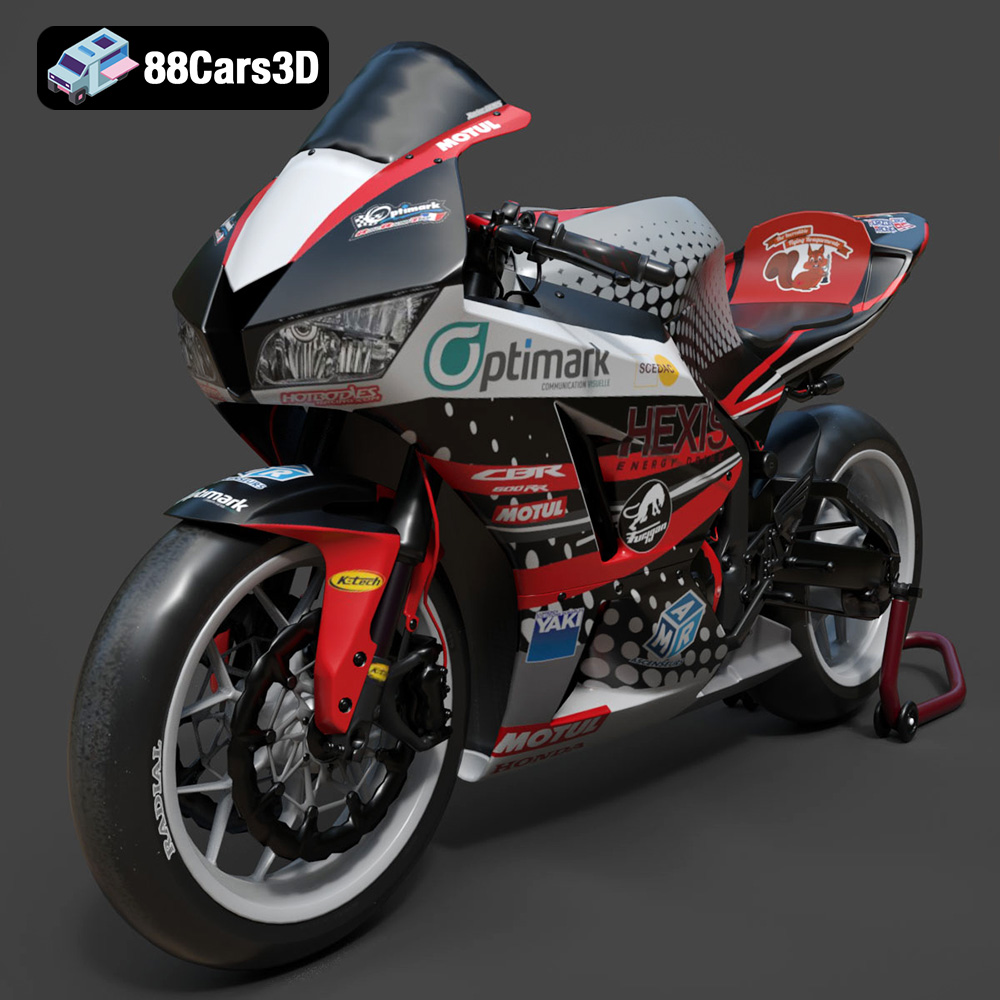
Texture: Yes | Material: Yes
Download the highly detailed, game-ready Honda CBR600RR 3D Model. Features aerodynamic fairings, an iconic center-up exhaust, and an aggressive track-focused stance. Includes .blend, .fbx, .obj, .glb, .stl, .ply, .unreal, and .max formats for game development, AR/VR, and rendering.
Price: $19.99
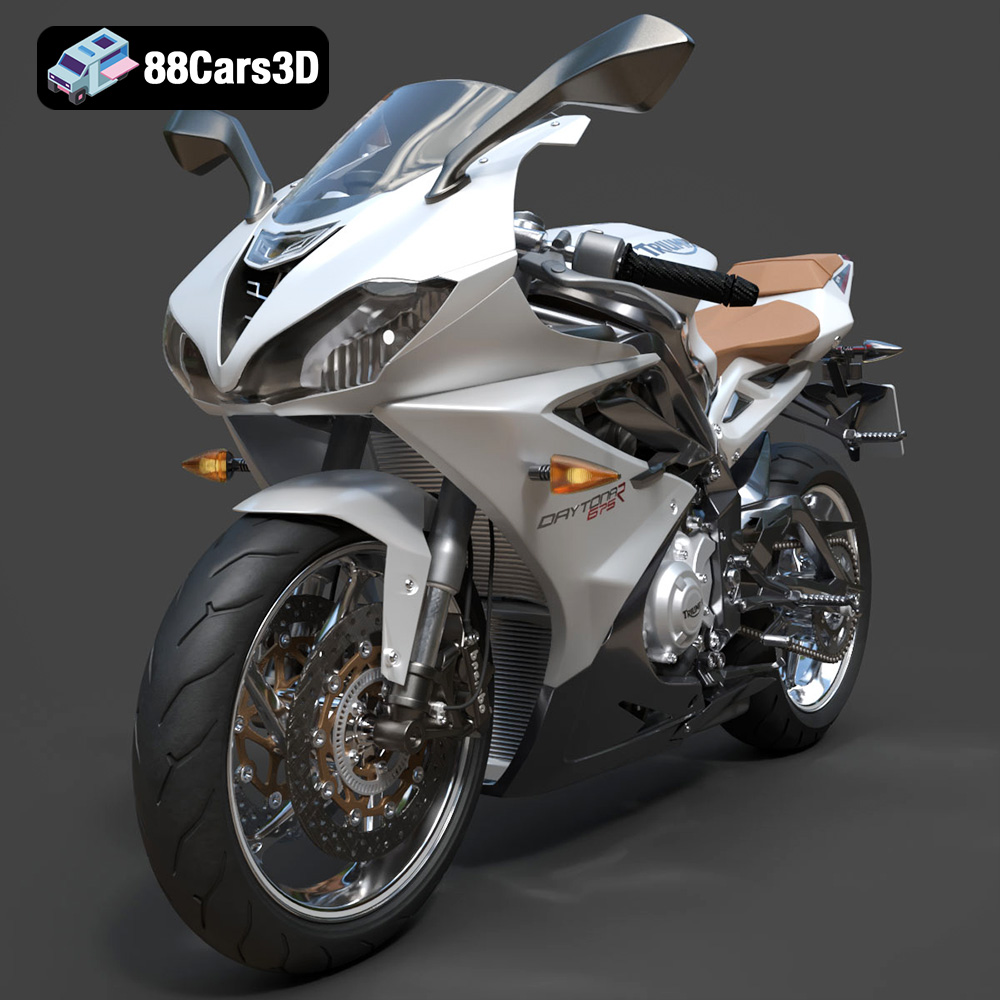
Texture: Yes | Material: Yes
Download the highly detailed, game-ready Triumph Daytona 675R ABS 2015 3D Model. Features aerodynamic sport fairings, a detailed inline-triple engine, and premium Öhlins suspension components. Includes .blend, .fbx, .obj, .glb, .stl, .ply, .unreal, and .max formats for game development, AR/VR, and rendering.
Price: $19.99

Texture: Yes | Material: Yes
Download the highly detailed, game-ready Toyota Tacoma TRD Off-Road 2016 3D Model. Features a rugged exterior, TRD off-road suspension details, and a meticulously crafted interior. Includes .blend, .fbx, .obj, .glb, .stl, .ply, .unreal, and .max formats for game development, AR/VR, and rendering.
Price: $19.99

Texture: Yes | Material: Yes
Download the highly detailed, game-ready Toyota Supra 2020 3D Model. Features aggressive aerodynamic styling, a distinctive double-bubble roof, and accurate B58 engine components. Includes .blend, .fbx, .obj, .glb, .stl, .ply, .unreal, and .max formats for game development, AR/VR, and rendering.
Price: $19.99

Texture: Yes | Material: Yes
Download the highly detailed, game-ready Toyota RAV4 LE 2019 3D Model. Features rugged exterior styling, signature polygonal motif, and a detailed interior. Includes .blend, .fbx, .obj, .glb, .stl, .ply, .unreal, and .max formats for game development, AR/VR, and rendering.
Price: $19.99

