Get 20% OFF All Premium 3D & STL Models!

“`html
The thrill of bringing a digital design to life through 3D printing is undeniable. Whether you’re crafting intricate car models from platforms like 88cars3d.com, prototyping engineering components, or creating artistic sculptures, the STL file format is often the starting point. However, STL files, while ubiquitous, are prone to errors that can lead to frustrating print failures. This comprehensive guide will walk you through common STL file errors, explain why they occur, and provide detailed, actionable steps to fix them, ensuring successful and high-quality 3D prints. We’ll cover everything from understanding mesh topology to using software like Meshmixer, Netfabb, and PrusaSlicer to identify and repair imperfections. Prepare to elevate your 3D printing game by mastering STL file repair!
The STL (Stereolithography) file format is the workhorse of 3D printing. It represents a 3D object’s surface as a collection of triangles. Each triangle is defined by its three vertices (points in 3D space) and a normal vector (indicating the triangle’s orientation). While seemingly simple, this representation can lead to complexities and errors if not handled correctly.
The quality of an STL file hinges on its triangle mesh topology. A “good” mesh has several key characteristics: no overlapping triangles, consistent surface orientation, and a “watertight” structure. Overlapping triangles create ambiguity for the slicer, leading to unpredictable results. Inconsistent surface orientation (where some triangles face inwards) confuses the printer about which side is “inside” and which is “outside.” Finally, a non-watertight mesh has holes or gaps, preventing the slicer from defining a closed volume, which is essential for printing solid objects. Imagine trying to 3D print a car model with a hole in the roof – it simply won’t work!
STL file errors can originate from various sources: the original 3D modeling software, the file export process, or even the file transfer itself. Complex models with intricate details are more susceptible to these issues. Specifically, errors often arise during the conversion from curved surfaces to a triangulated mesh. A low polygon count can result in a faceted appearance, while an extremely high polygon count can create unnecessarily large files that are difficult to process. When downloading models from marketplaces such as 88cars3d.com, you can generally expect high-quality files, but it’s still wise to verify and repair them before printing, especially if modifications have been made.
Before attempting any repairs, it’s crucial to accurately identify the specific errors present in your STL file. Several software tools offer functionalities for error detection and visualization. Some slicing software packages include basic repair capabilities, while dedicated mesh editing tools provide more advanced features.
Most slicing software, such as Cura and PrusaSlicer, can detect simple errors. When you import an STL file with issues, the software will often display warning messages or highlight problematic areas. For example, Cura might warn about “non-manifold edges” or “reversed normals.” PrusaSlicer also highlights issues and offers a “Repair” function, though it’s often limited in its effectiveness for complex errors. Remember to always check the preview layer view in your slicer – unexpected gaps or floating structures are indicators of underlying mesh problems.
For more thorough error detection, dedicated mesh editing software like Meshmixer, Netfabb, and Blender is essential. These tools offer advanced features for analyzing and visualizing mesh topology. Meshmixer, for example, has a “Make Solid” function that automatically highlights and attempts to fix various errors. Netfabb provides a comprehensive suite of tools for analyzing and repairing STL files, including identifying self-intersections, flipped normals, and holes. Blender, while primarily a 3D modeling software, also offers powerful mesh editing capabilities, especially when used with specific add-ons like the “MeshLint” tool, which can identify various mesh defects.
Meshmixer is a free and powerful tool for STL file repair. Its intuitive interface and robust repair functions make it an excellent choice for both beginners and experienced 3D printing enthusiasts. Let’s explore some key techniques for fixing common STL file errors using Meshmixer.
The “Make Solid” function is your first line of defense against many STL file errors. It automatically detects and attempts to fix holes, flipped normals, and non-manifold edges. To use it, import your STL file into Meshmixer and select “Edit” -> “Make Solid.” Experiment with the “Solid Type” settings. “Accurate” is generally the best choice for complex models, while “Fast” can be quicker for simpler geometries. Adjust the “Solid Accuracy” and “Mesh Density” sliders to balance repair quality and processing time. Click “Update” to preview the changes and “Accept” to apply them. This single function can often resolve a surprising number of issues.
For more stubborn errors, you might need to resort to manual repair using Meshmixer’s sculpting tools. The “Sculpt” mode offers a range of brushes for smoothing, filling, and reshaping the mesh. The “Fill” brush is particularly useful for closing small gaps and holes. The “Smooth” brush can help to reduce jagged edges and improve surface quality. The “RobustSmooth” brush is especially effective at smoothing out complex areas without distorting the overall shape. Remember to use these tools sparingly and strategically, as excessive sculpting can introduce new errors.
Netfabb is a professional-grade software solution for additive manufacturing, offering advanced tools for STL file analysis, repair, and optimization. While not free like Meshmixer, its comprehensive feature set and robust algorithms make it a worthwhile investment for serious 3D printing professionals. Let’s delve into some advanced repair strategies using Netfabb.
Netfabb excels at automated repair. Its “Automatic Repair” script offers various options for fixing different types of errors. Access it through “Part” -> “Automatic Repair.” Experiment with the different repair modes, such as “Standard Repair,” “Extended Repair,” and “Surface Detail Repair,” depending on the complexity and nature of the errors. Netfabb will generate a detailed report outlining the detected and repaired errors. Review this report carefully to ensure that the repair process hasn’t introduced any unintended changes to the model’s geometry. Remember to backup your original file before running any automated repair scripts.
Ensuring a manifold mesh is crucial for successful 3D printing. Non-manifold edges, where an edge is shared by more than two faces, can cause significant problems during slicing. Netfabb provides powerful tools for detecting and correcting non-manifold edges. Use the “Analysis” -> “Identify Non-Manifold Edges” function to highlight these problematic areas. Then, use the “Repair” -> “Remove Non-Manifold Edges” function to automatically fix them. In some cases, manual intervention might be required to bridge gaps or connect disconnected components to create a fully manifold mesh. Understanding the principles of manifold geometry is key to mastering this repair technique.
Repairing STL files is only the first step. To achieve optimal print quality, you must carefully consider the print orientation, support structures, and slicing parameters. These factors significantly impact the final outcome, influencing everything from surface finish to print time and material usage.
The orientation of your model on the print bed has a profound impact on the success of your print. Choose an orientation that minimizes the need for support structures, especially on visually important surfaces. Orient parts to avoid large overhangs, which are prone to warping or collapsing without adequate support. Consider the layer lines – aligning them in a way that enhances the aesthetic appeal of the finished print. Furthermore, optimize the orientation for bed adhesion. A larger contact area with the build plate generally results in better adhesion, reducing the risk of warping or detachment during printing. Techniques like adding a brim or raft can further improve bed adhesion, especially for challenging materials like ABS.
Support structures are essential for printing overhangs and complex geometries. However, poorly designed support structures can mar the surface finish and waste material. Most slicing software offers automatic support generation, but it’s crucial to fine-tune the settings. Adjust the support density, angle, and pattern to balance support strength and ease of removal. Consider using tree supports or customized support structures for intricate areas. When removing supports, exercise caution to avoid damaging the printed part. Use specialized tools like flush cutters and hobby knives to carefully detach the supports, and sand down any remaining marks for a smooth finish. For soluble support materials (like PVA for dual-extrusion FDM printers), follow the manufacturer’s instructions for dissolving the supports in water or other solvents.
Slicing parameters determine how the 3D model is converted into a series of layers for printing. Layer height, infill density, print speed, and temperature are all critical settings that affect print quality. Smaller layer heights result in smoother surfaces but increase print time. Higher infill densities provide greater strength but also increase material usage. Experiment with different infill patterns, such as rectilinear, honeycomb, or gyroid, to optimize the balance between strength and weight. Adjust the print speed and temperature according to the filament manufacturer’s recommendations. Calibrating your 3D printer and fine-tuning these slicing parameters are essential for achieving consistent and high-quality prints. For example, a layer height of 0.1mm, infill density of 20%, and a print speed of 50mm/s are good starting points for PLA on many FDM printers.
Choosing the right material and ensuring your printer is properly calibrated are paramount for successful 3D printing, especially when working with complex models from sources like 88cars3d.com.
The world of 3D printing materials is vast and ever-expanding. Common FDM materials include PLA, ABS, PETG, and nylon, each with its own unique properties and applications. PLA is a biodegradable thermoplastic known for its ease of printing and relatively low printing temperature. ABS is a stronger and more heat-resistant material, but it requires a heated bed and enclosed build chamber to prevent warping. PETG offers a good balance of strength, flexibility, and ease of printing. Nylon is a highly durable and versatile material, but it requires specialized printing conditions and often benefits from drying before use. Resin printing introduces another dimension with materials like standard resin, tough resin, and flexible resin, each suitable for different applications based on required strength, flexibility, and detail resolution. When selecting a material, consider the intended use of the printed part, the required mechanical properties, and the capabilities of your 3D printer.
A well-calibrated 3D printer is essential for consistent and accurate prints. Regularly calibrate the bed leveling to ensure the nozzle is at the correct distance from the build plate. Check and adjust the Z-offset to fine-tune the first layer adhesion. Calibrate the extruder to ensure it’s extruding the correct amount of filament. Perform routine maintenance, such as cleaning the nozzle, lubricating moving parts, and inspecting belts and pulleys. A properly maintained and calibrated printer will produce higher-quality prints, reduce the risk of print failures, and extend the lifespan of your machine. For FDM printers, PID tuning ensures stable hot end and bed temperatures. For resin printers, regularly check the FEP film for damage and replace it as needed.
Mastering STL file repair is a crucial skill for any 3D printing enthusiast. By understanding the STL file format, identifying common errors, and utilizing repair tools like Meshmixer and Netfabb, you can significantly improve the success rate and quality of your 3D prints. Remember to always check and repair your STL files before printing, especially when working with complex models or modifying existing designs. Pay attention to print orientation, support structures, and slicing parameters to optimize the printing process. Finally, choose the right material and maintain your 3D printer to ensure consistent and reliable results. With these skills, you’ll be well-equipped to tackle even the most challenging 3D printing projects and bring your digital creations to life with confidence. Start practicing these techniques today, and you’ll be amazed at the improvement in your 3D printing results! Now, go forth and create some amazing printable car models!
“`

Texture: Yes | Material: Yes
Download the highly detailed, game-ready Volkswagen Jetta GLI 2019 3D Model. Features an aggressive honeycomb grille with red accents, sleek aerodynamic profile, and exclusive GLI sport wheels. Includes .blend, .fbx, .obj, .glb, .stl, .ply, .unreal, and .max formats for game development, AR/VR, and rendering.
Price: $19.99

Texture: Yes | Material: Yes
Download the highly detailed, game-ready Vintage Vespa 3D Model. Features iconic rounded monocoque styling, classic saddle, and chrome accents. Includes .blend, .fbx, .obj, .glb, .stl, .ply, .unreal, and .max formats for game development, AR/VR, and rendering.
Price: $19.99

Texture: Yes | Material: Yes
Download the highly detailed, game-ready Vespa GS 150 3D Model. Features elegant aerodynamic curves, classic leg shield, and detailed engine casing. Includes .blend, .fbx, .obj, .glb, .stl, .ply, .unreal, and .max formats for game development, AR/VR, and rendering.
Price: $19.99

Texture: Yes | Material: Yes
Download the highly detailed, game-ready Vespa P200E 3D Model. Features classic vintage styling, accurate step-through frame geometry, and authentic detailing. Includes .blend, .fbx, .obj, .glb, .stl, .ply, .unreal, and .max formats for game development, AR/VR, and rendering.
Price: $19.99

Texture: Yes | Material: Yes
Download the highly detailed, game-ready Ural M67-36-P 1976 3D Model. Features the iconic air-cooled boxer engine, vintage utilitarian styling, and authentic spoked wheels. Includes .blend, .fbx, .obj, .glb, .stl, .ply, .unreal, and .max formats for game development, AR/VR, and rendering.
Price: $19.99
Texture: Yes | Material: Yes
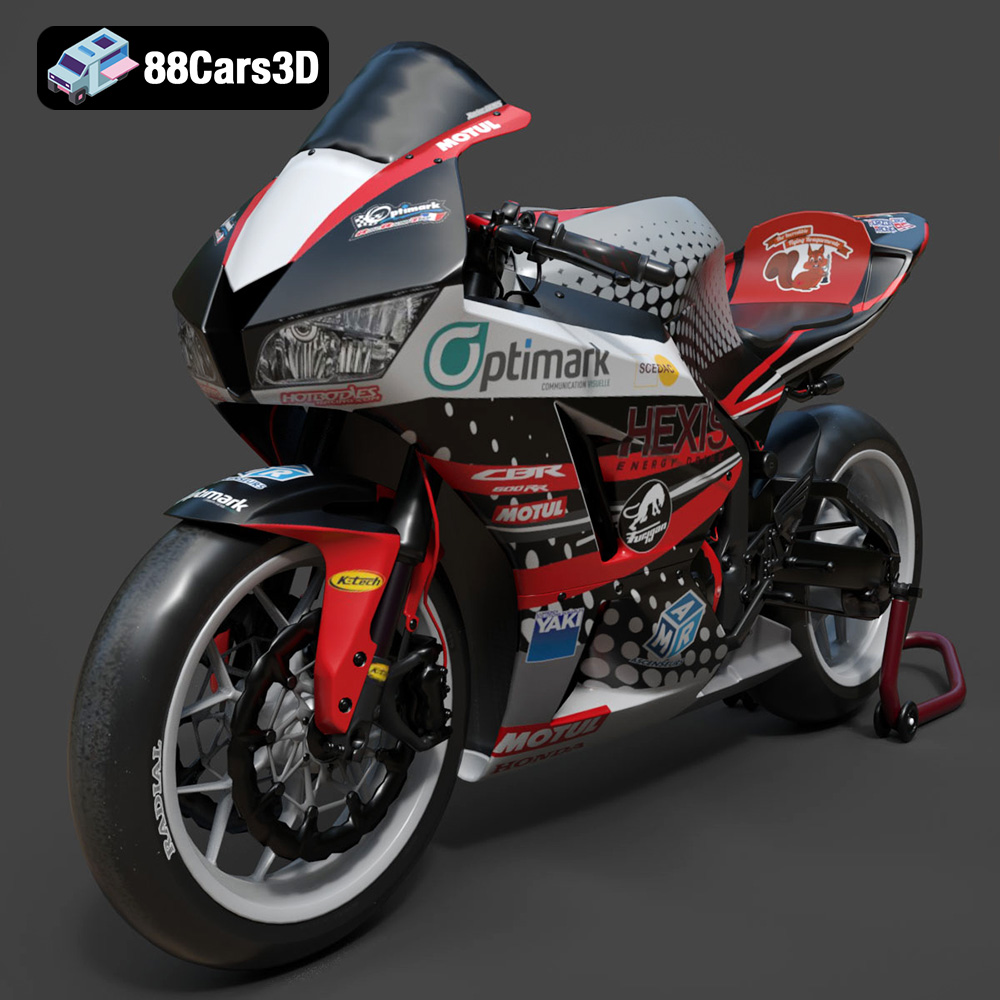
Download the highly detailed, game-ready Honda CBR600RR 3D Model. Features aerodynamic fairings, an iconic center-up exhaust, and an aggressive track-focused stance. Includes .blend, .fbx, .obj, .glb, .stl, .ply, .unreal, and .max formats for game development, AR/VR, and rendering.
Price: $19.99
Texture: Yes | Material: Yes
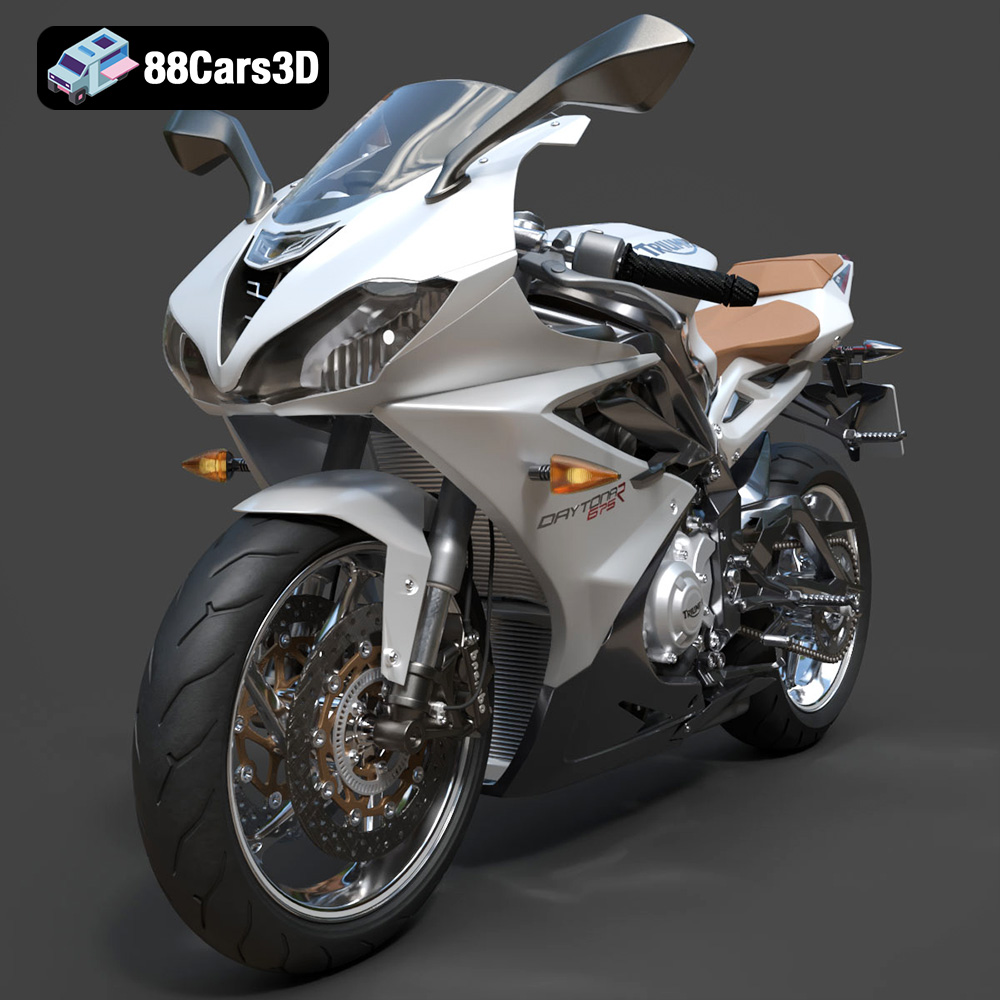
Download the highly detailed, game-ready Triumph Daytona 675R ABS 2015 3D Model. Features aerodynamic sport fairings, a detailed inline-triple engine, and premium Öhlins suspension components. Includes .blend, .fbx, .obj, .glb, .stl, .ply, .unreal, and .max formats for game development, AR/VR, and rendering.
Price: $19.99

Texture: Yes | Material: Yes
Download the highly detailed, game-ready Toyota Tacoma TRD Off-Road 2016 3D Model. Features a rugged exterior, TRD off-road suspension details, and a meticulously crafted interior. Includes .blend, .fbx, .obj, .glb, .stl, .ply, .unreal, and .max formats for game development, AR/VR, and rendering.
Price: $19.99

Texture: Yes | Material: Yes
Download the highly detailed, game-ready Toyota Supra 2020 3D Model. Features aggressive aerodynamic styling, a distinctive double-bubble roof, and accurate B58 engine components. Includes .blend, .fbx, .obj, .glb, .stl, .ply, .unreal, and .max formats for game development, AR/VR, and rendering.
Price: $19.99

Texture: Yes | Material: Yes
Download the highly detailed, game-ready Toyota RAV4 LE 2019 3D Model. Features rugged exterior styling, signature polygonal motif, and a detailed interior. Includes .blend, .fbx, .obj, .glb, .stl, .ply, .unreal, and .max formats for game development, AR/VR, and rendering.
Price: $19.99

