Get 20% OFF All Premium 3D & STL Models!

“`html
3D printing has revolutionized the way we create, allowing us to materialize intricate designs that were once confined to the digital realm. This is especially true for automotive enthusiasts and model makers who can now bring their favorite car models to life. However, printing complex geometries in STL format, especially those found in detailed car models, can be a daunting task, often resulting in frustrating failures. But fear not! This comprehensive guide will equip you with the knowledge and techniques necessary to conquer these challenges and consistently achieve stunning, high-quality 3D prints. We’ll explore everything from understanding STL file structure to optimizing slicing parameters and mastering support structures, ensuring your journey into the world of 3D printed car models is smooth and successful. Whether you’re printing a classic roadster or a futuristic concept car, the principles outlined here will empower you to tackle even the most intricate designs with confidence.
The STL (Stereolithography) file format is the backbone of 3D printing. It represents a 3D object as a collection of interconnected triangles, forming a mesh. The more complex the geometry, the denser the mesh and the larger the file size. When dealing with intricate car models, understanding the nuances of STL files is crucial for preventing print failures.
Mesh density directly impacts the visual quality of the printed object. A higher density (more triangles) results in a smoother surface and finer details, but it also increases processing time during slicing and printing. Conversely, a lower density can lead to visible facets and a loss of detail, particularly on curved surfaces. For car models with complex curves and fine details, such as those often found on platforms like 88cars3d.com, striking a balance between detail and processing efficiency is key. A good starting point is to ensure your STL has a deviation tolerance low enough to accurately capture curves, typically below 0.01mm. Using adaptive mesh refinement in your CAD software can also help concentrate triangles in areas with high curvature, while reducing them in flatter regions.
A manifold mesh is a closed and watertight surface, essential for successful 3D printing. Non-manifold geometry, on the other hand, contains errors like holes, self-intersections, and flipped normals. These errors can wreak havoc on the slicing process, leading to incomplete prints or outright failures. Before even loading your STL file into a slicer, run it through a mesh repair tool like Meshmixer or Netfabb. These tools can automatically identify and fix common issues, ensuring that your model is printable. Look for features like “Make Solid,” “Close Cracks,” and “Remove Duplicate Faces.” Also, verifying the normal orientation (the direction the triangle faces) is crucial; flipped normals will confuse the slicer. Usually, mesh repair tools will automatically orient all normals outwards, which is essential for a solid object.
Slicing is the process of converting a 3D model into a series of 2D layers that the 3D printer can understand. The slicing parameters you choose have a significant impact on the print quality, strength, and overall success rate. For complex geometries, careful consideration of these parameters is paramount.
Layer height dictates the thickness of each printed layer. Lower layer heights (e.g., 0.1mm) result in smoother surfaces and finer details, which is particularly important for curved surfaces of car models. However, lower layer heights also increase print time significantly. Higher layer heights (e.g., 0.2mm) offer faster printing but at the cost of reduced surface quality. A good starting point is a layer height of 0.12mm for detailed areas and 0.16mm for less critical sections. Experiment with adaptive layer heights – where the slicer automatically adjusts layer thickness based on the model’s geometry – for a great compromise between detail and speed. For instance, in PrusaSlicer, the “Variable Layer Height” feature allows you to specify different layer heights for different regions of the model, optimizing both print time and surface finish.
Infill refers to the internal structure of the 3D printed object. Infill density determines the amount of material used inside the model, affecting its strength and weight. For complex car models, a higher infill density (e.g., 20-25%) may be necessary to provide sufficient support for overhanging features and prevent warping. The infill pattern also plays a role. Common patterns include grid, honeycomb, and gyroid. Gyroid infill offers excellent strength in all directions and is less likely to intersect with the outer shell, reducing the risk of surface imperfections. Consider using adaptive infill, where the infill density increases in areas that require more support, such as around mounting points or thin walls. Experimentation is key to finding the optimal balance between strength, weight, and print time. It’s worth noting that thin-walled models often benefit from a higher number of perimeters (wall lines) instead of focusing solely on infill, as this adds more rigidity to the outer structure. When downloading models from marketplaces such as 88cars3d.com, check the recommended infill settings provided by the designer for optimal results.
Support structures are temporary scaffolding used to support overhanging features during printing. They are essential for preventing drooping and ensuring that these features are printed correctly. However, generating and removing supports can be a challenging aspect of 3D printing, especially for complex geometries.
Strategic support placement is crucial for minimizing material usage, reducing print time, and ensuring easy removal. In Cura, for example, you can use the “Support Blocker” tool to prevent supports from being generated in areas where they are not needed or where they might be difficult to remove. Focus support generation on areas with overhangs exceeding 45 degrees. Consider using tree supports, which are more efficient in terms of material usage and often easier to remove than traditional linear supports. Also, experiment with support interface settings. A dense support interface (the layer directly in contact with the model) can improve the surface finish of overhanging features, but it can also make support removal more challenging. Finding the right balance is essential.
The material used for supports can significantly impact the ease of removal and the surface finish of the supported areas. If you have a dual-extrusion printer, consider using a soluble support material like PVA (Polyvinyl Alcohol), which can be dissolved in water, leaving behind a clean and smooth surface. For single-extrusion printers, experimenting with different support interface settings is key. Increasing the density of the support interface layer can improve the surface finish of the supported area, but it can also make support removal more difficult. Consider using a small Z-gap (vertical separation) between the support interface and the model to make removal easier. 0.1mm to 0.2mm is usually sufficient. Also, experiment with the support pattern; a zig-zag pattern can often be easier to break away than a grid pattern.
The choice of printing material and proper printer calibration are foundational to successful 3D printing, especially when dealing with complex geometries. The wrong material or an uncalibrated printer can lead to warping, poor adhesion, and dimensional inaccuracies, ultimately resulting in print failures.
PLA (Polylactic Acid) is a popular choice for beginners due to its ease of use and low printing temperature. However, it is not ideal for parts that will be exposed to high temperatures or stress. PETG (Polyethylene Terephthalate Glycol) offers a good balance of strength, flexibility, and heat resistance. It is a good all-around material for many 3D printing applications. ABS (Acrylonitrile Butadiene Styrene) is known for its high strength and heat resistance, but it requires a heated bed and enclosure to prevent warping. For car models, PETG is often a good choice due to its durability and ease of printing. When considering resin printing, different resin types offer varying levels of detail, strength, and flexibility. Standard resin is suitable for display models, while tough resin is better for functional parts that require higher impact resistance. Always refer to the material manufacturer’s recommendations for printing temperatures, bed adhesion strategies, and other important settings. Platforms like 88cars3d.com offer print-ready STL files, but even with optimized models, proper material selection is key to success.
Proper printer calibration is essential for achieving accurate and reliable prints. Start by leveling the print bed meticulously. An uneven bed can lead to poor adhesion and warping. Use a bed leveling probe or manually adjust the bed until the nozzle is a consistent distance from the build plate across the entire surface. Next, calibrate the extruder temperature. Printing at the wrong temperature can lead to stringing, warping, or poor layer adhesion. Use a temperature tower to determine the optimal printing temperature for your chosen filament. Finally, calibrate the flow rate (also known as extrusion multiplier). Over-extrusion can lead to bulging and poor dimensional accuracy, while under-extrusion can result in weak prints with gaps between layers. Print a calibration cube and measure its dimensions to determine the correct flow rate. Adjust the flow rate in your slicer settings until the cube’s dimensions match the intended values. For resin printers, calibrating the exposure time is crucial for achieving proper curing. Use exposure test prints to determine the optimal exposure time for each resin type. Remember to regularly clean and maintain your printer to ensure optimal performance. This includes cleaning the nozzle, lubricating moving parts, and checking for worn components.
Post-processing is the final step in the 3D printing process, involving techniques used to refine the surface finish, remove support marks, and assemble multi-part models. Mastering these techniques is essential for achieving a professional-looking final product.
Careful support removal is crucial for preventing damage to the printed model. Use a sharp hobby knife or pliers to carefully remove the support structures, working slowly and deliberately. For areas where supports are difficult to reach, consider using a heat gun to soften the supports before removal. After removing the supports, use sandpaper to smooth any remaining support marks. Start with a coarse grit (e.g., 220 grit) and gradually work your way up to a finer grit (e.g., 400 grit) to achieve a smooth surface. For resin prints, sanding under running water can help to prevent the sandpaper from clogging. Consider using filler primer to fill in any remaining imperfections before painting.
Painting can transform a 3D printed car model from a raw prototype into a polished work of art. Start by applying a primer coat to the entire model to improve paint adhesion and create a uniform surface. Use acrylic paints or spray paints designed for plastic models. Apply thin, even coats, allowing each coat to dry completely before applying the next. For multi-part models, use super glue or epoxy to assemble the parts. Ensure that the parts are properly aligned before the glue sets. Consider using clamps or tape to hold the parts in place while the glue dries. After assembly, use filler to fill in any gaps or seams between the parts. Sand the filler smooth and apply a final coat of paint to create a seamless finish.
Even with careful preparation and optimized settings, printing complex geometries can sometimes result in unexpected failures. Understanding the common causes of these failures and how to troubleshoot them is essential for becoming a successful 3D printer.
Warping is a common problem that occurs when the printed part detaches from the build plate during printing. This is often caused by uneven cooling, which creates stress within the part. To prevent warping, ensure that the build plate is properly leveled and that the first layer is properly adhered to the build plate. Use a brim or raft to increase the surface area of the first layer and improve adhesion. Also, consider using a heated bed to maintain a consistent temperature throughout the printing process. If warping persists, try increasing the bed temperature or using a different build plate surface, such as PEI or glass. Cleaning the build plate with isopropyl alcohol before each print can also improve adhesion. When printing with ABS, an enclosure is often necessary to prevent warping.
Stringing, blobs, and zits are common imperfections that can occur during 3D printing. Stringing is caused by molten filament oozing from the nozzle while it is traveling between different parts of the model. Blobs and zits are caused by excess filament being deposited at the start or end of a layer. To prevent these issues, reduce the printing temperature, increase the retraction distance, and decrease the retraction speed. Also, ensure that the nozzle is clean and that the filament is dry. For resin printers, these imperfections can be caused by over-exposure or improper calibration. Adjust the exposure time and ensure that the build plate is clean and free of debris.
Successfully printing complex geometries in STL format requires a combination of technical knowledge, meticulous preparation, and a willingness to experiment. By understanding the nuances of STL files, optimizing slicing parameters, mastering support structures, choosing the right materials, and mastering post-processing techniques, you can overcome the challenges and achieve stunning, high-quality 3D prints of intricate car models. Remember to troubleshoot common printing failures and continuously refine your settings to achieve optimal results. Platforms like 88cars3d.com are a valuable resource for finding high-quality, print-ready STL files, but the ultimate success depends on your ability to apply the principles and techniques outlined in this guide. So, dive in, experiment, and unleash your creativity in the exciting world of 3D printed car models. With dedication and persistence, you’ll be printing masterpieces in no time. Start by revisiting your most challenging model and applying one or two of these new techniques. Document your process and compare the results. Over time, you’ll develop an intuition for optimizing your workflow and creating truly remarkable 3D prints. Good luck, and happy printing!
“`

Texture: Yes | Material: Yes
Download the highly detailed, game-ready Volkswagen Jetta GLI 2019 3D Model. Features an aggressive honeycomb grille with red accents, sleek aerodynamic profile, and exclusive GLI sport wheels. Includes .blend, .fbx, .obj, .glb, .stl, .ply, .unreal, and .max formats for game development, AR/VR, and rendering.
Price: $19.99

Texture: Yes | Material: Yes
Download the highly detailed, game-ready Vintage Vespa 3D Model. Features iconic rounded monocoque styling, classic saddle, and chrome accents. Includes .blend, .fbx, .obj, .glb, .stl, .ply, .unreal, and .max formats for game development, AR/VR, and rendering.
Price: $19.99

Texture: Yes | Material: Yes
Download the highly detailed, game-ready Vespa GS 150 3D Model. Features elegant aerodynamic curves, classic leg shield, and detailed engine casing. Includes .blend, .fbx, .obj, .glb, .stl, .ply, .unreal, and .max formats for game development, AR/VR, and rendering.
Price: $19.99

Texture: Yes | Material: Yes
Download the highly detailed, game-ready Vespa P200E 3D Model. Features classic vintage styling, accurate step-through frame geometry, and authentic detailing. Includes .blend, .fbx, .obj, .glb, .stl, .ply, .unreal, and .max formats for game development, AR/VR, and rendering.
Price: $19.99

Texture: Yes | Material: Yes
Download the highly detailed, game-ready Ural M67-36-P 1976 3D Model. Features the iconic air-cooled boxer engine, vintage utilitarian styling, and authentic spoked wheels. Includes .blend, .fbx, .obj, .glb, .stl, .ply, .unreal, and .max formats for game development, AR/VR, and rendering.
Price: $19.99
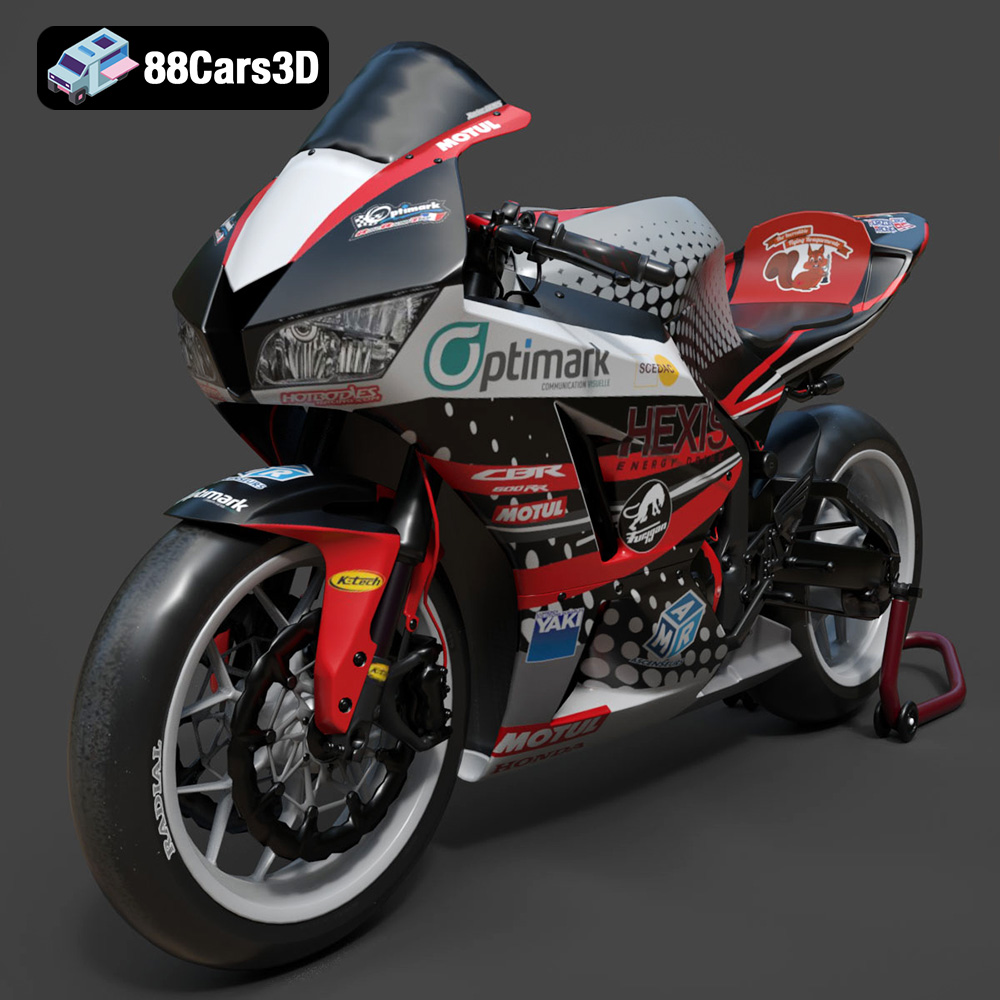
Texture: Yes | Material: Yes
Download the highly detailed, game-ready Honda CBR600RR 3D Model. Features aerodynamic fairings, an iconic center-up exhaust, and an aggressive track-focused stance. Includes .blend, .fbx, .obj, .glb, .stl, .ply, .unreal, and .max formats for game development, AR/VR, and rendering.
Price: $19.99
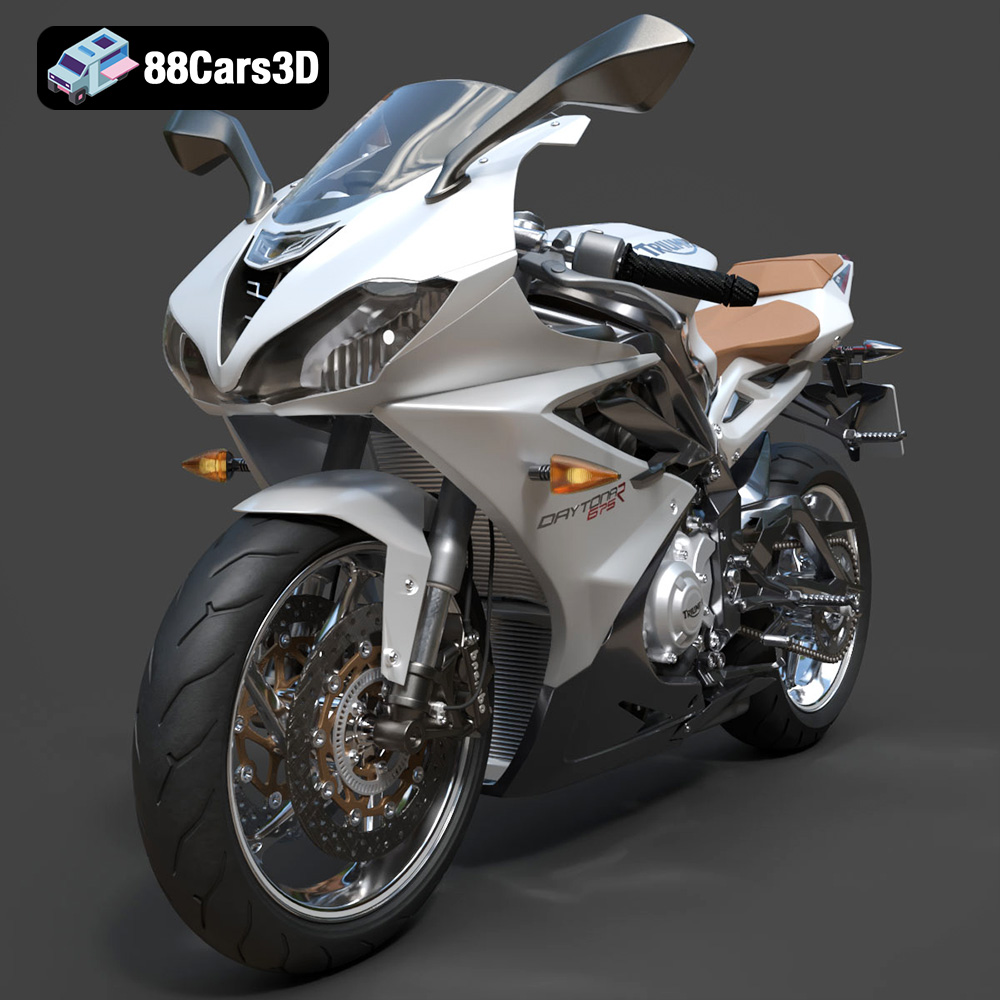
Texture: Yes | Material: Yes
Download the highly detailed, game-ready Triumph Daytona 675R ABS 2015 3D Model. Features aerodynamic sport fairings, a detailed inline-triple engine, and premium Öhlins suspension components. Includes .blend, .fbx, .obj, .glb, .stl, .ply, .unreal, and .max formats for game development, AR/VR, and rendering.
Price: $19.99

Texture: Yes | Material: Yes
Download the highly detailed, game-ready Toyota Tacoma TRD Off-Road 2016 3D Model. Features a rugged exterior, TRD off-road suspension details, and a meticulously crafted interior. Includes .blend, .fbx, .obj, .glb, .stl, .ply, .unreal, and .max formats for game development, AR/VR, and rendering.
Price: $19.99

Texture: Yes | Material: Yes
Download the highly detailed, game-ready Toyota Supra 2020 3D Model. Features aggressive aerodynamic styling, a distinctive double-bubble roof, and accurate B58 engine components. Includes .blend, .fbx, .obj, .glb, .stl, .ply, .unreal, and .max formats for game development, AR/VR, and rendering.
Price: $19.99

Texture: Yes | Material: Yes
Download the highly detailed, game-ready Toyota RAV4 LE 2019 3D Model. Features rugged exterior styling, signature polygonal motif, and a detailed interior. Includes .blend, .fbx, .obj, .glb, .stl, .ply, .unreal, and .max formats for game development, AR/VR, and rendering.
Price: $19.99

