Get 20% OFF All Premium 3D & STL Models!

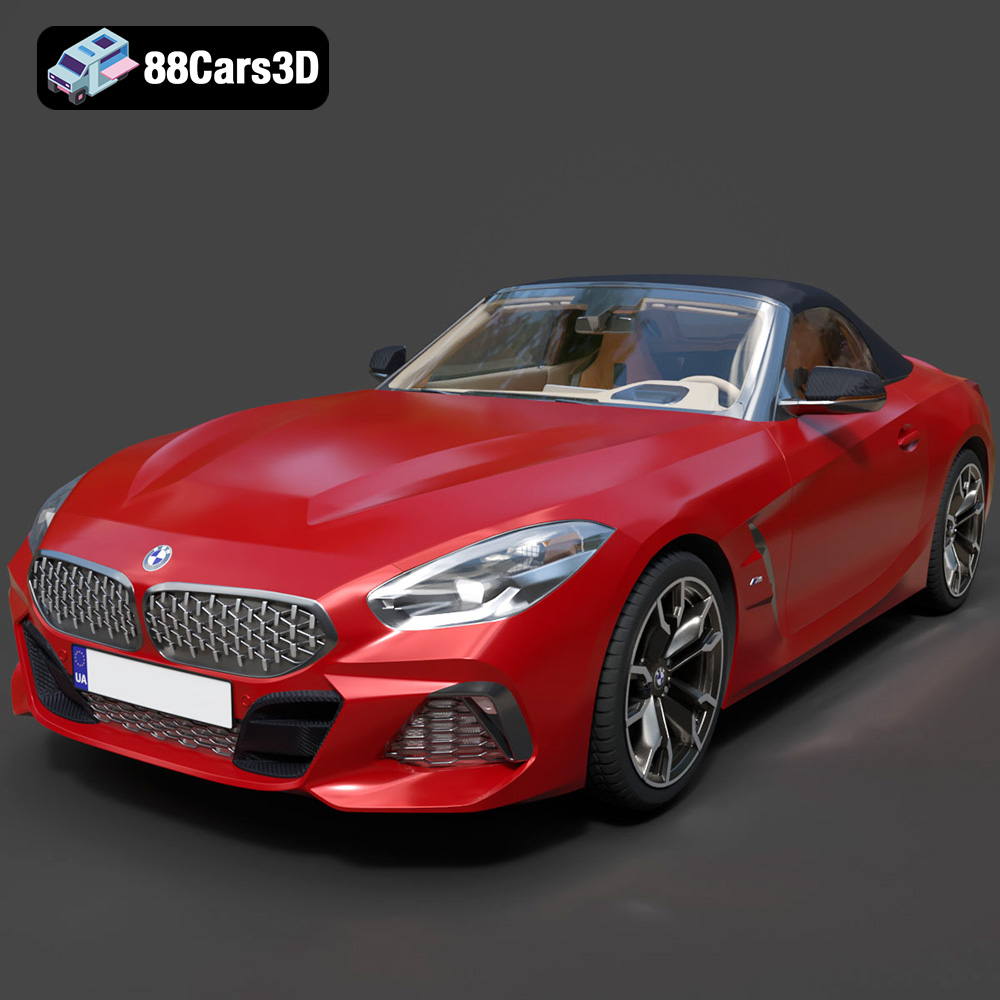
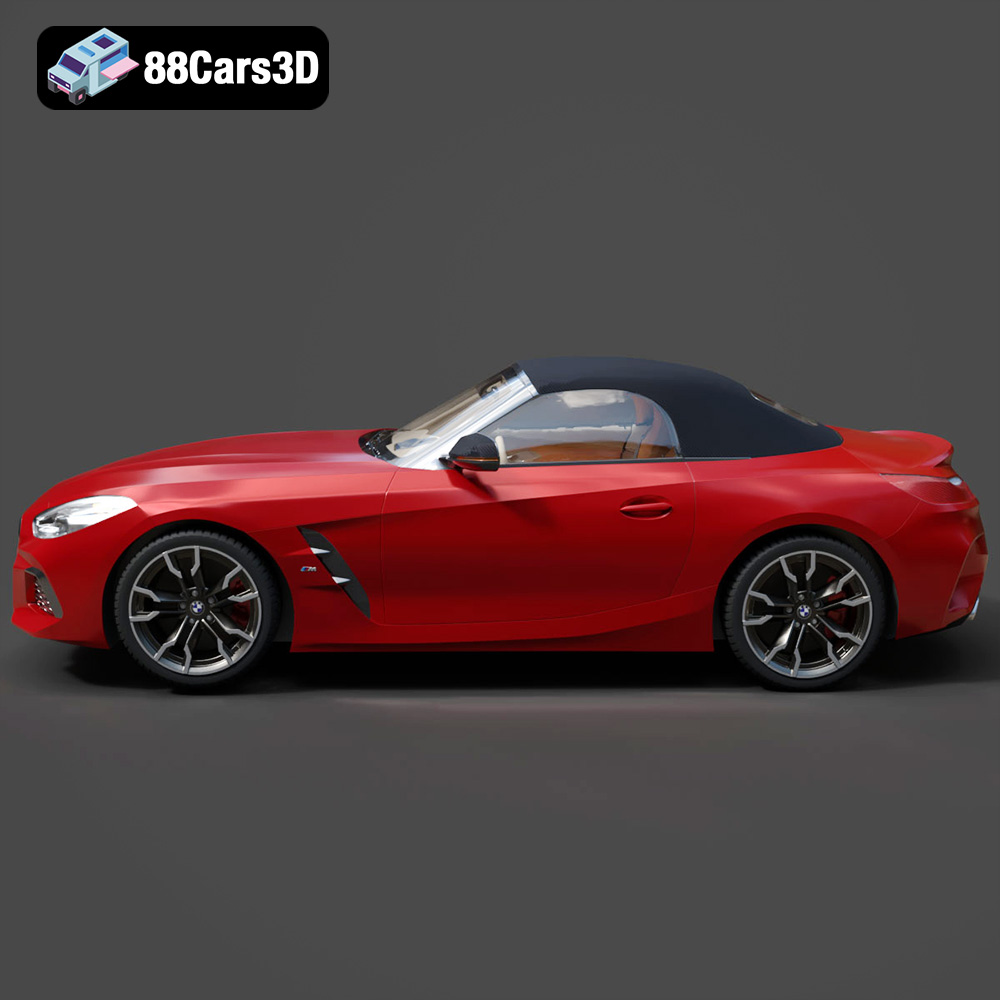
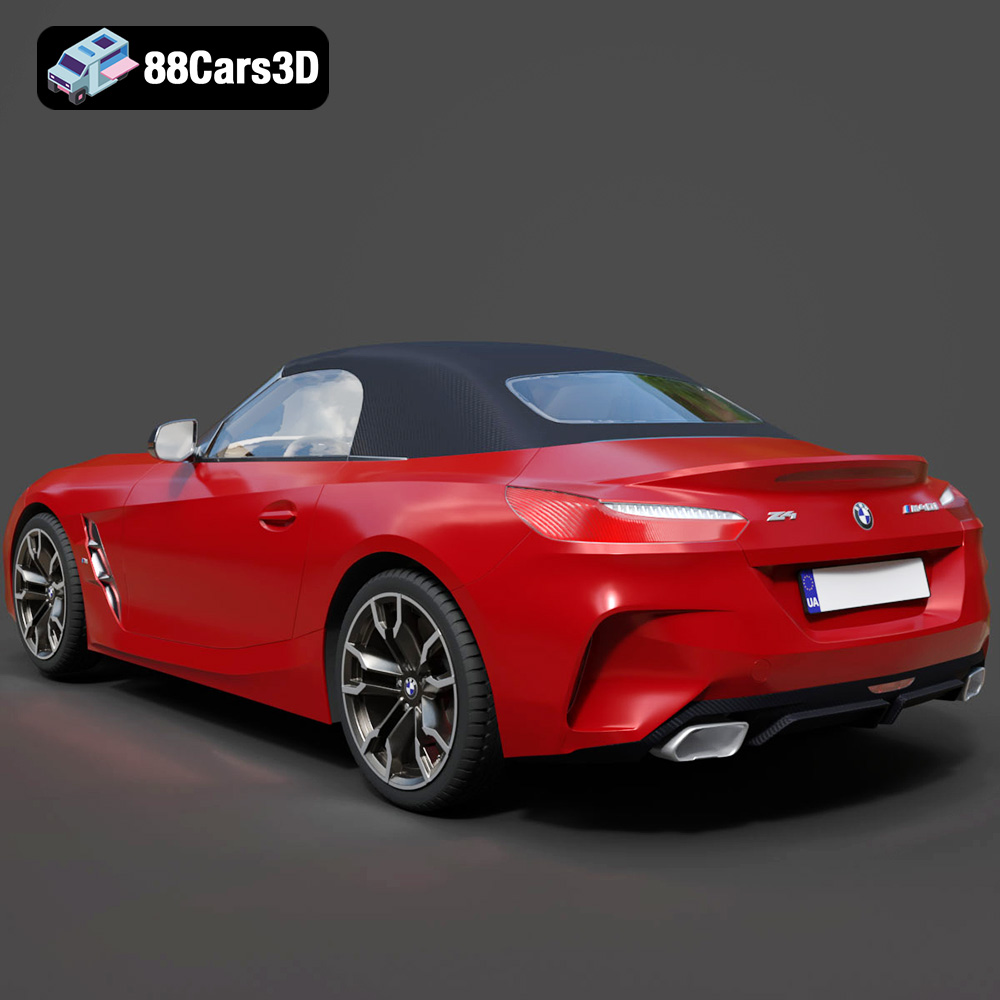
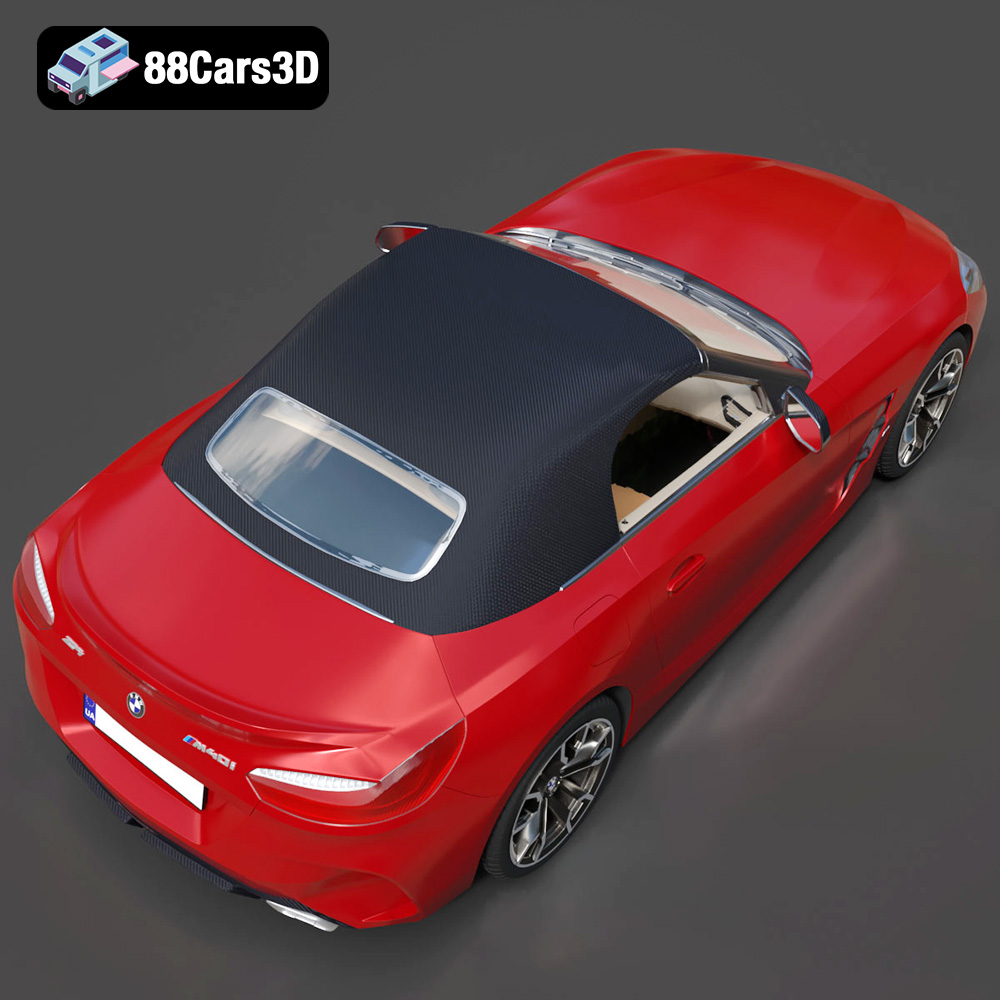
The BMW Z4 Mk3 G29 Roadster M40i – a symphony of sleek lines, powerful performance, and top-down freedom. Now, imagine capturing that essence, that tangible thrill, and holding it in your hands. With the power of 3D printing, that dream becomes reality. This guide will take you through the process of bringing the stunning BMW Z4 Mk3 G29 Roadster M40i 3D model from 88cars3d.com to life, covering everything from pre-print preparation to post-processing perfection. Whether you’re a seasoned 3D printing enthusiast or a curious newcomer, this comprehensive guide will equip you with the knowledge and techniques to create a miniature masterpiece.
Before you fire up your 3D printer, careful preparation is crucial for a successful print. This involves inspecting the model, choosing the right slicing software, and optimizing it for additive manufacturing.
* **Mesh Integrity:** Examine the STL file in your slicing software or a mesh editing program like Meshmixer or Blender. Look for non-manifold edges (edges shared by more than two faces), holes, or intersecting geometry. These flaws can lead to printing errors.
* **Using Mesh Repair Tools:** Most slicing software includes automatic mesh repair tools. Cura, PrusaSlicer, and Simplify3D all offer options to “fix” or “heal” models. These tools attempt to close gaps and correct errors, ensuring a watertight model suitable for printing.
* **Manual Repair (Advanced):** For more complex errors, you might need to use a dedicated mesh editing program. Meshmixer’s “Make Solid” function is particularly useful for converting a complex mesh into a printable solid. Blender’s sculpting tools can also be employed for finer adjustments.
* **Popular Options:** Cura, PrusaSlicer, Simplify3D, and Chitubox (for resin printing) are all excellent choices. Each has its strengths and weaknesses, but all offer the essential features for slicing and generating G-code.
* **Feature Considerations:** Look for features like automatic support generation, variable layer height, infill control, and advanced settings for fine-tuning print parameters.
* **Software Compatibility:** Ensure the slicing software is compatible with your 3D printer and operating system. Many manufacturers provide custom profiles for their printers within popular slicing software.
* **Orientation for Detail:** Consider the orientation of the model on the print bed. Orienting the Z4 with the roof facing upwards will generally result in better detail on the body panels, but might require more supports. Experiment to find the best compromise between detail and support usage.
* **Minimizing Support Material:** Strategically orient the model to minimize the need for supports. Overhanging areas will require support structures, which can be time-consuming to remove and may leave blemishes on the finished print.
* **Scaling Considerations:** Decide on the desired scale of your model. Larger models showcase more detail but require more print time and material. Smaller models are quicker to print but may sacrifice fine features. Ensure the chosen scale is appropriate for your printer’s build volume. Remember that significantly scaling down the model might require thicker walls to maintain structural integrity.
The world of 3D models is filled with various file formats, each with its strengths and weaknesses. Understanding these formats is crucial for ensuring a smooth 3D printing experience, especially when dealing with intricate models like the BMW Z4 Mk3 G29 Roadster M40i. Choosing the right format can affect print quality, compatibility with slicing software, and the overall efficiency of your 3D printing workflow.
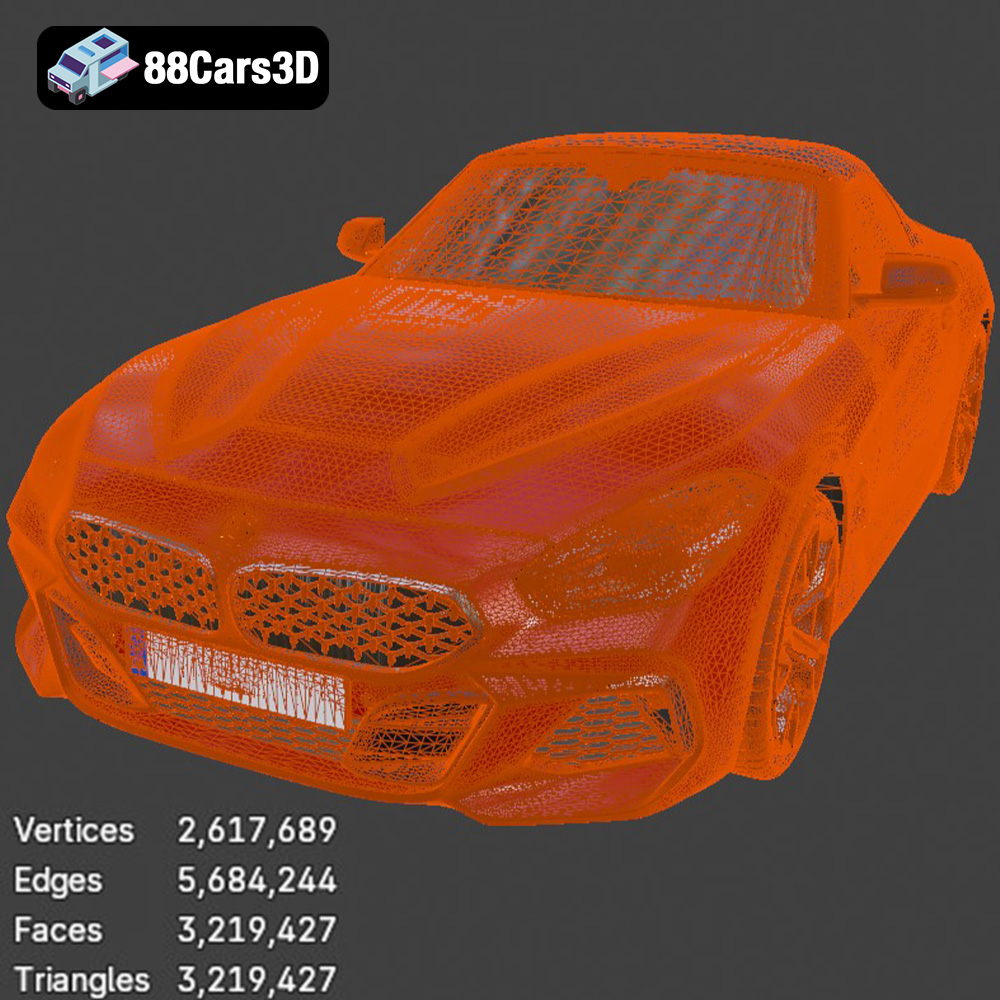
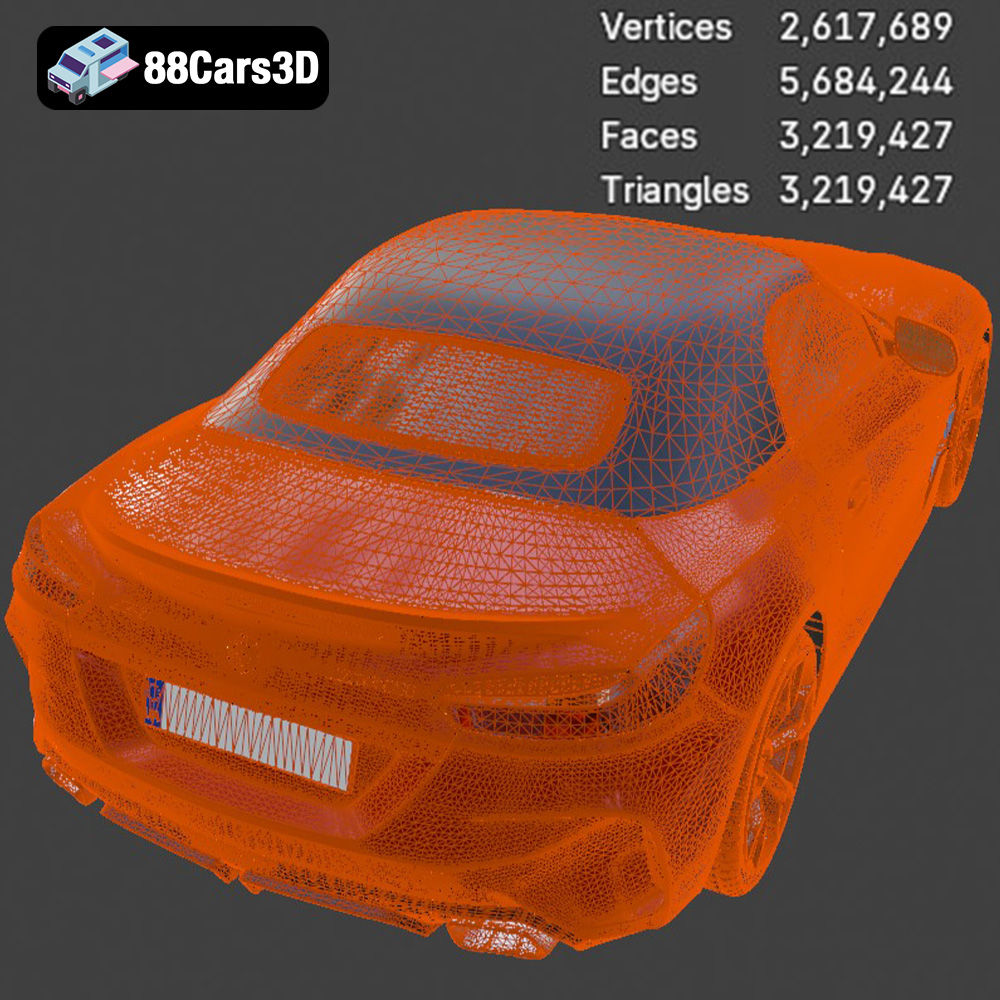
* **.stl – Industry standard for 3D printing, mesh-only format:** The STL (Stereolithography) format is the workhorse of 3D printing. It represents the surface geometry of a 3D object as a collection of triangles. It’s simple, widely supported, and compatible with almost every 3D printer and slicing software. However, STL files only store information about the shape of the object; they don’t include color, texture, or material properties. This makes it ideal for printing in a single color or material. The quality of an STL file is determined by the number of triangles used to represent the object. Higher triangle counts result in smoother surfaces but also larger file sizes. For the BMW Z4, using an STL with a high triangle count is recommended to capture its sleek curves accurately. When exporting to STL, ensure your software allows you to control the mesh resolution.
* **.obj – Universal format with texture support for colored prints:** The OBJ format is a more versatile format than STL, as it can store color and texture information in addition to the 3D geometry. This makes it suitable for printing models with multiple colors or textures, although this requires a printer capable of handling multiple materials. However, OBJ files can be larger than STL files and may not be supported by all slicing software.
* **.ply – Precision mesh format for high-detail prints:** The PLY (Polygon File Format) is designed to store 3D data acquired from 3D scanners. It can store color, texture, and other properties, but its primary advantage lies in its ability to represent complex geometry with high precision. While PLY files can be used for 3D printing, they are less common than STL or OBJ, and compatibility with slicing software may be limited.
* **.blend – Editable Blender scene for customization before export:** BLEND files are native to the Blender 3D modeling software. They contain the entire scene, including the 3D model, materials, textures, lighting, and camera settings. While BLEND files themselves aren’t directly printable, they offer the most flexibility for customizing the BMW Z4 model before exporting it to a printable format like STL. If you want to modify the model’s design or add custom features, using Blender is highly recommended.
* **.fbx – For importing into slicing software with materials:** The FBX (Filmbox) format is primarily used for exchanging 3D data between different software applications, particularly in the game development and animation industries. It supports a wide range of data, including geometry, textures, materials, animation, and rigging. While some slicing software can import FBX files, they are not typically used for direct 3D printing. FBX is more useful for transferring the model into a game engine after printing.
* **.glb – For previewing models in AR before printing:** GLB is a binary file format representing 3D models, using the glTF (GL Transmission Format) standard. It’s designed for efficient transmission and loading of 3D scenes and models, particularly in web-based applications and augmented reality (AR) experiences. GLB files are not intended for 3D printing directly but are excellent for previewing the BMW Z4 model in AR to get a sense of its scale and appearance before committing to a print.
* **.max – Editable 3ds Max project for modifications:** Similar to BLEND files, MAX files are native to Autodesk 3ds Max. They contain the complete scene data, including the 3D model, materials, textures, lighting, and rendering settings. Like BLEND files, MAX files are not directly printable but offer extensive customization options for the model.
For 3D printing the BMW Z4 Mk3 G29 Roadster M40i from 88cars3d.com, the STL format is the ideal choice due to its widespread compatibility and simplicity. Ensure the STL file has sufficient mesh density to capture the car’s details, and always repair any mesh errors before slicing. While other formats like OBJ and PLY offer additional features, they are generally not necessary for basic 3D printing applications. If you plan to customize the model, use Blender (BLEND) or 3ds Max (MAX) and then export the modified model as an STL file for printing.
The choice of filament significantly impacts the final appearance, strength, and durability of your 3D printed BMW Z4. Each material has its own set of properties and printing requirements.
* **Pros:** PLA is biodegradable, easy to print with, and produces minimal warping. It’s a great option for beginners and for creating models that don’t require high strength or heat resistance.
* **Cons:** PLA is not as strong or heat-resistant as other filaments. It can soften or deform at temperatures above 60°C (140°F).
* **Recommended Settings:** Print temperature: 200-220°C, Bed temperature: 50-60°C, Print speed: 40-60 mm/s.
* **Pros:** PETG offers a good balance of strength, flexibility, and heat resistance. It’s more durable than PLA and can withstand higher temperatures.
* **Cons:** PETG can be more prone to stringing than PLA, requiring careful tuning of print settings. It also requires higher print temperatures.
* **Recommended Settings:** Print temperature: 230-250°C, Bed temperature: 70-80°C, Print speed: 40-50 mm/s.
* **Pros:** Resin printing offers exceptional detail and smooth surfaces, ideal for capturing the intricate features of the BMW Z4.
* **Cons:** Resin printing requires specialized equipment, including a resin printer and post-processing tools. Resins can be toxic and require careful handling. Printed parts are often brittle.
* **Recommended Settings:** (Vary depending on the resin and printer) Layer height: 0.025-0.05 mm, Exposure time: Varies based on resin.
For general display purposes, PLA or PETG are both viable options. If you desire incredibly fine detail, resin printing is the way to go, particularly for smaller-scale models. However, keep in mind the increased complexity and safety precautions associated with resin.
Achieving a flawless 3D print requires carefully configuring your printer settings. These settings control how the filament is extruded and deposited, influencing the quality, strength, and appearance of the final product.
* **Lower Layer Height (0.1mm – 0.15mm):** Produces finer details and smoother surfaces but increases print time significantly. Ideal for showcasing the intricate body lines of the Z4.
* **Higher Layer Height (0.2mm – 0.3mm):** Prints faster but sacrifices detail. Suitable for larger models where print time is a primary concern.
* **Adaptive Layer Height:** Some slicing software offers adaptive layer height, which automatically adjusts the layer height based on the geometry of the model. This can optimize both detail and print time.
* **Infill Density (10-20%):** Provides sufficient internal support for most display models without excessive material usage.
* **Infill Pattern:** Rectilinear, Gyroid, and Cubic are common infill patterns. Gyroid offers excellent strength in all directions and is a good choice for models that will be handled frequently.
* **Considerations:** For purely aesthetic models, a lower infill percentage (around 10%) is sufficient. If you require greater strength, increase the infill density to 25% or higher.
* **Support Placement:** Use automatic support generation in your slicing software, but carefully review the placement to ensure supports are only added where necessary.
* **Support Type:** Tree supports are often easier to remove than linear supports and can minimize scarring on the model’s surface.
* **Support Density:** Adjust the support density to balance support strength and ease of removal. Lower density supports are easier to remove but may not provide sufficient support for overhanging areas.
* **Support Interface:** Enabling a support interface layer creates a denser layer between the support structure and the model, improving support adhesion and reducing the risk of warping.
* **For the Z4:** The undercarriage and areas around the windshield frame will likely require supports.
Once your 3D print is complete, post-processing techniques can elevate the model from a raw print to a polished masterpiece.
* **Tools:** Use pliers, flush cutters, and a hobby knife to carefully remove support structures.
* **Techniques:** Start by gently snapping off larger support sections. For smaller, more delicate supports, use a hobby knife to carefully cut them away from the model.
* **Caution:** Avoid excessive force, which can damage the model. Take your time and work in small increments.
* **Wet Sanding:** Wet sanding with progressively finer grits of sandpaper (e.g., 220, 400, 600, 800, 1000) is the most effective way to smooth out layer lines and imperfections.
* **Priming:** Apply a thin coat of primer to fill in any remaining imperfections and provide a smooth surface for painting.
* **Dry Sanding:** Use dry sanding for the initial passes on larger imperfections, but wet sanding is highly recommended for the final passes.
* **Acrylic Paints:** Acrylic paints are a good choice for 3D printed models because they adhere well to plastic and are available in a wide range of colors.
* **Airbrushing (Optional):** Airbrushing provides a smooth, even finish and allows for blending and shading techniques.
* **Detailing:** Use fine-tipped brushes and enamel paints to add details such as headlights, taillights, and badges.
* **Clear Coat:** Apply a clear coat to protect the paint and add a glossy finish.
* **Adhesives:** Cyanoacrylate (super glue) is a common adhesive for 3D printed parts.
* **Alignment:** Use clamps or tape to hold parts in place while the adhesive cures.
* **Considerations:** If your model consists of multiple parts, plan the assembly process carefully. Consider using locating pins or slots to ensure accurate alignment.
Even with careful preparation, 3D printing can present challenges. Here are some common issues and their solutions:
* **Cause:** Uneven cooling of the print, causing it to detach from the build plate.
* **Solutions:** Ensure the build plate is clean and level. Use a heated bed (60°C for PLA, 70-80°C for PETG). Apply an adhesive like glue stick or hairspray to the build plate. Enclose the printer to maintain a consistent temperature.
* **Cause:** Excess filament oozing from the nozzle during travel moves.
* **Solutions:** Increase retraction distance and speed. Lower print temperature. Increase travel speed. Ensure the filament is dry.
* **Cause:** Loose belts, stepper motor issues, or excessive print speed.
* **Solutions:** Tighten belts. Check stepper motor drivers. Reduce print speed. Ensure the printer is stable and free from vibrations.
* **Cause:** Clogged nozzle, insufficient extrusion multiplier, or incorrect filament diameter settings.
* **Solutions:** Clean or replace the nozzle. Increase the extrusion multiplier. Verify the filament diameter setting in your slicing software. Check the extruder for proper function.
Given the intricate details of the BMW Z4 Mk3 G29 Roadster M40i, here are some specific tips for optimizing the model for 3D printing:
* **Separate Small Details:** Consider separating very small details, such as the side mirrors or badges, into separate STL files. These can be printed separately and then glued onto the main body after printing, often yielding better results.
* **Hollowing the Model:** For larger models, hollowing the interior can significantly reduce material consumption and print time. Ensure the model has drainage holes to allow resin or excess filament to escape.
* **Reinforcing Thin Walls:** If the model has thin walls, consider thickening them in your 3D modeling software to improve structural integrity.
* **Test Prints:** Before committing to a full print, consider printing a small test section of the model to verify your settings and identify any potential issues.
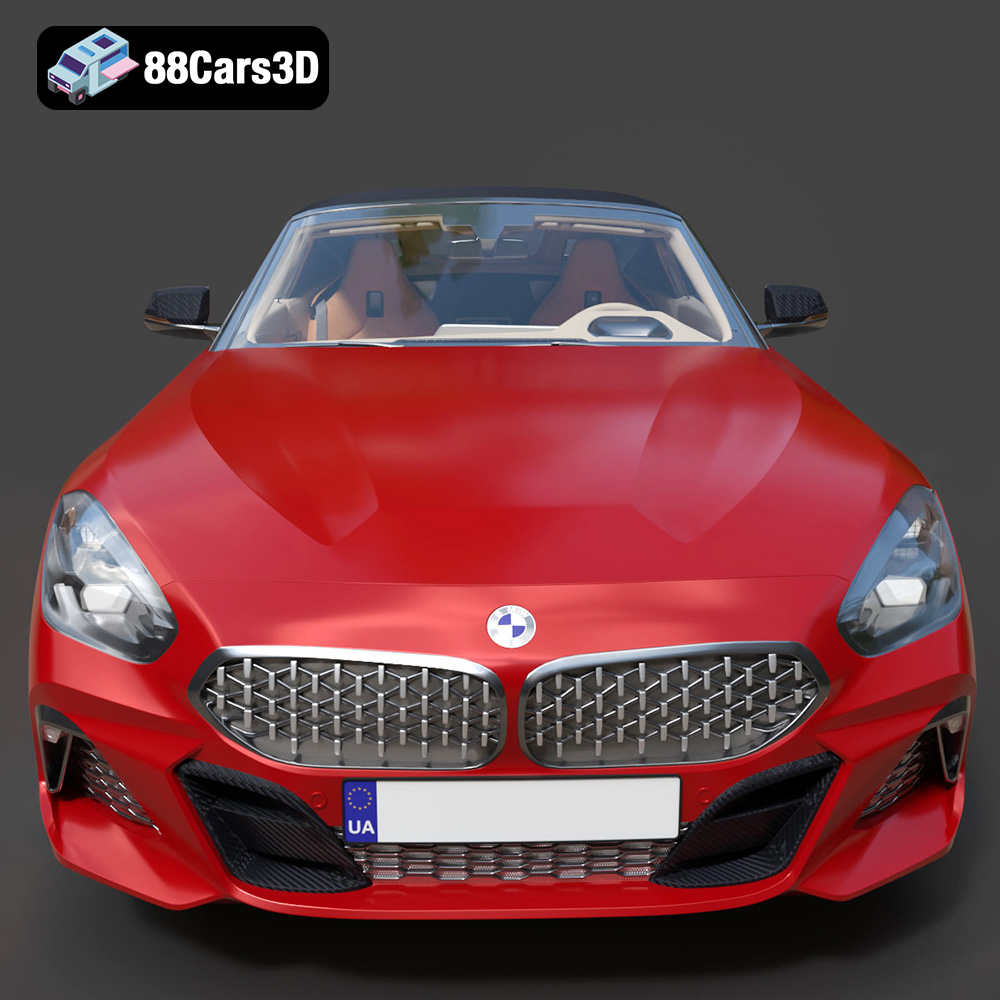
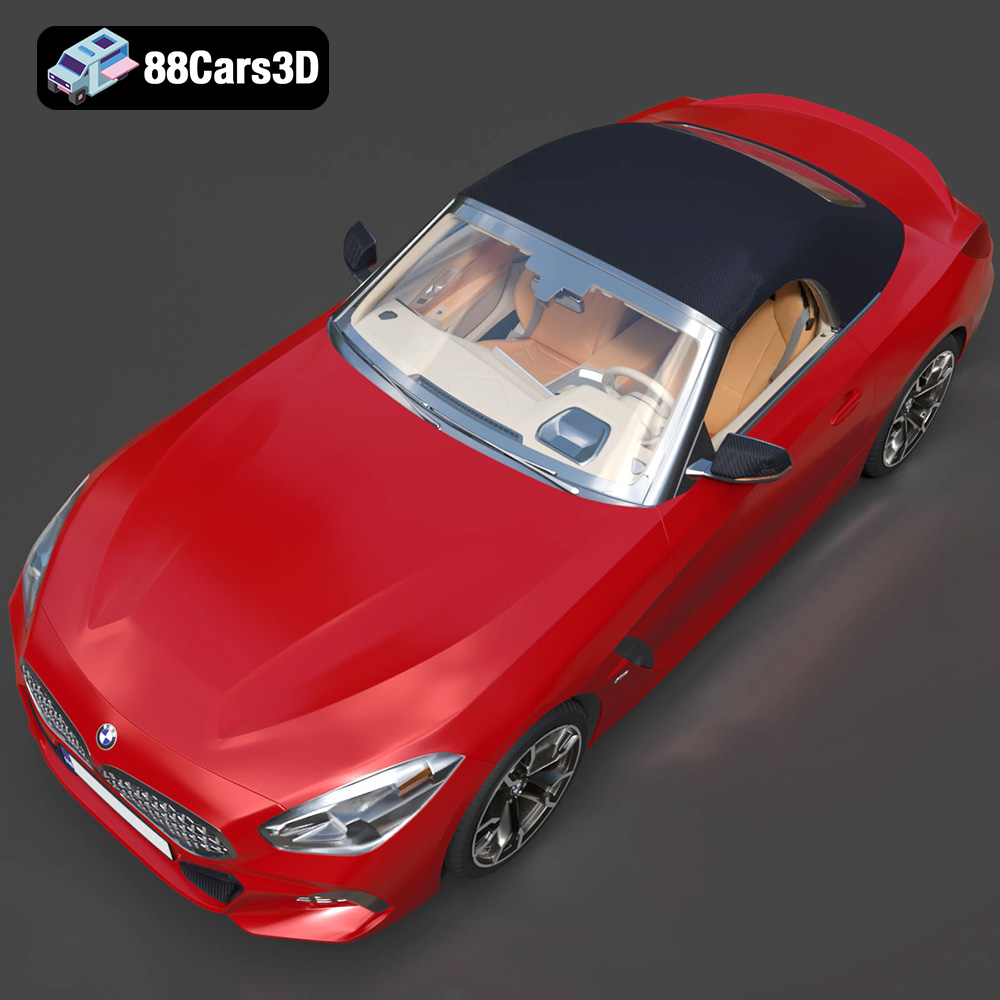
Experience true realism with the BMW Z4 Mk3 G29 Roadster M40i 2019 3D Model. Crafted with precision, this model perfectly captures the dynamic lines, aggressive stance, and elegant curves of the iconic roadster. This premium 3D model features clean geometry, realistic materials, and professional-grade detailing. The exterior and interior are meticulously built to ensure an accurate representation from every angle, providing a reliable asset for any professional digital workspace. Ideal for a wide range of applications, this vehicle is perfectly suited for game development, detailed rendering, AR/VR experiences, simulation environments, and commercial visualizations.
$19.99
3D printing the BMW Z4 Mk3 G29 Roadster M40i from 88cars3d.com is a rewarding project that combines technical skill with artistic expression. By understanding the nuances of pre-print preparation, material selection, printer settings, and post-processing techniques, you can transform a digital file into a stunning physical representation of this iconic roadster. Remember to inspect the STL files, choose the appropriate printing material, fine-tune your printer settings, and carefully apply post-processing techniques to achieve a professional-quality finish. With patience and practice, you’ll be cruising the streets with your very own 3D printed Z4 in no time. Happy printing! And don’t forget to check out 88cars3d.com for more incredible 3D models to fuel your additive manufacturing passion.
.arvr
.blend
.bmw
.car3dmodel
.convertible
.fbx
.g29
.gameasset
.glb
.m40i
.max
.mk3
.obj
.ply
.rendering
.roadster
.simulation
.sportsCar
.stl
.unreal
.z4