Get 20% OFF All Premium 3D & STL Models!

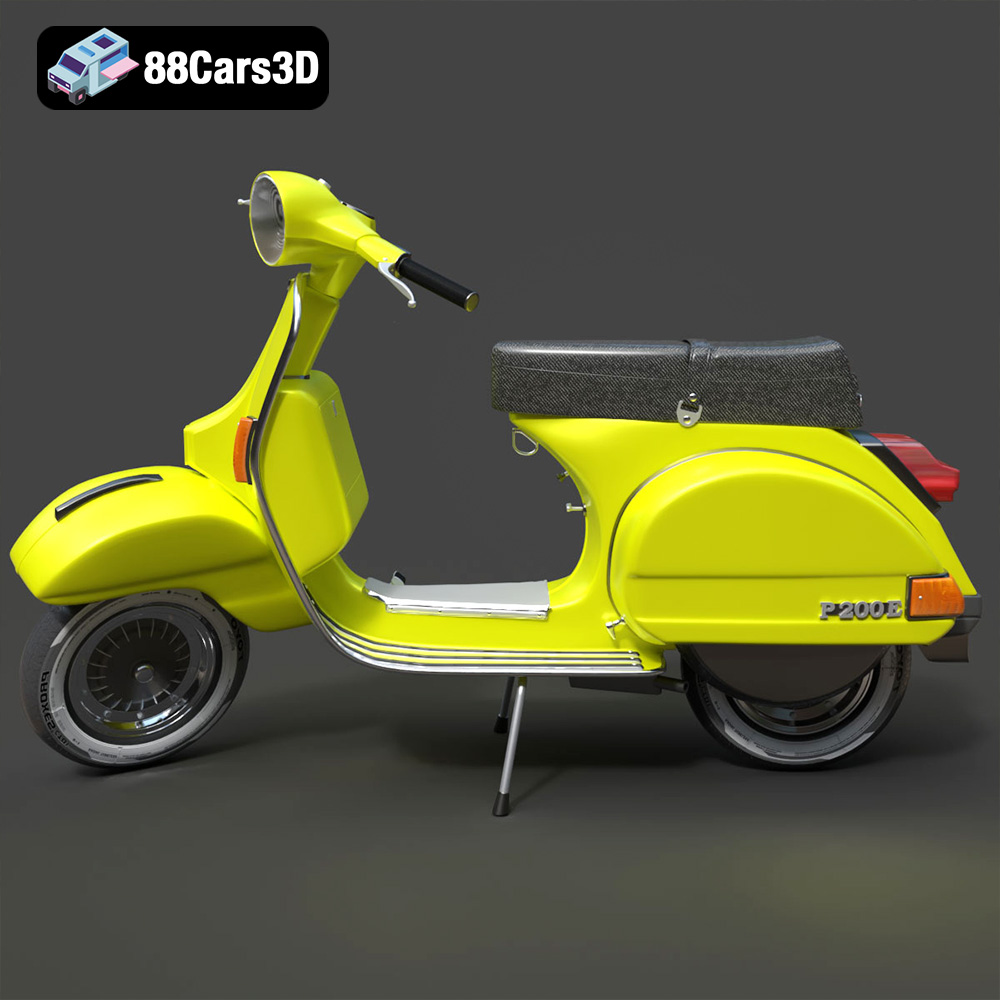
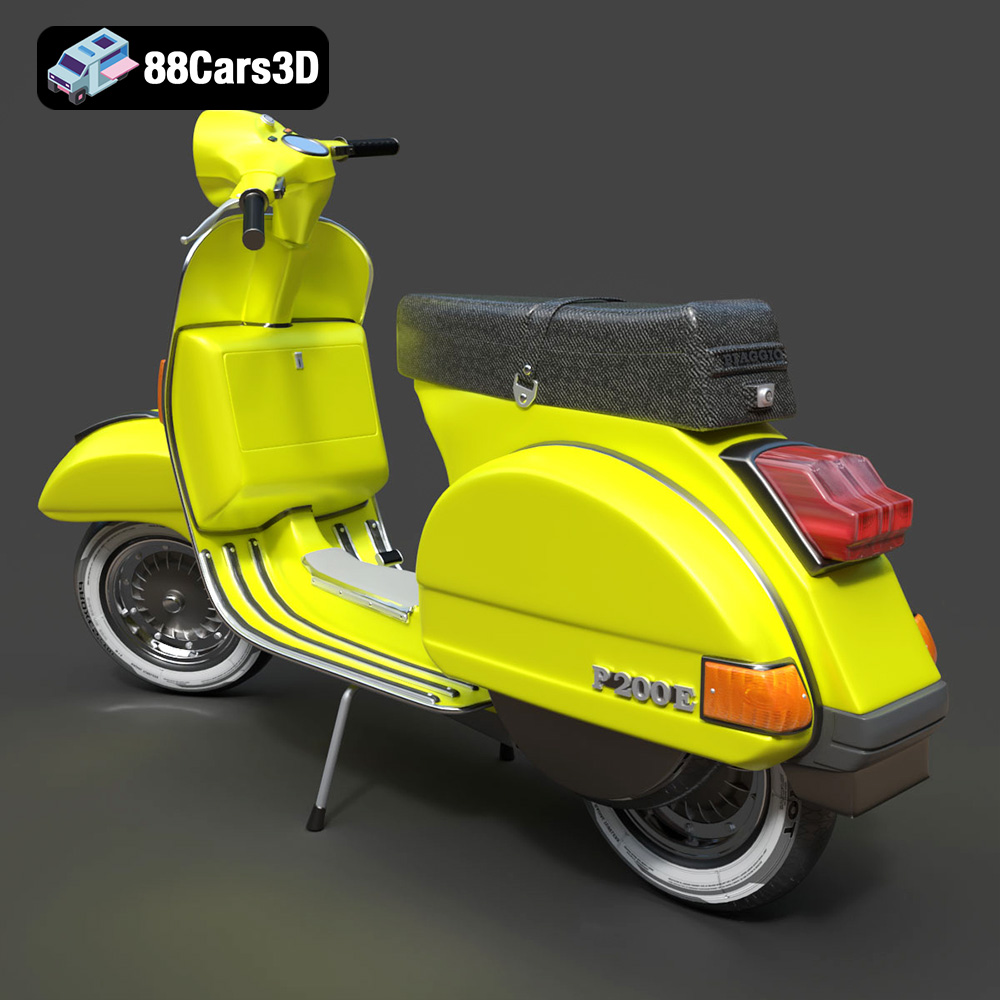
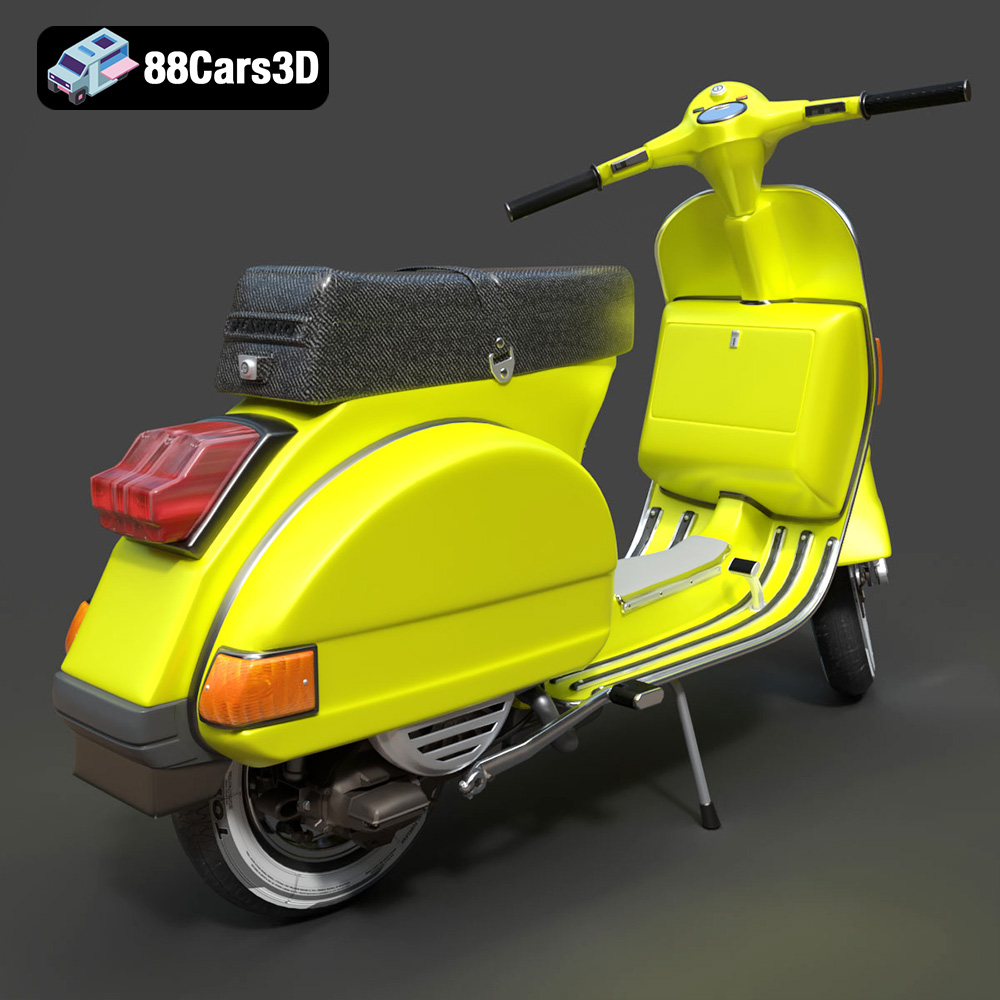
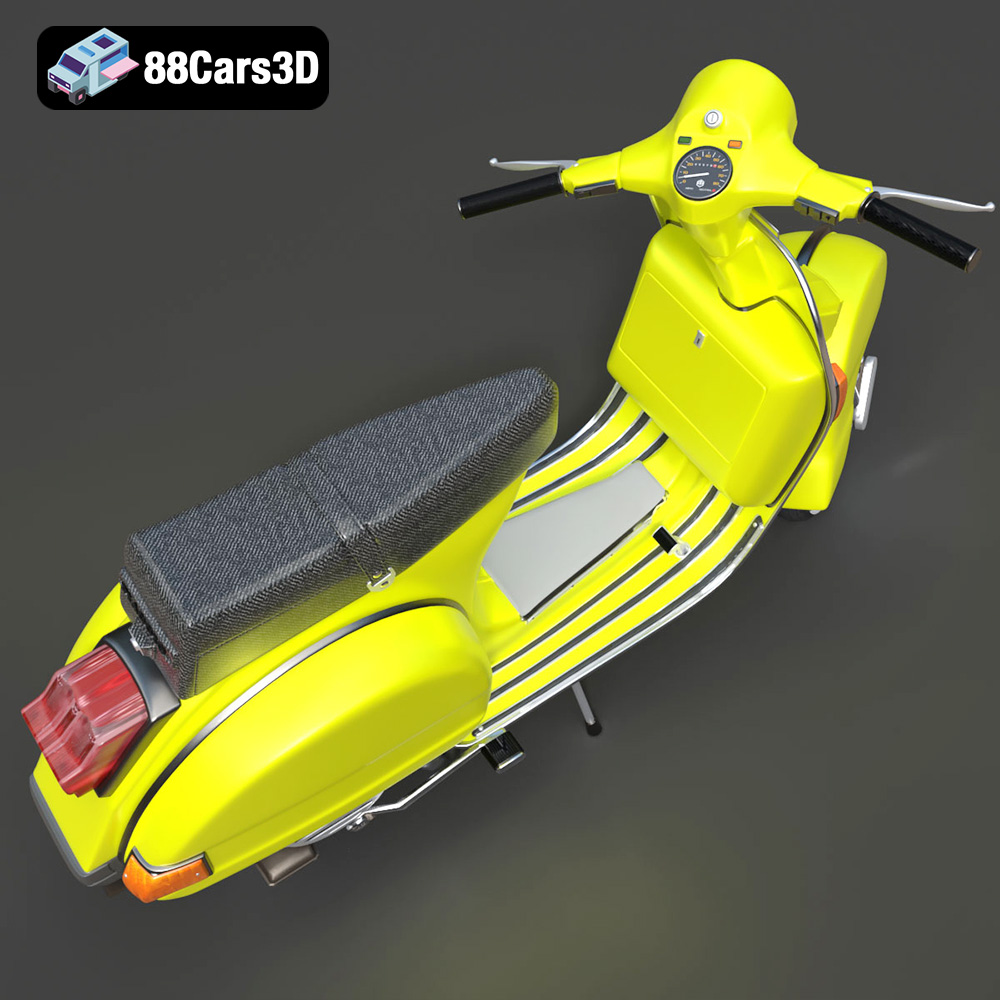
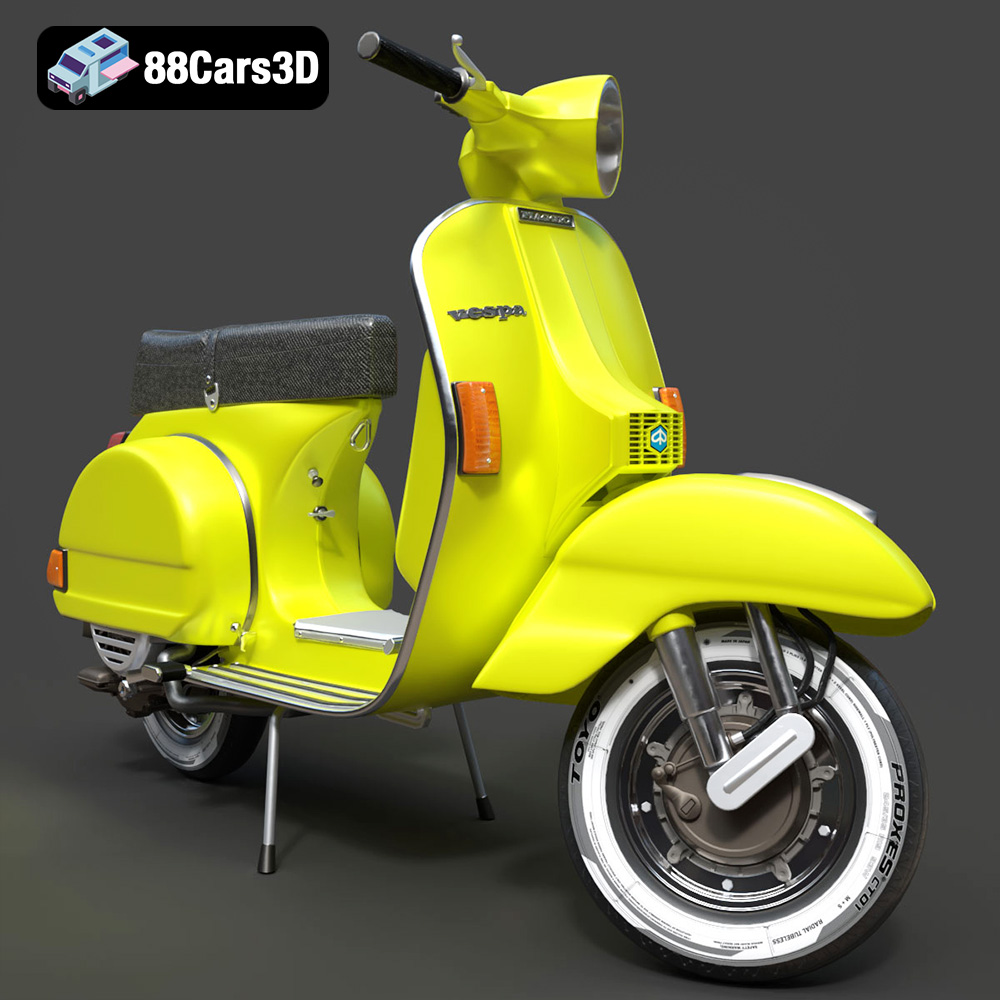
The Vespa P200E, a symbol of Italian style and freedom, can now be brought to life through the magic of 3D printing. This guide provides a deep dive into successfully 3D printing the meticulously crafted Vespa P200E 3D model available on 88cars3d.com. We’ll cover everything from selecting the right materials and printer settings to pre-print preparation and post-processing techniques, ensuring you achieve a stunning, detailed replica of this classic scooter. Whether you’re a seasoned 3D printing enthusiast or just starting out, this article will equip you with the knowledge to tackle this exciting project. The provided STL files of the Vespa P200E offer incredible detail, enabling you to create a fantastic 3D printed model.
Choosing the correct file format is crucial for a successful 3D printing endeavor. While the Vespa P200E model is available in multiple formats, understanding their nuances is key. Let’s break down the most common formats and their suitability for additive manufacturing.
The STL (Stereolithography) file format is the workhorse of 3D printing. It represents the surface geometry of a 3D object as a collection of triangles. This simplicity makes it universally compatible with virtually all slicing software and 3D printers. However, STL files only store the shape of the object; they don’t contain information about color, textures, or materials. The STL format is the PRIMARY format to utilize for 3D printing the Vespa P200E model. All necessary preparations for printing can be done on this file type.
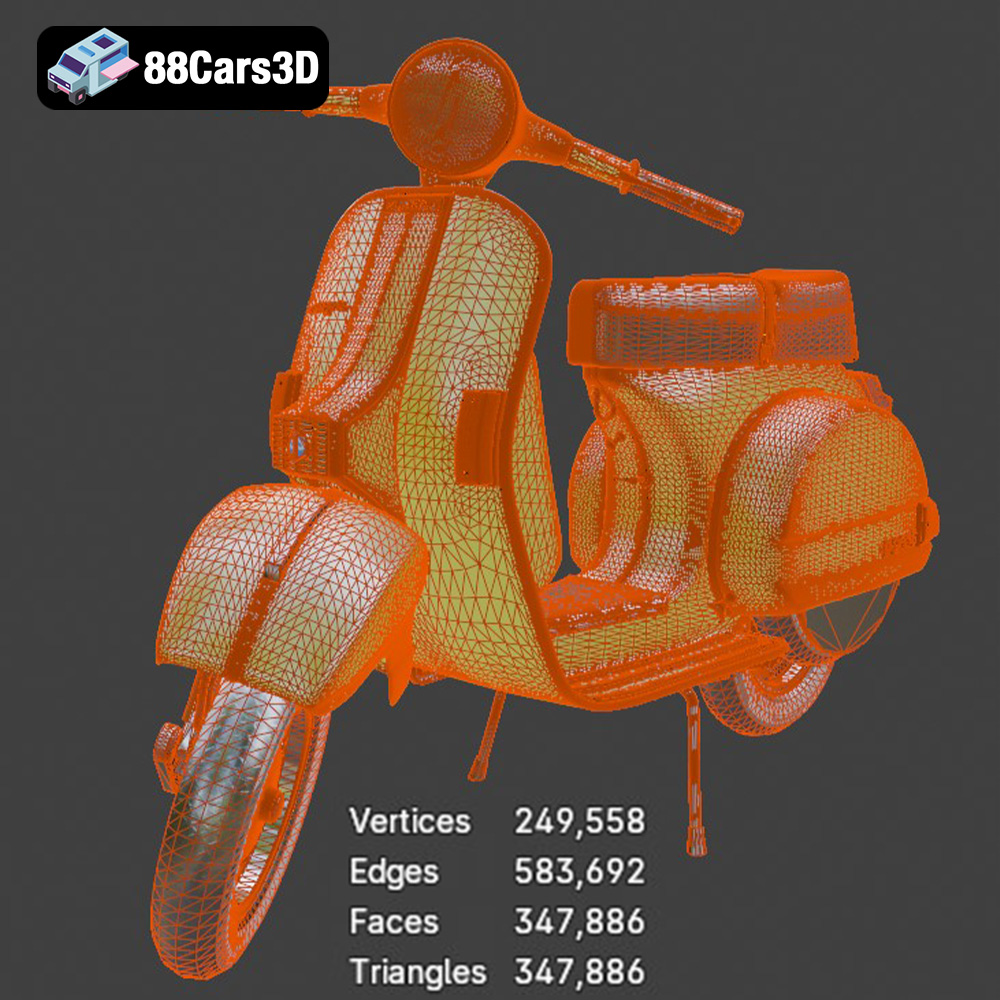
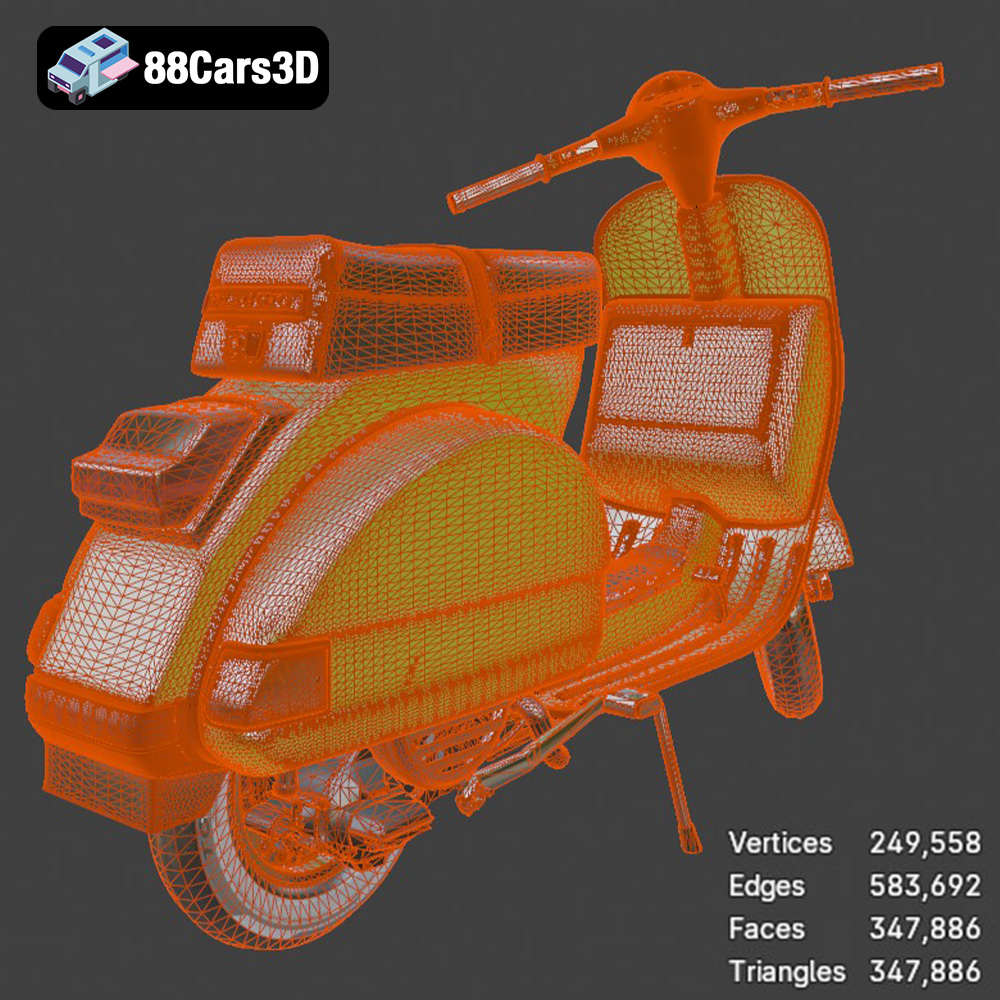
The quality of an STL file is determined by the number of triangles used to represent the object. A higher triangle count results in a smoother, more detailed surface, but also a larger file size and potentially longer processing times. When preparing the Vespa P200E STL for printing, it’s important to strike a balance between detail and practicality.
Potential issues with STL files include:
* **Holes and Gaps:** These can occur if the mesh is not properly closed or if there are errors in the original modeling process. Slicing software can sometimes automatically repair these issues, but manual repair using mesh editing tools is often necessary.
* **Non-Manifold Geometry:** This refers to edges that are shared by more than two faces, or faces that intersect each other. Non-manifold geometry can cause significant problems during slicing and printing.
* **Inverted Normals:** Normals define the “outward” direction of a face. If normals are inverted, the slicer may interpret the geometry incorrectly, leading to missing sections or other errors.
Fortunately, most slicing programs can detect and automatically correct many of these issues. For more complex problems, software like Meshmixer or MeshLab can be used to manually repair the STL file.
OBJ (Wavefront Object) files are another popular 3D model format. Unlike STL, OBJ files can store color and texture information, making them suitable for printing models with multiple colors or intricate surface details. However, not all 3D printers support color printing, and even those that do may have limitations on the range of colors they can reproduce. OBJ files of the Vespa P200E model are better suited to visualizing the object for reference, rather than direct printing.
PLY (Polygon File Format) is designed for storing 3D data acquired from 3D scanners. It can represent complex geometries with high accuracy, making it suitable for printing models with fine details. However, PLY files can be quite large, and not all slicing software supports them natively. The .ply included with the Vespa P200E is useful for extremely high detail visualization and advanced user modification, but generally not the best choice for day-to-day printing.
The .blend format is the native file format for Blender, a popular open-source 3D modeling software. It stores the entire Blender scene, including the object’s geometry, materials, textures, lighting, and animation data. The .blend of the Vespa P200E is useful for modifications to the model for advanced users of the Blender software. This format is useful for users who wish to modify the model before exporting it in a 3D printable format like STL.
FBX (Filmbox) is a proprietary file format developed by Autodesk. It’s commonly used for exchanging 3D data between different software applications. FBX files can store geometry, materials, textures, and animation data. While some slicing software can import FBX files, it’s often better to convert them to STL for 3D printing, especially if the model doesn’t require color or texture information.
GLB (GL Transmission Format Binary) is a binary file format for representing 3D models. It’s designed to be compact and efficient, making it suitable for web-based applications and augmented reality (AR) experiences. GLB files can store geometry, materials, textures, and animations. You can use the .glb included with the Vespa P200E to view the model in AR using compatible mobile applications.
Similar to Blender’s .blend, the .max format is the native file format for Autodesk 3ds Max. It stores the entire project, including geometry, materials, lighting, and animations. This format is valuable for users familiar with 3ds Max who want to make modifications to the model before exporting it in a 3D printable format like STL.
Ultimately, for 3D printing the Vespa P200E, the STL format is your best bet. Ensure the STL file is properly prepared, free of errors, and optimized for your chosen printing parameters.
Before you can start printing your Vespa P200E, you need to prepare the 3D model using slicing software. This involves importing the STL file, configuring the printer settings, and generating the G-code that the printer will use to create the object.
Several excellent slicing software options are available, each with its own strengths and weaknesses. Popular choices include:
* **Cura:** A free and open-source slicer that’s easy to use and offers a wide range of customization options.
* **PrusaSlicer:** Another free and open-source slicer known for its advanced features and excellent print quality.
* **Simplify3D:** A commercial slicer that offers advanced control over print settings and supports a wide range of printers.
For beginners, Cura is an excellent starting point due to its user-friendly interface and extensive online documentation. PrusaSlicer is a great choice for more experienced users who want to fine-tune their print settings. Simplify3D is a powerful option for professionals who need advanced control over their printing process.
The orientation of the model on the print bed can significantly impact the print quality and the amount of support material required. For the Vespa P200E, printing the frame at an angle (as recommended in the product description) can improve the structural integrity of the part and reduce the need for supports in certain areas. However, this may also increase the print time and material usage.
Support structures are necessary to support overhanging features during printing. Automatic support generation tools in slicing software can often do a decent job, but manual placement is often required to optimize support effectiveness and minimize material usage. Pay close attention to areas like the exhaust, mirrors, and handlebars, which will likely require support. Consider using tree supports, which are more efficient and easier to remove than traditional linear supports.
The Vespa P200E model can be scaled to different sizes depending on your desired final product. The product description recommends scales of 1:12, 1:18, and 1:24. Choose a scale that suits your printer’s build volume and your desired level of detail.
Before slicing, it’s essential to check the STL file for errors, such as holes, gaps, and non-manifold geometry. Slicing software often has built-in tools to automatically repair these issues. If the errors are more severe, you may need to use mesh editing software like Meshmixer or MeshLab to manually repair the model.
The choice of material can significantly impact the appearance, strength, and durability of your 3D printed Vespa P200E. Here’s an overview of common 3D printing materials and their suitability for this project:
PLA (Polylactic Acid) is a biodegradable thermoplastic that’s easy to print and produces good results on most FDM (Fused Deposition Modeling) printers. It’s a great choice for beginners due to its low printing temperature, minimal warping, and wide availability. However, PLA is not as strong or heat-resistant as other materials, so it may not be suitable for parts that will be subjected to high stress or temperatures.
For the Vespa P200E, PLA can be used for the main frame and other large components. However, it’s best to avoid using PLA for small, delicate parts that may be easily broken.
PETG (Polyethylene Terephthalate Glycol-modified) is a thermoplastic that offers a good balance of strength, durability, and ease of printing. It’s more heat-resistant and impact-resistant than PLA, making it a better choice for parts that need to withstand higher stress or temperatures. PETG can be slightly more challenging to print than PLA, as it requires higher printing temperatures and may be more prone to stringing.
PETG is a good option for the Vespa P200E’s wheels, suspension components, and other parts that need to be strong and durable.
Resin printing, using technologies like SLA (Stereolithography) or DLP (Digital Light Processing), offers the highest level of detail and surface finish. Resin printers use liquid photopolymers that are cured by UV light, resulting in parts with smooth surfaces and intricate details. Resin is ideal for small and detailed components such as the instrument cluster, lights, and small trim pieces on the Vespa P200E.
However, resin printing can be more expensive and time-consuming than FDM printing. Resin materials are also generally more brittle than FDM materials, so they may not be suitable for parts that need to be highly durable. Resin printers also require more post-processing, including washing and curing the printed parts.
* **Frame:** PLA or PETG
* **Wheels:** PETG
* **Suspension Components:** PETG
* **Engine Housing:** PLA or PETG
* **Exhaust:** PETG (due to potential heat exposure) or Resin (for detail)
* **Mirrors:** Resin
* **Handlebars:** Resin
* **Instrument Cluster:** Resin
* **Seat:** PLA (covered in fabric or vinyl)
The optimal printer settings will depend on your chosen material, printer type, and desired level of detail. Here are some general guidelines for printing the Vespa P200E:
Layer height is the thickness of each layer of material deposited by the printer. Lower layer heights result in smoother surfaces and finer details, but also increase the print time. The product description recommends layer heights of 0.04–0.12 mm for resin printing. For FDM printing, layer heights of 0.1–0.2 mm are generally a good starting point.
Infill density is the amount of material used to fill the interior of the part. Higher infill densities result in stronger parts, but also increase the print time and material usage. The product description recommends infill densities of 20–30%. For parts that need to be particularly strong, such as the wheels or suspension components, you may want to increase the infill density to 50% or higher.
Wall thickness refers to the number of perimeters printed around the outside of the part. Thicker walls result in stronger parts and better surface finish. The product description recommends wall thicknesses of 1.2–2.0 mm.
Print speed is the speed at which the printer head moves while depositing material. Slower print speeds generally result in better print quality, but also increase the print time. Start with a moderate print speed and adjust as needed based on the results. For PLA, a print speed of 50-60 mm/s is often a good starting point. For PETG, a print speed of 40-50 mm/s is recommended.
Proper bed adhesion is essential for preventing warping and detachment during printing. Ensure that your print bed is clean and level. You may also need to use a bed adhesion aid, such as glue stick, hairspray, or painter’s tape.
Once the parts are printed, they’ll need to be post-processed to achieve the desired final result. This may involve removing supports, sanding, priming, painting, and assembling the various components.
Carefully remove the support structures using pliers, a sharp knife, or other tools. Be careful not to damage the printed parts during support removal. Once the supports are removed, sand the surfaces of the parts to remove any imperfections and smooth out the layer lines. Start with a coarse grit sandpaper (e.g., 220 grit) and gradually move to finer grits (e.g., 400 grit, 600 grit, 800 grit) to achieve a smooth finish.
Priming is essential for creating a smooth, even surface for painting. Apply a thin coat of primer to the parts and let it dry completely. Then, sand the primer lightly with fine-grit sandpaper (e.g., 600 grit) to remove any imperfections.
Painting the Vespa P200E in authentic factory colors will bring it to life. Research the original color options and use high-quality paints designed for plastic models. Apply multiple thin coats of paint, allowing each coat to dry completely before applying the next. Consider using metallic paints for the chrome accents and other details.
Once the parts are painted, carefully assemble them using glue, screws, or other fasteners. Pay close attention to the alignment of the parts and ensure that everything fits together properly. The separate wheels, suspension, and steering components allow for articulation, so be sure to assemble them in a way that allows for smooth movement.
Even with careful planning and preparation, 3D printing can sometimes be challenging. Here are some common issues and how to troubleshoot them:
* **Warping:** This occurs when the corners of the part lift off the print bed during printing. To prevent warping, ensure that your print bed is level and heated to the correct temperature. You may also need to use a bed adhesion aid.
* **Stringing:** This occurs when thin strands of filament are left between different parts of the print. To prevent stringing, reduce the printing temperature, increase the retraction distance, and decrease the travel speed.
* **Layer Shifting:** This occurs when the layers of the print are misaligned. To prevent layer shifting, ensure that your printer’s belts are tight and that the print bed is stable.
* **Poor Bed Adhesion:** This occurs when the first layer of the print does not adhere properly to the print bed. To improve bed adhesion, clean the print bed with isopropyl alcohol, apply a bed adhesion aid, and adjust the Z-offset.
By understanding these common issues and how to address them, you can overcome many of the challenges associated with 3D printing and achieve excellent results.
By following this comprehensive guide, you’ll be well-equipped to 3D print a stunning replica of the Vespa P200E. This project allows you to bring a piece of iconic Italian design into your home, showcasing the power and versatility of 3D printing. Remember to check out 88cars3d.com for more incredible 3D models optimized for printing and other applications.
The Vespa P200E is a true icon of Italian design, celebrated for its timeless styling and reliable 2-stroke engine. This 3D model perfectly captures the scooter’s distinctive step-through frame, signature rear engine cowlings, and classic vintage aesthetic that made it a cultural phenomenon. From the rounded headlamp to the unmistakable tail section, every curve has been meticulously recreated to offer an authentic representation of this legendary two-wheeler.
$19.99
.blend
.fbx
.glb
.max
.obj
.ply
.rendering
.scooter
.stl
.unreal
.vespa
.vintage
classic-scooter
game asset
game-ready
low-poly
motorcycle-3d-model
optimized
p200e
VR/AR