Get 20% OFF All Premium 3D & STL Models!

“`html
3D printing has revolutionized various industries, from prototyping to manufacturing, and even hobbies like model making. However, the journey from digital design to a tangible object isn’t always smooth. One of the most common roadblocks is encountering errors in STL files, the standard file format for 3D printing. These errors can lead to failed prints, poor surface quality, and overall frustration. Before you send that meticulously chosen car model from 88cars3d.com to your 3D printer, it’s crucial to ensure the STL file is error-free. This comprehensive guide will walk you through the common STL file errors, how to identify them, and, most importantly, how to fix them using various software tools and techniques. We’ll cover everything from basic mesh inspection to advanced repair strategies, empowering you to achieve perfect prints every time.
In this article, you’ll learn:
The STL (Stereolithography) file format represents 3D models as a collection of triangular facets. Each triangle is defined by its three vertices and a normal vector indicating its orientation. While seemingly simple, this representation can be prone to errors that hinder successful 3D printing. These errors often stem from issues in the original 3D modeling process or during file conversion.
A crucial concept in STL files is “manifold geometry.” A manifold mesh is essentially one that represents a closed, watertight surface. Imagine a perfectly sealed container; that’s a manifold object. Non-manifold geometry, on the other hand, has edges or vertices that are shared by more than two triangles, or it has holes that break the watertight seal. These non-manifold elements are a primary source of 3D printing problems. Software like Netfabb excels at identifying and automatically repairing these types of errors. When downloading models from marketplaces such as 88cars3d.com, it’s good practice to still check the model for these errors, even if the seller claims the model is print-ready.
Here’s a breakdown of the common errors you might encounter:
Autodesk Meshmixer is a free and powerful tool for inspecting and repairing STL files. Its robust analysis and repair tools make it a staple in any 3D printing enthusiast’s toolkit. Meshmixer allows you to visually identify and automatically fix many common STL errors. Furthermore, Meshmixer offers great tools for editing a mesh like hollowing, infilling, and creating support structures.
First, import your STL file into Meshmixer by navigating to “File > Import.” Once loaded, use the “Analysis” tool (found under “Edit”) to inspect the mesh for errors. Selecting “Inspector” highlights problematic areas in different colors, indicating the type of error. For example, red markers typically denote holes, while pink markers indicate non-manifold edges. The “Make Solid” tool within Meshmixer is especially useful for creating watertight meshes. This feature intelligently fills gaps and repairs minor errors, often resolving issues automatically.
Meshmixer offers both automatic and manual repair options. For automatic repair, click the “Auto Repair All” button in the Inspector panel. Meshmixer will attempt to fix the identified errors. For more control, you can manually select individual error markers and choose specific repair options. To address holes, Meshmixer offers different fill modes, such as “Minimal Fill,” “Flat Fill,” and “Smooth Fill,” each suitable for different types of gaps. When dealing with inverted normals, select the affected triangles and use the “Flip Normals” command (found in the “Edit” menu). For complex self-intersections, the “Remesh” tool can help simplify the geometry and resolve the conflicts, but this can also change the shape of the model.
Autodesk Netfabb is a professional-grade software solution for 3D printing preparation and optimization. While not free like Meshmixer, its advanced repair capabilities and comprehensive feature set make it a valuable tool for demanding 3D printing applications. Netfabb provides granular control over mesh repair and offers sophisticated tools for optimizing STL files for printability. Specifically, the ability to create custom support structures and lattice infills makes it a great tool for advanced users.
After importing your STL file into Netfabb, the first step is to run a diagnostic analysis. Navigate to “Analysis > New Analysis.” Netfabb will thoroughly examine the mesh and identify various errors, including holes, inverted normals, and self-intersections. The results are presented in a detailed report, providing information about the number and type of errors found. Netfabb goes beyond simple error detection, offering detailed insights into mesh quality and potential printing issues.
Netfabb’s repair tools are highly customizable. The “Automatic Repair” function offers various options, such as “Standard Repair,” “Extended Repair,” and “Shell Treatment.” The “Standard Repair” addresses common errors like holes and inverted normals. The “Extended Repair” is more aggressive and can fix more complex issues, but it may also alter the geometry slightly. The “Shell Treatment” is designed to create a watertight shell, ensuring a solid print. Netfabb’s manual repair tools allow you to directly edit the mesh, fixing errors with precision. For example, you can manually bridge gaps, stitch edges, and remove duplicate triangles. The “Mesh Edit” tools provide a wide range of options for refining the mesh geometry. When using Netfabb, you can adjust the resolution to reduce the size of the STL file.
Even with a repaired STL file, slicing parameters play a crucial role in achieving successful 3D prints. Slicing software, such as Cura and PrusaSlicer, converts the 3D model into a series of layers that the printer can understand. Optimizing these settings can compensate for minor imperfections in the STL file and improve overall print quality. This is particularly important when printing detailed car models from platforms like 88cars3d.com.
Layer height directly impacts the resolution and surface finish of the print. A lower layer height (e.g., 0.1mm) produces smoother surfaces but increases print time. A higher layer height (e.g., 0.2mm) prints faster but results in more visible layer lines. Experiment to find the optimal balance for your specific model and printer. Infill density determines the internal solidity of the object. Higher infill (e.g., 20-30%) provides greater strength but increases material usage and print time. Lower infill (e.g., 10-15%) prints faster and uses less material but may compromise structural integrity. For complex models with overhangs, increasing infill can provide additional support. Selecting the right infill pattern (e.g., Gyroid, Cubic, Concentric) can also improve print quality and strength.
Support structures are essential for printing overhangs and complex geometries. However, poorly designed supports can be difficult to remove and leave unsightly marks on the finished print. Optimize support placement and density to minimize material usage and improve surface quality. Cura and PrusaSlicer offer various support settings, such as support type (e.g., tree, linear), support density, and support overhang angle. Tree supports are often preferred for their ease of removal and minimal impact on the printed surface. Adjusting the support interface layer thickness and density can also improve adhesion and prevent support failure. Consider using soluble support materials for complex geometries where support removal is challenging.
The choice of material and proper printer calibration are critical for successful 3D printing, especially when dealing with intricate models. Different materials have different properties, requiring specific printer settings. A properly calibrated printer ensures accurate dimensions and consistent layer adhesion.
PLA (Polylactic Acid) is a biodegradable and easy-to-print material, making it a popular choice for beginners. It has low warping and good adhesion but is not as heat-resistant or durable as other materials. PETG (Polyethylene Terephthalate Glycol) offers a good balance of strength, flexibility, and heat resistance. It is more durable than PLA and easier to print than ABS. ABS (Acrylonitrile Butadiene Styrene) is a strong and heat-resistant material commonly used in automotive applications. However, it is prone to warping and requires a heated bed and enclosure. Resin printing offers extremely high detail and smooth surfaces, ideal for miniatures and intricate models. However, resin printers are more expensive and require post-processing, such as washing and curing.
Proper bed leveling is essential for good adhesion. A well-leveled bed ensures that the first layer is evenly distributed and adheres properly. Calibrate the bed using manual leveling or automatic bed leveling systems. Temperature settings are crucial for material adhesion and layer bonding. Refer to the material manufacturer’s recommendations for optimal nozzle and bed temperatures. Adjust the flow rate to ensure proper material extrusion. Over-extrusion can lead to blobs and artifacts, while under-extrusion can cause gaps and weak layers. Perform a test print and adjust the flow rate accordingly. Consider performing a temperature tower test to determine the optimal printing temperature for your specific filament.
Even with careful preparation, 3D printing failures can occur. Identifying the root cause and implementing corrective measures is essential for achieving successful prints. Many common failures can be traced back to issues with the STL file, slicing parameters, or printer settings. Here are some common problems and how to address them.
Poor adhesion can cause the print to detach from the bed during printing. Ensure the bed is clean and properly leveled. Use a bed adhesive, such as glue stick or hairspray, to improve adhesion. Increase the bed temperature and adjust the nozzle temperature. For materials prone to warping, such as ABS, use a heated enclosure to maintain a consistent temperature. Increase the brim or raft size to provide a larger contact area with the bed. Verify that the first layer height and flow rate are properly calibrated.
Layer separation occurs when the layers do not properly bond together. Increase the nozzle temperature to improve layer adhesion. Decrease the print speed to allow more time for layer bonding. Increase the fan speed to cool the layers more quickly. Ensure the filament is dry and free from moisture. Check the extruder tension and adjust it if necessary. If the STL file has non-manifold errors, this can also lead to weak prints. Repair the STL file using Meshmixer or Netfabb.
Ensuring your STL files are error-free is paramount for successful 3D printing. By understanding the STL file structure, utilizing tools like Meshmixer and Netfabb for repair, and optimizing slicing parameters, you can significantly improve your print quality and reduce the likelihood of failures. Remember to choose the right material, calibrate your printer properly, and troubleshoot common issues systematically. Platforms like 88cars3d.com offer a wealth of printable car models, but the final success depends on your preparation and attention to detail. By following the steps outlined in this guide, you can confidently transform digital designs into tangible masterpieces, bringing your automotive dreams to life, one layer at a time.
Actionable Next Steps:
“`

Texture: Yes | Material: Yes
Download the highly detailed, game-ready Volkswagen Jetta GLI 2019 3D Model. Features an aggressive honeycomb grille with red accents, sleek aerodynamic profile, and exclusive GLI sport wheels. Includes .blend, .fbx, .obj, .glb, .stl, .ply, .unreal, and .max formats for game development, AR/VR, and rendering.
Price: $19.99

Texture: Yes | Material: Yes
Download the highly detailed, game-ready Vintage Vespa 3D Model. Features iconic rounded monocoque styling, classic saddle, and chrome accents. Includes .blend, .fbx, .obj, .glb, .stl, .ply, .unreal, and .max formats for game development, AR/VR, and rendering.
Price: $19.99

Texture: Yes | Material: Yes
Download the highly detailed, game-ready Vespa GS 150 3D Model. Features elegant aerodynamic curves, classic leg shield, and detailed engine casing. Includes .blend, .fbx, .obj, .glb, .stl, .ply, .unreal, and .max formats for game development, AR/VR, and rendering.
Price: $19.99

Texture: Yes | Material: Yes
Download the highly detailed, game-ready Vespa P200E 3D Model. Features classic vintage styling, accurate step-through frame geometry, and authentic detailing. Includes .blend, .fbx, .obj, .glb, .stl, .ply, .unreal, and .max formats for game development, AR/VR, and rendering.
Price: $19.99

Texture: Yes | Material: Yes
Download the highly detailed, game-ready Ural M67-36-P 1976 3D Model. Features the iconic air-cooled boxer engine, vintage utilitarian styling, and authentic spoked wheels. Includes .blend, .fbx, .obj, .glb, .stl, .ply, .unreal, and .max formats for game development, AR/VR, and rendering.
Price: $19.99
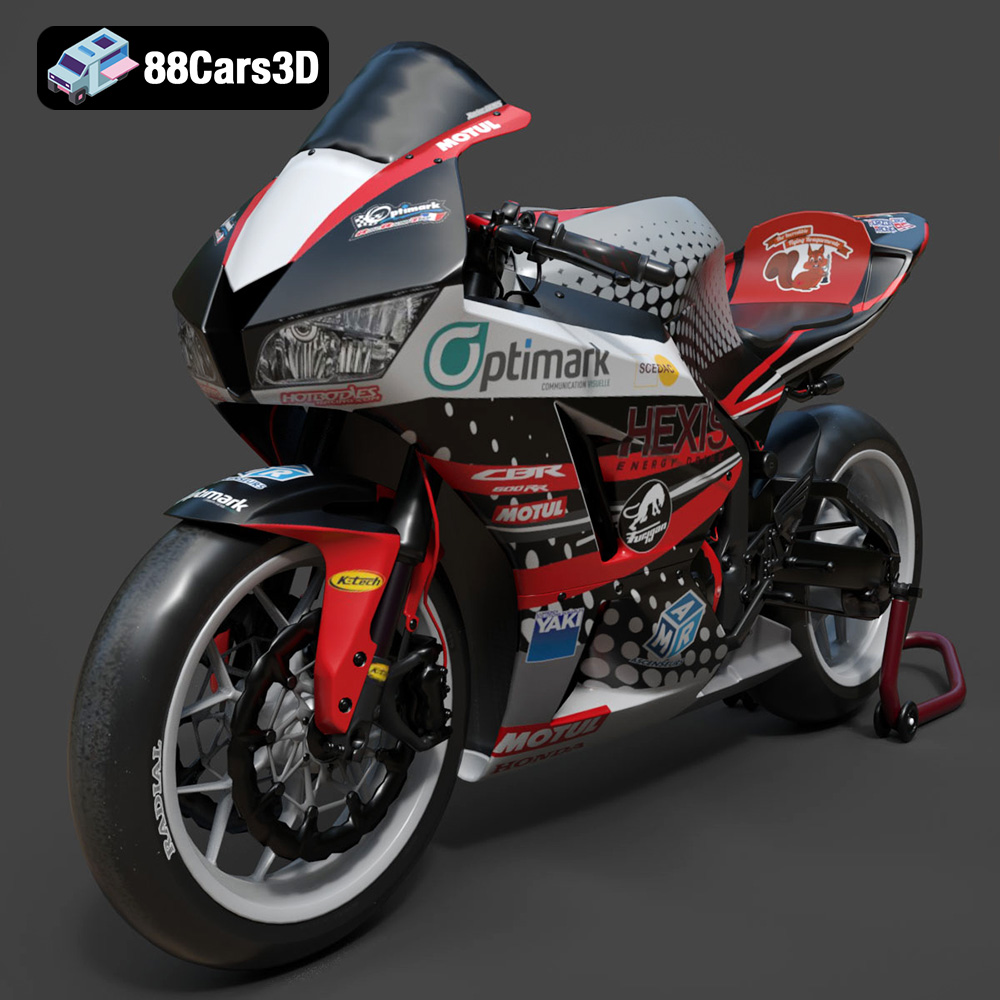
Texture: Yes | Material: Yes
Download the highly detailed, game-ready Honda CBR600RR 3D Model. Features aerodynamic fairings, an iconic center-up exhaust, and an aggressive track-focused stance. Includes .blend, .fbx, .obj, .glb, .stl, .ply, .unreal, and .max formats for game development, AR/VR, and rendering.
Price: $19.99
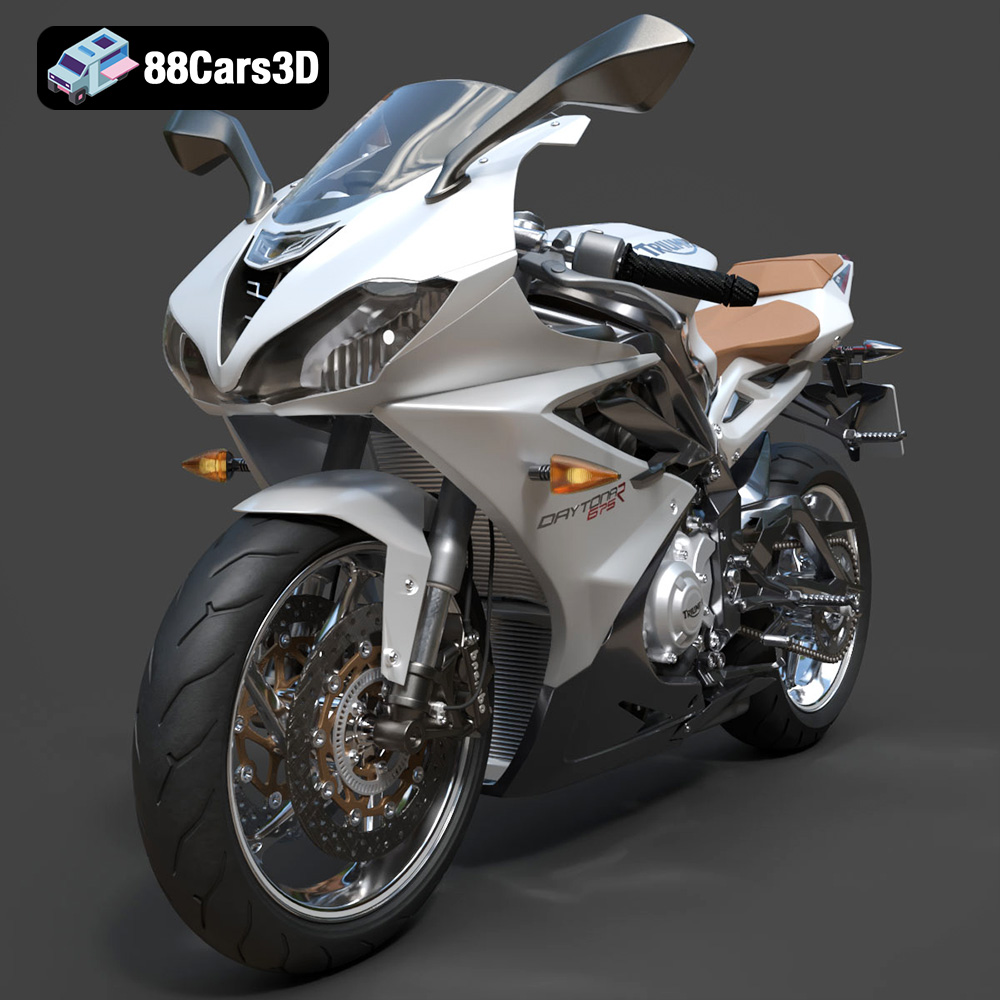
Texture: Yes | Material: Yes
Download the highly detailed, game-ready Triumph Daytona 675R ABS 2015 3D Model. Features aerodynamic sport fairings, a detailed inline-triple engine, and premium Öhlins suspension components. Includes .blend, .fbx, .obj, .glb, .stl, .ply, .unreal, and .max formats for game development, AR/VR, and rendering.
Price: $19.99

Texture: Yes | Material: Yes
Download the highly detailed, game-ready Toyota Tacoma TRD Off-Road 2016 3D Model. Features a rugged exterior, TRD off-road suspension details, and a meticulously crafted interior. Includes .blend, .fbx, .obj, .glb, .stl, .ply, .unreal, and .max formats for game development, AR/VR, and rendering.
Price: $19.99

Texture: Yes | Material: Yes
Download the highly detailed, game-ready Toyota Supra 2020 3D Model. Features aggressive aerodynamic styling, a distinctive double-bubble roof, and accurate B58 engine components. Includes .blend, .fbx, .obj, .glb, .stl, .ply, .unreal, and .max formats for game development, AR/VR, and rendering.
Price: $19.99

Texture: Yes | Material: Yes
Download the highly detailed, game-ready Toyota RAV4 LE 2019 3D Model. Features rugged exterior styling, signature polygonal motif, and a detailed interior. Includes .blend, .fbx, .obj, .glb, .stl, .ply, .unreal, and .max formats for game development, AR/VR, and rendering.
Price: $19.99

