Get 20% OFF All Premium 3D & STL Models!

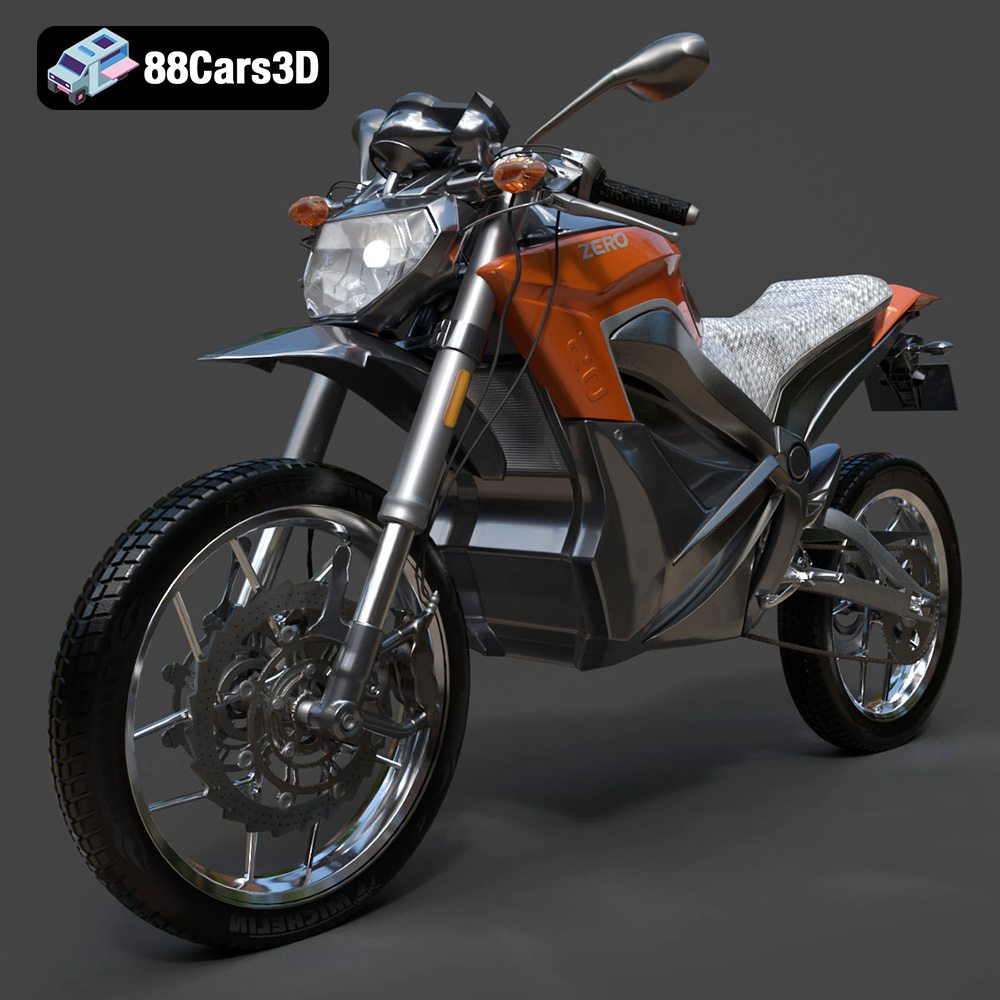
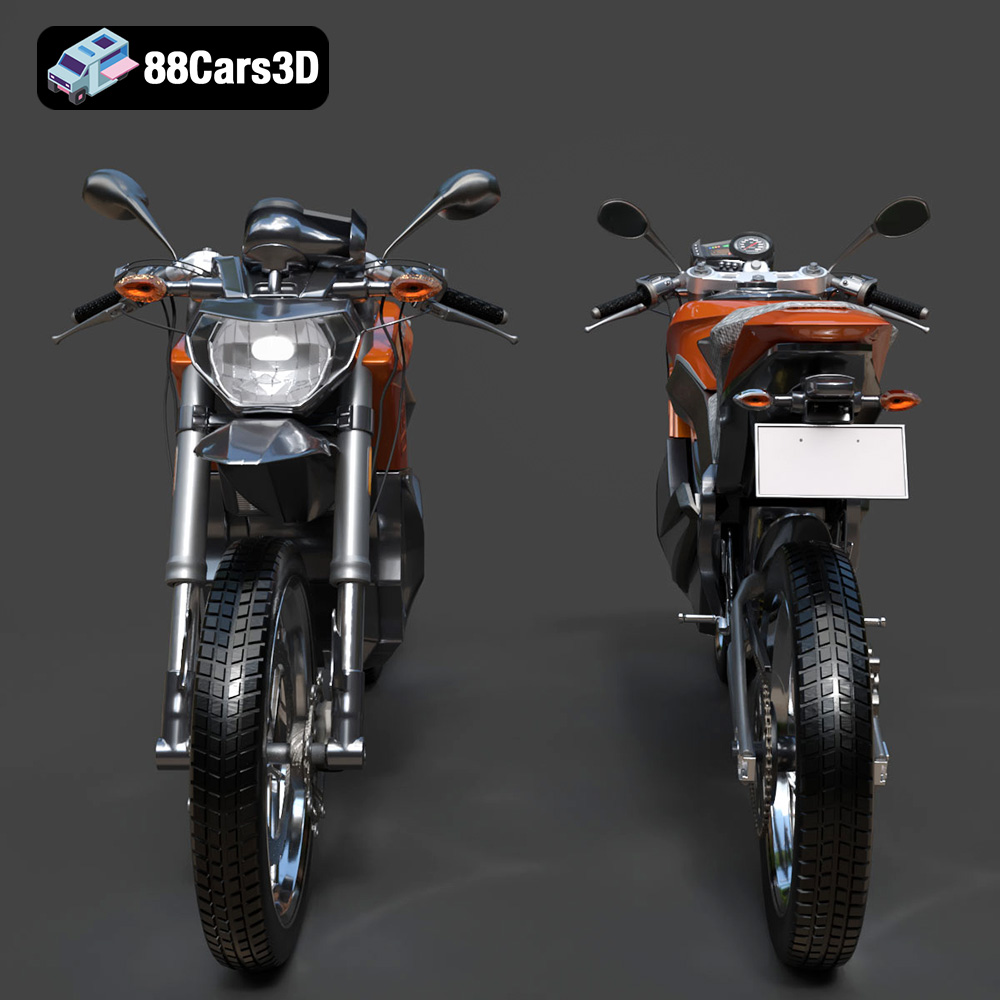
The Zero Motorcycles S ZF8.5 3D model from 88cars3d.com offers a fantastic opportunity to bring a modern electric motorcycle to life through 3D printing. This detailed model, designed for realism and accuracy, can be transformed into a tangible object with the right preparation, settings, and post-processing. This guide will walk you through the essential steps to successfully 3D print your own Zero Motorcycles S ZF8.5.
Before diving into the specifics of 3D printing, it’s crucial to understand the model itself. The Zero Motorcycles S ZF8.5 model available on 88cars3d.com is a highly detailed representation of the electric motorcycle. This means intricate geometries and potentially delicate features.
The first step is to examine the model in your slicing software. Look for areas with overhangs, thin walls, and small details. These areas will require careful consideration when setting up your print parameters. Overhangs exceeding 45 degrees will likely need support structures. Thin walls may require adjustments to wall thickness settings or the use of a more robust material. Small details may require a smaller nozzle size for optimal resolution.
Consider the final size you want for your 3D printed motorcycle. A larger scale will naturally reveal more detail, but it will also increase print time and material consumption. A smaller scale might be more manageable for desktop 3D printers but could sacrifice some of the finer features. Experimenting with different scales in your slicing software will help you find the sweet spot between detail and practicality.
The Zero Motorcycles S ZF8.5 3D model is provided in various formats to ensure maximum compatibility across different software and applications. However, not all formats are created equal when it comes to 3D printing. Understanding the nuances of each format is crucial for a successful print.
The .stl (Stereolithography) file format is the workhorse of 3D printing. It represents the 3D model’s surface geometry as a mesh of interconnected triangles. This format is universally supported by slicing software, making it the most reliable choice for 3D printing. However, the .stl format only stores the surface geometry; it does not contain information about color, texture, or materials. The quality of an .stl file depends on the number of triangles used to define the surface. A higher triangle count results in a smoother, more detailed representation, but it also increases the file size and processing time. When exporting to .stl, ensure the settings prioritize a high-resolution mesh for accurate reproduction of the Zero Motorcycles S ZF8.5’s intricate details.
The .obj (Wavefront Object) format is another widely used 3D model format. Unlike .stl, .obj supports storing color and texture information, which can be useful for visualizing the model but is typically not relevant for standard 3D printing (unless you’re using a multi-material printer). Slicing software can generally import .obj files, but they are primarily used in visual applications.
The .ply (Polygon File Format) format is designed for storing 3D data acquired from 3D scanners. It can represent color and other properties, making it suitable for capturing high-detail scans. It’s less commonly used for 3D printing than .stl but can be useful for highly detailed models.
The .blend file is the native format for Blender, a free and open-source 3D creation suite. This format allows you to directly modify the Zero Motorcycles S ZF8.5 model before exporting it to a 3D printable format like .stl. You can use Blender to simplify complex geometries, add custom details, or repair any potential errors in the model. If you plan to make significant modifications to the model before printing, the .blend file is your best starting point.
The .fbx (Filmbox) format is a proprietary file format developed by Autodesk. It is primarily used for exchanging data between different 3D applications, particularly in game development and animation. While .fbx can store material information, it’s not typically used directly for 3D printing. You would generally import the .fbx file into a 3D modeling software, make any necessary adjustments, and then export it as an .stl file for printing.
The .glb (GL Transmission Format Binary) format is designed for efficient transmission and loading of 3D models in web applications and augmented reality (AR) experiences. It is a binary format, meaning it is more compact and faster to load than text-based formats like .obj. While not directly used for 3D printing, the .glb file can be helpful for previewing the Zero Motorcycles S ZF8.5 model in AR on your mobile device before committing to a print.
The .max file is the native format for 3ds Max, another popular 3D modeling and animation software. Similar to .blend, the .max file allows for complete modification of the model. If you are familiar with 3ds Max, you can use this file to customize the Zero Motorcycles S ZF8.5 before exporting it as an .stl for 3D printing.
For the Zero Motorcycles S ZF8.5, the .stl format will generally be the most straightforward and reliable option for 3D printing. If you intend to modify the model, start with the .blend or .max file. Regardless of the initial format, always export the final version as an .stl file with a high enough resolution to capture the model’s details before importing it into your slicing software.
Once you have the .stl file, the next step is to prepare it for 3D printing using slicing software. Popular options include Cura, Simplify3D, and PrusaSlicer. These programs allow you to adjust various settings that control the printing process.
The orientation of the model on the print bed is crucial for print success. Consider the geometry of the Zero Motorcycles S ZF8.5. Printing the motorcycle upright might seem intuitive, but it would create numerous overhangs that require extensive support structures. A better approach is to orient the model on its side, minimizing the need for supports on critical surfaces. Experiment with different orientations in your slicing software to find the one that requires the least amount of support material while still preserving detail. Automatically generated supports might not always be optimal. Consider manually placing supports in strategic locations to ensure adequate support for overhangs and bridges without wasting material or affecting surface quality.
Layer height determines the resolution of your print. A smaller layer height (e.g., 0.1mm) will result in a smoother surface finish but will also increase print time. A larger layer height (e.g., 0.2mm) will print faster but might sacrifice some detail. For the Zero Motorcycles S ZF8.5, a layer height of 0.15mm is a good starting point, balancing print time and quality. Infill density determines the internal solidity of the print. A higher infill density (e.g., 20%) will make the print stronger but will also use more material. A lower infill density (e.g., 10%) will print faster and use less material but might make the print more fragile. For a display model like the Zero Motorcycles S ZF8.5, an infill density of 15% is usually sufficient. Print speed affects both print time and quality. Printing too fast can lead to poor layer adhesion and other issues. A slower print speed will generally result in a higher quality print. Experiment with different print speeds to find the optimal balance for your printer and material.
The choice of material depends on your desired properties for the finished print. PLA, PETG, and resin are common choices, each with its pros and cons.
PLA (Polylactic Acid) is a popular choice for 3D printing due to its ease of use and biodegradability. It prints at relatively low temperatures and doesn’t require a heated bed (although it’s recommended). PLA is a good option for the Zero Motorcycles S ZF8.5 if you prioritize ease of printing and a matte finish. However, PLA is not as strong or heat-resistant as other materials.
PETG (Polyethylene Terephthalate Glycol-modified) is a stronger and more durable alternative to PLA. It also offers better heat resistance. PETG can be slightly more challenging to print than PLA, requiring higher temperatures and careful adjustment of retraction settings to prevent stringing. However, the added strength and durability make PETG a good choice if you plan to handle the 3D printed Zero Motorcycles S ZF8.5 frequently.
Resin printing offers the highest level of detail and smoothest surface finish. Resin printers use liquid resin that is cured by UV light. Resin printing is more complex and requires more post-processing than FDM (Fused Deposition Modeling) printing with PLA or PETG. However, the results can be stunning. If you prioritize detail and surface quality, resin printing is an excellent choice for the Zero Motorcycles S ZF8.5.
Once the print is complete, post-processing is often necessary to achieve a polished finish. This may involve removing supports, sanding, and painting.
Carefully remove the support structures using pliers or a hobby knife. Be extra cautious when removing supports from delicate areas to avoid damaging the model. Once the supports are removed, use sandpaper to smooth any rough edges or imperfections. Start with a coarse grit sandpaper (e.g., 220 grit) and gradually move to finer grits (e.g., 400 grit, 600 grit) for a smooth finish.
Painting can bring the 3D printed Zero Motorcycles S ZF8.5 to life. Use primer to prepare the surface for paint. Apply multiple thin coats of paint for a smooth, even finish. Consider using masking tape to create sharp lines and separate different colors. You can add further detail with paint pens or decals.
Even with careful preparation, 3D printing can sometimes present challenges. Here are some common issues and their solutions.
Warping occurs when the corners of the print lift off the print bed. This is often caused by poor bed adhesion or temperature fluctuations. To prevent warping, ensure the print bed is clean and level. Use a bed adhesion aid such as glue stick or hairspray. Enclose the printer to maintain a consistent temperature.
Stringing occurs when thin strands of plastic are left between different parts of the print. Blobs are small clumps of plastic that appear on the surface of the print. Both issues are often caused by incorrect retraction settings. Adjust the retraction distance and speed in your slicing software to minimize stringing and blobs.
Layer shifting occurs when the print head moves out of alignment during the print, causing the layers to shift. This can be caused by loose belts, excessive print speed, or mechanical issues with the printer. Check the belts for proper tension, reduce the print speed, and ensure the printer is properly calibrated.
For the Zero Motorcycles S ZF8.5 specifically, pay close attention to the thin components like the mirrors and the kickstand. It is highly recommended to print these separately and glue them on after. Try to orient the model so the least amount of supports are needed to maintain the highest quality for your model.
Experience unparalleled realism with the Zero Motorcycles S ZF8.5 3D Model. Crafted for professionals, this digital asset brings realistic detailing to life, offering an authentic representation of the innovative electric motorcycle. Designed with precision, the model features clean geometry, accurate proportions, and realistic materials tailored for advanced digital projects.
$19.99
.arvr
.blend
.car3dmodel
.electricmotorcycle
.fbx
.gameasset
.glb
.max
.motorcycle
.obj
.ply
.rendering
.simulation
.stl
.szf85
.unreal
.zeromotorcycles