Get 20% OFF All Premium 3D & STL Models!

“`html
3D printing offers incredible possibilities, from prototyping intricate designs to creating functional parts and, of course, printing stunning car models. However, large or complex models can lead to lengthy print times and increased material consumption. Mastering techniques to scale, hollow, and optimize your STL files is crucial for achieving faster, more efficient prints. Whether you’re printing a detailed replica from 88cars3d.com or designing your own parts, understanding these methods is essential. This guide will walk you through the necessary steps, software tips, and best practices to streamline your 3D printing workflow, focusing on both FDM and resin printing.
In this comprehensive guide, we’ll explore how to strategically scale your models, effectively hollow them to save material, and optimize the STL mesh for speed and efficiency. You’ll learn how to use software like Cura, PrusaSlicer, Meshmixer, and others to achieve the best results. We’ll delve into techniques for generating internal support structures, choosing the right infill patterns, and addressing common printing challenges. By the end of this guide, you’ll possess the knowledge to significantly reduce print times without compromising the quality and integrity of your final 3D printed object.
The STL (Stereolithography) file format is the most common file type for 3D printing. It represents the surface geometry of a 3D object as a collection of triangles. A higher number of triangles results in a smoother surface but also a larger file size and potentially longer processing times during slicing. Understanding the structure of an STL file and how it affects print speed is the first step toward optimization. Platforms like 88cars3d.com offer print-ready STL files, but even these can benefit from further optimization depending on your specific printing goals.
The density of the mesh directly impacts the level of detail and surface smoothness of your 3D print. High-resolution models with a dense mesh will require more computational power to slice and may lead to slower print speeds. For models where fine details are not critical, reducing the mesh density can significantly speed up the printing process. This can be achieved using mesh editing software like MeshLab or Blender by employing decimation tools that reduce the number of triangles while preserving the overall shape.
A “manifold” mesh is a closed, watertight surface, essential for successful 3D printing. Non-manifold geometry, such as holes, self-intersections, or reversed normals, can cause slicing errors and print failures. Before printing, always inspect and repair your STL file using tools like Netfabb Basic or MeshMixer. These tools can automatically detect and fix common mesh errors, ensuring a smooth and error-free printing process. Repairing the mesh is critical for both FDM and resin printing, but particularly crucial for resin where even tiny imperfections can trap resin and cause issues.
Scaling your model is a straightforward way to reduce print time and material usage. However, it’s crucial to consider the implications of scaling on the model’s details and structural integrity. If you’re printing a car model from 88cars3d.com, consider the level of detail required for your specific application. For example, a display model might require higher detail and therefore less aggressive scaling than a functional prototype.
Proportional scaling ensures that all dimensions of the model are scaled uniformly, maintaining the original aspect ratio. This is generally the preferred method, especially for models where maintaining accurate proportions is crucial. Non-proportional scaling, where different axes are scaled independently, can be used for specific purposes, such as stretching a model to fit a particular space, but it can distort the design and should be used with caution. Most slicing software provides options for locking the aspect ratio during scaling to ensure proportional changes.
When scaling down a model, smaller features may become too small to be accurately printed, especially on FDM printers with larger nozzle sizes. Consider the minimum feature size that your printer can reliably reproduce and adjust the scale accordingly. Resin printers generally offer higher resolution and can reproduce finer details, allowing for more aggressive downscaling in some cases. Always perform a test print of a small section of the model at the scaled size to ensure that all critical features are printable. For example, if a vent hole is scaled down to be smaller than the nozzle diameter, it won’t print.
Hollowing a 3D model reduces the amount of material required and significantly decreases print time. This technique is particularly effective for larger models, where the interior volume contributes significantly to the overall material consumption and print duration. Hollowing involves removing the internal material of the model, leaving only a thin outer shell. This process can be achieved using various software tools and requires careful consideration of support structures and drainage holes.
Meshmixer is a free and powerful tool for hollowing 3D models. To hollow a model in Meshmixer, import the STL file, then use the “Edit” menu and select “Hollow.” Adjust the “Offset Distance” to control the thickness of the shell – a value of 2-3mm is generally suitable for most models. After hollowing, use the “Generate Holes” function to create drainage holes at strategic locations. These holes are essential for allowing resin to escape during printing and for preventing pressure buildup that could cause the model to crack. Make sure the holes are placed in areas that are easily accessible for cleaning after printing.
When hollowing a model, the thin shell may require internal support to prevent collapse during printing. Meshmixer’s “Make Solid” function can be used to generate internal lattices or struts that provide additional support. Experiment with different lattice densities and strut thicknesses to find the optimal balance between support and material usage. In PrusaSlicer, you can use the “modifiers” to add solid infill in specific areas of the model that need extra support, like overhanging features or thin sections. Remember to remove the supports after printing, which can sometimes be tricky in enclosed spaces.
Slicer settings play a crucial role in determining the print speed and quality of your 3D prints. Optimizing these settings can significantly reduce print time without sacrificing the structural integrity or aesthetic appeal of the model. Key parameters to consider include layer height, infill density, print speed, and support structures.
Layer height directly affects the vertical resolution of your print and the overall print time. A larger layer height will result in faster printing but may sacrifice fine details and surface smoothness. Conversely, a smaller layer height will produce a higher-quality print but will take significantly longer. Experiment with different layer heights to find the optimal balance between speed and quality for your specific model and printer. For FDM printing, a layer height of 0.2mm is a good starting point for general-purpose prints, while resin printing can achieve excellent results with layer heights as low as 0.05mm.
Infill density determines the amount of material used to fill the interior of the model. A higher infill density provides greater strength and rigidity but also increases print time and material consumption. Different infill patterns offer varying levels of strength and speed. Common infill patterns include rectilinear, grid, triangle, and gyroid. Gyroid infill offers a good balance of strength and speed, while rectilinear infill is often the fastest option. Reduce the infill percentage for faster printing, typically 10-20% is sufficient for purely aesthetic models. For parts requiring structural integrity, consider increasing the infill density to 30-50% or more. Using adaptive infill in PrusaSlicer allows for denser infill only in areas of high stress.
Support structures are necessary for printing overhanging features and complex geometries. However, they also add to the overall print time and material consumption. Optimizing support structures involves minimizing their volume while ensuring adequate support for the model. Different slicer software offers various support generation options, including tree supports, linear supports, and hybrid supports. Choosing the right type of support and adjusting parameters like support density and overhang angle can significantly impact print speed and material usage.
Tree supports are a popular choice for FDM printing due to their efficient material usage and ease of removal. They consist of branching structures that provide support only where needed, minimizing the contact area with the model. Linear supports are more traditional and provide uniform support along the entire overhang. Hybrid supports combine the benefits of both tree and linear supports, offering a balance of efficiency and stability. Experiment with different support types to find the best option for your specific model. Cura’s support settings allow for detailed customization, including support placement, angle, and density.
Removing support structures can be a time-consuming and delicate process. Proper planning and careful execution are essential to avoid damaging the model. Use sharp tools, such as pliers, cutters, or a deburring tool, to carefully remove the supports. Heat can also be used to soften the support material and make it easier to remove. For soluble support materials, such as PVA or HIPS, soaking the print in water or a suitable solvent will dissolve the supports, leaving a clean and undamaged surface. When downloading models from marketplaces such as 88cars3d.com, check if the modeler has already optimized the support structure for ease of removal.
The material you choose has a significant effect on print speed and print quality. Additionally, the temperature settings required for printing various materials dictate the rate at which filament can be extruded and fused. Choosing the right material and dialing in the ideal temperature range can have a great impact on the speed and success of your prints.
PLA (Polylactic Acid) is a biodegradable thermoplastic polymer commonly used in FDM 3D printing because it’s easy to print with and requires lower temperatures. Generally, printing PLA allows for faster speeds and layer adhesion. PETG (Polyethylene Terephthalate Glycol) offers more durability and flexibility than PLA but usually requires lower printing speeds and more precise temperature control. ABS (Acrylonitrile Butadiene Styrene) offers high strength and temperature resistance. However, it requires higher printing temperatures and an enclosed build chamber to prevent warping, which may ultimately increase print time. Each material has its own optimal settings for speed and bed adhesion.
Resin 3D printing generally involves using photopolymer resins that cure under UV light. Different resin formulations offer different properties such as strength, flexibility, or high detail resolution. Choosing the appropriate resin can affect the layer curing time, thereby changing overall print speed. Some resins are formulated for faster curing times, which can speed up the printing process. Understanding the specific properties and requirements of each resin type is key to optimizing print settings. After the print is complete, proper curing under UV light is critical to achieve the desired hardness and durability. Over-curing can lead to brittleness, while under-curing can result in a soft, sticky surface.
Even with careful planning and optimized settings, 3D printing can sometimes present challenges. Understanding common issues and how to troubleshoot them is essential for achieving consistent and successful prints. Common issues include warping, bed adhesion problems, nozzle clogging, and layer separation.
Poor bed adhesion can cause the print to detach from the build plate during printing, resulting in a failed print. Ensure that the build plate is clean and level, and use appropriate bed adhesion methods, such as glue stick, hairspray, or painter’s tape. Warping occurs when the printed material cools and contracts, causing the corners or edges of the print to lift from the build plate. This is more common with materials like ABS that have a high thermal expansion coefficient. Using a heated build chamber and adjusting the bed temperature can help prevent warping. Rafts and brims also provide a larger surface area for bed adhesion and can help to stabilize the print.
Nozzle clogging can occur when the filament is not properly melted or when debris accumulates in the nozzle. Regular cleaning and maintenance of the nozzle are essential for preventing clogs. Layer separation, also known as delamination, occurs when the layers of the print do not properly adhere to each other. This can be caused by insufficient printing temperature, poor layer adhesion, or inadequate cooling. Increasing the printing temperature, reducing the layer height, and improving the cooling fan settings can help to improve layer adhesion and prevent delamination.
Optimizing STL models for speed and efficiency is an essential skill for any 3D printing enthusiast or professional. By strategically scaling, hollowing, and optimizing your models, you can significantly reduce print times and material consumption while maintaining the quality and integrity of your final product. From understanding STL file structure to mastering slicer settings and troubleshooting common issues, the techniques outlined in this guide provide a comprehensive roadmap for achieving faster, more efficient 3D prints. Don’t be afraid to experiment with different settings and techniques to find what works best for your specific printer, material, and model. Remember to consider the trade-offs between speed, quality, and structural integrity, and always prioritize safety and proper equipment maintenance. With practice and patience, you can unlock the full potential of 3D printing and bring your ideas to life faster and more efficiently than ever before. And when you need high-quality 3D printable car models, remember to check out the selection at 88cars3d.com. Now, go forth and print efficiently!
“`

Texture: Yes | Material: Yes
Download the highly detailed, game-ready Yamaha XV950 Racer 3D Model. Features an aggressive cafe-racer front cowl, detailed air-cooled V-twin engine, and classic retro styling. Includes .blend, .fbx, .obj, .glb, .stl, .ply, .unreal, and .max formats for game development, AR/VR, and rendering.
Price: $19.99

Texture: Yes | Material: Yes
Download the highly detailed, game-ready Volvo VNL Tractor Truck 2002 3D Model. Features iconic aerodynamic styling, detailed fifth-wheel coupling, and heavy-duty chassis. Includes .blend, .fbx, .obj, .glb, .stl, .ply, .unreal, and .max formats for game development, AR/VR, and rendering.
Price: $39.99
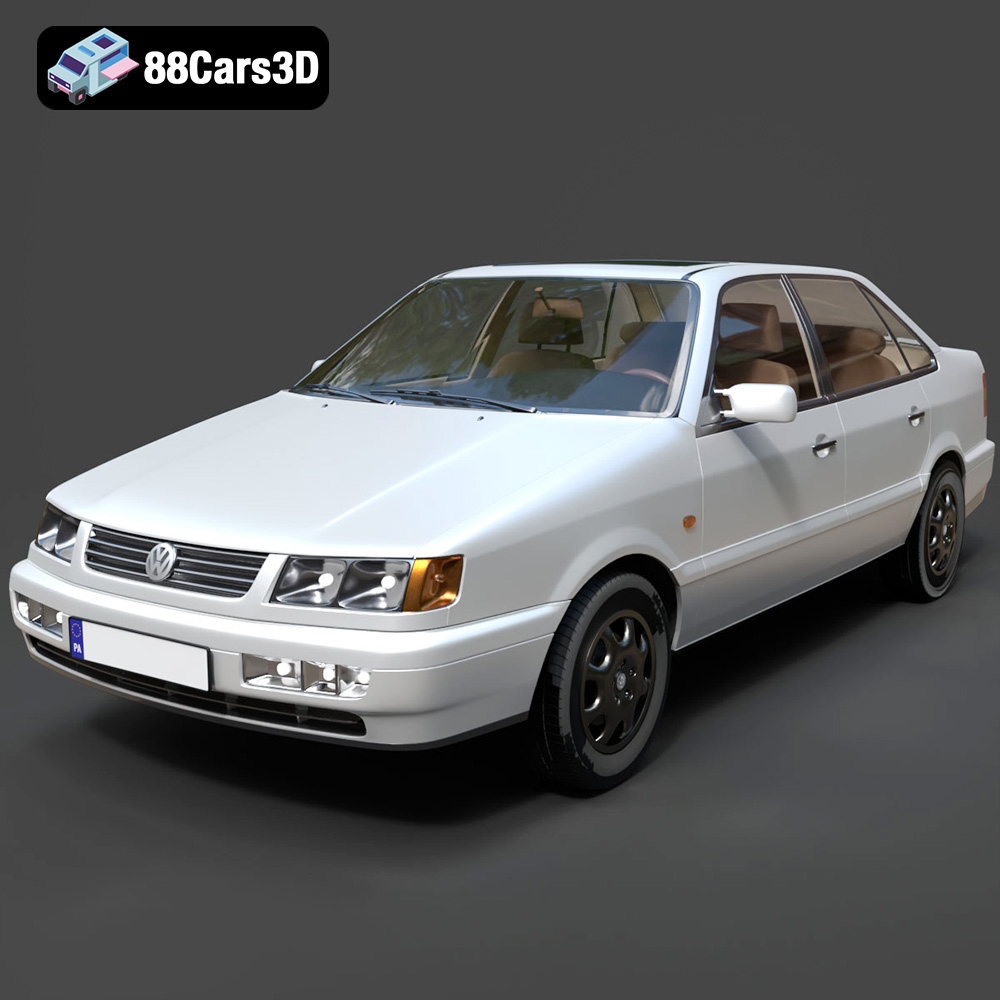
Texture: Yes | Material: Yes
Download the highly detailed, game-ready Volkswagen Passat Mk4 B4 Sedan 1993 3D Model. Features accurate 90s sedan styling, detailed front grille-less fascia, and a classic interior setup. Includes .blend, .fbx, .obj, .glb, .stl, .ply, .unreal, and .max formats for game development, AR/VR, and rendering.
Price: $39.99

Texture: Yes | Material: Yes
Download the highly detailed, game-ready Volkswagen Jetta GLI 2019 3D Model. Features an aggressive honeycomb grille with red accents, sleek aerodynamic profile, and exclusive GLI sport wheels. Includes .blend, .fbx, .obj, .glb, .stl, .ply, .unreal, and .max formats for game development, AR/VR, and rendering.
Price: $39.99

Texture: Yes | Material: Yes
Download the highly detailed, game-ready Vintage Vespa 3D Model. Features iconic rounded monocoque styling, classic saddle, and chrome accents. Includes .blend, .fbx, .obj, .glb, .stl, .ply, .unreal, and .max formats for game development, AR/VR, and rendering.
Price: $39.99

Texture: Yes | Material: Yes
Download the highly detailed, game-ready Vespa GS 150 3D Model. Features elegant aerodynamic curves, classic leg shield, and detailed engine casing. Includes .blend, .fbx, .obj, .glb, .stl, .ply, .unreal, and .max formats for game development, AR/VR, and rendering.
Price: $39.99

Texture: Yes | Material: Yes
Download the highly detailed, game-ready Vespa P200E 3D Model. Features classic vintage styling, accurate step-through frame geometry, and authentic detailing. Includes .blend, .fbx, .obj, .glb, .stl, .ply, .unreal, and .max formats for game development, AR/VR, and rendering.
Price: $39.99

Texture: Yes | Material: Yes
Download the highly detailed, game-ready Ural M67-36-P 1976 3D Model. Features the iconic air-cooled boxer engine, vintage utilitarian styling, and authentic spoked wheels. Includes .blend, .fbx, .obj, .glb, .stl, .ply, .unreal, and .max formats for game development, AR/VR, and rendering.
Price: $39.99
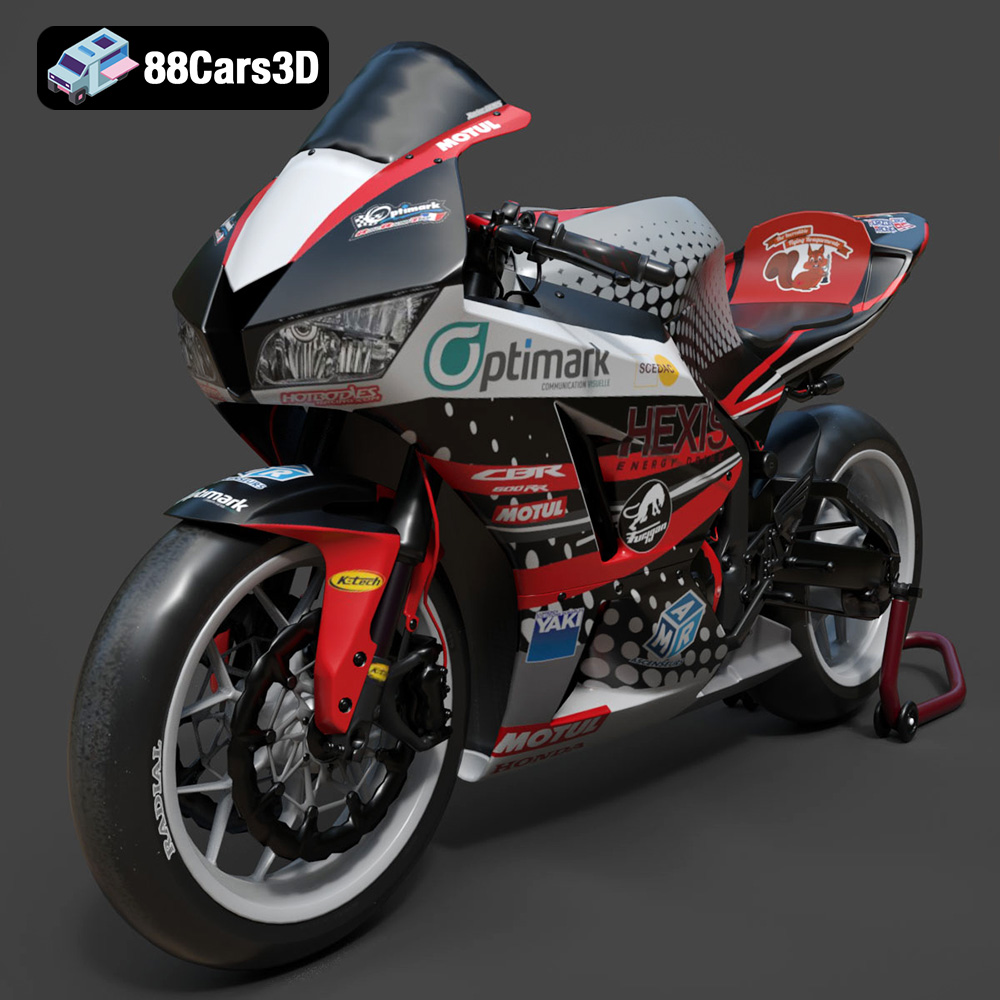
Texture: Yes | Material: Yes
Download the highly detailed, game-ready Honda CBR600RR 3D Model. Features aerodynamic fairings, an iconic center-up exhaust, and an aggressive track-focused stance. Includes .blend, .fbx, .obj, .glb, .stl, .ply, .unreal, and .max formats for game development, AR/VR, and rendering.
Price: $39.99
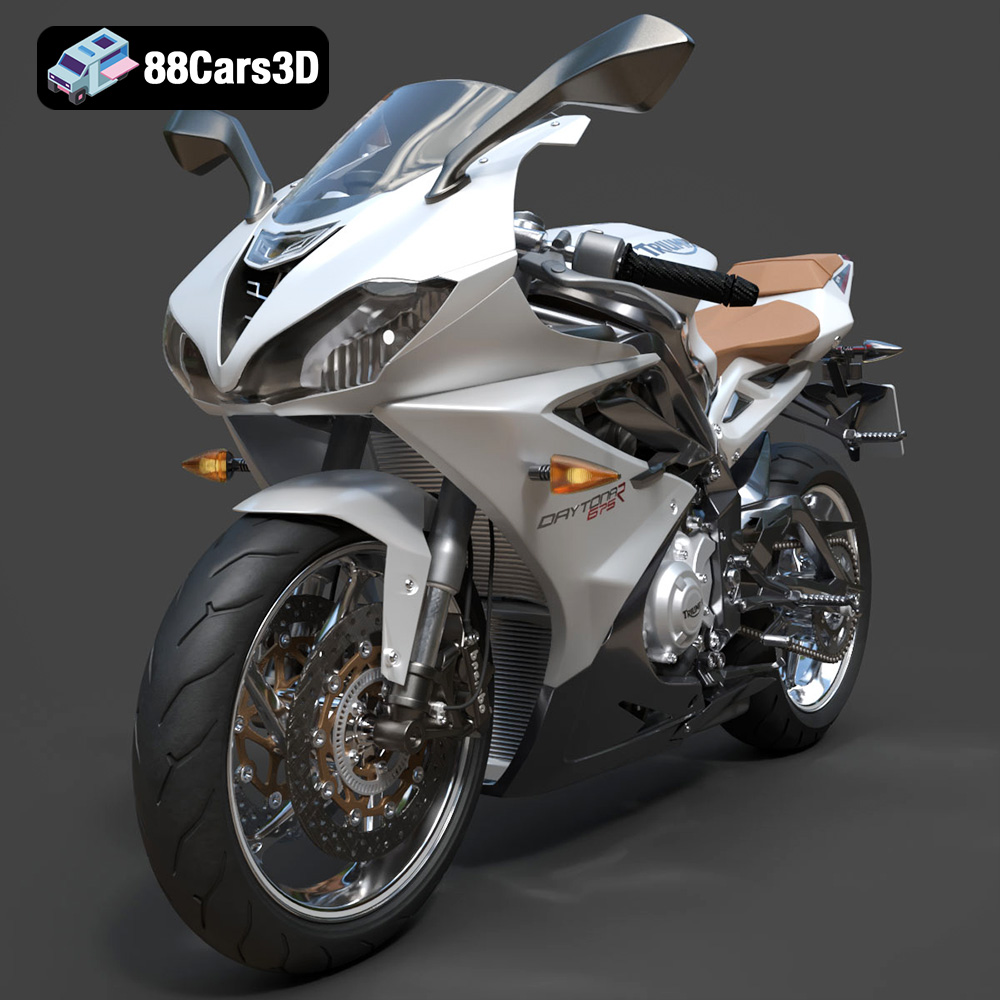
Texture: Yes | Material: Yes
Download the highly detailed, game-ready Triumph Daytona 675R ABS 2015 3D Model. Features aerodynamic sport fairings, a detailed inline-triple engine, and premium Öhlins suspension components. Includes .blend, .fbx, .obj, .glb, .stl, .ply, .unreal, and .max formats for game development, AR/VR, and rendering.
Price: $39.99

