Get 20% OFF All Premium 3D & STL Models!

“`html
The journey from a digital 3D model to a tangible object is a fascinating one, and at its heart lies the crucial process of slicing. Slicing, in the context of 3D printing, is the act of converting a 3D model, typically in STL format, into a series of instructions that your 3D printer can understand and execute. These instructions dictate the precise movements of the print head, the amount of material to extrude, and a myriad of other parameters that collectively determine the final quality of your print. Understanding how to properly slice your STL files is paramount to achieving high-quality, dimensionally accurate, and visually appealing 3D prints, especially when working with detailed models like the printable car models available on platforms like 88cars3d.com. In this guide, we’ll delve deep into the intricacies of slicing, covering everything from the basics of STL files to advanced techniques for optimizing your print settings. You’ll learn how to choose the right slicer, configure it for different materials and printers, and troubleshoot common slicing-related issues, ultimately unlocking the full potential of your 3D printer and bringing your digital designs to life with stunning fidelity.
Before diving into the specifics of slicing, it’s crucial to understand the structure of STL files and how they represent 3D models. STL (Stereolithography) is a file format that approximates the surface of a 3D object using a collection of triangles. The more triangles used, the finer the detail captured in the model. However, a higher triangle count also translates to a larger file size and increased processing time for your slicer.
STL files contain information about the vertices and normals of each triangle. The vertices define the coordinates of the triangle’s corners, while the normal vector indicates the direction the triangle is facing. This information is essential for the slicer to accurately reconstruct the 3D model and generate the appropriate printing paths. It’s important to note that STL files do not contain color or texture information; they only describe the geometry of the object. When downloading models from marketplaces such as 88cars3d.com, you can usually expect well-formed STL files optimized for printing.
The “mesh topology” describes how the triangles are connected. A “manifold” mesh is essential for 3D printing. A manifold mesh is closed (watertight), meaning that every edge of every triangle is shared by exactly two triangles. Non-manifold geometry, on the other hand, contains errors such as holes, self-intersections, or disconnected edges. These errors can confuse the slicer and lead to printing failures. Many slicers have built-in tools to detect and automatically repair non-manifold geometry. Software like Meshmixer and Netfabb are also excellent for pre-printing mesh repair.
Numerous slicing software options are available, each with its own strengths and weaknesses. The choice of slicer depends on your printer, your experience level, and the specific requirements of your project. Some popular choices include Cura, PrusaSlicer, Simplify3D, and IdeaMaker. Cura and PrusaSlicer are excellent free options that offer a wide range of features and are suitable for both beginners and experienced users. Simplify3D is a paid option known for its advanced customization options and support for complex printing scenarios. IdeaMaker is particularly popular for its dual-extrusion capabilities.
Cura is a free and open-source slicer developed by Ultimaker. It boasts a user-friendly interface, a comprehensive set of features, and a large community that provides support and contributes to its development. Cura supports a wide range of printers and materials, and it offers a variety of settings to fine-tune your prints. Key features include adaptive layer height, support generation, and infill pattern customization. To use Cura, import your STL file, select your printer profile, choose your desired print settings (layer height, infill, support), and then slice the model to generate the G-code.
PrusaSlicer, developed by Prusa Research, is another excellent free slicer known for its precision and advanced features. It’s built on the Slic3r project but incorporates numerous improvements and enhancements. PrusaSlicer excels at generating strong and reliable support structures, and it offers advanced features such as variable layer height, seam hiding, and bridge flow customization. It also integrates well with Prusa printers and provides profiles tailored for various materials. For example, you might set the “detect bridging areas” to on to ensure those bridging sections are properly printed.
Understanding the various slicing parameters and their impact on print quality is essential for achieving optimal results. Key parameters include layer height, infill density, print speed, temperature, and support settings. Each of these parameters affects different aspects of the print, such as resolution, strength, and printing time. Experimentation and fine-tuning are often necessary to find the optimal settings for your specific printer, material, and model.
Layer height determines the thickness of each layer of the print. Lower layer heights result in smoother surfaces and finer details, but they also increase printing time. Higher layer heights, on the other hand, reduce printing time but may result in a coarser surface finish. A common starting point for layer height is 0.2mm, but you can adjust it based on the desired level of detail and the available printing time. For detailed models, like 1/24 scale printable car models from 88cars3d.com, a layer height of 0.1mm or even 0.05mm might be necessary to capture fine details.
Infill refers to the internal structure of the print. Infill density determines the amount of material used to fill the interior of the print, while infill pattern determines the arrangement of the infill. Higher infill densities result in stronger prints, but they also increase material usage and printing time. Common infill patterns include rectilinear, grid, honeycomb, and gyroid. The choice of infill pattern depends on the desired strength and weight of the print. For structural parts, a higher infill density (e.g., 20-30%) and a strong infill pattern (e.g., rectilinear or honeycomb) are recommended. For purely aesthetic models, a lower infill density (e.g., 10-15%) and a less dense pattern (e.g., grid or lightning) may suffice. Gyroid infill offers excellent strength-to-weight ratio and isotropic properties.
The optimal printing temperature and speed depend on the material being used. Each material has its own recommended temperature range, and printing outside of this range can lead to problems such as warping, poor adhesion, or excessive stringing. Print speed affects the quality of the print and the likelihood of printing errors. Printing too fast can result in poor layer adhesion, while printing too slow can lead to overheating and warping. Consult the material manufacturer’s recommendations for specific temperature and speed settings. For PLA, a common temperature range is 200-220°C, while for ABS, it’s 230-250°C. A typical print speed is 50-60 mm/s, but this can be adjusted based on the complexity of the model and the printer’s capabilities.
Support structures are temporary structures that are printed to support overhanging features of the model. They prevent these features from collapsing during printing and ensure that they are properly formed. Generating effective support structures and removing them cleanly after printing are crucial steps in achieving high-quality prints. Several support generation strategies are available in most slicers, including tree supports, linear supports, and hybrid supports. The choice of support strategy depends on the geometry of the model and the desired level of support.
Linear supports are the most common type of support structure. They consist of vertical pillars that extend from the build plate to the overhanging features. Tree supports, on the other hand, are branching structures that provide support from a single point on the build plate. Tree supports are generally more efficient in terms of material usage and easier to remove than linear supports. Hybrid supports combine the advantages of both linear and tree supports. They use linear supports for critical areas and tree supports for less critical areas.
Removing support structures can be a delicate process, especially for intricate models. The goal is to remove the supports cleanly without damaging the print. Several techniques can be used, including manual removal with pliers or cutters, chemical dissolution, and breakaway supports. Manual removal is the most common technique, but it requires careful attention to avoid damaging the print. Chemical dissolution involves dissolving the support material in a solvent, such as limonene for HIPS or sodium hydroxide for PVA. Breakaway supports are designed to be easily snapped off from the print. Choosing the right support material and support settings can significantly simplify the removal process. Aim for a support Z distance (gap between the support and the model) of around 0.15-0.2mm for easy breakaway.
The orientation of the model on the build plate can significantly affect the print quality, strength, and printing time. Choosing the optimal orientation involves considering factors such as support requirements, surface finish, and layer adhesion. Bed adhesion refers to the ability of the first layer of the print to stick to the build plate. Poor bed adhesion can lead to warping, curling, or complete detachment of the print from the build plate.
Orient the model to minimize the need for support structures. This can be achieved by placing the model in a way that reduces the number of overhanging features. Consider the surface finish of different areas of the model. The surface that is in contact with the build plate will typically have a different texture than the other surfaces. Align important details to print vertically rather than horizontally to benefit from the finer Z-axis resolution. For printable car models from 88cars3d.com, orienting the car body with the roof facing down may reduce support material needed for the windows.
Several techniques can be used to improve bed adhesion, including using a heated bed, applying adhesive substances (e.g., glue stick, hairspray), and adjusting the first layer settings. A heated bed helps to keep the first layer warm and prevent it from cooling and warping. Adhesive substances provide an extra layer of adhesion between the print and the build plate. Adjusting the first layer settings, such as increasing the layer height and flow rate, can also improve bed adhesion. Common solutions to poor bed adhesion include: leveling the bed precisely, cleaning the bed with isopropyl alcohol, using a brim or raft to increase surface area, and adjusting the Z-offset (distance between the nozzle and the bed).
Even with careful planning and execution, printing issues can still arise. Understanding how to troubleshoot common slicing and printing problems is essential for achieving successful prints. Common issues include stringing, warping, poor layer adhesion, and clogged nozzles.
Slicing errors can occur due to problems with the STL file, such as non-manifold geometry or corrupted data. These errors can manifest as missing features, unexpected gaps, or incorrect support generation. To diagnose slicing errors, visually inspect the sliced model in the slicer software. Look for any anomalies or inconsistencies. Use mesh repair tools to fix any problems with the STL file. Netfabb Basic is a free tool that can automatically repair many common mesh errors. Also, try a different slicer, as sometimes one slicer handles certain STL errors better than another.
Stringing occurs when the extruder oozes material during travel moves. It can be caused by high printing temperature, slow retraction speed, or incorrect retraction distance. Warping occurs when the print detaches from the build plate and curls upwards. It can be caused by poor bed adhesion, insufficient heating, or drafts in the printing environment. Poor layer adhesion occurs when the layers of the print do not bond properly. It can be caused by low printing temperature, fast printing speed, or insufficient cooling. Clogged nozzles occur when filament becomes lodged in the nozzle. It can be caused by contaminated filament, incorrect temperature settings, or excessive retraction. Solutions often involve adjusting temperature settings, ensuring proper cooling, calibrating retraction, and cleaning or replacing the nozzle.
Mastering the art of slicing is a continuous learning process, but understanding the fundamentals outlined in this guide will empower you to achieve exceptional 3D prints. From grasping the nuances of STL files to fine-tuning slicing parameters and troubleshooting common issues, each step plays a crucial role in transforming your digital designs into tangible realities. Remember that experimentation is key. Don’t be afraid to adjust settings, try different materials, and learn from your mistakes. With practice and persistence, you’ll develop a keen understanding of how to optimize your slicing process for different models and printing scenarios. By leveraging resources like 88cars3d.com for high-quality STL files and applying the knowledge gained here, you’ll be well-equipped to unlock the full potential of your 3D printer and bring your creative visions to life with stunning detail and precision. So, dive in, explore the world of slicing, and embark on your journey to creating remarkable 3D printed objects.
“`

Texture: Yes | Material: Yes
Download the highly detailed, game-ready Yamaha YZF-R125 EU 3D Model. Features an aggressive aerodynamic fairing, twin LED headlights, and a detailed 125cc engine block. Includes .blend, .fbx, .obj, .glb, .stl, .ply, .unreal, and .max formats for game development, AR/VR, and rendering.
Price: $19.99

Texture: Yes | Material: Yes
Download the highly detailed, game-ready Yamaha R1 3D Model. Features aggressive aerodynamic fairings, a detailed crossplane inline-4 engine, and track-focused suspension geometry. Includes .blend, .fbx, .obj, .glb, .stl, .ply, .unreal, and .max formats for game development, AR/VR, and rendering.
Price: $19.99

Texture: Yes | Material: Yes
Download the highly detailed, game-ready Yamaha XV950 Racer 3D Model. Features an aggressive cafe-racer front cowl, detailed air-cooled V-twin engine, and classic retro styling. Includes .blend, .fbx, .obj, .glb, .stl, .ply, .unreal, and .max formats for game development, AR/VR, and rendering.
Price: $19.99

Texture: Yes | Material: Yes
Download the highly detailed, game-ready Volvo VNL Tractor Truck 2002 3D Model. Features iconic aerodynamic styling, detailed fifth-wheel coupling, and heavy-duty chassis. Includes .blend, .fbx, .obj, .glb, .stl, .ply, .unreal, and .max formats for game development, AR/VR, and rendering.
Price: $39.99
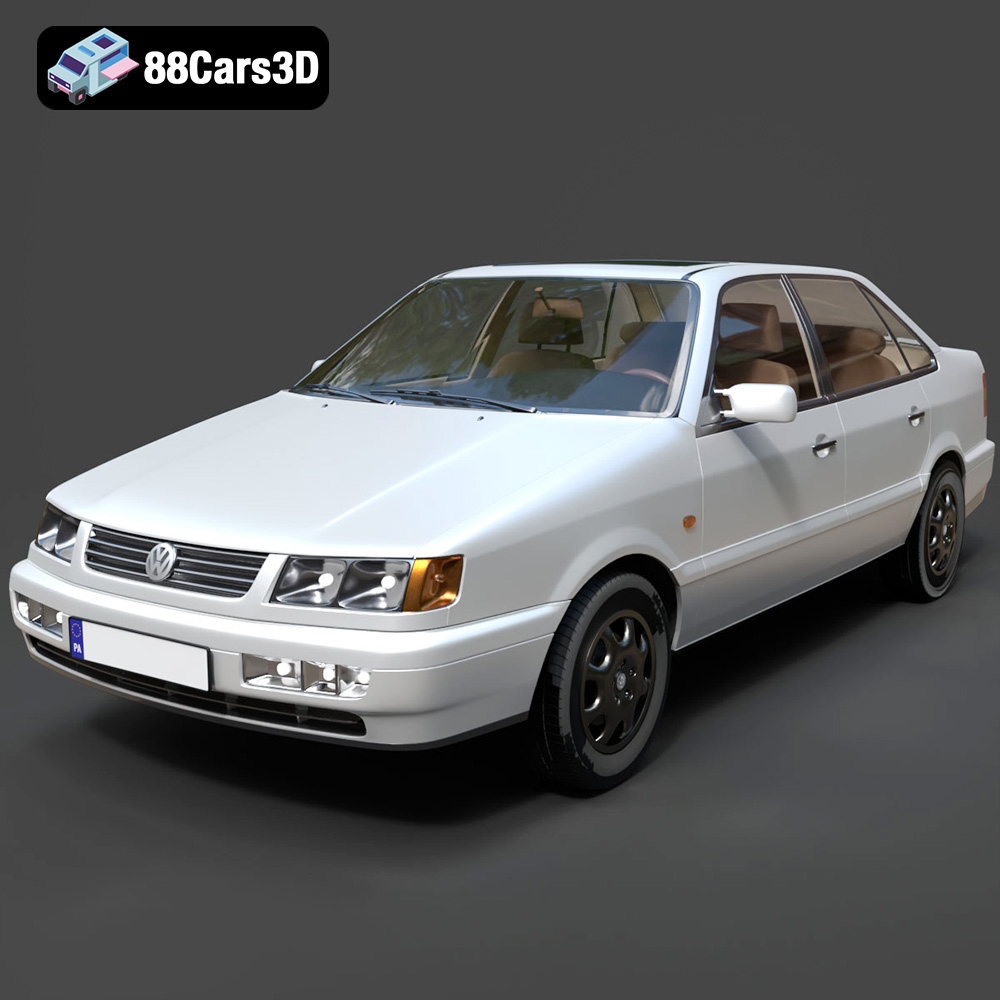
Texture: Yes | Material: Yes
Download the highly detailed, game-ready Volkswagen Passat Mk4 B4 Sedan 1993 3D Model. Features accurate 90s sedan styling, detailed front grille-less fascia, and a classic interior setup. Includes .blend, .fbx, .obj, .glb, .stl, .ply, .unreal, and .max formats for game development, AR/VR, and rendering.
Price: $39.99

Texture: Yes | Material: Yes
Download the highly detailed, game-ready Volkswagen Jetta GLI 2019 3D Model. Features an aggressive honeycomb grille with red accents, sleek aerodynamic profile, and exclusive GLI sport wheels. Includes .blend, .fbx, .obj, .glb, .stl, .ply, .unreal, and .max formats for game development, AR/VR, and rendering.
Price: $39.99

Texture: Yes | Material: Yes
Download the highly detailed, game-ready Vintage Vespa 3D Model. Features iconic rounded monocoque styling, classic saddle, and chrome accents. Includes .blend, .fbx, .obj, .glb, .stl, .ply, .unreal, and .max formats for game development, AR/VR, and rendering.
Price: $39.99

Texture: Yes | Material: Yes
Download the highly detailed, game-ready Vespa GS 150 3D Model. Features elegant aerodynamic curves, classic leg shield, and detailed engine casing. Includes .blend, .fbx, .obj, .glb, .stl, .ply, .unreal, and .max formats for game development, AR/VR, and rendering.
Price: $39.99

Texture: Yes | Material: Yes
Download the highly detailed, game-ready Vespa P200E 3D Model. Features classic vintage styling, accurate step-through frame geometry, and authentic detailing. Includes .blend, .fbx, .obj, .glb, .stl, .ply, .unreal, and .max formats for game development, AR/VR, and rendering.
Price: $39.99

Texture: Yes | Material: Yes
Download the highly detailed, game-ready Ural M67-36-P 1976 3D Model. Features the iconic air-cooled boxer engine, vintage utilitarian styling, and authentic spoked wheels. Includes .blend, .fbx, .obj, .glb, .stl, .ply, .unreal, and .max formats for game development, AR/VR, and rendering.
Price: $39.99

