Get 20% OFF All Premium 3D & STL Models!

“`html
The world of 3D printing offers incredible opportunities for bringing digital designs to life, especially when it comes to detailed models like printable car models available on platforms like 88cars3d.com. However, the journey from digital file to physical object isn’t always smooth. STL files, the standard format for 3D printing, can sometimes contain errors that manifest as printing issues. These errors often stem from broken or non-manifold meshes, which can lead to incomplete prints, structural weaknesses, or even complete printing failures. This guide will equip you with the knowledge and techniques to diagnose and repair broken STL meshes using two powerful software tools: Meshmixer and Netfabb. We’ll delve into common mesh errors, explore practical repair workflows, and provide actionable tips to ensure your 3D printed car models are flawless.
Before diving into repair techniques, it’s crucial to understand the structure of STL files and the types of errors they can contain. STL files represent 3D models as a collection of triangles, defining the surface geometry. A “manifold” mesh is one that is continuous, closed, and has a clear inside and outside. Non-manifold meshes violate these properties, leading to errors. Think of it like a leaky bucket – it won’t hold water because it’s not a continuous, closed surface.
STL (stereolithography) files encode surface geometry using a collection of triangles. Each triangle is defined by three vertices (points in 3D space) and a normal vector (indicating the triangle’s outward-facing direction). The simplicity of this format makes it universally compatible with 3D printing software. However, this simplicity also means that errors can easily creep in during the design process, especially with complex models.
Mesh errors come in various forms, each requiring specific repair strategies:
These errors, if left uncorrected, will wreak havoc on your 3D prints. Identifying and resolving them early in the workflow is essential for achieving high-quality results.
Meshmixer, a free software from Autodesk, is a powerful tool for manipulating and repairing STL files. Its intuitive interface and robust repair algorithms make it ideal for both beginners and experienced users. This section outlines a comprehensive workflow for using Meshmixer to fix broken STL meshes, especially useful when preparing printable car models.
Begin by launching Meshmixer and importing your STL file (File > Import). Once loaded, visually inspect the model for any obvious errors, such as holes or distortions. To get a more detailed analysis, use the “Inspector” tool (Analysis > Inspector). This tool automatically identifies and highlights potential errors with different colored markers: Pink markers indicate non-manifold edges, while blue markers signify small gaps or discontinuities. Rotate the model and examine it from all angles to ensure you haven’t missed anything.
The Inspector tool offers a convenient automatic repair function. After identifying errors, click the “Auto Repair All” button. Meshmixer will attempt to fix the identified issues using its built-in algorithms. The success of this automatic repair depends on the severity of the errors. For minor issues, it often provides a quick and effective solution. For more complex problems, manual intervention may be required. After running the auto-repair, use the inspector again to verify that the errors are actually gone. Sometimes, the auto-repair can introduce new, albeit less severe, problems.
When automatic repair fails, manual techniques are necessary. One common approach is using the “Sculpt” tools (Sculpt > Brushes). The “Smooth” brush can be used to blend vertices and close small gaps. The “Fill” brush can be used to add material to fill larger holes. Be careful when using these tools, as excessive sculpting can distort the original model. Another useful tool is “Edit > Make Solid.” This function attempts to create a solid, watertight mesh from the existing geometry, often resolving non-manifold issues. Experiment with different settings within the “Make Solid” tool, such as “Solid Type” and “Mesh Density,” to achieve the best results. Remember to regularly use the Inspector tool to check your progress and identify any new errors introduced during the manual repair process. For intricate car models, focusing on specific problem areas with targeted sculpting can preserve detail while addressing the underlying mesh issues.
Netfabb, now part of Autodesk, is a powerful software suite specifically designed for additive manufacturing workflows. It offers a comprehensive set of tools for STL analysis, repair, and optimization. While Netfabb is a paid software, its robust features and precision make it a worthwhile investment for professional users and those seeking the highest quality prints, particularly for complex projects like 3D printing car models from sources like 88cars3d.com.
After launching Netfabb, import your STL file (File > Add part). Netfabb provides a detailed analysis of the mesh, highlighting errors such as holes, flipped triangles, and boundary edges. Navigate to the “Analysis” tab to access these features. The “Detect Problems” function identifies various mesh errors and categorizes them by severity. This detailed analysis allows you to prioritize your repair efforts, focusing on the most critical issues first. Netfabb’s visual cues and detailed reporting make it easier to pinpoint and understand the nature of each error.
Netfabb boasts more sophisticated automated repair functions than Meshmixer. Under the “Actions” tab, select “Automatic Repair.” This feature offers various repair scripts tailored to different types of errors. Experiment with different script settings to find the optimal configuration for your specific model. For example, the “Standard Repair” script addresses common issues like flipped triangles and boundary edges, while the “Extended Repair” script attempts to fix more complex problems, such as self-intersections and non-manifold geometry. After running the automated repair, carefully review the results to ensure that the repairs have not introduced any new issues. The “Surface Deviation” analysis tool can help identify areas where the repair process has altered the original geometry.
Netfabb provides a wide array of manual repair tools for addressing persistent or complex mesh issues. The “Triangle” and “Edge” manipulation tools allow you to directly edit the mesh geometry, merging vertices, splitting edges, and flipping triangles. These tools provide precise control over the repair process, enabling you to correct even the most intricate errors. The “Remesh” function can be used to rebuild the mesh with a more uniform triangle distribution, improving the overall quality and printability. When dealing with complex car models, you might need to selectively remesh certain areas to preserve fine details while simplifying problematic regions. Netfabb also offers advanced features like boolean operations and surface offsetting, which can be used to create complex repairs and modifications. Mastering these manual repair techniques requires practice and a solid understanding of mesh topology.
Repairing a broken mesh is only the first step. Optimizing the STL file for 3D printing is crucial for achieving the best possible results. This involves considering factors like print orientation, support structure generation, and wall thickness.
The orientation in which you print your model significantly impacts print quality, support structure requirements, and the likelihood of success. Experiment with different orientations in your slicing software (Cura, PrusaSlicer, etc.) to minimize the need for support structures, especially on intricate areas. When supports are necessary, carefully consider the type of support structure and its placement. Avoid placing supports on critical surfaces that require a smooth finish. For complex car models with overhangs, consider using tree-like support structures, which are easier to remove and leave minimal scarring. In Cura, the “Support Placement” setting allows you to choose between “Everywhere” and “Touching Buildplate,” giving you control over where supports are generated. A good starting point for support overhang angle is 60 degrees.
Wall thickness determines the strength and robustness of your printed model. For car models, a minimum wall thickness of 1.2mm is generally recommended for FDM printing and 1mm for resin printing. Experiment with different infill patterns and densities to balance strength and material usage. A rectilinear infill pattern with a density of 15-20% often provides a good compromise for general-purpose printing. For parts that require high strength, consider using a gyroid or honeycomb infill pattern with a higher density (30-40%). Infill density also affects print time. Lower infill means faster prints.
Slicing parameters, such as layer height, print speed, and temperature, play a critical role in print quality. Lower layer heights (e.g., 0.1mm for FDM, 0.05mm for resin) produce smoother surfaces but increase print time. Adjust print speed based on your printer’s capabilities and the complexity of the model. Slower speeds generally result in higher quality prints, especially for intricate details. Experiment with different temperatures to optimize layer adhesion and minimize warping. Always refer to the filament or resin manufacturer’s recommendations for temperature settings. For PLA, a nozzle temperature of 200-220°C and a bed temperature of 60-70°C is a good starting point. For ABS, a nozzle temperature of 230-250°C and a bed temperature of 80-110°C is typically required. Fine-tuning these parameters is essential for achieving the desired print quality and dimensional accuracy.
The choice of material significantly impacts the final properties of your 3D printed car model, including its strength, flexibility, and appearance. Understanding the characteristics of different materials is crucial for making informed decisions.
PLA (Polylactic Acid) is a biodegradable thermoplastic derived from renewable resources. It’s known for its ease of printing, low odor, and wide availability. PLA is a good choice for beginners and for printing models that don’t require high strength or temperature resistance. It’s ideal for display models and prototypes. However, PLA is prone to warping in high-temperature environments and is not as durable as other materials.
PETG (Polyethylene Terephthalate Glycol-modified) offers a good balance of strength, flexibility, and ease of printing. It’s more durable and heat-resistant than PLA, making it a suitable choice for functional parts and models that need to withstand some stress. PETG also exhibits good layer adhesion and is less prone to warping than ABS. It’s a versatile material for a wide range of 3D printing applications.
ABS (Acrylonitrile Butadiene Styrene) is a strong and heat-resistant thermoplastic commonly used in automotive and consumer product applications. It’s more durable than PLA and PETG and can withstand higher temperatures. However, ABS is more challenging to print due to its tendency to warp and requires a heated bed and often an enclosed printer to maintain consistent temperatures. Proper ventilation is also essential when printing with ABS due to the fumes it emits. ABS is a good choice for parts that need to withstand high stress or elevated temperatures.
Resin printing, using technologies like SLA (Stereolithography) and DLP (Digital Light Processing), offers superior detail and smoother surfaces compared to FDM printing. Resin printers use liquid photopolymer resins that are cured by UV light. Resin printing is ideal for creating intricate car models with fine details and complex geometries. However, resin prints tend to be more brittle than FDM prints and require post-processing, such as washing and curing. Different resin types are available, each with varying properties like flexibility, strength, and temperature resistance. When downloading models from marketplaces such as 88cars3d.com for resin printing, pay close attention to the level of detail and ensure your printer is capable of reproducing it.
Post-processing techniques enhance the appearance and functionality of your 3D printed car models. Sanding, painting, and assembly are common post-processing steps that can transform a raw print into a finished product.
Sanding removes layer lines and imperfections from the surface of your 3D printed model. Start with a coarse grit sandpaper (e.g., 220 grit) to remove major imperfections and gradually move to finer grits (e.g., 400, 600, 800 grit) to achieve a smooth finish. Wet sanding, using water and a small amount of dish soap, can help prevent clogging and produce a smoother surface. Be careful not to sand away too much material, especially on delicate features. For intricate car models, use small sanding tools and focus on specific areas to avoid damaging the surrounding details.
Painting adds color and protection to your 3D printed model. Start by applying a primer to create a smooth and uniform surface for the paint to adhere to. Use spray paint or airbrush for even coverage. Apply multiple thin coats rather than one thick coat to avoid runs and drips. Allow each coat to dry completely before applying the next. After painting, apply a clear coat to protect the paint and add a glossy or matte finish. Consider using automotive-grade paints for car models to achieve a realistic and durable finish.
Many 3D printed car models consist of multiple parts that need to be assembled. Use glue or fasteners to join the parts together. Super glue (cyanoacrylate) works well for most materials. Consider using clamps or tape to hold the parts in place while the glue dries. After assembly, add details such as decals, chrome trim, and lights to enhance the realism of your model. With meticulous post-processing, you can transform your 3D printed car model into a stunning work of art.
Even with careful preparation and optimization, 3D printing problems can still occur. Understanding common issues and how to troubleshoot them is essential for achieving successful prints.
Warping occurs when the corners or edges of your print lift off the build plate. This is often caused by uneven cooling and temperature differences. To prevent warping, ensure your build plate is properly leveled and heated. Use a bed adhesion aid, such as glue stick, hairspray, or painter’s tape. Enclosing your printer can also help maintain a consistent temperature and prevent warping. For materials like ABS, an enclosed printer is often a necessity. Increasing the bed temperature and adding a brim or raft can also improve bed adhesion.
Stringing occurs when the nozzle oozes filament while traveling between different parts of the print. Blobs are small accumulations of excess material on the surface of the print. To prevent stringing and blobs, reduce the nozzle temperature, increase retraction distance and speed, and enable coasting or wipe settings in your slicing software. Adjusting travel speed and minimizing travel distances can also help reduce these issues.
Layer shifting occurs when the print shifts horizontally during printing, resulting in misaligned layers. This can be caused by loose belts, stepper motor issues, or vibrations. To prevent layer shifting, tighten the belts, lubricate the axes, and ensure your printer is stable and free from vibrations. Under-extrusion occurs when the printer doesn’t extrude enough material, resulting in weak or incomplete layers. This can be caused by a clogged nozzle, insufficient nozzle temperature, or a problem with the filament feeder. To fix under-extrusion, clean or replace the nozzle, increase the nozzle temperature, and check the filament feeder for any obstructions.
Repairing broken STL meshes is a crucial skill for any 3D printing enthusiast, especially when working with detailed models like printable car models from sources such as 88cars3d.com. By understanding the structure of STL files, mastering repair techniques in software like Meshmixer and Netfabb, and optimizing your printing parameters, you can overcome common challenges and achieve high-quality, accurate prints. Remember to pay attention to print orientation, support structure generation, material selection, and post-processing techniques. By following the guidelines and troubleshooting tips outlined in this guide, you’ll be well-equipped to bring your digital designs to life with confidence and precision. Now, take your newfound knowledge and create stunning 3D printed car models that showcase your skills and passion!
“`

Texture: Yes | Material: Yes
Download the highly detailed, game-ready Yamaha YZF-R125 EU 3D Model. Features an aggressive aerodynamic fairing, twin LED headlights, and a detailed 125cc engine block. Includes .blend, .fbx, .obj, .glb, .stl, .ply, .unreal, and .max formats for game development, AR/VR, and rendering.
Price: $19.99

Texture: Yes | Material: Yes
Download the highly detailed, game-ready Yamaha R1 3D Model. Features aggressive aerodynamic fairings, a detailed crossplane inline-4 engine, and track-focused suspension geometry. Includes .blend, .fbx, .obj, .glb, .stl, .ply, .unreal, and .max formats for game development, AR/VR, and rendering.
Price: $19.99

Texture: Yes | Material: Yes
Download the highly detailed, game-ready Yamaha XV950 Racer 3D Model. Features an aggressive cafe-racer front cowl, detailed air-cooled V-twin engine, and classic retro styling. Includes .blend, .fbx, .obj, .glb, .stl, .ply, .unreal, and .max formats for game development, AR/VR, and rendering.
Price: $19.99

Texture: Yes | Material: Yes
Download the highly detailed, game-ready Volvo VNL Tractor Truck 2002 3D Model. Features iconic aerodynamic styling, detailed fifth-wheel coupling, and heavy-duty chassis. Includes .blend, .fbx, .obj, .glb, .stl, .ply, .unreal, and .max formats for game development, AR/VR, and rendering.
Price: $39.99
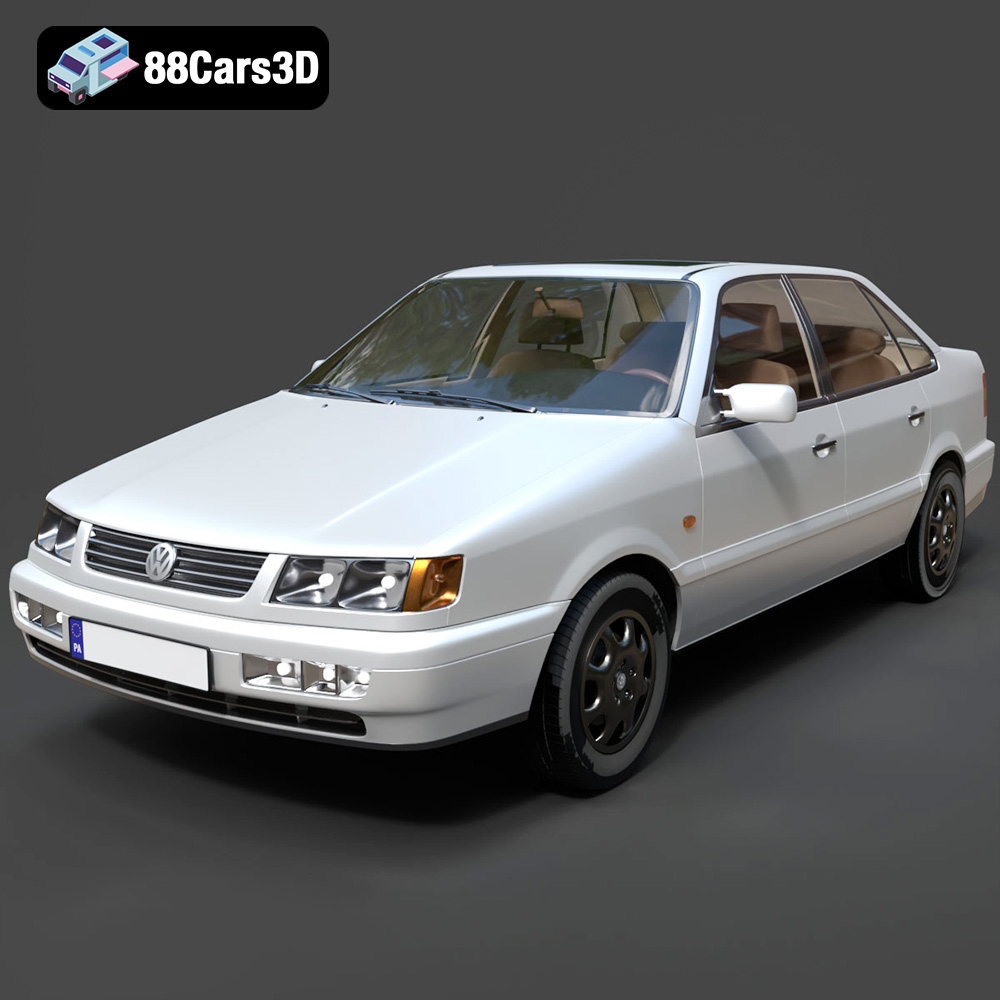
Texture: Yes | Material: Yes
Download the highly detailed, game-ready Volkswagen Passat Mk4 B4 Sedan 1993 3D Model. Features accurate 90s sedan styling, detailed front grille-less fascia, and a classic interior setup. Includes .blend, .fbx, .obj, .glb, .stl, .ply, .unreal, and .max formats for game development, AR/VR, and rendering.
Price: $39.99

Texture: Yes | Material: Yes
Download the highly detailed, game-ready Volkswagen Jetta GLI 2019 3D Model. Features an aggressive honeycomb grille with red accents, sleek aerodynamic profile, and exclusive GLI sport wheels. Includes .blend, .fbx, .obj, .glb, .stl, .ply, .unreal, and .max formats for game development, AR/VR, and rendering.
Price: $39.99

Texture: Yes | Material: Yes
Download the highly detailed, game-ready Vintage Vespa 3D Model. Features iconic rounded monocoque styling, classic saddle, and chrome accents. Includes .blend, .fbx, .obj, .glb, .stl, .ply, .unreal, and .max formats for game development, AR/VR, and rendering.
Price: $39.99

Texture: Yes | Material: Yes
Download the highly detailed, game-ready Vespa GS 150 3D Model. Features elegant aerodynamic curves, classic leg shield, and detailed engine casing. Includes .blend, .fbx, .obj, .glb, .stl, .ply, .unreal, and .max formats for game development, AR/VR, and rendering.
Price: $39.99

Texture: Yes | Material: Yes
Download the highly detailed, game-ready Vespa P200E 3D Model. Features classic vintage styling, accurate step-through frame geometry, and authentic detailing. Includes .blend, .fbx, .obj, .glb, .stl, .ply, .unreal, and .max formats for game development, AR/VR, and rendering.
Price: $39.99

Texture: Yes | Material: Yes
Download the highly detailed, game-ready Ural M67-36-P 1976 3D Model. Features the iconic air-cooled boxer engine, vintage utilitarian styling, and authentic spoked wheels. Includes .blend, .fbx, .obj, .glb, .stl, .ply, .unreal, and .max formats for game development, AR/VR, and rendering.
Price: $39.99

