Get 20% OFF All Premium 3D & STL Models!

“`html
3D printing is a fascinating technology, but achieving optimal print times and material usage requires careful planning and execution. Whether you’re printing a detailed car model from 88cars3d.com or designing your own creations, understanding how to scale, hollow, and optimize your STL files is crucial. This comprehensive guide will walk you through the essential techniques and best practices for achieving faster, more efficient 3D prints. We’ll cover everything from understanding STL file structure to using specific software settings to achieve the best results. By the end of this article, you’ll be equipped with the knowledge and skills to significantly reduce your print times without compromising the quality of your final product.
We will explore how to modify your models to be efficient for both FDM (Fused Deposition Modeling) and resin printing, tailoring the optimization strategies for each technology. Learn how to balance speed, strength, and aesthetics to create stunning 3D printed car models and other projects with ease and efficiency.
At the heart of 3D printing lies the STL (Stereolithography) file format. An STL file represents a 3D object as a collection of interconnected triangles, forming a mesh. The density and arrangement of these triangles directly impact the model’s detail, file size, and, ultimately, print time. Understanding the underlying structure is essential before diving into scaling, hollowing, and optimization.
STL files come in two primary flavors: ASCII and binary. ASCII STL files store triangle data in plain text, making them human-readable but significantly larger. Binary STL files, on the other hand, store data in a more compact binary format, resulting in smaller file sizes and faster processing. Regardless of the format, each triangle is defined by its three vertices (coordinates in 3D space) and a normal vector (indicating the triangle’s orientation). More complex models require more triangles, leading to larger file sizes and longer processing times in slicing software. When downloading models from marketplaces such as 88cars3d.com, ensure the STL files are well-optimized for printing, exhibiting manifold and non-intersecting meshes to avoid print failures.
The quality of the mesh topology is critical for successful 3D printing. A “manifold” mesh is one that is watertight, meaning it has no holes, gaps, or self-intersections. Non-manifold geometry can cause significant problems during slicing, leading to unexpected print errors or even complete print failures. Software like Meshmixer, Netfabb, and Blender can be used to identify and repair non-manifold geometry. These tools can automatically close holes, remove duplicate faces, and ensure the mesh is watertight and ready for slicing. Regularly inspecting and repairing STL files, especially those sourced from various online repositories, is a crucial step in the 3D printing workflow.
Scaling an STL model is a fundamental operation, allowing you to adjust the size of your print to fit your specific requirements. Whether you need a miniature version of a car model or a larger-than-life display piece, understanding scaling techniques is essential.
Most slicing software, such as Cura, PrusaSlicer, and Simplify3D, offer built-in scaling tools. These tools allow you to scale the model uniformly along all three axes (X, Y, and Z) or independently along each axis. Uniform scaling maintains the proportions of the model, while non-uniform scaling can be used to stretch or compress the model in specific directions. To scale a model in Cura, for example, you can select the “Scale” tool in the left-hand panel. You can then enter a scaling factor (e.g., 2 for doubling the size) or specify the desired dimensions in millimeters. PrusaSlicer offers similar functionality, with the added ability to scale based on a percentage. When scaling models, especially car models from platforms like 88cars3d.com, be mindful of the printer’s build volume and the impact of scaling on the model’s structural integrity.
When scaling down a model, it’s crucial to consider the limitations of your 3D printer’s resolution. Fine details may be lost if the scaled-down model features dimensions smaller than the printer’s minimum feature size. For FDM printers, this is primarily dictated by the nozzle diameter (typically 0.4mm), while for resin printers, it’s determined by the pixel size of the LCD screen. Conversely, scaling up a model can reveal imperfections in the original mesh. If the original model has low polygon count, scaling it up can result in a faceted or blocky appearance. In such cases, you may need to use mesh smoothing tools in software like Meshmixer or Blender to increase the polygon count and create a smoother surface.
Hollowing is a technique used to remove the interior material from a 3D model, significantly reducing material consumption and print time. This is particularly useful for larger prints or when printing with expensive materials. Hollowing requires careful planning to ensure the structural integrity of the final print.
Meshmixer is a free and powerful tool for hollowing STL models. To hollow a model in Meshmixer, first import the STL file. Then, navigate to “Edit” > “Hollow.” Meshmixer offers several parameters to control the hollowing process, including the wall thickness and the offset distance. A typical wall thickness ranges from 1.5mm to 3mm, depending on the size and complexity of the model. The offset distance determines the distance between the original surface and the inner surface of the hollowed model. After hollowing, it’s essential to add drainage holes to allow uncured resin (for resin printing) or excess filament (for FDM printing) to escape. These holes should be strategically placed in inconspicuous locations and can be added using the “Sculpt” or “Edit” tools in Meshmixer.
The wall thickness of a hollowed model is a critical factor in its structural integrity. Thinner walls will save more material and print faster, but they may also be more prone to breakage or deformation. Experimentation is key to finding the optimal balance between wall thickness and strength. For large models, consider adding internal support structures, such as ribs or lattices, to reinforce the walls and prevent them from collapsing. These internal supports can be created using the “Edit” > “Make Pattern” tool in Meshmixer. When designing internal supports, ensure they don’t obstruct the drainage holes and that they are easily removable after printing. Using infill within the hollowed space isn’t typically necessary, but can add significant structural integrity for a small cost in materials and print time.
Slicing software converts a 3D model into a series of instructions that the 3D printer can understand. Optimizing the slicing parameters can significantly impact print time, material usage, and print quality. Understanding the key settings and their effects is essential for efficient 3D printing.
Layer height is one of the most critical slicing parameters. A larger layer height will result in faster print times, as the printer needs to make fewer passes. However, it will also reduce the print’s resolution and may result in visible layer lines. A smaller layer height will produce a smoother surface finish but will significantly increase print time. For FDM printing, a common layer height range is 0.1mm to 0.3mm. For detailed models, a layer height of 0.1mm or 0.15mm is recommended, while for larger, less detailed models, a layer height of 0.2mm or 0.3mm can be used to speed up the print. Print speed also plays a significant role. Increasing the print speed will reduce print time, but it may also affect print quality. Experiment with different speeds to find the optimal balance for your printer and material. A good starting point is 50-60mm/s, but this may need to be adjusted depending on the specific filament and printer.
Infill is the internal structure of a 3D print. The infill density determines the amount of material used inside the model. A higher infill density will result in a stronger print but will also increase print time and material usage. A lower infill density will save material and print faster, but it may compromise the print’s strength. For most applications, an infill density of 15-25% is sufficient. The infill pattern also affects the print’s strength and weight. Common infill patterns include grid, line, and honeycomb. The honeycomb pattern is known for its high strength-to-weight ratio, while the grid pattern is simpler and faster to print. For models that require high strength, such as functional parts, consider using a denser infill pattern like gyroid or cubic. Adaptive infill is also a powerful technique, allowing you to use higher infill densities in areas that require more strength and lower infill densities in less critical areas.
Support structures are temporary structures that provide support for overhanging features during 3D printing. Generating and removing support structures can be a time-consuming process, but optimizing these aspects can significantly reduce print time and improve the final print quality.
Most slicing software offers automatic support generation. Automatic support generation algorithms analyze the model and automatically place supports where they are needed. However, automatic supports are often overly conservative and can result in excessive material usage and difficult removal. Manual support generation allows you to precisely control the placement and type of supports, minimizing material usage and making removal easier. In Cura, for example, you can use the “Custom Support” plugin to add and modify supports manually. When placing supports manually, focus on supporting only the critical overhangs and avoid placing supports in areas that are difficult to reach or that will leave visible marks on the finished print. Simplify3D offers advanced support settings, allowing you to customize the support density, angle, and layer height.
The choice of support material can also affect print time and removal ease. Some materials, such as HIPS (High Impact Polystyrene) and PVA (Polyvinyl Alcohol), are designed to be easily dissolved in water, making support removal effortless. However, these materials require dual-extrusion printers and can be more expensive than standard materials like PLA or ABS. Interface layers are thin layers printed between the support structure and the model. These layers provide a smooth transition and prevent the support from bonding too strongly to the model. Adjusting the interface layer settings, such as the density and layer height, can significantly improve support removal. For FDM printing, consider using a “support interface” setting that creates a more easily detachable layer between the support and the model itself. For resin printing, optimizing the support tip size and penetration depth is crucial for easy removal without damaging the part.
The material you choose to print with has a significant impact on print speed, strength, and overall performance. Different materials have different printing characteristics, requiring different settings and optimization strategies.
PLA (Polylactic Acid) is a popular material for 3D printing due to its ease of use and biodegradability. PLA prints relatively quickly and at lower temperatures compared to other materials. However, PLA is not as strong or heat-resistant as other materials. PETG (Polyethylene Terephthalate Glycol) is a stronger and more heat-resistant material than PLA. PETG also has good layer adhesion and is less prone to warping. However, PETG typically requires higher printing temperatures and may be more difficult to dial in the optimal settings. ABS (Acrylonitrile Butadiene Styrene) is a strong and durable material that is commonly used for functional parts. ABS has high heat resistance and impact resistance. However, ABS is more prone to warping and requires a heated bed and enclosure to print successfully. For faster printing, PLA is often the preferred choice, followed by PETG. ABS typically requires slower printing speeds to prevent warping and ensure good layer adhesion.
For resin printing, the choice of resin type affects both print speed and the mechanical properties of the final part. Standard resins are typically faster to print, requiring shorter exposure times per layer. However, they may not be as strong or durable as engineering resins. Engineering resins, such as those designed for high strength or high temperature resistance, often require longer exposure times and may be more difficult to dial in. Optimizing the exposure time is crucial for successful resin printing. Underexposure can result in weak or incomplete prints, while overexposure can cause the resin to cure excessively, leading to dimensional inaccuracies and difficulty removing supports. Experiment with different exposure times to find the optimal setting for your resin and printer. Use resin calibration tools to dial in the correct settings; these tools create a series of test parts with varying exposure times on a single print bed, allowing you to quickly identify the best exposure for your chosen resin.
Even with careful planning and optimization, 3D printing is not without its challenges. Understanding common printing issues and how to troubleshoot them is essential for efficient production and minimizing wasted material.
Warping is a common issue with FDM printing, particularly with materials like ABS. Warping occurs when the corners of the print lift off the build plate due to uneven cooling. To prevent warping, ensure your build plate is properly leveled and heated. Use a bed adhesion aid, such as glue stick, hairspray, or painter’s tape, to improve adhesion. An enclosure can also help to maintain a consistent temperature and prevent drafts. Bed adhesion is crucial for the first few layers of the print. If the first layer doesn’t adhere properly, the print is likely to fail. Layer delamination occurs when the layers of the print separate from each other. This can be caused by insufficient bed temperature, improper cooling settings, or weak layer adhesion. Ensure that your printer is properly calibrated and that you are using the correct settings for your material. Adjusting the fan speed and printing temperature can also help to improve layer adhesion.
Over-extrusion occurs when the printer extrudes too much material, resulting in blobs, zits, and poor surface quality. To fix over-extrusion, reduce the flow rate in your slicing software or decrease the extrusion multiplier. Under-extrusion occurs when the printer extrudes too little material, resulting in gaps, weak layers, and poor adhesion. To fix under-extrusion, increase the flow rate or increase the printing temperature. Stringing occurs when the printer leaves thin strands of filament between different parts of the print. This is typically caused by excessive travel moves and improper retraction settings. Increase the retraction distance and speed in your slicing software. Adjusting the travel speed and enabling “combing” can also help to reduce stringing. Regularly clean your nozzle to ensure optimal material flow and prevent clogs which can also contribute to both under and over extrusion issues.
Optimizing STL models for 3D printing speed involves a multifaceted approach, from understanding STL file structures and mesh topology to meticulously adjusting slicing parameters and selecting the right materials. By scaling models appropriately, hollowing them strategically, and carefully considering support structures, you can significantly reduce print times and material usage without sacrificing the quality of your final product. Remember to troubleshoot common printing issues proactively to ensure smooth and efficient production. Whether you are printing intricate car models sourced from platforms like 88cars3d.com or crafting your own designs, mastering these techniques will empower you to unlock the full potential of your 3D printer.
Take the time to experiment with different settings and materials, and always document your findings to build a knowledge base tailored to your specific printer and workflow. Start with small test prints to evaluate the impact of different settings before committing to large-scale projects. By following the guidance in this article, you’ll be well on your way to achieving faster, more efficient, and higher-quality 3D prints.
“`

Texture: Yes | Material: Yes
Download the highly detailed, game-ready Yamaha YZF-R125 EU 3D Model. Features an aggressive aerodynamic fairing, twin LED headlights, and a detailed 125cc engine block. Includes .blend, .fbx, .obj, .glb, .stl, .ply, .unreal, and .max formats for game development, AR/VR, and rendering.
Price: $19.99

Texture: Yes | Material: Yes
Download the highly detailed, game-ready Yamaha R1 3D Model. Features aggressive aerodynamic fairings, a detailed crossplane inline-4 engine, and track-focused suspension geometry. Includes .blend, .fbx, .obj, .glb, .stl, .ply, .unreal, and .max formats for game development, AR/VR, and rendering.
Price: $19.99

Texture: Yes | Material: Yes
Download the highly detailed, game-ready Yamaha XV950 Racer 3D Model. Features an aggressive cafe-racer front cowl, detailed air-cooled V-twin engine, and classic retro styling. Includes .blend, .fbx, .obj, .glb, .stl, .ply, .unreal, and .max formats for game development, AR/VR, and rendering.
Price: $19.99

Texture: Yes | Material: Yes
Download the highly detailed, game-ready Volvo VNL Tractor Truck 2002 3D Model. Features iconic aerodynamic styling, detailed fifth-wheel coupling, and heavy-duty chassis. Includes .blend, .fbx, .obj, .glb, .stl, .ply, .unreal, and .max formats for game development, AR/VR, and rendering.
Price: $39.99
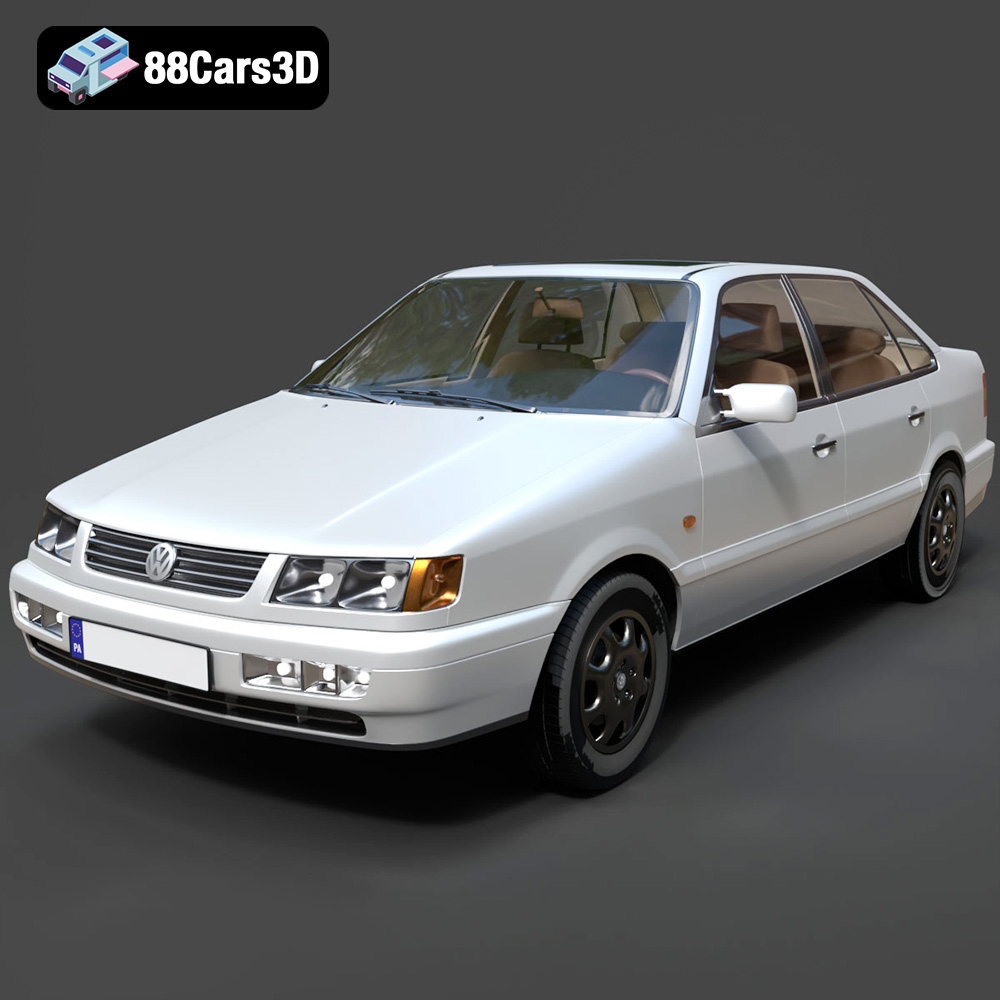
Texture: Yes | Material: Yes
Download the highly detailed, game-ready Volkswagen Passat Mk4 B4 Sedan 1993 3D Model. Features accurate 90s sedan styling, detailed front grille-less fascia, and a classic interior setup. Includes .blend, .fbx, .obj, .glb, .stl, .ply, .unreal, and .max formats for game development, AR/VR, and rendering.
Price: $39.99

Texture: Yes | Material: Yes
Download the highly detailed, game-ready Volkswagen Jetta GLI 2019 3D Model. Features an aggressive honeycomb grille with red accents, sleek aerodynamic profile, and exclusive GLI sport wheels. Includes .blend, .fbx, .obj, .glb, .stl, .ply, .unreal, and .max formats for game development, AR/VR, and rendering.
Price: $39.99

Texture: Yes | Material: Yes
Download the highly detailed, game-ready Vintage Vespa 3D Model. Features iconic rounded monocoque styling, classic saddle, and chrome accents. Includes .blend, .fbx, .obj, .glb, .stl, .ply, .unreal, and .max formats for game development, AR/VR, and rendering.
Price: $39.99

Texture: Yes | Material: Yes
Download the highly detailed, game-ready Vespa GS 150 3D Model. Features elegant aerodynamic curves, classic leg shield, and detailed engine casing. Includes .blend, .fbx, .obj, .glb, .stl, .ply, .unreal, and .max formats for game development, AR/VR, and rendering.
Price: $39.99

Texture: Yes | Material: Yes
Download the highly detailed, game-ready Vespa P200E 3D Model. Features classic vintage styling, accurate step-through frame geometry, and authentic detailing. Includes .blend, .fbx, .obj, .glb, .stl, .ply, .unreal, and .max formats for game development, AR/VR, and rendering.
Price: $39.99

Texture: Yes | Material: Yes
Download the highly detailed, game-ready Ural M67-36-P 1976 3D Model. Features the iconic air-cooled boxer engine, vintage utilitarian styling, and authentic spoked wheels. Includes .blend, .fbx, .obj, .glb, .stl, .ply, .unreal, and .max formats for game development, AR/VR, and rendering.
Price: $39.99

