Get 20% OFF All Premium 3D & STL Models!

“`html
3D printing has revolutionized the way we create and prototype, and at the heart of this transformative technology lies the crucial process of slicing. Whether you’re a hobbyist printing collectible car models from platforms like 88cars3d.com or a professional engineer creating functional prototypes, understanding how to properly slice an STL file is paramount to achieving high-quality, dimensionally accurate, and structurally sound prints. This comprehensive guide will delve into the intricacies of slicing, covering everything from understanding STL files to optimizing printer settings and troubleshooting common issues. Prepare to unlock the full potential of your 3D printer and transform your digital designs into tangible reality. We’ll explore the nuances of slicing software, dissect critical parameters like layer height and infill, and arm you with the knowledge to master support structures and post-processing techniques. By the end of this article, you’ll be equipped with the skills to consistently produce 3D prints that meet and exceed your expectations.
Before diving into the slicing process itself, it’s crucial to understand the nature of STL files and the mesh topology that defines them. STL, or Standard Tessellation Language, is a file format that represents the surface geometry of a 3D object using a collection of triangles. The density and arrangement of these triangles directly impact the resolution and accuracy of the printed model. A poorly constructed or damaged STL file can lead to print failures, surface imperfections, and dimensional inaccuracies.
STL files typically contain information about the vertices (corners) and normals (surface direction) of each triangle. There are two main types of STL files: ASCII and binary. ASCII STL files are human-readable but larger in size, while binary STL files are more compact and faster to process. Understanding the file structure can be helpful for troubleshooting issues and manually editing STL files using specialized software like MeshLab or Netfabb.
A “manifold” mesh is essential for successful 3D printing. A manifold mesh is one that is closed, without any holes or self-intersections. Non-manifold geometry, on the other hand, can cause slicing software to misinterpret the model, leading to errors during printing. Common issues include:
Tools like Netfabb, Meshmixer, and the online service MakePrintable are excellent for detecting and repairing non-manifold geometry. These tools can automatically fill holes, remove self-intersections, and correct inverted normals, ensuring a watertight and printable STL file. Always repair your STL files before slicing to avoid unexpected print failures. Platforms like 88cars3d.com ensure that the models they offer are manifold and print-ready, saving you time and effort.
The slicing process involves converting the STL file into a series of instructions (G-code) that the 3D printer can understand. Slicing software, such as Cura, PrusaSlicer, Simplify3D, and others, allows you to control numerous parameters that directly affect the print quality, strength, and appearance of the final product. These parameters need careful consideration and adjustment based on the specific model, material, and printer being used.
Layer height is arguably the most critical slicing parameter. It determines the thickness of each layer of material deposited during printing. Smaller layer heights result in smoother surfaces and finer details but also increase print time significantly. Conversely, larger layer heights lead to faster prints but reduce surface quality. A common range for layer height is 0.1mm to 0.3mm for FDM printing. For resin printing, layer heights can be much smaller, often in the range of 0.025mm to 0.05mm. When printing car models with intricate details, such as those found on 88cars3d.com, a smaller layer height is often preferable.
Infill refers to the internal structure of the 3D printed part. Infill density, expressed as a percentage, determines how much material is used to fill the interior. Higher infill densities result in stronger and heavier parts, while lower densities save material and reduce print time. The infill pattern also plays a role in the part’s strength and weight. Common infill patterns include rectilinear, grid, triangles, and gyroid. For functional parts that require high strength, a denser infill and a more robust pattern like triangles or gyroid are recommended. For purely aesthetic prints, a lower density and a simpler pattern like rectilinear may suffice. A good starting point is 20% infill density with a rectilinear pattern, which can then be adjusted based on the specific requirements of the print. Consider increasing the infill percentage for parts that will be subjected to stress or load.
Support structures are temporary scaffolding used to support overhanging features and bridges during 3D printing. Without supports, these features would collapse due to gravity. The generation and placement of support structures are crucial for achieving successful prints, especially for complex geometries. However, supports also add to print time and material consumption, and their removal can sometimes leave surface blemishes. Mastering support generation and removal is a key skill for any 3D printing enthusiast.
Most slicing software offers both automatic and manual support generation options. Automatic support generation is convenient and can quickly create a basic support structure. However, it often generates excessive supports in unnecessary areas. Manual support generation allows for more precise control over support placement, minimizing material usage and reducing the risk of surface damage during removal. Understanding the geometry of your model and strategically placing supports only where needed can significantly improve the print quality and efficiency. Analyze the model carefully and identify areas that require support, focusing on overhangs greater than 45 degrees.
The choice of support material and the configuration of interface layers can greatly impact the ease of support removal and the quality of the supported surfaces. For dual-extrusion FDM printers, using a soluble support material like PVA can simplify support removal significantly. For single-extrusion printers, using a different material with a lower adhesion to the primary printing material can also help. Interface layers, which are thin layers printed between the support structure and the model, can be configured to minimize the contact area and improve surface finish. Experiment with different support materials and interface layer settings to find the optimal configuration for your specific printer and material.
The orientation of the model on the build plate significantly affects the print quality, strength, and the need for support structures. Choosing the optimal print orientation can minimize support usage, improve surface finish, and enhance the mechanical properties of the printed part. Proper bed adhesion is also critical to prevent warping and detachment during printing, especially for larger models or materials with poor adhesion properties.
Strategically orienting the model can minimize the number of overhangs and bridges, thereby reducing the need for support structures. Consider the shape of the model and identify the flattest surface that can be placed on the build plate. Rotating the model around different axes can reveal orientations that require less support material. For example, a car model from 88cars3d.com might be oriented with its roof facing down to minimize supports on the body. Prioritize orientations that expose the most critical surfaces to the direct action of the printer, resulting in smoother finishes on visible areas.
Ensuring good bed adhesion is essential for preventing print failures due to warping or detachment. Several techniques can be employed to improve bed adhesion, including:
Calibrating the Z-offset is another important step. The Z-offset determines the distance between the nozzle and the build plate during the first layer. A Z-offset that is too high will result in poor adhesion, while a Z-offset that is too low can cause the nozzle to drag on the build plate. Fine-tune the Z-offset until the first layer is properly squished onto the bed.
The choice of material and the corresponding printer settings are critical for achieving successful and high-quality 3D prints. Different materials have different properties, such as strength, flexibility, temperature resistance, and printability. Selecting the right material for your application and configuring the printer settings accordingly is essential for achieving the desired results.
FDM (Fused Deposition Modeling) and resin printing are the two most common 3D printing technologies. FDM printers use a filament of thermoplastic material, while resin printers use a liquid resin that is cured by light. FDM printing is generally more suitable for larger parts, functional prototypes, and hobbyist projects, while resin printing excels at producing highly detailed and accurate parts with smooth surfaces. For printing intricate car models, resin printing often provides superior results due to its higher resolution. However, FDM printing is more versatile in terms of material options and can be used to print with materials like PLA, ABS, PETG, and nylon.
Each material requires specific printer settings to achieve optimal results. For example, PLA typically prints at lower temperatures than ABS, and PETG requires good bed adhesion to prevent warping. Consult the material manufacturer’s recommendations for the recommended printing temperature, bed temperature, print speed, and other settings. Experiment with different settings to fine-tune the print quality and strength. Common settings include:
Post-processing refers to the steps taken after printing to improve the appearance, strength, and functionality of the 3D printed part. Common post-processing techniques include support removal, sanding, filling, painting, and assembly. The specific post-processing steps required will depend on the material, the printing technology, and the desired final result.
Sanding is a common post-processing technique used to smooth out the surface of 3D printed parts and remove layer lines. Start with a coarse grit sandpaper (e.g., 120 grit) to remove major imperfections, and then gradually move to finer grits (e.g., 220, 400, 600 grit) to achieve a smooth finish. Wet sanding can also help to reduce dust and improve the surface finish. For resin prints, sanding is often not necessary due to the inherently smooth surface. However, support removal can sometimes leave blemishes that require light sanding. For models downloaded from sites like 88cars3d.com, ensuring a smooth finish is important for realistic aesthetics.
Painting is used to add color and visual appeal to 3D printed parts. Before painting, it is important to prime the surface to ensure good adhesion of the paint. Use a primer specifically designed for plastics. Apply multiple thin coats of paint rather than one thick coat to avoid runs and drips. Allow each coat to dry completely before applying the next. For multi-part models, assembly may be required. Use adhesives specifically designed for plastics to bond the parts together. Consider using mechanical fasteners, such as screws or bolts, for stronger and more durable assemblies.
Even with careful planning and execution, 3D printing can sometimes present challenges. Common printing issues include warping, stringing, bed adhesion problems, and layer separation. Understanding the causes of these issues and knowing how to troubleshoot them is essential for achieving consistent and high-quality prints.
Warping occurs when the corners or edges of the print lift off the build plate during printing. This is often caused by uneven cooling of the material, which creates internal stresses. To prevent warping, ensure that the bed is properly heated and leveled. Use bed adhesion aids such as adhesive sprays or tapes. Enclosing the printer can also help to maintain a more consistent temperature and reduce warping. Check that your slicer settings such as initial layer height and fan speed are optimal for your material.
Stringing occurs when small strands of material are left behind as the nozzle moves between different parts of the print. Blobs are small accumulations of material that can form on the surface of the print. Stringing and blobs are often caused by excessive printing temperature, insufficient retraction, or slow travel speed. To reduce stringing and blobs, decrease the printing temperature, increase the retraction distance and speed, and increase the travel speed. Also, ensure that the filament is dry, as moisture can exacerbate these issues. Experiment with retraction settings to find the optimal balance between preventing stringing and avoiding nozzle clogs.
Mastering the art of slicing STL models is a journey of continuous learning and experimentation. By understanding the intricacies of STL files, optimizing slicing parameters, mastering support structures, and troubleshooting common issues, you can unlock the full potential of your 3D printer and consistently produce high-quality prints. Remember to carefully consider the material, the printer settings, and the specific requirements of your project. Explore different slicing software options and experiment with various settings to find the optimal configuration for your needs. Don’t be afraid to iterate and learn from your mistakes. Platforms like 88cars3d.com offer a wide range of printable car models, providing ample opportunity to practice your slicing skills and hone your craft. Start with simple models and gradually move to more complex designs as your skills improve. Embrace the challenges and celebrate the successes along the way. Happy printing!
“`

Texture: Yes | Material: Yes
Download the highly detailed, game-ready Yamaha YZF-R125 EU 3D Model. Features an aggressive aerodynamic fairing, twin LED headlights, and a detailed 125cc engine block. Includes .blend, .fbx, .obj, .glb, .stl, .ply, .unreal, and .max formats for game development, AR/VR, and rendering.
Price: $19.99

Texture: Yes | Material: Yes
Download the highly detailed, game-ready Yamaha R1 3D Model. Features aggressive aerodynamic fairings, a detailed crossplane inline-4 engine, and track-focused suspension geometry. Includes .blend, .fbx, .obj, .glb, .stl, .ply, .unreal, and .max formats for game development, AR/VR, and rendering.
Price: $19.99

Texture: Yes | Material: Yes
Download the highly detailed, game-ready Yamaha XV950 Racer 3D Model. Features an aggressive cafe-racer front cowl, detailed air-cooled V-twin engine, and classic retro styling. Includes .blend, .fbx, .obj, .glb, .stl, .ply, .unreal, and .max formats for game development, AR/VR, and rendering.
Price: $19.99

Texture: Yes | Material: Yes
Download the highly detailed, game-ready Volvo VNL Tractor Truck 2002 3D Model. Features iconic aerodynamic styling, detailed fifth-wheel coupling, and heavy-duty chassis. Includes .blend, .fbx, .obj, .glb, .stl, .ply, .unreal, and .max formats for game development, AR/VR, and rendering.
Price: $39.99
Texture: Yes | Material: Yes
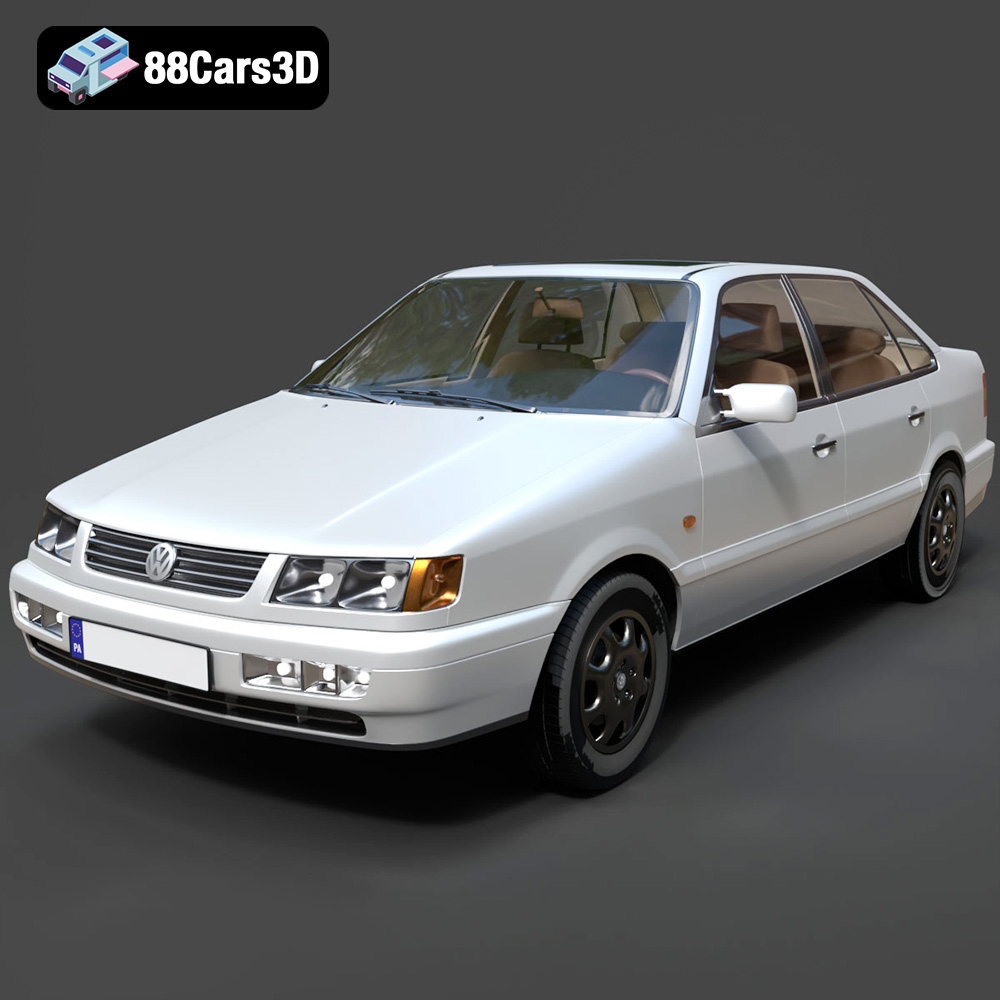
Download the highly detailed, game-ready Volkswagen Passat Mk4 B4 Sedan 1993 3D Model. Features accurate 90s sedan styling, detailed front grille-less fascia, and a classic interior setup. Includes .blend, .fbx, .obj, .glb, .stl, .ply, .unreal, and .max formats for game development, AR/VR, and rendering.
Price: $39.99

Texture: Yes | Material: Yes
Download the highly detailed, game-ready Volkswagen Jetta GLI 2019 3D Model. Features an aggressive honeycomb grille with red accents, sleek aerodynamic profile, and exclusive GLI sport wheels. Includes .blend, .fbx, .obj, .glb, .stl, .ply, .unreal, and .max formats for game development, AR/VR, and rendering.
Price: $39.99

Texture: Yes | Material: Yes
Download the highly detailed, game-ready Vintage Vespa 3D Model. Features iconic rounded monocoque styling, classic saddle, and chrome accents. Includes .blend, .fbx, .obj, .glb, .stl, .ply, .unreal, and .max formats for game development, AR/VR, and rendering.
Price: $39.99

Texture: Yes | Material: Yes
Download the highly detailed, game-ready Vespa GS 150 3D Model. Features elegant aerodynamic curves, classic leg shield, and detailed engine casing. Includes .blend, .fbx, .obj, .glb, .stl, .ply, .unreal, and .max formats for game development, AR/VR, and rendering.
Price: $39.99

Texture: Yes | Material: Yes
Download the highly detailed, game-ready Vespa P200E 3D Model. Features classic vintage styling, accurate step-through frame geometry, and authentic detailing. Includes .blend, .fbx, .obj, .glb, .stl, .ply, .unreal, and .max formats for game development, AR/VR, and rendering.
Price: $39.99

Texture: Yes | Material: Yes
Download the highly detailed, game-ready Ural M67-36-P 1976 3D Model. Features the iconic air-cooled boxer engine, vintage utilitarian styling, and authentic spoked wheels. Includes .blend, .fbx, .obj, .glb, .stl, .ply, .unreal, and .max formats for game development, AR/VR, and rendering.
Price: $39.99

