Get 20% OFF All Premium 3D & STL Models!

“`html
3D printing offers incredible opportunities for hobbyists, engineers, and automotive enthusiasts to bring their visions to life. Platforms like 88cars3d.com provide a vast library of high-quality, 3D printable car models in STL format, making it easier than ever to dive into this exciting field. However, the path from downloading an STL file to holding a perfectly printed model can be fraught with challenges, especially for beginners. This guide will walk you through the top 10 mistakes new 3D printing enthusiasts make when working with STL files, particularly when printing intricate car models, and provide actionable solutions to help you achieve professional-quality results.
By understanding these common pitfalls and implementing the suggested solutions, you’ll minimize wasted filament, reduce print failures, and maximize the potential of your 3D printer. Whether you’re using FDM or resin printing, this comprehensive guide will equip you with the knowledge and skills necessary to create stunning 3D printed car models from 88cars3d.com with confidence.
One of the most frequent errors beginners make is assuming that all STL files are ready to print immediately after downloading. While many models, especially those from reputable sources, are well-prepared, STL files can sometimes contain errors that lead to print failures. These errors often stem from how the 3D model was created or converted into the STL format.
STL files represent 3D objects as a collection of triangles. Imperfections in the mesh, such as holes, flipped normals (triangles facing the wrong way), and non-manifold geometry (edges shared by more than two triangles) can cause significant problems during slicing and printing. For car models, these issues are especially problematic in areas with complex curves and fine details, such as the grille, headlights, and intricate body lines.
Solution: Utilize mesh repair software like Meshmixer, Netfabb Basic (Autodesk offers a hobbyist license), or even the built-in repair tools in your slicer software (e.g., Cura, PrusaSlicer). These tools can automatically detect and fix many common mesh errors. In Meshmixer, for example, you can import your STL file, navigate to “Edit,” and select “Make Solid” to attempt automatic repair. In Cura, enabling “Mesh Fixes” options such as “Remove All Holes” and “Extensive Stitching Mesh Fixes” can often resolve minor issues.
Always inspect the repaired mesh visually to ensure the repairs haven’t introduced new artifacts or distortions, especially in critical areas of your car model.
Another crucial aspect of STL file preparation is ensuring adequate wall thickness, particularly for FDM printing. If the walls of your model are too thin, the printer might struggle to deposit filament effectively, leading to weak or incomplete prints. This is especially crucial for printable car models because the bodies often have large, flat surfaces that need structural integrity.
Solution: Before printing, inspect the wall thickness of your model in your slicer software. Most slicers have a measurement tool that allows you to check the distance between surfaces. For FDM printing, a minimum wall thickness of 0.8mm (two passes with a 0.4mm nozzle) is generally recommended for structural parts. If your model has areas with insufficient wall thickness, you can either modify the original model in a 3D modeling program or, in some cases, adjust the “Wall Line Count” setting in your slicer to increase the number of perimeters printed.
Print orientation profoundly affects print quality, support requirements, and overall success. Choosing the wrong orientation can lead to excessive support material, weak points in the model, and aesthetically unappealing results. This is particularly important for intricate car models where detailed surfaces and complex geometries are involved.
The amount of support material needed depends heavily on the orientation of the model. Orienting a car body horizontally, for example, might require significant supports under the roof and hood. When printing intricate car models, you want to minimize support usage to save time and material and reduce the risk of damaging the printed surface during support removal.
Solution: Analyze the geometry of your car model carefully and choose an orientation that minimizes overhangs and unsupported areas. Experiment with different orientations in your slicer to visualize the support structures generated. Consider rotating the model to an angle where the most critical surfaces are facing upwards, reducing the need for supports on those areas. For example, tilting the car body at a 45-degree angle might reduce the support needed under the roof. For example, you might print a model of a car chassis with the bottom facing down, because that is often the flattest surface.
Print orientation also affects the strength of the printed part. Parts are generally weaker between layers than within a layer. Orient your model so that the forces it will experience during use are aligned with the layers, rather than perpendicular to them.
Solution: Orient your model so that the forces it will experience during use are aligned with the layers, rather than perpendicular to them. Think about where the greatest stresses will be on the model if it’s used for display or functional purposes. For example, if you’re printing a wheel assembly, orient the wheel so that the layers are parallel to the axle. This will maximize the strength of the wheel in the direction of rotation.
Relying solely on default settings is a common pitfall. Different models, materials, and printers require specific adjustments to achieve optimal results. This is particularly true for detailed car models where fine features and accurate dimensions are critical.
Layer height directly affects the resolution and surface finish of your print. Smaller layer heights produce smoother surfaces and capture finer details, but they also increase print time. Conversely, larger layer heights print faster but sacrifice detail.
Solution: Experiment with different layer heights to find the sweet spot between print quality and speed. For detailed car models, a layer height of 0.1mm to 0.15mm is often a good starting point for FDM printing. For resin printing, layer heights can go even lower, down to 0.025mm or even 0.01mm for extremely fine details. When printing models from 88cars3d.com, consider the level of detail in the model and adjust the layer height accordingly. A highly detailed model with intricate grilles and trim will benefit from a smaller layer height, while a simpler model can be printed with a slightly larger layer height.
Incorrect temperature and print speed settings can lead to a variety of problems, including warping, stringing, and poor layer adhesion. Each material has an optimal temperature range, and exceeding or falling short of this range can negatively impact print quality.
Solution: Consult the material manufacturer’s recommendations for temperature settings. As a starting point, PLA typically prints well between 200°C and 220°C, while PETG requires higher temperatures, typically between 230°C and 250°C. Adjust your print speed based on the complexity of the model and the capabilities of your printer. Slower speeds generally improve print quality, especially for intricate details. A print speed of 40-60 mm/s is a good starting point for FDM printing, but you might need to reduce it further for very small or detailed features.
Support structures are essential for printing overhangs and bridging gaps, but their improper use can lead to print failures, surface blemishes, and excessive material waste. Beginners often underestimate the nuances of support generation and placement.
Different types of support structures are available, each with its own strengths and weaknesses. Common types include tree supports, linear supports, and grid supports. The best choice depends on the geometry of the model and the desired level of support.
Solution: Experiment with different support types in your slicer to find the one that works best for your car model. Tree supports are often a good choice for complex geometries with organic shapes, as they use less material and are easier to remove. Linear supports are suitable for flat overhangs and bridging gaps. Adjust the support density and placement to provide adequate support without overdoing it. Consider using support blockers to prevent supports from being generated in areas where they are not needed or where they would be difficult to remove.
The interface between the support structure and the model can be a source of surface blemishes. Adjusting the support settings to make removal easier and minimize damage is crucial.
Solution: Increase the “Support Z Distance” or “Support Vertical Separation Distance” in your slicer settings. This creates a small gap between the support and the model, making it easier to break away the support without damaging the surface. Experiment with different values to find the optimal balance between support adhesion and ease of removal. Consider using soluble support materials for complex models with intricate internal structures. These materials dissolve in water or other solvents, leaving a clean and smooth surface.
Poor bed adhesion is a major cause of print failures, especially for larger or more complex models. If the first layer doesn’t stick properly to the bed, the entire print can detach and become a tangled mess.
An unlevel print bed is a common culprit behind poor bed adhesion. Even a slight tilt can cause some areas of the print to be too close to the nozzle, while others are too far away.
Solution: Carefully level your print bed using a leveling tool or the built-in leveling system on your printer. Follow the manufacturer’s instructions for bed leveling, and double-check the levelness before each print. Consider using a bed adhesion aid, such as a glue stick, hairspray, or painter’s tape, to improve adhesion. These products create a sticky surface that helps the first layer adhere to the bed. Alternatively, consider a PEI print surface, which offers excellent adhesion for various materials.
The first layer is the foundation of the entire print, and its settings are critical for ensuring good adhesion.
Solution: Adjust the first layer height, width, and speed in your slicer settings. Increasing the first layer height slightly can help to squish the filament onto the bed and improve adhesion. Reducing the first layer speed can also improve adhesion, as it gives the filament more time to bond to the bed. Set the first layer width to 100% or even slightly higher to create a wider contact area. Ensure that your bed temperature is set correctly for the material you are using. For PLA, a bed temperature of 60°C is generally recommended, while PETG requires a higher temperature of 70-80°C.
Infill density and pattern significantly affect the strength, weight, and print time of your model. Beginners often use default infill settings without understanding their impact.
Infill density refers to the percentage of the model’s interior that is filled with material. Higher infill densities result in stronger but heavier and longer-printing models. Lower infill densities result in weaker but lighter and faster-printing models. For car models, the ideal infill density depends on the intended use of the model.
Solution: Choose an infill density that balances strength, weight, and print time. For display models that don’t need to withstand significant stress, an infill density of 10-15% is usually sufficient. For functional parts that need to be strong, such as wheel assemblies or chassis components, an infill density of 20-30% or higher might be necessary. Experiment with different infill densities to find the optimal balance for your specific needs.
Different infill patterns offer varying levels of strength and material usage. Common patterns include grid, honeycomb, gyroid, and triangles.
Solution: Choose an infill pattern that is appropriate for the shape and size of your model. Grid infill is a simple and efficient pattern that provides good strength in all directions. Honeycomb infill is lightweight and strong, making it a good choice for parts that need to be both strong and lightweight. Gyroid infill is an advanced pattern that provides excellent strength and isotropic properties, but it can be more challenging to print. Consider using adaptive infill, which adjusts the infill density based on the geometry of the model. This can help to save material and reduce print time while still providing adequate strength in critical areas. When printing models from 88cars3d.com, the type of infill is less important than the density if the parts are only for display.
Filament quality is crucial for successful 3D printing. Improper storage can lead to moisture absorption, which can cause printing problems such as stringing, bubbling, and poor layer adhesion.
Many filaments, particularly PLA, PETG, and nylon, are hygroscopic, meaning they readily absorb moisture from the air. Moist filament can lead to inconsistent extrusion and print failures.
Solution: Store your filament in a dry, airtight container with desiccant packs to absorb moisture. If you live in a humid climate, consider using a filament dryer to remove moisture from the filament before printing. Many commercially available filament dryers are available, or you can create your own using a food dehydrator or other suitable container.
Avoid touching the filament with your bare hands, as oils and contaminants can transfer to the filament and affect print quality.
Solution: Handle filament with clean gloves or a cloth to prevent contamination. Keep your printing environment clean and free of dust and debris. Regularly clean your printer’s nozzle and extruder to prevent clogs and ensure smooth filament flow.
Post-processing can significantly improve the appearance and functionality of your 3D printed car models. Beginners often overlook these techniques, resulting in a less polished final product.
Removing support structures can be a delicate process, especially for intricate models. Improper removal can damage the surface of the print.
Solution: Use appropriate tools for removing support structures, such as pliers, cutters, and sandpaper. Start by carefully breaking away the larger sections of support, and then use finer tools to remove the remaining support material. Consider using a heat gun or hair dryer to soften the support material before removal. This can make it easier to break away the support without damaging the surface. Sand the areas where supports were attached to smooth out any imperfections. Start with coarse sandpaper and gradually move to finer grits for a smooth finish.
Sanding and painting can transform a rough 3D print into a smooth and professional-looking model.
Solution: Sand your 3D printed car models to remove layer lines and surface imperfections. Start with coarse sandpaper (e.g., 120 grit) and gradually move to finer grits (e.g., 400 grit, 600 grit, and 800 grit) for a smooth finish. Apply a primer to the sanded surface to prepare it for painting. Choose a primer that is compatible with the material you are using. Apply multiple thin coats of paint, allowing each coat to dry completely before applying the next. Use a clear coat to protect the paint and add a glossy or matte finish. When downloading models from marketplaces such as 88cars3d.com, keep in mind that the post processing needed will depend on the quality of the model. A high-quality model might require less sanding.
Regular calibration and maintenance are essential for ensuring consistent and reliable print quality. Beginners often neglect these tasks, leading to print inconsistencies and eventual printer malfunctions.
The extruder steps/mm value determines how much filament is extruded for a given command. An incorrectly calibrated extruder can lead to over- or under-extrusion, resulting in dimensional inaccuracies and poor layer adhesion.
Solution: Calibrate your extruder steps/mm by measuring the amount of filament extruded and adjusting the steps/mm value in your printer’s firmware. Follow the manufacturer’s instructions for extruder calibration. There are many online tutorials available that can guide you through the process.
Regularly cleaning and lubricating your printer’s moving parts can prevent wear and tear and ensure smooth operation.
Solution: Clean your printer’s nozzle regularly to prevent clogs. Lubricate the lead screws, bearings, and other moving parts with appropriate lubricants. Check the belts and pulleys for wear and tear and replace them if necessary. Regularly inspect the wiring and connections to ensure they are secure and in good condition.
3D printing is a learning process, and mistakes are inevitable. The key is to learn from your mistakes and use them to improve your printing skills.
Keep a log of your print settings, material used, and the results you achieved. This will help you to identify patterns and optimize your settings for future prints.
Solution: Create a spreadsheet or notebook to record your print settings and results. Include information such as the material used, layer height, temperature, print speed, infill density, support settings, and any other relevant parameters. Take photos of your prints to document the results. Analyze your prints for any defects or imperfections and try to identify the cause. Use this information to adjust your settings and improve your printing skills.
The 3D printing community is a valuable resource for beginners. Don’t be afraid to ask for help from experienced printers.
Solution: Join online forums, Facebook groups, and other online communities dedicated to 3D printing. Share your experiences and ask for advice from other printers. Attend local 3D printing events and workshops to learn from experts and network with other enthusiasts. Many 3D printing communities will have specific threads or groups dedicated to printing car models. The knowledge shared can be invaluable.
Mastering 3D printing, especially for detailed projects like car models from 88cars3d.com, requires attention to detail and a willingness to learn. By avoiding these top 10 mistakes, you’ll significantly improve your chances of success and create stunning 3D printed car models. Remember to always prepare your STL files properly, choose the right print orientation, optimize your printer settings, and pay attention to support structures and bed adhesion. Post-processing and regular printer maintenance are also crucial for achieving professional-quality results.
Take the time to experiment with different settings and techniques, document your results, and seek help from the 3D printing community when needed. With practice and perseverance, you’ll be able to overcome any challenges and unlock the full potential of your 3D printer. Now, get out there, start printing, and bring your favorite car models to life!
“`

Texture: Yes | Material: Yes
Download the highly detailed, game-ready Yamaha YZF-R125 EU 3D Model. Features an aggressive aerodynamic fairing, twin LED headlights, and a detailed 125cc engine block. Includes .blend, .fbx, .obj, .glb, .stl, .ply, .unreal, and .max formats for game development, AR/VR, and rendering.
Price: $19.99

Texture: Yes | Material: Yes
Download the highly detailed, game-ready Yamaha R1 3D Model. Features aggressive aerodynamic fairings, a detailed crossplane inline-4 engine, and track-focused suspension geometry. Includes .blend, .fbx, .obj, .glb, .stl, .ply, .unreal, and .max formats for game development, AR/VR, and rendering.
Price: $19.99

Texture: Yes | Material: Yes
Download the highly detailed, game-ready Yamaha XV950 Racer 3D Model. Features an aggressive cafe-racer front cowl, detailed air-cooled V-twin engine, and classic retro styling. Includes .blend, .fbx, .obj, .glb, .stl, .ply, .unreal, and .max formats for game development, AR/VR, and rendering.
Price: $19.99

Texture: Yes | Material: Yes
Download the highly detailed, game-ready Volvo VNL Tractor Truck 2002 3D Model. Features iconic aerodynamic styling, detailed fifth-wheel coupling, and heavy-duty chassis. Includes .blend, .fbx, .obj, .glb, .stl, .ply, .unreal, and .max formats for game development, AR/VR, and rendering.
Price: $39.99
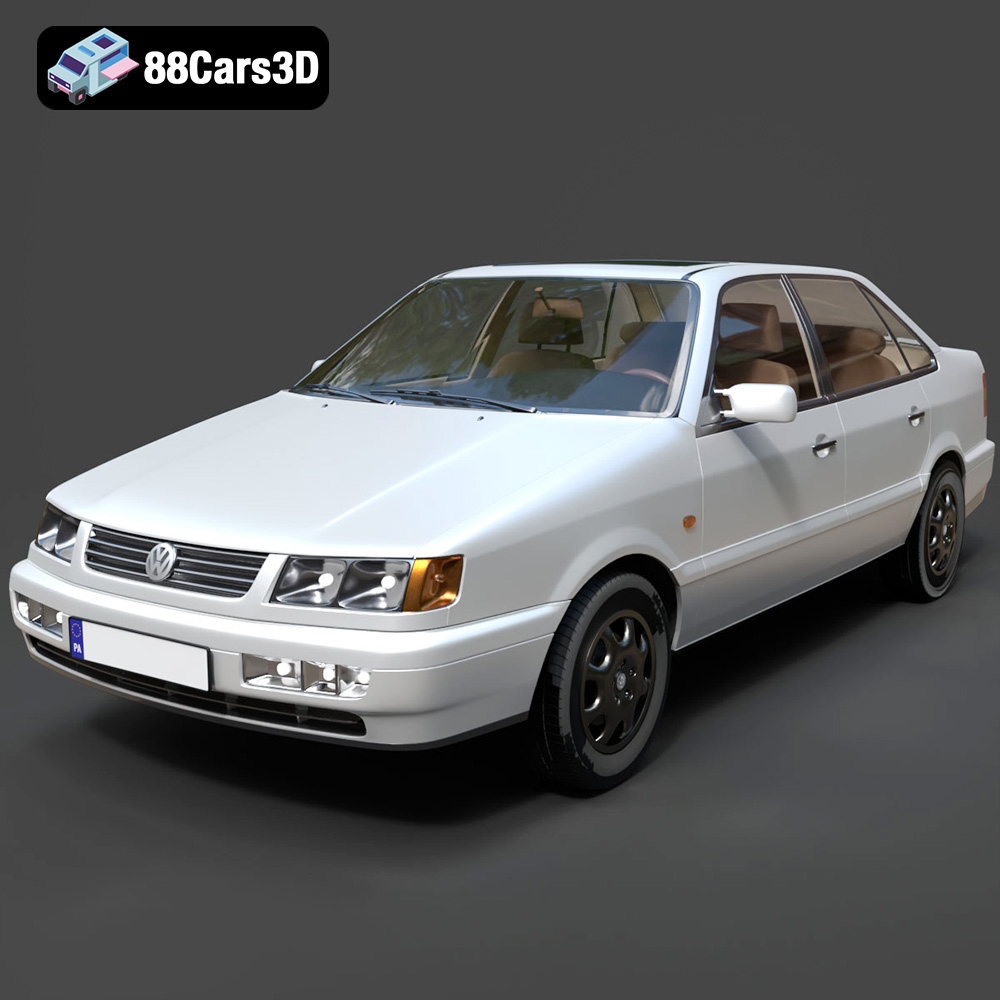
Texture: Yes | Material: Yes
Download the highly detailed, game-ready Volkswagen Passat Mk4 B4 Sedan 1993 3D Model. Features accurate 90s sedan styling, detailed front grille-less fascia, and a classic interior setup. Includes .blend, .fbx, .obj, .glb, .stl, .ply, .unreal, and .max formats for game development, AR/VR, and rendering.
Price: $39.99

Texture: Yes | Material: Yes
Download the highly detailed, game-ready Volkswagen Jetta GLI 2019 3D Model. Features an aggressive honeycomb grille with red accents, sleek aerodynamic profile, and exclusive GLI sport wheels. Includes .blend, .fbx, .obj, .glb, .stl, .ply, .unreal, and .max formats for game development, AR/VR, and rendering.
Price: $39.99

Texture: Yes | Material: Yes
Download the highly detailed, game-ready Vintage Vespa 3D Model. Features iconic rounded monocoque styling, classic saddle, and chrome accents. Includes .blend, .fbx, .obj, .glb, .stl, .ply, .unreal, and .max formats for game development, AR/VR, and rendering.
Price: $39.99

Texture: Yes | Material: Yes
Download the highly detailed, game-ready Vespa GS 150 3D Model. Features elegant aerodynamic curves, classic leg shield, and detailed engine casing. Includes .blend, .fbx, .obj, .glb, .stl, .ply, .unreal, and .max formats for game development, AR/VR, and rendering.
Price: $39.99

Texture: Yes | Material: Yes
Download the highly detailed, game-ready Vespa P200E 3D Model. Features classic vintage styling, accurate step-through frame geometry, and authentic detailing. Includes .blend, .fbx, .obj, .glb, .stl, .ply, .unreal, and .max formats for game development, AR/VR, and rendering.
Price: $39.99

Texture: Yes | Material: Yes
Download the highly detailed, game-ready Ural M67-36-P 1976 3D Model. Features the iconic air-cooled boxer engine, vintage utilitarian styling, and authentic spoked wheels. Includes .blend, .fbx, .obj, .glb, .stl, .ply, .unreal, and .max formats for game development, AR/VR, and rendering.
Price: $39.99

