Get 20% OFF All Premium 3D & STL Models!

The Vespa P200E is more than just a scooter; it’s a symbol of Italian style and a design icon. Thanks to advancements in 3D printing, you can now bring this classic two-wheeler to life in your own home. This guide will walk you through the entire process, from selecting the right materials and printer settings to post-processing techniques that will elevate your 3D printed Vespa P200E to a true work of art. Whether you’re a seasoned 3D printing enthusiast or just starting, this comprehensive guide will provide you with the knowledge and skills to create a stunning replica. The detailed models available at 88cars3d.com offer an exceptional starting point for this project.
Before diving into the 3D printing process, proper preparation of the model is crucial. This involves inspecting the model, making necessary adjustments, and selecting the appropriate slicing software.
The first step is to thoroughly inspect the Vespa P200E 3D model for any errors or imperfections. Common issues can include non-manifold edges, flipped normals, and gaps in the mesh. Software like MeshLab, Netfabb, or even the built-in repair tools in your slicer can help identify and fix these problems. Ensure that the model is watertight, meaning there are no holes in the surface, as this can cause printing errors. Minor imperfections can be addressed in post-processing, but addressing major issues at this stage will save you time and material. The models offered on 88cars3d.com are generally well-prepared, but a quick check is always recommended.
The product description recommends scales of 1:12, 1:18, or 1:24. Your choice will depend on the size of your printer’s build volume and the level of detail you want to achieve. A larger scale (e.g., 1:12) will allow for finer details but will also require more material and printing time. Consider the limitations of your printer and choose a scale that balances detail and practicality.
Slicing software translates your 3D model into instructions that your 3D printer can understand. Popular options include Cura, PrusaSlicer, Simplify3D, and IdeaMaker. Each slicer offers a range of settings that affect the print quality, strength, and speed. We’ll delve into specific settings later, but initially, familiarize yourself with the basic parameters such as layer height, infill density, support structures, and print speed.
Choosing the right file format is critical for ensuring a smooth and successful 3D printing experience. Different formats offer varying degrees of compatibility, detail, and suitability for specific applications. While many formats exist, several are particularly relevant to 3D printing.
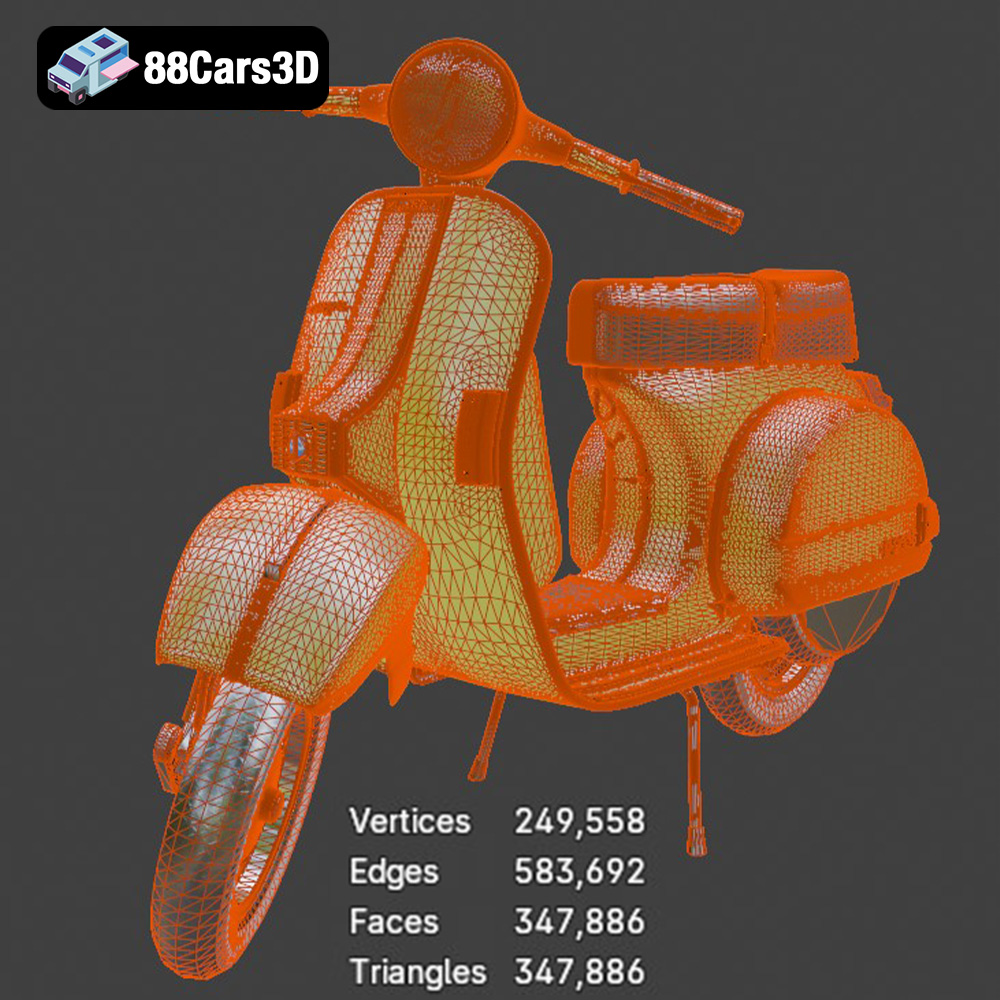
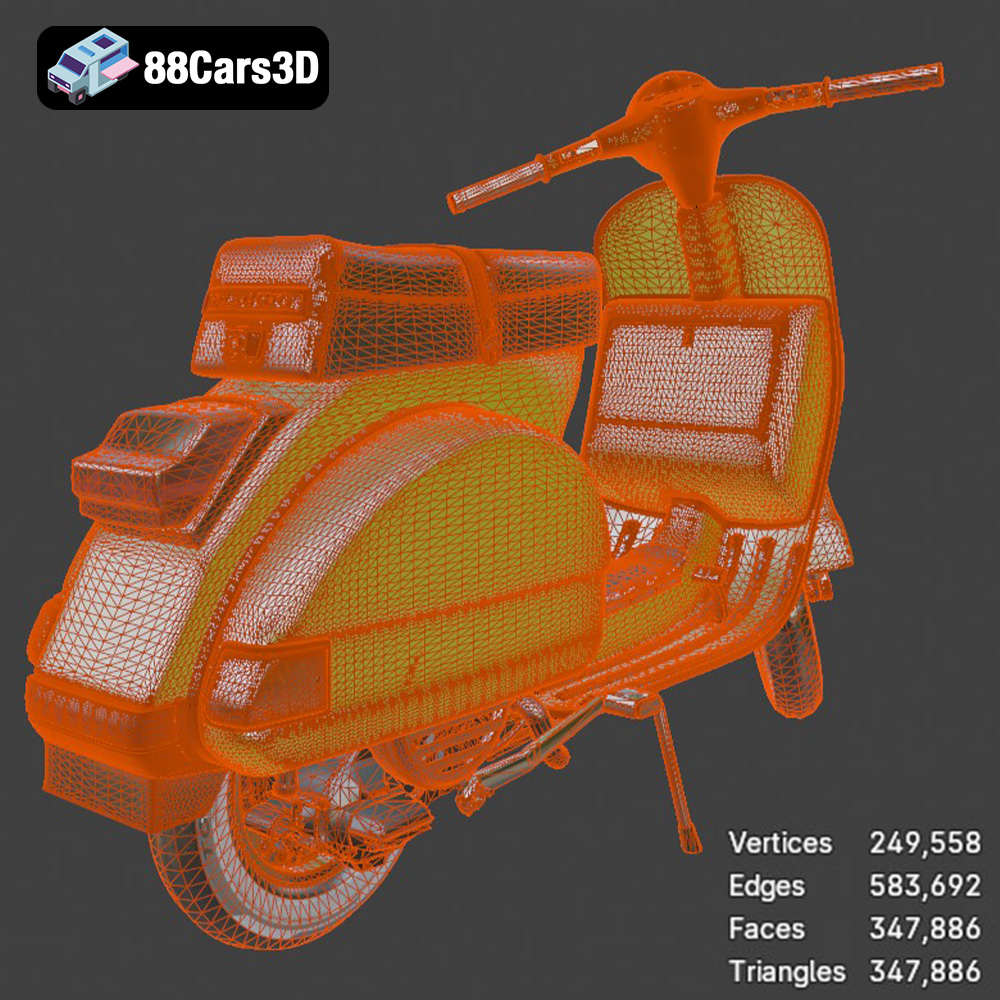
The STL (Stereolithography) file format is the workhorse of 3D printing. It represents the surface geometry of a 3D object as a collection of triangles. This simplicity makes it universally compatible with virtually all 3D printers and slicing software. However, STL files only store the mesh data, meaning they don’t contain information about color, texture, or materials. This limitation is usually not a concern for single-color prints, but it’s important to remember when working with models designed to have multiple colors or textures. The mesh quality of an STL file is determined by the number of triangles used to represent the surface. A higher triangle count results in a smoother, more detailed model, but also a larger file size. When exporting to STL, pay attention to the resolution settings. Too low a resolution can lead to faceting, where curved surfaces appear blocky. Too high a resolution can result in unnecessarily large files that are difficult to handle. Most slicing software allows you to adjust the resolution during the import process, balancing detail and file size. For the Vespa P200E, ensure the STL has sufficient resolution to capture the intricate curves and details of the bodywork.
The OBJ (Object) file format is another widely used format that, unlike STL, can store color and texture information along with the mesh geometry. This makes it suitable for 3D printing models with multiple colors or textures, although the support for color printing varies depending on the printer and slicer. OBJ files typically store texture information in separate image files (e.g., .jpg, .png) that are referenced by the OBJ file.
The PLY (Polygon File Format) is designed to store 3D data acquired from 3D scanners. It can represent not only the geometry but also properties such as color, transparency, and normals (surface orientation). PLY files are often used for high-detail models, as they can store more information than STL files.
The BLEND file format is the native format for Blender, a popular open-source 3D modeling software. BLEND files contain the entire Blender scene, including the model’s geometry, textures, materials, lighting, and animation data. While you can’t directly 3D print a BLEND file, it’s incredibly valuable because it allows you to fully customize the Vespa P200E model before exporting it to a printable format like STL.
The FBX (Filmbox) format is a proprietary format developed by Autodesk. It is commonly used for exchanging 3D data between different software applications, particularly in the gaming and animation industries. FBX files can store geometry, textures, materials, animation, and other scene information. While some slicing software can import FBX files, it’s generally recommended to convert them to STL for 3D printing, as not all features are fully supported.
The GLB (GL Transmission Format Binary) is a binary file format that represents 3D models in a compact and efficient way. It is designed to be easily transmitted and loaded, making it ideal for web-based applications and AR (Augmented Reality) experiences. GLB files can contain geometry, textures, and animations. While not directly used for 3D printing, the GLB format allows you to preview the Vespa P200E model in AR before committing to a print, helping you visualize the final result.
Similar to BLEND, the MAX file is the native format for 3ds Max, another professional 3D modeling software package. This contains all scene data and allows for extensive modification.
For 3D printing the Vespa P200E, STL is the primary format of choice due to its universal compatibility and ease of use with slicing software. Ensure that the STL file has sufficient resolution to capture the details of the model. If you plan to customize the model, using the BLEND file in Blender is highly recommended.
Achieving a high-quality 3D print of the Vespa P200E requires careful consideration of your printer settings. These settings will significantly impact the final result, affecting the level of detail, strength, and overall appearance of the model.
Layer height determines the thickness of each layer of plastic deposited by the 3D printer. A smaller layer height results in smoother surfaces and finer details, but also increases printing time. As indicated in the product description, a layer height of 0.04–0.12 mm is recommended for resin printing to capture the fine details of the Vespa P200E. For FDM (Fused Deposition Modeling) printers, a layer height of 0.1-0.2mm is a good starting point. Experiment to find the optimal balance between detail and print speed for your specific printer and material.
Infill refers to the internal structure of the 3D printed model. Infill density determines how solid the interior of the model is, impacting its strength and weight. A higher infill density results in a stronger, heavier model, but also increases material consumption and printing time. The product description suggests an infill density of 20–30%. For a display model like the Vespa P200E, this is generally sufficient. Experiment with different infill patterns, such as rectilinear, grid, or gyroid, to find one that balances strength and material usage.
Support structures are necessary for printing overhangs and complex geometries. The Vespa P200E model likely requires supports for features like the exhaust, mirrors, and handlebars. Choose a support structure type that is easy to remove and minimizes scarring on the surface of the model. Consider using tree supports or light supports to reduce material usage and improve surface finish. Carefully plan the placement of supports to ensure that they adequately support the overhangs without interfering with the model’s details.
The orientation of the model on the print bed can significantly affect print quality and the need for support structures. The product description recommends printing the frame angled for structural integrity. Experiment with different orientations to minimize overhangs and reduce the amount of support material required. Consider printing the wheels separately to achieve a smoother surface finish and avoid the need for supports. For the frame, angling it back slightly will often produce the best results, minimizing the staircase effect.
The choice of material significantly impacts the final appearance, durability, and functionality of your 3D printed Vespa P200E. Different materials offer varying properties, strengths, and aesthetic qualities.
PLA (Polylactic Acid) is a popular thermoplastic known for its ease of use and biodegradability. It’s a great choice for beginners due to its low printing temperature and minimal warping. PLA is available in a wide range of colors and finishes, making it suitable for creating visually appealing models. However, PLA is not as strong or heat-resistant as other materials, so it’s best suited for display models.
PETG (Polyethylene Terephthalate Glycol-modified) offers a good balance of strength, flexibility, and ease of printing. It’s more durable and heat-resistant than PLA, making it a good choice for models that need to withstand some wear and tear. PETG also has good layer adhesion, resulting in stronger prints. It is a good option for components that may experience stress, such as the axles for the wheels.
Resin 3D printing offers unparalleled detail and surface finish. It’s ideal for creating miniature replicas of the Vespa P200E with intricate details. Resin printers use liquid resin that is cured by UV light, resulting in very precise and smooth prints. However, resin printing can be more complex than FDM printing, requiring careful calibration and post-processing.
Post-processing is essential for achieving a professional-looking finish on your 3D printed Vespa P200E. This involves removing supports, sanding the surface, and applying paint and finishes.
Carefully remove the support structures using pliers, cutters, or a deburring tool. Be gentle to avoid damaging the model. After removing the supports, sand the surface of the model to remove any remaining support marks and layer lines. Start with a coarse grit sandpaper (e.g., 220 grit) and gradually move to finer grits (e.g., 400, 600, 800 grit) to achieve a smooth surface. Wet sanding can help reduce dust and improve the surface finish.
Apply a primer to the model to create a smooth, uniform surface for painting. Choose a primer that is compatible with the material you used for printing. After the primer has dried, apply multiple thin coats of paint to achieve the desired color and finish. Consider using authentic factory colors for a realistic look. For a metallic finish, use metallic paints or apply a clear coat with metallic flakes. Apply a clear coat to protect the paint and add a glossy or matte finish.
If you printed the Vespa P200E in multiple parts, assemble them using glue or screws. Pay attention to the alignment of the parts to ensure a seamless fit. Add small details, such as decals, stickers, or chrome accents, to enhance the realism of the model. The models on 88cars3d.com are designed with assembly in mind, making this step easier.
Even with careful preparation and optimized settings, you may encounter some challenges during the 3D printing process. Here are some common issues and their solutions:
Warping occurs when the corners of the print lift off the print bed due to uneven cooling. To prevent warping, ensure that your print bed is clean and level. Use a heated bed and apply an adhesive, such as glue stick or painter’s tape, to improve bed adhesion. Enclosing the printer can also help maintain a consistent temperature and reduce warping.
Stringing occurs when the printer nozzle oozes plastic while moving between different parts of the model. Blobs are small clumps of plastic that accumulate on the surface of the print. To reduce stringing and blobs, optimize your retraction settings, reduce the printing temperature, and increase travel speed.
Layer shifting occurs when the layers of the print are misaligned due to mechanical issues or vibrations. To prevent layer shifting, ensure that your printer belts are properly tensioned, the frame is stable, and the print bed is securely mounted. Reduce the printing speed and avoid printing in areas with excessive vibrations.
The print time and material cost for the Vespa P200E model will vary depending on the scale, settings, and material you choose. A smaller scale model with low infill and fast print speed will take less time and material than a larger scale model with high infill and slow print speed. As a rough estimate, a 1:12 scale model printed in PLA with 20% infill could take 15-25 hours to print and cost $10-20 in material. A resin print will generally take longer, but will use a similar amount of resin.
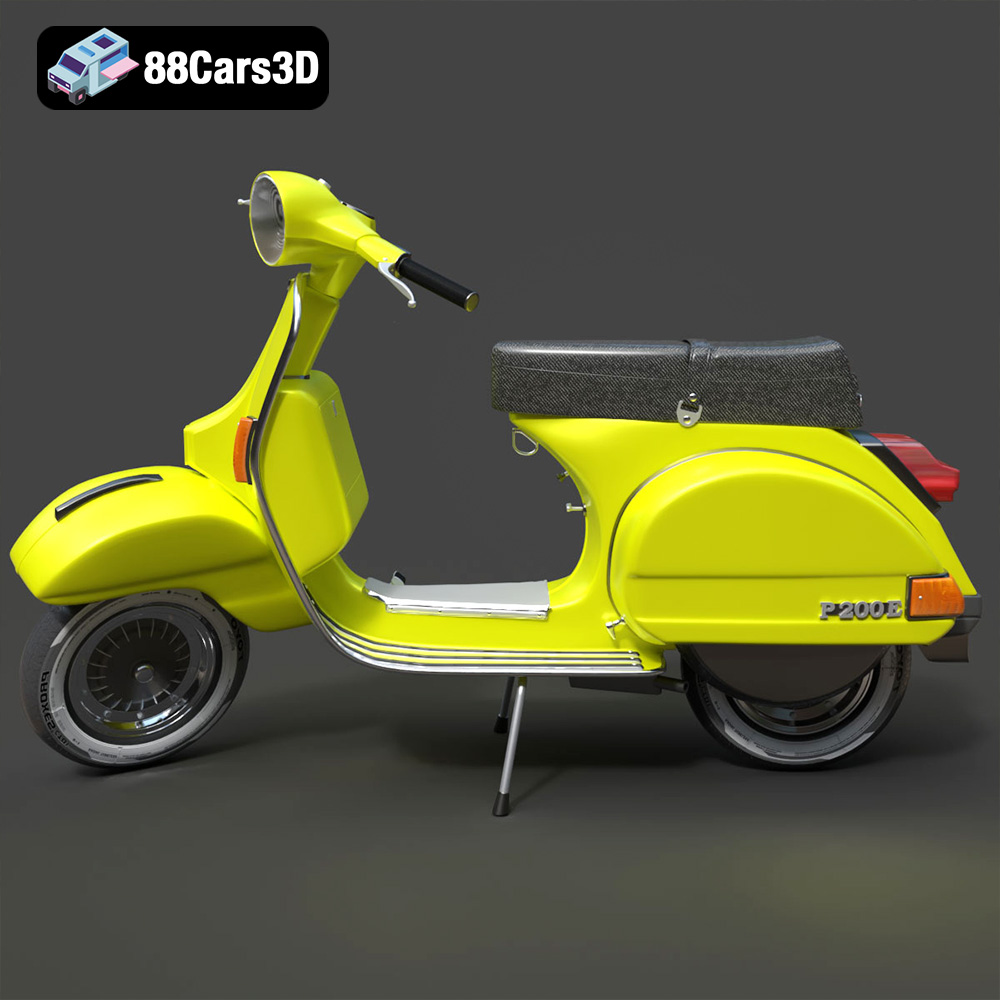
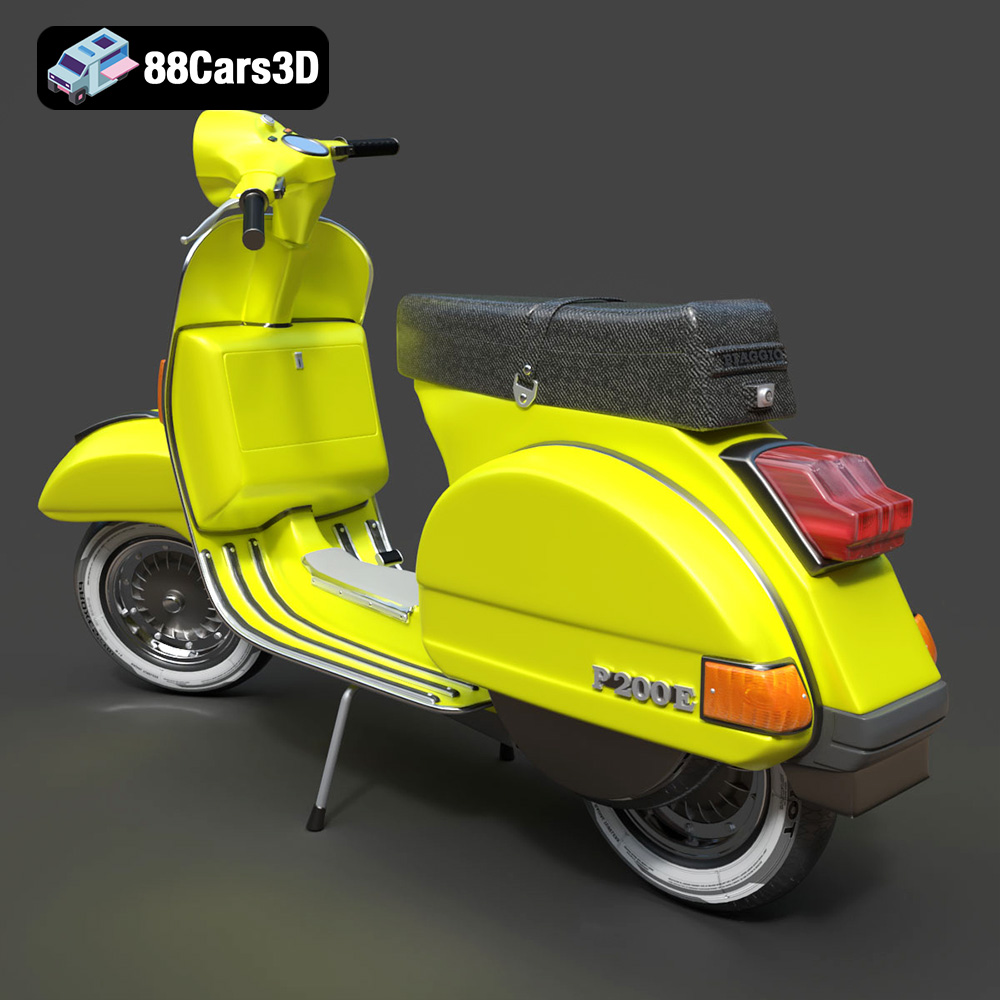
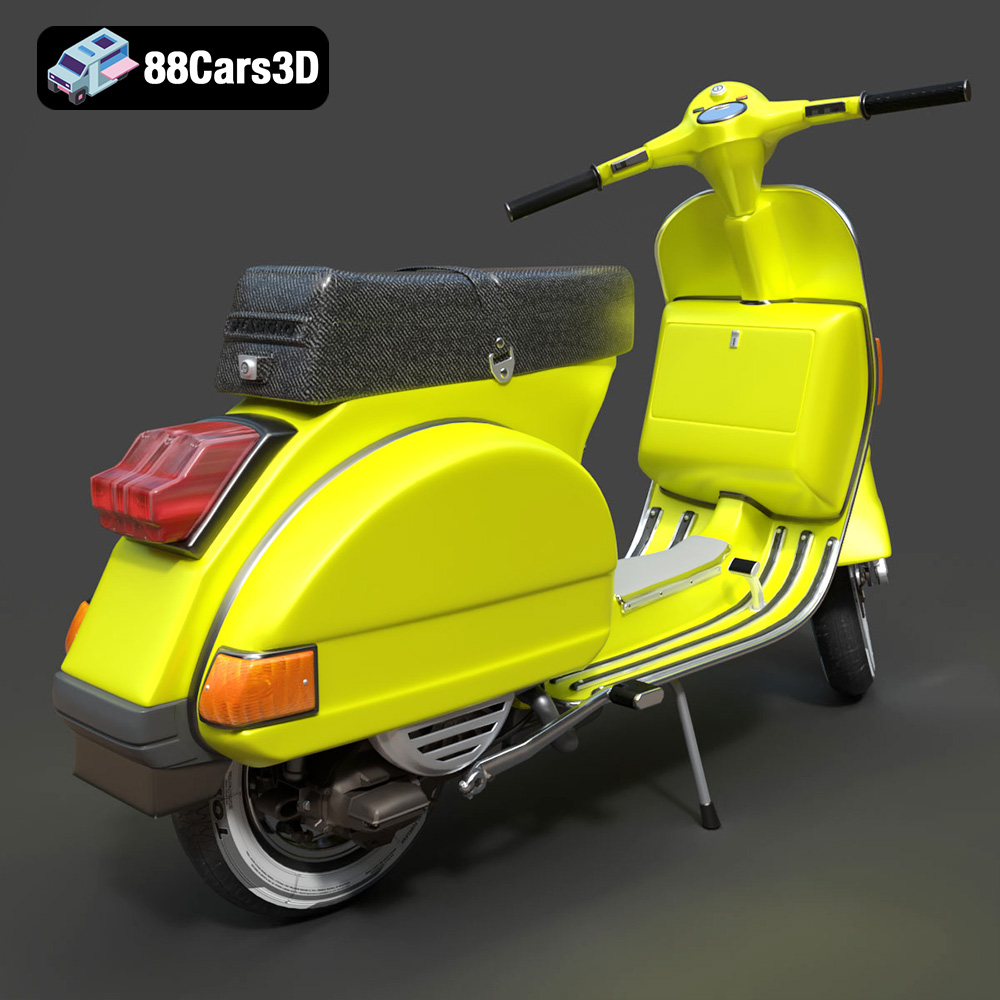
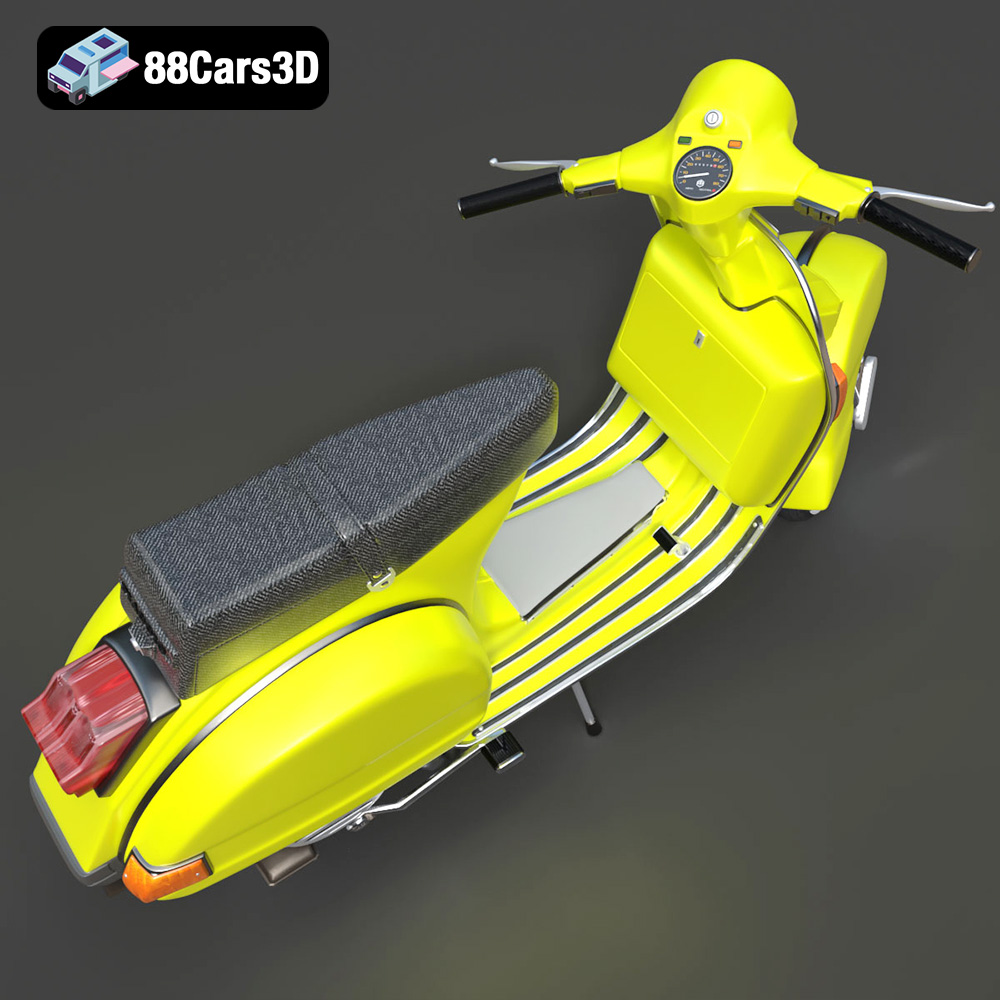
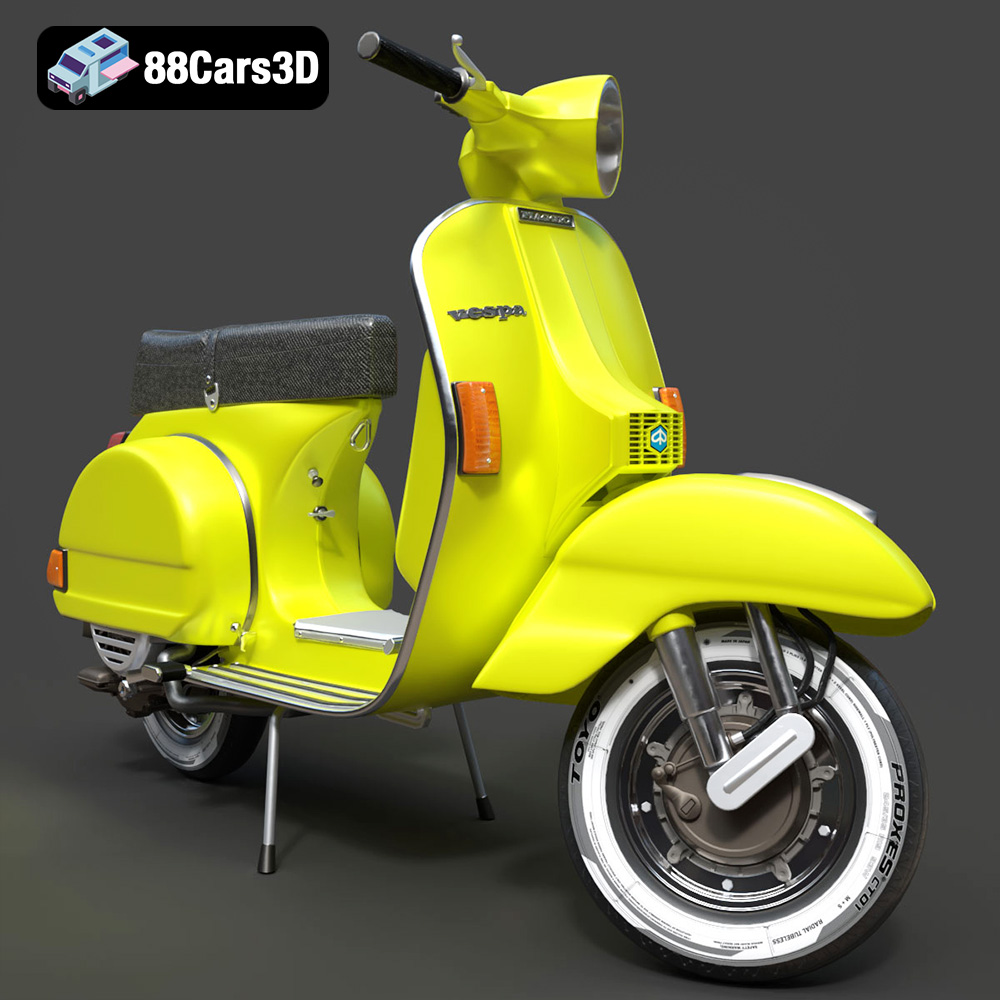
The Vespa P200E is a true icon of Italian design, celebrated for its timeless styling and reliable 2-stroke engine. This 3D model perfectly captures the scooter’s distinctive step-through frame, signature rear engine cowlings, and classic vintage aesthetic that made it a cultural phenomenon. From the rounded headlamp to the unmistakable tail section, every curve has been meticulously recreated to offer an authentic representation of this legendary two-wheeler.
$39.99
.blend
.fbx
.glb
.max
.obj
.ply
.rendering
.scooter
.stl
.unreal
.vespa
.vintage
classic-scooter
game asset
game-ready
low-poly
motorcycle-3d-model
optimized
p200e
VR/AR