Get 20% OFF All Premium 3D & STL Models!

“`html
The journey from a digital 3D model to a tangible object is paved with crucial steps, and arguably, none is more vital than the slicing process. Slicing software acts as the translator, converting your intricate STL file into a series of instructions that your 3D printer can understand and execute. A poorly sliced model can result in a weak, inaccurate, or aesthetically unpleasing print, while a well-sliced model unlocks the full potential of your 3D printer and filament. This guide will delve into the technical aspects of STL slicing, covering everything from file preparation to advanced parameter tuning, ensuring you consistently achieve high-quality 3D prints, especially when working with detailed models like printable car models available on platforms like 88cars3d.com. We will explore techniques applicable to both FDM and resin printing, providing you with the knowledge to optimize your slicing workflow regardless of your preferred technology.
In this comprehensive guide, you’ll learn about:
Before diving into slicing parameters, it’s essential to understand the structure of an STL file. STL, or Stereolithography, represents a 3D model as a collection of interconnected triangles that approximate the surface geometry. The density and arrangement of these triangles, known as the mesh topology, directly impact the accuracy and smoothness of the final print. A model with a low polygon count will appear faceted and lack fine details, while an excessively dense mesh can lead to unnecessarily large file sizes and increased processing time.
The resolution of an STL file dictates the number of triangles used to represent the model’s surface. Higher resolution translates to a smoother surface and more accurate representation of curves and fine details. However, increasing the resolution exponentially increases the file size and processing demands. A general rule of thumb is to use the lowest resolution that captures the necessary details without creating an unmanageably large file. For detailed models like printable car models, a slightly higher resolution is generally preferred to preserve intricate features. Software like Meshmixer and Blender allow you to adjust the mesh density of an STL file before slicing.
STL files are prone to errors such as non-manifold geometry (edges shared by more than two faces), inverted normals (faces pointing in the wrong direction), and gaps in the mesh. These errors can cause slicing failures, printing artifacts, and weak spots in the final print. Fortunately, many slicing programs, as well as dedicated mesh repair tools like Netfabb Basic, offer automated repair functions that can identify and correct these common issues. Regularly checking and repairing your STL files is crucial for ensuring successful and high-quality prints. Some platforms like 88cars3d.com ensure the models available are pre-checked and optimized, but it is still good practice to verify before printing.
Numerous slicing software options are available, each with its own strengths, weaknesses, and target audience. Popular choices include Cura, PrusaSlicer, Simplify3D, and Chitubox (for resin printing). Cura and PrusaSlicer are open-source and free to use, offering a wide range of features and extensive community support. Simplify3D is a commercial option known for its advanced control over slicing parameters and support generation. Chitubox is a dedicated slicer for resin printers, optimized for generating efficient support structures and preparing models for resin-based printing processes.
Cura is known for its user-friendly interface and comprehensive feature set, making it a great choice for beginners and experienced users alike. PrusaSlicer excels in its advanced parameter customization and support for a wide range of printers. Simplify3D offers unparalleled control over slicing parameters, allowing for highly optimized print profiles. Chitubox provides specialized tools for resin printing, including automatic support generation, hollowing, and drainage hole creation. Consider the features that are most important to you, such as ease of use, parameter control, support generation capabilities, and compatibility with your printer, when making your selection.
Open-source slicers like Cura and PrusaSlicer offer the advantage of being free to use and benefit from community-driven development. They often have a wider range of community-created profiles and plugins. Commercial slicers like Simplify3D typically offer more advanced features, dedicated support, and a more polished user experience. The choice between open-source and commercial slicers depends on your budget, technical expertise, and specific needs. For many users, Cura or PrusaSlicer provide sufficient functionality for achieving excellent print quality, especially with readily available online resources and tutorials.
FDM (Fused Deposition Modeling) printing involves extruding molten filament layer by layer to build a 3D object. Optimizing slicing parameters is crucial for achieving strong, accurate, and aesthetically pleasing FDM prints. Key parameters include layer height, infill density, print speed, temperature, and support settings.
Layer height is a critical parameter that determines the vertical resolution of your print. Lower layer heights (e.g., 0.1mm) result in smoother surfaces and finer details but increase print time significantly. Higher layer heights (e.g., 0.3mm) allow for faster printing but sacrifice surface quality. A good starting point is a layer height of 0.2mm, and then adjust based on the desired level of detail and print time constraints. The optimal layer height is often a balance between print speed and the level of detail required for the specific model, such as the intricate details of printable car models.
Infill refers to the internal structure of a 3D print, which provides strength and rigidity. Infill density is the percentage of the interior volume that is filled with material. Higher infill densities (e.g., 50%) result in stronger prints but consume more filament and increase print time. Lower infill densities (e.g., 15%) are suitable for decorative objects or parts that don’t require high strength. Common infill patterns include grid, lines, triangles, and gyroid, each offering different strength-to-weight ratios and printing characteristics. Gyroid infill, for example, provides excellent strength in all directions with a relatively low material usage. For models requiring structural integrity, such as functional prototypes, consider using a higher infill density and a robust infill pattern.
Print speed affects the quality and strength of your prints. Slower speeds generally result in better layer adhesion and more accurate details, while faster speeds can lead to warping, under-extrusion, and other issues. The optimal print speed depends on the material, layer height, and printer capabilities. Temperature settings for the nozzle and bed are also crucial. The nozzle temperature determines the viscosity of the filament, while the bed temperature affects adhesion and prevents warping. Refer to the filament manufacturer’s recommendations for optimal temperature ranges. Experiment with small adjustments to find the best settings for your specific filament and printer combination.
Resin printing, also known as stereolithography (SLA) or digital light processing (DLP), uses a light source to cure liquid resin layer by layer. Slicing parameters for resin printing differ significantly from FDM printing and include layer height, exposure time, lift speed, and support settings.
Similar to FDM printing, layer height in resin printing affects the resolution and print time. Lower layer heights (e.g., 0.025mm) result in finer details but require longer print times. Exposure time is the duration that each layer is exposed to the light source. Insufficient exposure can lead to incomplete curing and weak parts, while overexposure can cause excessive resin bleeding and loss of detail. The optimal exposure time depends on the resin type, layer height, and printer settings. Experiment with different exposure times to find the best balance between detail and strength. Many resin manufacturers provide recommended exposure settings as a starting point.
Lift speed is the speed at which the build plate raises between layers, while retract speed is the speed at which the build plate lowers. These parameters affect the stress on the printed part and the FEP film (the transparent film at the bottom of the resin vat). Higher lift speeds can reduce print time but increase the risk of layer separation and print failures. Lower lift speeds are gentler on the part but increase print time. Retract speed also affects the stress on the FEP film and can contribute to print failures if set too high. Finding the optimal balance between lift speed, retract speed, and print time is crucial for successful resin printing.
Hollowing a resin print reduces material consumption and print time. Hollowing involves creating an empty space inside the model, leaving only a thin outer shell. This is particularly useful for larger models or parts that don’t require high strength. However, hollowing can also trap uncured resin inside the model, which can lead to warping or cracking over time. To prevent this, it’s essential to create drainage holes in the model to allow the uncured resin to escape. Strategically place drainage holes in inconspicuous areas to minimize their impact on the aesthetic appearance of the print. Most resin slicing software provides tools for hollowing and automatically generating drainage holes.
Support structures are essential for printing models with overhangs, bridges, and complex geometries. These structures provide temporary support for unsupported areas, preventing them from collapsing during the printing process. Both FDM and resin printing require careful consideration of support generation and removal.
Proper support placement is crucial for ensuring successful prints and minimizing material waste. Support structures should be placed under all overhangs and bridges, providing adequate support without interfering with the model’s surface. The density of the support structures affects their strength and stability. Higher support densities provide more robust support but can be more difficult to remove and may leave behind more prominent marks on the model’s surface. Lower support densities are easier to remove but may not provide sufficient support for heavy overhangs. Many slicing programs offer automatic support generation features, but manual adjustments are often necessary to optimize support placement and density for specific models. When downloading models from marketplaces such as 88cars3d.com, consider the existing geometry and potential need for supports.
In FDM printing, using a different material for support structures can significantly improve print quality and ease of removal. Soluble support materials, such as PVA, dissolve in water, leaving behind a clean, support-free print. Interface layers, which are layers printed between the support structure and the model, can also improve support removal. Interface layers are typically printed with a lower density or a different material to make them easier to separate from the model. In resin printing, support structures are typically printed with the same resin as the model, but different support settings can be used to optimize their strength and ease of removal.
Removing support structures carefully is essential to avoid damaging the printed model. For FDM prints, use pliers, knives, or specialized support removal tools to carefully break away the support structures. For soluble support materials, immerse the print in water until the support structures dissolve. For resin prints, use a sharp blade or scraper to carefully remove the support structures. After removing the support structures, sand or file down any remaining marks to achieve a smooth surface. Post-processing techniques, such as sanding, priming, and painting, can further enhance the appearance of the final print.
Even with careful slicing and optimized parameters, 3D printing is prone to errors. Understanding common issues and their causes is crucial for troubleshooting and achieving successful prints. Common slicing and printing issues include warping, layer separation, stringing, under-extrusion, and elephant’s foot.
Warping occurs when the corners or edges of a print lift away from the build plate, typically due to uneven cooling or poor bed adhesion. To prevent warping, ensure that the build plate is clean and level. Use a heated bed and set the temperature according to the filament manufacturer’s recommendations. Apply a bed adhesion aid, such as hairspray, glue stick, or painter’s tape, to improve adhesion. Enclosing the printer can also help to maintain a consistent temperature and prevent warping, especially when printing with materials like ABS.
Layer separation occurs when the layers of a print fail to adhere properly, resulting in weak or delaminated parts. Under-extrusion occurs when the printer fails to extrude enough filament, leading to gaps and weak spots in the print. Both layer separation and under-extrusion can be caused by low nozzle temperature, high print speed, clogged nozzle, or incorrect filament diameter settings. Increase the nozzle temperature, reduce the print speed, clean or replace the nozzle, and verify that the filament diameter setting is correct in the slicing software. Check the extruder for any mechanical issues that may be preventing proper filament feeding.
Stringing occurs when thin strands of filament are left between different parts of a print, creating a messy appearance. Blobs are small, irregular lumps of material that appear on the surface of a print. Both stringing and blobs can be caused by high nozzle temperature, slow retraction speed, or excessive travel moves. Reduce the nozzle temperature, increase the retraction speed, and enable travel move optimization in the slicing software. Also, ensure the filament is dry, as moisture can contribute to these issues.
Mastering STL slicing is a critical skill for any 3D printing enthusiast. By understanding the intricacies of STL files, choosing the right slicing software, optimizing slicing parameters for both FDM and resin printing, generating effective support structures, and troubleshooting common printing issues, you can consistently achieve high-quality 3D prints. Remember that experimentation and continuous learning are key to improving your slicing and printing skills. Platforms like 88cars3d.com offer print-ready STL files that can serve as excellent practice models for honing your slicing techniques and achieving exceptional results. By applying the knowledge and techniques outlined in this guide, you can unlock the full potential of your 3D printer and bring your digital designs to life with stunning detail and precision.
Take these actionable steps to improve your slicing skills:
“`

Texture: Yes | Material: Yes
Download the highly detailed, game-ready Ford GT 2005 3D Model. Features signature aerodynamic bodylines, mid-mounted supercharged V8 detailing, and iconic racing stripes. Includes .blend, .fbx, .obj, .glb, .stl, .ply, .unreal, and .max formats for game development, AR/VR, and rendering.
Price: $19.99

Texture: Yes | Material: Yes
Download the highly detailed, game-ready Yamaha YZF-R125 EU 3D Model. Features an aggressive aerodynamic fairing, twin LED headlights, and a detailed 125cc engine block. Includes .blend, .fbx, .obj, .glb, .stl, .ply, .unreal, and .max formats for game development, AR/VR, and rendering.
Price: $19.99

Texture: Yes | Material: Yes
Download the highly detailed, game-ready Yamaha R1 3D Model. Features aggressive aerodynamic fairings, a detailed crossplane inline-4 engine, and track-focused suspension geometry. Includes .blend, .fbx, .obj, .glb, .stl, .ply, .unreal, and .max formats for game development, AR/VR, and rendering.
Price: $19.99

Texture: Yes | Material: Yes
Download the highly detailed, game-ready Yamaha XV950 Racer 3D Model. Features an aggressive cafe-racer front cowl, detailed air-cooled V-twin engine, and classic retro styling. Includes .blend, .fbx, .obj, .glb, .stl, .ply, .unreal, and .max formats for game development, AR/VR, and rendering.
Price: $19.99

Texture: Yes | Material: Yes
Download the highly detailed, game-ready Volvo VNL Tractor Truck 2002 3D Model. Features iconic aerodynamic styling, detailed fifth-wheel coupling, and heavy-duty chassis. Includes .blend, .fbx, .obj, .glb, .stl, .ply, .unreal, and .max formats for game development, AR/VR, and rendering.
Price: $39.99
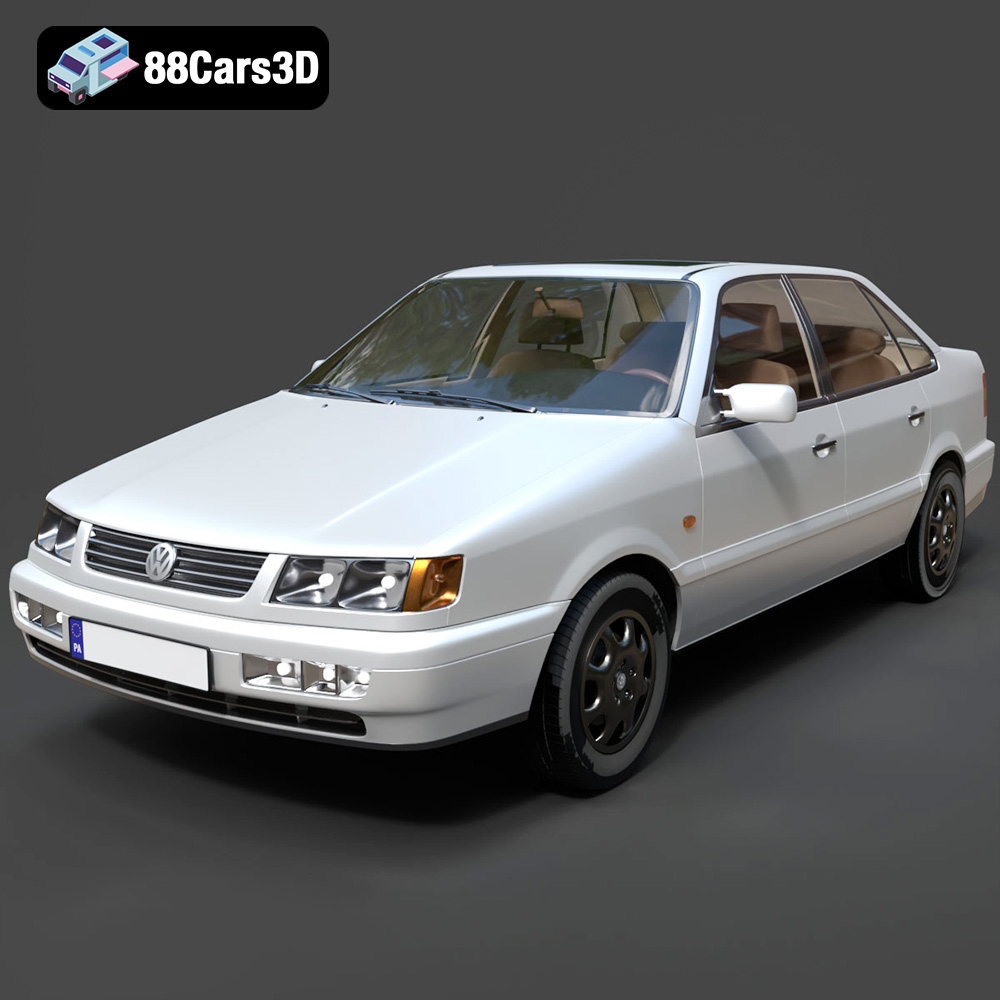
Texture: Yes | Material: Yes
Download the highly detailed, game-ready Volkswagen Passat Mk4 B4 Sedan 1993 3D Model. Features accurate 90s sedan styling, detailed front grille-less fascia, and a classic interior setup. Includes .blend, .fbx, .obj, .glb, .stl, .ply, .unreal, and .max formats for game development, AR/VR, and rendering.
Price: $39.99

Texture: Yes | Material: Yes
Download the highly detailed, game-ready Volkswagen Jetta GLI 2019 3D Model. Features an aggressive honeycomb grille with red accents, sleek aerodynamic profile, and exclusive GLI sport wheels. Includes .blend, .fbx, .obj, .glb, .stl, .ply, .unreal, and .max formats for game development, AR/VR, and rendering.
Price: $39.99

Texture: Yes | Material: Yes
Download the highly detailed, game-ready Vintage Vespa 3D Model. Features iconic rounded monocoque styling, classic saddle, and chrome accents. Includes .blend, .fbx, .obj, .glb, .stl, .ply, .unreal, and .max formats for game development, AR/VR, and rendering.
Price: $39.99

Texture: Yes | Material: Yes
Download the highly detailed, game-ready Vespa GS 150 3D Model. Features elegant aerodynamic curves, classic leg shield, and detailed engine casing. Includes .blend, .fbx, .obj, .glb, .stl, .ply, .unreal, and .max formats for game development, AR/VR, and rendering.
Price: $39.99

Texture: Yes | Material: Yes
Download the highly detailed, game-ready Vespa P200E 3D Model. Features classic vintage styling, accurate step-through frame geometry, and authentic detailing. Includes .blend, .fbx, .obj, .glb, .stl, .ply, .unreal, and .max formats for game development, AR/VR, and rendering.
Price: $39.99

