Get 20% OFF All Premium 3D & STL Models!

“`html
3D printing has revolutionized the way we create, prototype, and even collect intricate models. If you’re passionate about 3D printing car models, especially those sourced from platforms like 88cars3d.com, you’ll quickly realize that perfecting your STL files is crucial for achieving stunning results. Whether it’s removing unwanted geometry, repairing mesh errors, or customizing your models for specific printing needs, the right STL editing software can make all the difference. This comprehensive guide dives into the world of STL editing software, exploring both free and paid options, and providing you with the knowledge to choose the best tools for your 3D printing journey. We’ll cover essential features, workflows, and practical tips to ensure your 3D printed car models are always top-notch. Let’s get started!
Before we delve into the software, it’s important to understand the STL (Stereolithography) file format. STL files represent 3D models as a collection of triangles, which approximate the surface geometry. The finer the triangulation, the smoother the curves and the more accurate the representation. However, this also leads to larger file sizes. Common issues with STL files include non-manifold geometry (where edges are shared by more than two triangles), holes in the mesh, and overlapping triangles. These issues can lead to printing errors, which can be resolved with dedicated STL editing software.
The good news is that you don’t always need to invest in expensive software to edit STL files effectively. Several excellent free options are available, each with its own strengths and weaknesses. These tools are perfect for hobbyists, beginners, and even professionals who need basic editing capabilities without breaking the bank.
Autodesk Meshmixer is a free, powerful tool that’s considered the Swiss Army Knife of STL editing. It excels at mesh repair, editing, sculpting, and even creating support structures. Its intuitive interface and wide range of features make it a great choice for both beginners and advanced users. With Meshmixer, you can easily fix common STL issues, modify the geometry of your car models, and prepare them for 3D printing. It’s especially good at hollowing out models to save on material, a useful technique when printing larger car models from 88cars3d.com. Meshmixer is no longer actively developed by Autodesk, but remains available to download and use.
MeshLab is an open-source, advanced mesh processing system focused on cleaning, repairing, and analyzing 3D models. While it might have a steeper learning curve than Meshmixer, its powerful features make it invaluable for complex mesh editing tasks. MeshLab is particularly useful for cleaning up noisy scan data or simplifying overly dense meshes. It also offers advanced tools for measuring and analyzing the geometry of your models.
Blender is a free and open-source 3D creation suite used for everything from modeling and animation to video editing and visual effects. While it’s a full-fledged 3D modeling program, it can also be used effectively for editing STL files. Blender’s sculpting tools are particularly useful for making organic modifications to your car models. Its powerful mesh editing capabilities also allow you to fix complex errors and optimize your models for 3D printing. However, Blender’s interface can be overwhelming for beginners, so expect a significant learning curve.
For professionals and serious hobbyists, investing in paid STL editing software can unlock advanced features and workflows that streamline the 3D printing process. These tools often offer superior performance, specialized features, and dedicated support, making them well worth the investment for complex projects.
Autodesk Netfabb is a comprehensive software solution for preparing 3D models for printing. It offers advanced features for mesh repair, support generation, optimization, and build simulation. Netfabb is widely used in the industry for its ability to handle complex models and ensure successful prints. It has a robust mesh repair engine that can automatically fix a wide range of STL errors. Its support generation tools are also highly customizable, allowing you to create optimized support structures that minimize material waste and maximize print quality. Additionally, Netfabb includes tools for simulating the printing process, allowing you to identify potential issues before you start printing.
Materialise Magics is another industry-leading software for data preparation and optimization for 3D printing. It offers a wide range of tools for repairing, editing, and analyzing STL files. Magics is known for its powerful mesh manipulation capabilities, allowing you to perform complex boolean operations, create lattice structures, and optimize models for specific printing processes. It also includes advanced tools for analyzing the geometry of your models, identifying potential stress points, and optimizing the design for strength and durability.
Pixologic ZBrush is a powerful digital sculpting tool that allows you to create highly detailed and organic models. While it’s not strictly an STL editing program, its sculpting capabilities make it ideal for adding custom details and refining the surfaces of your car models. ZBrush uses a unique “pixol” technology that allows you to sculpt with millions of polygons without sacrificing performance. This makes it possible to create incredibly detailed models with realistic textures and surfaces. However, ZBrush’s interface can be intimidating for beginners, so expect a significant learning curve.
No matter which software you choose, mastering a few essential STL editing techniques is crucial for achieving high-quality 3D prints of car models. These techniques will help you fix common errors, optimize your models for printing, and customize them to your specific needs.
Mesh repair is the most fundamental aspect of STL editing. Common errors such as non-manifold geometry, holes, and flipped normals can cause printing problems. Most STL editing software includes automatic repair tools that can fix these errors with a single click. However, it’s important to understand what these errors are and how to fix them manually, as automatic repair tools don’t always work perfectly. Here are some tips for mesh repair:
Support structures are essential for printing models with overhangs or complex geometries. Most slicing software includes automatic support generation tools, but it’s often necessary to customize the supports to optimize their placement and minimize material waste. Consider these tips for support generation:
Hollowing out your models and using infill can significantly reduce material usage and print time, especially for larger car models. Hollowing involves removing the interior of the model, leaving only a thin shell. Infill refers to the internal structure of the model, which provides support and rigidity. Consider these guidelines for hollowing and infill:
Even with a perfectly prepared STL file, achieving high-quality 3D prints requires careful attention to your printer settings. The optimal settings will vary depending on your printer, material, and the specific requirements of your car model. However, some general guidelines can help you get started. Printing car models from 88cars3d.com requires precision and good settings to ensure they look correct. Here are some tips for optimizing your 3D printer settings:
Layer height is one of the most important settings affecting print quality. Lower layer heights result in smoother surfaces and finer details, but also increase print time. Higher layer heights print faster but sacrifice surface finish. A good starting point for car models is a layer height of 0.1-0.2mm for FDM printing and 0.05-0.1mm for resin printing.
Print speed affects both print quality and print time. Printing too fast can lead to poor layer adhesion, warping, and other defects. Printing too slowly can unnecessarily increase print time. Experiment with different print speeds to find the sweet spot for your printer and material. A good starting point is 40-60mm/s for FDM printing and 30-50mm/s for resin printing.
The optimal printing temperature depends on the material you’re using. PLA typically prints well at 200-220°C, while ABS requires higher temperatures of 230-250°C. Bed adhesion is also crucial, especially for larger car models. Use a heated bed and apply an adhesive such as glue stick or hairspray to ensure the first layer sticks properly.
Once your car model is printed, post-processing techniques can help you achieve a professional finish. These techniques can include removing support structures, sanding, filling gaps, and painting. Here are some common post-processing techniques:
Removing support structures can be challenging, especially for complex models. Use a sharp tool such as a hobby knife or flush cutters to carefully remove the supports, avoiding damage to the model. For resin prints, you can soak the model in warm water to soften the supports and make them easier to remove.
Sanding is essential for smoothing out layer lines and other imperfections on the surface of your model. Start with a coarse grit sandpaper and gradually move to finer grits. For larger gaps or imperfections, use a filler such as putty or epoxy. Once the filler is dry, sand it smooth to blend it with the surrounding surface.
Painting is the final step in post-processing, allowing you to add color and detail to your car model. Use acrylic paints or model paints for best results. Apply multiple thin coats, allowing each coat to dry before applying the next. Use masking tape to create clean lines and prevent overspray. Consider using an airbrush for a smoother, more professional finish.
Mastering STL editing is essential for achieving stunning 3D printed car models. By understanding the STL file format, choosing the right software, and mastering essential editing techniques, you can overcome common printing challenges and create high-quality models that you’ll be proud to display. Whether you choose a free tool like Meshmixer or invest in a professional solution like Netfabb, the key is to experiment, learn, and practice. So, explore the vast selection of printable car models on 88cars3d.com, choose your favorite software, and start creating your own collection of stunning 3D printed car models. Don’t be afraid to experiment with different settings and techniques to find what works best for you. Happy printing!
“`
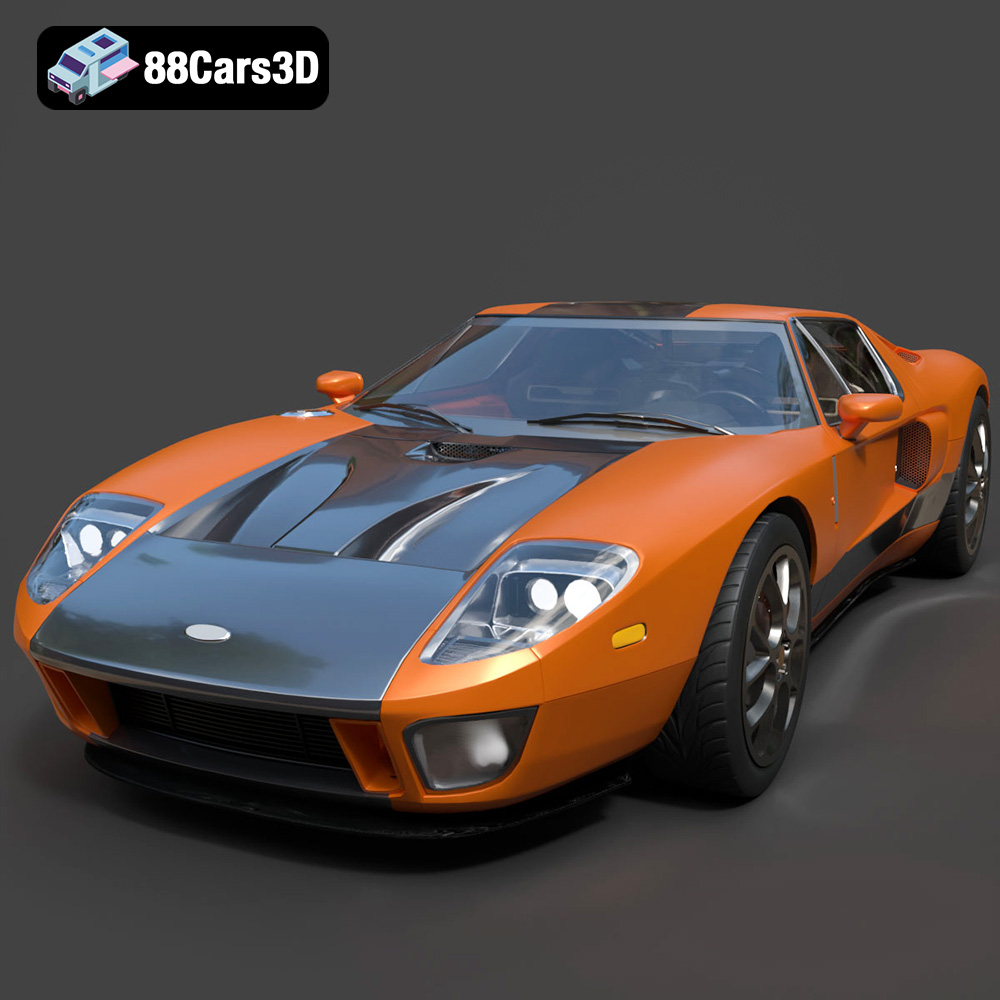
Texture: Yes | Material: Yes
Download the highly detailed, game-ready Ford GT 2005 3D Model. Features signature aerodynamic bodylines, mid-mounted supercharged V8 detailing, and iconic racing stripes. Includes .blend, .fbx, .obj, .glb, .stl, .ply, .unreal, and .max formats for game development, AR/VR, and rendering.
Price: $19.99

Texture: Yes | Material: Yes
Download the highly detailed, game-ready Yamaha YZF-R125 EU 3D Model. Features an aggressive aerodynamic fairing, twin LED headlights, and a detailed 125cc engine block. Includes .blend, .fbx, .obj, .glb, .stl, .ply, .unreal, and .max formats for game development, AR/VR, and rendering.
Price: $19.99

Texture: Yes | Material: Yes
Download the highly detailed, game-ready Yamaha R1 3D Model. Features aggressive aerodynamic fairings, a detailed crossplane inline-4 engine, and track-focused suspension geometry. Includes .blend, .fbx, .obj, .glb, .stl, .ply, .unreal, and .max formats for game development, AR/VR, and rendering.
Price: $19.99

Texture: Yes | Material: Yes
Download the highly detailed, game-ready Yamaha XV950 Racer 3D Model. Features an aggressive cafe-racer front cowl, detailed air-cooled V-twin engine, and classic retro styling. Includes .blend, .fbx, .obj, .glb, .stl, .ply, .unreal, and .max formats for game development, AR/VR, and rendering.
Price: $19.99

Texture: Yes | Material: Yes
Download the highly detailed, game-ready Volvo VNL Tractor Truck 2002 3D Model. Features iconic aerodynamic styling, detailed fifth-wheel coupling, and heavy-duty chassis. Includes .blend, .fbx, .obj, .glb, .stl, .ply, .unreal, and .max formats for game development, AR/VR, and rendering.
Price: $39.99
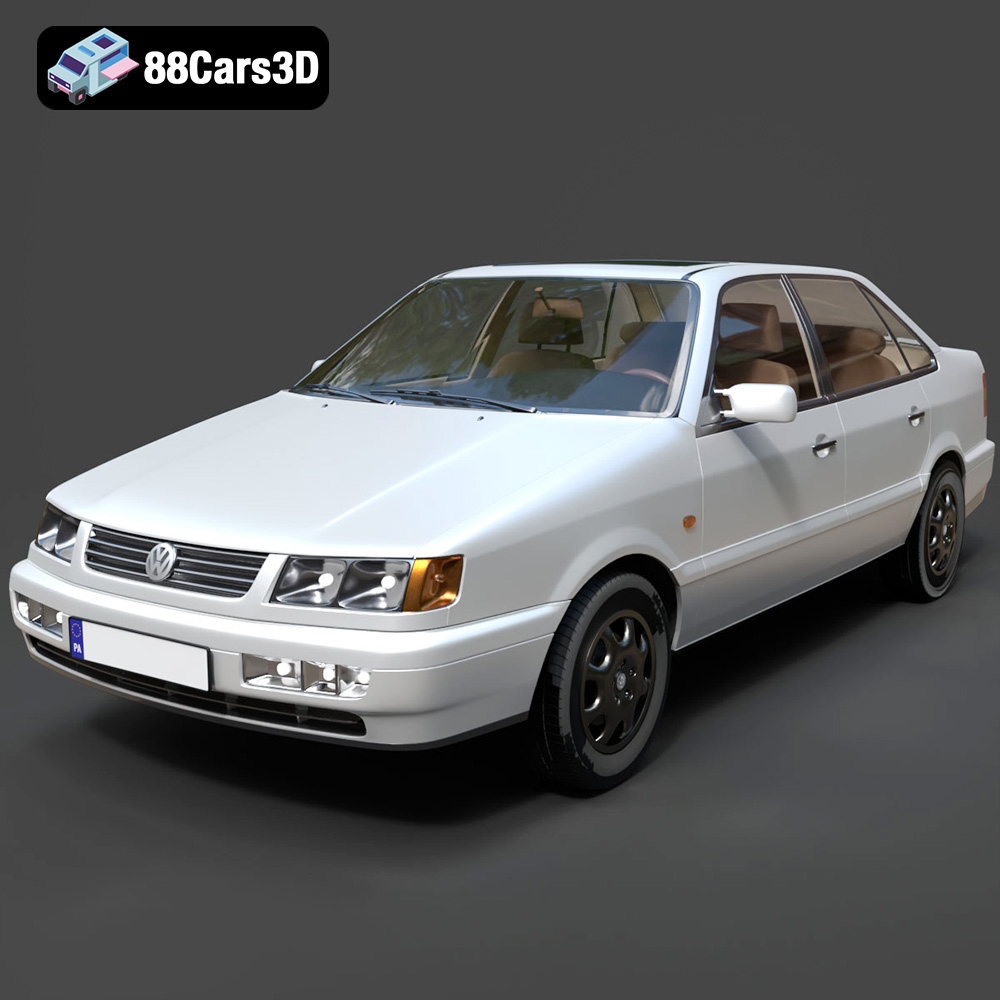
Texture: Yes | Material: Yes
Download the highly detailed, game-ready Volkswagen Passat Mk4 B4 Sedan 1993 3D Model. Features accurate 90s sedan styling, detailed front grille-less fascia, and a classic interior setup. Includes .blend, .fbx, .obj, .glb, .stl, .ply, .unreal, and .max formats for game development, AR/VR, and rendering.
Price: $39.99

Texture: Yes | Material: Yes
Download the highly detailed, game-ready Volkswagen Jetta GLI 2019 3D Model. Features an aggressive honeycomb grille with red accents, sleek aerodynamic profile, and exclusive GLI sport wheels. Includes .blend, .fbx, .obj, .glb, .stl, .ply, .unreal, and .max formats for game development, AR/VR, and rendering.
Price: $39.99

Texture: Yes | Material: Yes
Download the highly detailed, game-ready Vintage Vespa 3D Model. Features iconic rounded monocoque styling, classic saddle, and chrome accents. Includes .blend, .fbx, .obj, .glb, .stl, .ply, .unreal, and .max formats for game development, AR/VR, and rendering.
Price: $39.99

Texture: Yes | Material: Yes
Download the highly detailed, game-ready Vespa GS 150 3D Model. Features elegant aerodynamic curves, classic leg shield, and detailed engine casing. Includes .blend, .fbx, .obj, .glb, .stl, .ply, .unreal, and .max formats for game development, AR/VR, and rendering.
Price: $39.99

Texture: Yes | Material: Yes
Download the highly detailed, game-ready Vespa P200E 3D Model. Features classic vintage styling, accurate step-through frame geometry, and authentic detailing. Includes .blend, .fbx, .obj, .glb, .stl, .ply, .unreal, and .max formats for game development, AR/VR, and rendering.
Price: $39.99

