Get 20% OFF All Premium 3D & STL Models!

“`html
The world of 3D printing hinges on the humble STL file. This file format, a cornerstone of additive manufacturing, defines the geometry of your 3D models. But sometimes, those STL files need a little TLC. Whether you’re fixing errors, optimizing for print, or making modifications, having the right software is crucial. This guide will explore the best free and paid software options available for editing STL files, focusing on features relevant to 3D printing, particularly for models like the printable car models available on platforms like 88cars3d.com. We’ll delve into the specifics of mesh repair, optimization, and modification, ensuring your models are print-ready and achieve the best possible results. Get ready to dive deep into the tools of the trade, from beginner-friendly interfaces to advanced professional features.
Before we jump into the software, it’s important to understand why editing STL files is often necessary. Imperfections can arise during the design process, file conversion, or even during download. These imperfections can lead to print failures, weak spots in your printed object, or simply poor aesthetics. Editing allows you to fix these issues, optimize the model for your specific printer and material, and even customize the design to your liking.
In this guide, you will learn about:
The good news is that you don’t always need to spend money to effectively edit STL files. Several excellent free software options offer a wide range of features suitable for both beginners and experienced users. These tools are invaluable for preparing models for printing, particularly those downloaded from online marketplaces.
Meshmixer, from Autodesk, is a free and incredibly versatile tool perfect for preparing STL files for 3D printing. It boasts a robust set of features, including mesh repair, sculpting tools, support structure generation, and hollowing capabilities. It’s a popular choice for good reason. When downloading models from marketplaces such as 88cars3d.com, Meshmixer can ensure they are watertight and ready for printing.
Workflow Example (Mesh Repair in Meshmixer):
Blender is a free and open-source 3D creation suite that goes far beyond STL editing. While it has a steeper learning curve than Meshmixer, its powerful modeling and sculpting tools make it an excellent choice for advanced users. Blender is particularly useful for making significant modifications to STL files, such as adding custom details or altering the overall shape. For example, you could use Blender to add personalized license plates to printable car models.
Technical Deep Dive (Blender’s Remesh Modifier): The Remesh modifier in Blender is a powerful tool for optimizing STL files. It allows you to rebuild the mesh with more uniform polygons, making it easier to edit and improving print quality. Experiment with different remesh modes (e.g., Voxel, Blocks, Quad) and settings (e.g., Octree Depth, Scale) to achieve the desired result. A good starting point for Octree Depth is 6-8.
While free software options are excellent for many tasks, paid software often offers more advanced features, better performance, and dedicated support. These tools are typically targeted towards professionals who require precision, efficiency, and advanced control over their STL files.
Netfabb, another Autodesk product, is a leading software solution for additive manufacturing. It provides a comprehensive set of tools for STL editing, repair, optimization, and build preparation. Netfabb is particularly strong in its automated repair capabilities and its ability to optimize models for specific 3D printing processes.
Case Study (Netfabb for Automotive Model Printing): Imagine you’re printing a complex car model with intricate details. Netfabb’s simulation tools can predict how the model will deform during printing, allowing you to adjust the support structures and printing parameters to prevent warping or collapse. This is particularly useful for large or complex models.
Materialise Magics is a powerful data preparation software specifically designed for additive manufacturing. It offers a wide range of tools for importing, repairing, editing, and optimizing STL files. Magics is known for its robust mesh editing capabilities and its ability to handle very large and complex models. The software is especially useful when dealing with intricate printable car models from sources like 88cars3d.com that require precise manipulation and optimization.
Technical Specification (Materialise Magics Support Generation): When generating supports in Magics, you can specify the support type (e.g., block, cone, tree), the support angle, the connection diameter, and the spacing between supports. Experiment with different settings to find the optimal balance between support strength and ease of removal. A good starting point for support angle is 45 degrees.
While not strictly STL editors, slicing software is crucial for preparing your models for 3D printing. These programs take your STL file and convert it into a series of layers that your 3D printer can understand. The slicing process involves setting various parameters that affect the print quality, speed, and material usage. Good slicing software is just as important as having good STL editing software.
Cura is a free and open-source slicing software developed by Ultimaker. It’s known for its user-friendly interface and its wide range of customizable settings. Cura is an excellent choice for beginners, but it also offers advanced features for experienced users. It supports a wide variety of 3D printers and materials, making it a versatile tool for any 3D printing enthusiast.
Printer-Specific Settings (FDM vs Resin): Cura is primarily designed for FDM (Fused Deposition Modeling) printers. For resin printers, you’ll need to use dedicated slicing software such as Chitubox or Lychee Slicer, which are optimized for the unique requirements of resin printing. Resin printing typically involves setting exposure time, lift speed, and bottom layer count.
PrusaSlicer, developed by Prusa Research, is a powerful and highly customizable slicing software that caters to advanced users. It offers a wide range of features, including advanced support generation, variable layer height, and sequential printing. PrusaSlicer is an excellent choice for users who want fine-grained control over their 3D printing process.
Regardless of the software you use, here are some general tips and tricks for optimizing your STL files for 3D printing. These strategies can help you achieve better print quality, reduce material usage, and minimize print time. These are especially important when printing models like the ones available on 88cars3d.com, where detail and accuracy are paramount.
A clean and watertight mesh is essential for successful 3D printing. Use mesh repair tools to fix any errors in your STL file before slicing. Common errors include holes, non-manifold edges, and flipped normals.
The orientation of your model on the print bed can significantly impact print quality, support usage, and bed adhesion. Choose an orientation that minimizes overhangs and maximizes the contact area with the bed. Consider using a brim or raft to improve bed adhesion, especially for large or complex models.
Choosing the right software for editing STL files is a critical step in the 3D printing workflow. Whether you opt for a free tool like Meshmixer or Blender, or invest in a professional solution like Netfabb or Materialise Magics, understanding the capabilities of each program is essential for achieving optimal results. Remember to focus on mesh repair, optimization, and proper slicing techniques to ensure that your models are print-ready and meet your desired quality standards. Whether you’re a hobbyist printing collectible car models or a professional prototyping automotive components, the right software can make all the difference.
Actionable Next Steps:
By mastering these tools and techniques, you’ll be well-equipped to tackle any 3D printing project and unlock the full potential of additive manufacturing. Good luck and happy printing!
“`
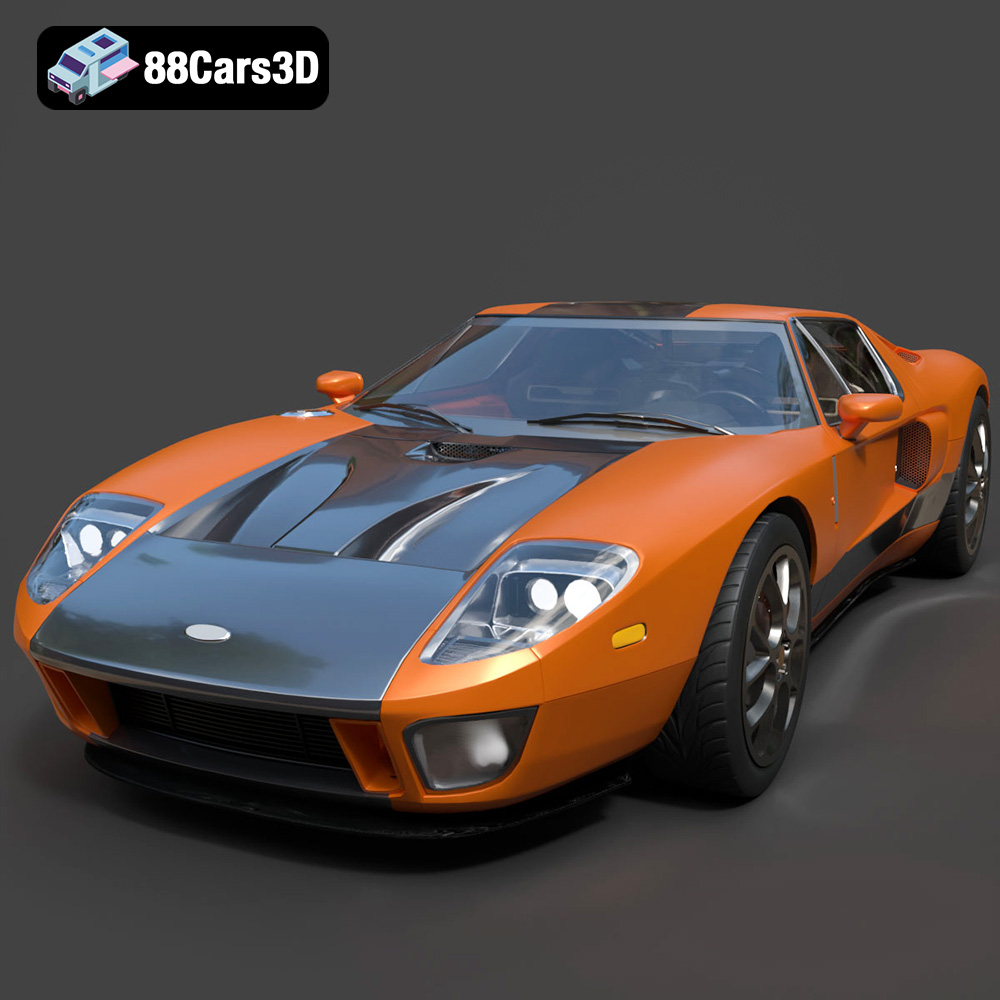
Texture: Yes | Material: Yes
Download the highly detailed, game-ready Ford GT 2005 3D Model. Features signature aerodynamic bodylines, mid-mounted supercharged V8 detailing, and iconic racing stripes. Includes .blend, .fbx, .obj, .glb, .stl, .ply, .unreal, and .max formats for game development, AR/VR, and rendering.
Price: $19.99

Texture: Yes | Material: Yes
Download the highly detailed, game-ready Yamaha YZF-R125 EU 3D Model. Features an aggressive aerodynamic fairing, twin LED headlights, and a detailed 125cc engine block. Includes .blend, .fbx, .obj, .glb, .stl, .ply, .unreal, and .max formats for game development, AR/VR, and rendering.
Price: $19.99

Texture: Yes | Material: Yes
Download the highly detailed, game-ready Yamaha R1 3D Model. Features aggressive aerodynamic fairings, a detailed crossplane inline-4 engine, and track-focused suspension geometry. Includes .blend, .fbx, .obj, .glb, .stl, .ply, .unreal, and .max formats for game development, AR/VR, and rendering.
Price: $19.99

Texture: Yes | Material: Yes
Download the highly detailed, game-ready Yamaha XV950 Racer 3D Model. Features an aggressive cafe-racer front cowl, detailed air-cooled V-twin engine, and classic retro styling. Includes .blend, .fbx, .obj, .glb, .stl, .ply, .unreal, and .max formats for game development, AR/VR, and rendering.
Price: $19.99

Texture: Yes | Material: Yes
Download the highly detailed, game-ready Volvo VNL Tractor Truck 2002 3D Model. Features iconic aerodynamic styling, detailed fifth-wheel coupling, and heavy-duty chassis. Includes .blend, .fbx, .obj, .glb, .stl, .ply, .unreal, and .max formats for game development, AR/VR, and rendering.
Price: $39.99
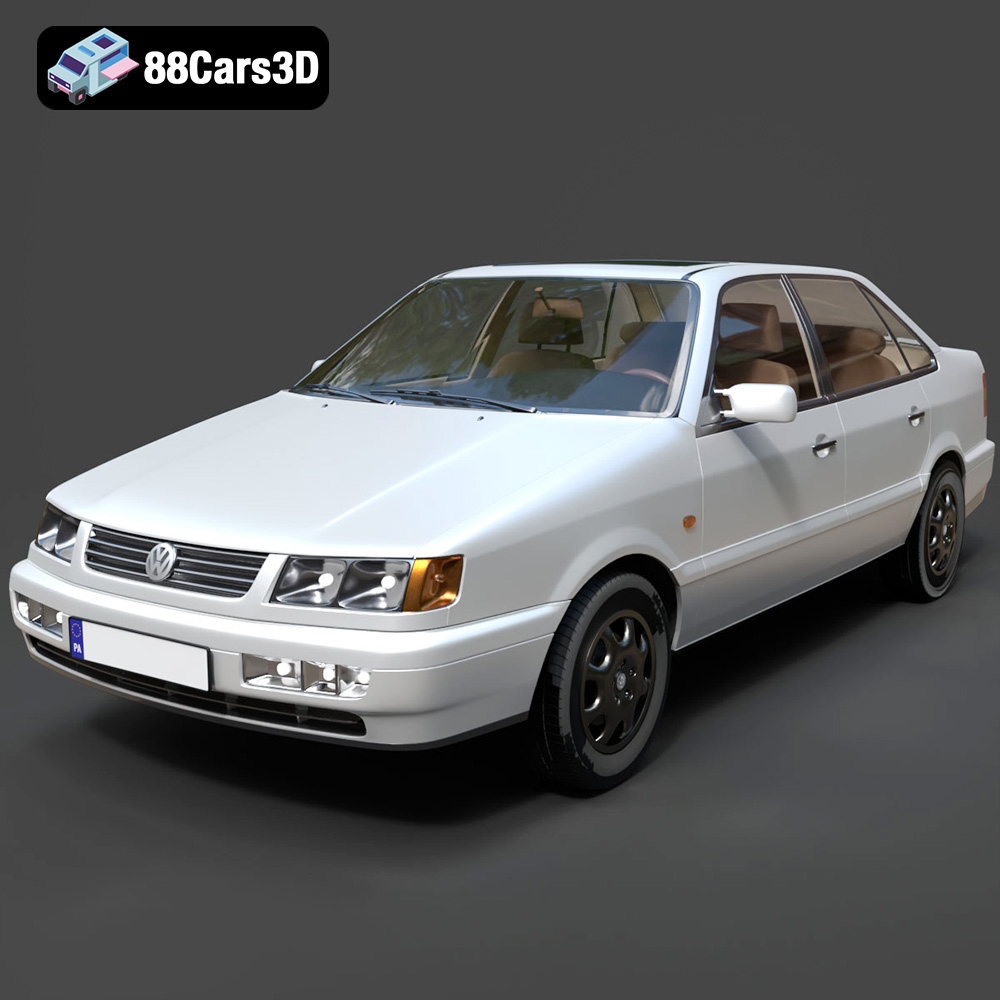
Texture: Yes | Material: Yes
Download the highly detailed, game-ready Volkswagen Passat Mk4 B4 Sedan 1993 3D Model. Features accurate 90s sedan styling, detailed front grille-less fascia, and a classic interior setup. Includes .blend, .fbx, .obj, .glb, .stl, .ply, .unreal, and .max formats for game development, AR/VR, and rendering.
Price: $39.99

Texture: Yes | Material: Yes
Download the highly detailed, game-ready Volkswagen Jetta GLI 2019 3D Model. Features an aggressive honeycomb grille with red accents, sleek aerodynamic profile, and exclusive GLI sport wheels. Includes .blend, .fbx, .obj, .glb, .stl, .ply, .unreal, and .max formats for game development, AR/VR, and rendering.
Price: $39.99

Texture: Yes | Material: Yes
Download the highly detailed, game-ready Vintage Vespa 3D Model. Features iconic rounded monocoque styling, classic saddle, and chrome accents. Includes .blend, .fbx, .obj, .glb, .stl, .ply, .unreal, and .max formats for game development, AR/VR, and rendering.
Price: $39.99

Texture: Yes | Material: Yes
Download the highly detailed, game-ready Vespa GS 150 3D Model. Features elegant aerodynamic curves, classic leg shield, and detailed engine casing. Includes .blend, .fbx, .obj, .glb, .stl, .ply, .unreal, and .max formats for game development, AR/VR, and rendering.
Price: $39.99

Texture: Yes | Material: Yes
Download the highly detailed, game-ready Vespa P200E 3D Model. Features classic vintage styling, accurate step-through frame geometry, and authentic detailing. Includes .blend, .fbx, .obj, .glb, .stl, .ply, .unreal, and .max formats for game development, AR/VR, and rendering.
Price: $39.99

