Get 20% OFF All Premium 3D & STL Models!

“`html
If you’re diving into the world of 3D printing, especially if you’re interested in printing detailed models like the printable car models available at 88cars3d.com, you’ll quickly encounter the STL file format. STL, which stands for Stereolithography or Standard Triangle Language (depending on who you ask!), is the workhorse of 3D printing. It’s the most common file type used to represent 3D surface geometry. But what exactly is it, and how do you use it effectively to bring your digital designs to life? This comprehensive guide will demystify STL files, covering everything from their basic structure to advanced techniques for optimizing them for 3D printing. We’ll explore file formats, mesh repair, slicing techniques, and 3D printer settings to ensure you get the highest quality prints possible. Whether you’re a beginner or an experienced maker, this guide will provide valuable insights into mastering the STL file format.
At its core, an STL file is surprisingly simple. It represents a 3D object’s surface as a collection of triangles. The more triangles, the higher the resolution and the smoother the curves, but also the larger the file size. Each triangle is defined by three vertices (points in 3D space) and a normal vector (indicating the triangle’s orientation). This simplicity is both its strength and its weakness. It’s easy for software to process, but it lacks information about color, texture, or material properties. When downloading models from marketplaces such as 88cars3d.com, you can generally be confident that the STL files are prepared for printing, but understanding their structure is still beneficial.
STL files come in two main flavors: ASCII and Binary. ASCII STL files are human-readable text files, listing each triangle’s vertices and normal vector in plain text. This makes them easy to inspect and edit manually (though it’s rarely necessary). However, they are significantly larger than binary STL files. Binary STL files store the same information in a more compact, binary format, making them smaller and faster to process. Most modern 3D printing software prefers binary STL files due to their efficiency. You can usually convert between ASCII and binary formats using software like MeshLab or Blender.
The quality of an STL file’s mesh topology is crucial for successful 3D printing. A “manifold” mesh is one that is watertight, meaning it has no holes, gaps, or self-intersections. Think of it like a perfectly sealed container. Non-manifold meshes can cause serious problems during slicing and printing, leading to errors, missing features, or even complete print failures. Common issues include inverted normals (triangles facing the wrong way), overlapping triangles, and gaps in the surface. We will cover mesh repair strategies later in the article. Many design programs allow you to check if your mesh is manifold before exporting to STL.
Once you have an STL file, whether it’s a model you’ve designed yourself or one downloaded from a site like 88cars3d.com, you’ll need to prepare it for 3D printing using a slicing program. Slicing involves converting the 3D model into a series of 2D layers that the 3D printer can understand. This process also allows you to define various printing parameters, such as layer height, infill density, and support structures. Different slicing programs offer different features and levels of control, but the basic principles remain the same.
The first step is to import your STL file into your chosen slicing software (e.g., Cura, PrusaSlicer, Simplify3D). Once imported, you’ll need to orient the model on the virtual print bed. The orientation you choose can significantly impact the print quality, support structure requirements, and printing time. Generally, you want to minimize the amount of support material needed and orient the model to avoid printing large overhangs without support. For example, a car model might be best printed with the wheels facing down to avoid needing supports under the arches. Consider gravity and stress points when orienting your model.
Before slicing, make sure the model is scaled correctly to your desired size. Most slicing programs allow you to scale the model uniformly or along specific axes. You may also need to make minor adjustments to the model’s position or rotation to ensure it’s properly aligned on the print bed. Sometimes, you might want to slightly sink the model into the bed to improve adhesion. Platforms like 88cars3d.com often provide models scaled to common hobby scales, but always double-check before proceeding.
Slicing parameters control how the 3D printer will build your object, layer by layer. These parameters have a direct impact on print quality, strength, and printing time. Mastering these settings is essential for achieving optimal results. Experimentation is key, but understanding the fundamentals will give you a solid foundation. For FDM printing, these parameters are crucial to get right.
Layer height is the thickness of each individual layer of plastic. Lower layer heights (e.g., 0.1mm) result in smoother surfaces and finer details, but they also increase printing time. Higher layer heights (e.g., 0.3mm) are faster but produce coarser surfaces. The optimal layer height depends on the specific model and your desired level of detail. A good starting point for many models is 0.2mm. For miniatures or highly detailed car models, you might want to go as low as 0.05mm. This parameter is a key aspect when trying to optimize your STL file prints.
Infill refers to the internal structure of the 3D printed object. Instead of being completely solid, most prints are filled with a lattice-like structure to save material and reduce printing time. Infill density determines how dense this internal structure is, usually expressed as a percentage (e.g., 20%, 50%, 100%). Higher infill densities increase the strength and weight of the print but also increase printing time and material usage. The infill pattern also affects strength and print time. Common patterns include rectilinear, grid, gyroid, and honeycomb. For purely aesthetic models, a low infill density (e.g., 10-15%) may be sufficient. For functional parts or models that need to withstand stress, a higher infill density (e.g., 50% or more) is recommended.
Print speed and temperature are closely related and must be carefully calibrated for the specific filament you’re using. Printing too fast or at too low a temperature can lead to poor layer adhesion, warping, and other print defects. Printing too slow or at too high a temperature can cause stringing, blobs, and overheating. Consult the filament manufacturer’s recommendations for optimal temperature ranges and adjust your print speed accordingly. Generally, slower speeds (e.g., 40-60mm/s) produce better quality prints, especially for intricate details. For PLA, a temperature range of 200-220°C is typical, while ABS requires higher temperatures around 230-250°C. These values will depend on your printer model and ambient conditions, as well.
Support structures are temporary scaffolding that are added to the 3D print to support overhangs and bridges. Overhangs are parts of the model that extend outwards without any underlying support. Without supports, these overhangs would sag or collapse during printing. Support structures are typically made of the same material as the main model, but they can also be printed with a different, more easily removable material. Generating the right kind of support structure is critical for successfully 3D printing models with complex geometries.
There are several types of support structures, each with its own advantages and disadvantages. Tree supports are branching structures that provide support only where needed, minimizing material usage and print time. Linear supports are simple vertical columns that provide support to entire areas. Grid supports are a combination of both. The best type of support structure depends on the specific geometry of the model and the slicing software you’re using. Some software also offer organic supports, which are more efficient at bridging gaps, using less material and providing better support.
Careful placement of support structures is essential to minimize their impact on the surface finish of the printed model. Supports should be placed in areas that are easily accessible for removal and where they won’t leave noticeable marks. After printing, support structures must be carefully removed. This can be done manually using pliers, knives, or other tools. Some supports are designed to break away easily, while others may require more effort. Post-processing techniques, such as sanding, can be used to smooth out any remaining marks. When printing printable car models from platforms like 88cars3d.com, consider where the support structures will be placed, as they might impact the final look of the model.
Even with the best preparation, 3D printing can sometimes be challenging. Common issues include warping, poor layer adhesion, stringing, and elephant’s foot. Understanding the causes of these problems and how to fix them is essential for becoming a successful 3D printer. Consistent calibration and maintenance go a long way towards minimizing printing errors.
Warping occurs when the corners of the 3D print lift off the print bed. This is often caused by temperature differences between the print and the surrounding environment. To prevent warping, ensure the print bed is properly leveled and heated. Use a bed adhesion aid, such as glue stick, hairspray, or painter’s tape. Enclosing the printer in a chamber can also help to maintain a consistent temperature. For filaments like ABS, an enclosure is often mandatory to prevent warping. Check your first layer closely to make sure it adheres properly to the bed.
Stringing occurs when thin strands of plastic are left behind between different parts of the print. Blobs are small, irregular lumps of plastic that accumulate on the surface. Stringing is often caused by excessive retraction distance or too high a printing temperature. Blobs can be caused by inconsistent extrusion or nozzle clogging. Reduce the printing temperature, increase the retraction distance, and ensure the nozzle is clean to solve stringing and blobs. Adjusting the coasting settings in your slicer can also improve print quality and help get rid of blobs.
As mentioned earlier, non-manifold meshes can cause serious problems during slicing and printing. If you encounter errors during slicing, it’s likely that your STL file has issues with its mesh topology. Software like Meshmixer, Netfabb, and MeshLab can be used to repair these issues. These programs can automatically identify and fix common problems, such as inverted normals, overlapping triangles, and gaps in the surface. Using the “make manifold” or “fix automatically” features in these programs can often resolve most mesh issues. Regularly inspecting and repairing your STL files can save you a lot of time and frustration in the long run.
The choice of material significantly impacts the strength, durability, and appearance of the final 3D printed object. Common 3D printing filaments include PLA, PETG, ABS, and various specialty materials. Each material has its own unique properties and printing requirements. For printing printable car models for display, PLA is often an excellent choice, but for parts that need to withstand higher temperatures or stress, ABS or PETG might be more suitable.
PLA is a biodegradable thermoplastic derived from renewable resources such as corn starch or sugarcane. It’s easy to print, has low warping, and produces smooth surfaces. PLA is a good choice for general-purpose 3D printing and is often recommended for beginners. However, PLA is not very heat-resistant and can become brittle over time, especially in humid environments. The low printing temperature makes it ideal for printers without heated beds.
PETG is a strong, durable, and heat-resistant thermoplastic that is also relatively easy to print. It’s more flexible than PLA and has better impact resistance. PETG is a good choice for functional parts and models that need to withstand some wear and tear. It has good layer adhesion and is less prone to warping than ABS. It requires a heated bed and slightly higher printing temperatures than PLA.
ABS is a strong, heat-resistant, and impact-resistant thermoplastic that is commonly used in automotive parts and other demanding applications. However, ABS is more difficult to print than PLA and PETG. It’s prone to warping and requires a heated bed and an enclosed printer to maintain a consistent temperature. ABS also releases fumes during printing, so it’s important to print it in a well-ventilated area. It offers superior durability and high temperature resistance.
Mastering the STL file format is a fundamental skill for anyone involved in 3D printing. From understanding its basic structure to optimizing slicing parameters and troubleshooting common issues, this guide has provided a comprehensive overview of the key concepts and techniques. By carefully preparing your STL files, choosing the right materials, and fine-tuning your printer settings, you can achieve high-quality 3D prints that meet your specific needs. Whether you’re printing printable car models from 88cars3d.com or creating your own designs, a solid understanding of STL files is essential for success. Remember to experiment with different settings, learn from your mistakes, and continuously refine your workflow. The world of 3D printing is constantly evolving, so stay curious and keep exploring new possibilities. The best approach is to start with simple shapes to hone your skills and then gradually proceed with more complex models.
“`

Texture: Yes | Material: Yes
Download the highly detailed, game-ready Toyota Camry 2018 3D Model. Features an aggressive aerodynamic body, distinct LED lighting signature, and precise interior detailing. Includes .blend, .fbx, .obj, .glb, .stl, .ply, .unreal, and .max formats for game development, AR/VR, and rendering.
Price: $19.99
Texture: Yes | Material: Yes
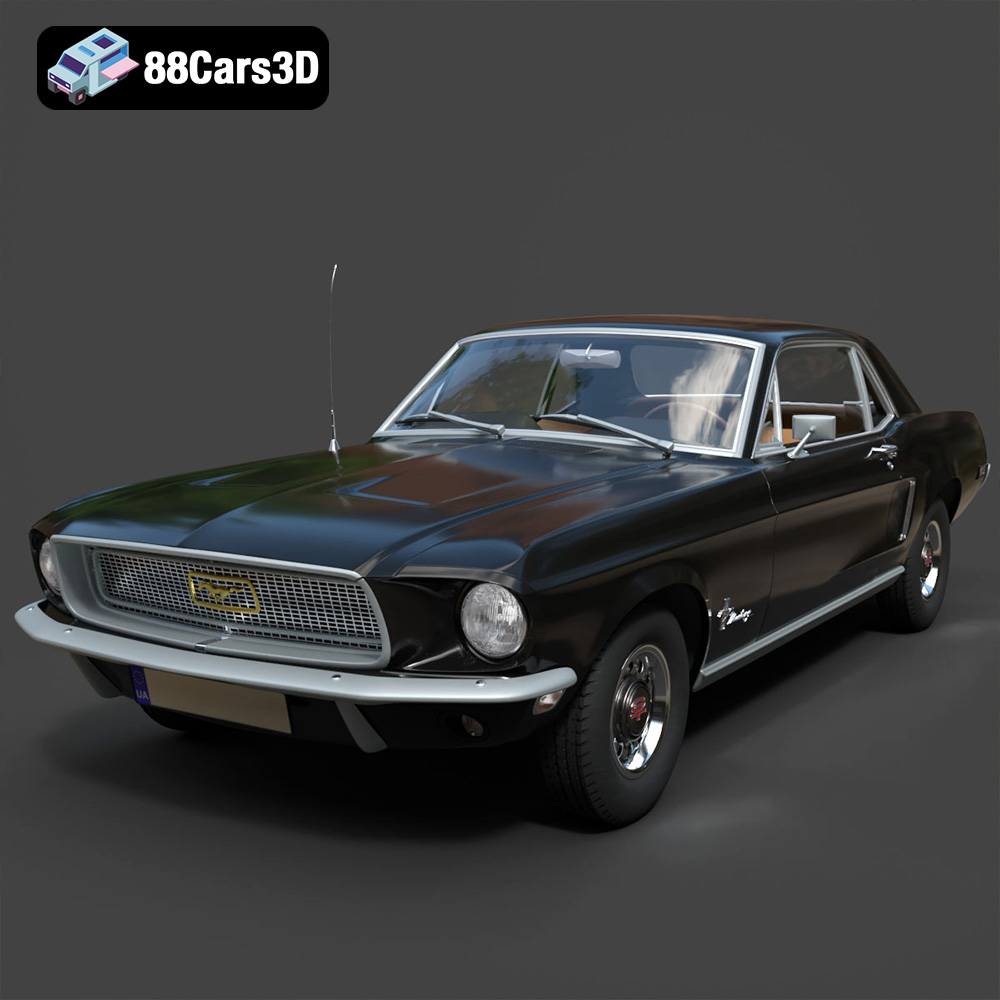
Download the highly detailed, game-ready Ford Mustang Hardtop 1968 3D Model. Features the iconic galloping pony grille, signature tri-bar taillights, and an authentic vintage interior. Includes .blend, .fbx, .obj, .glb, .stl, .ply, .unreal, and .max formats for game development, AR/VR, and rendering.
Price: $19.99
Texture: Yes | Material: Yes
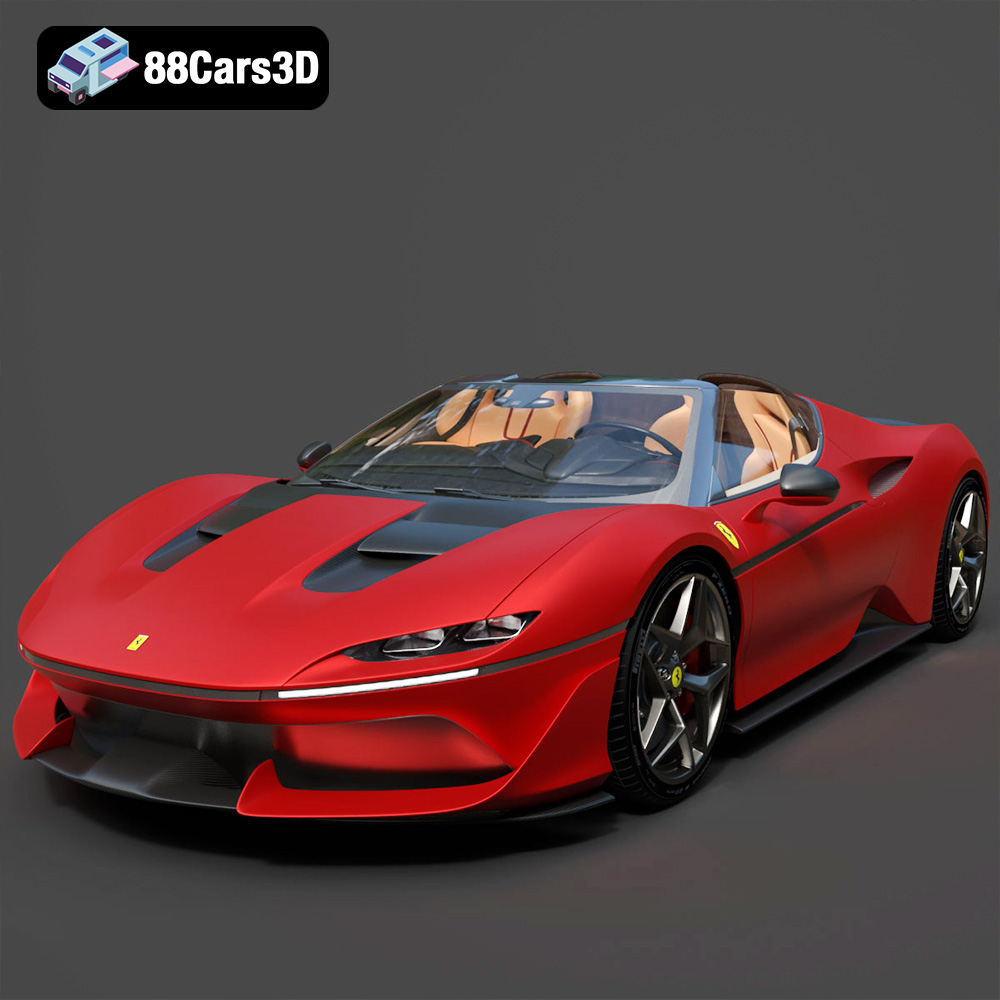
Download the highly detailed, game-ready Ferrari J50 2017 3D Model. Features aggressive aerodynamic styling, twin-turbo V8 engine details, and targa top design. Includes .blend, .fbx, .obj, .glb, .stl, .ply, .unreal, and .max formats for game development, AR/VR, and rendering.
Price: $19.99
Texture: Yes | Material: Yes
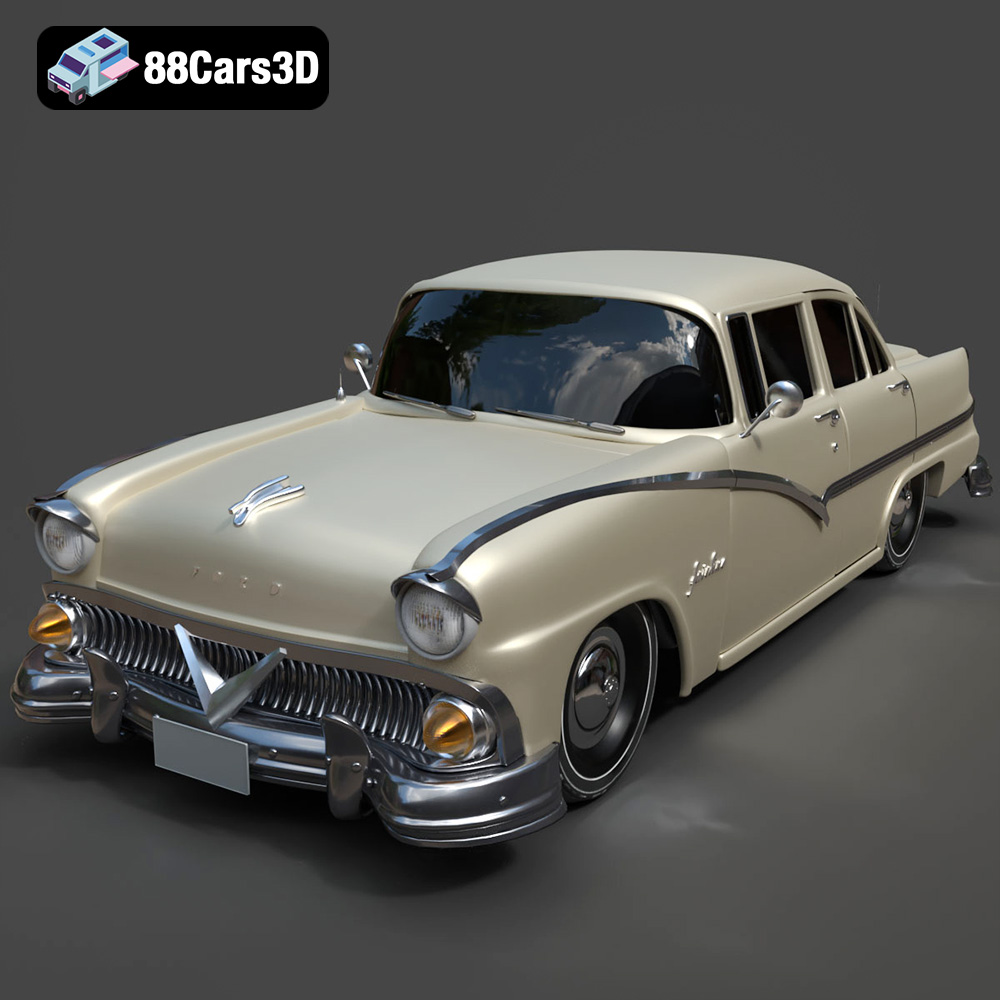
Download the highly detailed, game-ready Ford Fairlin 3D Model. Features iconic classic styling, sweeping bodylines, and an accurate vintage interior. Includes .blend, .fbx, .obj, .glb, .stl, .ply, .unreal, and .max formats for game development, AR/VR, and rendering.
Price: $19.99
Texture: Yes | Material: Yes
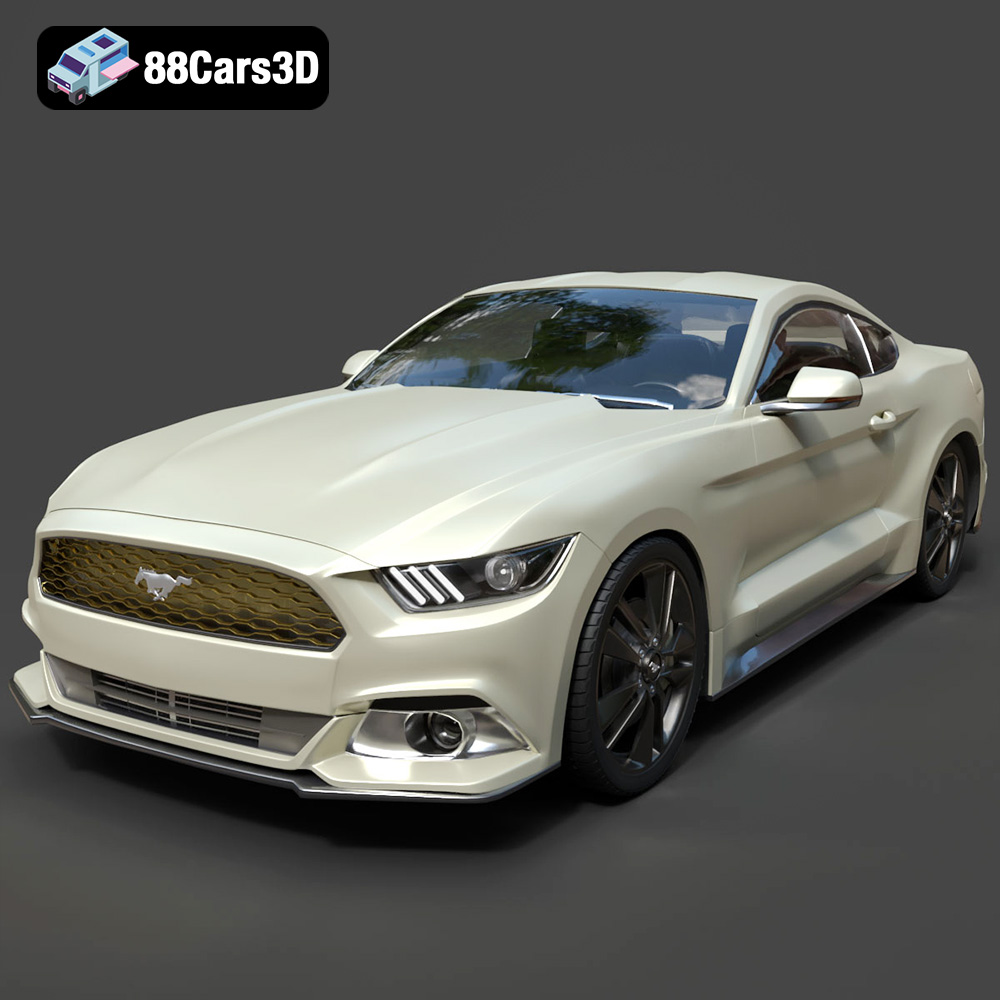
Download the highly detailed, game-ready Ford Mustang GT 3D Model. Features aggressive muscle car styling, a highly detailed V8 engine bay, and accurate interior cockpit. Includes .blend, .fbx, .obj, .glb, .stl, .ply, .unreal, and .max formats for game development, AR/VR, and rendering.
Price: $19.99

Texture: Yes | Material: Yes
Download the highly detailed, game-ready Renault Megane CC 2011 3D Model. Features an accurately modeled folding glass roof, sleek aerodynamic body lines, and a detailed interior. Includes .blend, .fbx, .obj, .glb, .stl, .ply, .unreal, and .max formats for game development, AR/VR, and rendering.
Price: $19.99

Texture: Yes | Material: Yes
Download the highly detailed, game-ready Ford GT 2005 3D Model. Features signature aerodynamic bodylines, mid-mounted supercharged V8 detailing, and iconic racing stripes. Includes .blend, .fbx, .obj, .glb, .stl, .ply, .unreal, and .max formats for game development, AR/VR, and rendering.
Price: $19.99

Texture: Yes | Material: Yes
Download the highly detailed, game-ready Yamaha YZF-R125 EU 3D Model. Features an aggressive aerodynamic fairing, twin LED headlights, and a detailed 125cc engine block. Includes .blend, .fbx, .obj, .glb, .stl, .ply, .unreal, and .max formats for game development, AR/VR, and rendering.
Price: $19.99

Texture: Yes | Material: Yes
Download the highly detailed, game-ready Yamaha R1 3D Model. Features aggressive aerodynamic fairings, a detailed crossplane inline-4 engine, and track-focused suspension geometry. Includes .blend, .fbx, .obj, .glb, .stl, .ply, .unreal, and .max formats for game development, AR/VR, and rendering.
Price: $19.99

Texture: Yes | Material: Yes
Download the highly detailed, game-ready Yamaha XV950 Racer 3D Model. Features an aggressive cafe-racer front cowl, detailed air-cooled V-twin engine, and classic retro styling. Includes .blend, .fbx, .obj, .glb, .stl, .ply, .unreal, and .max formats for game development, AR/VR, and rendering.
Price: $19.99

