Get 20% OFF All Premium 3D & STL Models!

“`html
If you’re diving into the exciting world of 3D printing, especially when it comes to printable car models, understanding STL files is absolutely crucial. The STL file format is the cornerstone of 3D printing, acting as the digital blueprint that your 3D printer uses to create physical objects. But what exactly *is* an STL file, and how does it work? This comprehensive guide will break down the complexities of STL files, covering everything from their basic structure to advanced techniques for optimizing them for 3D printing. Whether you’re a complete beginner or an experienced maker looking to refine your skills, this guide will equip you with the knowledge you need to master STL files and achieve outstanding 3D printing results. We’ll explore slicing parameters, support structures, mesh repair, and much more, ensuring you can confidently navigate the world of 3D printing with STL files from platforms like 88cars3d.com.
STL, which stands for Stereolithography, is a file format native to the stereolithography CAD software created by 3D Systems. However, it’s now widely used for 3D printing. An STL file essentially represents the surface geometry of a 3D object using a collection of triangles. Imagine taking a complex shape and breaking it down into thousands of tiny triangles; that’s essentially what an STL file does. The more triangles, the more detailed and smoother the final printed object will be. However, more triangles also mean larger file sizes and potentially longer processing times. STL files don’t contain information about color, texture, or material – they purely focus on the shape of the object.
The core of an STL file is its mesh, which is composed of numerous interconnected triangles, also known as facets. Each triangle is defined by three vertices (corner points) and a normal vector, which indicates the triangle’s orientation. The file lists the coordinates of each vertex (X, Y, Z) and the direction of the normal vector, which is crucial for the 3D printer to understand which side of the triangle is “outward.” The way these triangles are arranged dictates the overall shape and surface quality of the final printed object. A poorly constructed mesh can lead to errors during slicing and printing, resulting in a flawed or incomplete final product.
STL files come in two main formats: ASCII and Binary. ASCII STL files are human-readable, meaning you can open them in a text editor and see the coordinate data of each triangle. This makes them easier to debug but also results in significantly larger file sizes. Binary STL files, on the other hand, store the same information in a more compact, machine-readable format. They are much smaller in size and faster to process, making them the preferred choice for most 3D printing applications. While ASCII files might be useful for occasional inspection or troubleshooting, binary STL files are generally recommended for their efficiency and performance, especially when dealing with complex models like those found on 88cars3d.com.
Before you can 3D print an STL file, it typically needs some preparation. This involves checking the file for errors, optimizing the mesh for printing, and generating support structures. The preparation process is crucial to ensure a successful print, prevent failures, and achieve the desired level of detail and accuracy. Software such as Meshmixer, Netfabb, and even advanced features within slicers like Cura and PrusaSlicer, are indispensable tools for this stage.
One of the most common issues with STL files is mesh errors. These can include holes, non-manifold edges (edges shared by more than two faces), and self-intersections. These errors can cause problems during slicing and printing, leading to incomplete or distorted prints. Software like Meshmixer and Netfabb have powerful tools for automatically detecting and repairing these errors. The process typically involves importing the STL file, running a diagnostic check, and then using the software’s repair algorithms to fix any identified issues. It’s important to carefully review the repaired mesh to ensure that the corrections haven’t introduced any new problems. For example, Netfabb offers a robust suite of repair tools, including closing holes, stitching edges, and removing degenerate triangles. Ignoring mesh errors is a surefire way to encounter printing problems, so this step is absolutely essential.
The orientation of your model on the build plate can significantly impact print quality, support requirements, and overall printing time. Consider the geometry of your model and try to orient it in a way that minimizes overhangs and the need for support structures. For car models, for example, orienting the body with the flattest side down can often reduce the amount of support needed. You should also consider the layer lines – aligning them strategically can improve the surface finish of critical areas. In Cura and PrusaSlicer, you can easily rotate and position your model on the virtual build plate. Experiment with different orientations and use the slicer’s preview function to see how the support structures will be generated and how the print will progress layer by layer. Proper orientation is a key factor in achieving a successful and high-quality 3D print.
Support structures are temporary scaffolding that supports overhanging parts of your model during printing. Without support, these overhangs would collapse under their own weight. While support structures are essential for many prints, they also add to the printing time and material consumption, and their removal can sometimes leave blemishes on the finished product. Slicing software offers various options for generating support, including tree supports, linear supports, and hybrid approaches. Tree supports are often more efficient in terms of material usage and can be easier to remove. You can customize support settings like density, overhang angle, and interface layer thickness to optimize the balance between support strength and ease of removal. Experimenting with different support settings is crucial for finding the optimal configuration for your specific model and printer setup.
Slicing is the process of converting an STL file into a series of instructions that your 3D printer can understand. This is done using specialized software called a slicer, which takes the 3D model and “slices” it into thin layers, generating a toolpath for the printer’s nozzle or laser. The slicer also allows you to control various printing parameters, such as layer height, infill density, print speed, and temperature, which significantly affect the final print quality and strength. Cura and PrusaSlicer are two of the most popular and powerful slicers available, offering a wide range of customization options.
Several key parameters within your slicer software determine the final outcome of your 3D print. Layer height defines the thickness of each printed layer, impacting the resolution and surface finish. Lower layer heights (e.g., 0.1mm) result in smoother surfaces but increase printing time. Infill density refers to the amount of material used to fill the inside of the model, affecting its strength and weight. Higher infill densities (e.g., 50%) make the model stronger but also increase printing time and material consumption. Print speed controls how fast the printer moves while depositing material. Slower speeds generally result in better print quality but also increase printing time. Temperature settings (nozzle and bed temperature) are crucial for proper material adhesion and preventing warping. Each material has its ideal temperature range, so it’s important to consult the manufacturer’s recommendations.
The optimal slicing parameters will differ depending on whether you’re using an FDM (Fused Deposition Modeling) or a resin printer. FDM printers extrude molten plastic layer by layer, while resin printers use light to cure liquid resin. For FDM printing, layer height, infill density, and print speed are particularly important. Bed adhesion is also critical, as warping can be a common issue with FDM. Using a heated bed, applying adhesive (e.g., glue stick or hairspray), and printing a brim or raft can improve bed adhesion. For resin printing, layer exposure time and lift speed are key parameters. Overexposure can lead to over-curing and loss of detail, while underexposure can result in weak or incomplete layers. Lift speed affects the smoothness of the print and can cause layer separation if set too high. Also consider the hollow and drainage options when resin printing to save on resin and reduce weight. Don’t forget proper ventilation and safety precautions when dealing with resin.
The infill pattern affects the strength, weight, and printing time of your model. Common infill patterns include grid, lines, triangles, and gyroid. Grid infill is simple and efficient but can be weak in certain directions. Lines infill is faster but also less strong. Triangles infill provides good strength in all directions. Gyroid infill is a complex, three-dimensional pattern that offers excellent strength-to-weight ratio and is often used for functional parts. The choice of infill pattern depends on the specific requirements of your project. For decorative models, a lower infill density and a simple pattern like lines might suffice. For functional parts that need to withstand stress, a higher infill density and a stronger pattern like triangles or gyroid are recommended.
The choice of material and the correct printer settings are paramount to achieving the desired properties in your 3D printed car model. Factors like strength, flexibility, heat resistance, and surface finish are all influenced by the material you choose. Understanding the characteristics of different filaments (for FDM) or resins (for resin printing) and adjusting your printer settings accordingly is key to success. Let’s explore some of the most commonly used materials and the considerations for each.
For FDM printing, PLA (Polylactic Acid), PETG (Polyethylene Terephthalate Glycol), and ABS (Acrylonitrile Butadiene Styrene) are among the most popular filament choices. PLA is biodegradable, easy to print, and offers good detail, making it a great choice for beginners and decorative models. However, PLA is relatively brittle and has low heat resistance. PETG offers a good balance of strength, flexibility, and heat resistance. It’s also less prone to warping than ABS. ABS is known for its high strength and heat resistance, making it suitable for functional parts that need to withstand higher temperatures. However, ABS is more difficult to print than PLA and PETG, as it requires a heated bed and is prone to warping and fumes. When downloading models from marketplaces such as 88cars3d.com, consider the intended use and environment when selecting the appropriate material.
For resin printing, there’s a wide range of resin types available, each with its own unique properties. Standard resin is affordable and offers good detail, making it suitable for decorative models and prototypes. Tough resin is designed to be more durable and impact-resistant, making it suitable for functional parts that need to withstand stress. Flexible resin is designed to be pliable and elastic, making it suitable for parts that need to bend or compress. Some resins are also designed for specific applications, such as casting or high-temperature resistance. Choosing the right resin depends on the specific requirements of your project. Always consult the resin manufacturer’s recommendations for optimal printing settings and post-processing procedures.
Proper printer calibration is essential for achieving consistent and high-quality 3D prints. This involves several steps, including leveling the build plate, calibrating the extruder (for FDM), and calibrating the exposure time (for resin). Leveling the build plate ensures that the first layer adheres properly to the bed. A poorly leveled bed can lead to warping, poor adhesion, and even print failures. Extruder calibration ensures that the printer is extruding the correct amount of filament. Under-extrusion can lead to weak prints and gaps between layers, while over-extrusion can lead to blobbing and poor surface finish. Exposure time calibration (for resin) ensures that each layer is properly cured. Regular calibration is crucial for maintaining optimal printer performance and preventing printing problems. There are many online resources and tutorials that can guide you through the calibration process for your specific printer model.
Once your 3D print is complete, the post-processing stage brings it to its final form. This can involve removing support structures, sanding and smoothing the surface, painting, and assembling multiple parts. Post-processing enhances the aesthetic appeal and functionality of the printed object, turning a raw print into a polished and professional-looking product.
Removing support structures is often the first step in post-processing. The best approach depends on the type of support material and the complexity of the model. For PLA and PETG supports, pliers, cutters, and specialized support removal tools can be used. Heat guns can soften the support material, making it easier to remove. For soluble supports (e.g., PVA), the model can be submerged in water to dissolve the support material. Care should be taken to avoid damaging the model during support removal. It’s often helpful to start by removing the bulk of the support material and then carefully cleaning up any remaining remnants with fine-tipped tools. Sanding may be necessary to smooth out any blemishes left by the support structures.
Sanding is used to smooth out the surface of the 3D print and remove layer lines. Start with coarse-grit sandpaper (e.g., 220 grit) and gradually move to finer grits (e.g., 400, 600, 800, and even higher) to achieve a smooth finish. Wet sanding can help to prevent the sandpaper from clogging. Priming is used to create a uniform surface for painting and to improve paint adhesion. Apply thin, even coats of primer and allow each coat to dry completely before applying the next. Painting is used to add color and detail to the 3D print. Acrylic paints are a popular choice, as they are easy to use and offer a wide range of colors. Apply thin, even coats of paint and allow each coat to dry completely before applying the next. Seal with a clear coat for added protection and shine.
Many 3D printed models, especially those from 88cars3d.com, consist of multiple parts that need to be assembled. This can involve using glue, screws, or other fasteners. It’s important to ensure that the parts fit together properly and that the assembly is strong and durable. Finishing touches can include adding decals, applying weathering effects, or adding other details to enhance the realism of the model. Consider the overall look and feel you want to achieve and choose finishing techniques that complement the design. The goal is to create a final product that is both visually appealing and functionally sound.
Even with careful preparation and optimization, 3D printing can sometimes present challenges. Recognizing common issues and understanding how to address them is an essential skill for any 3D printing enthusiast. Let’s look at some of the most frequent problems and their potential solutions.
Warping occurs when the corners of the print lift up from the build plate. This is often caused by uneven cooling, which creates stress within the printed object. To prevent warping, ensure that the build plate is properly leveled and heated. Applying adhesive (e.g., glue stick or hairspray) to the build plate can also improve bed adhesion. Printing a brim or raft can provide a larger surface area for the first layer to adhere to. Enclosing the printer can help to maintain a consistent temperature and prevent drafts. For ABS, an enclosure is almost mandatory.
Layer separation occurs when the layers of the print do not properly adhere to each other. This can be caused by low nozzle temperature, insufficient extrusion, or poor bed adhesion. Increase the nozzle temperature to improve layer adhesion. Check the extruder calibration and increase the extrusion multiplier if necessary. Ensure that the build plate is properly leveled and that the first layer is adhering well. Under-extrusion occurs when the printer is not extruding enough material. This can be caused by a clogged nozzle, a faulty extruder motor, or a problem with the filament. Clean or replace the nozzle if it is clogged. Check the extruder motor for proper function. Ensure that the filament is not tangled or knotted.
Stringing occurs when thin strands of filament are left between different parts of the print. This is often caused by excessive nozzle temperature or retraction settings. Lower the nozzle temperature to reduce stringing. Increase the retraction distance and speed to prevent filament from oozing out of the nozzle during travel moves. Blobs are small globs of filament that appear on the surface of the print. This can be caused by excessive extrusion, slow print speed, or inconsistent filament diameter. Reduce the extrusion multiplier to prevent blobs. Increase the print speed to reduce the amount of time the nozzle spends in one spot. Ensure that the filament diameter is consistent.
Congratulations! You’ve now journeyed through the fundamentals of STL files and their critical role in 3D printing. From understanding the file structure and preparing it for printing, to mastering slicing parameters and troubleshooting common issues, you’re well-equipped to tackle your next 3D printing project. Remember that continuous practice and experimentation are key to refining your skills and achieving optimal results. Don’t be afraid to explore different materials, printer settings, and post-processing techniques to find what works best for you. Whether you’re printing intricate car models from 88cars3d.com or creating your own custom designs, a solid understanding of STL files is the foundation for your 3D printing success. So, dive in, experiment, and enjoy the journey of bringing your digital creations to life!
“`

Texture: Yes | Material: Yes
Download the highly detailed, game-ready Toyota Camry 2018 3D Model. Features an aggressive aerodynamic body, distinct LED lighting signature, and precise interior detailing. Includes .blend, .fbx, .obj, .glb, .stl, .ply, .unreal, and .max formats for game development, AR/VR, and rendering.
Price: $19.99

Texture: Yes | Material: Yes
Download the highly detailed, game-ready Ford Mustang Hardtop 1968 3D Model. Features the iconic galloping pony grille, signature tri-bar taillights, and an authentic vintage interior. Includes .blend, .fbx, .obj, .glb, .stl, .ply, .unreal, and .max formats for game development, AR/VR, and rendering.
Price: $19.99

Texture: Yes | Material: Yes
Download the highly detailed, game-ready Ferrari J50 2017 3D Model. Features aggressive aerodynamic styling, twin-turbo V8 engine details, and targa top design. Includes .blend, .fbx, .obj, .glb, .stl, .ply, .unreal, and .max formats for game development, AR/VR, and rendering.
Price: $19.99
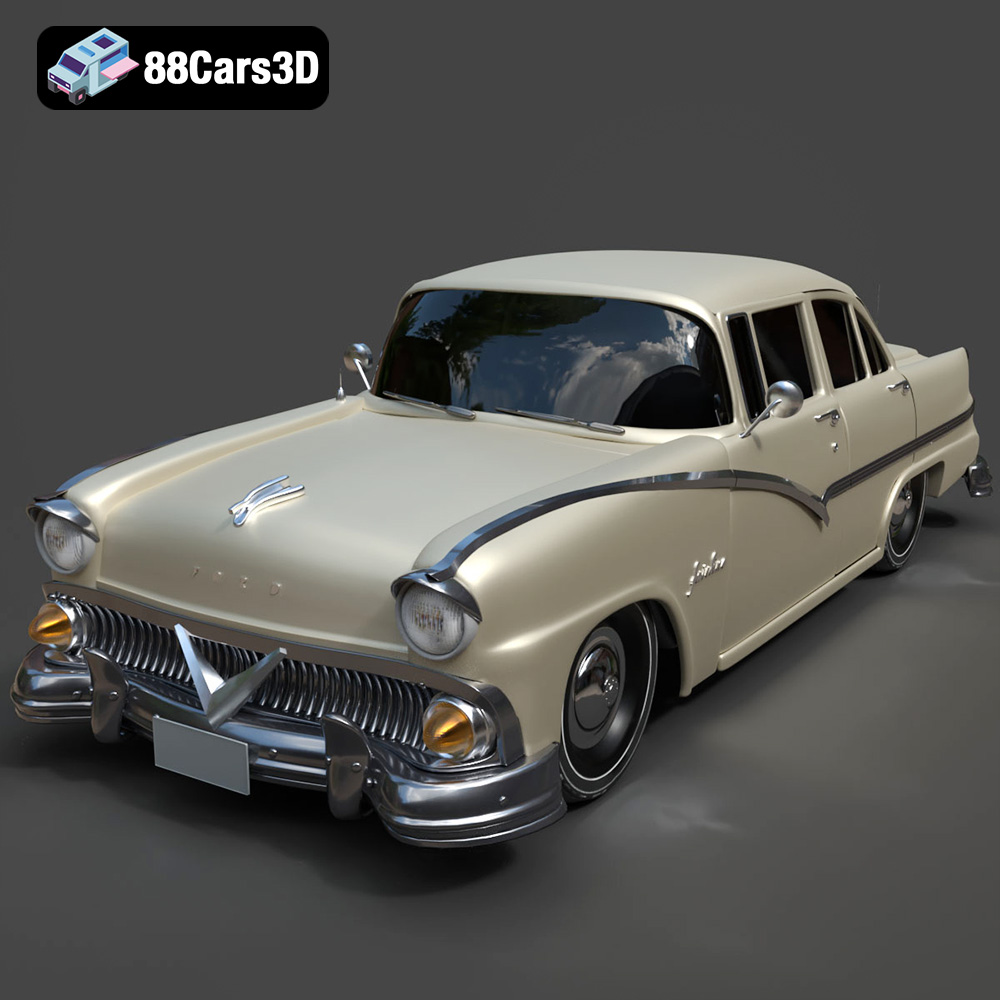
Texture: Yes | Material: Yes
Download the highly detailed, game-ready Ford Fairlin 3D Model. Features iconic classic styling, sweeping bodylines, and an accurate vintage interior. Includes .blend, .fbx, .obj, .glb, .stl, .ply, .unreal, and .max formats for game development, AR/VR, and rendering.
Price: $19.99

Texture: Yes | Material: Yes
Download the highly detailed, game-ready Ford Mustang GT 3D Model. Features aggressive muscle car styling, a highly detailed V8 engine bay, and accurate interior cockpit. Includes .blend, .fbx, .obj, .glb, .stl, .ply, .unreal, and .max formats for game development, AR/VR, and rendering.
Price: $19.99

Texture: Yes | Material: Yes
Download the highly detailed, game-ready Renault Megane CC 2011 3D Model. Features an accurately modeled folding glass roof, sleek aerodynamic body lines, and a detailed interior. Includes .blend, .fbx, .obj, .glb, .stl, .ply, .unreal, and .max formats for game development, AR/VR, and rendering.
Price: $19.99

Texture: Yes | Material: Yes
Download the highly detailed, game-ready Ford GT 2005 3D Model. Features signature aerodynamic bodylines, mid-mounted supercharged V8 detailing, and iconic racing stripes. Includes .blend, .fbx, .obj, .glb, .stl, .ply, .unreal, and .max formats for game development, AR/VR, and rendering.
Price: $19.99

Texture: Yes | Material: Yes
Download the highly detailed, game-ready Yamaha YZF-R125 EU 3D Model. Features an aggressive aerodynamic fairing, twin LED headlights, and a detailed 125cc engine block. Includes .blend, .fbx, .obj, .glb, .stl, .ply, .unreal, and .max formats for game development, AR/VR, and rendering.
Price: $19.99

Texture: Yes | Material: Yes
Download the highly detailed, game-ready Yamaha R1 3D Model. Features aggressive aerodynamic fairings, a detailed crossplane inline-4 engine, and track-focused suspension geometry. Includes .blend, .fbx, .obj, .glb, .stl, .ply, .unreal, and .max formats for game development, AR/VR, and rendering.
Price: $19.99

Texture: Yes | Material: Yes
Download the highly detailed, game-ready Yamaha XV950 Racer 3D Model. Features an aggressive cafe-racer front cowl, detailed air-cooled V-twin engine, and classic retro styling. Includes .blend, .fbx, .obj, .glb, .stl, .ply, .unreal, and .max formats for game development, AR/VR, and rendering.
Price: $19.99

