Get 20% OFF All Premium 3D & STL Models!

“`html
3D printing offers incredible potential, especially for hobbyists and professionals creating detailed models, prototypes, and functional parts. When working with printable car models or any other complex design, the STL file format is the cornerstone of the entire process. However, STL files are notorious for containing errors that can lead to failed prints, poor surface finish, and wasted filament or resin. Before sending your meticulously chosen 3D model to the printer, especially when downloading models from marketplaces such as 88cars3d.com, it’s crucial to ensure its integrity. This comprehensive guide will equip you with the knowledge and techniques to identify, diagnose, and repair common STL file errors, ensuring successful and high-quality 3D prints every time.
In this article, we’ll delve into the intricacies of STL files, explore common error types, and provide step-by-step solutions using popular software tools. Whether you’re a beginner or an experienced 3D printing enthusiast, this guide will enhance your understanding of STL file preparation and significantly improve your 3D printing workflow.
The STL (stereolithography) file format is the de facto standard for 3D printing. It represents the surface geometry of a 3D object as a collection of triangles. While seemingly simple, this representation can be prone to various errors that can negatively impact print quality. A flawed STL file is like a blueprint with missing lines or incorrect measurements – the final product will inevitably suffer.
An STL file essentially comprises a list of triangular facets. Each facet is defined by its three vertices (points in 3D space) and a normal vector (indicating the facet’s orientation). The simplicity of this structure is both its strength and its weakness. It’s easy to generate, but it lacks information about color, texture, or complex features, and is highly susceptible to errors if not created or handled correctly. A typical ASCII STL file will look something like this:
solid object
  facet normal 0.0 0.0 1.0
    outer loop
      vertex 0.0 0.0 0.0
      vertex 1.0 0.0 0.0
      vertex 0.0 1.0 0.0
    endloop
  endfacet
  facet normal 0.0 0.0 1.0
    outer loop
      vertex 1.0 0.0 0.0
      vertex 1.0 1.0 0.0
      vertex 0.0 1.0 0.0
    endloop
  endfacet
endsolid object
Binary STL files are more compact but contain the same information in a more efficient format.
Several types of errors can plague STL files, leading to printing problems:
The first step in fixing STL errors is identifying them. Fortunately, several software tools can help you diagnose these problems. Most slicers will flag errors, but dedicated mesh analysis tools offer more detailed insights. Understanding where the errors lie is half the battle.
Slicing software like Cura, PrusaSlicer, and Simplify3D often perform basic error checking during the slicing process. They might display warnings or highlight problematic areas in the preview. However, relying solely on the slicer isn’t always sufficient, especially for complex models. Watch out for warnings like “Model is not manifold” or “Errors detected during slicing.” These are red flags indicating the need for further investigation.
For more in-depth analysis, dedicated mesh editing software is essential. Two popular options are:
Within these tools, look for features like “Inspect” or “Analysis” that highlight errors such as non-manifold edges, inverted normals, and holes. Meshmixer’s “Analysis” tool visually identifies these issues with color-coded markers, making it easy to pinpoint problem areas. Netfabb provides detailed reports on mesh statistics and error types.
Several online tools, such as the one provided by ViewSTL.com, allow you to upload your STL file and receive a report on potential errors. These are useful for quick checks without installing any software, although they may have limitations in terms of file size or complexity.
Non-manifold geometry is a critical error that can completely derail a 3D print. It essentially means that the model’s surface isn’t properly defined, leaving gaps or inconsistencies that the slicer can’t handle. Fixing non-manifold errors often involves a combination of automatic repair functions and manual editing.
Meshmixer offers a robust “Make Solid” function that automatically attempts to fix non-manifold geometry. To use it, import your STL file into Meshmixer and select “Edit > Make Solid.” Experiment with the “Solid Type” settings (Accurate, Fast, Blocky) to find the best balance between detail preservation and error correction. “Accurate” typically provides the best results but can be slower for complex models. Adjust the “Solid Accuracy” slider to fine-tune the repair process. Keep in mind that automatic repair isn’t always perfect, and manual intervention may still be necessary. It is important to note that sometimes the “Make Solid” function can result in a loss of detail, so be sure to inspect the repaired model carefully. Platforms like 88cars3d.com strive to provide manifold models, but errors can sometimes still exist.
When automatic repair fails, manual editing is required. This involves identifying and closing gaps, filling holes, and ensuring that all edges are shared by exactly two triangles. Meshmixer’s sculpting tools (e.g., “Brush,” “Smooth”) can be used to subtly reshape the mesh and close small gaps. For larger holes, the “Edit > Bridge” tool can create new faces to connect open edges. The “Fill Hole” command is also very useful, and can often fix these kinds of errors almost automatically. The “Select” tool, especially when used with the “Sharp Edges” or “Non-Manifold Edges” selection modes, is indispensable for finding and addressing these problems.
For example, to bridge a gap, select the two open edges you want to connect and use the “Bridge” tool. Adjust the “Path Type” and “Number of Divisions” settings to control the shape and resolution of the bridge. To fill a hole, select the boundary edges and use the “Fill” command. Choose the appropriate fill type (e.g., “Minimal Fill,” “Flat Fill”) based on the surrounding geometry.
Internal faces and self-intersections can be tricky to resolve. Meshmixer’s “Edit > Separate Shells” function can help identify internal faces by isolating disconnected parts of the mesh. If you find internal faces, delete them using the “Edit > Erase & Fill” tool. For self-intersections, carefully examine the mesh and use the sculpting tools to gently reshape the intersecting areas until they no longer overlap.
Inverted normals can cause significant problems, as the slicer may interpret the inside of the model as the outside, leading to hollow or inverted prints. Fortunately, correcting inverted normals is usually a straightforward process.
In Meshmixer, the “View > Show Normals” option displays the normal vectors as small lines extending from each triangle. Inverted normals will point inwards, towards the center of the model, rather than outwards. A more common way to identify them is that those surfaces will appear blue in Meshmixer, as opposed to the normal orange color.
To fix inverted normals, select the affected faces using the “Select” tool. You can select individual faces or use the “Select > By Angle” option to select all faces with normals pointing in a similar direction. Once the faces are selected, use the “Edit > Flip Normals” command to reverse their orientation. Verify that the normals now point outwards. If the whole model appears to have inverted normals, simply select the entire model and flip all normals.
While flipping normals corrects the direction, it’s also crucial to ensure consistent orientation across the entire mesh. This means that all triangles should be oriented consistently, either clockwise or counter-clockwise. Meshmixer automatically handles this during the “Make Solid” process, but it’s good practice to visually inspect the mesh to ensure consistency.
Beyond fixing errors, optimizing STL files can further improve print quality and reduce printing time. This involves simplifying the mesh, reducing file size, and orienting the model for optimal printing.
High-resolution STL files can be unnecessarily large, leading to slower slicing and longer print times. Mesh simplification, also known as decimation, reduces the number of triangles in the mesh while preserving its overall shape. In Meshmixer, use the “Reduce” tool (Edit > Reduce) to simplify the mesh. Experiment with the “Triangle Budget” and “Percentage Reduction” settings to find a good balance between detail and file size. For example, you might reduce the triangle count by 50% without significantly impacting the model’s appearance. When reducing the mesh, watch out for areas that become too blocky or lose important details.
The orientation of the model on the print bed significantly impacts print quality and the amount of support material required. Choose an orientation that minimizes overhangs and maximizes bed adhesion. In slicers like Cura and PrusaSlicer, you can rotate and position the model freely. Consider the direction of layer lines and how they will affect the surface finish. Orient the model to minimize the need for support structures, especially in areas with fine details. When supports are necessary, optimize their placement and density to ensure adequate support without wasting material. Aim for support angles between 45 and 60 degrees for optimal support performance.
When exporting the final STL file, choose the binary format for smaller file sizes and faster loading times. Binary STL files are generally preferred over ASCII STL files, as they are more compact and efficient. Most slicers and mesh editing tools default to the binary format. Double-check your export settings to ensure you’re using the binary format.
Even after careful preparation, 3D printing can still present challenges. Understanding advanced techniques and troubleshooting common problems can help you overcome these hurdles.
Complex geometries with intricate details require special attention. Consider using adaptive layer heights in your slicer to capture fine details in critical areas while using thicker layers for less detailed regions. This can significantly reduce print time without compromising quality. Experiment with different infill patterns and densities to optimize strength and weight. For example, a gyroid infill pattern provides excellent strength-to-weight ratio. Consider using variable layer heights, such as a 0.1mm layer height for intricate details and a 0.2mm layer height for less detailed areas.
Warping, delamination, and other print failures can often be traced back to STL file issues or incorrect printer settings. Warping is often caused by poor bed adhesion or temperature fluctuations. Ensure your bed is properly leveled and heated, and consider using a brim or raft to improve adhesion. Delamination, or layer separation, can be caused by insufficient layer adhesion. Increase the print temperature or reduce the print speed to improve layer bonding. If you continue to experience problems, re-examine your STL file for potential errors and consider simplifying the geometry.
Each slicer has its own unique features and settings. Experiment with different profiles and settings to find the optimal configuration for your printer and material. Cura offers advanced features like tree supports and adaptive layers. PrusaSlicer provides excellent control over infill patterns and support structures. Simplify3D offers a wide range of advanced settings for fine-tuning print quality. Consult the documentation and online forums for each slicer to learn about specific tips and tricks. For example, Cura’s “Arachne” engine can produce thinner, variable-width lines, which often improves surface quality.
Fixing STL file errors is a crucial step in the 3D printing workflow. By understanding the STL file format, diagnosing common errors, and employing appropriate repair techniques, you can significantly improve the success rate and quality of your 3D prints. From analyzing your files with Meshmixer to understanding printer settings within Cura or PrusaSlicer, you’ll be well-equipped to tackle any printing challenges. Remember to always double-check your STL files before printing, especially when working with intricate models or downloaded designs. Whether you’re printing a scale model car from a site like 88cars3d.com or creating a functional prototype, proper STL file preparation is key to achieving the desired results.
Take the time to learn these techniques and integrate them into your workflow. Your prints will be more reliable, your models will look better, and you’ll save time and materials in the long run. Start by downloading Meshmixer and experimenting with the repair tools. Practice identifying and fixing common errors in sample STL files. Gradually apply these skills to your own 3D printing projects. With a little practice and patience, you’ll become a master of STL file preparation and unlock the full potential of your 3D printer.
“`

Texture: Yes | Material: Yes
Download the highly detailed, game-ready Toyota Camry 2018 3D Model. Features an aggressive aerodynamic body, distinct LED lighting signature, and precise interior detailing. Includes .blend, .fbx, .obj, .glb, .stl, .ply, .unreal, and .max formats for game development, AR/VR, and rendering.
Price: $19.99
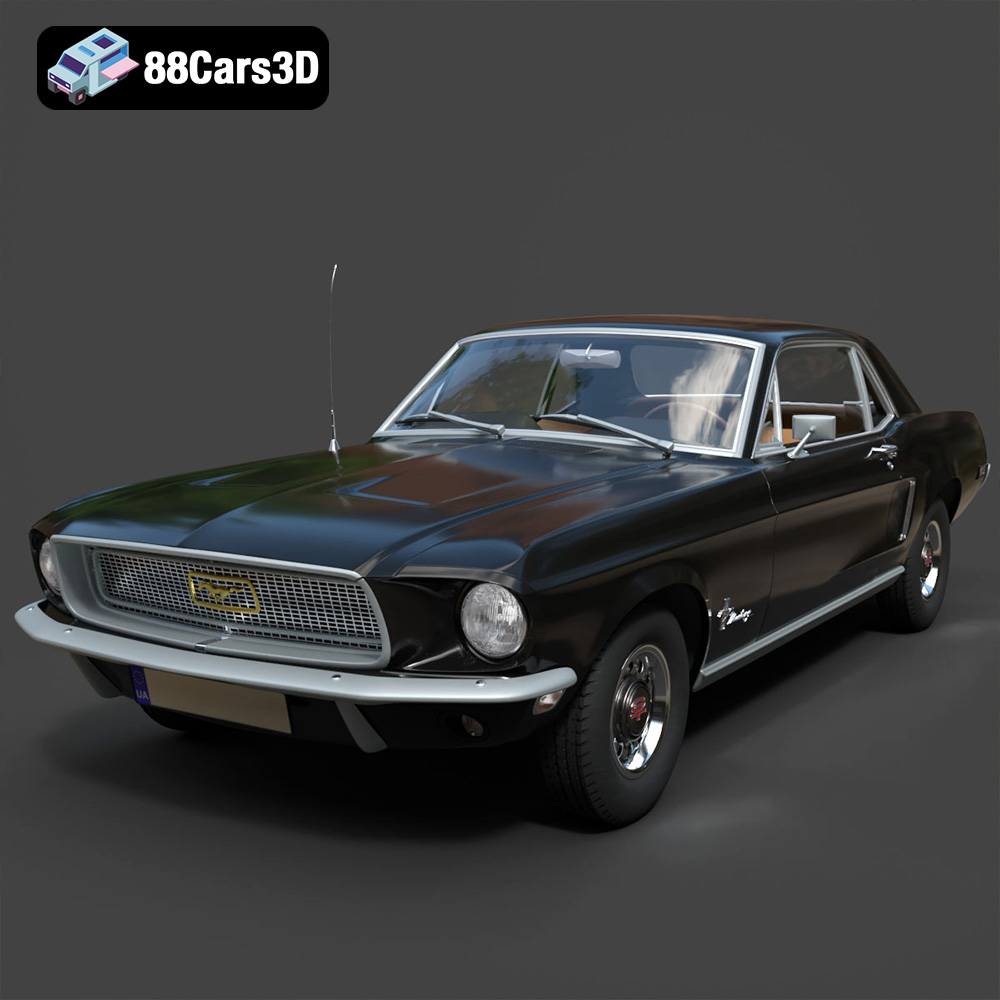
Texture: Yes | Material: Yes
Download the highly detailed, game-ready Ford Mustang Hardtop 1968 3D Model. Features the iconic galloping pony grille, signature tri-bar taillights, and an authentic vintage interior. Includes .blend, .fbx, .obj, .glb, .stl, .ply, .unreal, and .max formats for game development, AR/VR, and rendering.
Price: $19.99

Texture: Yes | Material: Yes
Download the highly detailed, game-ready Ferrari J50 2017 3D Model. Features aggressive aerodynamic styling, twin-turbo V8 engine details, and targa top design. Includes .blend, .fbx, .obj, .glb, .stl, .ply, .unreal, and .max formats for game development, AR/VR, and rendering.
Price: $19.99
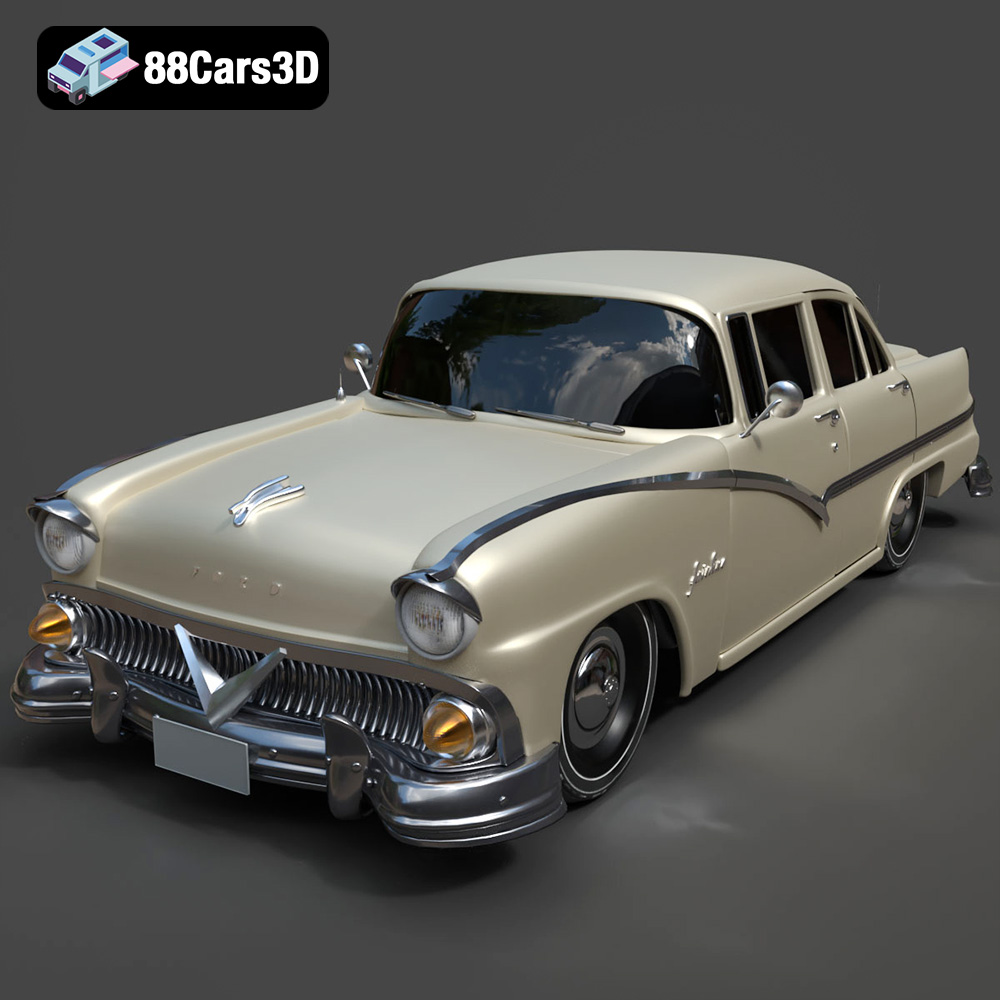
Texture: Yes | Material: Yes
Download the highly detailed, game-ready Ford Fairlin 3D Model. Features iconic classic styling, sweeping bodylines, and an accurate vintage interior. Includes .blend, .fbx, .obj, .glb, .stl, .ply, .unreal, and .max formats for game development, AR/VR, and rendering.
Price: $19.99
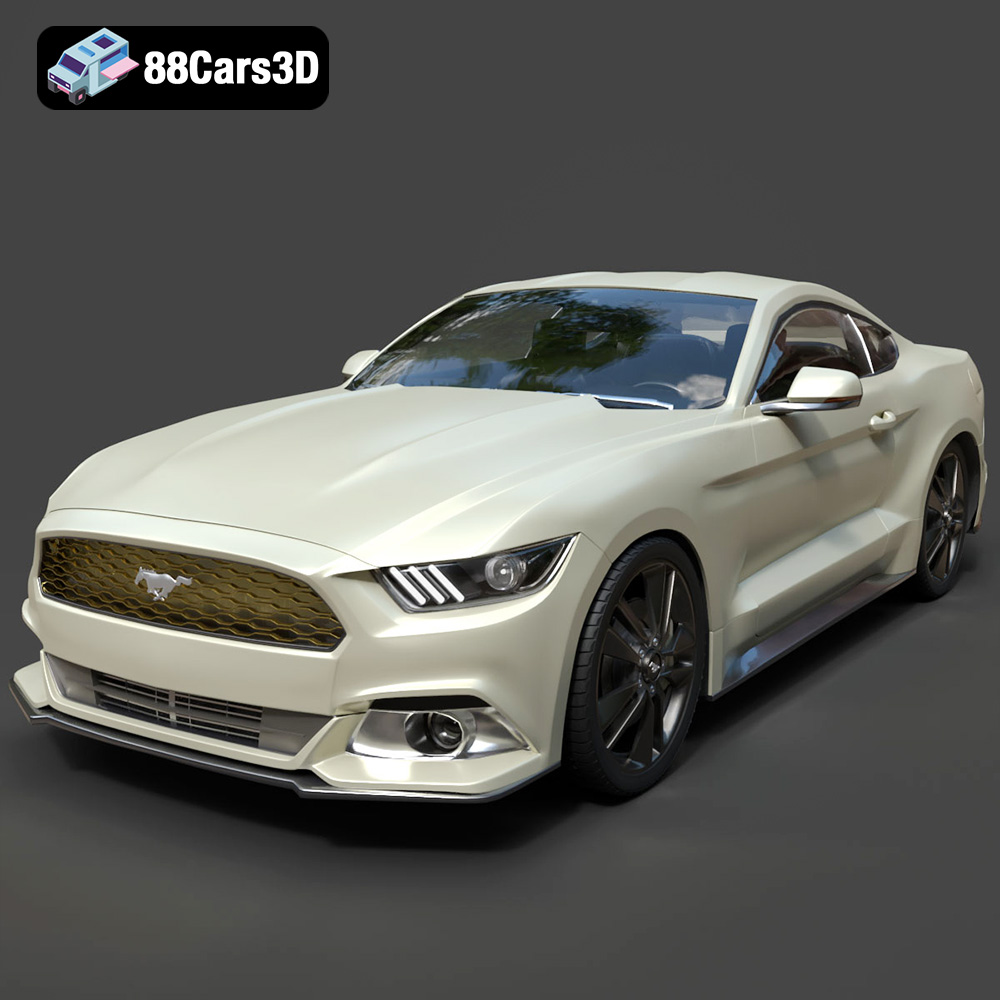
Texture: Yes | Material: Yes
Download the highly detailed, game-ready Ford Mustang GT 3D Model. Features aggressive muscle car styling, a highly detailed V8 engine bay, and accurate interior cockpit. Includes .blend, .fbx, .obj, .glb, .stl, .ply, .unreal, and .max formats for game development, AR/VR, and rendering.
Price: $19.99

Texture: Yes | Material: Yes
Download the highly detailed, game-ready Renault Megane CC 2011 3D Model. Features an accurately modeled folding glass roof, sleek aerodynamic body lines, and a detailed interior. Includes .blend, .fbx, .obj, .glb, .stl, .ply, .unreal, and .max formats for game development, AR/VR, and rendering.
Price: $19.99
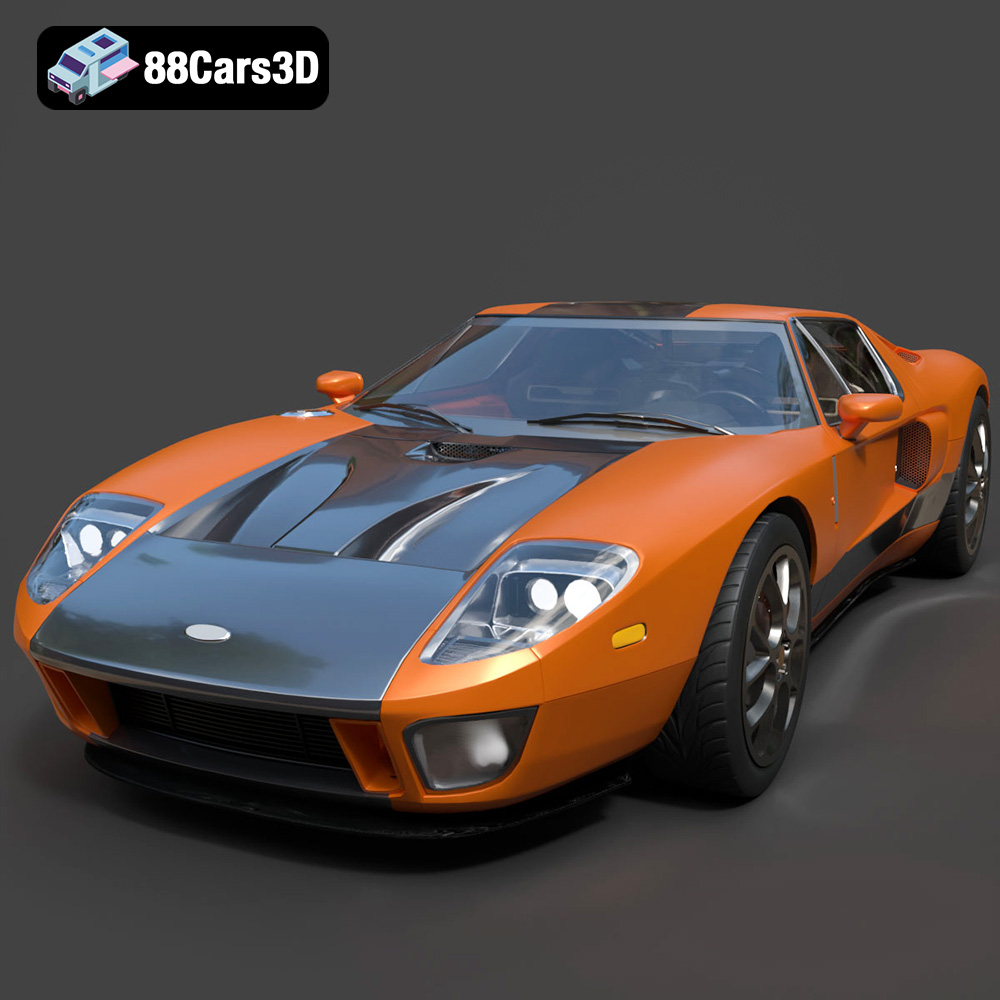
Texture: Yes | Material: Yes
Download the highly detailed, game-ready Ford GT 2005 3D Model. Features signature aerodynamic bodylines, mid-mounted supercharged V8 detailing, and iconic racing stripes. Includes .blend, .fbx, .obj, .glb, .stl, .ply, .unreal, and .max formats for game development, AR/VR, and rendering.
Price: $19.99

Texture: Yes | Material: Yes
Download the highly detailed, game-ready Yamaha YZF-R125 EU 3D Model. Features an aggressive aerodynamic fairing, twin LED headlights, and a detailed 125cc engine block. Includes .blend, .fbx, .obj, .glb, .stl, .ply, .unreal, and .max formats for game development, AR/VR, and rendering.
Price: $19.99

Texture: Yes | Material: Yes
Download the highly detailed, game-ready Yamaha R1 3D Model. Features aggressive aerodynamic fairings, a detailed crossplane inline-4 engine, and track-focused suspension geometry. Includes .blend, .fbx, .obj, .glb, .stl, .ply, .unreal, and .max formats for game development, AR/VR, and rendering.
Price: $19.99

Texture: Yes | Material: Yes
Download the highly detailed, game-ready Yamaha XV950 Racer 3D Model. Features an aggressive cafe-racer front cowl, detailed air-cooled V-twin engine, and classic retro styling. Includes .blend, .fbx, .obj, .glb, .stl, .ply, .unreal, and .max formats for game development, AR/VR, and rendering.
Price: $19.99

