Get 20% OFF All Premium 3D & STL Models!

“`html
3D printing has revolutionized how we create physical objects, from rapid prototypes to intricate car models sourced from platforms like 88cars3d.com. However, the journey from digital design to tangible reality isn’t always smooth. A crucial step, often overlooked, is ensuring your STL files are error-free. STL files, the standard format for 3D printing, can be prone to imperfections that lead to print failures, weak parts, or unsightly blemishes. This guide will equip you with the knowledge and tools to diagnose and fix common STL file errors, ensuring successful and high-quality 3D prints every time. We’ll cover everything from understanding STL file structure to using software like Meshmixer and Netfabb for advanced repairs. Whether you’re printing detailed automotive models or functional prototypes, mastering STL file repair is essential for a seamless 3D printing experience.
In this article, you’ll learn to:
STL (Stereolithography) files represent 3D models as a collection of triangles. The file contains information about each triangle’s vertices (corner points) and its normal vector (direction the triangle is facing). Problems arise when this data is inconsistent or incomplete, leading to various errors. These errors manifest as unexpected behavior during slicing and printing, resulting in flawed physical objects. Imagine trying to print a beautiful classic car model; a small error in the STL file could lead to a visible gap in the bodywork, ruining the final result.
Each triangle in an STL file has a “front” and a “back” side, determined by the normal vector. The normal vector should always point outwards, away from the solid object. A flipped normal occurs when the normal vector points inwards, causing the slicer to interpret the triangle as facing the wrong way. This can lead to missing sections in the print or unexpected internal features. Correct normal orientation is crucial for the slicer to correctly determine the inside and outside of the model. Inconsistent normal directions across the mesh can also cause issues where the slicer struggles to understand the geometry, leading to print failures.
Non-manifold geometry is perhaps the most common and problematic type of STL file error. A manifold mesh is essentially one that could exist in the real world – it’s a closed, watertight surface. Non-manifold errors include:
These non-manifold errors prevent the slicer from properly defining the interior and exterior of the object, leading to incorrect infill, missing layers, or complete print failure. For example, on automotive models sourced from marketplaces such as 88cars3d.com, a tiny hole in the chassis could render the entire print unusable.
Before you even think about slicing and printing, it’s vital to inspect your STL file for potential problems. Several software options offer diagnostic tools to highlight errors. These tools analyze the mesh and identify issues like flipped normals, non-manifold edges, and holes. Ignoring these errors can lead to wasted filament, time, and frustration. Identifying problems early allows you to address them before they impact the final product.
Meshmixer, a free software from Autodesk, is a powerful tool for both STL file repair and analysis. To use it for error detection, import your STL file and navigate to Analysis -> Inspector. Meshmixer will automatically highlight areas with potential problems, marking them with different colored spheres. Each sphere represents a different type of error, allowing you to quickly pinpoint the troublesome areas. Double-clicking a sphere will often automatically attempt to repair the error, although manual intervention may still be required.
Netfabb Basic (also from Autodesk, but may require a subscription for advanced features) provides more in-depth analysis capabilities. After importing your STL file, go to Analysis -> Add Part -> Click your imported Part -> Run Diagnostics. Netfabb will generate a detailed report outlining the number and type of errors found. It can identify flipped triangles, edge problems, and holes with greater precision than Meshmixer. The paid versions of Netfabb also offer automated repair tools that can fix a wider range of errors. Netfabb is often favored by professionals due to its robust reporting and repair capabilities.
Meshmixer offers a range of tools for manually and automatically repairing STL files. While automatic repair can often fix simple issues, complex errors may require manual intervention for optimal results. The goal is to create a clean, manifold mesh that the slicer can interpret correctly. This may involve deleting problematic faces, bridging gaps, and ensuring consistent surface orientation. Effective use of Meshmixer can save countless hours of troubleshooting failed prints.
The “Make Solid” function in Meshmixer is a powerful tool for automatically repairing many common STL file errors. Select your model and go to Edit -> Make Solid. Adjust the settings to balance detail preservation with repair aggressiveness. Higher “Solid Type” values will result in a more robust (but potentially less detailed) mesh. Experiment with the “Mesh Density” and “Accuracy” settings to find the optimal balance for your model. This function essentially remeshes the entire model, creating a new, clean mesh from the original, often fixing non-manifold edges and small holes in the process. Be aware that this process can significantly alter the model’s geometry, so always compare the repaired model with the original.
For more complex errors, manual repair may be necessary. Meshmixer’s “Edit” tools provide options for filling holes and bridging gaps. To fill a hole, select the boundary edges of the hole using the “Select” tool (usually with the “Brush” select type selected). Then, go to Edit -> Fill. Experiment with different fill types (“Minimal Fill,” “Curvature,” “Smooth Fill”) to achieve the best result. “Minimal Fill” creates a flat surface across the hole, while “Curvature” and “Smooth Fill” attempt to maintain the surrounding surface curvature. For bridging gaps between separate sections of the mesh, use the “Bridge” tool. This allows you to create a connecting surface between two selected edges. These manual techniques require patience and precision but offer greater control over the final result. Remember to regularly use the “Inspector” tool to check for any remaining errors after each repair step.
Repairing STL files is just the first step. Optimizing them for your specific 3D printer and material is crucial for achieving the best possible print quality. This involves considerations such as print orientation, support structure generation, and slicing parameters. These factors can dramatically impact the strength, surface finish, and overall success of your 3D prints.
Print orientation plays a significant role in the need for support structures and the overall surface quality. Consider the geometry of your model and orient it to minimize the number of overhanging features requiring support. Overhangs exceeding 45 degrees typically require support to prevent sagging or deformation during printing. However, support structures leave behind blemishes on the surface and can be difficult to remove cleanly. Try to orient the model to place less critical surfaces in contact with support structures. For example, when printing a car body, orienting it with the roof facing down minimizes the need for supports on the visible exterior surfaces. Tools within slicers like Cura and PrusaSlicer allow for easy model rotation and support generation customization.
Slicing parameters dictate how the 3D printer builds your model layer by layer. Layer height determines the vertical resolution of the print; lower layer heights result in smoother surfaces but increase print time. A common layer height for FDM printing is 0.2mm, but you can go as low as 0.1mm for finer details or increase it to 0.3mm for faster prototyping. Infill refers to the internal structure of the model. A higher infill percentage increases strength but also increases print time and material consumption. A typical infill percentage for decorative models is 15-20%, while functional parts may require 50% or more. Print speed affects both print time and quality. Slower speeds generally result in better surface finish and dimensional accuracy, but at the cost of longer print times. Experiment with different speed settings to find the optimal balance for your printer and material. For example, with PLA, a printing temperature of 200-210°C and a bed temperature of 60°C are generally recommended.
The choice of 3D printing material greatly influences the final product’s properties. Each material possesses unique characteristics regarding strength, flexibility, temperature resistance, and surface finish. Furthermore, proper printer calibration ensures accurate and consistent printing. This includes bed leveling, temperature adjustments, and extrusion calibration. A well-calibrated printer, combined with the appropriate material, is essential for realizing the full potential of your 3D printed objects.
FDM (Fused Deposition Modeling) printing, which uses materials like PLA, ABS, and PETG, is a versatile and cost-effective option for many applications. PLA is easy to print and biodegradable, making it a popular choice for beginners and decorative models. ABS offers higher strength and temperature resistance, making it suitable for functional parts. PETG combines the ease of printing of PLA with the strength of ABS. When printing with FDM, consider the layer adhesion, bridging capabilities, and warping potential of each material. Resin printing, which uses materials like standard resin, tough resin, and flexible resin, offers significantly higher resolution and surface finish compared to FDM. Resin printing is ideal for intricate details and smooth surfaces, making it a great option for detailed models like those found on 88cars3d.com. However, resin prints are generally more brittle than FDM prints and require post-processing steps such as washing and curing.
Bed adhesion is crucial for preventing warping and ensuring that the first layer of your print adheres firmly to the build plate. Poor bed adhesion can lead to print failures, especially for large or complex models. Ensure that your build plate is clean and level. Use a leveling aid, such as a piece of paper or a feeler gauge, to ensure that the nozzle is at the correct distance from the bed at all points. Apply an adhesion promoter, such as hairspray or glue stick, to the build plate to improve adhesion. Adjust the initial layer height and flow rate in your slicer settings to optimize bed adhesion. A slightly thicker first layer with a higher flow rate can help to “squish” the filament onto the bed, creating a stronger bond. Calibrating your first layer is critical for successful printing, regardless of the material or printer type. Pay special attention to the nozzle temperature and bed temperature settings, as these factors also significantly impact bed adhesion.
Even with careful preparation and optimized settings, 3D printing failures can still occur. Understanding the common causes of these failures and knowing how to troubleshoot them is essential for a successful 3D printing journey. This includes recognizing issues like warping, layer separation, stringing, and elephant’s foot, and implementing strategies to address them.
Warping occurs when the corners or edges of a print lift off the build plate. This is often caused by uneven cooling, which creates stress within the printed part. To prevent warping, ensure proper bed adhesion, use a heated bed, and avoid drafts. Enclosing your 3D printer can also help to maintain a consistent temperature and reduce warping. Layer separation, also known as delamination, occurs when the layers of a print fail to adhere to each other properly. This can be caused by insufficient nozzle temperature, inadequate cooling, or poor layer adhesion. Increase the nozzle temperature, reduce cooling fan speed, and ensure that your printer is properly calibrated to prevent layer separation. Using appropriate slicing parameters can also improve layer adhesion. For example, increasing the overlap between layers can create a stronger bond.
Stringing occurs when thin strands of filament are left behind as the nozzle moves between different parts of the print. This is often caused by excessive nozzle temperature, insufficient retraction, or slow travel speed. Reduce the nozzle temperature, increase the retraction distance and speed, and increase the travel speed to minimize stringing. Experiment with different retraction settings to find the optimal balance for your printer and material. Elephant’s foot occurs when the first few layers of a print are wider than the rest, creating a flared-out appearance. This is typically caused by excessive bed temperature or insufficient first layer height. Reduce the bed temperature and decrease the initial layer height to prevent elephant’s foot. Calibrating your Z-offset can also help to ensure that the nozzle is at the correct distance from the bed, preventing the initial layers from being squished too much.
Mastering STL file repair and optimization is a crucial skill for any 3D printing enthusiast. By understanding the structure of STL files, diagnosing common errors, and utilizing repair tools like Meshmixer and Netfabb, you can significantly improve the success rate and quality of your 3D prints. Remember to consider factors like print orientation, support structures, slicing parameters, and material selection to achieve the best possible results. When downloading models from marketplaces such as 88cars3d.com, taking the time to inspect and repair the STL files will ensure a smoother and more rewarding 3D printing experience.
Actionable next steps:
By implementing these techniques, you’ll be well on your way to creating stunning and functional 3D printed objects.
“`

Texture: Yes | Material: Yes
Download the highly detailed, game-ready Audi RS6 3D Model. Features aggressive RS bodywork, detailed alloy wheels, and signature LED lighting. Includes .blend, .fbx, .obj, .glb, .stl, .ply, .unreal, and .max formats for game development, AR/VR, and rendering.
Price: $19.99

Texture: Yes | Material: Yes
Download the highly detailed, game-ready Toyota Camry 2018 3D Model. Features an aggressive aerodynamic body, distinct LED lighting signature, and precise interior detailing. Includes .blend, .fbx, .obj, .glb, .stl, .ply, .unreal, and .max formats for game development, AR/VR, and rendering.
Price: $19.99

Texture: Yes | Material: Yes
Download the highly detailed, game-ready Ford Mustang Hardtop 1968 3D Model. Features the iconic galloping pony grille, signature tri-bar taillights, and an authentic vintage interior. Includes .blend, .fbx, .obj, .glb, .stl, .ply, .unreal, and .max formats for game development, AR/VR, and rendering.
Price: $19.99

Texture: Yes | Material: Yes
Download the highly detailed, game-ready Ferrari J50 2017 3D Model. Features aggressive aerodynamic styling, twin-turbo V8 engine details, and targa top design. Includes .blend, .fbx, .obj, .glb, .stl, .ply, .unreal, and .max formats for game development, AR/VR, and rendering.
Price: $19.99
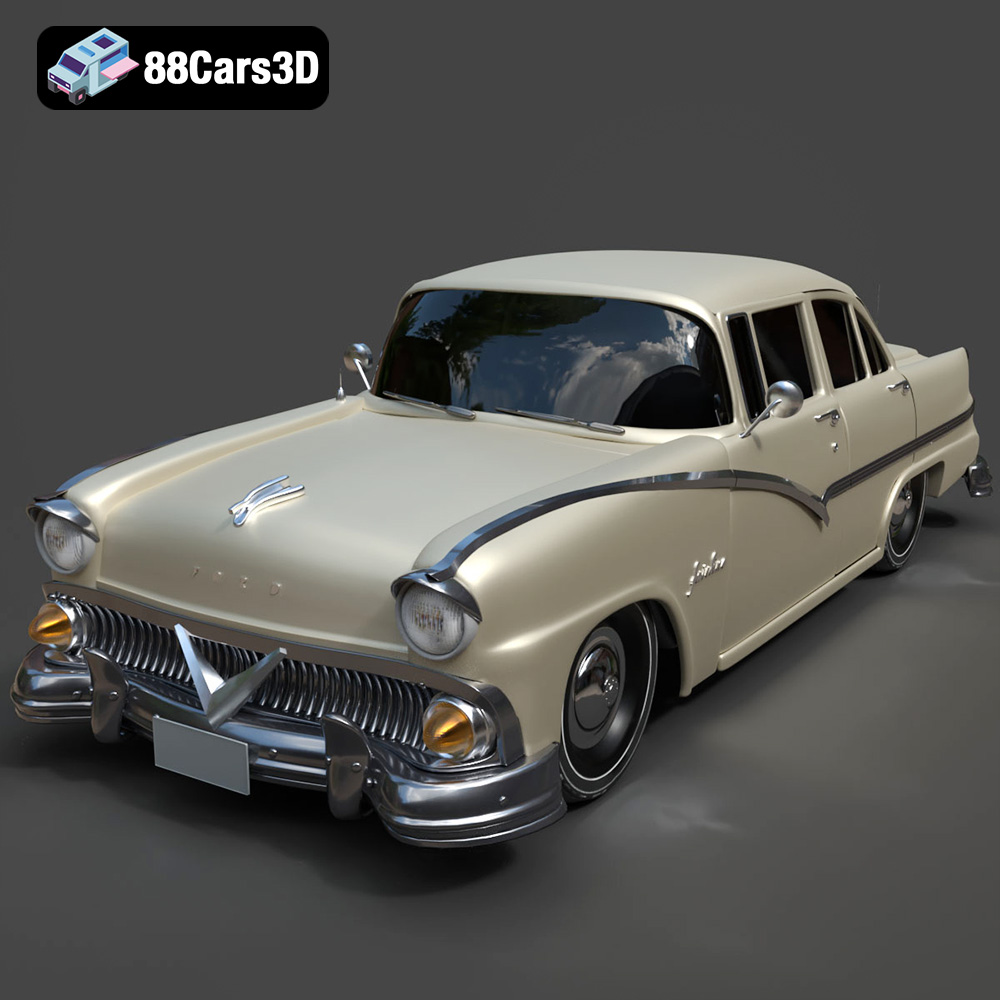
Texture: Yes | Material: Yes
Download the highly detailed, game-ready Ford Fairlin 3D Model. Features iconic classic styling, sweeping bodylines, and an accurate vintage interior. Includes .blend, .fbx, .obj, .glb, .stl, .ply, .unreal, and .max formats for game development, AR/VR, and rendering.
Price: $19.99

Texture: Yes | Material: Yes
Download the highly detailed, game-ready Ford Mustang GT 3D Model. Features aggressive muscle car styling, a highly detailed V8 engine bay, and accurate interior cockpit. Includes .blend, .fbx, .obj, .glb, .stl, .ply, .unreal, and .max formats for game development, AR/VR, and rendering.
Price: $19.99

Texture: Yes | Material: Yes
Download the highly detailed, game-ready Renault Megane CC 2011 3D Model. Features an accurately modeled folding glass roof, sleek aerodynamic body lines, and a detailed interior. Includes .blend, .fbx, .obj, .glb, .stl, .ply, .unreal, and .max formats for game development, AR/VR, and rendering.
Price: $19.99

Texture: Yes | Material: Yes
Download the highly detailed, game-ready Ford GT 2005 3D Model. Features signature aerodynamic bodylines, mid-mounted supercharged V8 detailing, and iconic racing stripes. Includes .blend, .fbx, .obj, .glb, .stl, .ply, .unreal, and .max formats for game development, AR/VR, and rendering.
Price: $19.99

Texture: Yes | Material: Yes
Download the highly detailed, game-ready Yamaha YZF-R125 EU 3D Model. Features an aggressive aerodynamic fairing, twin LED headlights, and a detailed 125cc engine block. Includes .blend, .fbx, .obj, .glb, .stl, .ply, .unreal, and .max formats for game development, AR/VR, and rendering.
Price: $19.99

Texture: Yes | Material: Yes
Download the highly detailed, game-ready Yamaha R1 3D Model. Features aggressive aerodynamic fairings, a detailed crossplane inline-4 engine, and track-focused suspension geometry. Includes .blend, .fbx, .obj, .glb, .stl, .ply, .unreal, and .max formats for game development, AR/VR, and rendering.
Price: $19.99

