Get 20% OFF All Premium 3D & STL Models!

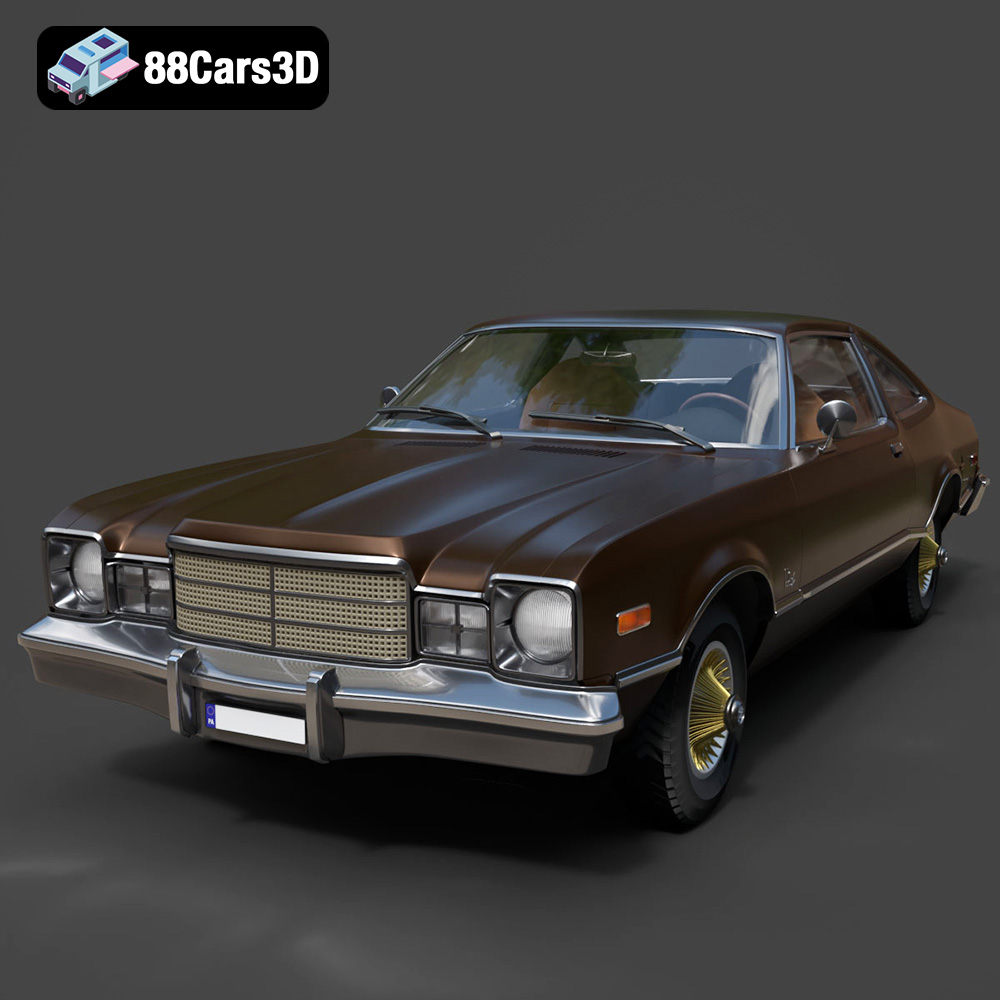
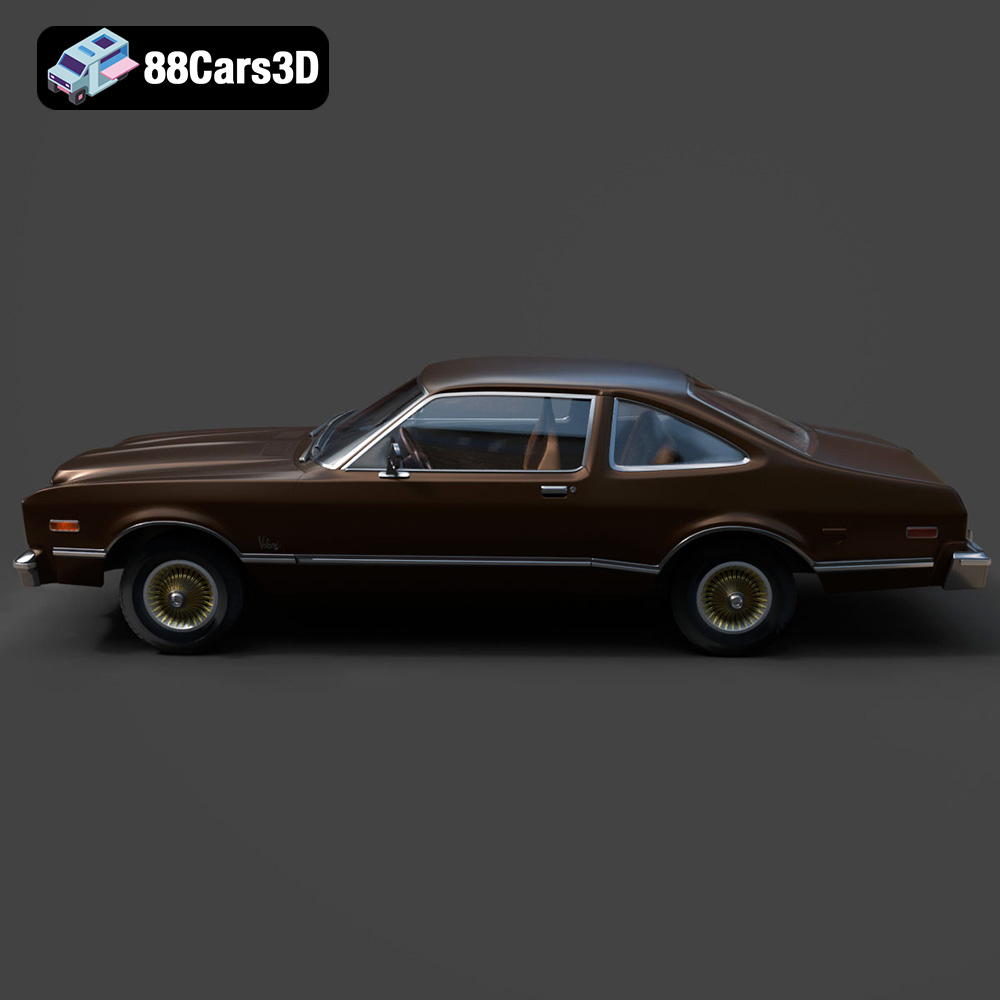
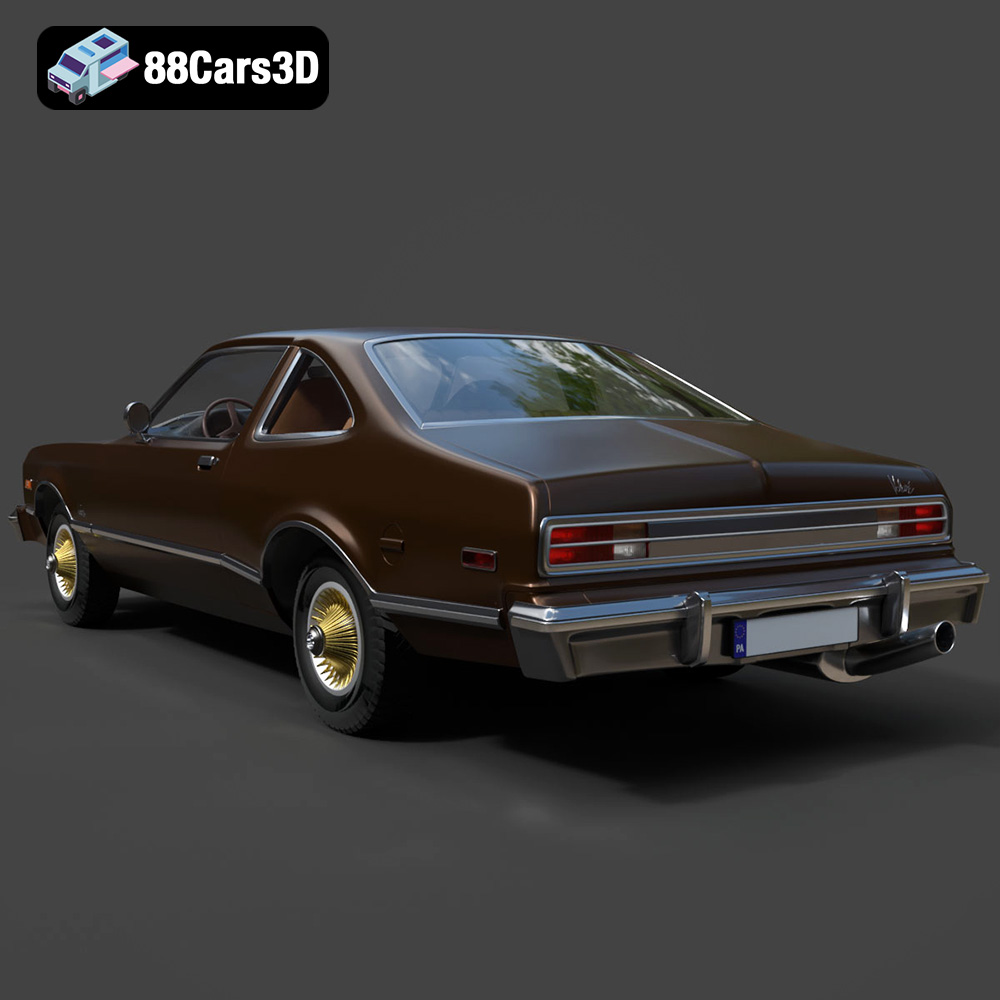
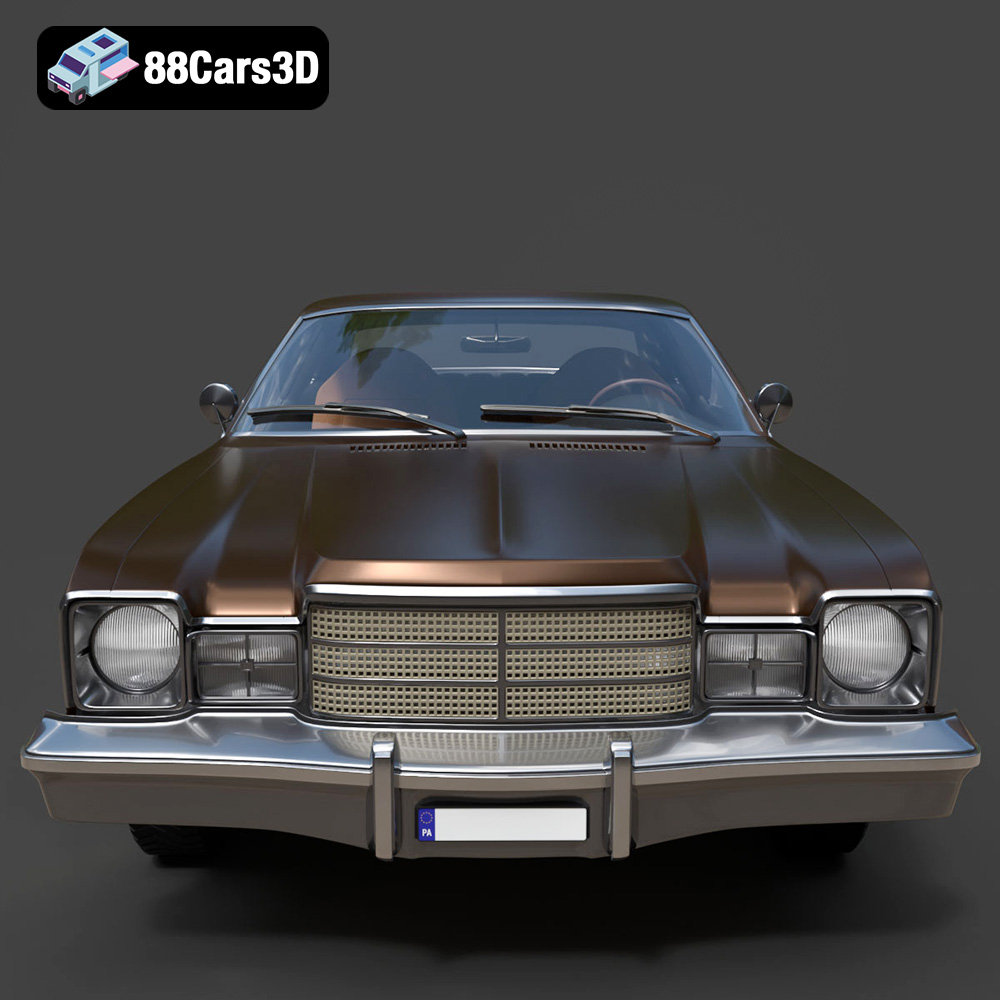
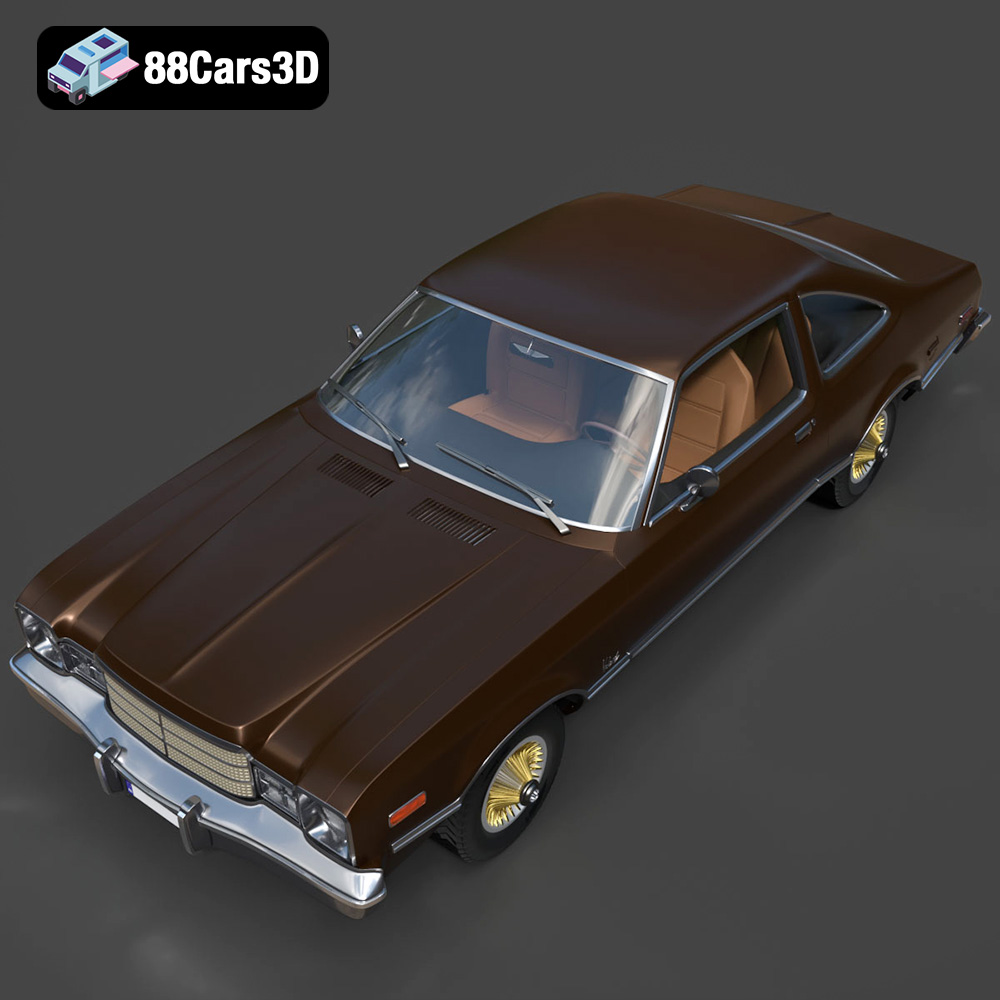
The 1977 Plymouth Volare Coupe, a symbol of American automotive design from the late 70s, offers a fantastic opportunity for 3D printing enthusiasts. Its distinct features, from the square headlights to the classic coupe silhouette, translate beautifully into a 3D printed model. This blog post will guide you through the process of successfully 3D printing this iconic car, covering everything from selecting the right materials and preparing the STL files to fine-tuning your printer settings and mastering post-processing techniques. Let’s dive in and explore how to bring this piece of automotive history to life using additive manufacturing.
Before you begin printing the Plymouth Volare Coupe, it’s crucial to understand the different file formats available and which ones are best suited for 3D printing. The model from 88cars3d.com comes in various formats, but not all are created equal when it comes to additive manufacturing.
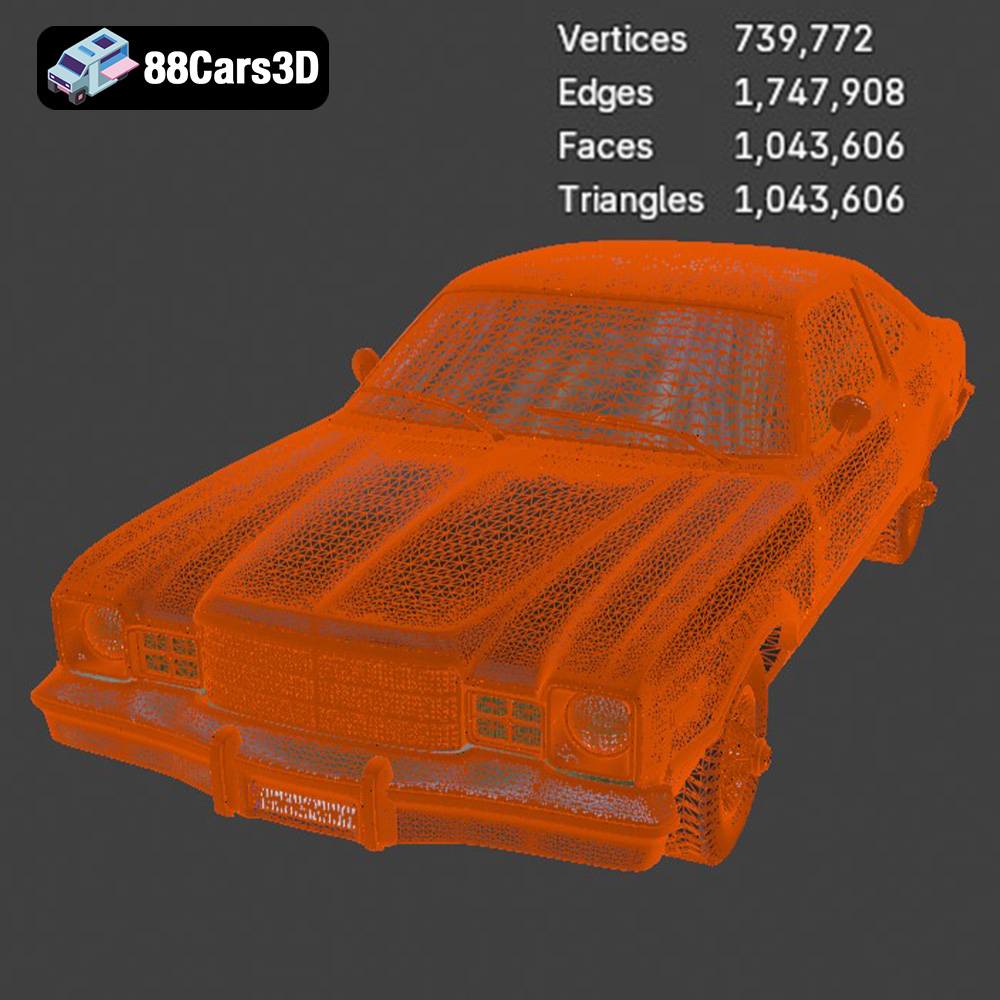
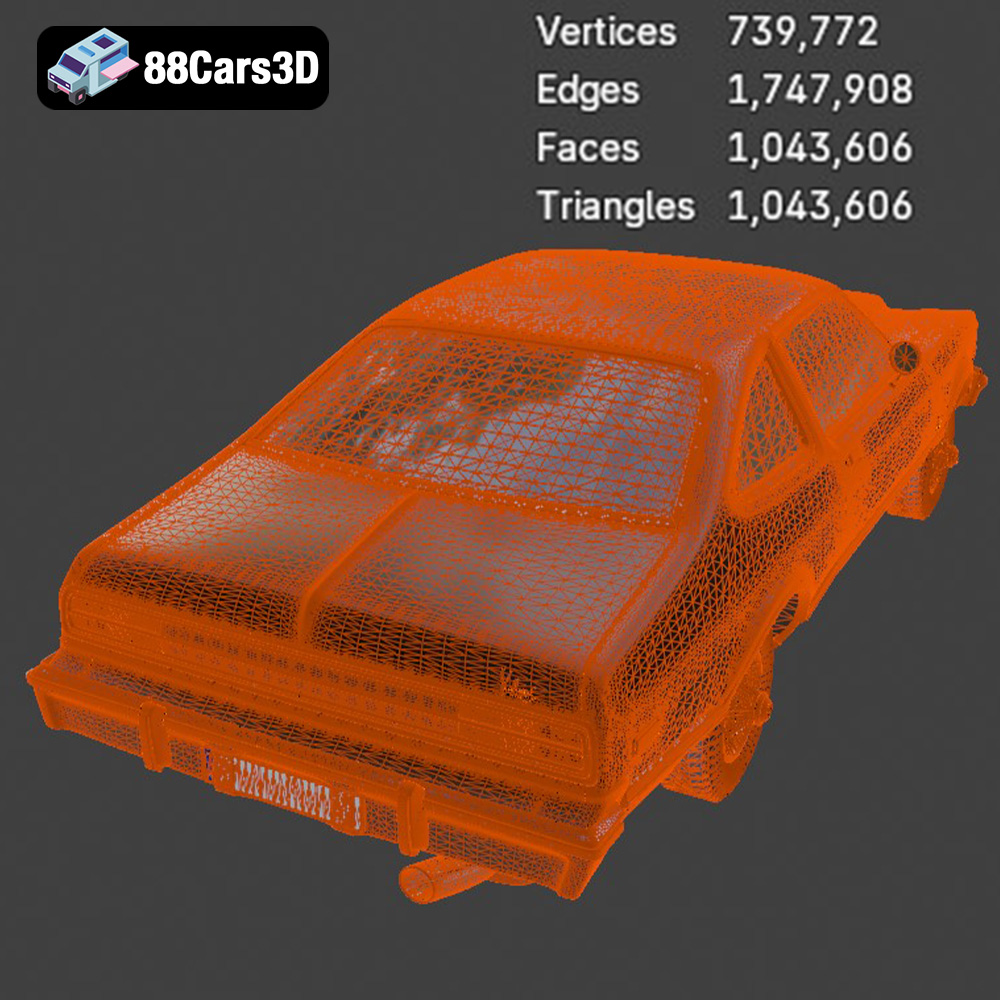
The STL (stereolithography) file format is the most widely used format for 3D printing. It represents the surface geometry of a 3D object as a collection of triangles. This simplicity makes it universally compatible with slicing software and 3D printers. However, STL files only contain information about the shape of the object, not its color or texture. For the Plymouth Volare Coupe, you’ll primarily use the STL file for printing. Ensure the STL file is properly manifold (watertight) and doesn’t have any flipped normals or holes, which can cause errors during slicing. Mesh quality is paramount – too few triangles can result in a faceted appearance, while too many can bog down your slicing software and printer. Aim for a balance that captures the Volare’s curves without overwhelming your system. 88cars3d.com optimizes their STL files for printability, making them a great starting point.
The OBJ file format is more versatile than STL, as it can store color and texture information in addition to geometry. While some 3D printers can handle colored OBJ files, it’s less common for hobbyist FDM (Fused Deposition Modeling) printing. OBJ files are more relevant if you plan to render the model after printing and want to preserve the original color scheme. If you’re planning to paint the 3D printed Volare, the STL file is usually sufficient.
PLY (Polygon File Format) is designed to store data from 3D scanners. It can represent vertices, faces, and other properties, including color and normals. It’s often used for models with high geometric complexity. While the Plymouth Volare Coupe model is already optimized, you might consider the PLY format if you require extremely high-resolution prints, though this comes at the cost of increased file size and processing time.
The BLEND file is the native format for Blender, a popular open-source 3D modeling software. This format allows you to directly modify the 3D model before exporting it to a printable format like STL. You can adjust the model’s geometry, add details, or split it into smaller parts for easier printing and assembly. If you’re comfortable with Blender, the BLEND file offers the greatest flexibility for customization.
The FBX (Filmbox) format is developed by Autodesk and supports a wide range of data, including geometry, textures, and animations. While FBX is primarily used for game development and animation, some advanced slicing software can import FBX files and utilize the material information for multi-material 3D printing (if your printer supports it). However, for a single-material print of the Plymouth Volare Coupe, the STL file is generally the better choice due to its simplicity and wider compatibility.
GLB (GL Transmission Format Binary) is designed for efficient transmission and loading of 3D models in web browsers and augmented reality (AR) applications. This format can be helpful for previewing the model on your phone or tablet using AR apps before you commit to printing it, giving you a better sense of its size and detail in a real-world context.
The .max file is the native file format for 3ds Max, another professional 3D modeling software. Similar to the .blend file, you can use this format to modify the model before exporting it for 3D printing. If you’re experienced with 3ds Max, this gives you control over customizing and optimizing the Plymouth Volare Coupe to your specific needs before generating the final STL file.
In summary, for 3D printing the Plymouth Volare Coupe, the STL file format is the most practical and widely supported option. Make sure to check its integrity and resolution before slicing. If you want to customize the model beforehand, consider using the BLEND or MAX files in Blender or 3ds Max, respectively, before exporting to STL.
The choice of material significantly impacts the final appearance, strength, and detail of your 3D printed Plymouth Volare Coupe. Consider these options:
PLA (Polylactic Acid) is a popular thermoplastic known for its ease of use, biodegradability, and wide range of colors. It’s an excellent choice for beginners due to its low printing temperature and minimal warping. PLA is ideal for creating display models, but it’s less heat-resistant and durable than other materials. For the Volare Coupe, PLA works well for the main body and interior components, especially if you plan to paint the model.
* **Pros:** Easy to print, wide range of colors, low odor, biodegradable.
* **Cons:** Lower heat resistance, less durable than other materials.
* **Recommended Settings:** Print temperature: 200-220°C, bed temperature: 60°C, print speed: 40-60 mm/s.
PETG (Polyethylene Terephthalate Glycol-modified) combines the ease of printing of PLA with increased strength and heat resistance. It’s a good compromise if you want a more durable model without the complexity of printing with ABS. PETG is suitable for parts that might experience some stress or require slightly higher temperature resistance.
* **Pros:** Good strength and heat resistance, relatively easy to print.
* **Cons:** Can be stringy, requires careful temperature calibration.
* **Recommended Settings:** Print temperature: 220-250°C, bed temperature: 70-80°C, print speed: 40-50 mm/s.
Resin printing, using technologies like SLA (Stereolithography) or DLP (Digital Light Processing), offers the highest level of detail and smooth surface finishes. Resin is ideal for smaller-scale models like the Plymouth Volare Coupe, where intricate features such as the grille, emblems, and interior details are crucial. However, resin prints require careful post-processing, including washing and curing, and the material itself can be more expensive and require more safety precautions. 88cars3d.com specifically recommends resin printing for fine details on this model.
* **Pros:** Exceptional detail, smooth surface finish, ideal for small parts.
* **Cons:** Requires post-processing, can be brittle, more expensive than filament.
* **Recommended Settings:** Layer height: 0.025-0.05 mm, exposure time: Varies depending on resin and printer (consult resin manufacturer).
Preparing the 3D model before printing involves using slicing software to convert the 3D model into a set of instructions for your 3D printer. Crucially, this step also involves optimizing the model’s orientation for printing and adding necessary supports.
Slicing software like Cura, PrusaSlicer, Simplify3D, and Chitubox (for resin printing) are essential for preparing the Plymouth Volare Coupe for printing. Import the STL file into your chosen slicer and adjust the settings according to your printer and material. Important parameters include layer height, infill density, print speed, and support settings. Use the software’s preview function to visualize the printing process and identify potential issues.
The orientation of the model on the print bed significantly affects print quality, support requirements, and structural integrity. For the Volare Coupe, printing the frame angled can improve structural integrity, as suggested by 88cars3d.com. Orient the model to minimize the need for supports on visible surfaces. Separating the wheels and printing them separately allows for better detail and easier post-processing. Experiment with different orientations to find the best compromise between print time, support material usage, and surface finish.
Supports are necessary for overhanging features like the exhaust, mirrors, and bumpers of the Volare Coupe. Use your slicing software to generate supports automatically, but then manually adjust them to optimize their placement and minimize their impact on the model’s surface. Consider using tree supports or light supports to reduce the amount of material used and make them easier to remove. Pay close attention to support placement on delicate parts to avoid damage during removal.
Fine-tuning your printer settings is crucial for achieving a high-quality 3D printed Plymouth Volare Coupe. Here’s a breakdown of key settings:
Layer height determines the resolution of the print in the vertical direction. A smaller layer height results in smoother surfaces and finer details, but it also increases print time. For the Volare Coupe, 88cars3d.com recommends a layer height of 0.04–0.12 mm. For resin printing, you can go even lower, down to 0.025 mm, to capture the finest details. Experiment with different layer heights to find the best balance between detail and print time for your specific printer and material.
Infill density determines the amount of material used inside the model. A higher infill density increases strength and weight but also consumes more material and increases print time. For a display model like the Volare Coupe, an infill density of 20–30%, as suggested by 88cars3d.com, is usually sufficient. Consider increasing the infill density for parts that need to be more durable, such as the wheels or axles.
Print speed affects both print quality and print time. A slower print speed generally results in better accuracy and fewer errors, especially for intricate details. However, it also significantly increases print time. For the Volare Coupe, a print speed of 40-60 mm/s is a good starting point. You can experiment with increasing the speed for less critical areas, but be prepared to reduce it if you encounter issues like warping or poor layer adhesion.
Post-processing is the final step in bringing your 3D printed Plymouth Volare Coupe to life. It involves cleaning up the print, removing supports, sanding surfaces, and applying paint and finishes.
Carefully remove the supports from the printed model using pliers, cutters, or a hobby knife. Take your time to avoid damaging the model’s surface. After removing the supports, use sandpaper to smooth out any rough areas or support marks. Start with coarse grit sandpaper (e.g., 220 grit) and gradually move to finer grits (e.g., 400, 600, 800 grit) to achieve a smooth, paintable surface.
Painting is essential for capturing the authentic look and feel of the 1977 Plymouth Volare Coupe. Start by applying a primer coat to the entire model to improve paint adhesion. Then, apply multiple thin coats of your chosen paint color, allowing each coat to dry completely before applying the next. Use masking tape to create clean lines and separate different colored areas. Consider using authentic factory colors from the Malaise era or custom finishes to personalize your model. Metallic finishes can add a touch of realism to the chrome bumpers and trim.
The Plymouth Volare Coupe model from 88cars3d.com includes separate parts for the wheels, suspension, and steering components, which need to be assembled after printing and painting. Use glue or adhesive to attach the parts together. Ensure that the wheels rotate freely and the suspension components move smoothly. Pay attention to the alignment of the parts to ensure the model looks accurate and realistic.
Even with careful preparation, you may encounter some common 3D printing issues. Here are some troubleshooting tips:
Warping occurs when the corners of the print lift off the print bed due to uneven cooling. To prevent warping, ensure that your print bed is properly leveled and heated. Use a bed adhesion agent like glue stick or hairspray. Enclosing the printer can also help to maintain a more consistent temperature.
Stringing occurs when the printer nozzle oozes material while moving between different parts of the print. To reduce stringing, decrease the printing temperature, increase retraction distance, and increase travel speed. You can also try using a different filament with lower stringing tendency.
Poor layer adhesion occurs when the layers of the print do not bond together properly. To improve layer adhesion, increase the printing temperature, decrease the print speed, and ensure that the first layer is properly adhered to the print bed. You can also try increasing the flow rate or using a different filament with better layer adhesion properties.
Supports can sometimes be difficult to remove and leave behind unsightly marks on the model’s surface. To minimize support issues, use tree supports or light supports, reduce the support density, and carefully adjust the support placement. Consider using a dissolvable support material for complex geometries.
With careful planning, the right materials, and some patience, you can create a stunning 3D printed replica of this classic car.
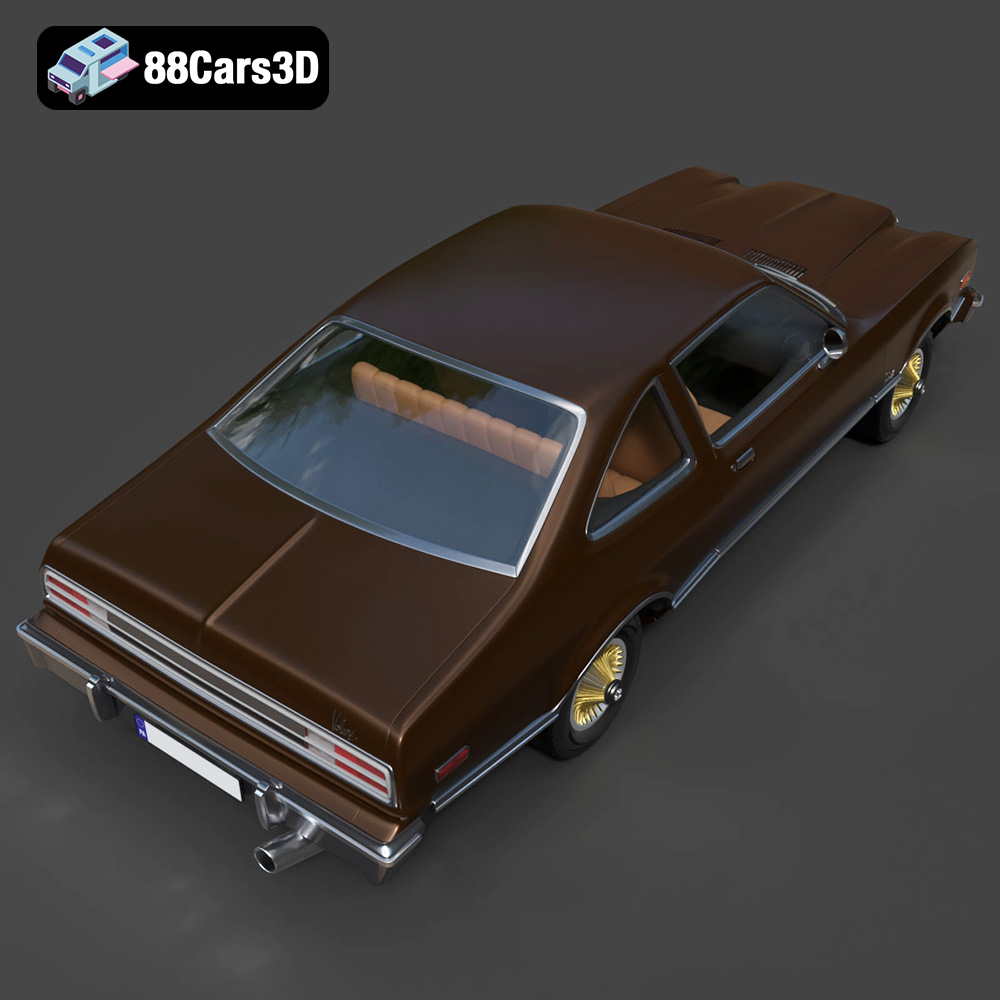
The 1977 Plymouth Volare Coupe is an iconic representation of late 70s American automotive design. Known for its distinct F-body platform, classic long-hood/short-deck proportions, and unmistakable square headlights, this vehicle captures the true essence of classic American cruisers. From its detailed grille and chrome bumpers to the authentic vintage styling cues, this model brings retro nostalgia and classic craftsmanship to life in stunning detail.
$39.99
.blend
.fbx
.glb
.max
.obj
.ply
.plymouth
.rendering
.stl
.unreal
.volare
american-muscle
car-3d-model
classic-car
game asset
game-ready
low-poly
optimized
retro-car
vintage-car
volare-coupe
VR/AR