Get 20% OFF All Premium 3D & STL Models!

“`html
3D printing offers incredible possibilities, especially for automotive enthusiasts looking to bring their favorite vehicles to life. However, printing large 3D car models presents unique challenges. Most desktop 3D printers have limited build volumes, making it impossible to print an entire car model in one go. This is where splitting models into smaller, manageable parts becomes essential. This guide provides a comprehensive overview of how to effectively split large 3D car models for printing, covering everything from file preparation to software-specific techniques, ensuring successful and high-quality results. Whether you’re using FDM or resin printing, understanding these methods is crucial for achieving stunning, large-scale car models.
In this article, you’ll learn:
Splitting a large 3D car model into smaller parts isn’t just about fitting it onto your print bed; it unlocks a range of advantages that directly impact the quality and success of your print. Understanding these benefits will help you make informed decisions during the splitting process.
The most obvious reason is overcoming the limitations of your 3D printer’s build volume. Most desktop 3D printers, especially those used by hobbyists, have a defined maximum size they can print in a single piece. For instance, a common FDM printer might have a build volume of 200x200x200mm. A detailed car model, even at a relatively small scale, can easily exceed these dimensions. Splitting the model allows you to print each part individually and then assemble them, effectively bypassing the size constraint. Platforms like 88cars3d.com often offer models designed with splitting in mind, making this process smoother.
Each part of the car model can be oriented on the print bed to minimize the need for support structures. Supports, while necessary for overhangs, can leave marks and require post-processing. By strategically splitting the model, you can orient parts to reduce overhangs, resulting in cleaner prints and less cleanup. For example, you might split the roof of a car body to print it flat, eliminating the need for supports on its curved surface. Careful orientation also improves bed adhesion, reducing the risk of warping or detachment during printing.
Splitting a model allows for the use of different materials or colors for different parts. This opens up creative possibilities for highlighting specific features or adding intricate details to your 3D printed car. For example, you could print the body of the car in PLA for its ease of use and affordability, while printing the wheels in a flexible TPU for added realism and durability. Similarly, you can use different colored filaments to represent different components of the car without the need for painting (though painting is still often desired for a truly professional finish).
Before diving into the splitting process, ensuring your STL file is clean and optimized is crucial. A well-prepared file will make the splitting process smoother and result in better-fitting parts after printing. Issues like non-manifold geometry or intersecting faces can cause problems during splitting and printing.
Use mesh repair software like Meshmixer, Netfabb Basic (Autodesk no longer offers a free version of Netfabb), or online services like MakePrintable to identify and fix any errors in your STL file. Non-manifold geometry (edges connected to more than two faces) and holes in the mesh are common issues. Meshmixer’s “Make Solid” function is particularly useful for turning complex, hollow meshes into solid, printable models. Netfabb (if you have access) offers more advanced repair tools. Addressing these issues before splitting ensures that the resulting parts are watertight and printable.
Large, highly detailed STL files can be computationally intensive to work with, especially when splitting them. Reducing the polygon count without sacrificing essential details can significantly improve performance. Meshmixer’s “Reduce” tool allows you to selectively reduce the number of triangles in your mesh while preserving the overall shape. Aim for a polygon count that is high enough to capture the details of the car model but low enough to avoid performance issues during splitting and slicing.
Before splitting, ensure that the wall thickness of your 3D model is sufficient for 3D printing. Thin walls can lead to weak and fragile parts, especially when dealing with large models. Use your slicing software to analyze the wall thickness and identify any areas that need reinforcement. Increasing the wall thickness in the original model or adding internal structures like ribs or supports can improve the strength of the printed parts. Many models available through sources like 88cars3d.com are designed with appropriate wall thicknesses, but it’s always a good idea to double-check.
Several software packages are available for splitting 3D models, each with its own strengths and weaknesses. Meshmixer and Blender are popular choices due to their versatility and free availability. Understanding the capabilities of each software will help you choose the best tool for your specific needs.
Meshmixer is a free and intuitive software from Autodesk that’s excellent for splitting models. Its “Edit > Plane Cut” tool allows you to easily slice the model along a specified plane. You can choose to keep both sides of the cut, effectively splitting the model into two separate parts. Meshmixer also provides options for filling the cut surfaces to create clean, closed meshes. The “Separate Shells” tool is useful for separating individual parts of the model that are already distinct, such as wheels or mirrors. For example, to split a car body, you would import the STL file, use the plane cut tool to slice it horizontally or vertically, and then use “Separate Shells” if necessary to isolate the resulting parts.
Blender is a powerful, open-source 3D creation suite that offers a wide range of tools for splitting and manipulating 3D models. While it has a steeper learning curve than Meshmixer, Blender provides more precise control over the splitting process. You can use the “Knife” tool to create custom cut lines, allowing you to split the model along complex curves or shapes. Boolean operations can also be used to subtract intersecting objects, creating intricate splits and joints. Blender’s sculpting tools can be used to refine the cut surfaces and ensure a perfect fit between the parts. For instance, you can use the knife tool to meticulously trace the outline of a car door and then separate it from the main body using the “Separate” function.
Windows 3D Builder, while simpler than Meshmixer or Blender, can perform basic splitting operations. It’s a good option for users who need a quick and easy solution. Paid software like Netfabb (Autodesk) offers more advanced features for mesh repair, optimization, and splitting. These tools are often used in professional settings where high precision and efficiency are required. The best choice depends on your experience level, the complexity of the model, and your budget.
The quality of the seams between the parts is critical for the final appearance and structural integrity of the assembled model. Designing appropriate joining mechanisms and ensuring clean, well-defined seams are essential for a seamless finish.
Adding interlocking joints or alignment features to the split surfaces can greatly simplify the assembly process and improve the strength of the joined parts. Dovetail joints, tabs and slots, or even simple pegs and holes can provide a secure and precise connection between the parts. These features should be designed in the 3D modeling software before splitting the model. For example, you could add small dovetail slots along the edges of a split car body and corresponding dovetail tabs on the mating part. These features will help align the parts correctly and provide a strong mechanical bond when glued together.
Ensure that the cut surfaces are clean and free of imperfections. Use sharp blades or sanding tools to remove any burrs or irregularities from the cut edges. If there are small gaps between the parts, use filler or epoxy to fill them and create a smooth, seamless surface. Consider adding a slight chamfer to the edges of the cut surfaces to create a small gap that can be easily filled with glue or filler. This helps to prevent the glue from squeezing out and creating a messy seam. Proper seam management is crucial for achieving a professional-looking finish.
Account for manufacturing tolerances when designing the joints and seams. 3D printing is not perfectly precise, and there will always be some variation in the dimensions of the printed parts. Designing the joints with a small amount of clearance (e.g., 0.1-0.2mm) can help ensure a good fit, even with slight variations in the printed dimensions. Use test prints to verify the fit of the joints and make any necessary adjustments to the design. Careful attention to tolerances is essential for a smooth and stress-free assembly process.
Once the model is split into parts, optimizing the print orientation and support structures for each part becomes paramount. Proper orientation minimizes support usage, improves surface quality, and ensures structural integrity.
Orient each part on the print bed to minimize the need for support structures. Identify the areas with the most overhangs and try to orient the part so that these areas are facing upwards. Rotating the part even slightly can sometimes significantly reduce the amount of support material required. Consider using a support blocker in your slicing software to prevent supports from being generated in areas where they are not needed. This saves material, reduces print time, and simplifies post-processing. When downloading models from marketplaces such as 88cars3d.com, check if they include recommended print orientations.
Orient parts to strengthen weak areas and critical features. For example, if a part has a thin wall or a delicate feature, orient it so that the layers are printed in the direction of the stress. This will improve the strength and durability of the part. You can also add internal support structures like ribs or infill to reinforce these areas. Ensure that critical features like mounting holes or alignment features are printed with high precision and accuracy by orienting them in a way that minimizes distortion.
Proper bed adhesion is crucial for preventing warping and ensuring that the parts stay firmly attached to the print bed throughout the printing process. Use a heated bed, apply a bed adhesion agent like glue stick or hairspray, and ensure that the first layer is properly calibrated. For parts with large flat surfaces, consider adding a brim or raft to improve bed adhesion and prevent warping. Regularly clean the print bed and ensure that it is level. Stable bed adhesion is essential for successful prints, especially with larger parts.
After printing all the parts, the final step is to assemble and finish the model. This involves removing supports, sanding, gluing, and painting the parts to create a seamless and professional-looking final product. Patience and attention to detail are key to achieving a high-quality result.
Carefully remove all support structures from the printed parts. Use sharp tools like pliers, knives, or deburring tools to remove the supports without damaging the surface of the model. Sand the surfaces of the parts to remove any remaining support marks or imperfections. Start with a coarse grit sandpaper (e.g., 220 grit) and gradually work your way up to finer grits (e.g., 400, 600, 800 grit) for a smooth finish. Use wet sanding for a particularly smooth surface. Proper support removal and surface smoothing are essential for a professional finish.
Use a strong adhesive like super glue (cyanoacrylate) or epoxy to glue the parts together. Apply the glue sparingly and carefully align the parts before clamping them together. Use clamps or tape to hold the parts in place while the glue dries. If there are small gaps between the parts, use filler or epoxy putty to fill them. Sand the filler smooth after it has dried. Consider using a two-part epoxy putty for larger gaps or areas that require structural reinforcement. Precise gluing and gap filling are crucial for creating a seamless assembly.
Prime the assembled model with a primer to prepare it for painting. Use spray paint or airbrush to apply the desired colors. Multiple thin coats are better than one thick coat to avoid drips and runs. Use masking tape to create clean lines and protect areas that should not be painted. Apply a clear coat to protect the paint and add a glossy or matte finish. Consider adding details like decals, chrome trim, or clear coats to enhance the realism of the model. High-quality painting and finishing touches will bring your 3D printed car model to life.
Splitting large 3D car models for printing is a crucial technique for overcoming build volume limitations and optimizing print quality. By understanding the reasons for splitting, preparing your STL files correctly, choosing the right software, designing clean seams and joining mechanisms, optimizing print orientation and support structures, and mastering post-processing techniques, you can successfully create stunning, large-scale 3D printed car models. Remember to carefully consider the specific requirements of your model and your printer, and don’t be afraid to experiment with different techniques to achieve the best results.
Whether you’re a hobbyist, a model maker, or an automotive enthusiast, the ability to split and print large 3D car models opens up a world of possibilities. Platforms like 88cars3d.com offer a wide variety of printable car models in STL format, ready for you to bring to life using these techniques. Embrace the challenge, experiment with different approaches, and enjoy the satisfaction of creating your own custom 3D printed car models. Your next steps should be:
“`

Texture: Yes | Material: Yes
Download the highly detailed, game-ready Toyota Camry 2018 3D Model. Features an aggressive aerodynamic body, distinct LED lighting signature, and precise interior detailing. Includes .blend, .fbx, .obj, .glb, .stl, .ply, .unreal, and .max formats for game development, AR/VR, and rendering.
Price: $19.99
Texture: Yes | Material: Yes
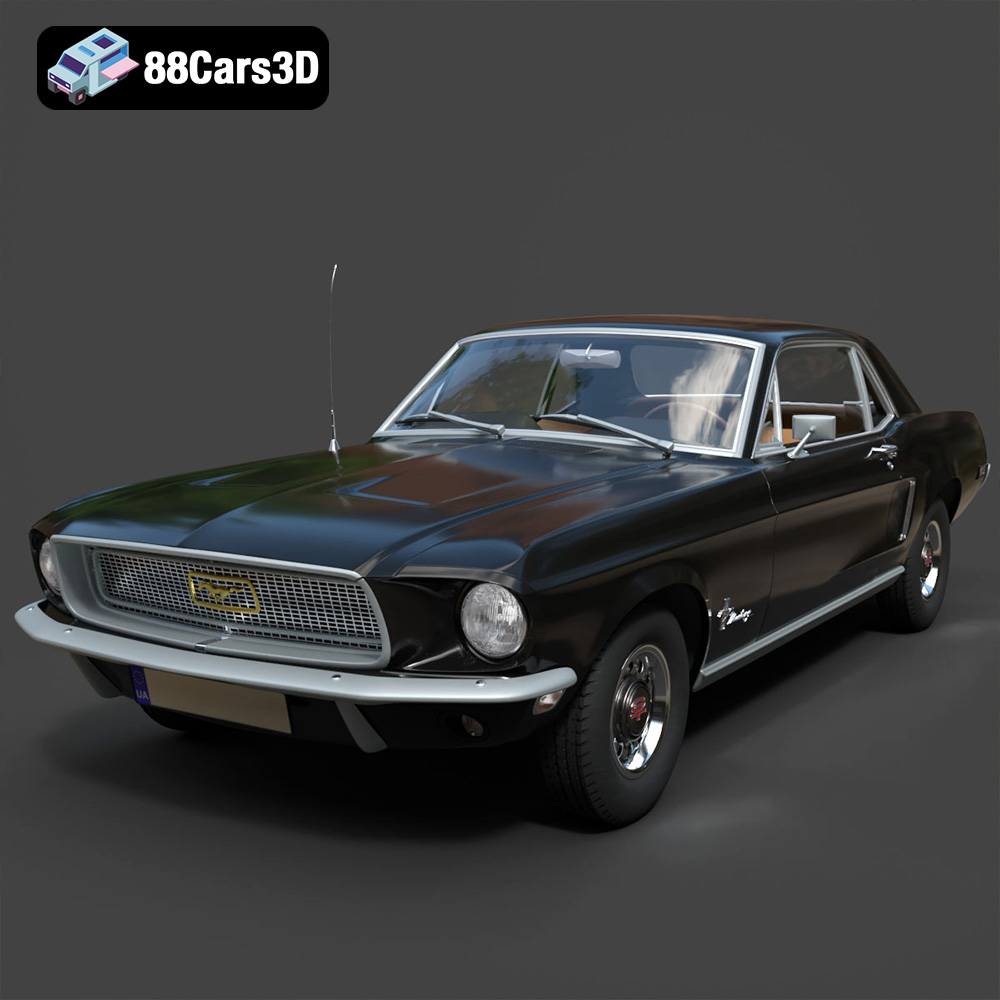
Download the highly detailed, game-ready Ford Mustang Hardtop 1968 3D Model. Features the iconic galloping pony grille, signature tri-bar taillights, and an authentic vintage interior. Includes .blend, .fbx, .obj, .glb, .stl, .ply, .unreal, and .max formats for game development, AR/VR, and rendering.
Price: $19.99
Texture: Yes | Material: Yes
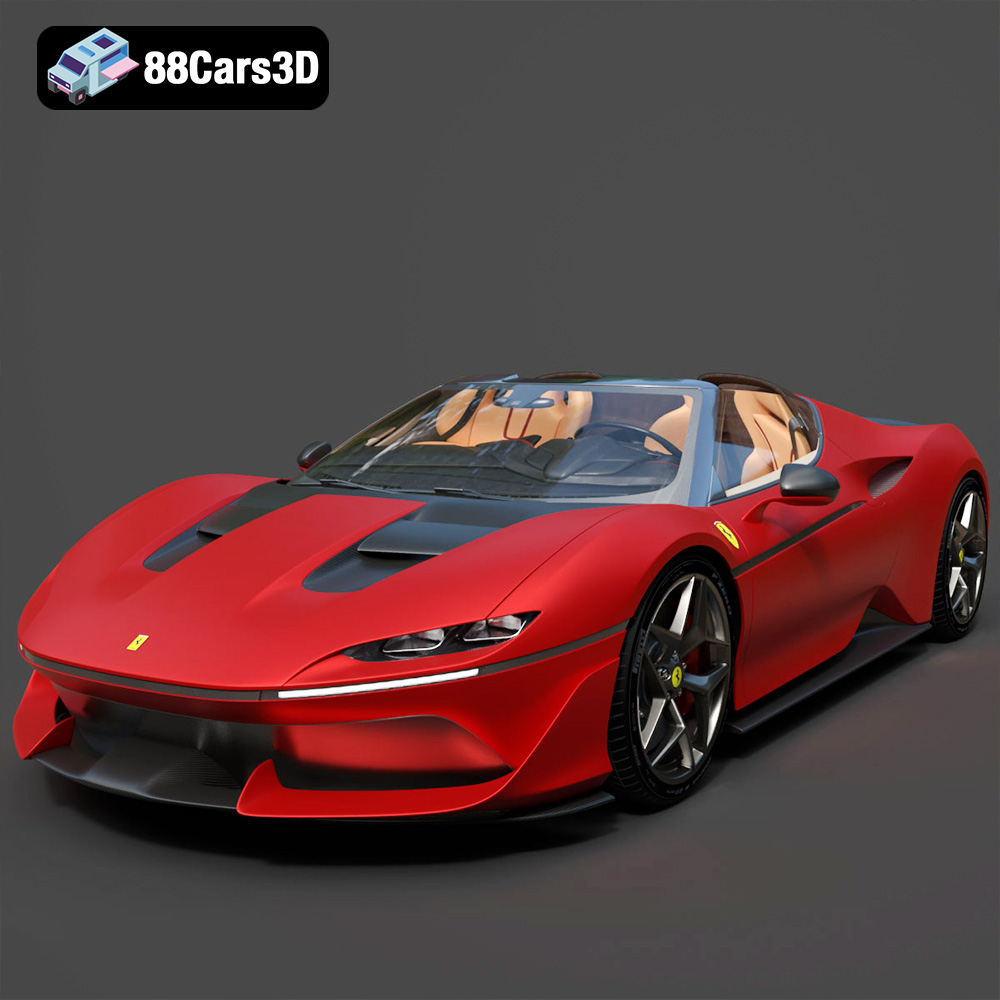
Download the highly detailed, game-ready Ferrari J50 2017 3D Model. Features aggressive aerodynamic styling, twin-turbo V8 engine details, and targa top design. Includes .blend, .fbx, .obj, .glb, .stl, .ply, .unreal, and .max formats for game development, AR/VR, and rendering.
Price: $19.99
Texture: Yes | Material: Yes
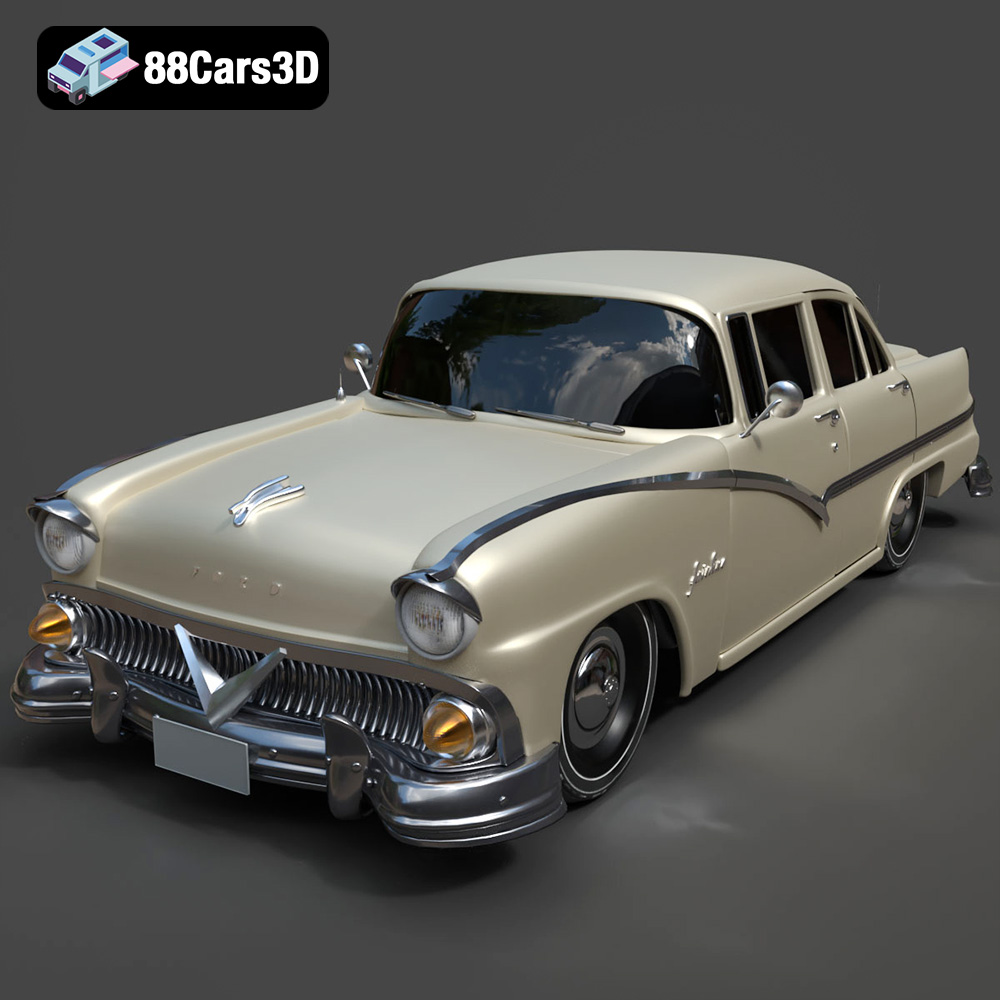
Download the highly detailed, game-ready Ford Fairlin 3D Model. Features iconic classic styling, sweeping bodylines, and an accurate vintage interior. Includes .blend, .fbx, .obj, .glb, .stl, .ply, .unreal, and .max formats for game development, AR/VR, and rendering.
Price: $19.99
Texture: Yes | Material: Yes
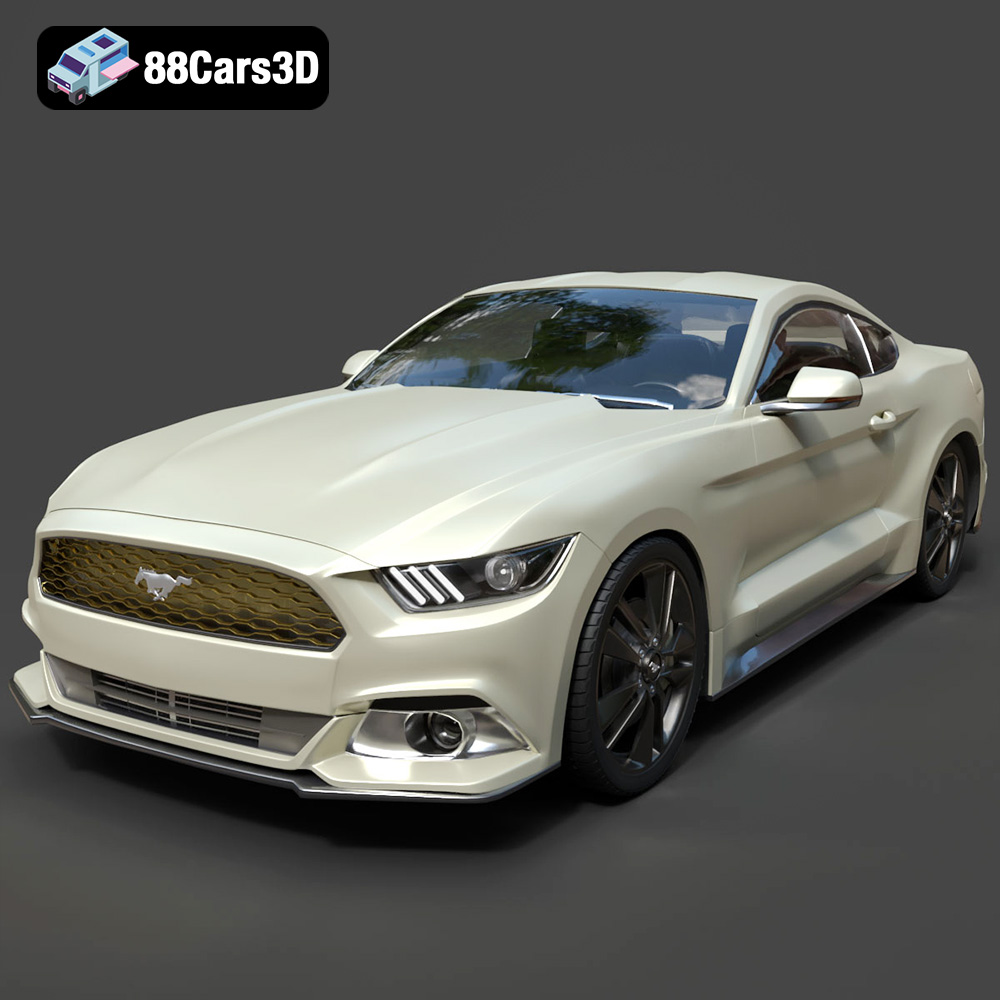
Download the highly detailed, game-ready Ford Mustang GT 3D Model. Features aggressive muscle car styling, a highly detailed V8 engine bay, and accurate interior cockpit. Includes .blend, .fbx, .obj, .glb, .stl, .ply, .unreal, and .max formats for game development, AR/VR, and rendering.
Price: $19.99

Texture: Yes | Material: Yes
Download the highly detailed, game-ready Renault Megane CC 2011 3D Model. Features an accurately modeled folding glass roof, sleek aerodynamic body lines, and a detailed interior. Includes .blend, .fbx, .obj, .glb, .stl, .ply, .unreal, and .max formats for game development, AR/VR, and rendering.
Price: $19.99
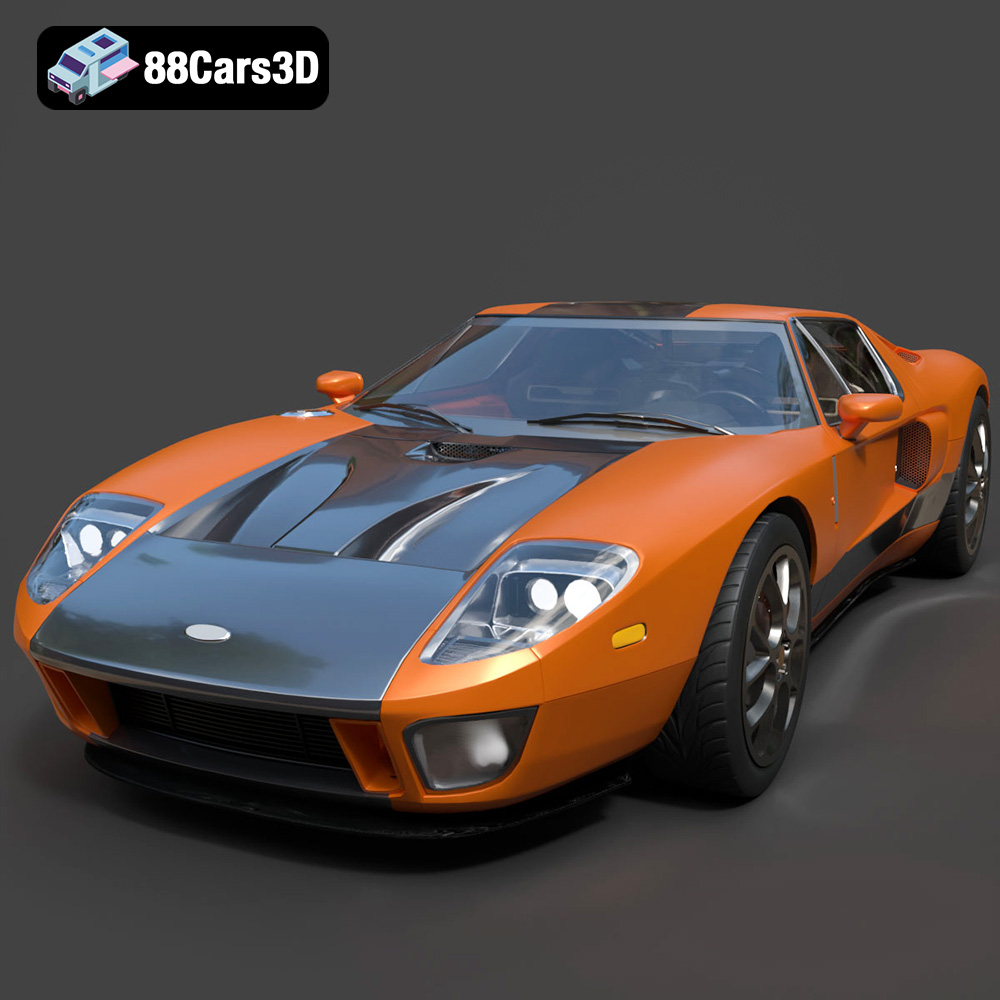
Texture: Yes | Material: Yes
Download the highly detailed, game-ready Ford GT 2005 3D Model. Features signature aerodynamic bodylines, mid-mounted supercharged V8 detailing, and iconic racing stripes. Includes .blend, .fbx, .obj, .glb, .stl, .ply, .unreal, and .max formats for game development, AR/VR, and rendering.
Price: $19.99

Texture: Yes | Material: Yes
Download the highly detailed, game-ready Yamaha YZF-R125 EU 3D Model. Features an aggressive aerodynamic fairing, twin LED headlights, and a detailed 125cc engine block. Includes .blend, .fbx, .obj, .glb, .stl, .ply, .unreal, and .max formats for game development, AR/VR, and rendering.
Price: $19.99

Texture: Yes | Material: Yes
Download the highly detailed, game-ready Yamaha R1 3D Model. Features aggressive aerodynamic fairings, a detailed crossplane inline-4 engine, and track-focused suspension geometry. Includes .blend, .fbx, .obj, .glb, .stl, .ply, .unreal, and .max formats for game development, AR/VR, and rendering.
Price: $19.99

Texture: Yes | Material: Yes
Download the highly detailed, game-ready Yamaha XV950 Racer 3D Model. Features an aggressive cafe-racer front cowl, detailed air-cooled V-twin engine, and classic retro styling. Includes .blend, .fbx, .obj, .glb, .stl, .ply, .unreal, and .max formats for game development, AR/VR, and rendering.
Price: $19.99

