Get 20% OFF All Premium 3D & STL Models!

“`html
3D printing offers incredible possibilities, especially for automotive enthusiasts. Imagine holding a detailed replica of your favorite classic car, meticulously printed and assembled. However, large 3D car models often exceed the build volume of standard 3D printers. This limitation necessitates splitting the model into smaller, manageable parts for printing. This guide will walk you through the process of splitting large 3D car models into parts, preparing them for printing, and assembling them into a stunning final piece. We’ll cover essential software tools, best practices for splitting and orientation, support structure considerations, and post-processing techniques. By the end of this guide, you’ll be equipped with the knowledge and skills to tackle even the most complex 3D printing projects, transforming digital designs, potentially sourced from platforms like 88cars3d.com, into tangible reality.
Before diving into the technical aspects, it’s crucial to understand why splitting models is necessary and the software options available. Many 3D printers have a limited build volume, meaning they can only print objects within a specific size range. A full-scale car model would far exceed these limits. Even if a printer has a large build volume, printing a single, massive object can be challenging due to warping, adhesion issues, and long print times. Splitting the model into smaller parts addresses these issues, enabling you to print complex shapes with greater accuracy and reliability.
The most obvious reason for splitting is overcoming physical size constraints. FDM printers, in particular, are limited by the dimensions of their build plate and the height they can reach. Resin printers also have size limitations, although often with a smaller footprint. Understanding your printer’s specifications is paramount before beginning any project. For example, if your printer has a build volume of 200mm x 200mm x 200mm, any single part exceeding these dimensions will need to be split.
Large prints are more susceptible to warping, especially with materials like ABS. As the plastic cools, it can contract, pulling away from the build plate. Splitting the model reduces the surface area in contact with the build plate for each part, minimizing the warping effect. Improved adhesion is another benefit. Smaller parts are less likely to detach during printing, leading to a higher success rate. Using a brim or raft can also significantly improve bed adhesion, especially for parts with small footprints.
Several software options can be used for splitting 3D models. Meshmixer is a free and versatile tool from Autodesk that’s excellent for basic splitting and hollowing. Blender, a powerful open-source 3D modeling software, offers advanced splitting capabilities along with comprehensive editing tools. Netfabb, another Autodesk product, provides professional-grade features for mesh repair, optimization, and splitting. Slicing software like Cura and PrusaSlicer can also perform basic splitting by cutting models along specific planes. The choice depends on the complexity of the model and your desired level of control. For simple splits, Cura or PrusaSlicer might suffice. For more intricate cuts and complex geometries, Meshmixer or Blender offer greater flexibility.
Before you start splitting, it’s essential to ensure your STL file is clean and optimized for 3D printing. This involves checking for errors like non-manifold edges, holes, and flipped normals. These issues can lead to printing failures and inaccurate results. Once the STL is prepared, you need to strategically plan how to split the model to minimize support material, hide seams, and maintain structural integrity.
Use software like MeshLab or the repair tools within Meshmixer and Netfabb to identify and fix errors in your STL file. These tools can automatically close holes, correct flipped normals, and remove duplicate vertices. A clean, manifold mesh is crucial for successful slicing and printing. After repairing the mesh, consider optimizing it by reducing the polygon count. While high-resolution models look great, they can increase processing time and file size. Balancing detail with efficiency is key. Aim for a polygon count that preserves the essential features of the car model without overwhelming your printer.
Planning your splits is critical for a smooth assembly process and a visually appealing final product. Consider the following factors:
For a car body, a common approach is to split it into sections along the roof, sides, and front/rear bumpers. This allows you to print the main body as separate pieces, minimizing support material and warping. The smaller bumper sections can be oriented to print without supports. Consider splitting the interior separately for easier painting and detailing. Always use reference images to understand the car’s construction and identify natural splitting points. When downloading models from marketplaces such as 88cars3d.com, check if they already offer pre-split versions for easier printing.
Meshmixer is a free and powerful tool for splitting 3D models. This section provides a detailed step-by-step guide on how to split a car model using Meshmixer.
Open Meshmixer and import your STL file. Examine the model carefully to identify the best locations for splitting. Use the “Select” tool to inspect different areas and visualize how they can be separated. Pay attention to the mesh density and any potential overhangs that might require supports. Meshmixer also has a “Make Solid” function which can be helpful for simplifying complex geometries before splitting.
The “Edit > Plane Cut” tool is the primary method for splitting models in Meshmixer.
To ensure accurate assembly, add connection points or alignment features to the split parts. Use the “Sculpt” tools to create pegs and holes on the mating surfaces.
The key is to design features that are easy to print and assemble while providing sufficient strength and alignment. Consider using a slightly larger hole diameter (e.g., 0.2mm larger) than the peg diameter to allow for tolerances and easier assembly.
Once the model is split and prepared, the next step is to slice the individual parts and print them. This involves choosing the right 3D printer settings, orienting the parts for optimal printing, and generating support structures where necessary. The choice between FDM and resin printing will significantly influence these settings.
FDM (Fused Deposition Modeling) printing is ideal for larger parts and functional prototypes due to its lower cost and wide range of materials. However, it typically produces less detailed prints than resin printing. Resin printing (SLA/DLP/LCD) excels at producing highly detailed and smooth surfaces, making it suitable for intricate car models and miniatures. However, resin printers are generally more expensive, and the resin materials can be brittle and require careful handling. For large car models, FDM is often preferred for the main body panels, while resin can be used for smaller, detailed parts like emblems and lights.
Key FDM printing parameters include:
Key Resin printing parameters include:
After printing all the parts, the final stage involves post-processing, assembly, and finishing. This includes removing support structures, sanding, painting, and assembling the parts into a complete car model. A well-executed post-processing workflow can significantly enhance the final appearance and durability of the model.
Carefully remove support structures using pliers, cutters, or a sharp knife. For FDM prints, soften the supports with heat from a heat gun for easier removal. For resin prints, soak the parts in warm water to soften the supports. After removing supports, sand the surfaces to remove any remaining imperfections and smooth out layer lines. Start with coarse sandpaper (e.g., 220 grit) and gradually move to finer grits (e.g., 400 grit, 600 grit, 800 grit) for a smooth finish. Wet sanding can help reduce dust and improve the sanding process.
Use cyanoacrylate (super glue) or epoxy adhesive to assemble the parts. Apply a small amount of adhesive to the mating surfaces and hold the parts together until the glue sets. Use clamps or tape to secure the parts while the adhesive cures. For larger models, consider using two-part epoxy for stronger bonds. Ensure the alignment features (pegs and holes) are properly aligned during assembly. Consider using a jig or fixture to hold the parts in place while the adhesive cures. Platforms such as 88cars3d.com often provide assembly guides with their models, detailing the optimal order and techniques for joining parts.
Apply a primer coat to the assembled model to improve paint adhesion and hide any remaining imperfections. Sand the primer coat lightly before applying the final paint coats. Use automotive-grade paints or acrylic paints for a durable and realistic finish. Apply multiple thin coats of paint for even coverage and allow each coat to dry completely before applying the next. Use masking tape to create intricate paint schemes or add details like racing stripes. After painting, apply a clear coat to protect the paint and add a glossy or matte finish. Polishing the clear coat can further enhance the shine. Adding details like windows, mirrors, and emblems can significantly improve the realism of the model.
Even with careful planning and execution, you may encounter some challenges during the splitting, printing, or assembly process. This section provides solutions to common issues.
If parts don’t fit together properly, check for dimensional inaccuracies caused by shrinkage or warping. Recalibrate your printer and adjust the slicing settings to compensate for these issues. If the alignment features are too tight, use a small file or sandpaper to enlarge the holes slightly. If the parts are too loose, add shims or use a thicker adhesive.
Warping is a common issue with FDM printing, especially with materials like ABS. Ensure your bed is properly leveled and heated. Use a brim or raft to improve bed adhesion. Enclosing your printer can help maintain a consistent temperature and reduce warping. For resin printing, ensure the build plate is clean and level. Increase the exposure time for the first few layers to improve adhesion.
If support structures are difficult to remove, try using a different support pattern or interface settings. Increase the gap between the support and the model to make removal easier. Soaking the parts in warm water can also help soften the supports. If the supports are failing during printing, increase the support density or thickness. Ensure the supports are properly anchored to the build plate.
Splitting large 3D car models for printing is a rewarding process that opens up a world of possibilities for creating stunning replicas. By understanding the principles of splitting, preparing STL files, optimizing slicing parameters, and mastering post-processing techniques, you can overcome the limitations of printer size and achieve exceptional results. Remember to choose the right software, plan your splits strategically, and fine-tune your printer settings for the best possible outcome. Whether you’re printing for personal enjoyment, hobbyist collections, or educational purposes, the ability to split and assemble complex models will significantly enhance your 3D printing capabilities. So, gather your tools, download your favorite car model (perhaps from 88cars3d.com!), and start your next 3D printing adventure. Start with a simple model and gradually work your way up to more complex projects. Practice makes perfect, and with patience and perseverance, you’ll be creating impressive 3D printed car models in no time.
“`
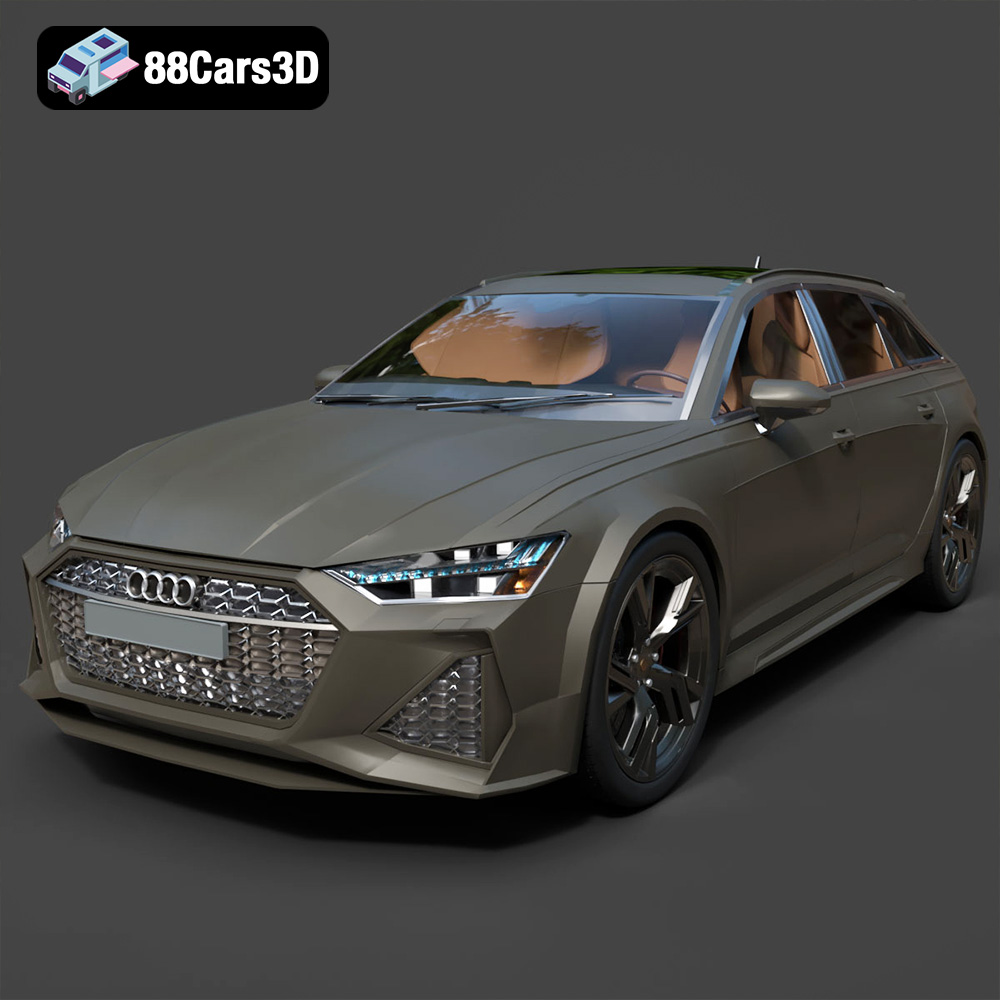
Texture: Yes | Material: Yes
Download the highly detailed, game-ready Audi RS6 3D Model. Features aggressive RS bodywork, detailed alloy wheels, and signature LED lighting. Includes .blend, .fbx, .obj, .glb, .stl, .ply, .unreal, and .max formats for game development, AR/VR, and rendering.
Price: $19.99

Texture: Yes | Material: Yes
Download the highly detailed, game-ready Toyota Camry 2018 3D Model. Features an aggressive aerodynamic body, distinct LED lighting signature, and precise interior detailing. Includes .blend, .fbx, .obj, .glb, .stl, .ply, .unreal, and .max formats for game development, AR/VR, and rendering.
Price: $19.99
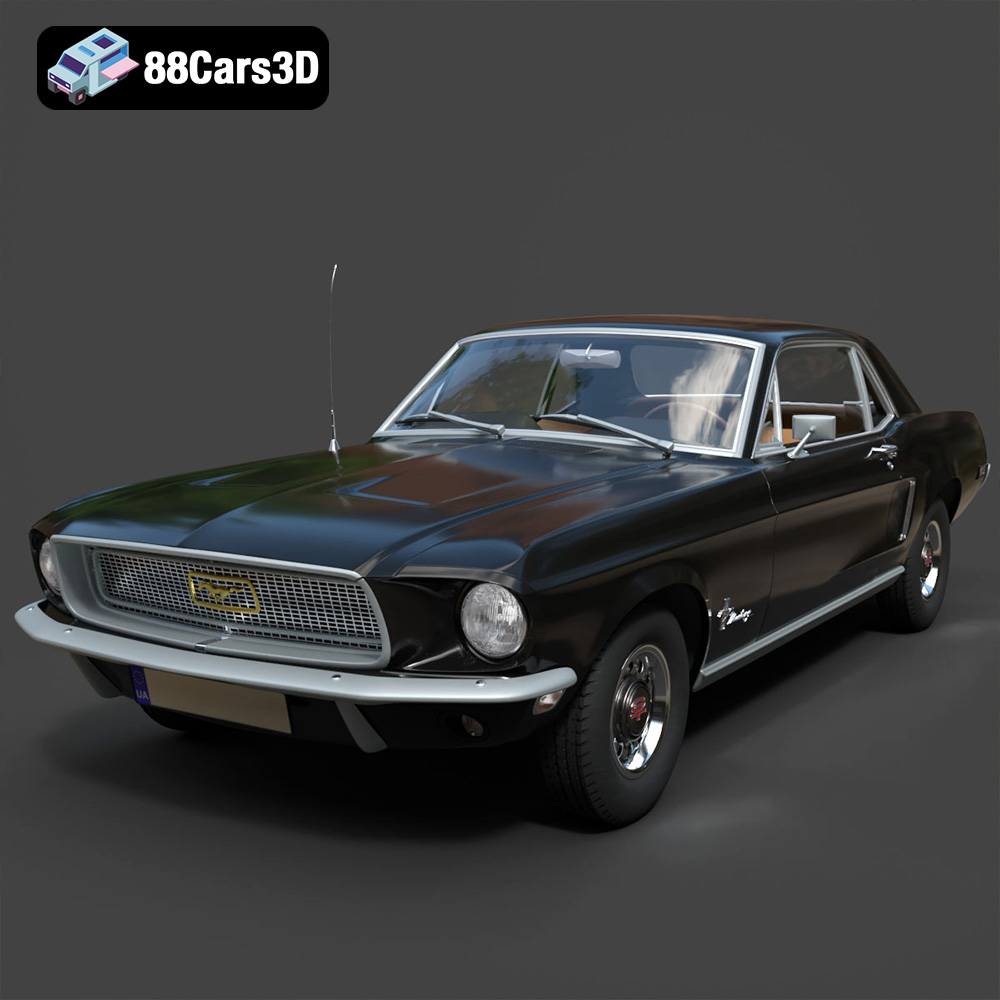
Texture: Yes | Material: Yes
Download the highly detailed, game-ready Ford Mustang Hardtop 1968 3D Model. Features the iconic galloping pony grille, signature tri-bar taillights, and an authentic vintage interior. Includes .blend, .fbx, .obj, .glb, .stl, .ply, .unreal, and .max formats for game development, AR/VR, and rendering.
Price: $19.99
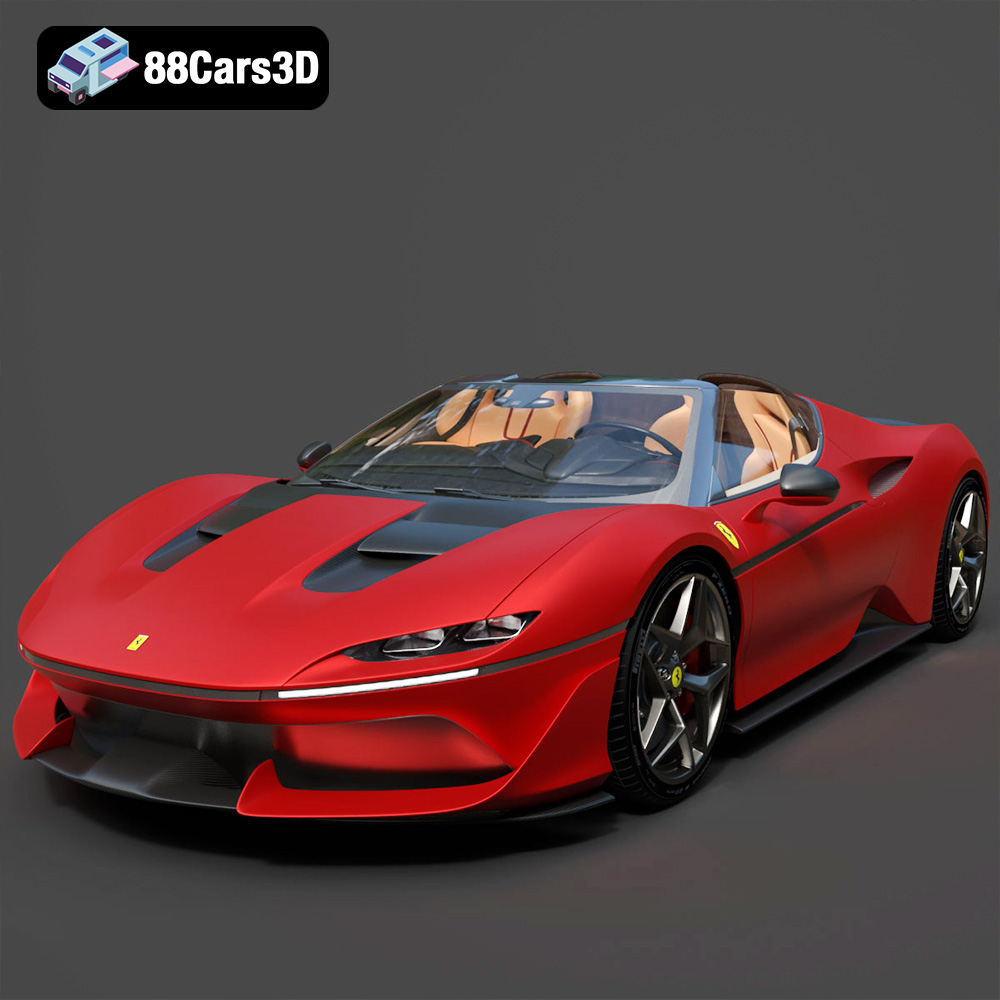
Texture: Yes | Material: Yes
Download the highly detailed, game-ready Ferrari J50 2017 3D Model. Features aggressive aerodynamic styling, twin-turbo V8 engine details, and targa top design. Includes .blend, .fbx, .obj, .glb, .stl, .ply, .unreal, and .max formats for game development, AR/VR, and rendering.
Price: $19.99
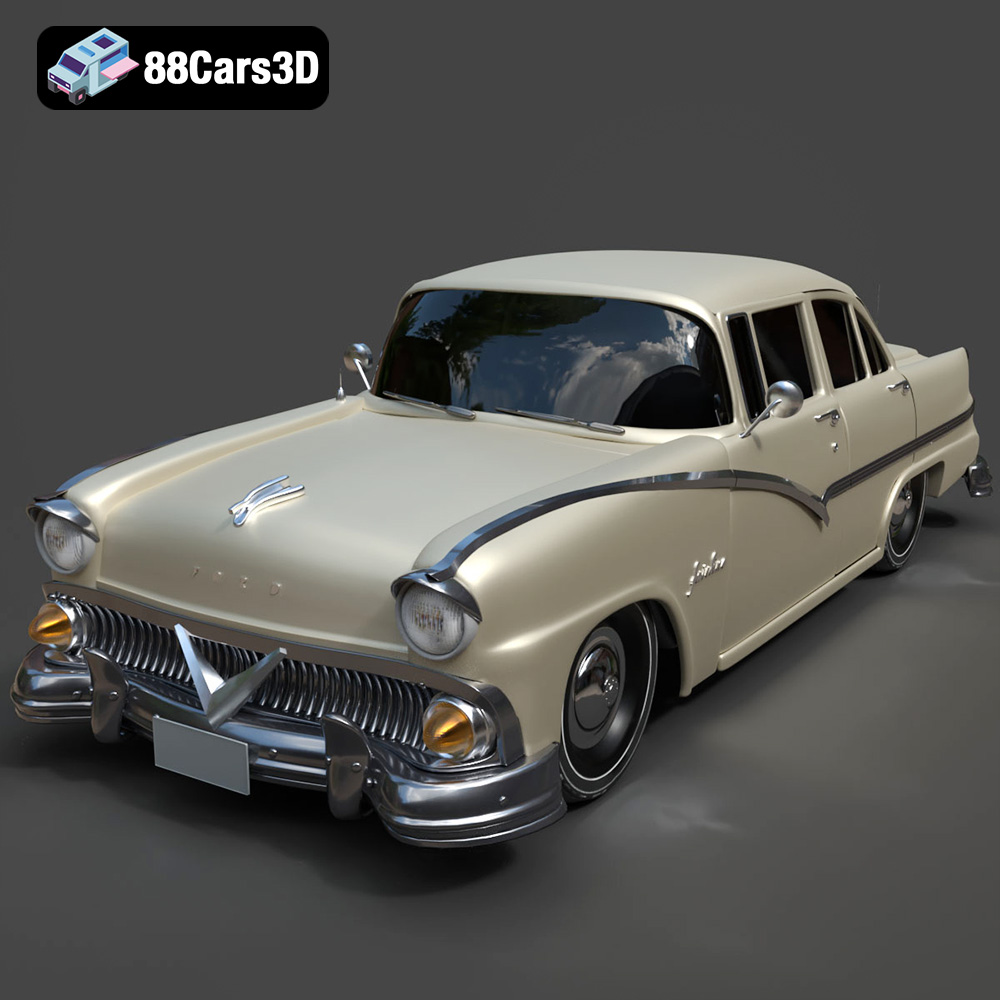
Texture: Yes | Material: Yes
Download the highly detailed, game-ready Ford Fairlin 3D Model. Features iconic classic styling, sweeping bodylines, and an accurate vintage interior. Includes .blend, .fbx, .obj, .glb, .stl, .ply, .unreal, and .max formats for game development, AR/VR, and rendering.
Price: $19.99
Texture: Yes | Material: Yes
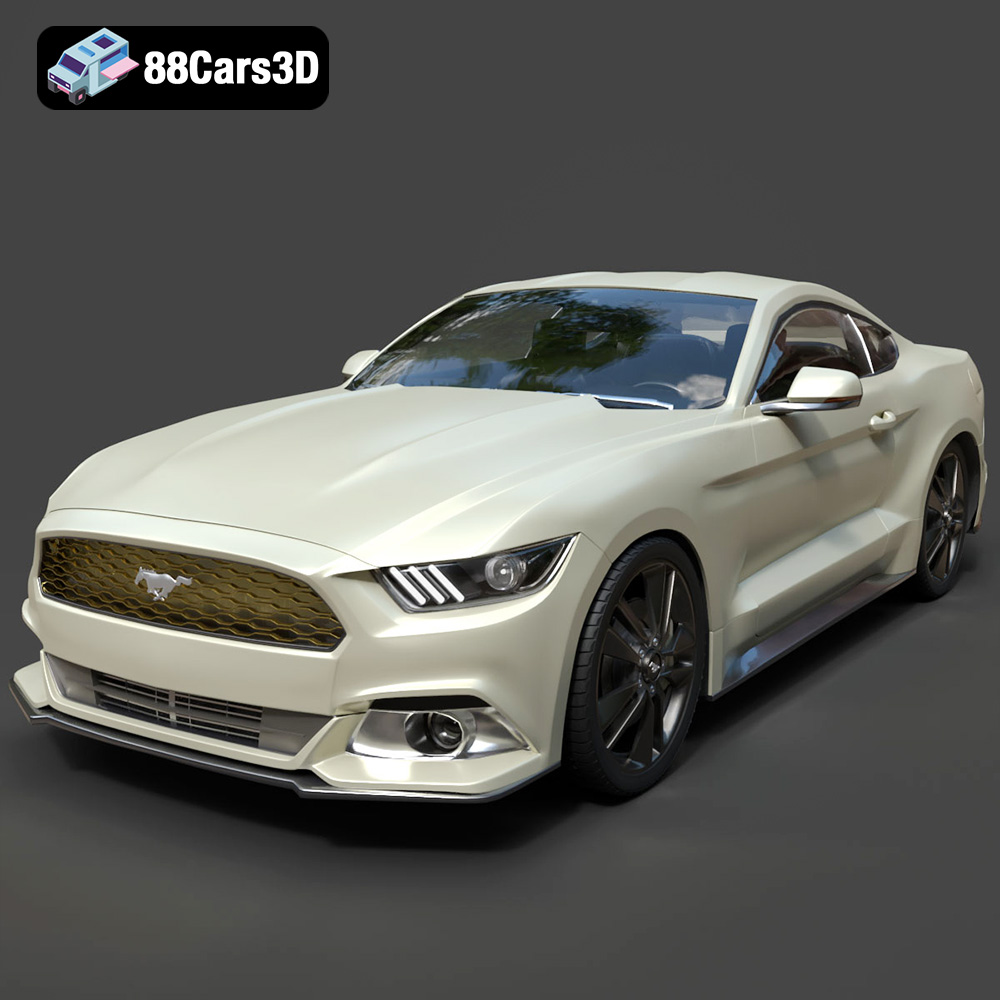
Download the highly detailed, game-ready Ford Mustang GT 3D Model. Features aggressive muscle car styling, a highly detailed V8 engine bay, and accurate interior cockpit. Includes .blend, .fbx, .obj, .glb, .stl, .ply, .unreal, and .max formats for game development, AR/VR, and rendering.
Price: $19.99

Texture: Yes | Material: Yes
Download the highly detailed, game-ready Renault Megane CC 2011 3D Model. Features an accurately modeled folding glass roof, sleek aerodynamic body lines, and a detailed interior. Includes .blend, .fbx, .obj, .glb, .stl, .ply, .unreal, and .max formats for game development, AR/VR, and rendering.
Price: $19.99
Texture: Yes | Material: Yes
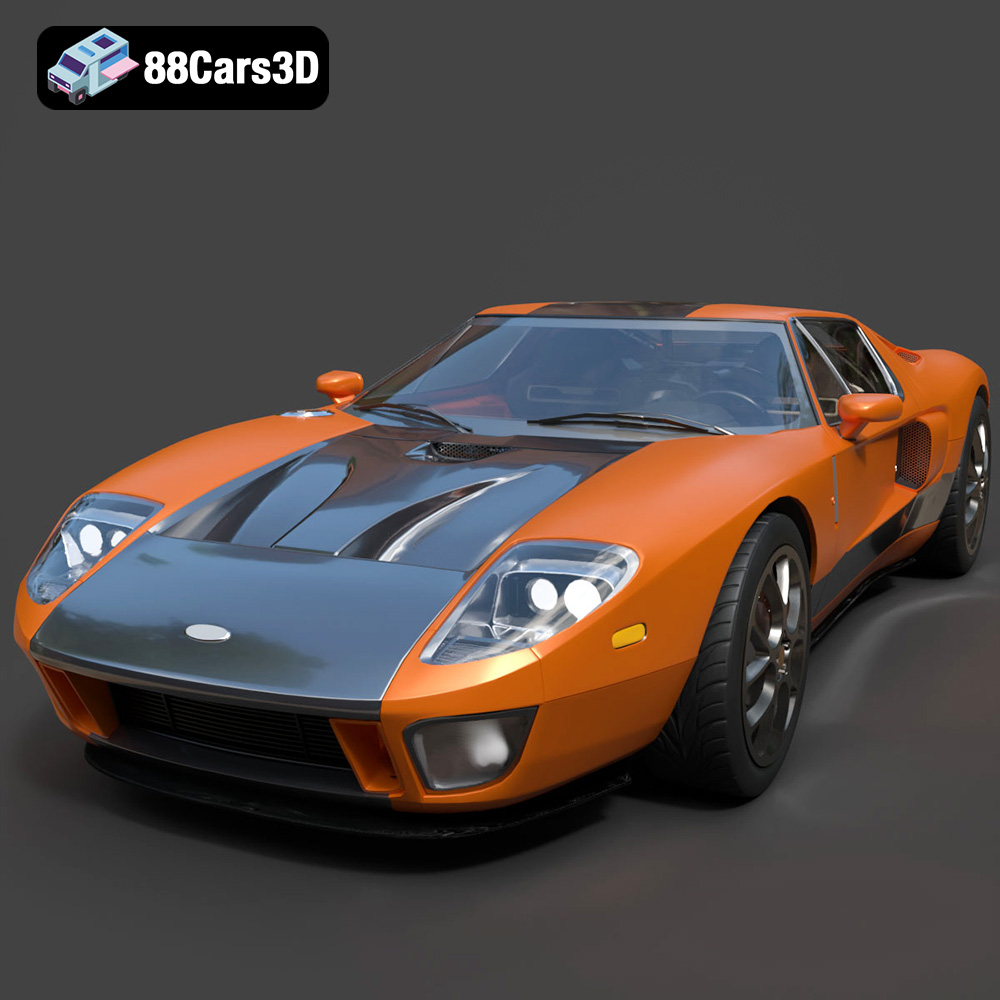
Download the highly detailed, game-ready Ford GT 2005 3D Model. Features signature aerodynamic bodylines, mid-mounted supercharged V8 detailing, and iconic racing stripes. Includes .blend, .fbx, .obj, .glb, .stl, .ply, .unreal, and .max formats for game development, AR/VR, and rendering.
Price: $19.99

Texture: Yes | Material: Yes
Download the highly detailed, game-ready Yamaha YZF-R125 EU 3D Model. Features an aggressive aerodynamic fairing, twin LED headlights, and a detailed 125cc engine block. Includes .blend, .fbx, .obj, .glb, .stl, .ply, .unreal, and .max formats for game development, AR/VR, and rendering.
Price: $19.99

Texture: Yes | Material: Yes
Download the highly detailed, game-ready Yamaha R1 3D Model. Features aggressive aerodynamic fairings, a detailed crossplane inline-4 engine, and track-focused suspension geometry. Includes .blend, .fbx, .obj, .glb, .stl, .ply, .unreal, and .max formats for game development, AR/VR, and rendering.
Price: $19.99

