Get 20% OFF All Premium 3D & STL Models!

“`html
3D printing has revolutionized the way we create, prototype, and even enjoy hobbies like model making. At 88cars3d.com, we understand the passion for detail and accuracy in 3D printable car models. However, printing large, intricate models presents unique challenges. One common hurdle is that the model’s size exceeds the build volume of your 3D printer. That’s where splitting the model into smaller, printable parts becomes essential. This guide will walk you through the process of strategically splitting large 3D car models, focusing on STL file preparation, software tools, and best practices to ensure a seamless assembly and a stunning final product.
In this comprehensive guide, you’ll learn:
Whether you’re a seasoned 3D printing enthusiast or just starting your journey, this guide will equip you with the knowledge and skills to tackle even the most ambitious 3D car model projects. So, let’s dive in and unlock the potential of your 3D printer!
Many factors contribute to the necessity of splitting large 3D models. While a single-piece print might seem ideal, it’s often impractical or even impossible due to limitations inherent in 3D printing technology. Understanding these limitations is crucial for planning your approach.
The most obvious reason to split a model is if its dimensions exceed the maximum build volume of your 3D printer. FDM printers, especially those with smaller build plates, often require splitting even moderately sized car models. Resin printers, while capable of printing at higher resolutions, also have volume limitations that can necessitate splitting. This is where careful planning and the right software tools become indispensable.
Large prints are more susceptible to warping, especially with materials like ABS. As the print cools, differential shrinkage can cause corners to lift from the build plate. Splitting the model into smaller parts reduces the footprint of each individual print, minimizing the risk of warping. This also improves bed adhesion, as smaller parts exert less stress on the build plate. For example, a large, flat section of a car body printed as a single piece is highly prone to warping. By splitting it into smaller, more manageable sections, you drastically improve the chances of a successful print.
Printing complex geometries often requires support structures, which can be wasteful and time-consuming. The orientation of the model significantly impacts the amount of support needed. By strategically splitting the model, you can orient each part in a way that minimizes the need for supports. Furthermore, you can orient parts to take advantage of the inherent strength of the printed layers. For instance, the roof of a car can be printed horizontally, maximizing its strength along the longest axis and reducing the need for internal supports. This also leads to a cleaner surface finish, as support removal can leave blemishes on the printed surface.
Several software packages offer the tools necessary to split STL files effectively. Each has its strengths and weaknesses, so choosing the right one depends on your specific needs and level of experience. We will focus on two popular and readily accessible options: Meshmixer and Blender.
Meshmixer is a free and powerful tool specifically designed for working with mesh data. Its intuitive interface and robust features make it a popular choice for model splitting. Meshmixer offers various cutting tools, including plane cuts, line cuts, and boolean operations. Its “Separate Shells” feature is particularly useful for isolating individual components within a complex model. For splitting, the “Edit -> Plane Cut” tool is your best friend. Select the plane cut tool, position the cutting plane where you want to split the model, and choose “Keep Both” to create two separate objects. You can then export each object as a separate STL file.
Blender is a professional-grade 3D modeling software package that offers unparalleled control over the splitting process. While it has a steeper learning curve than Meshmixer, its advanced tools and flexibility make it ideal for complex projects. Blender allows you to create custom cutting planes, boolean modifiers, and even sculpt intricate details into the cut surfaces. This is especially useful for creating interlocking parts or adding custom alignment features. The “Knife Project” tool is particularly powerful for creating precise cuts along complex curves. You can also use boolean modifiers to subtract shapes from the model, creating cavities for interlocking parts or dowel pin holes.
While Meshmixer and Blender are excellent choices, other software packages like Netfabb and Simplify3D also offer model splitting capabilities. Netfabb is a professional-grade software suite with advanced mesh repair and optimization tools, making it ideal for ensuring the printability of your split models. Simplify3D is a slicing software that also includes basic model manipulation tools, including splitting and orientation adjustments. The best software for you depends on your experience level, the complexity of the model, and your budget. For beginners, Meshmixer is a great starting point. As you become more experienced, Blender’s advanced features will provide greater control and flexibility.
The key to a successful split model lies in careful planning. Randomly slicing the model will likely result in unsightly seams and weak points. Consider these factors when planning your cuts.
The goal is to make the seams as inconspicuous as possible. Look for natural breaks in the car’s design, such as panel lines, door seams, or areas where different materials would typically meet. Cutting along these lines will help to disguise the seams and create a more seamless final product. For example, consider splitting the body along the door lines or where the fenders meet the main body. This will not only hide the seams but also make the assembly process easier.
Consider the structural integrity of the assembled model. Avoid cutting through areas that will bear significant stress or weight. Instead, focus on splitting areas that are primarily cosmetic. Reinforce weak points with internal supports or interlocking features. For instance, when splitting the chassis, avoid cutting through suspension mounting points or areas where the wheels attach. These areas should be kept as a single, strong piece to ensure the model’s stability.
Choose cuts that simplify the post-processing and assembly process. Avoid complex interlocking geometries that will be difficult to clean and glue together. Instead, opt for simple, flat surfaces that can be easily sanded and joined. Consider adding alignment features, such as dowel pin holes or interlocking tabs, to make the assembly process more precise and straightforward. When splitting the dashboard, for example, create flat mating surfaces that can be easily glued together. Adding small alignment pins will ensure that the dashboard pieces line up perfectly during assembly.
Precise alignment is crucial for a professional-looking finished model. Adding alignment features ensures that the split parts fit together perfectly, minimizing gaps and misalignments. Several options are available, each with its own advantages.
Dowel pins are small, cylindrical rods that fit into corresponding holes in the mating surfaces. They provide excellent alignment and prevent the parts from shifting during assembly. To add dowel pins, first create holes in the mating surfaces using boolean operations in your 3D modeling software. The diameter of the holes should be slightly larger than the diameter of the dowel pins to allow for easy insertion. Standard sizes for dowel pins range from 1mm to 3mm in diameter. Make sure to choose a size that is appropriate for the size of your model. After printing, insert the dowel pins into the holes and glue the parts together. This method is especially effective for aligning large, flat surfaces, such as the body panels of a car model.
Pegs and recesses are similar to dowel pins but are typically integrated directly into the model geometry. Create small pegs on one mating surface and corresponding recesses on the other. The pegs should fit snugly into the recesses, providing precise alignment. This method is particularly useful for aligning smaller parts or parts with complex geometries. For example, when splitting the side mirrors, you can create small pegs on the mirror housing and corresponding recesses on the door panel. This will ensure that the mirrors are perfectly aligned during assembly.
Interlocking joints and tabs provide a more robust and self-aligning connection. These features are designed to snap together, creating a strong and secure bond. Common types of interlocking joints include dovetail joints, finger joints, and lap joints. These joints can be easily created using boolean operations in your 3D modeling software. For example, when splitting the chassis, you can create interlocking tabs that snap together, providing a strong and rigid connection. This method is particularly effective for aligning parts that will be subjected to stress or weight. When designing interlocking joints, make sure to leave sufficient clearance between the parts to allow for easy assembly. A clearance of 0.1mm to 0.2mm is typically sufficient.
Once you’ve split your model and added alignment features, it’s time to optimize the print settings for each individual part. Different parts may require different settings to achieve the best possible results. Consider the size, shape, and function of each part when choosing your settings.
Smaller, more detailed parts often benefit from lower layer heights and slower print speeds. This will improve the resolution and accuracy of the print, capturing fine details and minimizing layer lines. A layer height of 0.1mm or 0.15mm is typically recommended for small parts. Larger parts, on the other hand, can be printed with higher layer heights and faster print speeds to reduce print time. A layer height of 0.2mm or 0.25mm is typically sufficient for larger parts. For FDM printing, a print speed of 40-60mm/s is a good starting point. For resin printing, exposure times will need to be adjusted based on the resin used. Always consult the resin manufacturer’s recommendations for optimal exposure times.
The infill density and pattern affect the strength, weight, and print time of the part. Parts that will be subjected to stress or weight should be printed with a higher infill density. A density of 20-30% is typically sufficient for most structural parts. Cosmetic parts, on the other hand, can be printed with a lower infill density to reduce weight and print time. A density of 10-15% is typically sufficient for cosmetic parts. As for infill patterns, rectilinear, honeycomb, and gyroid patterns are all good options. Rectilinear infill is fast and efficient but can be prone to cracking. Honeycomb infill is strong and lightweight but can be more time-consuming to print. Gyroid infill is strong, lightweight, and isotropic, making it a good choice for parts that will be subjected to stress from multiple directions.
The orientation of the part significantly impacts the need for support structures. Orient each part in a way that minimizes the need for supports. Use support blockers to prevent supports from generating in areas where they are not needed. For parts that require supports, use a support material that is easy to remove. For FDM printing, PVA and HIPS are common support materials. For resin printing, water-washable resins are a good option. Proper bed adhesion is crucial for a successful print. Use a bed adhesive, such as glue stick or hairspray, to improve adhesion. Make sure to level your print bed properly to ensure that the first layer adheres to the bed. A properly leveled bed is essential for preventing warping and ensuring that the print stays attached to the bed throughout the printing process.
After printing all the individual parts, the final step is to assemble and finish the model. This involves removing support structures, sanding the parts, gluing them together, and applying a finish.
Carefully remove support structures using pliers, cutters, or a specialized support removal tool. Be careful not to damage the surface of the part. After removing the supports, sand the parts to smooth out any imperfections and remove any remaining support material. Start with a coarse grit sandpaper (e.g., 120 grit) and gradually work your way up to a finer grit (e.g., 400 grit). Wet sanding can help to reduce dust and create a smoother finish. When sanding, be careful not to remove too much material, especially around edges and corners. The goal is to smooth out the surface without altering the shape of the part.
Use a high-quality adhesive to glue the parts together. Cyanoacrylate (CA) glue, also known as super glue, is a popular choice for 3D printed parts. Epoxy is another good option, especially for parts that will be subjected to stress or weight. Apply the glue sparingly and carefully align the parts before pressing them together. Use clamps or tape to hold the parts in place while the glue dries. Follow the manufacturer’s instructions for drying time. If you have added alignment features, make sure to use them to ensure that the parts are properly aligned. After the glue has dried, remove any excess glue with a sharp knife or scraper. For larger gaps, consider using a filler, such as Bondo, to fill the gaps before sanding and painting.
After the model is assembled, apply a primer to prepare the surface for painting. The primer will help the paint adhere to the plastic and create a more even finish. Sand the primer lightly with fine-grit sandpaper before applying the paint. Use high-quality acrylic paints for the best results. Apply multiple thin coats of paint, allowing each coat to dry completely before applying the next. After the paint has dried, apply a clear coat to protect the paint and add a glossy or matte finish. Polishing the clear coat can enhance the shine and smoothness. For example, on platforms like 88cars3d.com, you can find inspiration for paint schemes based on the real cars the models represent.
Splitting large 3D car models for printing requires careful planning, the right software, and a bit of patience. By understanding the limitations of your 3D printer, strategically planning your cuts, adding alignment features, optimizing print settings, and mastering post-processing techniques, you can create stunning, high-quality models that exceed your expectations. Remember to always prioritize printability and assembly when making your splitting decisions.
Here are some actionable next steps to further refine your skills:
By following these guidelines, you’ll be well on your way to mastering the art of splitting 3D car models and creating impressive pieces. Don’t hesitate to explore the vast selection of printable car models at marketplaces such as 88cars3d.com to put your newfound knowledge into practice and bring your favorite vehicles to life! Happy printing!
“`
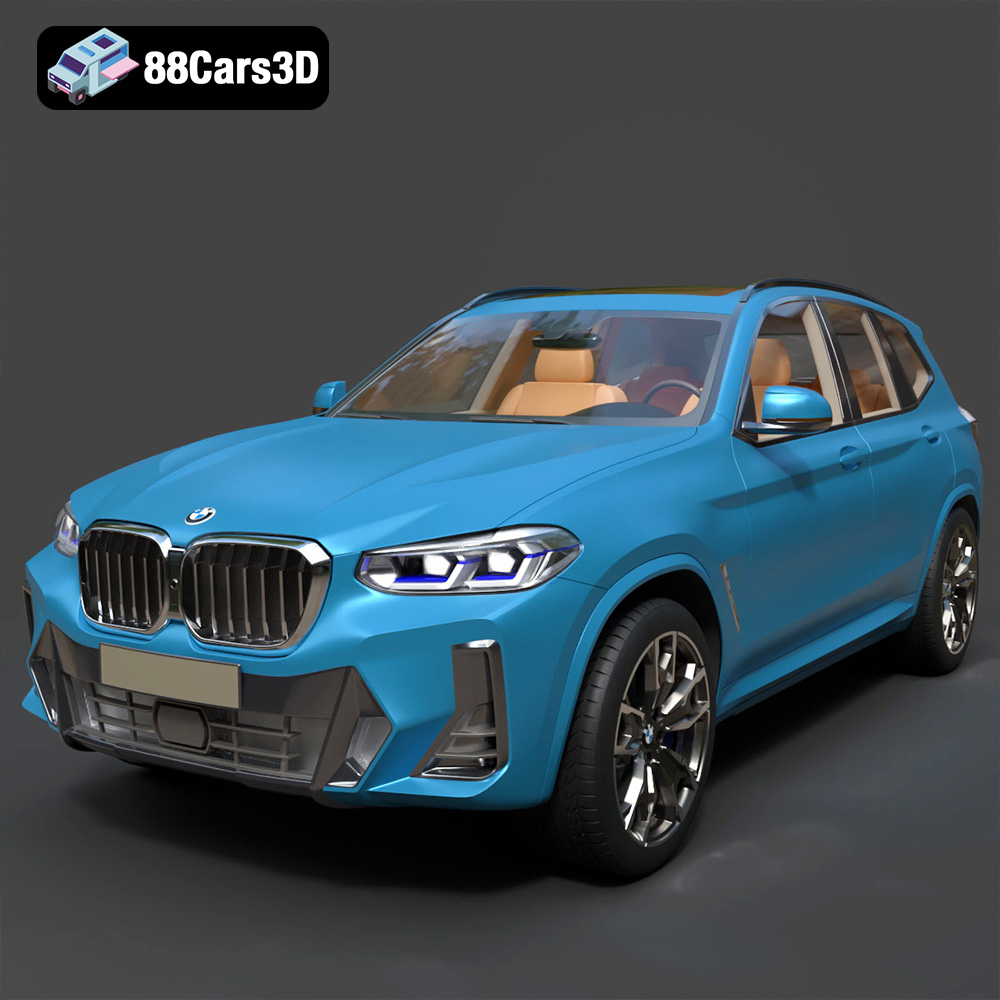
Texture: Yes | Material: Yes
Download the highly detailed, game-ready BMW X3 2024 3D Model. Features the iconic kidney grille, dynamic SUV proportions, and precise lighting elements. Includes .blend, .fbx, .obj, .glb, .stl, .ply, .unreal, and .max formats for game development, AR/VR, and rendering.
Price: $19.99

Texture: Yes | Material: Yes
Download the highly detailed, game-ready Tesla Model S Plaid 2021 3D Model. Features sleek aerodynamic styling, signature LED lighting, and the revolutionary Yoke steering interior. Includes .blend, .fbx, .obj, .glb, .stl, .ply, .unreal, and .max formats for game development, AR/VR, and rendering.
Price: $19.99
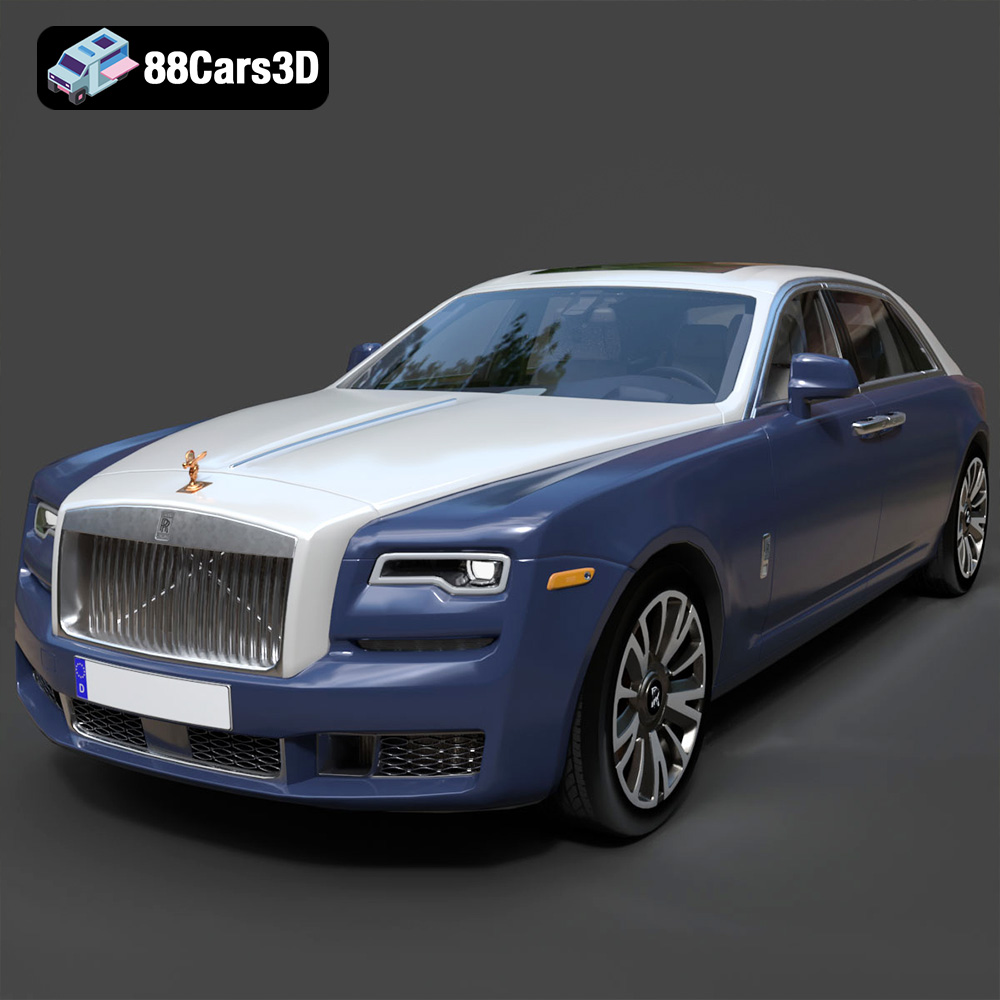
Texture: Yes | Material: Yes
Download the highly detailed, game-ready Rolls-Royce Ghost EWB 2018 3D Model. Features the iconic Pantheon grille, elongated luxury chassis, and elegant exterior lines. Includes .blend, .fbx, .obj, .glb, .stl, .ply, .unreal, and .max formats for game development, AR/VR, and rendering.
Price: $19.99
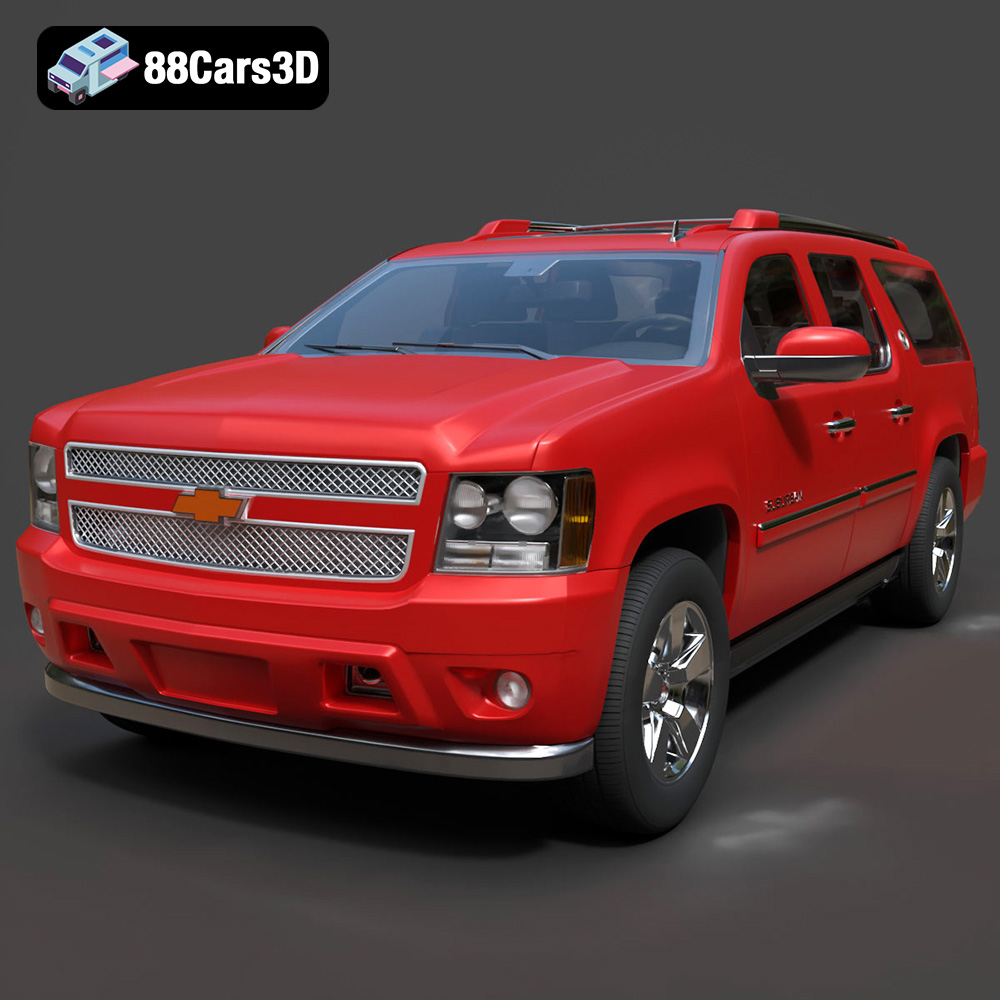
Texture: Yes | Material: Yes
Download the highly detailed, game-ready Chevrolet Suburban 75th Diamond 3D Model. Features the iconic Diamond Edition styling, detailed interior, and accurate full-size SUV proportions. Includes .blend, .fbx, .obj, .glb, .stl, .ply, .unreal, and .max formats for game development, AR/VR, and rendering.
Price: $19.99

Texture: Yes | Material: Yes
Download the highly detailed, game-ready Lamborghini Terzo Millenio 2017 3D Model. Features glowing Y-shaped LED signatures, extreme aerodynamic channels, and an aggressive hypercar stance. Includes .blend, .fbx, .obj, .glb, .stl, .ply, .unreal, and .max formats for game development, AR/VR, and rendering.
Price: $19.99

Texture: Yes | Material: Yes
Download the highly detailed, game-ready Mazda CX-5 2011 3D Model. Features the signature Kodo design exterior, detailed alloy wheels, and a fully modeled interior cabin. Includes .blend, .fbx, .obj, .glb, .stl, .ply, .unreal, and .max formats for game development, AR/VR, and rendering.
Price: $19.99

Texture: Yes | Material: Yes
Download the highly detailed, game-ready Toyota FJ Cruiser 2010 3D Model. Features a retro-inspired rugged exterior, iconic white roof, and an ultra-detailed HQ interior. Includes .blend, .fbx, .obj, .glb, .stl, .ply, .unreal, and .max formats for game development, AR/VR, and rendering.
Price: $19.99
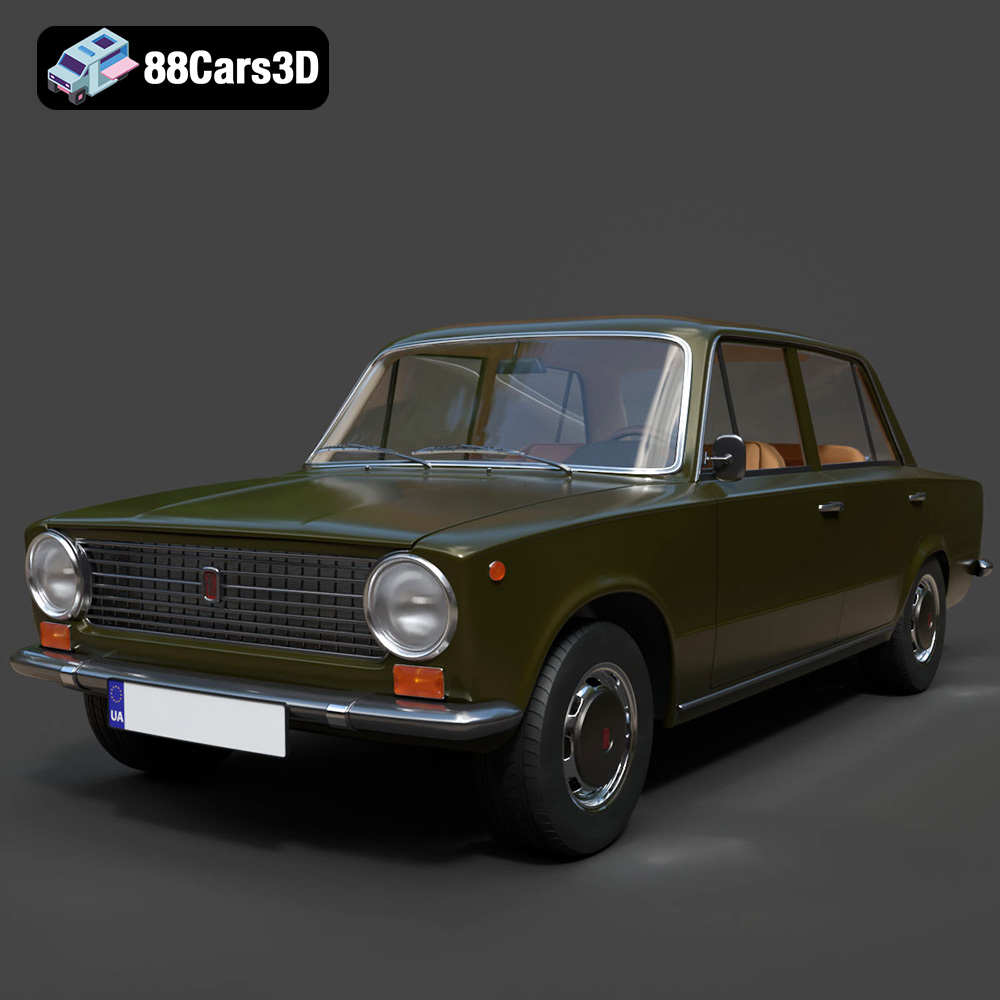
Texture: Yes | Material: Yes
Download the highly detailed, game-ready Fiat 124 Mk1 1966 3D Model. Features classic round headlights, authentic sedan bodywork, and detailed chrome hubcaps. Includes .blend, .fbx, .obj, .glb, .stl, .ply, .unreal, and .max formats for game development, AR/VR, and rendering.
Price: $19.99
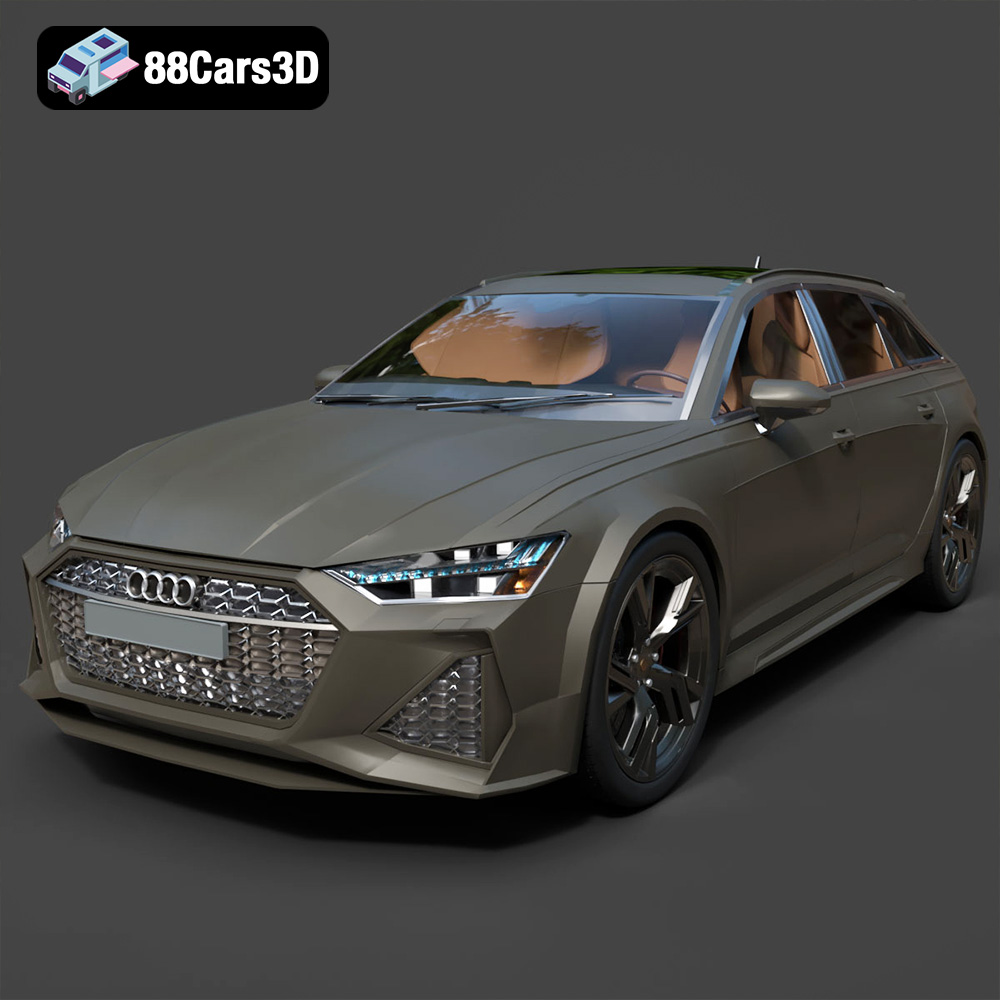
Texture: Yes | Material: Yes
Download the highly detailed, game-ready Audi RS6 3D Model. Features aggressive RS bodywork, detailed alloy wheels, and signature LED lighting. Includes .blend, .fbx, .obj, .glb, .stl, .ply, .unreal, and .max formats for game development, AR/VR, and rendering.
Price: $19.99

Texture: Yes | Material: Yes
Download the highly detailed, game-ready Toyota Camry 2018 3D Model. Features an aggressive aerodynamic body, distinct LED lighting signature, and precise interior detailing. Includes .blend, .fbx, .obj, .glb, .stl, .ply, .unreal, and .max formats for game development, AR/VR, and rendering.
Price: $19.99

