Get 20% OFF All Premium 3D & STL Models!

“`html
The world of 3D printing offers incredible possibilities, from creating intricate prototypes to crafting stunningly detailed models. For automotive enthusiasts, platforms like 88cars3d.com provide a treasure trove of printable car models in STL format. However, diving straight into printing can often lead to frustration if the STL files aren’t properly prepared. STL files, while widely used, are susceptible to errors that can manifest as printing failures, poor surface quality, or even damage to your 3D printer. This comprehensive guide will equip you with the knowledge and techniques to identify and fix common STL file errors, ensuring a smooth and successful 3D printing experience. We’ll cover everything from understanding the STL file structure to using specialized software for mesh repair and optimization, so you can confidently bring your digital designs to life.
In this guide, you’ll learn about:
The STL (Stereolithography) file format is the de facto standard for 3D printing. It represents the surface geometry of a 3D object as a collection of triangles. Each triangle is defined by its three vertices (coordinates) and a normal vector indicating its outward direction. While simple and widely supported, the STL format has inherent limitations that can lead to errors if not properly addressed.
STL files only describe the surface of an object; they don’t contain information about its internal structure, color, or texture. The accuracy of the STL file depends on the number of triangles used to represent the object. A higher triangle count results in a more detailed and accurate representation but also increases the file size and processing time. This process of approximating a curved surface with triangles is known as tessellation. A poorly tessellated model will have noticeable facets, especially on curved surfaces. When downloading models from marketplaces such as 88cars3d.com, pay attention to the triangle count mentioned in the product description. A higher triangle count usually indicates a more detailed and smoother model, but ensure your computer can handle processing it.
The STL format is inherently limited by its lack of support for color, texture, and internal structure. More importantly, STL files don’t inherently enforce the concept of a “watertight” or “manifold” mesh. A manifold mesh is essential for 3D printing because it ensures that the object has a clear inside and outside. Non-manifold geometry, where edges are shared by more than two triangles or surfaces are self-intersecting, can cause significant problems during slicing and printing. STL files also lack unit information. The slicer assumes a unit, but inconsistencies between the original model’s units and the slicer’s assumed units can lead to scaling issues. It’s crucial to understand these limitations to anticipate potential problems and take necessary corrective measures before printing.
Before sending your STL file to the 3D printer, it’s crucial to inspect it for common errors. These errors can lead to printing failures, weak parts, and poor surface finish. Several software tools can help you identify these issues, including Meshmixer, Netfabb Basic (Autodesk), and online STL viewers. Understanding the different types of errors is the first step toward fixing them.
Non-manifold geometry is arguably the most common and problematic type of STL file error. It refers to situations where the mesh violates the rules of a closed, watertight surface. Common examples include:
These errors often manifest as unexpected gaps, overlaps, or missing sections in the printed object. Using a mesh analysis tool within your slicer or a dedicated mesh repair program is vital to identify and correct these issues.
Holes and gaps represent missing sections in the mesh, which can occur due to errors in the modeling process or during file conversion. Small holes may be automatically bridged by the slicer, but larger holes will likely result in print failures or structural weaknesses. Similarly, small gaps between faces can cause issues with watertightness and potentially lead to thin or fragile sections in the printed part. Repairing holes often involves adding new triangles to close the gaps, ensuring that the new geometry seamlessly integrates with the existing mesh.
Several software options are available for repairing STL files, ranging from free and open-source tools to professional-grade commercial packages. The choice of software depends on the complexity of the errors, your budget, and your level of expertise. Free tools like Meshmixer are often sufficient for basic repairs, while more complex models may require the advanced capabilities of Netfabb or similar software.
Meshmixer, developed by Autodesk, is a free and powerful tool specifically designed for mesh editing and repair. It offers a wide range of features, including:
To repair an STL file in Meshmixer, import the file, select “Analysis” -> “Inspector,” and click on the highlighted error markers. Meshmixer will suggest automatic fixes, which you can accept or reject. For manual repairs, use the “Sculpt” tools to smooth out imperfections and the “Edit” tools to add or remove triangles.
Netfabb (now part of Autodesk) is a professional-grade software package widely used in the additive manufacturing industry. It offers a comprehensive suite of tools for mesh repair, optimization, and build preparation. While the full version of Netfabb is a paid product, Autodesk offers a free “Netfabb Basic” version that provides essential repair functionalities. Netfabb offers advanced features like boolean operations, hollowing tools, and lattice structures, making it a valuable asset for complex projects. The paid version also integrates seamlessly with other Autodesk products like Fusion 360.
The optimal settings and repair strategies for STL files can vary significantly depending on the 3D printing technology you’re using. FDM (Fused Deposition Modeling) and resin printing (SLA/DLP) have different strengths and weaknesses, which need to be considered when preparing your files.
FDM printing involves extruding molten plastic layer by layer. This process requires adequate bed adhesion, proper support structures for overhanging features, and careful attention to layer height and print speed. For FDM printing, ensure your STL file has sufficient wall thickness (typically 1.2mm or more for a 0.4mm nozzle) to provide adequate strength and prevent thin walls from collapsing during printing. Also, consider the orientation of the part to minimize the need for support structures and optimize layer adhesion. A common technique is to orient the model so that the largest flat surface is in contact with the print bed. Before printing car models, consider the orientation to minimize support structures on the body. Platforms like 88cars3d.com may offer pre-supported STL files, which can save considerable time and effort.
Resin printing uses UV light to cure liquid resin layer by layer. This technology offers higher resolution and finer details compared to FDM, but it also requires careful attention to support structures and hollowing techniques. For resin printing, it’s crucial to ensure that the STL file is watertight to prevent resin from leaking into the internal cavities of the model. Hollowing the model is also essential to reduce resin consumption and prevent suction forces from damaging the print during the peeling process. When hollowing, make sure to add drain holes to allow the uncured resin to escape. Support structures are even more critical in resin printing due to the weaker layer adhesion of resin materials. Generate sufficient supports, especially for overhanging features and islands, to prevent warping or detachment during printing. Recommended layer height for resin printing usually falls between 0.025mm and 0.05mm, depending on the desired level of detail.
Prevention is always better than cure. By following best practices during the modeling and file conversion process, you can minimize the chances of encountering STL file errors. A proactive approach can save you time, effort, and wasted filament or resin.
The way you model your object can significantly impact the quality of the resulting STL file. Here are some tips for creating error-free models:
When exporting your model to the STL format, pay close attention to the export settings. Here are some important considerations:
Even with careful preparation, STL file errors can sometimes slip through and cause printing failures. Recognizing the symptoms of these errors can help you diagnose the problem and take corrective action. Some common printing failures directly related to STL errors include:
Delamination, or the separation of layers during printing, can often be attributed to non-manifold geometry or flipped normals. If the slicer interprets the mesh incorrectly due to these errors, it may generate incomplete or discontinuous layers, leading to weak layer adhesion. To address this, thoroughly inspect your STL file for non-manifold edges and flipped normals using a mesh repair tool like Meshmixer or Netfabb. Correct these errors before re-slicing and attempting the print again. Ensuring proper bed adhesion is also crucial; clean the print bed thoroughly and consider using a bed adhesive like glue stick or hairspray.
Missing sections or incomplete prints can be a sign of holes or gaps in the STL file. These errors can prevent the slicer from generating complete toolpaths, resulting in missing portions of the printed object. Use a mesh analysis tool to identify any holes or gaps in the STL file. Repair these errors by adding new triangles to close the gaps or using a hole-filling algorithm. Adjusting slicer settings, such as increasing the infill density or adding more perimeters, can sometimes compensate for minor imperfections in the mesh.
Even with meticulous preparation and repair, some imperfections may still appear on your printed models. Fortunately, various post-processing techniques can help you refine the surface finish and improve the overall appearance of your prints. These techniques range from simple sanding to more advanced methods like painting and coating.
Sanding is a common post-processing technique used to smooth out layer lines and other surface imperfections. Start with a coarse grit sandpaper (e.g., 220 grit) to remove any major bumps or irregularities, then gradually move to finer grits (e.g., 400, 600, 800, 1000 grit) to achieve a smooth, polished finish. Wet sanding can help to reduce dust and prevent the sandpaper from clogging. For complex geometries, consider using specialized sanding tools like sanding sponges or rotary tools with sanding attachments.
Painting can dramatically enhance the appearance of your 3D printed models, adding color, depth, and realism. Before painting, it’s essential to prime the surface to improve adhesion and create a uniform base coat. Use a high-quality primer specifically designed for plastics. Apply thin, even coats of paint using an airbrush or spray can, allowing each coat to dry completely before applying the next. For added protection and durability, consider applying a clear coat after the paint has dried. There are various types of clear coats, including gloss, matte, and satin finishes. For automotive models, consider automotive-grade paints and clear coats for a professional-looking finish.
Preparing STL files for 3D printing can seem daunting at first, but with a solid understanding of the file format, common error types, and available repair tools, you can significantly improve your printing success rate. By investing the time to inspect and repair your STL files before printing, you’ll avoid costly failures, reduce material waste, and achieve higher-quality results. Remember to choose the right tools for the job, tailor your repair strategies to your specific 3D printing technology, and follow best practices for modeling and file conversion. Don’t be afraid to experiment with different techniques and settings to find what works best for you. With these skills, you’ll be well-equipped to tackle even the most challenging 3D printing projects and bring your creative visions to life. Whether you’re printing automotive models from 88cars3d.com or creating your own designs, mastering STL file preparation is essential for any serious 3D printing enthusiast. Now that you are equipped with the right knowledge, go ahead and start your 3D printing journey with confidence!
“`
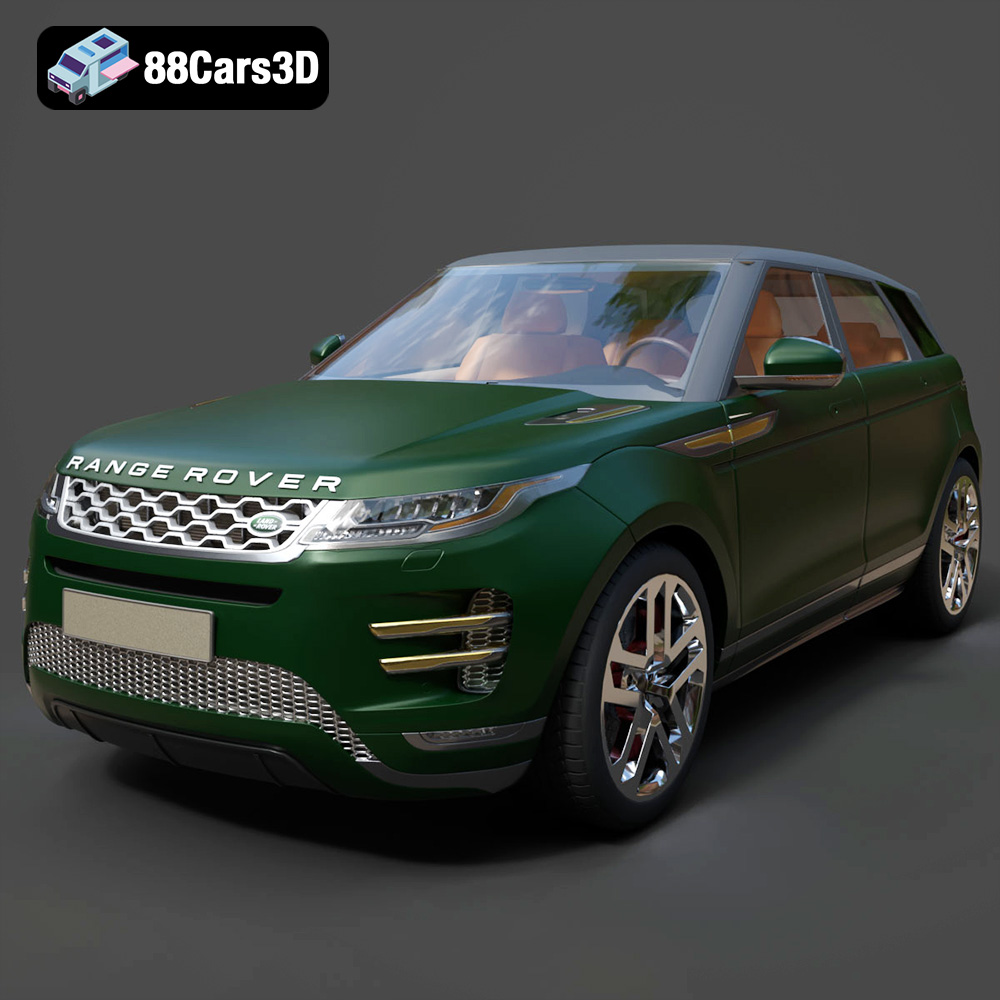
Texture: Yes | Material: Yes
Download the highly detailed, game-ready Range Rover Evoque R-Dynamic 2019 3D Model. Features flush deployable door handles, Matrix LED headlights, and R-Dynamic styling. Includes .blend, .fbx, .obj, .glb, .stl, .ply, .unreal, and .max formats for game development, AR/VR, and rendering.
Price: $19.99

Texture: Yes | Material: Yes
Download the highly detailed, game-ready Ford Mustang Mach 40 3D Model. Features aggressive custom widebody styling, a mid-mounted V8 engine, and classic retro-futuristic design. Includes .blend, .fbx, .obj, .glb, .stl, .ply, .unreal, and .max formats for game development, AR/VR, and rendering.
Price: $19.99
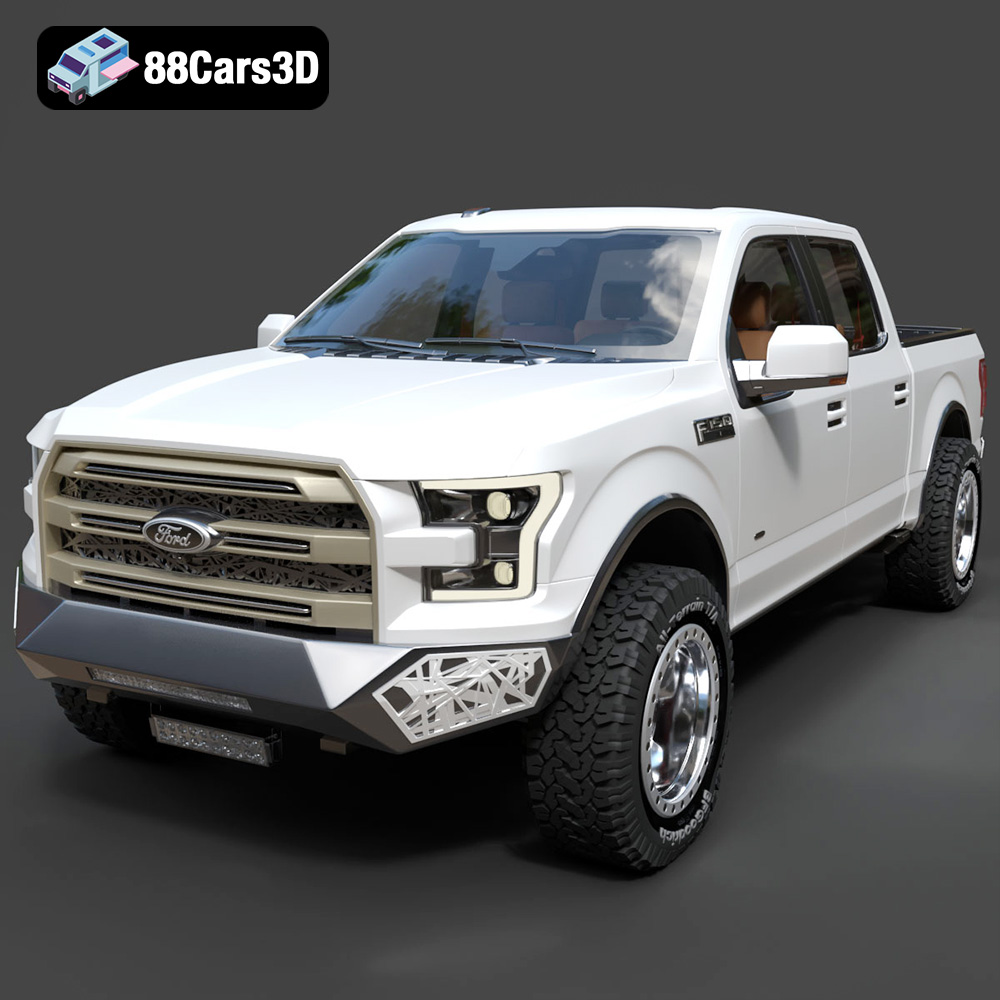
Texture: Yes | Material: Yes
Download the highly detailed, game-ready Ford F150 Raptor With Tuning From ARE 3D Model. Features custom ARE tuning accessories, aggressive off-road suspension, and rugged beadlock wheels. Includes .blend, .fbx, .obj, .glb, .stl, .ply, .unreal, and .max formats for game development, AR/VR, and rendering.
Price: $19.99

Texture: Yes | Material: Yes
Download the highly detailed, game-ready Mercedes-Benz AMG GLE 63 2021 3D Model. Features the iconic Panamericana grille, aggressive aerodynamic body styling, and a meticulously detailed luxurious interior. Includes .blend, .fbx, .obj, .glb, .stl, .ply, .unreal, and .max formats for game development, AR/VR, and rendering.
Price: $19.99
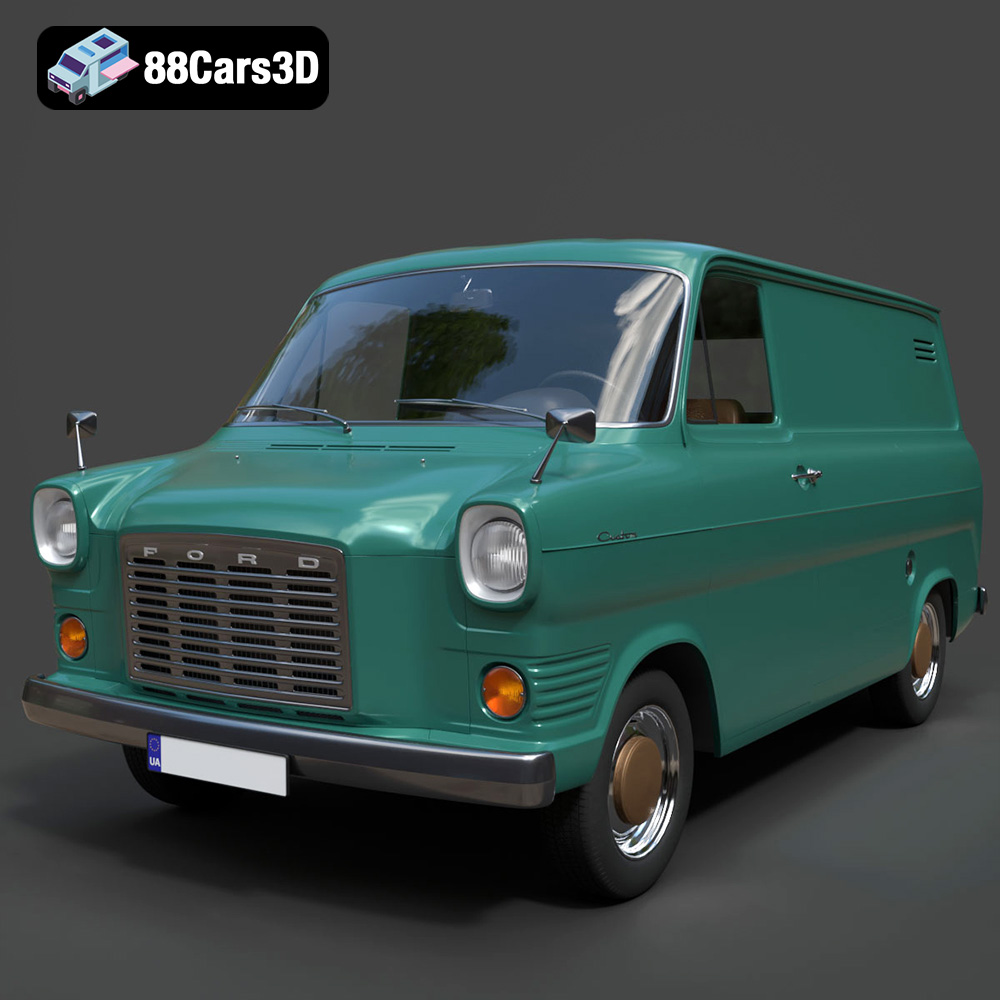
Texture: Yes | Material: Yes
Download the highly detailed, game-ready Ford Transit Mk1 Panel Van 1965 3D Model. Features iconic flat-front styling, vintage steel wheels, and a period-correct cargo bay. Includes .blend, .fbx, .obj, .glb, .stl, .ply, .unreal, and .max formats for game development, AR/VR, and rendering.
Price: $19.99

Texture: Yes | Material: Yes
Download the highly detailed, game-ready BMW X3 2024 3D Model. Features the iconic kidney grille, dynamic SUV proportions, and precise lighting elements. Includes .blend, .fbx, .obj, .glb, .stl, .ply, .unreal, and .max formats for game development, AR/VR, and rendering.
Price: $19.99

Texture: Yes | Material: Yes
Download the highly detailed, game-ready Tesla Model S Plaid 2021 3D Model. Features sleek aerodynamic styling, signature LED lighting, and the revolutionary Yoke steering interior. Includes .blend, .fbx, .obj, .glb, .stl, .ply, .unreal, and .max formats for game development, AR/VR, and rendering.
Price: $19.99

Texture: Yes | Material: Yes
Download the highly detailed, game-ready Rolls-Royce Ghost EWB 2018 3D Model. Features the iconic Pantheon grille, elongated luxury chassis, and elegant exterior lines. Includes .blend, .fbx, .obj, .glb, .stl, .ply, .unreal, and .max formats for game development, AR/VR, and rendering.
Price: $19.99
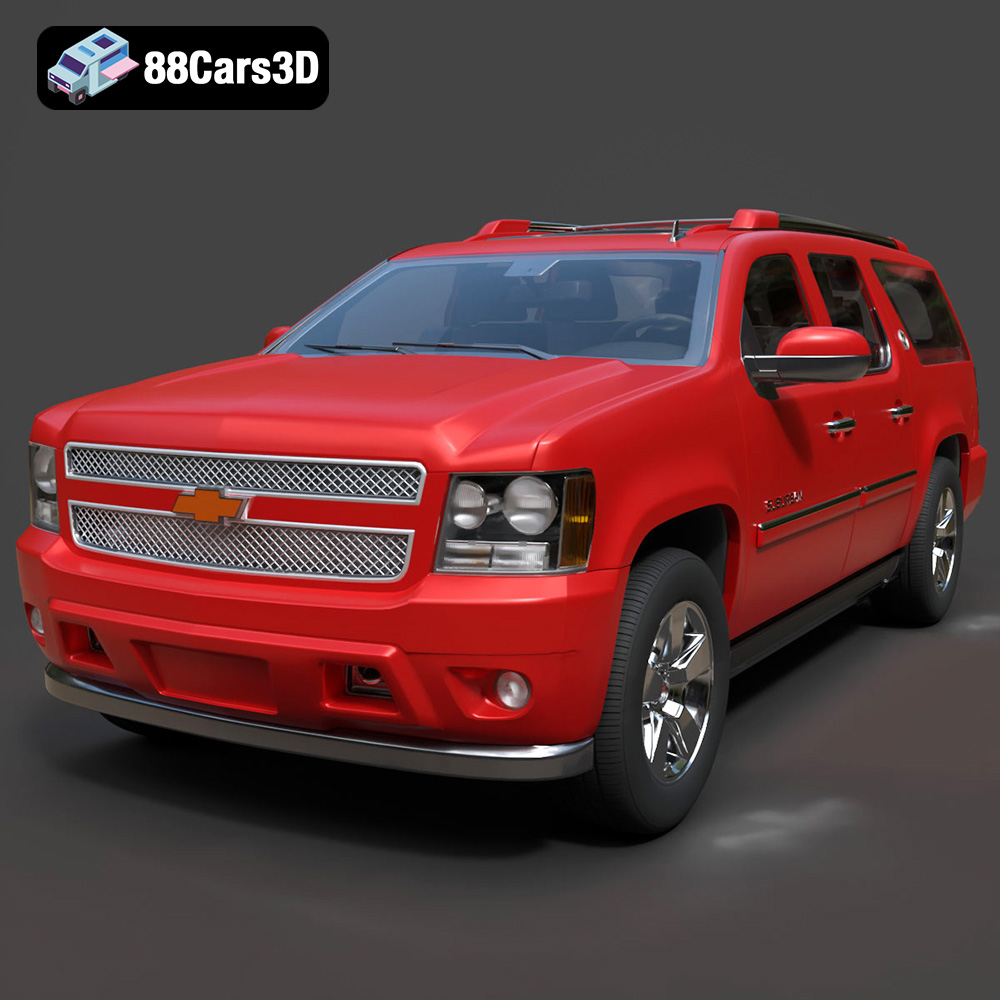
Texture: Yes | Material: Yes
Download the highly detailed, game-ready Chevrolet Suburban 75th Diamond 3D Model. Features the iconic Diamond Edition styling, detailed interior, and accurate full-size SUV proportions. Includes .blend, .fbx, .obj, .glb, .stl, .ply, .unreal, and .max formats for game development, AR/VR, and rendering.
Price: $19.99

Texture: Yes | Material: Yes
Download the highly detailed, game-ready Lamborghini Terzo Millenio 2017 3D Model. Features glowing Y-shaped LED signatures, extreme aerodynamic channels, and an aggressive hypercar stance. Includes .blend, .fbx, .obj, .glb, .stl, .ply, .unreal, and .max formats for game development, AR/VR, and rendering.
Price: $19.99

