Get 20% OFF All Premium 3D & STL Models!

“`html
3D printing opens up a world of possibilities, allowing us to create intricate models, functional prototypes, and even stunning car replicas. However, the journey from digital design to physical object isn’t always smooth. One common hurdle is dealing with broken or flawed STL files. These files, the backbone of 3D printing, can contain errors that lead to print failures, unsightly defects, or even prevent the printing process from starting altogether. This comprehensive guide will walk you through the essential steps of repairing broken STL meshes using two powerful software tools: Meshmixer and Netfabb. Whether you’re a seasoned 3D printing enthusiast or just starting out, mastering these techniques will significantly improve your print success rate and unlock the full potential of platforms like 88cars3d.com that offer high-quality 3D printable car models.
In this guide, we will cover the following:
By the end of this article, you’ll be equipped with the knowledge and skills to confidently tackle even the most challenging STL repair tasks, ensuring flawless prints every time.
The STL (Stereolithography) file format is the de facto standard for 3D printing. It represents the surface geometry of a 3D object using a collection of interconnected triangles, forming a mesh. While seemingly simple, the STL format is prone to errors that can arise during the design process, file conversion, or even data transmission. Identifying these errors is the first step towards successful repair.
An STL file essentially describes the outer skin of your 3D model. It lists the coordinates of each triangle’s vertices (corners) and the normal vector, which indicates the direction the triangle is facing. A well-formed STL file ensures that all triangles are properly connected, creating a closed and watertight surface. When you download models from marketplaces such as 88cars3d.com, you can generally expect that these models have been thoroughly checked for errors, but it’s still useful to understand potential issues.
Several common errors can plague STL files. These include:
These errors can manifest as printing defects like missing sections, weak points, or complete print failures. Recognizing these errors early on is crucial for efficient repair.
Meshmixer, a free software from Autodesk, is a powerful and user-friendly tool for manipulating and repairing 3D meshes. Its intuitive interface and robust repair algorithms make it an excellent choice for both beginners and experienced users. Meshmixer offers both automatic and manual repair options, giving you granular control over the process.
The “Make Solid” function in Meshmixer is often the first line of defense against mesh errors. This tool automatically analyzes the mesh and attempts to fix common problems like holes, non-manifold edges, and inverted normals. To use “Make Solid”:
While “Make Solid” is effective for many common errors, it’s not a magic bullet. Complex or severe issues may require manual intervention.
For more precise control, Meshmixer offers a range of manual repair tools:
When manually repairing a mesh, it’s crucial to work iteratively and carefully inspect the results after each operation. Zoom in close to the affected area to ensure that the repair is clean and seamless. Use ‘Ctrl+Z’ to undo unwanted changes.
Netfabb, another Autodesk software, offers a more comprehensive suite of tools for analyzing, repairing, and preparing 3D models for printing. While not free like Meshmixer, Netfabb provides advanced features and algorithms that are particularly useful for complex models with intricate details. Its strength lies in its ability to identify and automatically correct a wider range of errors, including those that Meshmixer might miss. Netfabb is considered an industry-standard for professional 3D printing workflows.
Netfabb’s automatic repair functionality is driven by powerful scripts that can be customized to address specific types of errors. To use the automatic repair:
Netfabb offers a comprehensive set of manual repair tools for pinpoint accuracy:
Netfabb includes advanced shell operations which allow you to create a hollowed-out version of your model. This is useful for reducing material usage and print time. Select “Remove Internal Triangles” to eliminate the internal mesh of a model, turning it into a shell. Be careful to ensure sufficient wall thickness is maintained to avoid structural weakness; typically a minimum of 1-2mm is recommended depending on your printer and material. You can also add struts or internal support structures using Netfabb’s lattice generation tools to enhance the strength of the hollowed model. For printable car models, hollowing out the chassis and interior components can save significant amounts of resin or filament.
Repairing a broken STL file is only the first step. To ensure a successful print, you need to optimize the repaired mesh for your specific 3D printer and material. This involves fine-tuning the mesh resolution, simplifying complex geometry, and adding support structures where needed. Careful optimization can significantly improve print quality, reduce print time, and minimize the risk of print failures. When working with STL files, remember that the higher the resolution of your mesh, the smoother the surfaces of your printed model will be, but this comes at the cost of increased file size and processing time during slicing. Finding a balance is key.
High-resolution meshes can be computationally expensive to process and may not be necessary for all 3D printing applications. Mesh simplification reduces the number of triangles in the mesh while preserving the overall shape and detail. Both Meshmixer and Netfabb offer mesh simplification tools. In Meshmixer, use the “Reduce” function. In Netfabb, use the “Reduce Triangles” function. Experiment with different reduction percentages to find a balance between detail preservation and mesh size reduction. For example, reducing the triangle count by 20-30% can often significantly speed up slicing without noticeably affecting print quality. Aim for a triangle count appropriate for the level of detail in your model; a simple, geometric shape may only need a few thousand triangles, while a highly detailed organic model could require hundreds of thousands or even millions.
Before printing, it’s essential to analyze the wall thickness of your model to ensure that it meets the minimum requirements for your chosen 3D printing technology and material. Thin walls can lead to weak points and print failures. Both Meshmixer and Netfabb offer wall thickness analysis tools. In Meshmixer, use the “Thickness” analysis tool. In Netfabb, use the “Wall Thickness Analysis” function. These tools will highlight areas of the model that are too thin, allowing you to reinforce them before printing. For FDM printing with a 0.4mm nozzle, a minimum wall thickness of 0.8mm (two nozzle widths) is generally recommended. For resin printing, a minimum wall thickness of 1-2mm is often necessary to prevent warping or cracking. In Netfabb, you can also add internal lattice structures to strengthen thin walls without increasing the overall material usage dramatically.
Overhanging features and bridges require support structures to prevent them from collapsing during printing. Slicing software like Cura and PrusaSlicer automatically generate support structures, but you can also manually add them in Meshmixer or Netfabb for more control. When adding supports manually, focus on areas that are prone to sagging or deformation. Use lightweight support structures to minimize material usage and make removal easier. Consider using different support types, such as tree supports, which are more efficient and leave a cleaner surface finish. Proper support placement can be the difference between a successful print and a pile of spaghetti. Platforms like 88cars3d.com often provide models that have been designed with pre-supported versions, or guidelines for optimal support placement for specific models.
Even with the best repair techniques, you may encounter challenges during the 3D printing process. Understanding common issues and their solutions can save you time, material, and frustration. This section covers some of the most frequent problems and provides actionable troubleshooting tips.
Warping occurs when the first layer of the print lifts away from the build plate, causing the model to deform. Poor bed adhesion is a primary cause of warping. To improve bed adhesion:
For large prints or materials prone to warping, consider using an enclosure to maintain a consistent temperature around the model.
Layer delamination occurs when layers of the print fail to bond together properly, resulting in weak or brittle parts. Common causes include:
Problems with support structures can lead to print failures or poor surface finish. Common issues include:
Repairing broken STL meshes is a critical skill for anyone involved in 3D printing. By understanding the structure of STL files, recognizing common mesh errors, and mastering the tools and techniques described in this guide, you can significantly improve your print success rate and unlock the full potential of 3D printing. Whether you choose to use Meshmixer for its ease of use or Netfabb for its advanced capabilities, the key is to practice and experiment with different approaches to find what works best for you. Remember to always optimize your repaired meshes for your specific printer and material, and don’t be afraid to troubleshoot and learn from your mistakes. Armed with these skills, you’ll be well-equipped to create stunning 3D printed models, including those intricate printable car models you find on platforms like 88cars3d.com. Start experimenting today and elevate your 3D printing game!
“`

Texture: Yes | Material: Yes
Download the highly detailed, game-ready BMW X3 2024 3D Model. Features the iconic kidney grille, dynamic SUV proportions, and precise lighting elements. Includes .blend, .fbx, .obj, .glb, .stl, .ply, .unreal, and .max formats for game development, AR/VR, and rendering.
Price: $19.99

Texture: Yes | Material: Yes
Download the highly detailed, game-ready Tesla Model S Plaid 2021 3D Model. Features sleek aerodynamic styling, signature LED lighting, and the revolutionary Yoke steering interior. Includes .blend, .fbx, .obj, .glb, .stl, .ply, .unreal, and .max formats for game development, AR/VR, and rendering.
Price: $19.99

Texture: Yes | Material: Yes
Download the highly detailed, game-ready Rolls-Royce Ghost EWB 2018 3D Model. Features the iconic Pantheon grille, elongated luxury chassis, and elegant exterior lines. Includes .blend, .fbx, .obj, .glb, .stl, .ply, .unreal, and .max formats for game development, AR/VR, and rendering.
Price: $19.99
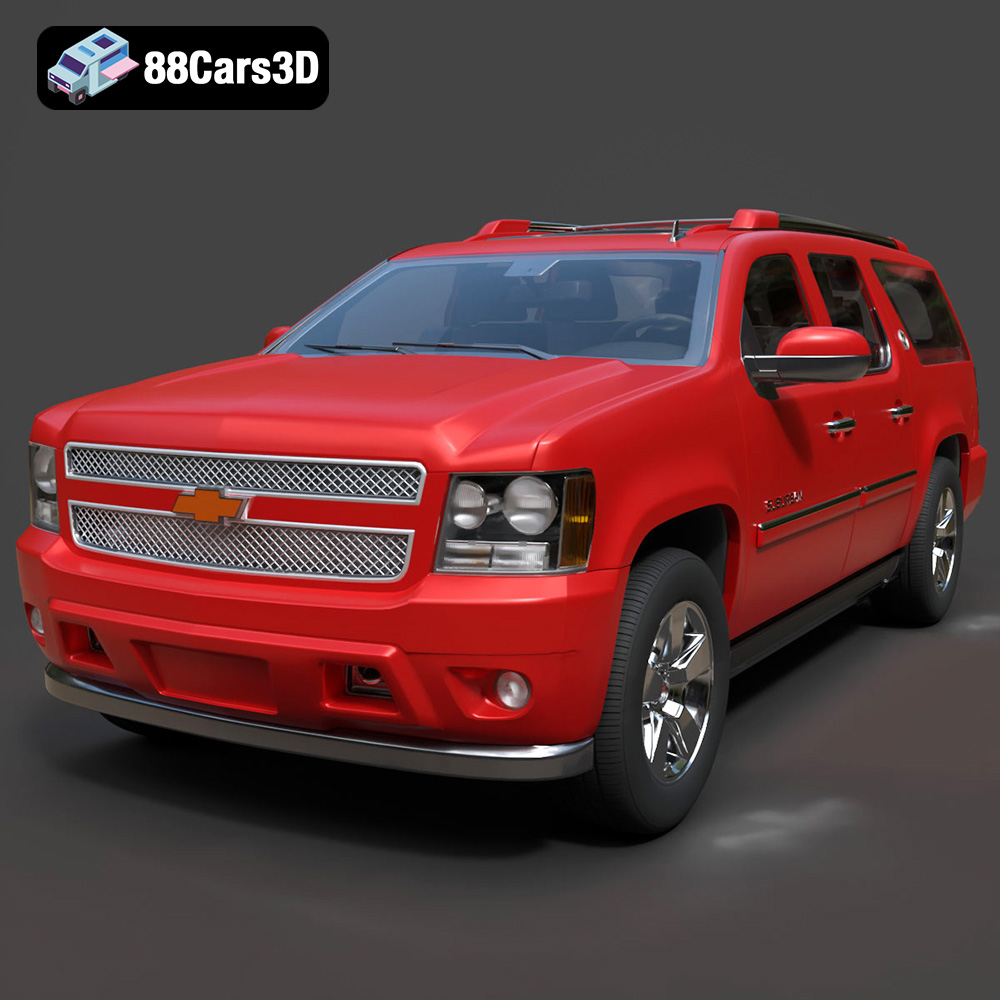
Texture: Yes | Material: Yes
Download the highly detailed, game-ready Chevrolet Suburban 75th Diamond 3D Model. Features the iconic Diamond Edition styling, detailed interior, and accurate full-size SUV proportions. Includes .blend, .fbx, .obj, .glb, .stl, .ply, .unreal, and .max formats for game development, AR/VR, and rendering.
Price: $19.99

Texture: Yes | Material: Yes
Download the highly detailed, game-ready Lamborghini Terzo Millenio 2017 3D Model. Features glowing Y-shaped LED signatures, extreme aerodynamic channels, and an aggressive hypercar stance. Includes .blend, .fbx, .obj, .glb, .stl, .ply, .unreal, and .max formats for game development, AR/VR, and rendering.
Price: $19.99

Texture: Yes | Material: Yes
Download the highly detailed, game-ready Mazda CX-5 2011 3D Model. Features the signature Kodo design exterior, detailed alloy wheels, and a fully modeled interior cabin. Includes .blend, .fbx, .obj, .glb, .stl, .ply, .unreal, and .max formats for game development, AR/VR, and rendering.
Price: $19.99

Texture: Yes | Material: Yes
Download the highly detailed, game-ready Toyota FJ Cruiser 2010 3D Model. Features a retro-inspired rugged exterior, iconic white roof, and an ultra-detailed HQ interior. Includes .blend, .fbx, .obj, .glb, .stl, .ply, .unreal, and .max formats for game development, AR/VR, and rendering.
Price: $19.99
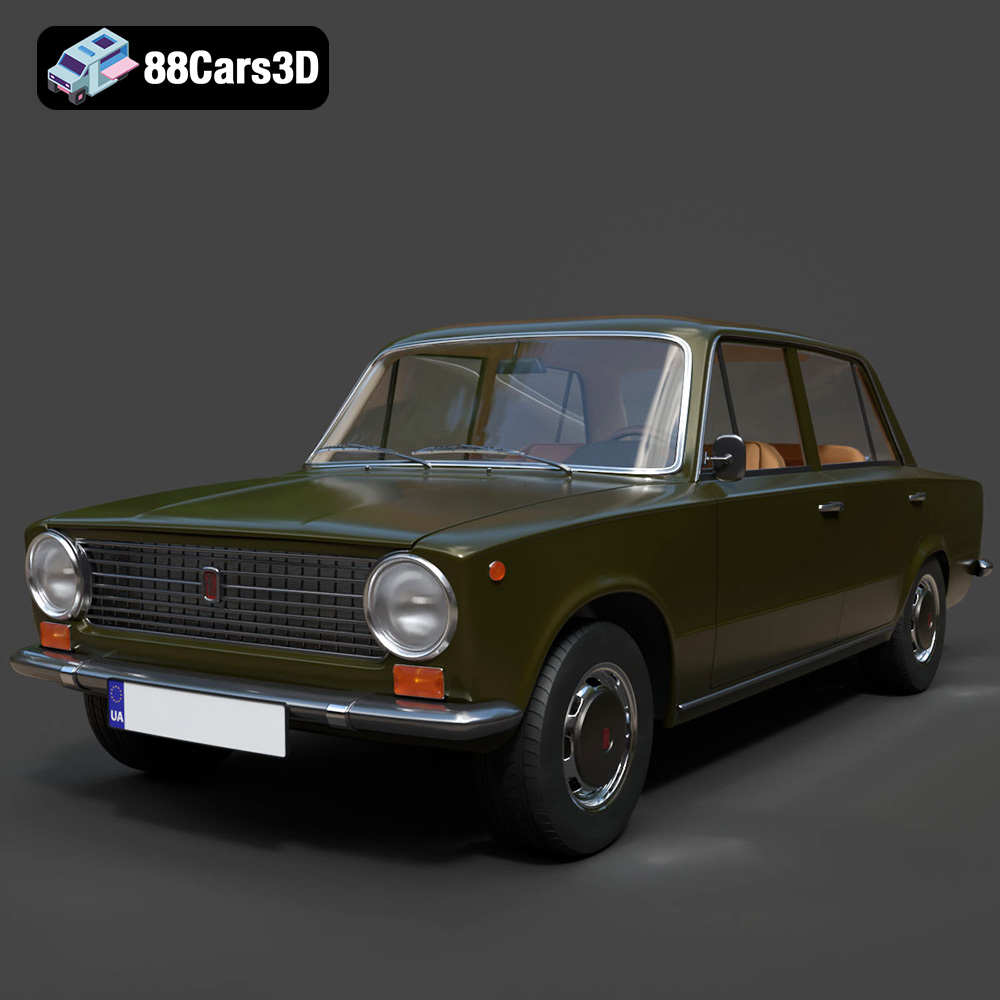
Texture: Yes | Material: Yes
Download the highly detailed, game-ready Fiat 124 Mk1 1966 3D Model. Features classic round headlights, authentic sedan bodywork, and detailed chrome hubcaps. Includes .blend, .fbx, .obj, .glb, .stl, .ply, .unreal, and .max formats for game development, AR/VR, and rendering.
Price: $19.99

Texture: Yes | Material: Yes
Download the highly detailed, game-ready Audi RS6 3D Model. Features aggressive RS bodywork, detailed alloy wheels, and signature LED lighting. Includes .blend, .fbx, .obj, .glb, .stl, .ply, .unreal, and .max formats for game development, AR/VR, and rendering.
Price: $19.99

Texture: Yes | Material: Yes
Download the highly detailed, game-ready Toyota Camry 2018 3D Model. Features an aggressive aerodynamic body, distinct LED lighting signature, and precise interior detailing. Includes .blend, .fbx, .obj, .glb, .stl, .ply, .unreal, and .max formats for game development, AR/VR, and rendering.
Price: $19.99

