Get 20% OFF All Premium 3D & STL Models!

“`html
If you’re venturing into the exciting world of 3D printing, especially for intricate projects like printing stunning car models from platforms like 88cars3d.com, understanding STL files is absolutely crucial. STL, which stands for STereoLithography, is the most common file format used in 3D printing. But what exactly is an STL file? And more importantly, how do you work with them to achieve flawless prints? This comprehensive guide will demystify the STL file format, providing you with a solid foundation for your 3D printing journey. We’ll cover everything from the underlying structure of STL files to practical tips for preparing them for printing, ensuring you get the best possible results. Get ready to dive deep into the world of triangles and vertices!
In this guide, we’ll cover:
At its core, an STL file is a surface representation of a 3D object composed entirely of triangles. Imagine taking a complex, curved object and approximating its shape using tiny, flat triangles – that’s essentially what an STL file does. Each triangle is defined by its three vertices (corner points) and a normal vector (a line perpendicular to the triangle’s surface, indicating its orientation). The collection of all these triangles creates a mesh that represents the 3D model. The more triangles used, the smoother and more detailed the representation becomes, but also the larger the file size.
Each triangle in an STL file is described using the coordinates of its three vertices (x, y, z) and the direction of its normal vector (i, j, k). The coordinates are typically stored as floating-point numbers, providing a relatively high degree of precision. For example, a single triangle might be defined as follows:
facet normal  0.000000 0.000000 1.000000
  outer loop
    vertex  1.000000 0.000000 0.000000
    vertex  0.000000 1.000000 0.000000
    vertex  0.000000 0.000000 0.000000
  endloop
endfacet
This block of code defines one small facet that helps create the overall 3D object. Notice the normal vector; this is critically important for the slicer to understand which side of the triangle is “outward” facing.
STL files come in two flavors: ASCII and Binary. ASCII STL files are human-readable text files, like the example above, which list the coordinates of each vertex and the normal vector for each triangle. This format is easy to understand and edit manually, but it tends to be significantly larger in file size, especially for complex models with many triangles. Binary STL files, on the other hand, store the same information in a compressed binary format, resulting in much smaller file sizes. While not human-readable, binary STL files are faster to parse and are generally preferred for large and complex models. For instance, a detailed car model downloaded from 88cars3d.com would almost certainly be in binary format for faster downloads and processing.
Before you can start printing your awesome car model, it’s essential to prepare the STL file for your 3D printer. This involves checking the file for errors, orienting the model correctly on the print bed, and generating support structures if needed. This process, called slicing, translates the STL file into a set of instructions that the 3D printer can understand, specifying the path the nozzle or laser needs to take to build the object layer by layer. The quality of your final print heavily relies on proper preparation.
One of the most common issues with STL files is non-manifold geometry. This occurs when the mesh has edges that are shared by more than two triangles, holes, or other inconsistencies that make it impossible to define a clear inside and outside. Slicing software can struggle with non-manifold meshes, leading to printing errors or unexpected results. Tools like Meshmixer, Netfabb, and online STL repair services can automatically detect and fix these issues. Aim to fix all errors reported by your chosen repair tool. Repairing these meshes is especially important when printing car models, where intricate details can exacerbate existing errors.
The orientation of your model on the print bed significantly impacts print quality, support requirements, and print time. Consider orienting the model to minimize the need for support structures, which can be time-consuming to remove and may leave blemishes on the final print. However, sometimes supports are unavoidable. Slicing software allows you to generate support structures automatically or manually. For FDM printing, supports are usually printed from the same material as the model, while for resin printing, they are often printed from a different, more brittle resin for easier removal. Experiment with different orientations and support settings to find the optimal balance between print time, support material usage, and surface finish. For complex car models from 88cars3d.com, carefully consider the overhangs and intricate details when deciding on the optimal orientation.
Slicing software acts as the bridge between your STL file and your 3D printer. It takes the 3D model described in the STL file and converts it into a series of layers that the printer can understand. Choosing the right slicing parameters is critical for achieving high-quality prints. Common slicing software includes Cura, PrusaSlicer, Simplify3D, and Chitubox (for resin printers). Each slicer offers a range of settings that you can fine-tune to optimize your prints for different materials, printers, and desired levels of detail.
For FDM (Fused Deposition Modeling) printing, the following slicing parameters are particularly important:
For resin printing (SLA or DLP), the following parameters are crucial:
The choice of printing material and proper printer calibration are fundamental for achieving successful and high-quality 3D prints. Different materials have different properties, strengths, and printing requirements. Similarly, a well-calibrated printer ensures accurate and consistent results.
Here’s a brief overview of some common 3D printing materials:
The best material choice will largely depend on the end use of the 3D printed car model. If it’s primarily for display, PLA would be a good candidate due to its ease of printing and smooth finish. If the model is intended to be a functional prototype that needs to withstand some stress, ABS or PETG would be more appropriate.
A properly calibrated printer is essential for accurate and consistent prints. Here are some key calibration steps:
Regular maintenance is also crucial. This includes cleaning the nozzle, lubricating moving parts, and keeping the printer free from dust and debris. Proper maintenance will extend the life of your printer and ensure consistent print quality.
Even with careful preparation and the right settings, 3D printing can sometimes be challenging. Here are some common problems you might encounter and how to troubleshoot them.
If your print is not sticking to the bed, here are some things to check:
A common cause of warping, especially with materials like ABS, is poor bed adhesion. Ensure your first layer is properly “squished” onto the print bed. Slicers have a “first layer height” parameter, which you can increase slightly to improve adhesion.
Warping occurs when the corners of the print lift off the bed, while cracking can happen in taller prints due to uneven cooling. Here’s how to address these issues:
Stringing refers to thin strands of plastic that form between different parts of the print, while blobs are small excess deposits of material. Here are some troubleshooting steps:
Layer shifting occurs when the print suddenly shifts horizontally. This is usually caused by mechanical issues or loose belts.
Once your 3D print is complete, you might want to further enhance its appearance and functionality through post-processing. This can involve removing support structures, sanding, filling, painting, and assembling multiple parts. The specific techniques you use will depend on the material you printed with and the desired finish.
Removing support structures carefully is crucial to avoid damaging the print. For FDM prints, you can use pliers, knives, or specialized support removal tools. For resin prints, supports are often more brittle and can be snapped off or dissolved in a solvent. Take your time and be patient to avoid breaking delicate features. When downloading models from marketplaces such as 88cars3d.com, models are often designed with easy-to-remove support structures in mind.
Sanding helps to smooth out layer lines and surface imperfections. Start with coarse sandpaper and gradually move to finer grits. Filling can be used to fill in gaps, seams, or other imperfections. Epoxy resins or specialized 3D printing fillers are commonly used for this purpose.
Painting can add color and enhance the visual appeal of your 3D print. Primer is essential to create a smooth surface for the paint to adhere to. Use acrylic paints or specialized model paints for best results. Applying a clear coat can protect the paint and add a glossy or matte finish.
Many 3D printed projects involve assembling multiple parts. Use glue, screws, or other fasteners to join the parts together. Pay attention to alignment and fit to ensure a seamless assembly.
Understanding STL files is fundamental to successful 3D printing. By grasping the file format’s structure, mastering preparation techniques, optimizing slicing parameters, and troubleshooting common issues, you can unlock the full potential of your 3D printer and create stunning prints. From intricate car models sourced from platforms like 88cars3d.com to functional prototypes, a solid understanding of STL files is your key to success.
Here are a few actionable next steps you can take:
With dedication and practice, you’ll be well on your way to becoming a 3D printing pro!
“`
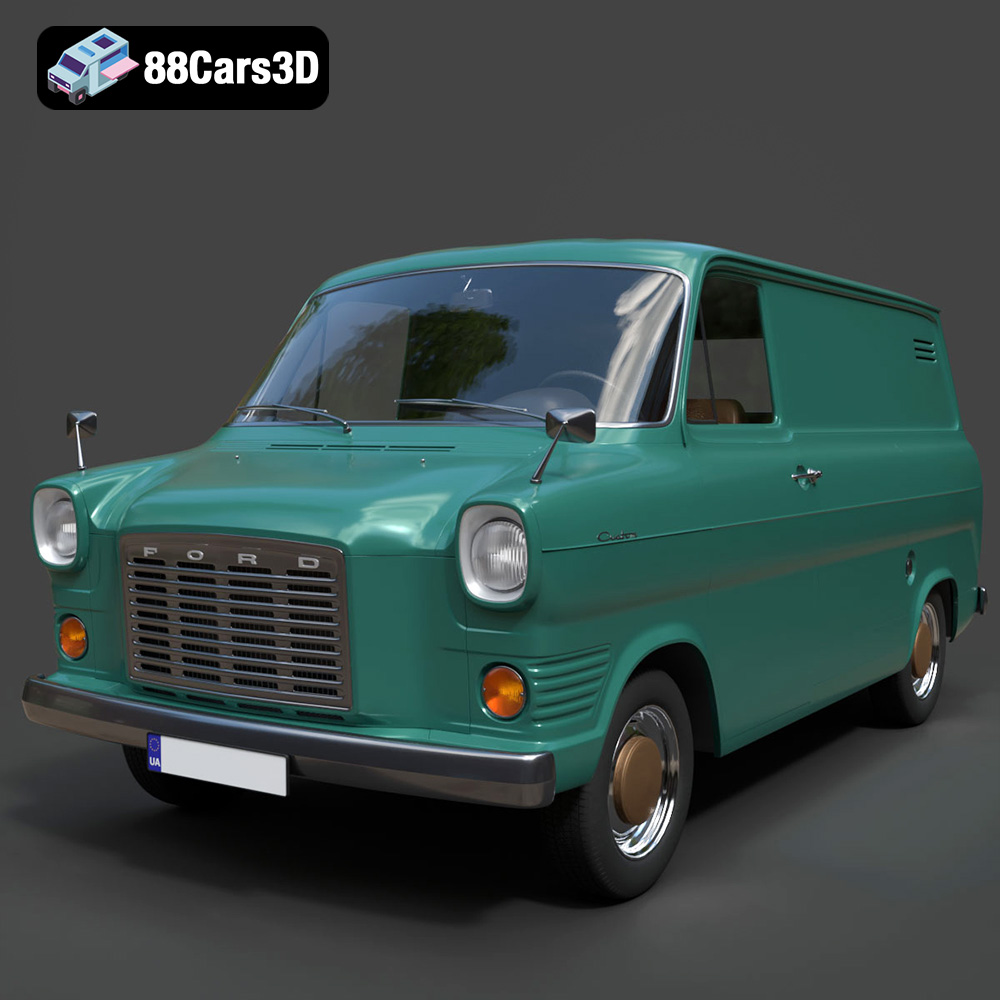
Texture: Yes | Material: Yes
Download the highly detailed, game-ready Ford Transit Mk1 Panel Van 1965 3D Model. Features iconic flat-front styling, vintage steel wheels, and a period-correct cargo bay. Includes .blend, .fbx, .obj, .glb, .stl, .ply, .unreal, and .max formats for game development, AR/VR, and rendering.
Price: $19.99

Texture: Yes | Material: Yes
Download the highly detailed, game-ready BMW X3 2024 3D Model. Features the iconic kidney grille, dynamic SUV proportions, and precise lighting elements. Includes .blend, .fbx, .obj, .glb, .stl, .ply, .unreal, and .max formats for game development, AR/VR, and rendering.
Price: $19.99

Texture: Yes | Material: Yes
Download the highly detailed, game-ready Tesla Model S Plaid 2021 3D Model. Features sleek aerodynamic styling, signature LED lighting, and the revolutionary Yoke steering interior. Includes .blend, .fbx, .obj, .glb, .stl, .ply, .unreal, and .max formats for game development, AR/VR, and rendering.
Price: $19.99

Texture: Yes | Material: Yes
Download the highly detailed, game-ready Rolls-Royce Ghost EWB 2018 3D Model. Features the iconic Pantheon grille, elongated luxury chassis, and elegant exterior lines. Includes .blend, .fbx, .obj, .glb, .stl, .ply, .unreal, and .max formats for game development, AR/VR, and rendering.
Price: $19.99
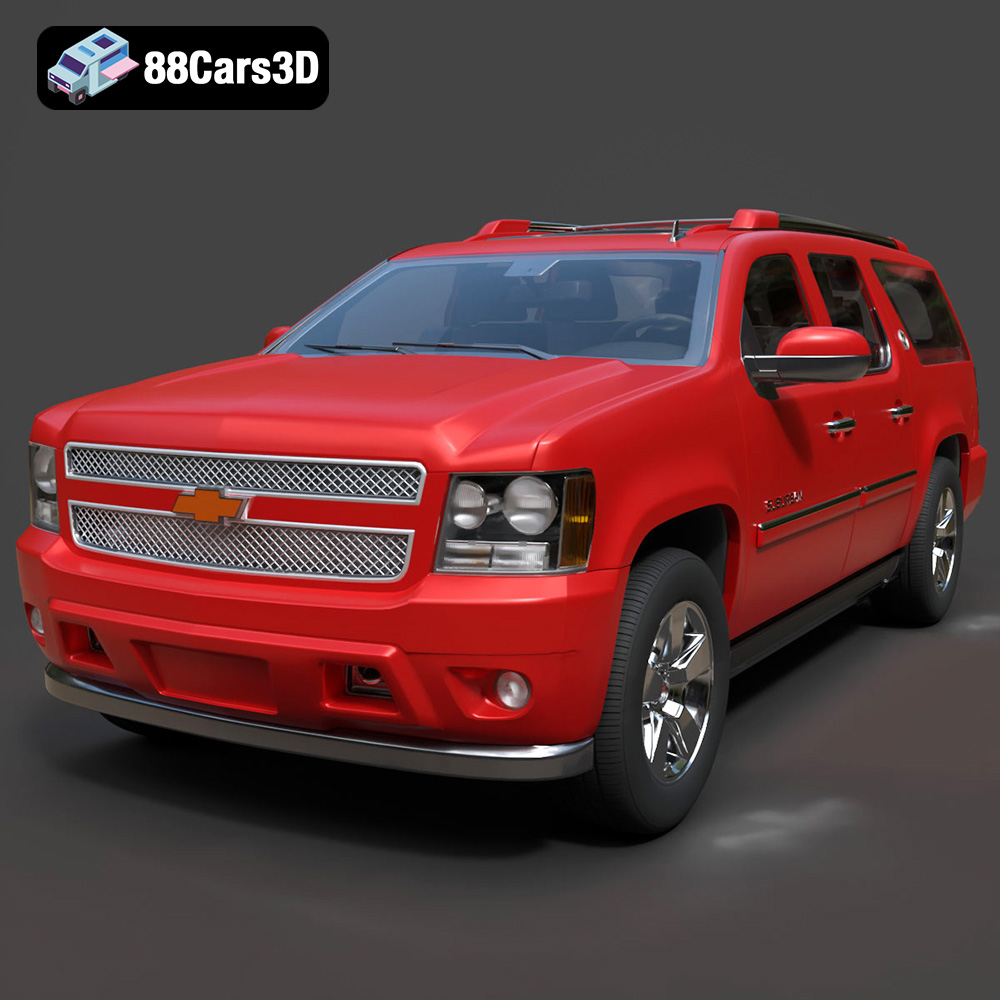
Texture: Yes | Material: Yes
Download the highly detailed, game-ready Chevrolet Suburban 75th Diamond 3D Model. Features the iconic Diamond Edition styling, detailed interior, and accurate full-size SUV proportions. Includes .blend, .fbx, .obj, .glb, .stl, .ply, .unreal, and .max formats for game development, AR/VR, and rendering.
Price: $19.99

Texture: Yes | Material: Yes
Download the highly detailed, game-ready Lamborghini Terzo Millenio 2017 3D Model. Features glowing Y-shaped LED signatures, extreme aerodynamic channels, and an aggressive hypercar stance. Includes .blend, .fbx, .obj, .glb, .stl, .ply, .unreal, and .max formats for game development, AR/VR, and rendering.
Price: $19.99

Texture: Yes | Material: Yes
Download the highly detailed, game-ready Mazda CX-5 2011 3D Model. Features the signature Kodo design exterior, detailed alloy wheels, and a fully modeled interior cabin. Includes .blend, .fbx, .obj, .glb, .stl, .ply, .unreal, and .max formats for game development, AR/VR, and rendering.
Price: $19.99

Texture: Yes | Material: Yes
Download the highly detailed, game-ready Toyota FJ Cruiser 2010 3D Model. Features a retro-inspired rugged exterior, iconic white roof, and an ultra-detailed HQ interior. Includes .blend, .fbx, .obj, .glb, .stl, .ply, .unreal, and .max formats for game development, AR/VR, and rendering.
Price: $19.99
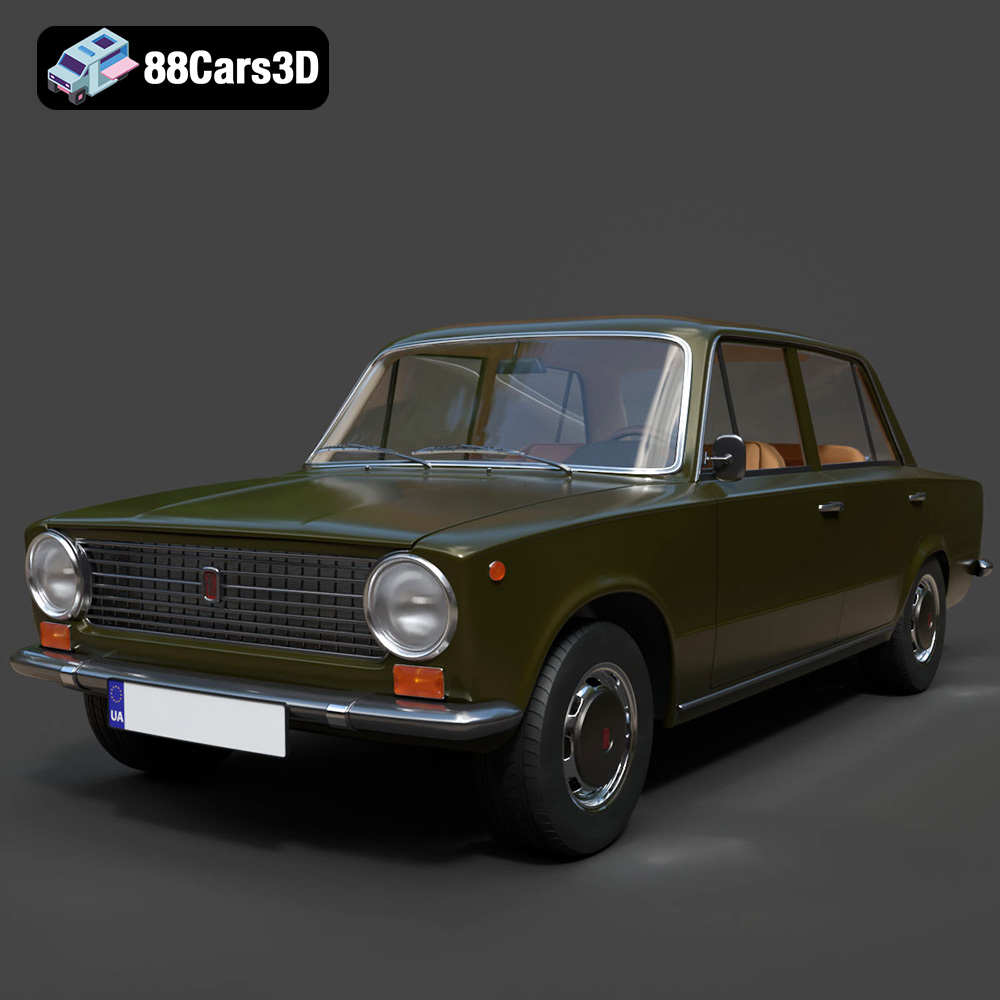
Texture: Yes | Material: Yes
Download the highly detailed, game-ready Fiat 124 Mk1 1966 3D Model. Features classic round headlights, authentic sedan bodywork, and detailed chrome hubcaps. Includes .blend, .fbx, .obj, .glb, .stl, .ply, .unreal, and .max formats for game development, AR/VR, and rendering.
Price: $19.99
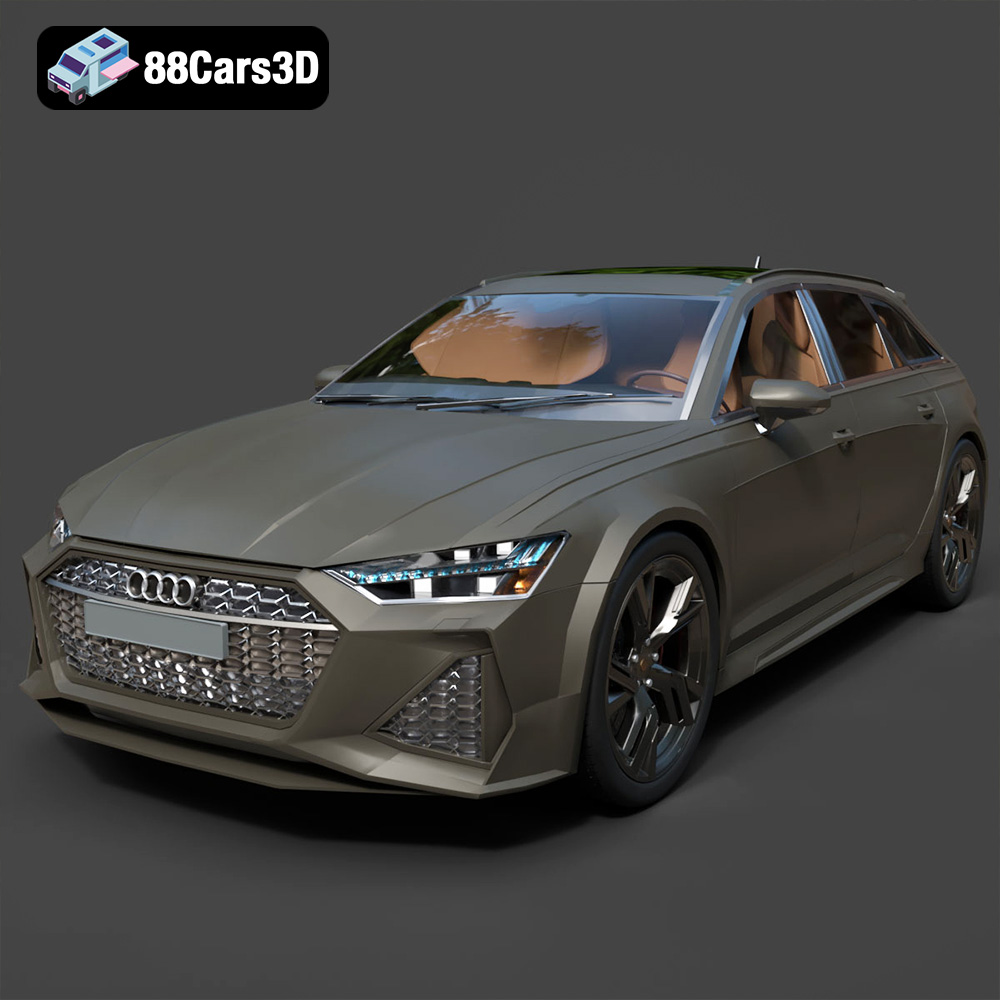
Texture: Yes | Material: Yes
Download the highly detailed, game-ready Audi RS6 3D Model. Features aggressive RS bodywork, detailed alloy wheels, and signature LED lighting. Includes .blend, .fbx, .obj, .glb, .stl, .ply, .unreal, and .max formats for game development, AR/VR, and rendering.
Price: $19.99

