Get 20% OFF All Premium 3D & STL Models!

“`html
The world of 3D printing opens up incredible possibilities for bringing digital designs into the physical realm. Whether you’re crafting intricate car models from platforms like 88cars3d.com, prototyping engineering components, or creating artistic sculptures, the process often begins with converting your 3D model into the STL (Stereolithography) file format. STL serves as the bridge between your design software and your 3D printer, dictating the geometry that will be built layer by layer. This guide will delve into the intricacies of converting polygon 3D models to STL, optimizing them for printing, and troubleshooting common issues to ensure successful and high-quality prints. We’ll cover everything from understanding the STL file structure to advanced techniques for mesh repair and optimization, ensuring your models are ready for the printer bed. This includes understanding different software options like Blender, Meshmixer, and Netfabb.
This comprehensive guide will cover:
The STL file format is the de facto standard for 3D printing. It represents the surface geometry of a 3D object as a collection of triangles. Each triangle is defined by its three vertices and a normal vector, which indicates the triangle’s orientation. While simple in concept, understanding the nuances of STL is crucial for successful 3D printing. Unlike more complex file formats, STL doesn’t store color, texture, or material information; it focuses solely on the shape.
The number of triangles used to represent a 3D model in STL format directly affects its accuracy and file size. A higher triangle count results in a smoother, more detailed representation, but it also increases the file size and processing time during slicing. Conversely, a lower triangle count reduces file size but can lead to faceting or a loss of detail, especially on curved surfaces. When downloading models from marketplaces such as 88cars3d.com, consider the level of detail needed for your specific print and choose a file with an appropriate triangle resolution. For car models with intricate details, a higher resolution is generally preferred, but for larger, simpler models, a lower resolution may suffice.
Despite its widespread use, STL has some limitations. Its lack of color and material information means that additional formats are needed for multi-material or full-color printing. Furthermore, STL files are prone to errors such as gaps, overlaps, and self-intersections, which can cause problems during slicing and printing. These errors often necessitate mesh repair before printing. STL is also a “dumb” format – it only contains the surface geometry and none of the design history or parametric information. This means you can’t easily modify the model’s dimensions or features without going back to the original design software.
Numerous software options are available for converting polygon 3D models to STL, each with its strengths and weaknesses. The choice depends on your existing workflow, the complexity of your models, and your budget. Popular options include Blender, Meshmixer, Netfabb, and even CAD software like Fusion 360 or SolidWorks can export STL files. Some are free, while others require a subscription or one-time purchase. Selecting the right tool can significantly impact the ease and quality of your STL conversion process.
Blender, a free and open-source 3D creation suite, is a powerful tool for converting and editing polygon models for 3D printing. Its comprehensive modeling tools allow for precise control over the mesh, making it suitable for complex models. To export to STL, simply open your model in Blender, go to File > Export > Stl (.stl). Blender also offers advanced mesh editing capabilities, allowing you to repair and optimize your models before exporting to STL. For example, you can use the “Remesh” modifier to uniformly distribute triangles, or the “Decimate” modifier to reduce the triangle count without significant loss of detail. Settings such as “ASCII” or “Binary” encoding are important; Binary is usually smaller and faster to process.
Meshmixer, another free software from Autodesk, is specifically designed for preparing models for 3D printing. It offers a range of tools for mesh repair, support generation, and hollowing. To convert to STL, open your model in Meshmixer, and go to File > Export. Meshmixer excels at automatically detecting and repairing common mesh errors, such as holes and non-manifold edges. It also provides tools for smoothing surfaces, reducing the triangle count, and adding custom support structures. The “Make Solid” function is particularly useful for creating watertight meshes suitable for printing.
Before converting your polygon model to STL, it’s crucial to optimize the mesh to ensure a smooth and error-free conversion. This involves checking for and repairing common mesh issues, such as non-manifold geometry, self-intersections, and flipped normals. A clean and well-structured mesh will result in a more accurate STL file and reduce the likelihood of printing problems. The goal is to create a “watertight” mesh, meaning it has no holes or gaps and completely encloses a volume.
Non-manifold geometry refers to edges or vertices that are shared by more than two faces. This type of geometry is invalid in a real-world object and can cause problems during STL conversion and printing. To check for non-manifold geometry, use the mesh analysis tools in your chosen software. In Blender, you can use the “Select Non Manifold” option in Edit Mode. In Meshmixer, the “Inspector” tool automatically identifies and highlights non-manifold edges. Once identified, these errors need to be corrected, often by deleting or merging problematic faces and edges. For example, deleting stray edges that connect only to a single face often resolves non-manifold issues.
Holes and gaps in the mesh are another common source of errors. These can occur due to modeling mistakes or when converting from other file formats. To repair holes, use the “Fill Hole” or “Close Crack” tools in your software. Meshmixer offers a particularly effective “Fill” tool with various options for filling holes based on curvature and surrounding geometry. Experiment with different filling modes to achieve the best results. Often, using a “minimal fill” can preserve the intended design more accurately than a more aggressive fill.
When exporting your model to STL, several settings can significantly impact the print quality and file size. The most important settings include the resolution or tolerance, the coordinate system, and the file format (ASCII or binary). Understanding these settings and choosing appropriate values is crucial for generating an STL file that is both accurate and efficient for 3D printing.
The resolution or tolerance setting determines the accuracy of the STL representation. A higher resolution (lower tolerance) results in a more accurate representation of the original model, but it also increases the file size and processing time. A lower resolution (higher tolerance) reduces file size but can lead to faceting or loss of detail. The ideal resolution depends on the size and complexity of your model, as well as the capabilities of your 3D printer. A typical tolerance value for 3D printing is between 0.01mm and 0.001mm. Experiment with different values to find the optimal balance between accuracy and file size. Exporting the same model at different tolerances and comparing the results visually can be helpful. For printable car models from 88cars3d.com, a tolerance of 0.005mm usually provides a good balance.
STL files can be saved in either ASCII or binary format. ASCII STL files are human-readable, meaning you can open them in a text editor and see the triangle data. However, they are larger and slower to process than binary STL files. Binary STL files are more compact and efficient, making them the preferred choice for 3D printing. Unless you have a specific reason to use ASCII format, always choose binary format for your STL files.
Even with careful preparation, you may encounter issues during STL conversion or printing. Common problems include mesh errors, slicing artifacts, and printing failures. Understanding these issues and knowing how to troubleshoot them is essential for a smooth 3D printing workflow. Don’t be discouraged by initial failures; troubleshooting is a key part of the 3D printing learning process.
If your slicer software reports errors when loading your STL file, it likely indicates a problem with the mesh. Common mesh errors include non-manifold geometry, holes, and self-intersections. Use the mesh analysis tools in your software to identify and repair these errors. If the errors are too complex to fix manually, consider using an automated mesh repair service or tool. Netfabb Basic is a great free tool for automatic mesh repair. Simply import the STL, run the repair script, and export the corrected STL.
Slicing artifacts are imperfections that appear in the printed model due to the slicing process. These can include gaps between layers, missing features, or unexpected textures. These artifacts are often caused by insufficient triangle resolution in the STL file. To resolve this, try increasing the resolution when exporting to STL. Also, check your slicer settings, such as layer height, infill density, and print speed. Experimenting with different settings can often eliminate or minimize slicing artifacts. For example, reducing the layer height can improve the resolution of the printed model, but it will also increase the print time.
For complex models or critical applications, advanced mesh repair and optimization techniques may be necessary. These techniques include remeshing, decimation, and smoothing, which can improve the quality and printability of your STL files. Mastering these techniques can significantly enhance the success rate and quality of your 3D prints.
Remeshing involves creating a new mesh with a more uniform distribution of triangles. This can improve the overall quality of the STL file and reduce the likelihood of slicing artifacts. The “Remesh” modifier in Blender is a powerful tool for this purpose. Experiment with different remeshing algorithms and settings to achieve the desired result. A uniform triangle size is often the goal, ensuring that no areas are overly dense or sparse in terms of triangle distribution. Quad-based remeshing algorithms can sometimes produce better results than purely triangular remeshing.
Decimation is the process of reducing the triangle count of a mesh while preserving its overall shape. This can significantly reduce the file size and processing time without sacrificing too much detail. The “Decimate” modifier in Blender and the “Reduce” tool in Meshmixer are commonly used for decimation. Experiment with different decimation ratios and settings to find the optimal balance between file size and detail. Using a “Preserve Details” option during decimation is crucial for retaining important features of the model.
Converting polygon 3D models to STL for 3D printing is a critical step in the additive manufacturing process. By understanding the STL file format, choosing the right software, optimizing your meshes, and mastering essential settings, you can ensure successful and high-quality prints. Platforms like 88cars3d.com offer a treasure trove of printable car models, but even the best models require careful preparation and optimization before printing. Remember to troubleshoot common issues and experiment with advanced techniques to continually improve your 3D printing skills. The key is to be patient, persistent, and willing to learn from your mistakes.
Your next steps should include:
With practice and dedication, you’ll be well on your way to creating stunning 3D prints from your digital designs.
“`
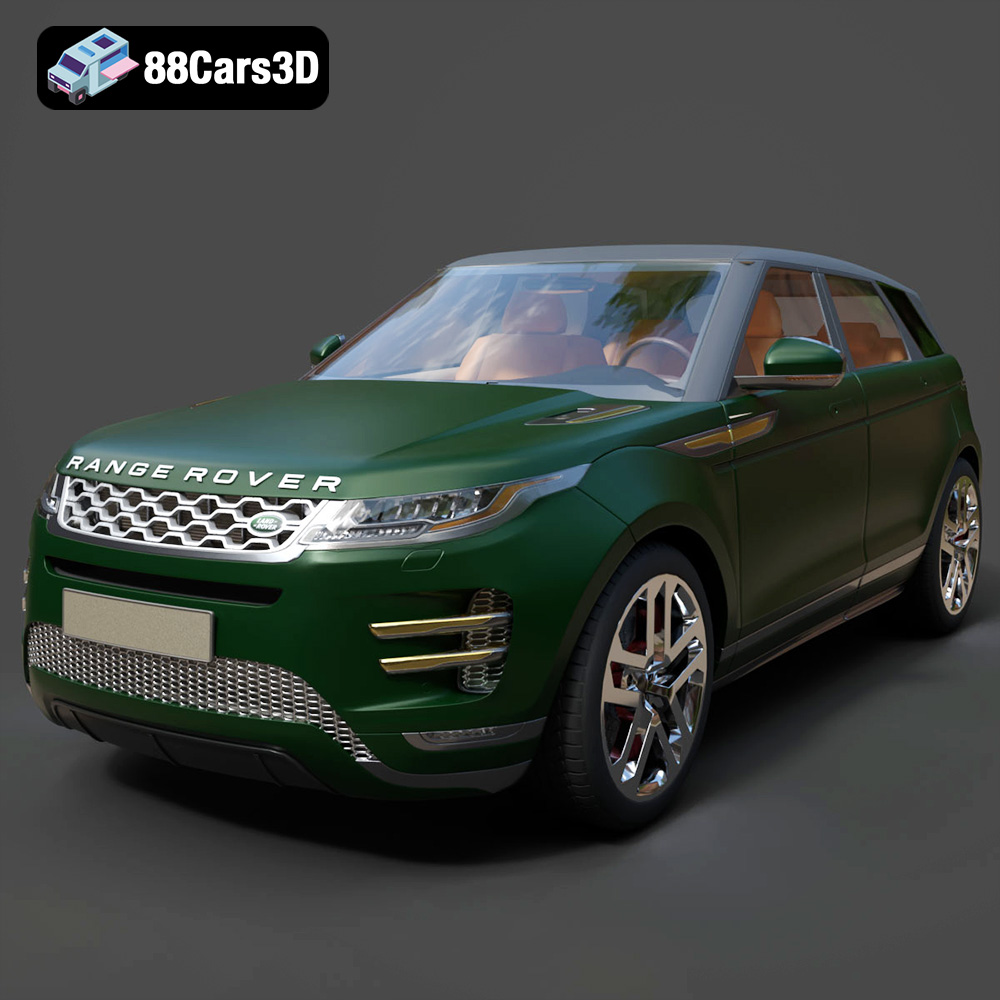
Texture: Yes | Material: Yes
Download the highly detailed, game-ready Range Rover Evoque R-Dynamic 2019 3D Model. Features flush deployable door handles, Matrix LED headlights, and R-Dynamic styling. Includes .blend, .fbx, .obj, .glb, .stl, .ply, .unreal, and .max formats for game development, AR/VR, and rendering.
Price: $19.99

Texture: Yes | Material: Yes
Download the highly detailed, game-ready Ford Mustang Mach 40 3D Model. Features aggressive custom widebody styling, a mid-mounted V8 engine, and classic retro-futuristic design. Includes .blend, .fbx, .obj, .glb, .stl, .ply, .unreal, and .max formats for game development, AR/VR, and rendering.
Price: $19.99
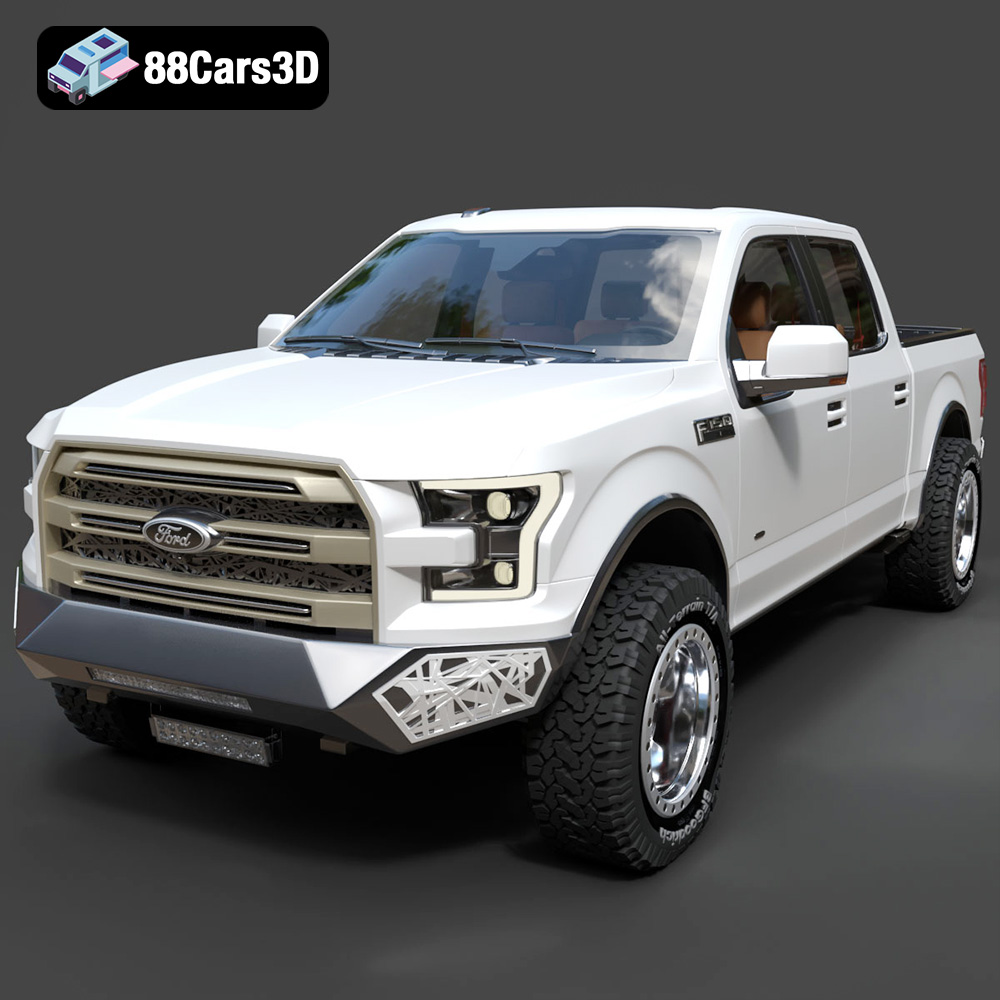
Texture: Yes | Material: Yes
Download the highly detailed, game-ready Ford F150 Raptor With Tuning From ARE 3D Model. Features custom ARE tuning accessories, aggressive off-road suspension, and rugged beadlock wheels. Includes .blend, .fbx, .obj, .glb, .stl, .ply, .unreal, and .max formats for game development, AR/VR, and rendering.
Price: $19.99

Texture: Yes | Material: Yes
Download the highly detailed, game-ready Mercedes-Benz AMG GLE 63 2021 3D Model. Features the iconic Panamericana grille, aggressive aerodynamic body styling, and a meticulously detailed luxurious interior. Includes .blend, .fbx, .obj, .glb, .stl, .ply, .unreal, and .max formats for game development, AR/VR, and rendering.
Price: $19.99
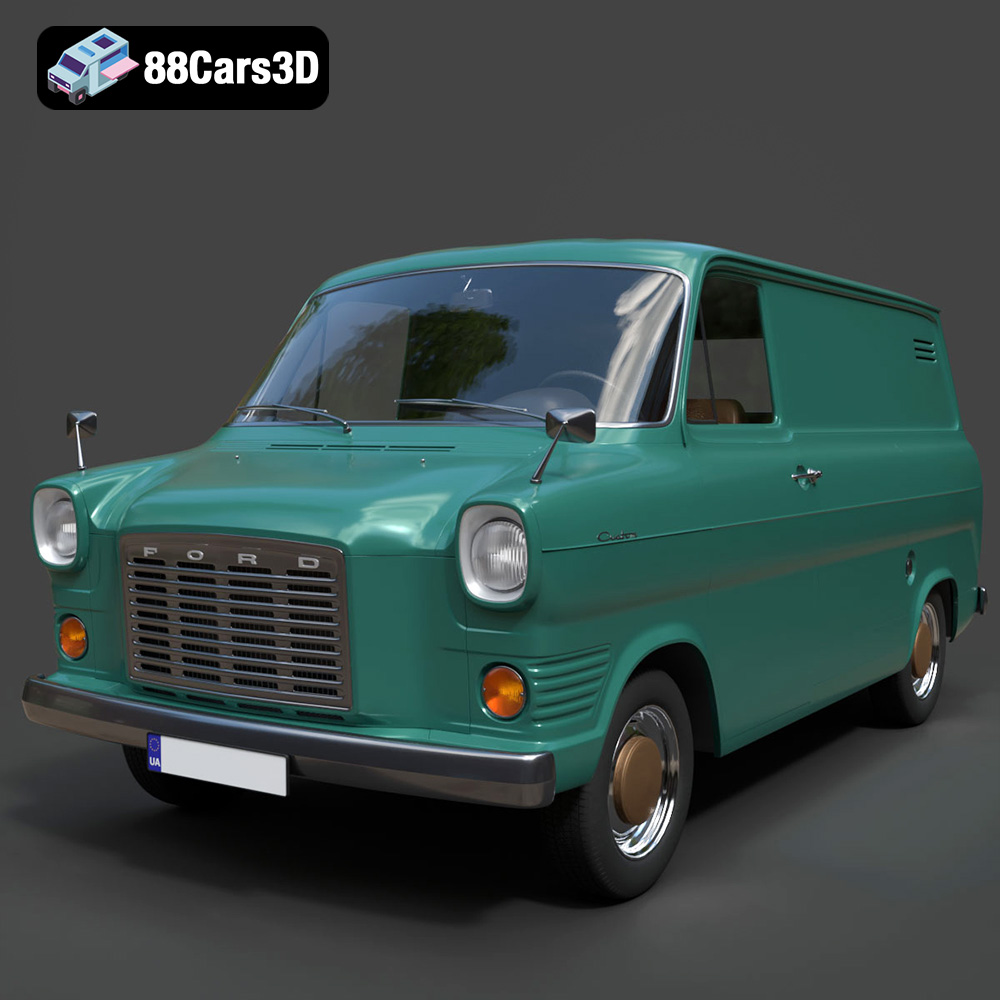
Texture: Yes | Material: Yes
Download the highly detailed, game-ready Ford Transit Mk1 Panel Van 1965 3D Model. Features iconic flat-front styling, vintage steel wheels, and a period-correct cargo bay. Includes .blend, .fbx, .obj, .glb, .stl, .ply, .unreal, and .max formats for game development, AR/VR, and rendering.
Price: $19.99

Texture: Yes | Material: Yes
Download the highly detailed, game-ready BMW X3 2024 3D Model. Features the iconic kidney grille, dynamic SUV proportions, and precise lighting elements. Includes .blend, .fbx, .obj, .glb, .stl, .ply, .unreal, and .max formats for game development, AR/VR, and rendering.
Price: $19.99

Texture: Yes | Material: Yes
Download the highly detailed, game-ready Tesla Model S Plaid 2021 3D Model. Features sleek aerodynamic styling, signature LED lighting, and the revolutionary Yoke steering interior. Includes .blend, .fbx, .obj, .glb, .stl, .ply, .unreal, and .max formats for game development, AR/VR, and rendering.
Price: $19.99

Texture: Yes | Material: Yes
Download the highly detailed, game-ready Rolls-Royce Ghost EWB 2018 3D Model. Features the iconic Pantheon grille, elongated luxury chassis, and elegant exterior lines. Includes .blend, .fbx, .obj, .glb, .stl, .ply, .unreal, and .max formats for game development, AR/VR, and rendering.
Price: $19.99
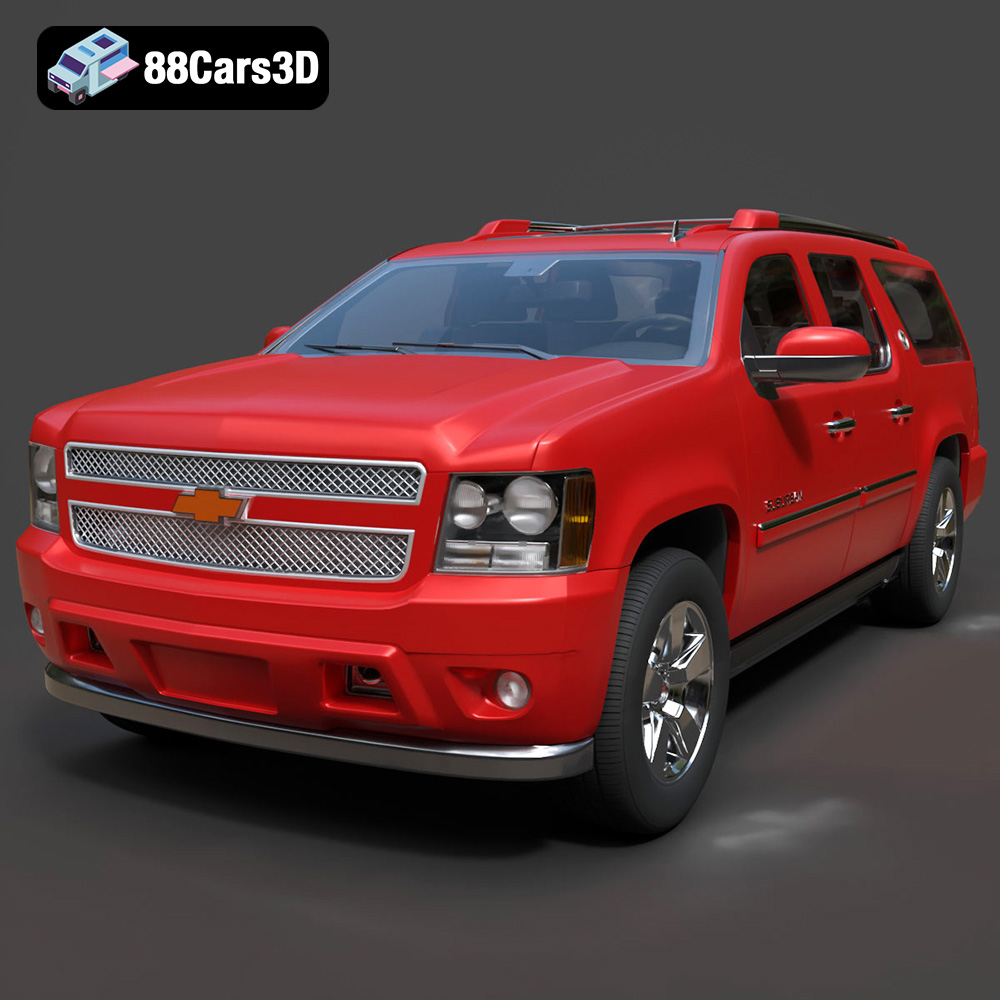
Texture: Yes | Material: Yes
Download the highly detailed, game-ready Chevrolet Suburban 75th Diamond 3D Model. Features the iconic Diamond Edition styling, detailed interior, and accurate full-size SUV proportions. Includes .blend, .fbx, .obj, .glb, .stl, .ply, .unreal, and .max formats for game development, AR/VR, and rendering.
Price: $19.99

Texture: Yes | Material: Yes
Download the highly detailed, game-ready Lamborghini Terzo Millenio 2017 3D Model. Features glowing Y-shaped LED signatures, extreme aerodynamic channels, and an aggressive hypercar stance. Includes .blend, .fbx, .obj, .glb, .stl, .ply, .unreal, and .max formats for game development, AR/VR, and rendering.
Price: $19.99

