Get 20% OFF All Premium 3D & STL Models!

“`html
For 3D printing enthusiasts, especially those diving into the world of printable car models, understanding the intricacies of STL files is paramount. STL, short for Stereolithography, is the bedrock upon which 3D printed objects are built. While it might seem like magic to transform a digital design into a tangible object, the process relies heavily on the way STL files represent 3D geometry. This article will demystify the STL file format, exploring its fundamental components – meshes, triangles, and precision – and how these factors influence the final print quality. Whether you’re downloading models from marketplaces such as 88cars3d.com or designing your own, this comprehensive guide will equip you with the knowledge to optimize your 3D printing workflow.
We’ll delve into the structure of STL files, dissect the role of triangles in defining complex shapes, discuss the impact of resolution and tolerance, and provide practical tips for preparing and optimizing STL files for printing, focusing on the types of models you might find on sites like 88cars3d.com. By the end of this article, you’ll have a deep understanding of how STL files work and how to leverage this knowledge to achieve stunning 3D prints.
At its core, an STL file is a collection of interconnected triangles that approximate the surface of a 3D object. Think of it as a digital mosaic, where each tiny triangle contributes to the overall shape. The more triangles used, the smoother and more detailed the final object will be. This section explores the two primary ways STL files are structured: ASCII and Binary.
STL files come in two main flavors: ASCII and Binary. ASCII STL files are human-readable, meaning you can open them in a text editor and see the coordinates and normal vectors of each triangle. While this makes them easier to understand and debug, they are significantly larger in file size compared to their Binary counterparts. A typical ASCII STL file for a car model might be several megabytes larger than the equivalent Binary file.
Binary STL files, on the other hand, store the same information in a more compact, machine-readable format. This results in smaller file sizes, which is crucial for large and complex models. While you can’t directly read a Binary STL file, your slicing software can efficiently interpret and process it. For example, a detailed car model from 88cars3d.com, if stored in ASCII format, could take significantly longer to load and process than if it were in Binary format.
Each triangle in an STL file is defined by its three vertices (points in 3D space) and a normal vector. The vertices are specified using X, Y, and Z coordinates. The normal vector is a unit vector that points perpendicularly outward from the surface of the triangle, indicating its orientation. This normal vector is critical for ensuring that the slicer software correctly interprets the inside and outside of the object. A correctly oriented normal vector ensures that the printer knows which side of the triangle to fill with material. If the normal vectors are inverted or inconsistent, it can lead to printing errors, such as missing sections or internal voids.
The way the triangles are connected to form the mesh, known as the mesh topology, plays a crucial role in the final print quality. A well-formed mesh is characterized by clean, contiguous surfaces without gaps, overlaps, or self-intersections. Problems in the mesh topology can lead to a variety of printing issues.
Non-manifold geometry refers to situations where the mesh violates certain topological rules. Examples include edges shared by more than two faces, zero-area faces, and faces that intersect each other. These errors can confuse the slicer software, leading to unpredictable results. For instance, if a car model has non-manifold geometry in the wheel arches, the slicer might fail to generate proper support structures or infill, resulting in a weakened or deformed print.
To detect and fix non-manifold geometry, specialized software like Netfabb, Meshmixer, or Blender can be used. These tools offer features such as automatic mesh repair, which can identify and correct common errors. For example, in Meshmixer, the “Make Solid” tool can often resolve non-manifold issues by filling gaps and welding vertices.
The polygon count, or the number of triangles in the mesh, directly affects the level of detail in the 3D model. A higher polygon count results in a smoother and more accurate representation of the original design, but it also increases the file size and computational load on the slicing software. Finding the right balance between detail and performance is essential.
For models intended for 3D printing, especially those with intricate details like automotive designs, a moderate to high polygon count is generally preferred. However, excessively high polygon counts can overwhelm the slicer and slow down the printing process. A good starting point is to aim for a polygon count that captures the essential details of the model without causing performance issues. For example, a car model from 88cars3d.com might have a polygon count ranging from 500,000 to 2,000,000 triangles, depending on its complexity and size.
The slicing process transforms the 3D model represented by the STL file into a series of 2D layers that the 3D printer can understand. The slicing software uses various parameters to control how these layers are generated, and these parameters have a significant impact on the print quality, strength, and overall appearance of the final object.
Layer height is one of the most critical slicing parameters. It determines the thickness of each individual layer printed by the 3D printer. A smaller layer height results in a smoother surface finish and finer details, but it also increases the printing time and material consumption. Conversely, a larger layer height reduces printing time but sacrifices surface quality and detail.
For FDM printing, typical layer heights range from 0.1mm to 0.3mm. For resin printing, layer heights can be even smaller, ranging from 0.025mm to 0.1mm. The optimal layer height depends on the specific requirements of the print. For example, if you’re printing a highly detailed car model, you might opt for a smaller layer height to capture the intricate curves and features. A layer height of 0.1mm or 0.15mm could produce excellent results on an FDM printer, while a layer height of 0.05mm might be ideal for a resin printer.
Infill refers to the internal structure of the 3D printed object. It provides strength and support to the outer walls and roof. The infill density determines the percentage of the object’s interior that is filled with material. A higher infill density results in a stronger and heavier object, while a lower infill density reduces material consumption and printing time. Common infill patterns include rectilinear, grid, gyroid, and honeycomb, each offering different trade-offs between strength, weight, and printing time.
For functional parts or objects that need to withstand stress, a higher infill density (e.g., 50% or more) is recommended. For purely decorative objects or models, a lower infill density (e.g., 15% to 25%) is sufficient. The choice of infill pattern can also affect the print quality. For example, a gyroid infill provides excellent strength in all directions while minimizing material usage, making it a popular choice for many 3D printing applications.
Support structures are temporary scaffolding that provides support to overhanging features and bridges during the 3D printing process. Without support structures, these features would collapse or deform due to gravity. The generation and removal of support structures are crucial steps in the 3D printing workflow.
There are various types of support structures, each with its advantages and disadvantages. Two common types are tree supports and linear supports. Tree supports, as the name suggests, branch out from the build plate like a tree, providing support to overhanging features with minimal material usage. They are particularly useful for complex geometries with many overhangs.
Linear supports, on the other hand, are straight columns that provide direct support to specific areas. They are simpler to generate and remove but tend to use more material than tree supports. The choice between tree supports and linear supports depends on the specific geometry of the object and the desired print quality. For intricate car models with complex curves and overhangs, tree supports are often the better choice, as they provide more targeted support and minimize the risk of damaging the surface during removal.
The placement and settings of support structures can significantly impact the print quality and ease of removal. It’s essential to carefully consider where to place supports to minimize their impact on the visible surfaces of the object. Adjustable parameters within the slicing software can fine-tune support density, angle, and connection strength.
For example, you can adjust the support density to reduce material usage and printing time while still providing adequate support. You can also adjust the support angle to minimize the contact area with the object, making it easier to remove the supports without damaging the surface. It’s also important to ensure that the support structures are securely attached to the build plate to prevent them from detaching during printing. A small raft under the supports often helps.
Despite careful preparation and optimization, 3D printing can sometimes be plagued by unexpected problems. Understanding common printing failures and knowing how to troubleshoot them is essential for achieving successful prints.
Warping is a common problem in FDM printing, where the corners or edges of the print lift off the build plate during printing. This is often caused by uneven cooling and thermal contraction of the material. Poor bed adhesion can also lead to warping or complete print failure.
To prevent warping, ensure that the build plate is properly leveled and heated. Use a bed adhesion aid, such as glue stick, hairspray, or painter’s tape, to improve the adhesion between the print and the build plate. You can also try increasing the bed temperature or adding a brim or raft to the print. For example, ABS filament is particularly prone to warping, so a heated bed at 100-110°C and an enclosure are often necessary to prevent this issue.
Stringing and blobs are defects that occur when molten plastic oozes out of the nozzle during travel moves, leaving thin strands or small globs of material on the print surface. These issues are often caused by excessive nozzle temperature, slow retraction speed, or high travel speed.
To reduce stringing and blobs, try decreasing the nozzle temperature, increasing the retraction speed and distance, and enabling travel moves over open areas. You can also try adjusting the coasting and wiping settings in the slicing software. Coasting stops the extrusion just before the end of a travel move, while wiping drags the nozzle across the surface to remove any excess material.
As mentioned earlier, errors in the mesh topology, such as non-manifold geometry, can lead to a variety of printing problems. Before printing an STL file, it’s always a good idea to check it for errors and repair them if necessary. Several software tools can be used for this purpose, including Netfabb, Meshmixer, and Blender.
These tools can automatically detect and fix common mesh errors, such as holes, gaps, and self-intersections. They can also remesh the model to improve the overall quality of the mesh topology. For example, Netfabb offers a powerful automatic repair function that can fix most mesh errors with a single click. Similarly, Meshmixer’s “Make Solid” tool can often resolve non-manifold issues by filling gaps and welding vertices. Ensuring that your STL files are clean and error-free is crucial for achieving successful 3D prints. Platforms like 88cars3d.com often provide pre-repaired files, but it’s always good practice to double-check.
Once the 3D print is complete, post-processing techniques can be used to further enhance its appearance and functionality. These techniques include sanding, painting, assembly, and other finishing touches.
Sanding is a common post-processing technique used to smooth the surface of 3D printed objects. It involves using abrasive materials, such as sandpaper, to remove layer lines and other imperfections. Start with a coarse grit sandpaper (e.g., 120 grit) and gradually move to finer grits (e.g., 400 grit, 600 grit, and 800 grit) to achieve a smooth and polished surface. Wet sanding can also be used to further reduce friction and improve the surface finish.
For hard-to-reach areas, such as corners and crevices, you can use small sanding sponges or files. Be careful not to over-sand the object, as this can remove too much material and alter its shape. If you’re planning to paint the object, sanding is essential for creating a smooth and even surface for the paint to adhere to.
Painting is another popular post-processing technique used to add color and visual appeal to 3D printed objects. Before painting, it’s important to prime the surface to improve adhesion and prevent the paint from soaking into the plastic. Use a spray primer that is specifically designed for plastics. Apply several thin coats of primer, allowing each coat to dry completely before applying the next.
Once the primer is dry, you can apply the paint. Use acrylic paints or spray paints that are compatible with the material of the object. Apply several thin coats of paint, allowing each coat to dry completely before applying the next. For a glossy finish, you can apply a clear coat after the paint has dried. Finally, techniques like weathering, dry brushing, and washes can add realism and depth, especially when painting car models.
Understanding STL files is crucial for any 3D printing enthusiast. From the fundamental structure of meshes and triangles to the impact of slicing parameters and post-processing techniques, each aspect plays a vital role in the final print quality. By mastering these concepts, you can optimize your 3D printing workflow and achieve stunning results, especially when working with detailed models sourced from platforms like 88cars3d.com.
Remember to always check your STL files for errors, carefully choose your slicing parameters, and experiment with different support structures to find what works best for your specific printer and material. Don’t be afraid to try new things and learn from your mistakes. With practice and patience, you’ll become a 3D printing master in no time. Take the knowledge you’ve gained today and apply it to your next 3D printing project. Happy printing!
“`

Texture: Yes | Material: Yes
Download the highly detailed, game-ready Ducati 1299 Panigale S 2017 3D Model. Features signature aerodynamic fairings, detailed Superquadro engine components, and aggressive Italian styling. Includes .blend, .fbx, .obj, .glb, .stl, .ply, .unreal, and .max formats for game development, AR/VR, and rendering.
Price: $19.99
Texture: Yes | Material: Yes
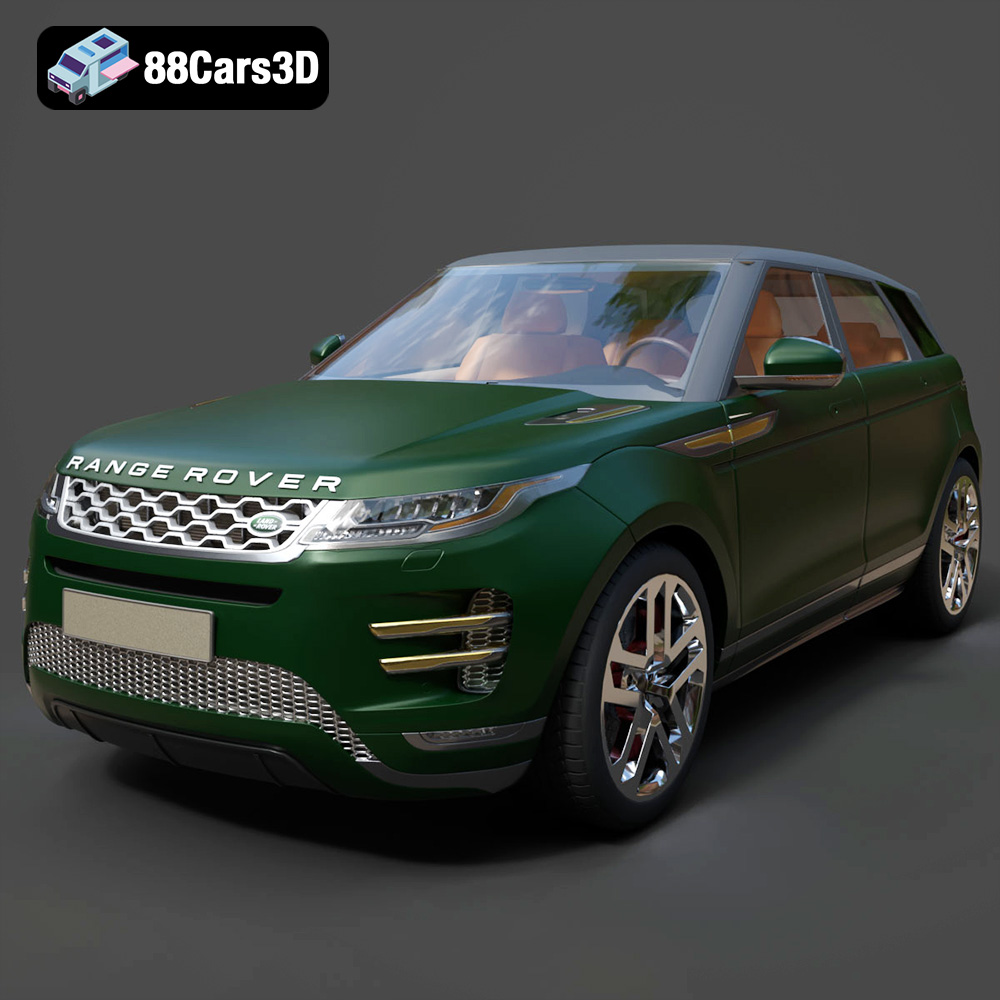
Download the highly detailed, game-ready Range Rover Evoque R-Dynamic 2019 3D Model. Features flush deployable door handles, Matrix LED headlights, and R-Dynamic styling. Includes .blend, .fbx, .obj, .glb, .stl, .ply, .unreal, and .max formats for game development, AR/VR, and rendering.
Price: $19.99

Texture: Yes | Material: Yes
Download the highly detailed, game-ready Ford Mustang Mach 40 3D Model. Features aggressive custom widebody styling, a mid-mounted V8 engine, and classic retro-futuristic design. Includes .blend, .fbx, .obj, .glb, .stl, .ply, .unreal, and .max formats for game development, AR/VR, and rendering.
Price: $19.99
Texture: Yes | Material: Yes
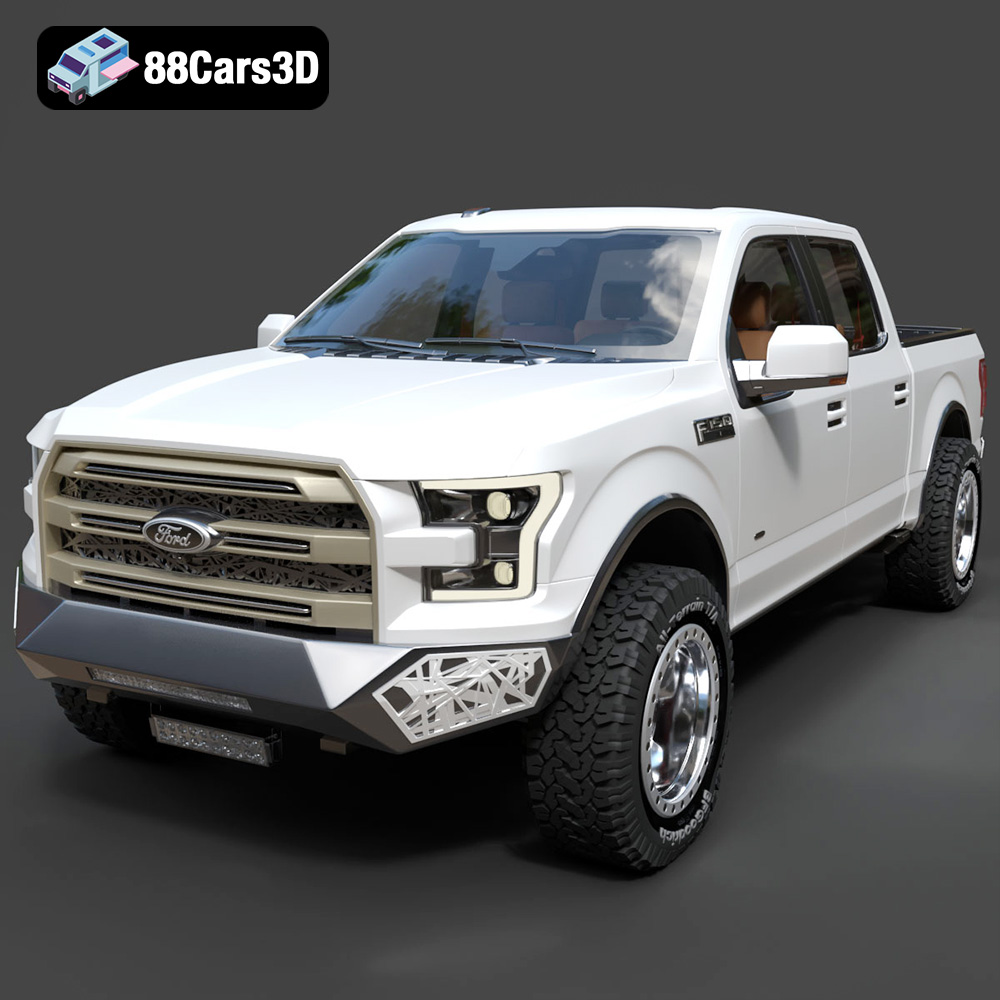
Download the highly detailed, game-ready Ford F150 Raptor With Tuning From ARE 3D Model. Features custom ARE tuning accessories, aggressive off-road suspension, and rugged beadlock wheels. Includes .blend, .fbx, .obj, .glb, .stl, .ply, .unreal, and .max formats for game development, AR/VR, and rendering.
Price: $19.99

Texture: Yes | Material: Yes
Download the highly detailed, game-ready Mercedes-Benz AMG GLE 63 2021 3D Model. Features the iconic Panamericana grille, aggressive aerodynamic body styling, and a meticulously detailed luxurious interior. Includes .blend, .fbx, .obj, .glb, .stl, .ply, .unreal, and .max formats for game development, AR/VR, and rendering.
Price: $19.99
Texture: Yes | Material: Yes
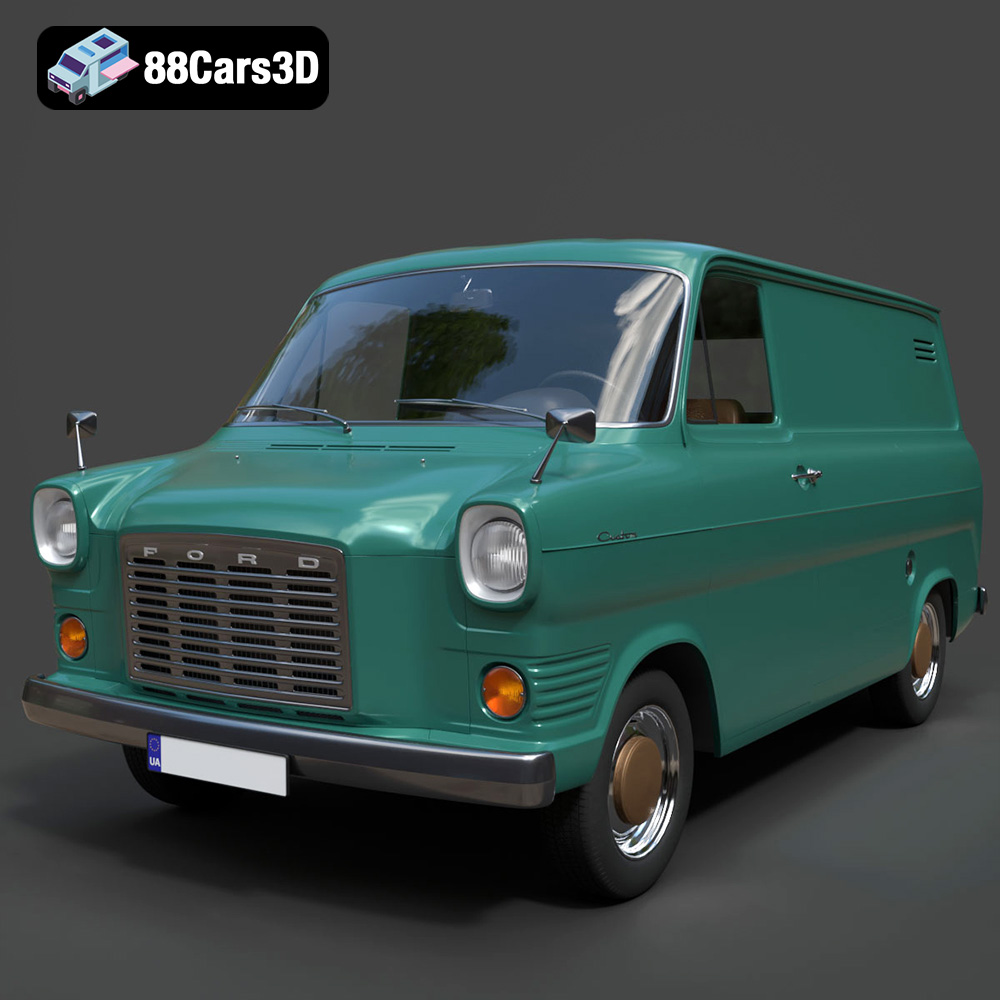
Download the highly detailed, game-ready Ford Transit Mk1 Panel Van 1965 3D Model. Features iconic flat-front styling, vintage steel wheels, and a period-correct cargo bay. Includes .blend, .fbx, .obj, .glb, .stl, .ply, .unreal, and .max formats for game development, AR/VR, and rendering.
Price: $19.99

Texture: Yes | Material: Yes
Download the highly detailed, game-ready BMW X3 2024 3D Model. Features the iconic kidney grille, dynamic SUV proportions, and precise lighting elements. Includes .blend, .fbx, .obj, .glb, .stl, .ply, .unreal, and .max formats for game development, AR/VR, and rendering.
Price: $19.99

Texture: Yes | Material: Yes
Download the highly detailed, game-ready Tesla Model S Plaid 2021 3D Model. Features sleek aerodynamic styling, signature LED lighting, and the revolutionary Yoke steering interior. Includes .blend, .fbx, .obj, .glb, .stl, .ply, .unreal, and .max formats for game development, AR/VR, and rendering.
Price: $19.99

Texture: Yes | Material: Yes
Download the highly detailed, game-ready Rolls-Royce Ghost EWB 2018 3D Model. Features the iconic Pantheon grille, elongated luxury chassis, and elegant exterior lines. Includes .blend, .fbx, .obj, .glb, .stl, .ply, .unreal, and .max formats for game development, AR/VR, and rendering.
Price: $19.99
Texture: Yes | Material: Yes
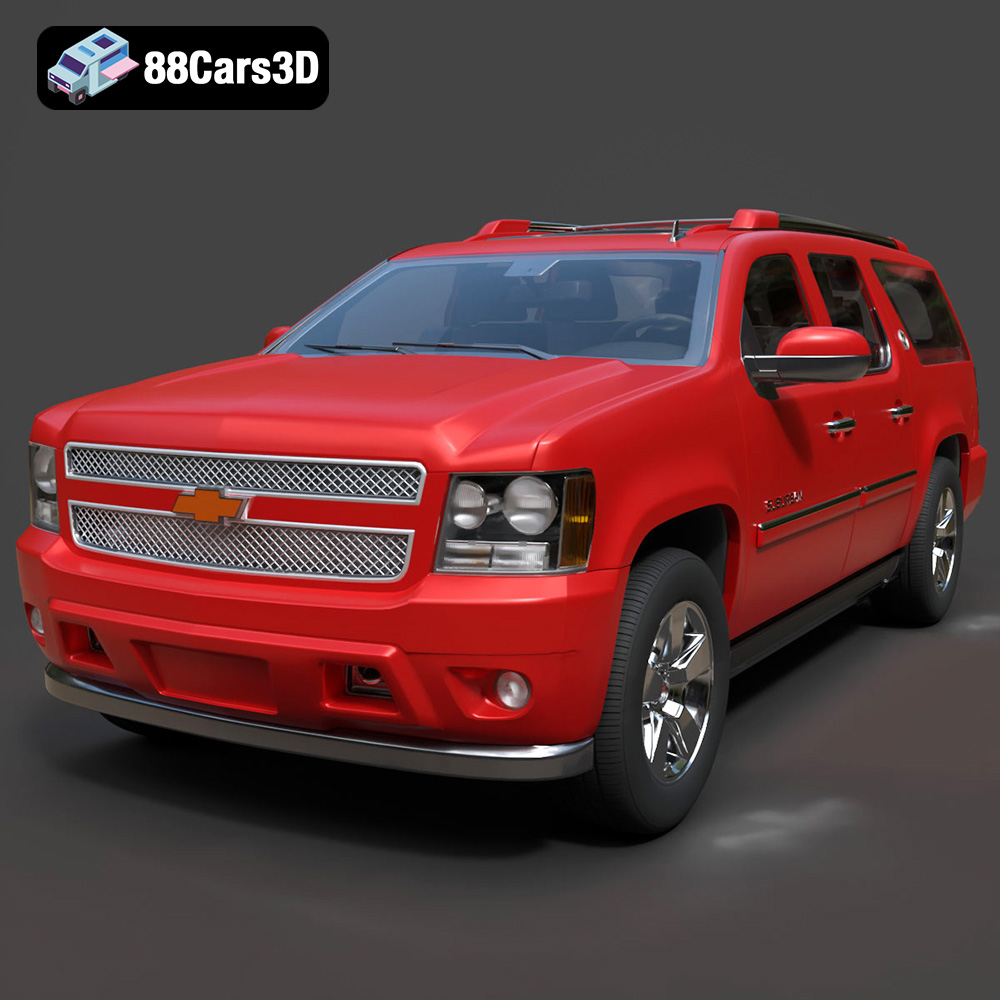
Download the highly detailed, game-ready Chevrolet Suburban 75th Diamond 3D Model. Features the iconic Diamond Edition styling, detailed interior, and accurate full-size SUV proportions. Includes .blend, .fbx, .obj, .glb, .stl, .ply, .unreal, and .max formats for game development, AR/VR, and rendering.
Price: $19.99

