Get 20% OFF All Premium 3D & STL Models!

“`html
So, you’ve got your hands on a stunning, high-resolution 3D car model in STL format – maybe even from a fantastic resource like 88cars3d.com – but there’s just one problem: it’s too big to fit on your 3D printer’s build plate. Don’t despair! This isn’t an insurmountable obstacle. In fact, splitting large models into manageable parts is a common practice in the 3D printing world. This comprehensive guide will walk you through the process, covering everything from choosing the right software and slicing techniques to optimizing your prints for seamless assembly. You’ll learn how to effectively split your models, prepare them for printing, and achieve professional-looking results. We’ll explore best practices, troubleshoot common issues, and provide you with the knowledge to tackle even the most complex 3D car model projects. Get ready to unlock the full potential of your 3D printer and bring those dream car designs to life!
Before diving into the practical steps, it’s crucial to understand why splitting large models is often necessary and even beneficial. Several factors can contribute to this necessity, primarily the size limitations of your 3D printer. Even with a relatively large build volume, intricate details or complex geometries might necessitate splitting for optimal print quality.
This is the most obvious reason. Most desktop 3D printers have a limited build volume. Trying to force a large model onto a smaller print bed can lead to failed prints, warping, and frustration. Splitting the model allows you to print each section individually and then assemble them later. A printer with a build volume of 200mm x 200mm x 200mm simply can’t handle a model with a single dimension exceeding those limits. Using online resources like 88cars3d.com that provide well-designed STL files can mitigate some size challenges as their models are often optimized, but sometimes splitting is still required.
Splitting a model isn’t just about size; it’s also about optimizing the print process. Certain orientations are more conducive to successful printing than others. For example, a large, flat surface might require extensive support structures if printed horizontally. By splitting the model, you can orient each piece in a way that minimizes support usage and improves surface finish. Consider the overhang angles and the need for support material when determining how to best section the model. Ideally, you want to position parts to minimize support structures, especially on visible surfaces, to reduce post-processing effort.
Selecting the right software is paramount to a successful model-splitting endeavor. Several free and paid options are available, each with its own strengths and weaknesses. The key is to choose a program that is intuitive, feature-rich, and compatible with the STL file format.
Autodesk Meshmixer is a free, powerful, and versatile tool that’s perfect for model splitting. Its plane cut and solid editing capabilities make it ideal for precisely separating parts. It’s particularly adept at handling complex mesh geometries and offers tools for smoothing and repairing meshes. To split a model in Meshmixer, use the “Edit” > “Separate Shells” function if the model consists of multiple disconnected parts. Then, use “Edit” > “Plane Cut” to create a clean cut along a desired plane. You can adjust the plane’s position and angle to achieve the desired separation. Ensure “Fill Type” is set to “No Fill” unless you want to create a solid connecting piece between the separated parts.
Blender, another free and open-source option, is a professional-grade 3D modeling software with advanced features for manipulating meshes. While it has a steeper learning curve than Meshmixer, its capabilities are unmatched. To split a model in Blender, enter “Edit Mode,” select the vertices, edges, or faces you want to separate, and then use “Mesh” > “Separate” > “Selection.” You can also use the “Knife Tool” to create precise cuts. Blender’s sculpting tools can be helpful for creating organic-shaped cuts or adding details to the split faces. Remember to solidify the model after splitting to give it a thickness, this is crucial for 3D printing.
Before you start chopping up your beautiful car model, it’s essential to ensure the STL file is clean, manifold, and ready for editing. Issues like non-manifold edges, holes, and intersecting faces can cause problems during the splitting process and ultimately affect the print quality.
Use software like Netfabb Basic (free) or Meshmixer to check for and repair any mesh errors. Netfabb is particularly good at automatically identifying and fixing common STL issues, such as inverted normals, holes, and self-intersections. Meshmixer’s “Make Solid” tool can also help to repair and optimize the mesh. Ensure the model is a single, closed volume (manifold) before proceeding. If you encounter errors, try using the “Auto Repair” function in either program. This process often involves filling holes, removing duplicate faces, and stitching together disconnected edges.
For resin printing, hollowing your model before splitting is crucial to conserve resin and prevent suction cup effects during printing. Software like Chitubox (often bundled with resin printers) can perform this task. Make sure to add drain holes to allow resin to escape after printing. For FDM printing, hollowing can also reduce material usage, but it’s less critical. Regardless of the printing technology, ensure that all parts have sufficient wall thickness (typically 1.2mm to 2mm for FDM and 1.5mm to 3mm for resin, depending on the size and material) to provide structural integrity. When downloading models from marketplaces such as 88cars3d.com, you often find these optimizations already taken into account, saving you time and effort.
Now comes the heart of the process: splitting the model. The key is to make clean, precise cuts that will result in easily printable and assemblable parts. Consider the overall design and how the pieces will fit together when making your cuts.
Carefully consider where to place your cut planes. Look for natural breaks in the model’s design, such as panel lines, door seams, or chassis divisions. These areas often provide a natural location for splits, minimizing the visibility of seams after assembly. Avoid cutting through complex curves or intricate details, as this can make it difficult to align and join the parts later. Think about the assembly process beforehand. Will you be using glue, screws, or other fasteners? Plan your cuts accordingly to accommodate these joining methods. For instance, adding small pegs and holes along the cut lines can greatly simplify alignment during assembly.
To ensure precise alignment during assembly, consider adding registration features, such as keys and slots, along the cut surfaces. These features act like interlocking puzzle pieces, guiding the parts into the correct position. In Meshmixer, you can use the “Sculpt” tools to create these features. Alternatively, you can design them separately in CAD software and import them into Meshmixer or Blender. When designing registration features, ensure they have a slight tolerance (e.g., 0.1mm to 0.2mm) to allow for easy assembly. Also, consider the printing orientation when designing these features. Avoid orientations that would require extensive support structures for the keys and slots.
Once your model is split and prepared, it’s time to focus on optimizing the print settings for each individual part. This involves carefully considering layer height, infill density, support structures, and bed adhesion.
Layer height directly impacts the surface finish and print time. A smaller layer height (e.g., 0.1mm to 0.15mm) will result in a smoother surface but will also increase print time. A larger layer height (e.g., 0.2mm to 0.3mm) will print faster but may result in a less refined surface. Choose a layer height that balances these two factors based on the specific requirements of each part. Infill density affects the strength and weight of the part. For structural components, a higher infill density (e.g., 20% to 30%) is recommended. For purely cosmetic parts, a lower infill density (e.g., 10% to 15%) may suffice. Experiment with different infill patterns (e.g., gyroid, honeycomb, rectilinear) to find the best balance between strength, weight, and print time. Remember that some slicers, like PrusaSlicer, offer adaptive layer height, letting you adjust layer height according to the model’s geometric features.
Generating appropriate support structures is crucial for printing overhangs and intricate details. Use your slicing software’s support generation tools to automatically create supports. Experiment with different support settings, such as support density, overhang angle, and support placement, to optimize the support structure. For easy removal, reduce the support density and increase the air gap between the support and the model. Good bed adhesion is essential to prevent warping and print failures. Use a bed adhesion method appropriate for your printer and material, such as a heated bed, glue stick, hairspray, or painter’s tape. Ensure the bed is properly leveled before printing. FDM printing might benefit from using a brim to increase the contact surface area and prevent warping, particularly for large, flat parts. Consider using “raft” settings in your slicer, especially for smaller parts or materials prone to warping like ABS.
After printing all the parts, the final step is to post-process them and assemble the complete model. This involves removing support structures, sanding and smoothing the surfaces, and joining the parts together.
Carefully remove the support structures using pliers, cutters, or a hobby knife. Take your time and avoid damaging the model’s surface. Sanding and smoothing the surfaces is essential for achieving a professional-looking finish. Start with coarse sandpaper (e.g., 220 grit) to remove any rough edges or imperfections, then gradually move to finer grits (e.g., 400 grit, 600 grit, 800 grit) to create a smooth surface. For FDM prints, consider using filler primer to fill in any remaining layer lines. After the primer has dried, sand it smooth before applying the final paint coat. For resin prints, you can use wet sanding with progressively finer grits to achieve a smooth finish.
Join the parts together using glue, screws, or other fasteners. Use a high-quality adhesive that is appropriate for the material you are using. Cyanoacrylate (super glue) is a common choice for PLA and ABS, while epoxy resin is often used for resin prints. If using screws, pre-drill pilot holes to prevent cracking the plastic. Align the parts carefully before applying the adhesive or fasteners. Use clamps or tape to hold the parts in place while the adhesive dries. Once the parts are joined, apply the final paint coat. Use a high-quality automotive paint for a professional-looking finish. Consider adding details like decals, chrome trim, and other accessories to further enhance the realism of the model. Platforms like 88cars3d.com offer print-ready STL files, but the final touches are up to you, the maker, to personalize the model.
Even with careful planning and execution, you may encounter some common issues during the splitting and printing process. Here are a few tips for troubleshooting some of the most common problems.
Warping is a common issue, especially when printing large, flat parts with FDM printers. To prevent warping, ensure your bed is properly leveled and heated. Use a bed adhesion method, such as glue stick, hairspray, or painter’s tape. Increase the bed temperature or use a brim or raft. Check your printer’s cooling fan settings, as excessive cooling can exacerbate warping. For resin printing, ensure the build plate is properly leveled and the resin is well-mixed. Increase the exposure time for the first few layers to improve bed adhesion.
Visible seams can detract from the overall appearance of the model. To minimize seam visibility, carefully plan the placement of your cut planes. Use registration features, such as keys and slots, to ensure precise alignment. Sand and smooth the surfaces thoroughly to blend the seams together. Consider using filler primer to fill in any gaps or imperfections. If the parts are not aligning properly, double-check the dimensions of the registration features and adjust them as necessary. Ensure the parts are clean and free of any debris that could prevent proper alignment.
Splitting large 3D car models for printing can seem daunting at first, but with the right tools, techniques, and a bit of patience, you can achieve stunning results. By understanding the reasons for splitting, choosing the right software, preparing your STL files, mastering slicing techniques, optimizing print settings, and carefully post-processing the parts, you can bring even the most ambitious 3D car model projects to life. Remember to strategically plan your cuts, use registration features for accurate alignment, and pay attention to detail during post-processing. With these skills, you’ll be well-equipped to tackle any 3D printing challenge and create beautiful, high-quality models that you can be proud of. Now go forth and print those dream cars! And don’t forget to check out 88cars3d.com for an excellent selection of high-quality 3D printable car models in STL format.
“`
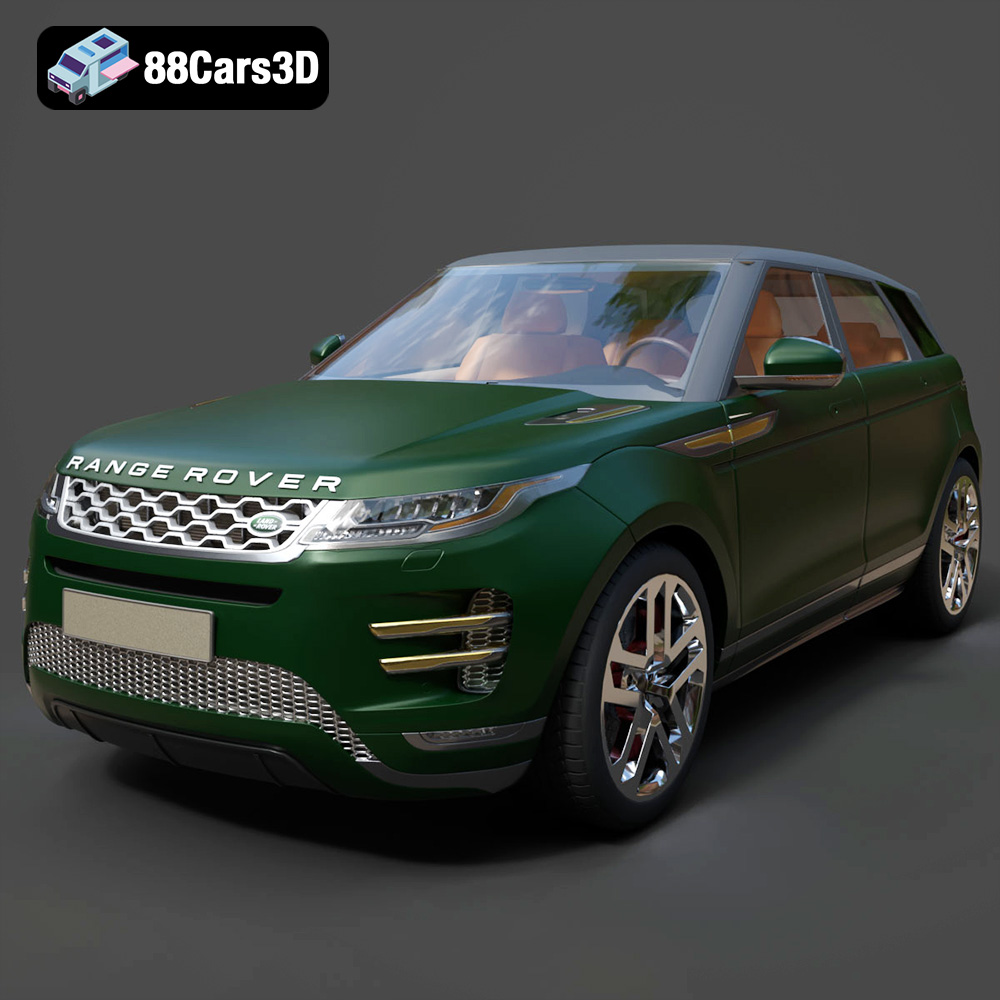
Texture: Yes | Material: Yes
Download the highly detailed, game-ready Range Rover Evoque R-Dynamic 2019 3D Model. Features flush deployable door handles, Matrix LED headlights, and R-Dynamic styling. Includes .blend, .fbx, .obj, .glb, .stl, .ply, .unreal, and .max formats for game development, AR/VR, and rendering.
Price: $19.99
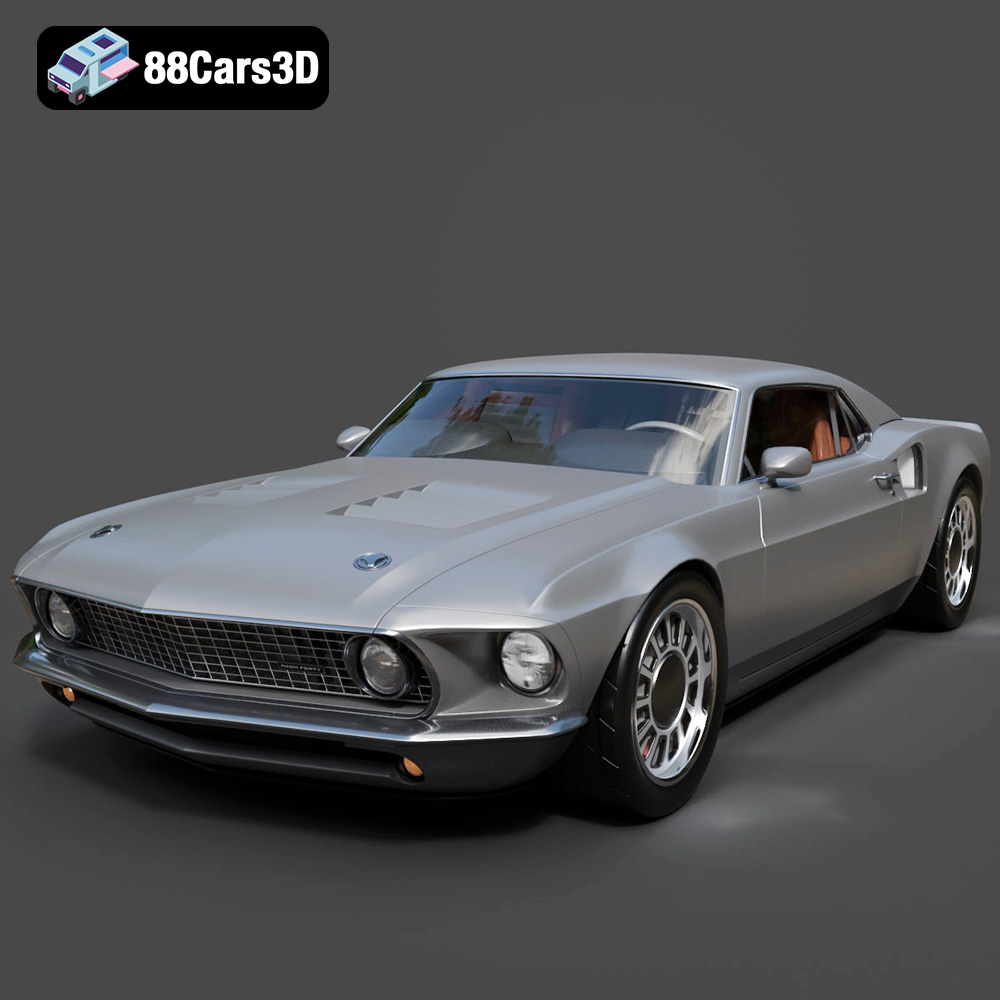
Texture: Yes | Material: Yes
Download the highly detailed, game-ready Ford Mustang Mach 40 3D Model. Features aggressive custom widebody styling, a mid-mounted V8 engine, and classic retro-futuristic design. Includes .blend, .fbx, .obj, .glb, .stl, .ply, .unreal, and .max formats for game development, AR/VR, and rendering.
Price: $19.99
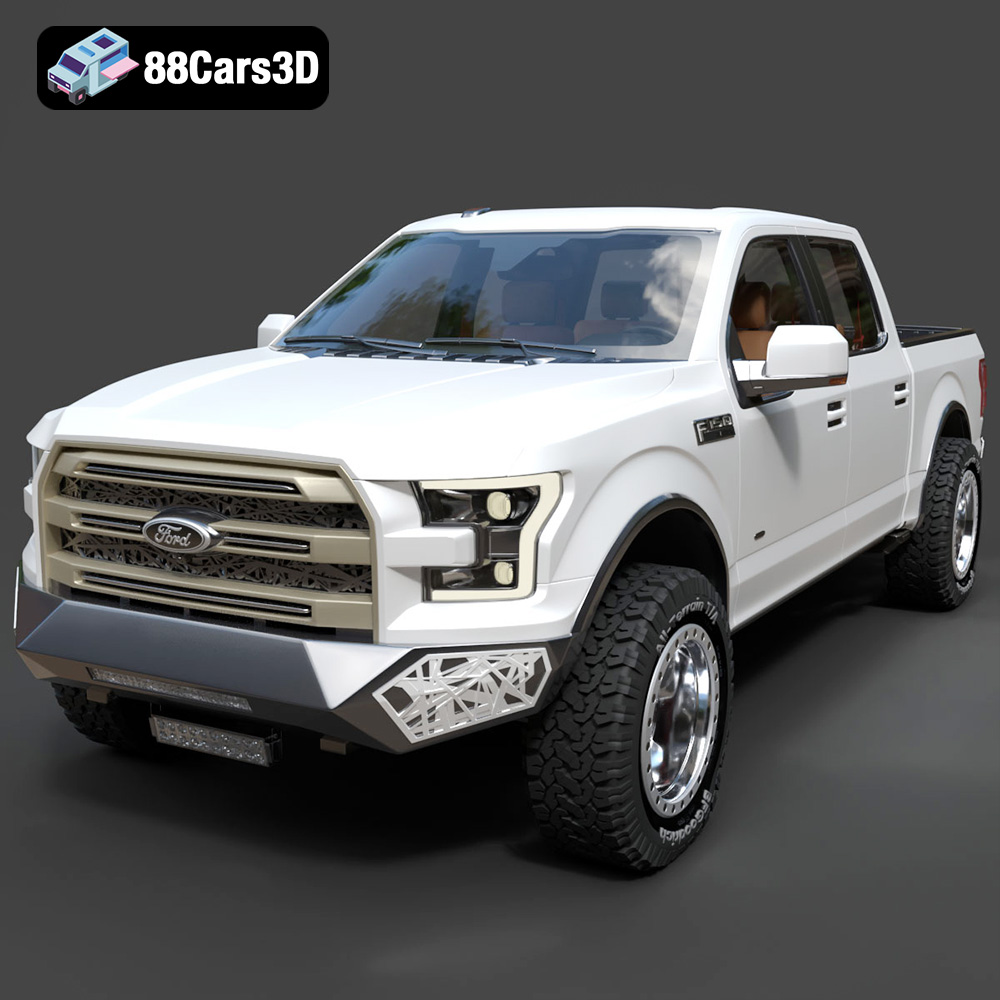
Texture: Yes | Material: Yes
Download the highly detailed, game-ready Ford F150 Raptor With Tuning From ARE 3D Model. Features custom ARE tuning accessories, aggressive off-road suspension, and rugged beadlock wheels. Includes .blend, .fbx, .obj, .glb, .stl, .ply, .unreal, and .max formats for game development, AR/VR, and rendering.
Price: $19.99

Texture: Yes | Material: Yes
Download the highly detailed, game-ready Mercedes-Benz AMG GLE 63 2021 3D Model. Features the iconic Panamericana grille, aggressive aerodynamic body styling, and a meticulously detailed luxurious interior. Includes .blend, .fbx, .obj, .glb, .stl, .ply, .unreal, and .max formats for game development, AR/VR, and rendering.
Price: $19.99
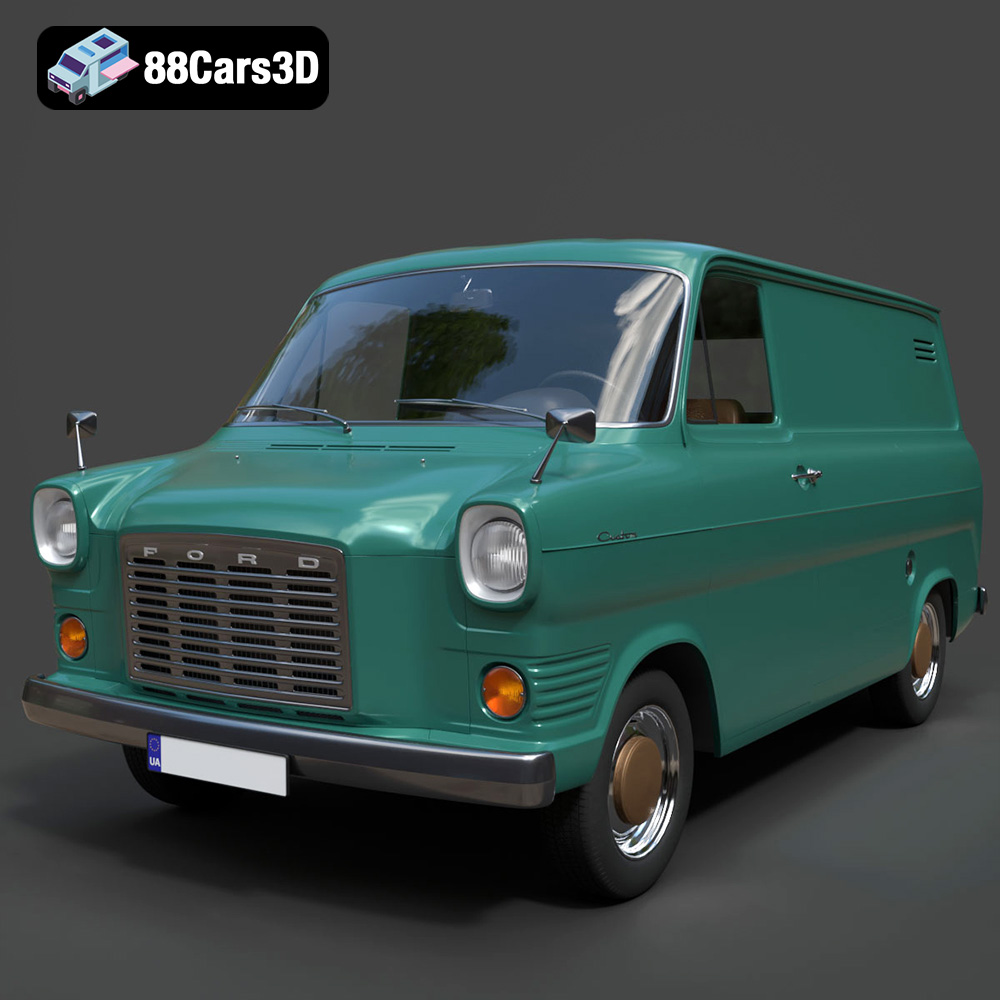
Texture: Yes | Material: Yes
Download the highly detailed, game-ready Ford Transit Mk1 Panel Van 1965 3D Model. Features iconic flat-front styling, vintage steel wheels, and a period-correct cargo bay. Includes .blend, .fbx, .obj, .glb, .stl, .ply, .unreal, and .max formats for game development, AR/VR, and rendering.
Price: $19.99
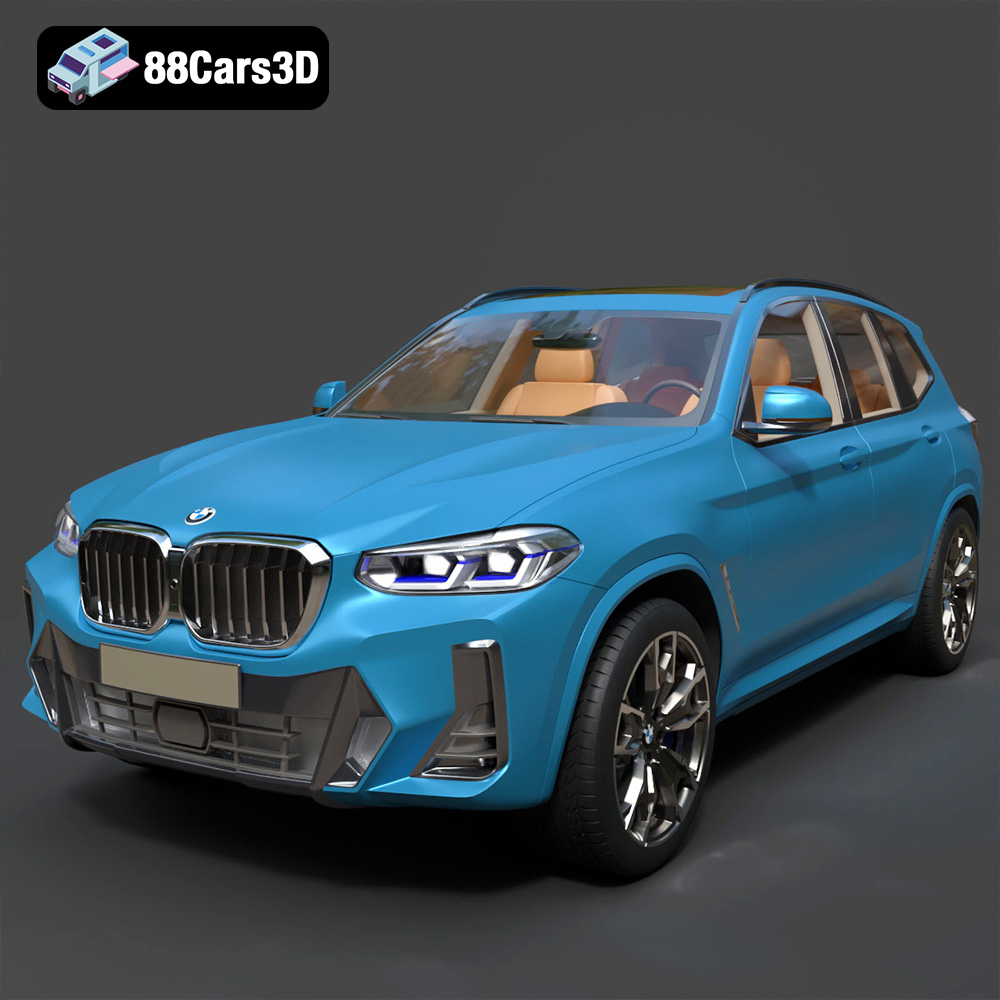
Texture: Yes | Material: Yes
Download the highly detailed, game-ready BMW X3 2024 3D Model. Features the iconic kidney grille, dynamic SUV proportions, and precise lighting elements. Includes .blend, .fbx, .obj, .glb, .stl, .ply, .unreal, and .max formats for game development, AR/VR, and rendering.
Price: $19.99

Texture: Yes | Material: Yes
Download the highly detailed, game-ready Tesla Model S Plaid 2021 3D Model. Features sleek aerodynamic styling, signature LED lighting, and the revolutionary Yoke steering interior. Includes .blend, .fbx, .obj, .glb, .stl, .ply, .unreal, and .max formats for game development, AR/VR, and rendering.
Price: $19.99
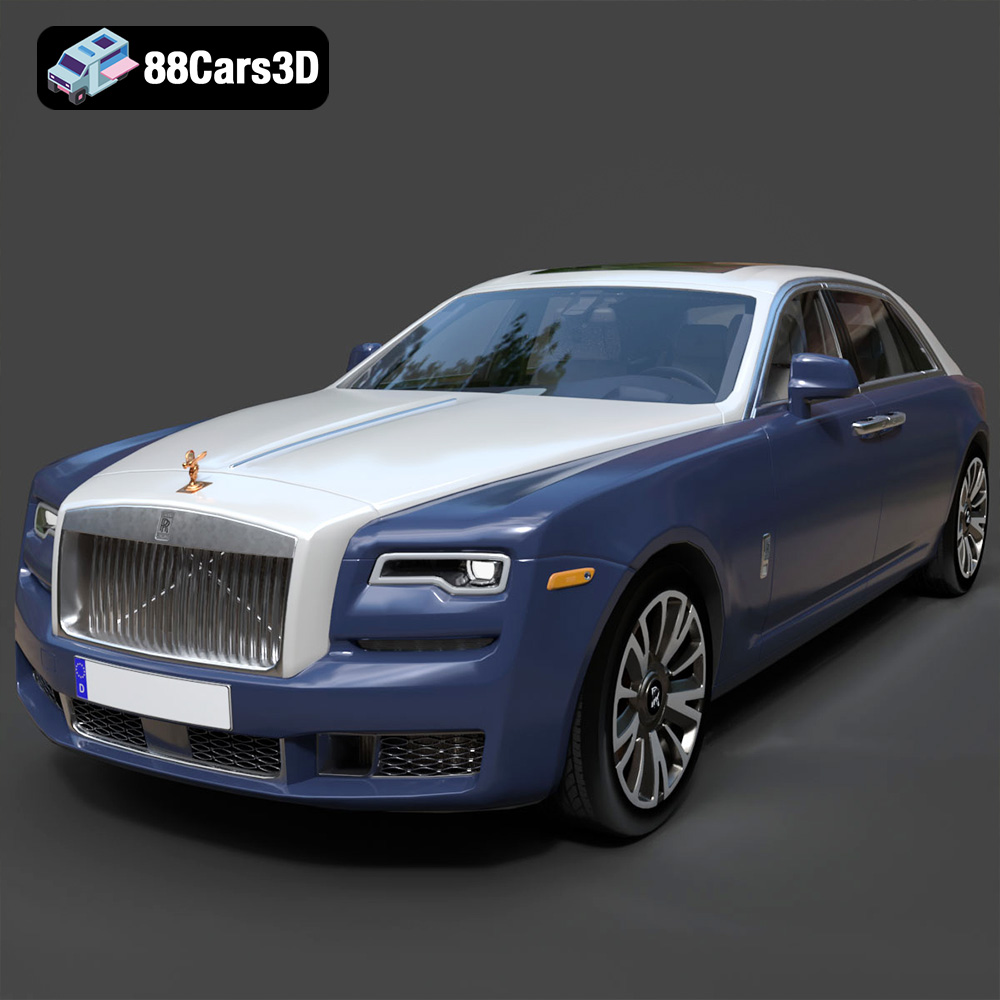
Texture: Yes | Material: Yes
Download the highly detailed, game-ready Rolls-Royce Ghost EWB 2018 3D Model. Features the iconic Pantheon grille, elongated luxury chassis, and elegant exterior lines. Includes .blend, .fbx, .obj, .glb, .stl, .ply, .unreal, and .max formats for game development, AR/VR, and rendering.
Price: $19.99
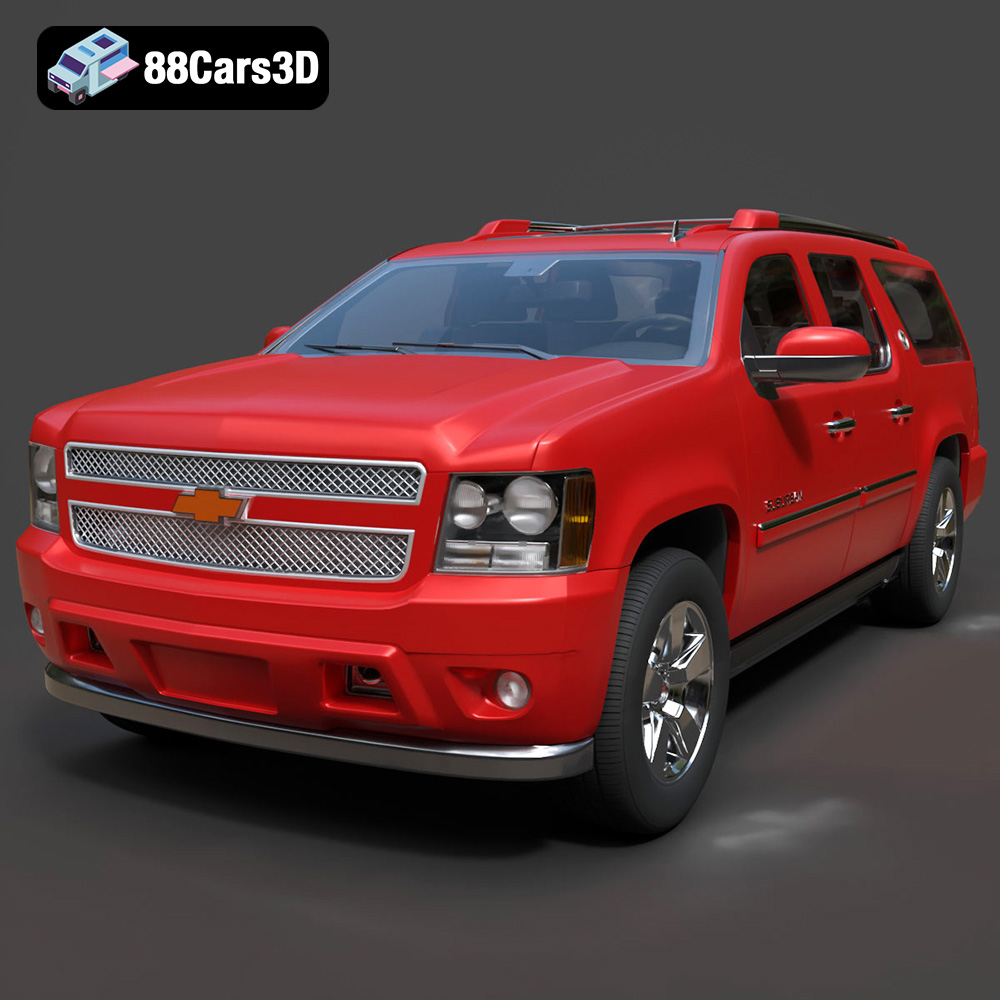
Texture: Yes | Material: Yes
Download the highly detailed, game-ready Chevrolet Suburban 75th Diamond 3D Model. Features the iconic Diamond Edition styling, detailed interior, and accurate full-size SUV proportions. Includes .blend, .fbx, .obj, .glb, .stl, .ply, .unreal, and .max formats for game development, AR/VR, and rendering.
Price: $19.99

Texture: Yes | Material: Yes
Download the highly detailed, game-ready Lamborghini Terzo Millenio 2017 3D Model. Features glowing Y-shaped LED signatures, extreme aerodynamic channels, and an aggressive hypercar stance. Includes .blend, .fbx, .obj, .glb, .stl, .ply, .unreal, and .max formats for game development, AR/VR, and rendering.
Price: $19.99

